
plr-ivoryos

The native PyLabRobot experience, powered by IvoryOS.
plr-ivoryos puts PyLabRobot's liquid handlers and other machines into IvoryOS with no wrapper
code: every step keeps PyLabRobot's own name and arguments, the worktable is a file rather than
code, and in IvoryOS NextGen the Labware panel shows that worktable live and lets you build it by
dragging.
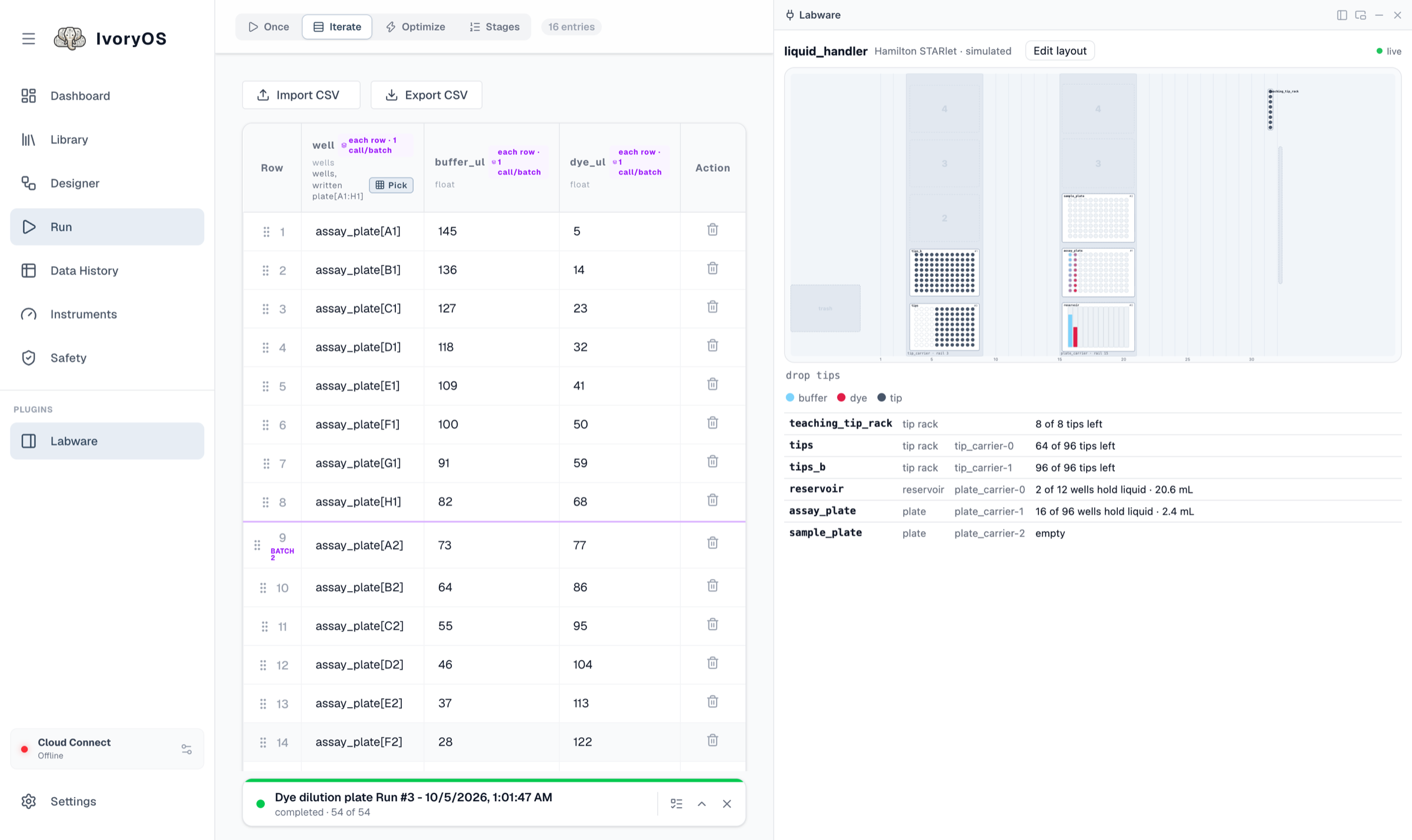
A dye dilution on PyLabRobot's simulated Hamilton STARlet. One spreadsheet row per sample, batch
size 8: each transfer moves a column of eight wells. The Labware panel (right) shows the
worktable on its rails, what each well now holds and which tips are left.
Quick Start (Simulation)
Develop and test workflows with no hardware: PyLabRobot's simulator tracks every tip and every microlitre.
from plr_ivoryos import LiquidHandler, Scale

lh = LiquidHandler(simulated=True)    # its worktable is worktable.json, written on the first edit
scale = Scale(simulated=True)

if __name__ == "__main__":
    # IvoryOS NextGen, with the Labware panel beside every page
    import ivoryos_edge
    from plr_ivoryos.labware_view import plugin as labware_view
    ivoryos_edge.run(__name__, plugins=[labware_view])
    # The original IvoryOS instead: import ivoryos; ivoryos.run(__name__)
Every step can also be called from plain Python: lh.transfer(...) blocks until it is done.
From the IvoryOS desktop app
No script at all:
- In the Hub, add a liquid handler (simulated, Opentrons OT-2, Hamilton STAR, Nimbus or Vantage,
Tecan EVO) together with the Labware (PyLabRobot) plugin. Fill in the robot's own
connection settings; leave
deck_jsonempty. - Start the deck. A real robot starts with its own empty worktable, the simulator with a ready-made one, and the Labware panel says how to begin.
- Edit layout: drag carriers onto the rails and labware onto them, fill wells, choose the model. Or Import a layout… you already have.
- Restart the deck when the panel asks: steps then offer the labware you placed.
The worktable is a file
Which robot it is and what sits where is configuration, not code, so one script serves every robot and the IvoryOS Hub can ship the file with an install:
{
  "deck_type": "OTDeck",
  "resources": [
    {"name": "tips_300", "type": "opentrons_96_tiprack_300ul", "slot": 1},
    {"name": "reservoir", "type": "nest_12_troughplate_15000uL_Vb", "slot": 2},
    {"name": "assay_plate", "type": "cor_96_wellplate_360uL_Fb", "slot": 5},
    {"name": "plate_carrier", "type": "PLT_CAR_L5AC_A00", "rails": 15,
     "children": [{"name": "sample_plate", "type": "cor_96_wellplate_360uL_Fb", "site": 0}]}
  ],
  "liquids": [{"labware": "reservoir", "wells": "A1", "liquid": "buffer", "volume_ul": 14000}]
}
deck_type:OTDeck,STARLetDeck,STARDeck,NimbusDeck,VantageDeck_1.3,EVO100Deck,EVO150Deck,EVO200Deck.type: any labware definition inpylabrobot.resources, placed byslot(Opentrons),rails(Hamilton, Tecan) orlocation({x, y, z} mm). Carriers list what they hold inchildren, bysite.liquids: what a person put on the worktable before the run. With tracking on (the default), an aspirate from a well nobody filled is refused; fill it here or with aload_liquidstep.
Layout files written for 0.1 still load.
deck_json is optional. Without it the file is worktable.json in the deck's data folder when
IvoryOS runs it (IVORYOS_DATA_DIR, which the desktop app sets), else in the working directory; a
relative deck_json is in that folder too. A file that does not exist yet is not an error: the
simulator starts from a ready-made worktable (tips, a reservoir with buffer and dye, two plates), a
real robot from its own empty one (deck_type says which model, e.g. STARDeck rather than the
default STARlet), and the file is written on the first change.
Beside it, plr-ivoryos keeps PyLabRobot's own description of the same worktable up to date, so a plain PyLabRobot script (or anyone without this package) uses the layout as designed:
from pylabrobot.resources import Deck
deck = Deck.load_from_json_file("worktable.pylabrobot.json")      # every labware, sized and placed
deck.load_state_from_file("worktable.pylabrobot-state.json")      # full tip racks, starting liquids
Those two are written whenever the worktable is loaded or changed, from the file as a run starts
(not from a deck a run has used tips from). Edit worktable.json; the others are output.
PyLabRobot 0.2.2 cannot read back its own Tecan, Nimbus or Vantage decks, so those worktables get
none (the Labware panel says so).
A real robot is the same line with its backend:
from pylabrobot.liquid_handling.backends import OpentronsOT2Backend
lh = LiquidHandler(backend=OpentronsOT2Backend(host="10.0.0.5"))
The connection opens on the first step, so a deck starts with the robot switched off.
Steps
The steps keep PyLabRobot's names and arguments. Where PyLabRobot takes Well objects, they take
the same thing written as text: assay_plate[A1:H1] is PyLabRobot's assay_plate["A1:H1"].
Volumes are µL, flow rates µL/s.
| Step | PyLabRobot | What is added |
|---|---|---|
transfer(source, targets, source_vol, ratios, target_vols, aspiration_flow_rate, dispense_flow_rates, ...) |
Same arguments, same source_vol / ratios / target_vols rule |
Uses one channel per target (PyLabRobot's uses one channel for all); source may give one well per target; tip_rack + new_tip fetch tips (without them, the tips on the head, as in PyLabRobot); blow_out_air_volume, mix_after_*. Returns what each target got. |
aspirate(resources, vols, use_channels, flow_rates, blow_out_air_volume, ...) / dispense(...) |
Same | mix_volume / mix_repetitions / mix_flow_rate for PyLabRobot's mix; from one trough well, several vols use several channels |
pick_up_tips(tip_spots, use_channels), drop_tips(tip_spots, use_channels), return_tips(), discard_tips() |
Same | A bare rack name (tips_300) picks the next unused tips |
move_plate(plate, to) |
Same | to is a slot ("5") or carrier position ("plate_carrier-1") |
mix(resources, vols, repetitions), load_liquid(resources, liquid, vols), read_volumes(resources), tips_left(tip_rack) |
Not steps there | Up and down in place; what is where |
# PyLabRobot
await lh.transfer(reservoir["A1"][0], plate["B1:C1"], source_vol=60, ratios=[2, 1])
# plr-ivoryos (and an IvoryOS step)
lh.transfer(source="reservoir[A1]", targets="assay_plate[B1:C1]", source_vol=60, ratios=[2, 1], tip_rack="tips_300")
Inside the brackets: A1, A1:H1 (down a column), A1:A12 (along a row), A1:H3 (a
rectangle, column by column: PyLabRobot's plate["A1:B2"] goes row by row, but column order
is what a multichannel head works in), all, or several separated by commas. A bare name is the
whole labware; several references are separated by commas (p1[A1:H1], p2[A1]). Per-well values
are one number or one per well ("100, 50, 25" works too).
In IvoryOS NextGen
The arguments are marked with Annotated[...] (plr_ivoryos.wells), and the worktable is reported
through __ivoryos_labware__(). IvoryOS reads both by duck typing; this package imports nothing
from it. From that, with no configuration:
- wells are picked on a drawing of the plate, choosing the plate in the same picker;
- a well that is not on the plate is refused before a run starts;
- a batch step is given every row of its batch in one call: one spreadsheet row per sample,
batch size 8, and each
transfermoves a column of eight; - the Labware panel shows the worktable live: what each well holds, which tips are left, and the wells a step is working on.
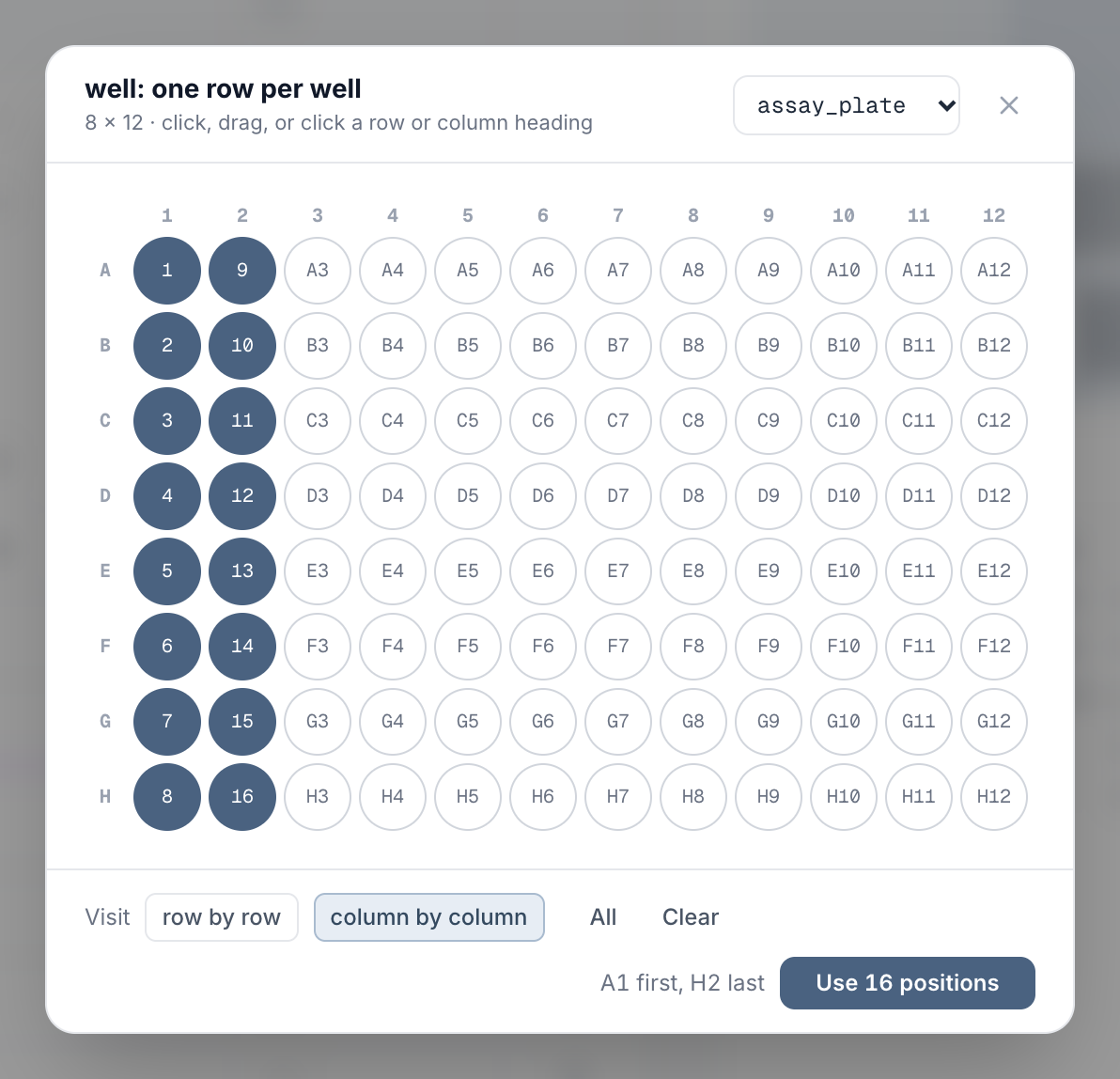
Picking the wells for a column of samples: the plate is chosen in the same picker, and the numbers are the order the samples will be visited in.
The original IvoryOS shows these arguments as text fields.
The Labware panel
"plugins": ["plr_ivoryos.labware_view:plugin"]
in a deck file (or ivoryos_edge.run(__name__, plugins=[plr_ivoryos.labware_view.plugin])) adds it
beside every page. Click a plate to look at it well by well.
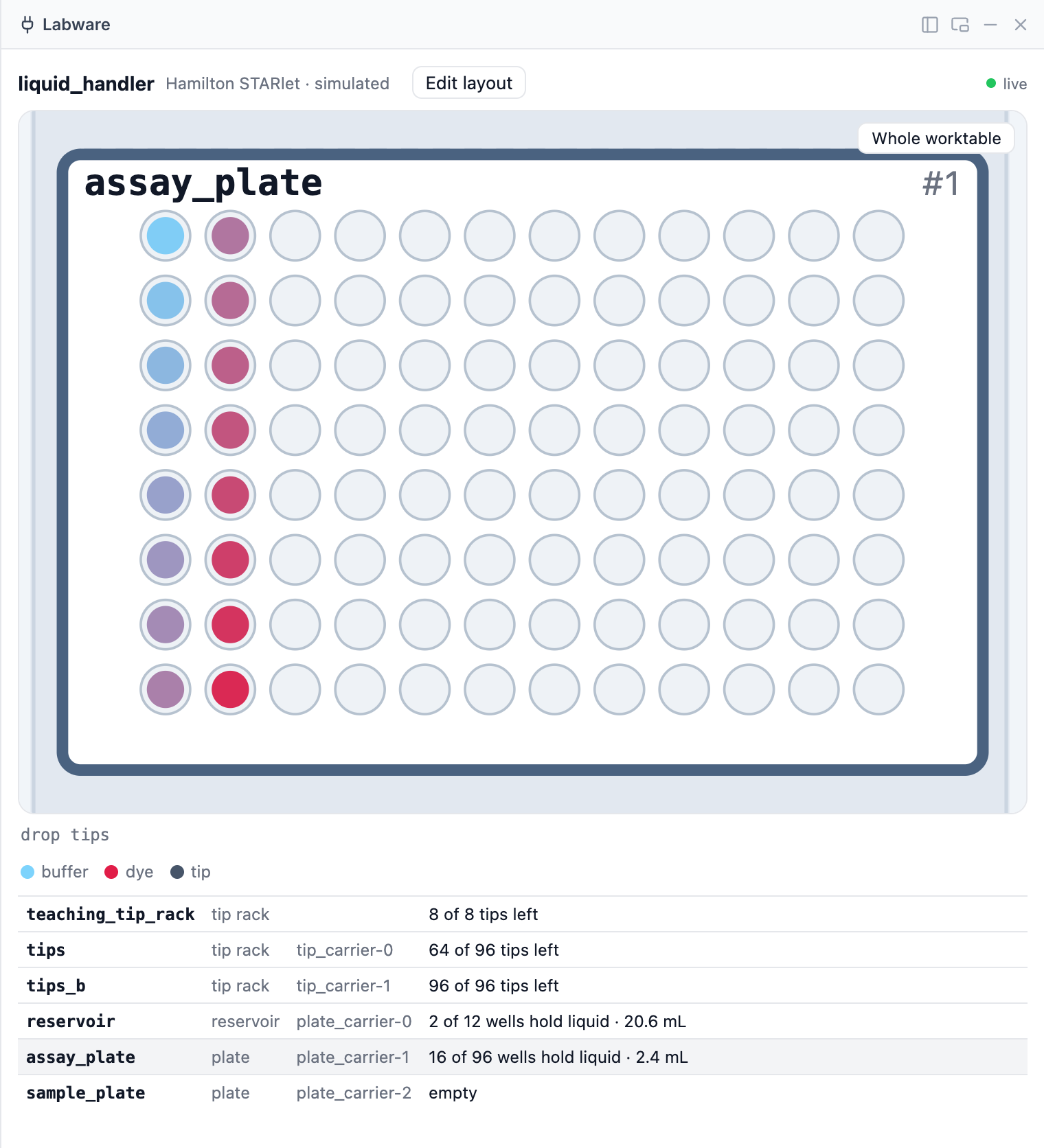
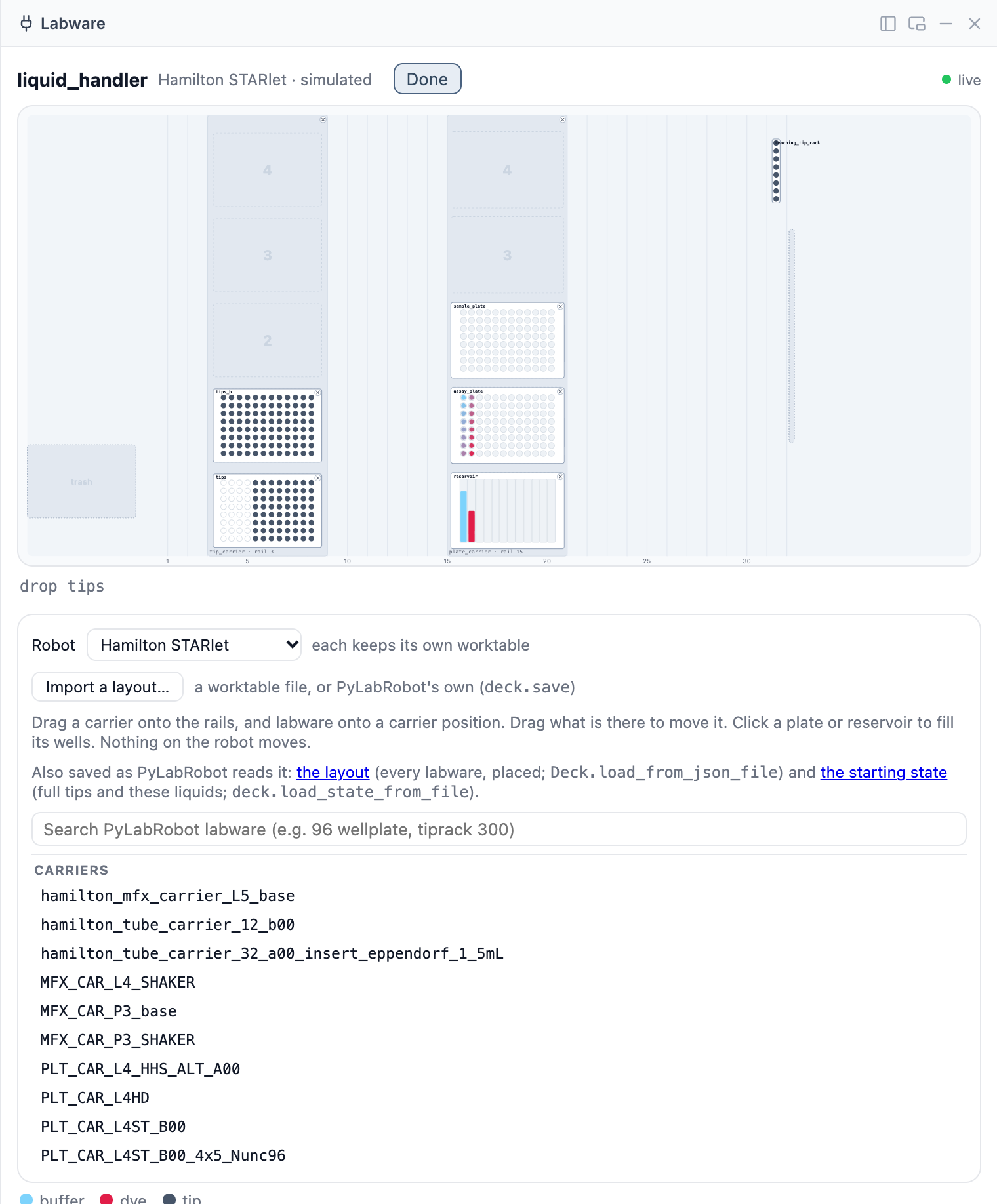
Left: after the run above, each well coloured by what it holds (buffer blue, dye red). Right: Edit layout on the STARlet, with its carriers on the numbered rails and PyLabRobot's catalogue to drag from.
Edit layout changes the worktable file as you go, with nothing to confirm:
- drag labware from PyLabRobot's catalogue onto an empty slot or carrier position, and on a Hamilton or Tecan a carrier onto the rails (it snaps to the nearest one); the catalogue shows the robot's own tip racks and carriers;
- drag anything already there to move it, × to take it off, and rename it in the list;
- click a plate or reservoir, pick wells (click or drag), and Fill them with a liquid and a
volume: that is the
liquidsa run starts from, and it applies at once; - Robot switches the worktable: on the simulator between every robot (OT-2, STARlet, STAR, Nimbus, Vantage, EVO 100/150/200), on a real robot between its own models (a STAR or a STARlet, an EVO 100, 150 or 200). Each keeps its own worktable in the file, so switching back loses nothing;
- Import a layout… takes a layout you already have: a worktable file, a 0.1 layout, or
PyLabRobot's own deck file (
deck.save(...)orlh.save(...)). Labware PyLabRobot names by definition is kept by name; custom labware is kept exactly as serialized. The worktable it replaces is kept asworktable.before-import.json. A real robot only takes its own kind of worktable, and only before it is connected (restart the deck first).
Steps offer added, moved or renamed labware once the deck restarts (the panel offers the restart). The panel is the only part of this package that imports IvoryOS, and only IvoryOS NextGen loads it.
Supported Devices
| Device Type | Class Name | Simulation Shortcut | Common Backends |
|---|---|---|---|
| Liquid Handler | LiquidHandler |
simulated=True |
Hamilton STAR / STARlet, Nimbus, Vantage; Opentrons OT-2; Tecan EVO |
| Balance | Scale |
simulated=True |
Mettler Toledo |
| Pumps | Pump |
simulated=True |
Cole-Parmer Masterflex |
| Heater/Shaker | HeaterShaker |
simulated=True |
Inheco ThermoShake |
| Centrifuge | Centrifuge |
simulated=True |
VSpin |
| Plate Reader | PlateReader |
simulated=True |
CLARIOstar, Cytation5 |
| Fans | Fan |
simulated=True |
Hamilton HEPA |
| Thermocycler | Thermocycler |
simulated=True |
Any PLR-supported TC |
The liquid handler in 0.2 has been tested on PyLabRobot's simulator; it has not yet been run on a real robot.
Installation
pip install plr-ivoryos
Python 3.10 or newer, PyLabRobot 0.2.2 or newer. Or from source:
pip install .
How it Works
Async Bridge
PyLabRobot is built on asyncio. plr-ivoryos keeps one event loop on a background thread for
the life of the process, and every step runs there: a robot connection opened in setup() has to
stay on the loop that opened it. Steps are therefore ordinary synchronous calls, from IvoryOS
(either version) or from plain Python.
What changed in 0.2
- Breaking for 0.1 workflows: steps take PyLabRobot's own argument names, with wells written
plate[A1:H1]. 0.1'splate_name+resources,tip_rack_name+tip_spots, andtransfer'ssource_plate/source_well/dest_plate/dest_wellare gone, so saved liquid-handler steps need redoing. Layout files from 0.1 still load. LiquidHandleris an ordinary class (0.1 returned a new class per deck, so its steps could only be found by building one). The runtime Enum registry is gone: labware choices come from the worktable.- The worktable is a file you can leave out, with PyLabRobot's own copy written beside it; the Labware panel edits it and imports existing layouts. Nimbus and Vantage worktables are new.
simulated=Truewith no layout works again (0.1 placed two plates on one spot).Scale.read_weightworks with PyLabRobot 0.2.2.
License
MIT
1 maintainer

Metadata
1 maintainer
Release files for plr-ivoryos 0.2.0
For a detailed explanation of source distributions (sdists) and built distributions (wheels), please see the package formats documentation.
Source distribution (sdist)
| File | Size | Uploaded | |
|---|---|---|---|
| plr_ivoryos-0.2.0.tar.gz | 68.9 kB | Details |
Built distribution (wheel)
| File | Interpreter | ABI | Platform | Reset |
|---|---|---|---|---|
| plr_ivoryos-0.2.0-py3-none-any.whl | Python 3 | none | any | Details |
Total release size: 124.8 kB
Release files / plr_ivoryos-0.2.0.tar.gz
| Download URL | plr_ivoryos-0.2.0.tar.gz |
|---|---|
| Size | 68.9 kB |
| Tags | Source |
|
SHA-256 checksum How to use checksums |
53fcbc4a64c0c5f766e6430fbfaddb15949f2b0326f6cb20d2ef1eafa953d235
|
|
BLAKE2b-256 checksum How to use checksums |
29bbc71b3f43b04ccba20285bcaa7a059c13ec787e3dbabce9ffa846d29cfbc1
|
| Upload date | |
|
Uploaded using Trusted Publishing? What is trusted publishing? |
No |
| Uploaded via |
twine/7.0.0 CPython/3.13.14
|
Release files / plr_ivoryos-0.2.0-py3-none-any.whl
| Download URL | plr_ivoryos-0.2.0-py3-none-any.whl |
|---|---|
| Size | 55.9 kB |
| Tags | Python 3 |
|
SHA-256 checksum How to use checksums |
91e7ad08e505d63b898c89ddf5f89d9ed1dc98de5fe0d7609e06709571aa2bee
|
|
BLAKE2b-256 checksum How to use checksums |
e514c857b4a06d27081731ba2c1efd348fb5da4d7b5744a4fc19ed5ef7e221f5
|
| Upload date | |
|
Uploaded using Trusted Publishing? What is trusted publishing? |
No |
| Uploaded via |
twine/7.0.0 CPython/3.13.14
|














