
plsqlwks
An ncurses SQL and PL/SQL workspace for Oracle databases.
Author and support: unu2000 on Ko-fi.
The mandatory release-gate targets are Oracle Database 19c and Oracle AI Database 26ai. A target is described as continuously tested only after both CI systems have recorded ten consecutive qualifying green runs spanning at least 30 days. See the Oracle compatibility matrix for the tested connection and privilege profiles, safety gate, and integration-test setup.
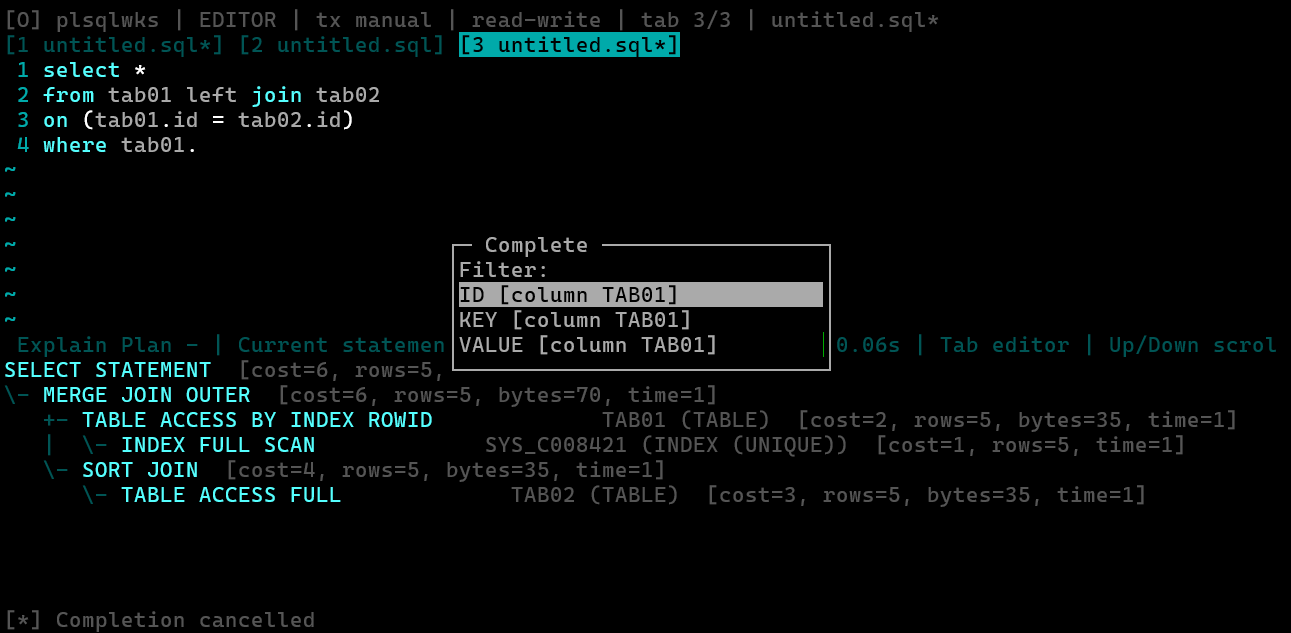
New here? Follow the installation-to-first-query quick start for copy-ready connection setup, screenshots, practical SQL workflows, troubleshooting, and a complete installed-plugin example.
For implementation ownership and boundaries, see the architecture guide.
Documentation
- Plugin API v1 reference
- Plugin author guide
- Maintained plugin catalog
- Quick start
- Architecture
- Oracle compatibility
- Release guide
Connection
The default connection is:
- user:
hr - password file: the
orapassfile in the platform user-config directory - service:
freeon127.0.0.1:1521
On Linux, fresh defaults are ~/.config/plsqlwks/orapass for the password,
~/.config/plsqlwks/config.ini for settings, and ~/.local/share/plsqlwks
for the workspace. macOS and Windows use their corresponding user config and
data directories. An existing /tmp/orapass remains a compatibility fallback,
but the app warns about that legacy location and about POSIX permissions other
than 0600.
Override the defaults with environment variables:
export ORACLE_USER=hr
export ORACLE_PASSWORD_FILE=~/.config/plsqlwks/orapass
export ORACLE_DSN='127.0.0.1:1521/free'
export PLSQLWKS_WORKSPACE=/path/to/workspace
export PLSQLWKS_MAX_ROWS=200
export PLSQLWKS_ARRAYSIZE=100
Password files preserve leading and trailing spaces; only final CR/LF line
endings are removed. On POSIX systems, create the file for the current user and
protect it with chmod 600.
PLSQLWKS_MAX_ROWS sets the maximum number of rows in each result page, while
PLSQLWKS_ARRAYSIZE sets the Oracle cursor array size. Both values must be
positive integers.
Oracle Thin and Thick modes
Thin mode is the default and needs no Oracle Client installation. To use an
installed Oracle Client, start with plsqlwks --thick. Use plsqlwks --thin to
override a workspace's thick preference for one invocation. The flags are
mutually exclusive and are never saved to configuration.
For a persistent preference, edit the selected workspace's config.ini (or the
platform configuration file when using the default workspace):
[database]
thick_mode = no
oracle_client_lib_dir =
oracle_client_config_dir =
Set thick_mode = yes to enable Thick mode. Invalid boolean values are errors.
Both optional directories expand ~; relative paths are resolved from the
configuration file's directory. Blank values use Oracle's normal discovery.
The directory settings are used only in Thick mode. All tabs and reconnects
share one driver mode; restart after changing mode or client settings.
Install an Oracle Instant Client Basic or Basic Light package compatible
with your Python architecture, python-oracledb version, and database. Libraries
are installed separately and are not bundled with PLSQLWKS. On Linux, normally
leave oracle_client_lib_dir blank and configure ldconfig or LD_LIBRARY_PATH
before launching Python. Setting that directory alone does not configure
Linux's dependent-library search path. On macOS, an explicit library directory
can be useful. When running through SSH or WSL, install the libraries where the
Python process runs. For a full Oracle Client installation, configure its
Oracle environment before launch.
oracle_client_config_dir selects the directory containing Oracle network
configuration such as sqlnet.ora and tnsnames.ora; when blank, Oracle uses
its normal lookup, including TNS_ADMIN. Native network encryption is configured
through Oracle Client's sqlnet.ora and the server's matching requirements.
The existing ORACLE_USER, ORACLE_DSN, and password-file authentication remain
in use. See the Oracle Client initialization guide
for platform setup and the compatibility contract for
validated combinations.
Client-loading failures such as DPI-1047 stop startup before the terminal UI,
with no automatic fallback. Check library architecture, required system
libraries, and the pre-launch library search path. Mode conflicts or changed
initialization arguments require a process restart. Successful connection status
includes Thin mode or Thick mode. Help, version, and plugin management commands
do not initialize Oracle Client libraries.
Install
Python 3.10 or newer is required, along with a compatible terminal and a Python
build that provides the standard-library curses module.
For development, install the package in editable mode:
python3 tools/dev.py install
oracledb is the only runtime dependency. Supporting functionality uses the Python standard library.
For a regular local install, use:
python3 -m pip install .
Run the default test and lint checks from a development checkout with:
python3 tools/dev.py lint
python3 tools/dev.py test core
tools/dev.py is the versioned command surface shared by local development,
GitHub Actions, and GitLab CI. Its test profiles sanitize optional test flags
before enabling only the requested group. Development and CI installs use the
exact versions in constraints/ci.txt; the package metadata keeps broader
minimum versions for normal consumers.
From a clean checkout and an activated disposable virtual environment, run the complete non-Oracle CI workflow with one command:
python3 tools/dev.py ci
This checks repository hygiene, installs the constrained development and XLSX
dependencies, runs Ruff, mypy, non-Oracle coverage and plugin tests, and builds
and smoke-tests the distributions. It removes only packaging artifacts created
by that invocation and leaves the coverage reports under coverage-reports/.
Plugin API and maintained plugin tests are optional and are not part of the default core test run. Install XLSX support and run them with:
python3 tools/dev.py install --xlsx
python3 tools/dev.py test plugins
The CSV and HTML export plugins have no additional dependencies. XLSX export
uses the optional openpyxl package, kept out of the base PLSQLWKS runtime.
Install a distribution with XLSX support through the standard extra:
python3 -m pip install 'plsqlwks[xlsx]'
For an editable development checkout, install the development and XLSX extras
together with python3 tools/dev.py install --xlsx. The optional dependency
and the managed XLSX command package are installed separately; see the
maintained plugin catalog.
Oracle integration tests require the connection environment variables shown
above and a nonempty regular password file. Setting PLSQLWKS_TEST_ORACLE=1
is an explicit opt-in, so invalid or missing credentials fail collection rather
than silently skipping the live suite. Set PLSQLWKS_TEST_ORACLE_TARGET to
19c or 26ai when the test run must verify that it reached the intended
server release:
PLSQLWKS_TEST_ORACLE=1 PLSQLWKS_TEST_ORACLE_TARGET=19c \
  python3 tools/dev.py test oracle
Omit the target for an ad-hoc run against another reachable Oracle database. The complete release-gating setup, including the developer, DML-only, and read-only profiles, is documented in the Oracle compatibility matrix. Run all non-Oracle tests, including PTY and slow coverage, with:
python3 tools/dev.py test non-oracle
After configuring the complete Oracle matrix environment documented in
doc/COMPATIBILITY.md, run every test without profile-based deselection with:
./test.sh --all
This enables plugin, PTY, slow, Oracle, and Oracle-matrix tests together and fails collection if the required live Oracle configuration is incomplete.
Run the same non-Oracle and plugin coverage gate used by CI with:
python3 tools/dev.py coverage --report-dir coverage-reports
This writes separate JUnit XML files plus Cobertura XML and coverage JSON. It rejects line or branch coverage below the recorded Python 3.10/3.14 baselines, and applies 95% line and 90% branch floors to transaction safety, SQL analysis, Oracle matrix preflight, and atomic export code.
Ncurses key playback and recording
tools/playkeys.py drives the real PLSQLWKS ncurses process through a POSIX
pseudo-terminal. It uses only the Python standard library and is intended for
repeatable local, CI, and demonstration flows on Linux, macOS, and WSL.
Write an ordered UTF-8 scenario using wait, text, type, key, and
sleep. Recording scenarios can also use record_start and record_stop:
# first-query.keys
wait "db connected"
record_start
text "select 1 as answer from dual;"
key F5
wait "1 row"
record_stop
key CTRL_Q
Run the scenario with the current Python interpreter:
python3 tools/playkeys.py first-query.keys
The default child command is python3 -m plsqlwks. Put a custom command after
-- when a workspace or other application option is required:
python3 tools/playkeys.py first-query.keys -- \
  python3 -m plsqlwks --workspace /tmp/plsqlwks-playback
Every wait has a 20-second default timeout and consumes its match in order,
like Expect. Terminal control sequences are removed and whitespace is
normalized before matching. text sends its quoted UTF-8 value exactly;
type sends its value one Unicode character at a time for human-paced
demonstrations. Its optional seconds-per-character interval defaults to 0.035
and must be between 0 and 1 second. Newlines and shortcuts should be explicit
key actions. sleep accepts a nonnegative delay of at most 300 seconds. Key
counts are optional:
type "select 1 as answer from dual;" 0.05
key TAB
key RIGHT 3
key CTRL_PAGE_DOWN
record_start takes no arguments and may appear once. With --record, all
earlier child output is omitted, the event clock restarts, and the tool forces
a clean redraw at the configured terminal size. Without --record, it is a
no-op, so the same scenario can be dry-run first. Put it only after waits and
keys have replaced any sensitive startup status that should not enter the
cast. Scenarios without record_start retain the original record-from-launch
behavior.
record_stop also takes no arguments and may appear once after record_start.
It writes a final terminal-attribute reset and excludes all later output from
the cast. Put it before save prompts, session cleanup, and curses teardown.
Without --record, it is a no-op.
Names are case-insensitive and accept hyphens or underscores. Supported
families include Enter and Ctrl-Enter, Tab and Shift-Tab, Escape, Backspace,
Delete, Insert, arrows, Home/End, PageUp/PageDown, their Shift/Ctrl variants,
F1 through F12, Ctrl-A through Ctrl-Z, Alt-0 through Alt-9, and PLSQLWKS
shortcuts including ALT_X, ALT_O, ALT_R, ALT_G, ALT_PLUS,
CTRL_ALT_C, CTRL_ALT_R, and CTRL_EQUALS.
Automated mode expects the child to exit successfully after the final action.
Use --expect-exit, --timeout, --exit-timeout, --rows, and --cols to
change that contract. --quiet suppresses mirrored terminal output without
disabling waits or recordings. Use --interact instead to complete the
scripted setup and then continue manually in the live terminal.
Pass --record to write the same PTY output as an asciicast v2 JSON Lines file:
python3 tools/playkeys.py --record first-query.keys
asciinema play videos/20260724_plsqlwks_001.json
Recordings use the local date and the next available zero-padded number:
videos/YYYYMMDD_plsqlwks_001.json, then 002, and so on. Existing files are
never overwritten. Failed scenarios retain their partial recording for
diagnosis. Input events and the full process environment are not recorded, but
anything visibly rendered by PLSQLWKS—including SQL, results, prompts, and
errors—is captured. Review recordings before sharing them.
The four basics_*.keys scenarios form a privacy-gated beginner series covering
the workspace and first query, editing multiple statements, tabs/templates/files,
and bind-driven result inspection. Each starts recording only after transient
connection details have been replaced by a generic editor status. Use the
colors in videos/config.ini and keep that configuration free of saved session
tabs:
python3 tools/playkeys.py --quiet --record --rows 30 --cols 120 \
  tools/scenarios/basics_01_workspace_first_query.keys -- \
  python3 -m plsqlwks --workspace videos --manual --read-only
Repeat with basics_02_editor_statements.keys,
basics_03_tabs_files_commands.keys, and
basics_04_binds_results_layouts.keys. Lesson 3 temporarily creates
videos/sql/scratch.sql; remove that controlled demonstration file afterward.
Detailed rerun and privacy-review instructions are in
videos/NEXT_CODEX_RUN.md.
The maintained plugins_*.keys series demonstrates installing and using one
managed plug-in per lesson:
plugins_01_csv_export.keysplugins_02_html_export.keysplugins_03_xlsx_export.keysplugins_04_csv2oratab_preview.keys
Prepare each lesson in its own temporary workspace with isolated
XDG_DATA_HOME and XDG_CONFIG_HOME values. Install only its matching managed
package with python3 -m plsqlwks plugin install ... --yes, verify with
python3 -m plsqlwks plugin list --workspace ... that it is managed and
enabled, then start PLSQLWKS with that same environment. The recording begins
only after the connected application has replaced startup details with the
generic read-only editor frame. An in-application caption shows the ordinary
interactive install command and explains that a newly installed package is
enabled by default and loaded after restart; the pre-recorded setup performs
the actual isolated installation without exposing local paths or connection
details.
Lesson 4 uses these dependency and package commands in the same Python 3.10–3.13 environment as PLSQLWKS:
python3 -m pip install 'plsqlwks[csv2oratab]'
python3 -m plsqlwks plugin install \
  plugins/packages/csv2oratab-0.1.0.plwgn --yes
python3 -m plsqlwks plugin list --workspace "$recording_workspace"
Run the last two commands with the lesson's isolated XDG environment and
require the list row to report csv2oratab, managed, enabled, and 0.1.0.
Copy only tools/scenarios/fixtures/csv2oratab_demo.csv into the otherwise
clean recording workspace. The lesson opens the child TUI, previews that local
file, and cancels before Oracle target inspection or import, so it performs no
database operation and requires no execution entitlement. The host's
--read-only option does not govern the independent child connection; do not
extend the lesson into an import. Keep the temporary directory and generated
lesson artifacts outside the public release tree, and review the exact cast
before sharing it.
The repository includes an Oracle-free smoke scenario that waits for a deliberately missing password-file error and quits cleanly:
ORACLE_PASSWORD_FILE=/tmp/plsqlwks-deliberately-missing \
  python3 tools/playkeys.py --quiet --record \
  tools/scenarios/plsqlwks_offline_smoke.keys -- \
  python3 -m plsqlwks --workspace /tmp/plsqlwks-playback-smoke
Run
After installation, start the workspace with:
plsqlwks
Print the installed package version without starting curses with:
plsqlwks --version
The same canonical version is available in the running application through
Alt-O -> Application -> About plsqlwks. The compact About dialog closes
with Esc or Enter without replacing the current result.
Package or manage trusted plugins without starting curses or connecting to Oracle with:
plsqlwks plugin --help
Select a workspace for one invocation with:
plsqlwks --workspace /path/to/workspace
The CLI option takes precedence over PLSQLWKS_WORKSPACE. For compatibility, a
source checkout that already contains a configured workspace/ continues to
use it and displays a migration notice; files are never moved automatically.
Fresh workspaces start in manual transaction mode and write
[database] autocommit = no to their generated config.ini. Existing explicit
yes or no settings are preserved; a missing or malformed setting uses the
safe manual fallback.
Choose the initial transaction mode for one invocation with --manual or
--autocommit. These options override [database] autocommit from the active
config.ini:
plsqlwks --manual
plsqlwks --autocommit
You can also run it directly as a module from the source tree:
python3 -m plsqlwks
The app opens a split-screen terminal workspace:
- editor on top
- results/messages below
- command/status bar at the bottom
The terminal UI uses the active locale for keyboard input and display. If that
locale cannot be initialized, the app tries C.UTF-8, en_US.UTF-8, and
UTF-8. A valid plain C locale remains active, so configure a UTF-8 locale in
the shell when non-ASCII input or display is required.
By default, Oracle operations run serially on one persistent background worker. The UI continues to redraw and accept input while an operation runs, but it rejects a second database operation until the active one finishes.
Set [database] threaded_queries = yes in the active config.ini and restart
to give each used editor tab its own Oracle session and worker. Database
operations can then overlap across tabs, while each individual tab still runs
only one operation at a time. A tab label ending in & has database work in
progress. Transactions, result continuations, reconnects, commit/rollback, and
F12 mode changes belong to that tab. An F12 change is also saved as the
default mode for tabs created later. Closing a tab prompts for its pending
transaction; quitting resolves pending transactions one tab at a time. This
switch is intentionally available only in config.ini, not through a CLI flag
or environment variable. Its default is no, which preserves the single
serialized session.
The first Ctrl-C requests interruption of the active tab's operation. During
query execution or database row fetching, pressing Ctrl-C again
force-disconnects that exact tab's client session and retires its worker. This
is a best-effort client-side connection close, not a server-side session kill
or process termination. Other tabs and their sessions continue running. Rows
already materialized remain viewable but become read-only, and a manual
transaction's outcome may need verification after a forced disconnect.
Reconnecting closes open result pages and clears query results loaded by the previous connection. If a manual transaction has pending changes, reconnect first asks whether to commit, roll back, discard the session, or cancel. Commit or rollback must succeed before reconnect closes the old connection. If either action fails, plsqlwks does not close the current connection or clear its loaded results; reconnect can be tried again with an explicit discard. Discard closes the session without resolving the transaction explicitly, so Oracle rolls its uncommitted work back. If the old connection is already dead and reports an error while closing, plsqlwks still attempts the replacement connection and reports the close error as a warning after a successful reconnect. An interrupted Oracle operation or unexpected connection loss is shown in the header and status bar. Rows materialized before the interruption remain available for viewing, but the old continuation cursor and any insert draft are discarded and the result stays read-only; reconnect and rerun the query to restore paging or editing. A cancelled full-export fetch also states whether no pending transaction was tracked, a pending transaction still needs an explicit commit or rollback, or autocommit was enabled. If manual work may have been pending after a lost connection, the status warns that the transaction outcome is unknown and directs you to reconnect and resolve or discard the session.
After a successful quit, plsqlwks records the open file-backed tabs, active tab, and cursor positions in the managed [session.tabs] section of config.ini. Fresh platform-default workspaces use the user-config directory; explicitly selected and legacy workspaces keep config.ini inside the workspace for compatibility. On the next start the app tries each saved path independently, silently skips files that are missing or unreadable, and leaves the initial empty tab in place when none can be opened. A saved cursor position that no longer exists in its file starts at the beginning instead. Untitled, template, and generated schema tabs are not persisted because they do not have a file to reopen.
Worksheet and configuration saves replace their destination atomically while preserving an existing file's POSIX permission bits. A file-backed worksheet also detects when its file was changed or deleted outside plsqlwks and asks whether to overwrite it, reload the disk version, save under another name, or cancel. Reload is available while the file exists, including when a change is detected just before saving. It replaces the editor text without writing to disk; Undo can restore local edits. If reading fails, the local buffer stays intact. Undo and redo update the unsaved-change marker by comparing the current content with the last successful save.
Windows PuTTY keyboard setup
For Windows PuTTY 0.83 and 0.85, use a saved session with these settings before starting plsqlwks on the Linux/Unix host:
| PuTTY panel | Setting |
|---|---|
| Connection → Data | Terminal-type string: xterm-256color |
| Window → Translation | Remote character set: UTF-8 |
| Terminal → Keyboard | Backspace: Control-? (127); Home/End: Standard |
| Terminal → Keyboard | Function keys and keypad: Xterm 216+ |
| Terminal → Keyboard | Shifted arrow keys: xterm-style bitmap |
| Terminal → Keyboard | Keep Control-Alt is different from AltGr enabled |
| Terminal → Features | Enable Disable application cursor keys mode and Disable application keypad mode |
| Terminal → Features | Leave Disable bracketed paste mode unchecked |
| Terminal | Local echo and local line editing: Force off |
Save the session and use a UTF-8 locale on the host. Disabling application cursor keys is necessary because curses enables that mode, and PuTTY otherwise drops arrow modifiers even when bitmap mode is selected.
Exact Ctrl shortcuts with the Windows helper
Stock Windows PuTTY does not send Ctrl-Home/End, Ctrl-Shift-Home/End, or Ctrl-Delete at all, and consumes modified PageUp/PageDown for scrollback. Use the optional Windows helper to make the original shortcuts work. Run it on the Windows computer running PuTTY; from a checkout:
powershell.exe -NoProfile -File .\tools\putty_keys.ps1
Focus the PuTTY window running plsqlwks, then press Ctrl-Alt-F12 to enable remapping for that window. The helper console confirms activation. It remaps one selected PuTTY window while the helper is running. Press Ctrl-Alt-F12 again to disable it before using another program in that terminal, or press Ctrl-C in the helper console to stop it. Enabling a different PuTTY window switches the selection to that window.
With the helper enabled, Ctrl-Home / Ctrl-End move to the beginning/end of
the editor buffer or the first/last result row. Ctrl-Shift-Home /
Ctrl-Shift-End select to buffer boundaries. The helper also restores
Ctrl-Delete, Ctrl-Backspace, Ctrl-Enter, Ctrl-PageUp / Ctrl-PageDown,
Shift-PageUp / Shift-PageDown, and Ctrl+=. Plain Enter and Backspace keep
their normal meaning. The helper requires only Windows PowerShell and its
included .NET runtime; it requires no administrator rights or installation.
Run the same command with -SelfTest to check its mappings without enabling it.
Alternatives without the helper
Some physical combinations cannot reach plsqlwks distinctly in stock Windows PuTTY. Use the following alternatives; they also work in terminals that send these sequences, and the original bindings remain available elsewhere:
| Existing shortcut | PuTTY alternative | Action |
|---|---|---|
Ctrl-Home / Ctrl-End |
Alt-Home / Alt-End |
Editor buffer start/end; first/last result row |
Ctrl-Shift-Home / Ctrl-Shift-End |
Alt-Shift-Home / Alt-Shift-End |
Select to editor buffer boundaries |
Ctrl-Delete |
Alt-Delete |
Delete next word |
Ctrl-Enter |
F5 or Alt-X |
Execute selection/current statement |
Ctrl-PageUp / Ctrl-PageDown |
Alt-PageUp / Alt-PageDown |
Page focused results; otherwise switch file tabs |
Shift-PageUp / Shift-PageDown |
Ctrl-Shift-Up / Ctrl-Shift-Down |
Extend editor selection by page |
Ctrl-Backspace |
Alt-Backspace |
Delete previous word |
Ctrl+= |
Alt-O → Database → Reconnect |
Reconnect |
PuTTY sends the same carriage return for Enter and Ctrl-Enter, and the same DEL byte for Backspace and Ctrl-Backspace. plsqlwks preserves newline and single-character deletion for those bytes. PuTTY consumes Ctrl/Shift-PageUp and PageDown for its own scrollback; changing the function-key setting does not free them. See the PuTTY keyboard settings and scrollback shortcuts.
Use left Alt for application shortcuts; AltGr remains available for characters
on international keyboards. Shortcut digits and symbols refer to the character
on the active Windows layout: for example, Czech top-row digits need Shift,
so Alt-1 is typed with Alt-Shift-1. Use the layout's + or = character for
autocomplete refresh. Ctrl-C/Ctrl-Alt-P copy/paste internally, Ctrl-Shift-C/Ctrl-Shift-P
use the Windows system clipboard, and Alt-Shift-C/Alt-Shift-P use the Linux
clipboard. Ctrl-V and Ctrl-Shift-V retain their configured paste sources;
Ctrl-Shift-V defaults to internal paste. SSH does not expose the Windows clipboard to the host. Use
PuTTY's native paste (Shift-Insert or
right-click) to insert Windows clipboard text as bracketed paste, and PuTTY
mouse selection to copy to Windows. Leave plsqlwks' Ctrl-letter shortcuts
available to the server when customizing PuTTY clipboard settings.
For troubleshooting, run python3 rchar.py from the checkout in the same PuTTY
session to capture a key's actual bytes. Verify the session settings above
before reporting a shortcut failure.
Windows Command Prompt keyboard setup
Use plsqlwks through ssh.exe or WSL inside Command Prompt (cmd.exe).
The helper supports both the classic Windows console and Command Prompt hosted
by Windows Terminal. plsqlwks itself runs on the Linux/Unix host or inside WSL,
where Python provides curses.
In one Command Prompt window, connect to the host or start WSL:
ssh user@host
or:
wsl.exe
Then run the installed application in that Linux/Unix shell:
TERM=xterm-256color plsqlwks
In a second Command Prompt window, start the Windows helper from the checkout:
tools\windows_keys.cmd
Keep that helper window open. Focus the terminal running plsqlwks and press
Ctrl-Alt-F12; the helper confirms activation. The original shortcuts now
reach the application, including Ctrl-Home/End, Ctrl-Shift-Home/End,
modified arrows, word deletion, execution, paging, and Ctrl+=. F11 executes
the script instead of switching Windows Terminal to fullscreen.
Use a dedicated terminal window for plsqlwks. The helper selects a window, so disable it with Ctrl-Alt-F12 before switching that window to another tab, pane, or program. Press Ctrl-C in the helper window to stop it. Left Alt is used for shortcuts; AltGr remains available for typing. Leave the classic console's Use legacy console option off. Use a UTF-8 locale on the Linux/Unix host.
For Windows Terminal, set "altGrAliasing": false in the Command Prompt
profile in its JSON settings. This keeps left Ctrl-Alt-C/R available for
commit/rollback on international keyboards while preserving the real AltGr
key. See Microsoft's AltGr aliasing setting.
The .cmd launcher uses the included Windows PowerShell runtime and applies
its script execution policy only to that helper process. No administrator
rights, installation, or permanent policy change is needed. Keep
windows_keys.cmd and putty_keys.ps1 together when copying them elsewhere.
Run tools\windows_keys.cmd -SelfTest to check the helper without enabling it.
The original powershell.exe -NoProfile -File .\tools\putty_keys.ps1 command
also works from Command Prompt and continues to support PuTTY.
Windows Terminal and WSL clipboard shortcuts
PLSQLWKS provides three clipboard methods: System (Windows), WSL/Linux (Wayland/X11), and Internal. WSLg can bridge Windows and Linux contents, so the two external methods may access shared contents.
| Clipboard | Copy | Paste |
|---|---|---|
| System (Windows) | Ctrl-Shift-C |
Ctrl-Shift-P |
| WSL/Linux | Alt-Shift-C |
Alt-Shift-P |
| Internal | Ctrl-C |
Ctrl-Alt-P |
Each fixed shortcut uses only its assigned target. Copying externally leaves
the internal clipboard unchanged. Ctrl-C interrupts a running database
operation first; otherwise it copies internally. Ctrl-Alt-C still commits or
applies the active insert draft, and Ctrl-Alt-R rolls back. Ctrl-P finds the
previous occurrence of the last search string, retaining case sensitivity and
wrapping at the start of the worksheet.
The copy shortcuts work for editor selections, result cells/ranges,
DBMS_OUTPUT selections and schema-browser object names. Paste works in the
worksheet, paste-enabled prompts and editable cell text dialogs.
Open Alt-O → Preferences → Clipboard to inspect the fixed shortcuts and
backend capabilities, configure legacy copy/cut destinations and choose the
sources for Ctrl-V and Ctrl-Shift-V. Save persists settings in your workspace
config.ini; Cancel discards changes. The new C/P shortcuts ignore these
settings. Ctrl-X and legacy copy commands retain configured destinations and
an internal copy; cut remains one immediate Undo edit. New workspaces without
Windows tools default legacy copy/paste to Linux.
[clipboard]
copy_to_windows = yes
copy_to_linux = no
ctrl_v_source = windows
ctrl_shift_v_source = internal
Paste sources are windows, internal, or linux. Windows paste reads Windows
exclusively: failure or empty contents causes no insertion and explicit
feedback. Internal paste performs no OS access and cancels a pending paste for
that target. The fixed copy shortcuts update only their selected clipboard;
legacy copy/cut updates internal text immediately and then attempts configured
external destinations in a background worker. Windows copy tries PowerShell,
then clip.exe on failure, and verifies contents by readback when a reader is
available. Copy-only Windows access is labelled unverified. Each Linux provider
is attempted when Linux copying is enabled. A Linux success does not conceal a
Windows failure.
If Windows Terminal consumes a shortcut, forward it to PLSQLWKS.
To configure explicit forwarding, open Settings → Open JSON file and add these
entries to actions, keeping the other actions:
{ "command": { "action": "sendInput", "input": "\u0003" }, "id": "User.PlsqlwksInternalCopy" },
{ "command": { "action": "sendInput", "input": "\u001b[112;7u" }, "id": "User.PlsqlwksInternalPaste" },
{ "command": { "action": "sendInput", "input": "\u0010" }, "id": "User.PlsqlwksPreviousMatch" },
{ "command": { "action": "sendInput", "input": "\u001b[99;6u" }, "id": "User.PlsqlwksSystemCopy" },
{ "command": { "action": "sendInput", "input": "\u001b[112;6u" }, "id": "User.PlsqlwksSystemPaste" },
{ "command": { "action": "sendInput", "input": "\u001b[99;4u" }, "id": "User.PlsqlwksWslCopy" },
{ "command": { "action": "sendInput", "input": "\u001b[112;4u" }, "id": "User.PlsqlwksWslPaste" },
{ "command": { "action": "sendInput", "input": "\u0016" }, "id": "User.PlsqlwksPaste" },
{ "command": { "action": "sendInput", "input": "\u001b[118;6u" }, "id": "User.PlsqlwksAlternatePaste" }
Replace the existing copy/paste entries in keybindings with
the entries below, keeping the other keybindings:
{ "id": "User.PlsqlwksInternalCopy", "keys": "ctrl+c" },
{ "id": "User.PlsqlwksInternalPaste", "keys": "ctrl+alt+p" },
{ "id": "User.PlsqlwksPreviousMatch", "keys": "ctrl+p" },
{ "id": "User.PlsqlwksSystemCopy", "keys": "ctrl+shift+c" },
{ "id": "User.PlsqlwksSystemPaste", "keys": "ctrl+shift+p" },
{ "id": "User.PlsqlwksWslCopy", "keys": "alt+shift+c" },
{ "id": "User.PlsqlwksWslPaste", "keys": "alt+shift+p" },
{ "id": "User.PlsqlwksPaste", "keys": "ctrl+v" },
{ "id": "User.PlsqlwksAlternatePaste", "keys": "ctrl+shift+v" }
This setting applies to every Windows Terminal profile and tab. Restart
plsqlwks after upgrading and reopen Windows Terminal if it retains old bindings.
The command menu offers equivalents when a terminal intercepts the shortcuts.
The optional tools/putty_keys.ps1 helper also forwards these shortcuts when
enabled for the active Windows terminal window.
Keyboard navigation, resizing and dialogs remain available while clipboard commands run. Windows paste waits behind pending external copies. If you change the paste target's text, cursor, selection or active tab before it finishes, the pending paste is cancelled; repeated external paste requests for that target are ignored. Requests retain the settings in effect when submitted.
For native Windows Terminal paste, wait until application copy reports that the Windows clipboard has been updated. Native paste reads the Windows clipboard independently and receives no internal fallback. Its bracketed paste payload is inserted directly without a second clipboard lookup.
Windows Terminal's Copy on select setting can overwrite the clipboard when you select terminal text with the mouse. Turn it off if you want only explicit copy commands to change the Windows clipboard. See Microsoft's send input action.
Keys
Global
| Key | Action |
|---|---|
Alt-O |
Open the top-left commands menu |
Alt-I |
Show connection information for the active tab |
F1 |
Help |
F6 |
Switch between DBMS_OUTPUT and normal results |
F7 |
Cycle fullscreen grid, fullscreen editor, and 2/3 editor + 1/3 grid |
F8 |
Toggle result grid / row-detail output |
F9 |
Show/focus/hide schema browser |
Shift-F9 |
Toggle Schema Browser between normal and half-screen width |
Shift-Alt-F9 |
Toggle Schema Browser between full-screen and its previous width |
F12 |
Choose autocommit or manual transaction mode |
Ctrl-Up / Ctrl-Down |
Scroll the focused pane or visible DBMS_OUTPUT by one line |
Ctrl-W |
Close current file tab |
Ctrl-PageUp / Ctrl-PageDown |
Scroll focused results by one page; otherwise switch file tabs |
Alt-1..Alt-9 |
Jump to visible file tab |
Ctrl-Q |
Quit |
Ctrl-C while running |
Interrupt the active operation; press again during a query/fetch to force-disconnect its session |
Ctrl-Alt-C |
Insert the active result-grid draft, or commit when no draft is active |
Ctrl-Alt-R |
Roll back the current transaction |
Connection information
Press Alt-I, or choose Alt-O → Database → Connection information, from the
editor, results or schema browser. A centered dialog shows the connected user,
current schema, service, database and unique database name, container, instance,
server host, session SID, server timestamp with fractional seconds and timezone,
database/session time zones, Oracle version, driver version and Thin/Thick mode,
autocommit and read-only mode. The information is refreshed from the active tab's
existing session without changing worksheet results, transactions or unread
DBMS_OUTPUT. A busy active session uses the existing operation-running feedback;
a disconnected session shows Not connected without reconnecting.
The dialog keeps [ OK ] visible. Press Enter or Space to accept, or Esc/Ctrl-Q
to close. Use Up/Down, PageUp/PageDown or Home/End to scroll long details; resize
the terminal to change the layout. Requests cancelled or completed after switching
away from their tab do not open a late dialog. The Windows keyboard helper forwards
Alt-I; a Windows Terminal profile that consumes it can forward \u001bi with a
sendInput action bound to alt+i.
Editor
| Key | Action |
|---|---|
| Printable text | Insert text |
| Arrow keys | Move the cursor |
Shift-Arrow |
Select SQL text |
Home / End |
Move to the beginning/end of the current line |
Shift-Home / Shift-End |
Select to the beginning/end of the current line |
Ctrl-Home / Ctrl-End |
Move to the beginning/end of the editor buffer |
Ctrl-Shift-Home / Ctrl-Shift-End |
Select to the beginning/end of the editor buffer |
PageUp / PageDown |
Move by page |
Shift-PageUp / Shift-PageDown |
Select by page |
Ctrl-Left / Ctrl-Right |
Move one word |
Ctrl-Shift-Left / Ctrl-Shift-Right |
Select one word |
Backspace |
Delete before the cursor |
Delete |
Delete at the cursor |
Ctrl-Backspace / Ctrl-Delete |
Delete the previous/next word |
Enter |
Insert a new line |
Tab |
Focus the results or DBMS_OUTPUT pane |
Shift-Tab |
Autocomplete keywords, schema objects, and columns |
F2 / Ctrl-S |
Save buffer |
F3 / Ctrl-O |
Open file |
F4 |
New template |
F5 / Ctrl-Enter / Alt-X |
Execute selected SQL or current statement |
F11 |
Execute selected SQL or whole buffer as a script |
Alt-G |
Generate SELECT, INSERT, or UPDATE with table or view columns |
Alt-+ |
Refresh autocomplete metadata cache |
Alt-R |
Rename current buffer |
Ctrl-T |
New file tab |
Ctrl-R |
Refresh workspace file list |
Ctrl-E |
Explain current statement |
Ctrl-B |
Toggle -- comment on the current line or selected lines |
Ctrl-F |
Open literal Find/Replace with the Find next action |
Alt-O -> Editor -> Replace text |
Open Find/Replace at the replacement field |
Ctrl-G |
Go to line |
Ctrl-N |
Move to the next search occurrence |
Ctrl-P / Alt-O → Editor → Previous search match |
Move to the previous search occurrence |
Ctrl-U |
Uppercase selected SQL code |
Ctrl-L |
Lowercase selected SQL code |
Ctrl-C / Ctrl-Alt-P |
Copy/paste internally |
Ctrl-Shift-C / Ctrl-Shift-P |
Copy/paste the System (Windows) clipboard |
Alt-Shift-C / Alt-Shift-P |
Copy/paste the WSL/Linux clipboard |
Ctrl-X |
Cut selected text |
Ctrl-V |
Paste clipboard text, expanding each tab to two spaces |
Ctrl-Shift-V |
Paste the alternate source (internal by default) |
| Terminal paste | Paste text as one edit, expanding each tab to two spaces |
Ctrl-Z / Ctrl-Y |
Undo / redo |
Ctrl+= |
Reconnect |
Use / on a line by itself after PL/SQL objects or anonymous blocks when running a script.
With no selection, F11 asks: To run the whole buffer, press Enter. Esc cancels.
Press Enter to continue or Esc/Ctrl+C to cancel before bind prompts and execution.
Executing selected text does not require this additional confirmation.
Script execution reports statement progress as n/total and stops at the first
failed statement while preserving earlier results. Scripts are sent directly to
Oracle, not through SQL*Plus or SQLcl: client commands such as PROMPT, SPOOL,
and SET SERVEROUTPUT, and &/&& substitution variables, are rejected before
bind prompts or execution. Oracle SQL statements such as SET TRANSACTION
remain supported. A standalone SET DEFINE OFF line is accepted locally and
omitted from database execution. It does not enable substitution variables.
Execution and explain errors report mapped editor line and column diagnostics.
The cursor moves only when the buffer still matches the source that was sent to
Oracle; if it changed while the operation ran, the result warns about the stale
source instead. Use Alt-O -> Editor -> Next execution diagnostic or
Previous execution diagnostic to visit additional locations from the most
recent unchanged source.
When executed or explained SQL contains bind variables such as :id, plsqlwks opens a text box for each value and sends the answers as Oracle bind parameters.
Unquoted bind names are case-insensitive, so :id and :ID share one prompt and value. Quoted bind names remain case-sensitive.
Set [database] remember_bind_values = yes in the active config.ini to prefill future bind prompts with values entered earlier in the same app session.
Editor Find/Replace works only in the current buffer and treats both the search
text and replacement text literally, without regular expressions or replacement
backreferences. Both fields are single-line and preserve surrounding spaces.
Ctrl-F opens the combined dialog with Find next; use
Alt-O -> Editor -> Replace text to open it at the replacement field.
The dialog provides Find next, Replace, Replace all, and Cancel actions.
Ignore case is enabled by default; turn it off to require matching uppercase
and lowercase letters. Replace changes the selected matching occurrence, or
the next match from the cursor, and then selects the following match. Replace all changes every match in the current buffer. Either replacement operation is
recorded as one undoable edit. Ctrl-N repeats the last search forward and
Ctrl-P repeats it backward. Both retain the case setting and wrap around.
Alt-O → Editor → Previous search match provides the same backward search.
Editor paste expands every tab character to two spaces and keeps multiline
text in one undoable edit. This applies to all fixed and configured paste shortcuts and
to native terminal paste while the editor is focused;
clipboard contents themselves are not changed. Native paste requires a
terminal that supports the standard bracketed-paste protocol, with Ctrl-V
remaining available as the fallback.
Editor autocomplete is available with Shift-Tab. It completes PL/SQL keywords,
current-schema object names, and table/view columns from cached or lazily loaded
database metadata; multiple matches open a picker. Quoted and mixed-case object
and column names retain their exact spelling and are inserted with Oracle-safe
double quoting, while conventional unquoted completion remains case-insensitive.
Use Alt-+ to reload schema-object metadata and clear cached column metadata.
Editor syntax and explain-plan colors can be overridden in the active config.ini with color names or numeric curses color indexes. Unsupported values fall back to the built-in palette for the current terminal:
[editor.colors]
keyword = bright-cyan
string = green
number = orange
comment = blue
bind = bright-magenta
operator = white

[explain.colors]
connector = cyan
operation = bright-yellow
object = green
metrics = gray
text = white
The bottom status bar starts with [ ] when there is no observed uncommitted work and [*] when manual mode has pending changes. Commit and rollback messages include the local timestamp and the tracked row count, for example Committed transaction, 2026-06-12 10:12:15, 7 row(s) changed. Direct DML and ROWID grid edits contribute exact row counts; PL/SQL blocks can mark the transaction as pending with an unknown row count. Quitting or switching from manual mode to autocommit while changes are pending asks whether to commit, roll back, or cancel. The selected transaction mode is stored under [database] autocommit in the active config.ini; with threaded queries it applies immediately to the active tab and becomes the default for future tabs.
Read-only mode is a client-side guardrail that rejects statements which the SQL scanner recognizes as database-writing. Select it with --read-only, --read-write, or [database] read_only in config.ini. It is not a security boundary: a function invoked by an otherwise valid SELECT can perform work outside the visible statement, including an autonomous transaction. Use an Oracle account with only the required privileges when writes must be prevented by the database. In read-only mode, Ctrl-E explains SELECT and WITH statements by opening a cursor and reading DBMS_XPLAN.DISPLAY_CURSOR; direct EXPLAIN PLAN remains disabled because it writes to PLAN_TABLE.
Results And Explain Plan
| Key | Action |
|---|---|
Esc / Tab |
Return to the editor |
| Arrow keys | Move through result-grid cells |
Shift-Arrow |
Select a rectangular range of result-grid cells |
PageUp / PageDown |
Move by a visible page in the result grid |
Home / End |
Move to the first/last result-grid column |
Ctrl-Home / Ctrl-End |
Move to the first/last result-grid row |
F8 |
Toggle result grid / row-detail output |
Ctrl-C |
Copy a cell/range internally; ranges offer header handling |
Ctrl-Shift-C |
Copy the same cell/range to System (Windows) |
Alt-Shift-C |
Copy the same cell/range to WSL/Linux |
F10 |
View or edit a mapped text cell in a ROWID-backed result |
Enter |
Edit the selected ROWID-backed result cell when available |
INS |
Prepare a draft insert row for ROWID-backed results |
Ctrl-Alt-C |
Insert the active draft row, or commit the transaction when no draft is active |
Up / Down |
Scroll explain-plan lines |
PageUp / PageDown |
Scroll explain-plan lines by page |
Home / End |
Move to the first/last explain-plan line |
When more result rows are available, PageDown at the loaded end fetches and
appends the next result page. Hold Shift while pressing an arrow key to select
a rectangular range in the data grid. Ctrl-C copies a single cell immediately.
For a Shift-selected rectangle, it prompts between Copy with header (the
default) and Copy without header, then copies quoted tab-separated rows with
no trailing line break, suitable for pasting into a spreadsheet. The status bar
reports the selection size and, when typed numeric values are available,
Count, Numeric, Sum, Avg, Min, and Max; text and NULL values are not
parsed as numbers. The displayed average uses fixed notation and round-half-up
rounding to two decimal places by default. Trailing fractional zeros and the
decimal separator are removed, and a rounded positive or negative zero is shown
as 0. Configure between 0 and 12 decimal places in the active config.ini,
then restart PLSQLWKS:
[ui]
result_selection_average_decimal_places = 2
result_selection_average_scientific_notation = no
Set result_selection_average_scientific_notation to yes to display the
average in uppercase scientific notation; the decimal-places setting then
controls the number of mantissa decimal places. These settings change only the
status-bar average. Sum, Min, Max, and copied cell values retain their
full precision. Missing, malformed, Boolean, or out-of-range decimal-place
values use the default of 2, and an invalid scientific-notation value defaults
to no.
For simple queries against one current-schema
base table that include ROWID, press Enter on a directly selected table
column to update it by rowid. Exact quoted and mixed-case table and column names
are supported and safely quoted; schema-qualified, cross-schema, joined, and
otherwise ambiguous results remain read-only. Press INS in the grid to
prepare a draft row at the top of the grid, edit its cells with Enter, use
Ctrl-Alt-C to insert it, or use Esc to cancel it.
While entering a cell, use Left/Right or Home/End to move within the existing
text and Backspace/Delete to edit around the cursor. Ctrl-V and native
terminal paste insert clipboard text at the cursor while preserving tabs.
Because Enter uses a single-line prompt, multiline paste is rejected without
changing the value; use F10 for multiline text. DATE and TIMESTAMP cells offer
a choice between an ISO value and database-side SYSDATE.
F10 is available only for a mapped text column in a ROWID-backed result. It
opens a multiline viewer for character types (CHAR, VARCHAR/VARCHAR2,
NCHAR, and NVARCHAR/NVARCHAR2) and CLOB/NCLOB. Press E in the viewer
to edit when the selected cell is safe to update. In edit mode, Enter inserts
a newline, Ctrl-V or native terminal paste inserts exact clipboard text as
one undoable edit, and Ctrl-S saves; F10, Esc, or Ctrl-Q cancels without
saving. The original Enter command remains the single-line cell editor. A
rectangular selection, busy or disconnected session, read-only mode, or
truncated LOB can be viewed but not edited. F10 is unavailable for non-ROWID
results, computed or unmapped columns, and non-text cells.
Database null values are displayed and entered as <NULL> in editable results.
Plain NULL is stored as literal text.
Grid edits compare the selected cell's originally loaded typed value as well as
the ROWID. If another session changes that cell or deletes the row first, the
edit is rejected and the query must be refreshed. Changes to other cells in the
same row do not cause a conflict. NUMBER input uses decimal notation with a
period; DATE and TIMESTAMP input uses ISO
YYYY-MM-DD[ HH:MM:SS[.ffffff]]; RAW and BLOB input uses hexadecimal bytes.
Character and CLOB input is preserved as entered. Types that cannot be compared
without losing information, including time-zone timestamps and timestamps with
precision above six, are read-only in the grid.
In both driver modes, ordinary SELECT/WITH queries format zoned timestamps on
Oracle to preserve their zone and fractional precision. Query forms that cannot
use this projection show explicit lossless-fetch-unavailable markers for
non-null zoned values on the native fetch path. Use an explicit TO_CHAR
expression with the required precision and zone fields for those query forms.
Displayed CLOB and BLOB values are limited to the first 65,536 characters or
bytes and include a truncation marker with the full size. Truncated LOB cells
cannot be edited safely. Schema-browser DDL is always read in full.
To copy DBMS_OUTPUT, show it with F6 and focus it with Tab. Use
Shift+navigation to select text and Ctrl+C to copy; Ctrl+A selects
all output. Alt-O -> Results -> Copy all DBMS_OUTPUT also copies the whole
buffer while another pane is focused. Tab/Esc returns to the editor. Home/End
move within a displayed line; Ctrl+Home/End move to the output boundaries.
Copying preserves the stored text, whitespace, blank lines, and statement headings, without screen wrapping or padding. The existing system clipboard backends are reused: Ctrl+C copies internally, Ctrl+Shift+C copies to Windows, and Alt+Shift+C copies to WSL/Linux. Fixed external shortcuts do not fall back to another clipboard. Ctrl+C still cancels a running operation before performing a copy. Selection belongs to its file tab, survives appended output and resizing, and resets when execution replaces the output.
DBMS_OUTPUT is collected after each statement and after every fetched result
page without replacing a real query grid. Output-read or cursor-cleanup failures
are displayed as warnings while preserving successfully fetched rows. PL/SQL
compiler warnings are also retained with successful statement results; compiler
errors remain execution failures with navigable source locations.
F7 cycles a grid fullscreen view that starts with the table header on the first terminal line and uses the last line for data, an editor-only fullscreen view, and a split layout with 2/3 editor and 1/3 data grid.
Install the desired maintained exporters from the
plugins/ catalog, restart PLSQLWKS, and use one of these
command paths for the active table:
Alt-O -> Results -> Export result to CSVAlt-O -> Results -> Export result to HTMLAlt-O -> Results -> Export result to XLSX
Each command opens an Export rows picker with Loaded rows only (default)
selected first. Keep that choice for the safe default, which exports exactly
the rows currently loaded in the grid without fetching. Choose All available
rows (keep the result grid unchanged) to fetch every continuation page into a
private export buffer, including results larger than 10,000 rows, without
appending those rows to the grid. Escape cancels the picker. The status bar
shows the number of rows prepared during fetching and determinate write
progress; Ctrl-C cancels the active phase. Cancelling while rows are fetched
keeps the originally loaded grid rows but makes them read-only and discards the
interrupted cursor; cancelling only the file-writing phase leaves the result
unchanged and leaves the destination unchanged.
The prompt initially shows only a timestamped filename, and successful exports
report only the completed filename. Relative names are resolved under the
active workspace's results/ directory; absolute paths are also accepted, and
an existing file requires confirmation before replacement. A full export
requires a live continuation when more rows remain; if the result is
disconnected or already detached, choose the loaded-row default instead.
Commit or cancel an active insert draft before exporting so its temporary row
cannot be included. Each enabled export remains available in read-only mode
because it does not execute SQL or change a transaction.
Installed exporters can be enabled independently in the active config.ini:
[plugin.csv-export]
enabled = yes

[plugin.html-export]
enabled = yes

[plugin.xlsx-export]
enabled = yes
Set an exporter's enabled value to no to omit its command from the
Results menu. A newly installed package is enabled by default unless that
workspace already records an explicit disabled preference for its exact ID; a
missing or malformed value is enabled. The plsqlwks plugin enable and
disable commands update the same workspace-local setting for managed
plugins. Python entry-point plugins installed separately with pip
remain unmanaged. Changes take effect after restarting PLSQLWKS.
The HTML command writes a standalone UTF-8 HTML5 document with column headings and table rows, followed by the exported-row count and any additional-row notice. The result title is used only as browser-tab document metadata, not as a visible heading. Document titles, column headers, and cell values are escaped as untrusted text. The document contains a static embedded stylesheet, no JavaScript, and no external resources. It reports when more rows remain after the selected export mode and does not open a browser after export.
The XLSX command writes one Query result worksheet with a header row and the
display rows selected by the loaded or full export mode. The header row is
frozen by default so it stays
visible while scrolling. Genuine source numbers become native Excel
numeric cells when they fit Excel's range and 15-significant-digit precision;
fixed-point scale such as 10.50 is preserved. Numeric-looking character data
and unsafe-precision numbers remain exact text and can still receive Excel's
number-as-text warning. Headers and other values, including text beginning with
=, +, -, or @, remain literal strings and are never interpreted as
spreadsheet formulas. The workbook contains no macros or external links and is
not opened after export. XLSX support remains optional and obtains
openpyxl>=3.1 from the standard plsqlwks[xlsx] extra. The extra provides the
dependency; the xlsx-export .plwgn package provides the command, so both
must be installed.
Each column uses the larger of its bold column name or widest data value,
estimated with Calibri 11-compatible proportional glyph widths, clamped from 3
through 60 units, and given a 17-pixel fit margin. Wrapping remains based on
logical visual length: values over 60 visual units or containing explicit line
breaks are wrapped.
The HTML plugin accepts three plugin-owned environment settings. They are captured when PLSQLWKS loads the plugin:
PLSQLWKS_HTML_EXPORT_NULL_VALUE="(null)"
PLSQLWKS_HTML_EXPORT_THEME="dark"
PLSQLWKS_HTML_EXPORT_DATE_FORMAT="%d.%m.%Y"
PLSQLWKS_HTML_EXPORT_NULL_VALUE replaces the exact <NULL> grid display
token and defaults to empty; set it to <NULL> or another marker to keep NULL
values visible. PLSQLWKS_HTML_EXPORT_THEME is bright (the default) or
dark; both select only packaged static CSS, and printing uses a readable
bright palette. PLSQLWKS_HTML_EXPORT_DATE_FORMAT is empty by default and
otherwise uses Python strftime syntax with the same conservative ISO-display
matching described for CSV below. These settings affect only generated HTML
and do not expand Plugin API v1.
The XLSX plugin has equivalent plugin-owned environment settings, captured when PLSQLWKS loads it:
PLSQLWKS_XLSX_EXPORT_NULL_VALUE="(null)"
PLSQLWKS_XLSX_EXPORT_THEME="dark"
PLSQLWKS_XLSX_EXPORT_DATE_FORMAT="%d.%m.%Y"
PLSQLWKS_XLSX_EXPORT_AUTO_FILTER="no"
PLSQLWKS_XLSX_EXPORT_AUTO_WIDTH="no"
PLSQLWKS_XLSX_EXPORT_FREEZE_TOP_ROW="no"
PLSQLWKS_XLSX_EXPORT_NULL_VALUE replaces the exact <NULL> display token and
defaults to empty; set it to <NULL> or another marker to keep NULL values
visible. PLSQLWKS_XLSX_EXPORT_THEME selects the bundled bright (default) or
dark cell styles. PLSQLWKS_XLSX_EXPORT_DATE_FORMAT is empty by default and
otherwise applies Python strftime directives to the same strict ISO-shaped
display strings as CSV and HTML. Formatted date and text values remain literal
spreadsheet strings rather than formulas or typed Excel dates. The
PLSQLWKS_XLSX_EXPORT_AUTO_FILTER setting enables Excel's column filter
controls by default. It accepts case-insensitive, whitespace-tolerant 1,
yes, true, or on to enable them and 0, no, false, or off to
disable them; an unset or malformed value falls back to enabled. When enabled,
the filter range spans exactly the header and exported rows, without
applying filter criteria or initially hiding any rows.
PLSQLWKS_XLSX_EXPORT_AUTO_WIDTH controls proportional sizing from the widest
header or exported data value and uses the same boolean syntax. When filtering is
enabled, the header candidate includes three extra character units for the filter
dropdown. Auto-width defaults to enabled; disabling it leaves Excel's default
column widths while preserving the existing multiline and over-60-unit cell
wrapping. PLSQLWKS_XLSX_EXPORT_FREEZE_TOP_ROW uses the same boolean syntax,
defaults to enabled, and keeps row 1 visible while scrolling; disabling it
leaves the worksheet unfrozen. Freezing is independent of filtering and
automatic widths. These settings belong to the maintained XLSX plugin and do
not define a declarative Plugin API v1 settings schema.
The maintained CSV export formatting can be customized in its active workspace section:
[plugin.csv-export]
separator = ,
null_value =
date_format =
protect_formulas = no
separator must be one character and defaults to a comma. null_value
defaults to empty, replacing the exact <NULL> display value with an empty CSV
field. Set it to <NULL> or another marker to retain a visible value.
date_format defaults to empty, which preserves displayed date values. When
set, it uses Python strftime syntax and formats only calendar-valid,
full-string ISO display values shaped as YYYY-MM-DD or
YYYY-MM-DD HH:MM:SS[.digits][+/-HH:MM], with one to six fractional digits;
other text is exported unchanged. This deliberately strict heuristic cannot
identify non-ISO or otherwise preformatted database date text, while matching
text-column values are indistinguishable from dates and are formatted too.
protect_formulas defaults to no, preserving the exact field content and
existing CSV representation. Set it to yes for CSV files intended to be
opened by people in spreadsheet software. The protected mode quotes every
field and prefixes formula-triggering values with a tab, including risky ASCII
and full-width prefixes and leading control characters. This also makes
legitimate leading signed values such as -42 text and leaves the tab in data
seen by programmatic CSV readers. OWASP notes that no CSV neutralization is
universal across all spreadsheet applications and save/re-open workflows, so
validate this opt-in mode with the applications in use.
Schema Browser
Press F9 to open or focus Schema Browser. While it is focused, F9 closes it
and returns to the SQL buffer. Press Tab to keep the browser open and focus
the SQL buffer, so you can edit SQL beside the tree; press F9 to return to it.
Filters, selected objects, expanded branches and cached metadata are retained.
Shift-F9 opens/focuses the browser and toggles its normal width with a left
half-screen pane; the SQL buffer and results stay on the right. Shift-Alt-F9
opens/focuses a full-screen browser with its filter header and status line, and
pressing it again restores the previous normal or half-screen width. From a
full-screen browser, Tab, returning to the editor with Esc, or loading/inserting
SQL also restores that previous width. Shift-F9 switches a full-screen browser
to half-screen. Closing it with F9 retains the side-by-side width for reopening.
Browser sizes last for the current application session.
Opening/focusing the browser exits an incompatible F7 editor/grid fullscreen
view, restoring the saved SQL/results split or the two-thirds-editor layout.
F7 retains its existing editor/grid layout cycle. A terminal that consumes the
new shortcuts can forward \u001b[20;2~ for Shift-F9 and \u001b[20;4~ for
Shift-Alt-F9 with Windows Terminal sendInput actions. The Windows keyboard
helper forwards both shortcuts while preserving AltGr combinations.
The F9 schema browser groups tables, views, procedures, functions, package specifications, package bodies, types, type bodies, triggers, sequences, indexes, and private synonyms from the current schema. Type while the browser is focused to filter object names with a case-insensitive substring match; groups without matches are hidden and matching groups expand automatically without changing their saved expansion state. Exact quoted and mixed-case names are preserved when columns, routines or definitions are loaded, with Oracle-safe quoting applied to metadata requests.
Press Enter on a table or view to choose Insert SELECT (the default), Load DDL, or Copy object name. Insert SELECT adds a select * statement for the SQL-safe, unqualified object name to the current buffer and focuses the editor; it does not execute the query. Copy object name places that SQL-ready, unqualified identifier on the clipboard. For standalone procedures, functions and other object types, Enter offers Load DDL (the default) and Copy object name.
Package specifications and bodies show their own compilation status immediately
before the package name: C means compiled, I means invalid compilation and
? means status unavailable. A compiled specification can have an invalid body.
Press Enter on either part to load the specification, body or both, or copy
the package name. The selected part is the default; unavailable parts are
omitted. Each loading mode has its own tab, and loading both puts the
specification before the body in one SQL buffer.
Press Space on either package part to expand its public procedures and
functions, including while filtering. The browser loads signatures in the
background and shares the cache between the two package sections. P marks a
procedure and F a function; overloads have separate signature rows. Private
body routines are excluded because a worksheet cannot call them.
Press Enter on a routine to insert a default PL/SQL call block at the current
cursor, replacing selected text as one undoable edit, and focus the editor.
The block declares typed variables for every parameter, including parameters
with defaults and OUT/IN OUT parameters, and a result variable for functions.
Edit the input values before running it. Insertion does not execute or compile
the call. Unsupported or incomplete signatures report a reason and leave the
buffer unchanged.
Press Space on a standalone procedure or function to expand its callable
signature with parameter directions, types and the function return type. Press
Enter on the signature to insert the same owner-qualified call template as for
package routines. The parent object's Enter menu still offers Load DDL and Copy
object name. Signatures load asynchronously and are cached until refresh.
The Types group includes object and collection types; Type bodies lists their implementations separately. Enter offers Load DDL or Copy object name. Loading a type fetches its specification only; loading a type body fetches its body only, with owner-qualified DDL and a single slash terminator. Type attributes and methods do not expand into child rows.
Press Space on a table or view to expand or collapse its column subtree,
including while filtering. Column names appear in database order and are loaded
in the background on first expansion, then cached. Columns are informational
leaf rows; object actions apply to their parent table or view. Ctrl-F opens an
object-name filter prompt that accepts spaces. Filtering matches object names
and shows all children beneath expanded matching objects. Ctrl-R refreshes
objects and package statuses, clears cached columns and routines, and collapses
object branches, retaining the filter and group expansion state.
| Key | Action |
|---|---|
| Printable text | Filter object names |
Backspace |
Delete the final filter character |
Esc |
Clear a nonempty filter, or return to the editor when the filter is empty |
Up / Down |
Move through browser entries |
PageUp / PageDown |
Move through browser entries by page |
Tab |
Focus the SQL buffer, keeping the browser open |
F9 |
Close the browser and focus the SQL buffer |
Shift-F9 |
Toggle normal/half-screen width and focus the browser |
Shift-Alt-F9 |
Toggle full-screen/previous width and focus the browser |
Enter |
Expand a group, choose an object action, or insert a routine call |
Space |
Expand/collapse table/view columns, package routines or standalone signatures; on groups, expand/collapse with an empty filter or add a space to an active filter |
Ctrl-F |
Edit the object-name filter, including spaces |
Ctrl-R |
Refresh database objects/statuses and clear column/routine subtrees and caches |
Cell Viewer
| Key | Action |
|---|---|
E |
Enter multiline editing when the cell is safe to update |
Esc / Enter / F10 / Ctrl-Q |
Close the viewer |
Up / Down |
Scroll cell text |
PageUp / PageDown |
Scroll cell text by page |
Home / End |
Move to the first/last cell-viewer line |
Ctrl-S (editor) |
Save the multiline edit |
Ctrl-Alt-P / Ctrl-Shift-P / Alt-Shift-P / configured V keys / terminal paste (editor) |
Paste exact clipboard text as one undoable edit |
Enter (editor) |
Insert a newline |
F10 / Esc / Ctrl-Q (editor) |
Cancel the multiline edit |
Prompts And Pickers
| Key | Action |
|---|---|
| Printable text | Type into prompts or filter picker options |
Ctrl-V / Ctrl-Shift-V / terminal paste |
Paste single-line text; tabs are preserved and multiline text is rejected |
Backspace |
Delete before the prompt cursor or picker filter |
Enter |
Accept the prompt or selected picker item |
Esc / Ctrl-Q |
Cancel the prompt or picker |
Up / Down |
Move through picker options |
PageUp / PageDown |
Move through picker options by page |
Workspace Layout
workspace/
  sql/       saved SQL files
  plsql/     saved PL/SQL files
  results/   CSV, HTML, XLSX, and other result output
The first launch creates the workspace folders and starter SQL/PLSQL files.
Plugin API
Plugin API version 1 is a deliberately small, command-only extension point.
See the API reference
for the normative contract and the
plugin author guide
for packaging and maintained-plugin guidance.
The maintained CSV, HTML, and XLSX exporters and csv2oratab importer are
ready-to-install managed API-v1 packages in the
maintained catalog,
not wheel modules. The exporters use the public ResultExportRequest contract
for the host-owned loaded/full picker, continuation fetching, destination
prompt, progress, and cancellation.
Third-party generators can use the public CodeGenerationRequest contract for
host-owned, current-schema metadata reads, cancellation, stale-editor checks,
and fresh unsaved-tab creation; plug-ins receive only frozen metadata, never a
database connection, cursor, worker, arbitrary SQL capability, or UI internals.
Self-contained pure-Python plugins can be built as deterministic .plwgn
archives containing a declarative install.plw and payload/, then managed
without pip or network access:
plsqlwks plugin package /path/to/plugin-source
plsqlwks plugin install /path/to/plugin-source/dist/example-1.0.0.plwgn
plsqlwks plugin list
plsqlwks plugin disable example
plsqlwks plugin enable example
plsqlwks plugin uninstall example
Install is global for the current user and defaults to enabled; enablement is a
workspace-local preference. Managed archives load directly without extraction,
so use relative imports and importlib.resources. The manager has no install
hooks or dependency resolver and supports no native extension modules. Every
lifecycle change requires a restart. See the
managed-package guide
for the exact manifest, source layout, validation, replacement, and trust rules.
Table DDL Export
Schema Compare
Install plugins/packages/schema-compare-0.1.0.plwgn and restart the updated
host. Alt-O -> Database -> Compare schema objects chooses two schemas on
the current connection and compares visible object names/types and logical
definitions. Browse changed, one-sided, equal and unavailable objects; filter
by name/type/status, open unified differences with Enter, and cycle original
definitions with Tab. Ctrl-E exports all or filtered differences to CSV,
HTML or XLSX, including summaries, line numbers and visibility notes. CSV/HTML
need no extra; XLSX uses plsqlwks[xlsx]. The comparison preserves transactions,
sequence state and the original editor/results. See the
catalog guide for rules and limits.
E-R Diagram
Install plugins/packages/er-diagram-0.1.3.plwgn with plsqlwks plugin install
and restart the updated host. Alt-O -> Database -> Export E-R Diagram (SVG/PNG/PDF)
opens a Bright / Dark theme picker followed by an SVG / PNG / PDF format
picker. Use arrow keys and Enter; defaults are Bright and SVG. Then filter and
check current-schema tables and views and export their columns, keys and
foreign-key relationships. Connectors show numbered foreign-key names matching
the detailed relationship notes. Relative destinations use the results directory.
SVG uses the standard library; PNG/PDF require the optional er-diagram extra
and the Cairo library. See the catalog for installation instructions.
See the catalog guide for controls and limits.
Table DDL Export
Install plugins/packages/table-ddl-export-0.1.1.plwgn with
plsqlwks plugin install and restart. Alt-O -> Database -> Export table DDL
lets you choose a schema, filter table names as you type, select tables, and
optionally remap them to another schema and prefix tables, indexes, constraints
and triggers while updating static table references. It automatically includes related
sequences and directly referencing packages, functions, procedures, and views, and follows
required source-schema tables, views, SQL types and program units recursively.
Unreadable type or program definitions become named destination prerequisites.
Types retain their names; prefixed copies in the source schema reuse existing types.
Definitions, constraints, indexes,
foreign keys and triggers are ordered by creation dependencies in a new
unsaved SQL tab for review. Generation activates that tab and focuses its editor.
See the selection keys and remapping details.
Dependencies walker
Install the optional dependency browser and restart PLSQLWKS:
plsqlwks plugin install plugins/packages/dependencies-walker-0.1.0.plwgn
Choose Alt-O -> Database -> Dependencies walker and enter an object name, optionally qualified by schema. Expand with Enter/Right, collapse with Left, and use D (Depends on) or U (Used by) to follow the selected object in either direction. Backspace restores the previous tree; R refreshes and Esc closes. Packages combine specification/body relationships with labels.
The walker reads only visible Oracle-recorded dependencies, loads branches on demand, marks cycles, and leaves database-link references unexpanded. Dynamic SQL and foreign-key graphs are outside this view. See the plugin catalog for all controls and installation details. No additional runtime dependency is required.
Maintained csv2oratab integration
The maintained csv2oratab-0.1.0.plwgn catalog package adds Alt-O -> Data ->
Import data with csv2oratab and embeds the readable csv2oratab 1.0.0rc1
application. Its auditable source and ready-to-install archive are included in
the PLSQLWKS source distribution, but not the application wheel. Install its
dependency extra into the same supported Python 3.10-3.13 environment as
PLSQLWKS, then install the package from a checkout or unpacked source
distribution:
python3 -m pip install 'plsqlwks[csv2oratab]'
plsqlwks plugin install plugins/packages/csv2oratab-0.1.0.plwgn
plsqlwks plugin list
The extra supplies cryptography>=42; it does not supply the managed package.
Install both optional dependency groups with
python3 -m pip install 'plsqlwks[csv2oratab,xlsx]' when both csv2oratab and
XLSX export are needed. A newly installed csv2oratab package is enabled by
default and supports the normal disable, enable, and uninstall commands.
The csv2oratab Python distribution can alternatively register its existing
plsqlwks.plugins entry point. Use either that wheel integration or the
managed package, not both. If both are present, the managed command wins and
PLSQLWKS reports the duplicate entry point as a startup warning.
The command suspends the PLSQLWKS screen and starts csv2oratab in a child
process in the active workspace. That child owns its Oracle connection and
uses csv2oratab's Oracle environment and license configuration; Plugin API v1
does not transfer the host connection or credentials. Its TUI defaults are
stored in <workspace>/.csv2oratab.ini, never the host
<workspace>/config.ini, and the PLSQLWKS screen is restored when it exits.
Catalog availability does not alter csv2oratab's commercial licensing,
legal-review requirements, or database-execution entitlement.
Python distributions installed separately with pip can still add commands to
the Alt-O menu through the standard plsqlwks.plugins entry-point group:
[project.entry-points."plsqlwks.plugins"]
example = "example_package.plugin:create_plugin"
A minimal plugin factory is:
from plsqlwks.plugins import Plugin, PluginCommand, PluginContext


def show_loaded_count(context: PluginContext) -> None:
    result = context.get_active_result()
    count = len(result.rows) if result is not None else 0
    context.set_status(f"{count} row(s) are currently loaded")


def create_plugin() -> Plugin:
    return Plugin(
        id="example",
        name="Example commands",
        commands=(
            PluginCommand(
                id="show-loaded-count",
                section="Results",
                title="Show loaded row count",
                handler=show_loaded_count,
            ),
        ),
    )
Both a managed package factory and a Python entry point must resolve to a
zero-argument callable returning Plugin.
Handlers receive only PluginContext: it provides an immutable snapshot of the
active tabular result, the results directory, insert-draft detection, raw
plugin-scoped workspace settings, the editor's suggested table, host-managed
result export and code generation, text and overwrite prompts, status updates,
and UI error reporting. The host-owned
enabled option is hidden. API v1 does not provide database execution, mutable
results, the application or UI state, keyboard registration, drawing, events,
lifecycle hooks, arbitrary background jobs, declarative settings schemas, hot
reload, or workspace-local executable plugins.
The [plugin.csv-export] section and the documented HTML/XLSX environment
variables configure only their corresponding maintained packages. Generic raw
INI options are visible only to the matching plugin ID; enabled remains
host-owned lifecycle state.
Installed plugins are trusted, in-process Python code. They are not sandboxed; install plugins only from sources you trust.
1 maintainer

Metadata
1 maintainer
Release files for plsqlwks 0.2.5
For a detailed explanation of source distributions (sdists) and built distributions (wheels), please see the package formats documentation.
Source distribution (sdist)
| File | Size | Uploaded | |
|---|---|---|---|
| plsqlwks-0.2.5.tar.gz | 660.8 kB | Details |
Release files / plsqlwks-0.2.5.tar.gz
| Download URL | plsqlwks-0.2.5.tar.gz |
|---|---|
| Size | 660.8 kB |
| Tags | Source |
|
SHA-256 checksum How to use checksums |
571bf122e69bb2cf9e96d2bbae68b0d7916eaf66494664e237d8f58d513cbf16
|
|
BLAKE2b-256 checksum How to use checksums |
eab04b6db3be3cd12ad71f26ed5c49146262f707e9538de12e3b537aa29e88f1
|
| Upload date | |
|
Uploaded using Trusted Publishing? What is trusted publishing? |
No |
| Uploaded via |
twine/6.1.0 CPython/3.13.5
|














