
An ncurses SQL and PL/SQL workspace for Oracle databases.

Project description
plsqlwks
An ncurses SQL and PL/SQL workspace for Oracle databases.
Author and support: unu2000 on Ko-fi.
The mandatory release-gate targets are Oracle Database 19c and Oracle AI Database 26ai. A target is described as continuously tested only after both CI systems have recorded ten consecutive qualifying green runs spanning at least 30 days. See the Oracle compatibility matrix for the tested connection and privilege profiles, safety gate, and integration-test setup.
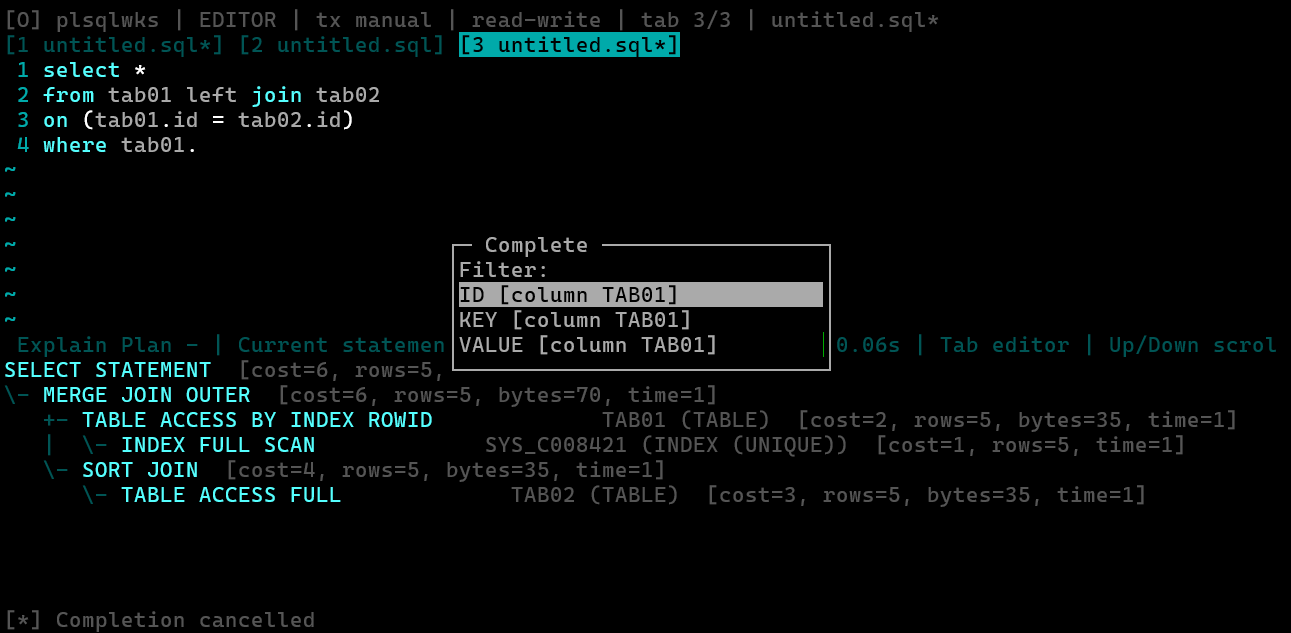
New here? Follow the installation-to-first-query quick start for copy-ready connection setup, screenshots, practical SQL workflows, troubleshooting, and a complete installed-plugin example.
For implementation ownership and boundaries, see the architecture guide.
Connection
The default connection is:
- user:
hr - password file: the
orapassfile in the platform user-config directory - service:
freeon127.0.0.1:1521
On Linux, fresh defaults are ~/.config/plsqlwks/orapass for the password,
~/.config/plsqlwks/config.ini for settings, and ~/.local/share/plsqlwks
for the workspace. macOS and Windows use their corresponding user config and
data directories. An existing /tmp/orapass remains a compatibility fallback,
but the app warns about that legacy location and about POSIX permissions other
than 0600.
Override the defaults with environment variables:
export ORACLE_USER=hr
export ORACLE_PASSWORD_FILE=~/.config/plsqlwks/orapass
export ORACLE_DSN='127.0.0.1:1521/free'
export PLSQLWKS_WORKSPACE=/path/to/workspace
export PLSQLWKS_MAX_ROWS=200
export PLSQLWKS_ARRAYSIZE=100
Password files preserve leading and trailing spaces; only final CR/LF line
endings are removed. On POSIX systems, create the file for the current user and
protect it with chmod 600.
PLSQLWKS_MAX_ROWS sets the maximum number of rows in each result page, while
PLSQLWKS_ARRAYSIZE sets the Oracle cursor array size. Both values must be
positive integers.
Install
Python 3.10 or newer is required, along with a compatible terminal and a Python
build that provides the standard-library curses module.
For development, install the package in editable mode:
python3 tools/dev.py install
oracledb is the only runtime dependency. Supporting functionality uses the Python standard library.
For a regular local install, use:
python3 -m pip install .
Run the default test and lint checks from a development checkout with:
python3 tools/dev.py lint
python3 tools/dev.py test core
tools/dev.py is the versioned command surface shared by local development,
GitHub Actions, and GitLab CI. Its test profiles sanitize optional test flags
before enabling only the requested group. Development and CI installs use the
exact versions in constraints/ci.txt; the package metadata keeps broader
minimum versions for normal consumers.
From a clean checkout and an activated disposable virtual environment, run the complete non-Oracle CI workflow with one command:
python3 tools/dev.py ci
This checks repository hygiene, installs the constrained development and XLSX
dependencies, runs Ruff, mypy, non-Oracle coverage and plugin tests, and builds
and smoke-tests the distributions. It removes only packaging artifacts created
by that invocation and leaves the coverage reports under coverage-reports/.
Plugin API and built-in plugin tests are optional and are not part of the default core test run. Install XLSX support and run them with:
python3 tools/dev.py install --xlsx
python3 tools/dev.py test plugins
The CSV and HTML export plugins have no additional dependencies. XLSX export
uses the optional openpyxl package, kept out of the base PLSQLWKS runtime.
Install a distribution with XLSX support through the standard extra:
python3 -m pip install 'plsqlwks[xlsx]'
For an editable development checkout, install the development and XLSX extras
together with python3 tools/dev.py install --xlsx. The repository also
retains plugin-requirements/xlsx-export/requirements.txt as a compatible
fallback for existing checkout automation.
Oracle integration tests require the connection environment variables shown
above and a nonempty regular password file. Setting PLSQLWKS_TEST_ORACLE=1
is an explicit opt-in, so invalid or missing credentials fail collection rather
than silently skipping the live suite. Set PLSQLWKS_TEST_ORACLE_TARGET to
19c or 26ai when the test run must verify that it reached the intended
server release:
PLSQLWKS_TEST_ORACLE=1 PLSQLWKS_TEST_ORACLE_TARGET=19c \
  python3 tools/dev.py test oracle
Omit the target for an ad-hoc run against another reachable Oracle database. The complete release-gating setup, including the developer, DML-only, and read-only profiles, is documented in the Oracle compatibility matrix. Run all non-Oracle tests, including PTY and slow coverage, with:
python3 tools/dev.py test non-oracle
After configuring the complete Oracle matrix environment documented in
COMPATIBILITY.md, run every test without profile-based deselection with:
./test.sh --all
This enables plugin, PTY, slow, Oracle, and Oracle-matrix tests together and fails collection if the required live Oracle configuration is incomplete.
Run the same non-Oracle and plugin coverage gate used by CI with:
python3 tools/dev.py coverage --report-dir coverage-reports
This writes separate JUnit XML files plus Cobertura XML and coverage JSON. It rejects line or branch coverage below the recorded Python 3.10/3.14 baselines, and applies 95% line and 90% branch floors to transaction safety, SQL analysis, Oracle matrix preflight, and atomic export code.
Local Codex choice report
From a repository checkout, create a standalone dark-ice HTML report containing the explicit choices recorded by native Codex choice dialogs:
python3 tools/chat_choices.py --output ./codex-chat-choices.html
The command reads active and archived transcripts under CODEX_HOME, defaulting
to ~/.codex, writes the report atomically, and prints the resolved destination.
It does not launch a browser. Pass --codex-home /path/to/codex-home when the
sessions live elsewhere.
Only structured user-selected answers, their questions, selected-option descriptions, and user notes are included. Plain chat messages, inferred decisions, subagent activity, unanswered prompts, and timed automatic defaults are excluded. Chats are identified by date, active/archive status, and session ID rather than message text or workspace path. The report uses inline static CSS and has no scripts or external resources.
Codex transcripts can contain sensitive data. New reports are owner-private on POSIX systems, but review a report before sharing it. The transcript record shape is internal to Codex; unrecognized or malformed records are skipped with warnings instead of being copied into the report.
Run
After installation, start the workspace with:
plsqlwks
Print the installed package version without starting curses with:
plsqlwks --version
Select a workspace for one invocation with:
plsqlwks --workspace /path/to/workspace
The CLI option takes precedence over PLSQLWKS_WORKSPACE. For compatibility, a
source checkout that already contains a configured workspace/ continues to
use it and displays a migration notice; files are never moved automatically.
Fresh workspaces start in manual transaction mode and write
[database] autocommit = no to their generated config.ini. Existing explicit
yes or no settings are preserved; a missing or malformed setting uses the
safe manual fallback.
Choose the initial transaction mode for one invocation with --manual or
--autocommit. These options override [database] autocommit from the active
config.ini:
plsqlwks --manual
plsqlwks --autocommit
You can also run it directly as a module from the source tree:
python3 -m plsqlwks
The app opens a split-screen terminal workspace:
- editor on top
- results/messages below
- command/status bar at the bottom
The terminal UI uses the active locale for keyboard input and display. If that
locale cannot be initialized, the app tries C.UTF-8, en_US.UTF-8, and
UTF-8. A valid plain C locale remains active, so configure a UTF-8 locale in
the shell when non-ASCII input or display is required.
Oracle operations run serially on one persistent background worker. The UI
continues to redraw and accept input while an operation runs, but it rejects a
second database operation until the active one finishes. Ctrl-C requests
interruption of the active operation. Reconnecting closes open result pages and
clears query results loaded by the previous connection. If a manual transaction
has pending changes, reconnect first asks whether to commit, roll back, discard
the session, or cancel. Commit or rollback must succeed before reconnect closes
the old connection. If either action fails, plsqlwks does not close the current
connection or clear its loaded results; reconnect can be tried again with an
explicit discard. Discard closes the session without resolving the transaction
explicitly, so Oracle rolls its uncommitted work back.
If the old connection is already dead and reports an error while closing,
plsqlwks still attempts the replacement connection and reports the close error
as a warning after a successful reconnect.
An interrupted Oracle operation or unexpected connection loss is shown in the
header and status bar. Rows materialized before the interruption remain
available for viewing, but the old continuation cursor and any insert draft are
discarded and the result stays read-only; reconnect and rerun the query to
restore paging or editing. A cancelled full-export fetch also states
whether no pending transaction was tracked, a pending transaction still needs
an explicit commit or rollback, or autocommit was enabled. If manual work may
have been pending after a lost connection, the status warns that the
transaction outcome is unknown and directs you to reconnect and resolve or
discard the session.
After a successful quit, plsqlwks records the open file-backed tabs, active tab, and cursor positions in the managed [session.tabs] section of config.ini. Fresh platform-default workspaces use the user-config directory; explicitly selected and legacy workspaces keep config.ini inside the workspace for compatibility. On the next start the app tries each saved path independently, silently skips files that are missing or unreadable, and leaves the initial empty tab in place when none can be opened. A saved cursor position that no longer exists in its file starts at the beginning instead. Untitled, template, and generated schema tabs are not persisted because they do not have a file to reopen.
Worksheet and configuration saves replace their destination atomically while preserving an existing file's POSIX permission bits. A file-backed worksheet also detects when its file was changed or deleted outside plsqlwks and asks whether to overwrite it, save under another name, or cancel. Undo and redo update the unsaved-change marker by comparing the current content with the last successful save.
Keys
Global
| Key | Action |
|---|---|
Alt-O |
Open the top-left commands menu |
F1 |
Help |
F6 |
Switch between DBMS_OUTPUT and normal results |
F7 |
Cycle fullscreen grid, fullscreen editor, and 2/3 editor + 1/3 grid |
F8 |
Toggle result grid / row-detail output |
F9 |
Show/focus/hide schema browser |
F12 |
Choose autocommit or manual transaction mode |
Ctrl-Up / Ctrl-Down |
Scroll the focused pane or visible DBMS_OUTPUT by one line |
Ctrl-W |
Close current file tab |
Ctrl-PageUp / Ctrl-PageDown |
Scroll focused results by one page; otherwise switch file tabs |
Alt-1..Alt-9 |
Jump to visible file tab |
Ctrl-Q |
Quit |
Ctrl-C while running |
Interrupt the active database operation |
Ctrl-Alt-C |
Insert the active result-grid draft, or commit when no draft is active |
Ctrl-Alt-R |
Roll back the current transaction |
Editor
| Key | Action |
|---|---|
| Printable text | Insert text |
| Arrow keys | Move the cursor |
Shift-Arrow |
Select SQL text |
Home / End |
Move to the beginning/end of the current line |
Shift-Home / Shift-End |
Select to the beginning/end of the current line |
Ctrl-Home / Ctrl-End |
Move to the beginning/end of the editor buffer |
Ctrl-Shift-Home / Ctrl-Shift-End |
Select to the beginning/end of the editor buffer |
PageUp / PageDown |
Move by page |
Shift-PageUp / Shift-PageDown |
Select by page |
Ctrl-Left / Ctrl-Right |
Move one word |
Ctrl-Shift-Left / Ctrl-Shift-Right |
Select one word |
Backspace |
Delete before the cursor |
Delete |
Delete at the cursor |
Ctrl-Backspace / Ctrl-Delete |
Delete the previous/next word |
Enter |
Insert a new line |
Tab |
Focus the results or DBMS_OUTPUT pane |
Shift-Tab |
Autocomplete keywords, schema objects, and columns |
F2 / Ctrl-S |
Save buffer |
F3 / Ctrl-O |
Open file |
F4 |
New template |
F5 / Ctrl-Enter / Alt-X |
Execute selected SQL or current statement |
F11 |
Execute selected SQL or whole buffer as a script |
Alt-G |
Generate SELECT, INSERT, or UPDATE with table or view columns |
Alt-+ |
Refresh autocomplete metadata cache |
Alt-R |
Rename current buffer |
Ctrl-T |
New file tab |
Ctrl-R |
Refresh workspace file list |
Ctrl-E |
Explain current statement |
Ctrl-B |
Toggle -- comment on the current line or selected lines |
Ctrl-F |
Find literal text |
Ctrl-G |
Go to line |
Ctrl-N / Ctrl-P |
Move to the next / previous search occurrence |
Ctrl-U |
Uppercase selected SQL code |
Ctrl-L |
Lowercase selected SQL code |
Ctrl-C |
Copy selected text |
Ctrl-X |
Cut selected text |
Ctrl-V |
Paste clipboard text |
Ctrl-Z / Ctrl-Y |
Undo / redo |
Ctrl+= |
Reconnect |
Use / on a line by itself after PL/SQL objects or anonymous blocks when running a script.
Script execution reports statement progress as n/total and stops at the first
failed statement while preserving earlier results. Scripts are sent directly to
Oracle, not through SQL*Plus or SQLcl: client commands such as PROMPT, SPOOL,
and SET SERVEROUTPUT, and &/&& substitution variables, are rejected before
bind prompts or execution. Oracle SQL statements such as SET TRANSACTION
remain supported.
Execution and explain errors report mapped editor line and column diagnostics.
The cursor moves only when the buffer still matches the source that was sent to
Oracle; if it changed while the operation ran, the result warns about the stale
source instead. Use Alt-O -> Editor -> Next execution diagnostic or
Previous execution diagnostic to visit additional locations from the most
recent unchanged source.
When executed or explained SQL contains bind variables such as :id, plsqlwks opens a text box for each value and sends the answers as Oracle bind parameters.
Unquoted bind names are case-insensitive, so :id and :ID share one prompt and value. Quoted bind names remain case-sensitive.
Set [database] remember_bind_values = yes in the active config.ini to prefill future bind prompts with values entered earlier in the same app session.
Editor search is literal and case-insensitive. Ctrl-F prompts for text and selects the found occurrence; Ctrl-N and Ctrl-P repeat the last search forward or backward with wraparound.
Editor autocomplete is available with Shift-Tab. It completes PL/SQL keywords,
current-schema object names, and table/view columns from cached or lazily loaded
database metadata; multiple matches open a picker. Quoted and mixed-case object
and column names retain their exact spelling and are inserted with Oracle-safe
double quoting, while conventional unquoted completion remains case-insensitive.
Use Alt-+ to reload schema-object metadata and clear cached column metadata.
Editor syntax and explain-plan colors can be overridden in the active config.ini with color names or numeric curses color indexes. Unsupported values fall back to the built-in palette for the current terminal:
[editor.colors]
keyword = bright-cyan
string = green
number = orange
comment = blue
bind = bright-magenta
operator = white

[explain.colors]
connector = cyan
operation = bright-yellow
object = green
metrics = gray
text = white
The bottom status bar starts with [ ] when there is no observed uncommitted work and [*] when manual mode has pending changes. Commit and rollback messages include the local timestamp and the tracked row count, for example Committed transaction, 2026-06-12 10:12:15, 7 row(s) changed. Direct DML and ROWID grid edits contribute exact row counts; PL/SQL blocks can mark the transaction as pending with an unknown row count. Quitting or switching from manual mode to autocommit while changes are pending asks whether to commit, roll back, or cancel. The selected transaction mode is stored under [database] autocommit in the active config.ini.
Read-only mode is a client-side guardrail that rejects statements which the SQL scanner recognizes as database-writing. Select it with --read-only, --read-write, or [database] read_only in config.ini. It is not a security boundary: a function invoked by an otherwise valid SELECT can perform work outside the visible statement, including an autonomous transaction. Use an Oracle account with only the required privileges when writes must be prevented by the database. In read-only mode, Ctrl-E explains SELECT and WITH statements by opening a cursor and reading DBMS_XPLAN.DISPLAY_CURSOR; direct EXPLAIN PLAN remains disabled because it writes to PLAN_TABLE.
Results And Explain Plan
| Key | Action |
|---|---|
Esc / Tab |
Return to the editor |
| Arrow keys | Move through result-grid cells |
PageUp / PageDown |
Move by a visible page in the result grid |
Home / End |
Move to the first/last result-grid column |
Ctrl-Home / Ctrl-End |
Move to the first/last result-grid row |
F8 |
Toggle result grid / row-detail output |
Ctrl-C |
Copy the selected result cell to the clipboard |
F10 |
View the full selected result cell |
Enter |
Edit the selected ROWID-backed result cell when available |
INS |
Prepare a draft insert row for ROWID-backed results |
Ctrl-Alt-C |
Insert the active draft row, or commit the transaction when no draft is active |
Up / Down |
Scroll explain-plan lines |
PageUp / PageDown |
Scroll explain-plan lines by page |
Home / End |
Move to the first/last explain-plan line |
When more result rows are available, PageDown at the loaded end fetches and
appends the next result page. For simple queries against one current-schema
base table that include ROWID, press Enter on a directly selected table
column to update it by rowid. Exact quoted and mixed-case table and column names
are supported and safely quoted; schema-qualified, cross-schema, joined, and
otherwise ambiguous results remain read-only. Press INS in the grid to
prepare a draft row at the top of the grid, edit its cells with Enter, use
Ctrl-Alt-C to insert it, or use Esc to cancel it.
While entering a cell, use Left/Right or Home/End to move within the existing
text and Backspace/Delete to edit around the cursor. DATE and TIMESTAMP cells
offer a choice between an ISO value and database-side SYSDATE.
Database null values are displayed and entered as <NULL> in editable results.
Plain NULL is stored as literal text.
Grid edits compare the selected cell's originally loaded typed value as well as
the ROWID. If another session changes that cell or deletes the row first, the
edit is rejected and the query must be refreshed. Changes to other cells in the
same row do not cause a conflict. NUMBER input uses decimal notation with a
period; DATE and TIMESTAMP input uses ISO
YYYY-MM-DD[ HH:MM:SS[.ffffff]]; RAW and BLOB input uses hexadecimal bytes.
Character and CLOB input is preserved as entered. Types that cannot be compared
without losing information, including time-zone timestamps and timestamps with
precision above six, are read-only in the grid.
In python-oracledb Thin mode, non-null TIMESTAMP WITH TIME ZONE and
TIMESTAMP WITH LOCAL TIME ZONE values are shown and exported as explicit
lossless-fetch-unavailable markers instead of misleading naive datetimes. Use
an explicit TO_CHAR expression with the required precision and zone fields
when the exact value is needed; named-zone timestamps are not supported by the
current Thin driver.
Displayed CLOB and BLOB values are limited to the first 65,536 characters or
bytes and include a truncation marker with the full size. Truncated LOB cells
cannot be edited safely. Schema-browser DDL is always read in full.
DBMS_OUTPUT is collected after each statement and after every fetched result
page without replacing a real query grid. Output-read or cursor-cleanup failures
are displayed as warnings while preserving successfully fetched rows. PL/SQL
compiler warnings are also retained with successful statement results; compiler
errors remain execution failures with navigable source locations.
F7 cycles a grid fullscreen view that starts with the table header on the first terminal line and uses the last line for data, an editor-only fullscreen view, and a split layout with 2/3 editor and 1/3 data grid.
To export the active table, use one of these command paths:
Alt-O -> Results -> Export result to CSVAlt-O -> Results -> Export result to HTMLAlt-O -> Results -> Export result to XLSX
Each command opens an Export rows picker with Loaded rows only (default)
selected first. Keep that choice for the safe default, which exports exactly
the rows currently loaded in the grid without fetching. Choose All available
rows (keep the result grid unchanged) to fetch every continuation page into a
private export buffer, including results larger than 10,000 rows, without
appending those rows to the grid. Escape cancels the picker. The status bar
shows the number of rows prepared during fetching and determinate write
progress; Ctrl-C cancels the active phase. Cancelling while rows are fetched
keeps the originally loaded grid rows but makes them read-only and discards the
interrupted cursor; cancelling only the file-writing phase leaves the result
unchanged and leaves the destination unchanged.
Relative names and the timestamped default name are resolved under the active
workspace's results/ directory; absolute paths are also accepted, and an
existing file requires confirmation before replacement. A full export requires
a live continuation when more rows remain; if the result is disconnected or
already detached, choose the loaded-row default instead. Commit or cancel an
active insert draft before exporting so its temporary row cannot be included.
Each enabled export remains available in read-only mode because it does not
execute SQL or change a transaction.
The bundled exporters can be enabled independently in the active config.ini:
[plugin.csv-export]
enabled = yes

[plugin.html-export]
enabled = yes

[plugin.xlsx-export]
enabled = yes
Set an exporter's enabled value to no to omit its command from the
Results menu. A missing or malformed value defaults to enabled so existing
configurations keep all three commands. These switches affect only the bundled
exporters, not installed entry-point plugins, and take effect after restarting
PLSQLWKS.
The HTML command writes a standalone UTF-8 HTML5 document with column headings and table rows, followed by the exported-row count and any additional-row notice. The result title is used only as browser-tab document metadata, not as a visible heading. Document titles, column headers, and cell values are escaped as untrusted text. The document contains a static embedded stylesheet, no JavaScript, and no external resources. It reports when more rows remain after the selected export mode and does not open a browser after export.
The XLSX command writes one Query result worksheet with a header row and the
display rows selected by the loaded or full export mode. The header row is
frozen by default so it stays
visible while scrolling. Genuine source numbers become native Excel
numeric cells when they fit Excel's range and 15-significant-digit precision;
fixed-point scale such as 10.50 is preserved. Numeric-looking character data
and unsafe-precision numbers remain exact text and can still receive Excel's
number-as-text warning. Headers and other values, including text beginning with
=, +, -, or @, remain literal strings and are never interpreted as
spreadsheet formulas. The workbook contains no macros or external links and is
not opened after export. XLSX support remains optional and obtains
openpyxl>=3.1 from the standard plsqlwks[xlsx] extra;
the repository plugin requirements file remains a source-checkout fallback.
Each column uses the larger of its bold column name or widest data value,
estimated with Calibri 11-compatible proportional glyph widths, clamped from 3
through 60 units, and given a 17-pixel fit margin. Wrapping remains based on
logical visual length: values over 60 visual units or containing explicit line
breaks are wrapped.
The HTML plugin accepts three plugin-owned environment settings. They are captured when PLSQLWKS loads the plugin:
PLSQLWKS_HTML_EXPORT_NULL_VALUE="(null)"
PLSQLWKS_HTML_EXPORT_THEME="dark"
PLSQLWKS_HTML_EXPORT_DATE_FORMAT="%d.%m.%Y"
PLSQLWKS_HTML_EXPORT_NULL_VALUE replaces the exact <NULL> grid display
token and defaults to empty; set it to <NULL> or another marker to keep NULL
values visible. PLSQLWKS_HTML_EXPORT_THEME is bright (the default) or
dark; both select only bundled static CSS, and printing uses a readable
bright palette. PLSQLWKS_HTML_EXPORT_DATE_FORMAT is empty by default and
otherwise uses Python strftime syntax with the same conservative ISO-display
matching described for CSV below. These settings affect only generated HTML
and do not expand Plugin API v1.
The XLSX plugin has equivalent plugin-owned environment settings, captured when PLSQLWKS loads it:
PLSQLWKS_XLSX_EXPORT_NULL_VALUE="(null)"
PLSQLWKS_XLSX_EXPORT_THEME="dark"
PLSQLWKS_XLSX_EXPORT_DATE_FORMAT="%d.%m.%Y"
PLSQLWKS_XLSX_EXPORT_AUTO_FILTER="no"
PLSQLWKS_XLSX_EXPORT_AUTO_WIDTH="no"
PLSQLWKS_XLSX_EXPORT_FREEZE_TOP_ROW="no"
PLSQLWKS_XLSX_EXPORT_NULL_VALUE replaces the exact <NULL> display token and
defaults to empty; set it to <NULL> or another marker to keep NULL values
visible. PLSQLWKS_XLSX_EXPORT_THEME selects the bundled bright (default) or
dark cell styles. PLSQLWKS_XLSX_EXPORT_DATE_FORMAT is empty by default and
otherwise applies Python strftime directives to the same strict ISO-shaped
display strings as CSV and HTML. Formatted date and text values remain literal
spreadsheet strings rather than formulas or typed Excel dates. The
PLSQLWKS_XLSX_EXPORT_AUTO_FILTER setting enables Excel's column filter
controls by default. It accepts case-insensitive, whitespace-tolerant 1,
yes, true, or on to enable them and 0, no, false, or off to
disable them; an unset or malformed value falls back to enabled. When enabled,
the filter range spans exactly the header and exported rows, without
applying filter criteria or initially hiding any rows.
PLSQLWKS_XLSX_EXPORT_AUTO_WIDTH controls proportional sizing from the widest
header or exported data value and uses the same boolean syntax. When filtering is
enabled, the header candidate includes three extra character units for the filter
dropdown. Auto-width defaults to enabled; disabling it leaves Excel's default
column widths while preserving the existing multiline and over-60-unit cell
wrapping. PLSQLWKS_XLSX_EXPORT_FREEZE_TOP_ROW uses the same boolean syntax,
defaults to enabled, and keeps row 1 visible while scrolling; disabling it
leaves the worksheet unfrozen. Freezing is independent of filtering and
automatic widths. These settings belong to the built-in XLSX plugin and do not
expand Plugin API v1.
The built-in CSV export formatting can also be customized in the active
config.ini:
[plugin.csv-export]
separator = ,
null_value =
date_format =
protect_formulas = no
separator must be one character and defaults to a comma. null_value
defaults to empty, replacing the exact <NULL> display value with an empty CSV
field. Set it to <NULL> or another marker to retain a visible value.
date_format defaults to empty, which preserves displayed date values. When
set, it uses Python strftime syntax and formats only calendar-valid,
full-string ISO display values shaped as YYYY-MM-DD or
YYYY-MM-DD HH:MM:SS[.digits][+/-HH:MM], with one to six fractional digits;
other text is exported unchanged. This deliberately strict heuristic cannot
identify non-ISO or otherwise preformatted database date text, while matching
text-column values are indistinguishable from dates and are formatted too.
protect_formulas defaults to no, preserving the exact field content and
existing CSV representation. Set it to yes for CSV files intended to be
opened by people in spreadsheet software. The protected mode quotes every
field and prefixes formula-triggering values with a tab, including risky ASCII
and full-width prefixes and leading control characters. This also makes
legitimate leading signed values such as -42 text and leaves the tab in data
seen by programmatic CSV readers. OWASP notes that no CSV neutralization is
universal across all spreadsheet applications and save/re-open workflows, so
validate this opt-in mode with the applications in use.
Schema Browser
The F9 schema browser groups tables, views, procedures, functions, packages, triggers, sequences, indexes, and private synonyms from the current schema. Type while the browser is focused to filter object names with a case-insensitive substring match; groups without matches are hidden and matching groups expand automatically without changing their saved expansion state. Exact quoted and mixed-case names are preserved when columns or definitions are loaded, with Oracle-safe quoting applied to metadata requests.
| Key | Action |
|---|---|
| Printable text | Filter object names |
Backspace |
Delete the final filter character |
Esc |
Clear a nonempty filter, or return to the editor when the filter is empty |
Up / Down |
Move through browser entries |
PageUp / PageDown |
Move through browser entries by page |
Enter |
Expand a group or load an object definition |
Space |
Expand/collapse a group when the filter is empty, or add a space to the active filter |
Ctrl-R |
Refresh database objects |
Cell Viewer
| Key | Action |
|---|---|
Esc / Enter / F10 |
Close the cell viewer |
Up / Down |
Scroll cell text |
PageUp / PageDown |
Scroll cell text by page |
Home / End |
Move to the first/last cell-viewer line |
Prompts And Pickers
| Key | Action |
|---|---|
| Printable text | Type into prompts or filter picker options |
Backspace |
Delete before the prompt cursor or picker filter |
Enter |
Accept the prompt or selected picker item |
Esc / Ctrl-Q |
Cancel the prompt or picker |
Up / Down |
Move through picker options |
PageUp / PageDown |
Move through picker options by page |
Workspace Layout
workspace/
  sql/       saved SQL files
  plsql/     saved PL/SQL files
  results/   CSV, HTML, XLSX, and other result output
The first launch creates the workspace folders and starter SQL/PLSQL files.
Plugin API
Plugin API version 1 is a deliberately small, command-only extension point.
See PLUGINS.md for the focused plugin author and testing guide.
The bundled CSV, HTML, and XLSX commands remain API v1 Plugin objects with a
loaded-snapshot fallback for standalone embedding. The application supplies
their full-result picker, progress, and cancellation through private host
integration that does not widen or break Plugin API v1.
Installed Python packages can add commands to the Alt-O menu through the
standard plsqlwks.plugins entry-point group:
[project.entry-points."plsqlwks.plugins"]
example = "example_package.plugin:create_plugin"
A minimal plugin factory is:
from plsqlwks.plugins import Plugin, PluginCommand, PluginContext


def show_loaded_count(context: PluginContext) -> None:
    result = context.get_active_result()
    count = len(result.rows) if result is not None else 0
    context.set_status(f"{count} row(s) are currently loaded")


def create_plugin() -> Plugin:
    return Plugin(
        id="example",
        name="Example commands",
        commands=(
            PluginCommand(
                id="show-loaded-count",
                section="Results",
                title="Show loaded row count",
                handler=show_loaded_count,
            ),
        ),
    )
The entry point must resolve to a zero-argument callable returning Plugin.
Handlers receive only PluginContext: it provides an immutable snapshot of the
active tabular result, the results directory, insert-draft detection, text and
overwrite prompts, status updates, and UI error reporting. API v1 does not
provide database execution, mutable results, the application or UI state,
keyboard registration, drawing, events, lifecycle hooks, background jobs,
settings schemas, hot reload, or workspace-local executable plugins.
The [plugin.csv-export] section and the documented HTML/XLSX environment
variables configure only their corresponding PLSQLWKS-supplied plugins. Plugin
API v1 does not provide a generic settings schema or pass these values to
installed third-party plugins.
Installed plugins are trusted, in-process Python code. They are not sandboxed; install plugins only from sources you trust.
Release history Release notifications | RSS feed


Download files
Download the file for your platform. If you're not sure which to choose, learn more about installing packages.
Source Distribution
File details
Details for the file plsqlwks-0.1.8.tar.gz.
File metadata
- Download URL: plsqlwks-0.1.8.tar.gz
- Upload date:
- Size: 213.7 kB
- Tags: Source
- Uploaded using Trusted Publishing? No
- Uploaded via: twine/6.1.0 CPython/3.13.5
File hashes
| Algorithm | Hash digest | |
|---|---|---|
| SHA256 |
2d8d71a8adcca95dae89818722c96b3ba32e105b775cedc37f66d1b3e9453455
|
|
| MD5 |
ee08fcdfa66f1badb271e2df48fd120b
|
|
| BLAKE2b-256 |
ce9178698447a43b5219fcc64804bc1ce027fd96a39c0b5a5c9c9e1a383721c0
|






