
The AI agent that runs on your laptop, not a datacenter. OpenClaw alternative with one-command install.
Verified details
These details have been verified by PyPIProject links
GitHub Statistics
Maintainers

Project description

🐾 PocketPaw
An AI agent that runs on your machine, not someone else's.







Self-hosted AI agent with a native desktop app and web dashboard. Talks to you over Discord, Slack, WhatsApp, Telegram, or the browser.
No subscription. No cloud lock-in. Your data stays on your machine.
⚠️ Beta: This project is under active development. Expect breaking changes between versions.
Quick Start
Desktop App (Recommended)
Download the native desktop app. It bundles the backend installer and provides a full-featured UI with system tray, global shortcuts, side panel, and multi-window support.
| Platform | Download |
|---|---|
| Windows | PocketPaw_0.1.3_x64-setup.exe |
| macOS (Apple Silicon) | PocketPaw_0.1.3_aarch64.dmg |
| macOS (Intel) | PocketPaw_0.1.3_x64.dmg |
| Linux (.deb) | PocketPaw_0.1.3_amd64.deb |
| Linux (.AppImage) | PocketPaw_0.1.3_amd64.AppImage |
Install via Terminal
macOS / Linux
Prerequisites:
- Python 3.11 or higher (download here)
- pip package manager (included with Python)
Quick install:
pip install pocketpaw && pocketpaw
Recommended install (with virtual environment):
# 1. Verify Python version (must be 3.11+)
python3 --version

# 2. Upgrade pip to latest version
python3 -m pip install --upgrade pip

# 3. Create and activate virtual environment (optional but recommended)
python3 -m venv pocketpaw-env
source pocketpaw-env/bin/activate

# 4. Install PocketPaw
pip install pocketpaw

# 5. Run PocketPaw
pocketpaw
Or use the automated install script:
curl -fsSL https://pocketpaw.xyz/install.sh | sh
Windows (PowerShell)
Windows Installation (Step-by-Step)
Prerequisites:
- Python 3.11 or higher — Download Python. During setup, check "Add Python to PATH".
- pip (included with Python)
Option A — Automated installer (recommended for beginners):
powershell -NoExit -Command "iwr -useb https://pocketpaw.xyz/install.ps1 | iex"
Option B — Manual install:
-
Open PowerShell and verify Python version (must be 3.11+):
python --version
-
Upgrade pip:
python -m pip install --upgrade pip
-
(Optional but recommended) Create and activate a virtual environment:
python -m venv pocketpaw-env
.\pocketpaw-env\Scripts\Activate.ps1
-
Install PocketPaw:
pip install pocketpaw
-
Verify the installation by running:
pocketpaw --help
Or start the dashboard:
pocketpaw
Windows Troubleshooting
If you installed PocketPaw with pip install pocketpaw and the pocketpaw command is not recognized:
'pocketpaw' is not recognized as an internal or external command
This usually means your Python Scripts directory is not on your PATH. By default it is at:
C:\Users\<your-username>\AppData\Local\Python\Python3.XX\Scripts
Find your exact Scripts path:
python -c "import sysconfig; print(sysconfig.get_path('scripts'))"
How to fix:
- Open Start → Search "Environment Variables"
- Click "Edit the system environment variables"
- Click "Environment Variables"
- Under User variables → Select
Path→ Click Edit - Add the Scripts directory path
- Restart your terminal
Alternatively, run PocketPaw without adding Scripts to PATH:
python -m pocketpaw
[!TIP] First Run: After opening the dashboard, the system health may show UNHEALTHY. This is expected until at least one model provider is configured. The app itself is running correctly; only AI features are disabled. See Setting up your first API key, or use Ollama for free local inference.
Note: Some features (browser automation, shell tools) work best under WSL2. Native Windows support covers the web dashboard and all LLM chat features.
Other methods
pipx install pocketpaw && pocketpaw    # Isolated install
uvx pocketpaw                           # Run without installing

# From source
git clone https://github.com/pocketpaw/pocketpaw.git
cd pocketpaw && uv run pocketpaw
Docker
git clone https://github.com/pocketpaw/pocketpaw.git && cd pocketpaw
cp .env.example .env
docker compose up -d
Dashboard at http://localhost:8888. Get the access token:
docker exec pocketpaw cat /home/pocketpaw/.pocketpaw/access_token
Agent-created files appear in ./workspace/ on the host. Optional profiles: --profile ollama (local LLMs), --profile qdrant (vector memory). Using Ollama on the host? Set POCKETPAW_OLLAMA_HOST=http://host.docker.internal:11434 in .env.
The web dashboard opens at http://localhost:8888. From there you can connect Discord, Slack, WhatsApp, or Telegram.
🔑 Setting up your first API key
If the dashboard shows UNHEALTHY on first run, PocketPaw is usually installed correctly. You just need to configure at least one model provider (API key or local provider).
- Open Settings > API Keys in the dashboard.
- Add a key for at least one provider:
- Anthropic: console.anthropic.com/settings/keys
- OpenAI: platform.openai.com/api-keys
- Google Gemini: aistudio.google.com/apikey
- Save settings and retry your chat.
[!TIP] Power users / Docker / headless: You can also set API keys via environment variables instead of the dashboard. Use
POCKETPAW_ANTHROPIC_API_KEY,POCKETPAW_OPENAI_API_KEY, orPOCKETPAW_GOOGLE_API_KEY. See Configuration for the full list.
Prefer a free local option? Use Ollama instead (see Features and Configuration).
Features
| 📡 9+ Channels | Web Dashboard, Discord, Slack, WhatsApp, Telegram, Signal, Matrix, Teams, Google Chat |
| 🧠 6 Agent Backends | Claude Agent SDK, OpenAI Agents, Google ADK, Codex CLI, OpenCode, Copilot SDK |
| 🛠️ 50+ Tools | Browser, web search, image gen, voice/TTS/STT, OCR, research, delegation, skills |
| 🔌 Integrations | Gmail, Calendar, Google Drive & Docs, Spotify, Reddit, MCP servers |
| 💾 Memory | Long-term facts, session history, smart compaction, Mem0 semantic search |
| 🔒 Security | Guardian AI, injection scanner, tool policy, plan mode, audit log, self-audit daemon |
| 🏠 Local-First | Runs on your machine. Ollama for fully offline operation. macOS / Windows / Linux. |
Examples
You:  "Every Sunday evening, remind me which recycling bins to put out"
Paw:  Done. I'll check the recycling calendar and message you every Sunday at 6pm.

You:  "Find that memory leak, the app crashes after 2 hours"
Paw:  Found it. The WebSocket handler never closes connections. Here's the fix.

You:  "I need a competitor analysis report for our product launch"
Paw:  3 agents working on it. I'll ping you when it's ready.
Architecture

Everything goes through an event-driven message bus. Channels publish messages, the AgentLoop picks them up and routes to whichever backend you've configured. All six backends implement the same AgentBackend protocol, so swapping one for another doesn't touch the rest of the system.
The desktop client (client/) is a Tauri 2.0 + SvelteKit app that connects to the Python backend over REST and WebSocket. It provides system tray integration, global hotkeys, multi-window support (side panel, quick ask), and an onboarding wizard that handles backend installation.
Agent Backends
| Backend | Key | Providers | MCP |
|---|---|---|---|
| Claude Agent SDK (Default) | claude_agent_sdk |
Anthropic, Ollama | Yes |
| OpenAI Agents SDK | openai_agents |
OpenAI, Ollama | No |
| Google ADK | google_adk |
Google (Gemini) | Yes |
| Codex CLI | codex_cli |
OpenAI | Yes |
| OpenCode | opencode |
External server | No |
| Copilot SDK | copilot_sdk |
Copilot, OpenAI, Azure, Anthropic | No |
Security

PocketPaw uses a secondary LLM (Guardian AI) to review every tool call before execution. Our security stack includes:
- Injection Scanning & configurable tool policies.
- Plan Mode for mandatory human approval.
--security-auditCLI for manual reviews.- Self-audit Daemon with append-only audit logs.
[!TIP] Full details and configuration options are available in the Security Documentation or on the official website.
Detailed security architecture

Configuration
Settings live in ~/.pocketpaw/config.json. You can also use POCKETPAW_-prefixed env vars or the dashboard Settings panel. API keys are encrypted at rest.
Environment Variables (.env file)
PocketPaw ships with a .env.example file that lists every supported environment variable with inline comments. Before running PocketPaw (especially when cloning from source or using Docker), copy it to .env and fill in the values you need:
# macOS / Linux
cp .env.example .env

# Windows (PowerShell)
Copy-Item .env.example .env
Then open .env in your editor and uncomment / set the variables relevant to your setup. For example:
# LLM provider
POCKETPAW_ANTHROPIC_API_KEY=sk-ant-...
POCKETPAW_AGENT_BACKEND=claude_agent_sdk   # or openai_agents, google_adk, etc.

# Optional: Telegram bot
POCKETPAW_TELEGRAM_BOT_TOKEN=...
POCKETPAW_ALLOWED_USER_ID=...
Tip: Variables set in
.envare loaded automatically at startup. You can also export them directly in your shell or set them via the dashboard Settings panel — all three methods work interchangeably.
Alternatively, export variables directly in your shell:
export POCKETPAW_ANTHROPIC_API_KEY="sk-ant-..."   # Required for Claude SDK backend
export POCKETPAW_AGENT_BACKEND="claude_agent_sdk"  # or openai_agents, google_adk, etc.
Note: An Anthropic API key from console.anthropic.com is required for the Claude SDK backend. OAuth tokens from Claude Free/Pro/Max plans are not permitted for third-party use. For free local inference, use Ollama instead.
See the full configuration reference for all settings.
Development
Backend (Python)
Prerequisites:
- Python 3.11 or higher (download here)
- uv package manager
Install uv:
[!WARNING] Windows users: You must open a new terminal window after running the install script below before
uvwill be recognized. The installer updates your PATH, but this change does not apply to your current terminal session — runninguvimmediately after install will give aCommandNotFoundExceptionerror.
# macOS/Linux
curl -LsSf https://astral.sh/uv/install.sh | sh

# Windows (PowerShell)
powershell -ExecutionPolicy ByPass -c "irm https://astral.sh/uv/install.ps1 | iex"

# Or via pip
pip install uv
[!TIP] Windows: To use
uvimmediately without opening a new terminal, run:$env:Path = "$env:USERPROFILE\.local\bin;$env:Path"Then verify the installation:
uv --version
Setup and run:
# 1. Verify Python version
python3 --version

# 2. Clone and enter the repository
git clone https://github.com/pocketpaw/pocketpaw.git && cd pocketpaw

# 3. Install with dev dependencies
uv sync --dev

# 4. Run PocketPaw in development mode (auto-reload)
uv run pocketpaw --dev

# 5. Run tests
uv run pytest --ignore=tests/e2e    # Run tests (2900+)

# 6. Lint & format
uv run ruff check . && uv run ruff format .
Optional extras
pip install pocketpaw[openai-agents]       # OpenAI Agents backend
pip install pocketpaw[google-adk]          # Google ADK backend
pip install pocketpaw[discord]             # Discord
pip install pocketpaw[slack]               # Slack
pip install pocketpaw[memory]              # Mem0 semantic memory
pip install pocketpaw[all]                 # Everything
Desktop Client (Tauri + SvelteKit)
The native desktop app lives in client/. It connects to the Python backend via REST/WebSocket.
Prerequisites:
cd client
bun install                    # Install dependencies
bun run dev                    # Vite dev server (http://localhost:1420)
bun run tauri dev              # Full desktop app (frontend + Tauri shell)
bun run check                  # Type check
bun run tauri build            # Production build
Tech stack: SvelteKit 2 + Svelte 5, Tailwind CSS 4, shadcn-svelte, Tauri 2.0 (Rust). See client/CLAUDE.md for full architecture details.
Documentation
pocketpaw.xyz covers getting started, backends, channels, tools, integrations, security, memory, and the full API reference.
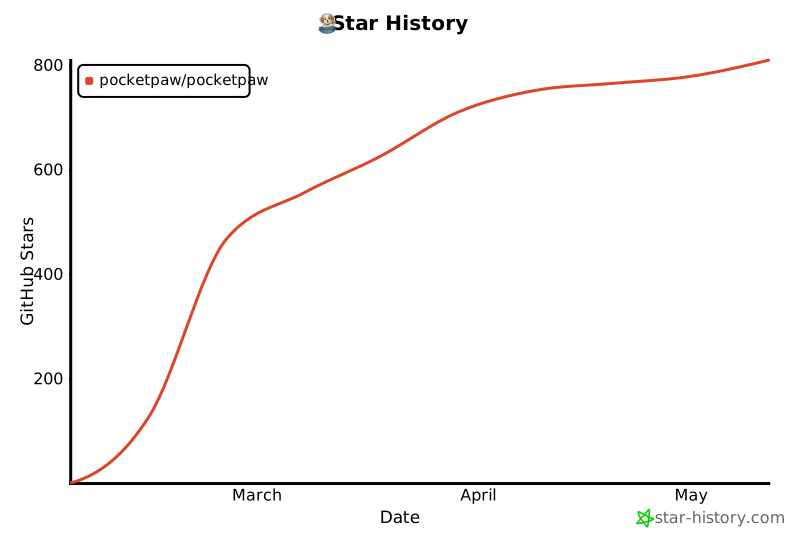
Star History
Contributors
Join the Pack
- Twitter: @prakashd88
- Discord: discord.gg/asRrtm95Zc
- Email: pocketpawai@gmail.com
PRs welcome. Come build with us.
License
MIT © PocketPaw Team
Built for people who'd rather own their AI than rent it
Project details
Verified details
These details have been verified by PyPIProject links
GitHub Statistics
Maintainers
Release history Release notifications | RSS feed


Download files
Download the file for your platform. If you're not sure which to choose, learn more about installing packages.
Source Distribution
Built Distribution
Filter files by name, interpreter, ABI, and platform.
If you're not sure about the file name format, learn more about wheel file names.
Copy a direct link to the current filters
File details
Details for the file pocketpaw-0.4.16.tar.gz.
File metadata
- Download URL: pocketpaw-0.4.16.tar.gz
- Upload date:
- Size: 49.2 MB
- Tags: Source
- Uploaded using Trusted Publishing? Yes
- Uploaded via: twine/6.1.0 CPython/3.13.12
File hashes
| Algorithm | Hash digest | |
|---|---|---|
| SHA256 |
6b53faa54727f4db98ac2174b0e85c85c26b4ec816ddd836fe8671b08ae15c75
|
|
| MD5 |
bca0af3301f1ddc2904cad6db4e807f6
|
|
| BLAKE2b-256 |
3eacba153fc6031bfccc632478362814f1247ab87618a2031ddf8677e093a8c0
|
Provenance
The following attestation bundles were made for pocketpaw-0.4.16.tar.gz:
Publisher:
publish.yml on pocketpaw/pocketpaw
-
Statement:
-
Statement type:
https://in-toto.io/Statement/v1 -
Predicate type:
https://docs.pypi.org/attestations/publish/v1 -
Subject name:
pocketpaw-0.4.16.tar.gz -
Subject digest:
6b53faa54727f4db98ac2174b0e85c85c26b4ec816ddd836fe8671b08ae15c75 - Sigstore transparency entry: 1263240206
- Sigstore integration time:
-
Permalink:
pocketpaw/pocketpaw@cb03d3d2f5fadb25473f7191d45d3860e2e9aa9f -
Branch / Tag:
refs/tags/v0.4.16 - Owner: https://github.com/pocketpaw
-
Access:
public
-
Token Issuer:
https://token.actions.githubusercontent.com -
Runner Environment:
github-hosted -
Publication workflow:
publish.yml@cb03d3d2f5fadb25473f7191d45d3860e2e9aa9f -
Trigger Event:
release
-
Statement type:
File details
Details for the file pocketpaw-0.4.16-py3-none-any.whl.
File metadata
- Download URL: pocketpaw-0.4.16-py3-none-any.whl
- Upload date:
- Size: 882.7 kB
- Tags: Python 3
- Uploaded using Trusted Publishing? Yes
- Uploaded via: twine/6.1.0 CPython/3.13.12
File hashes
| Algorithm | Hash digest | |
|---|---|---|
| SHA256 |
b473cf5b1cbc46a162c4cb94413b9546ec641b425fda35fb539d9f3219c4e9c6
|
|
| MD5 |
5fd07601f4bdcbb97327531cda45b942
|
|
| BLAKE2b-256 |
782d447675a3370e5223d3d34dd9673c70e4028f8f0c035929b55ee31f90e622
|
Provenance
The following attestation bundles were made for pocketpaw-0.4.16-py3-none-any.whl:
Publisher:
publish.yml on pocketpaw/pocketpaw
-
Statement:
-
Statement type:
https://in-toto.io/Statement/v1 -
Predicate type:
https://docs.pypi.org/attestations/publish/v1 -
Subject name:
pocketpaw-0.4.16-py3-none-any.whl -
Subject digest:
b473cf5b1cbc46a162c4cb94413b9546ec641b425fda35fb539d9f3219c4e9c6 - Sigstore transparency entry: 1263240208
- Sigstore integration time:
-
Permalink:
pocketpaw/pocketpaw@cb03d3d2f5fadb25473f7191d45d3860e2e9aa9f -
Branch / Tag:
refs/tags/v0.4.16 - Owner: https://github.com/pocketpaw
-
Access:
public
-
Token Issuer:
https://token.actions.githubusercontent.com -
Runner Environment:
github-hosted -
Publication workflow:
publish.yml@cb03d3d2f5fadb25473f7191d45d3860e2e9aa9f -
Trigger Event:
release
-
Statement type:






