

PowerClock
Shutdown, wake-up and task scheduler
English · Español
Status: pre-release (0.1.0 in preparation). Linux is supported today; Windows and macOS are planned. Its Quick tab was inspired by KShutdown; it is a separate program, written from scratch and not affiliated with it.
Schedule shutdown, wake-up and your tasks, at an exact time or when the conditions you choose are met. PowerClock shuts down, restarts, suspends, hibernates, locks, logs out and turns your computer on by itself, and runs your programs and scripts at a time, on a schedule or when a condition is met: you stop using the computer, a render or a download finishes, the battery runs low, the laptop is unplugged…
It does this with persistent rules that PowerClock keeps in the background (a small service, the daemon). Rules keep working with the window closed, after a restart, and even with the session closed. You can drive it from a tray icon and a window (in the spirit of KShutdown), from the command line, or from any program through a local API.
Contents
- What it can do
- Screenshots
- Requirements
- Installation
- Getting started in five minutes
- How it works: the main ideas
- The graphical interface
- The command line
- Rules in detail
- Turning the computer on and waking it up
- Conditions and sensors
- Safety
- Using it on a server
- Files and settings
- The local API
- Troubleshooting
- Uninstalling
- Development
- Roadmap
- License
What it can do
Power actions
| Action | What happens |
|---|---|
| Shut down | Turns the computer off. By default gracefully: your desktop asks open applications to save first (KDE and GNOME). |
| Restart | Reboots, also gracefully by default. |
| Suspend | Sleep to RAM (S3). Resumes in seconds. |
| Hibernate | Saves memory to disk and powers off (needs a swap as large as RAM and resume= configured). |
| Hybrid sleep | Suspend + hibernate: resumes fast, and survives a power cut. |
| Lock the screen | Locks your session. |
| Log out | Closes your session (gracefully by default). |
| Turn off the screen | Turns the display off (KDE, GNOME or X11). |
| Turn on / wake up | Programs the computer's hardware clock (RTC) so it wakes from suspend or even powers on from off at a given time. |
Other actions (steps of a rule, run in order): open an installed application (picked from
the menu's list, Flatpak and Snap ones too) with ready-made recipes (a web page as a kiosk,
a playlist on a loop, a PDF as a presentation…), placing its window on a screen or full screen
and keeping it open if it closes · control a media player (play, pause, next, open a radio
station) · set the volume, little by little if you like · play a sound or say a text
aloud · change the desktop (light or dark theme, wallpaper, brightness, power profile) ·
connect a VPN or turn Wi-Fi on or off · keep the screen on and silence notifications for a
while · take a screenshot for the history · send a message to your phone (ntfy, Telegram) or to
any webhook (Home Assistant…) · ask with buttons and wait for the answer (again every few
minutes, like a medication reminder) · run a program or a shell command (with a time
limit, its output kept in the history) · open a file or web page · close a program (asking it nicely, then forcing
it) · show a desktop notification · wait a while · wait until a condition is met · program the
next wake-up. File names and texts can carry the date: radio-{date}.mp3.
When (the trigger):
- At a time: once at a date and time, after a delay (a countdown), or repeating with a cron expression (every night at 03:00, weekdays at 07:30…), in your time zone or another one.
- When a condition is met: the computer has not been used for a while · a program ends (render, compression, copy…) · the computer goes quiet (low CPU for a while) · a download finishes (low network traffic for a while) · the battery goes below/above a level · the laptop is unplugged or plugged in · the desktop session starts (after logging in) · PowerClock starts or the computer resumes from sleep.
- By hand: from the window, the tray, the command line or the API.
Only if / wait while:
- Only if… (conditions) decides whether a rule runs at its moment ("only if plugged in", "only on weekdays", "only between 22:00 and 07:00", "only on my home Wi-Fi"…).
- Wait while… (guards) makes it wait and check again ("while a video is playing", "while someone is connected by SSH", "while ffmpeg is running") up to a limit.
Around it: a warning before any power action that you can cancel until the last second
(with Cancel and Postpone 10 minutes in a notification and a dialog) · a test mode
(--dry-run) to try everything without turning anything off · a history of every run with its result and reason · powerclock doctor, which
checks what works on your computer and says how to fix what does not · a tray icon · an
interface in English and Spanish.
Screenshots
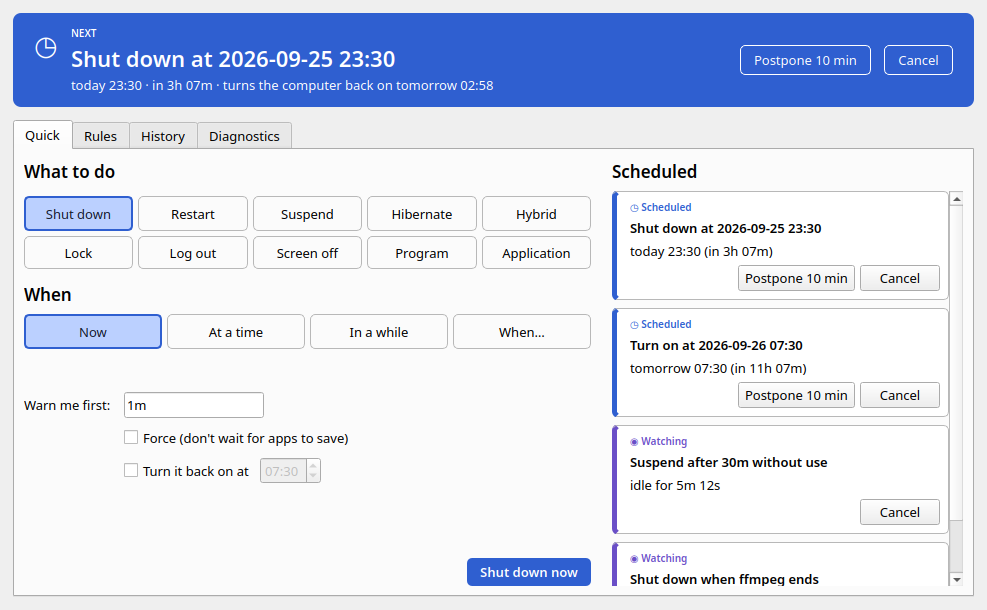 Quick: the «Next» band on top; an action, when, and a button that says what it will do. On the right, what is scheduled. Quick: the «Next» band on top; an action, when, and a button that says what it will do. On the right, what is scheduled. |
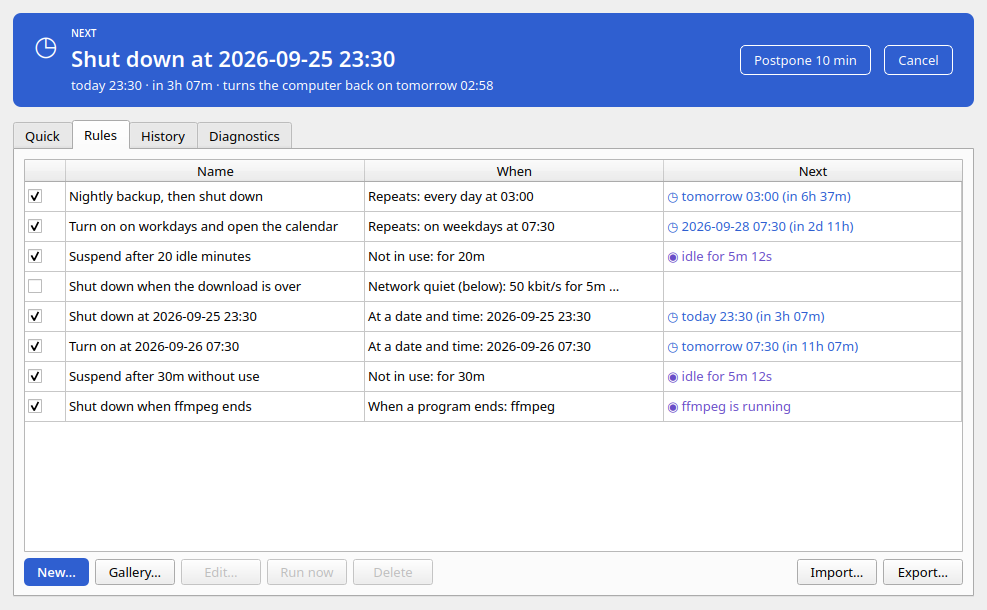 Rules: every rule and what comes next. Rules: every rule and what comes next. |
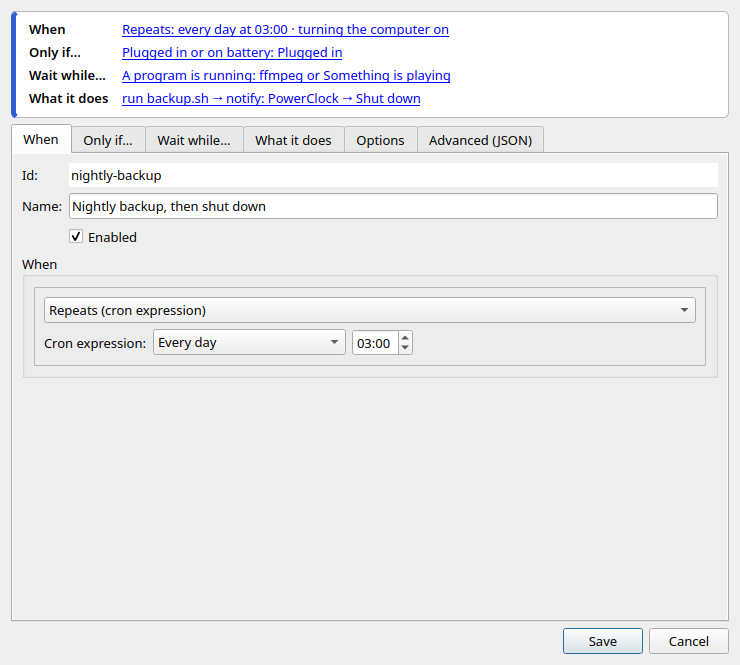 Rule editor: the rule read as a sentence and the schedule without cron. Rule editor: the rule read as a sentence and the schedule without cron. |
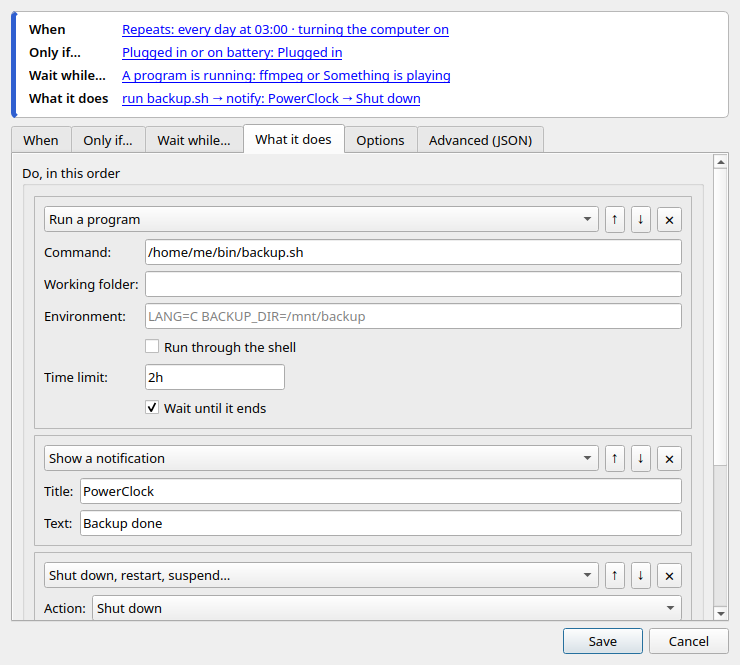 Rule editor: the steps, in order. Rule editor: the steps, in order. |
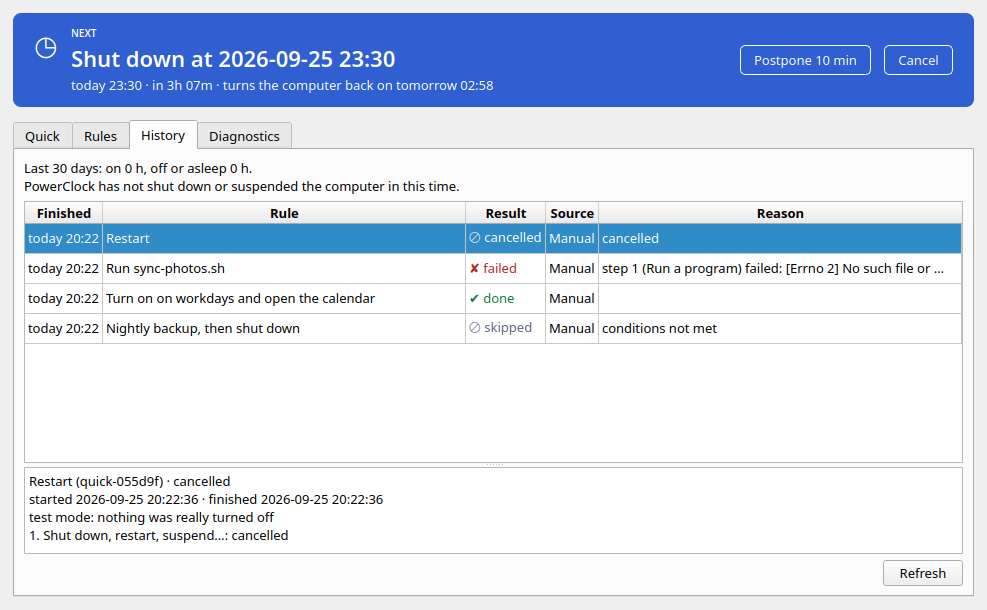 History: result and reason of every run. History: result and reason of every run. |
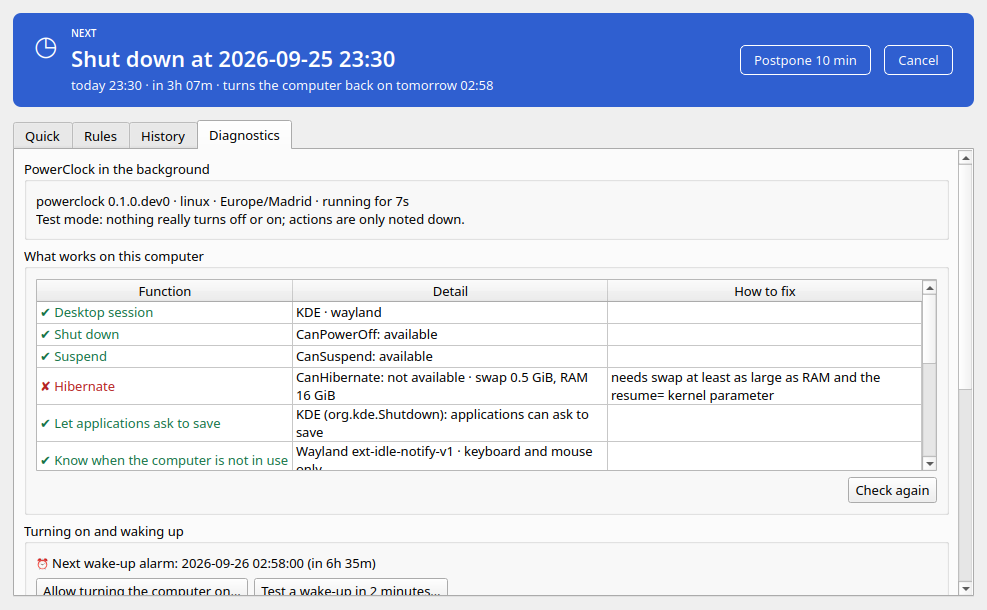 Diagnostics: what works here and how to fix the rest. Diagnostics: what works here and how to fix the rest. |
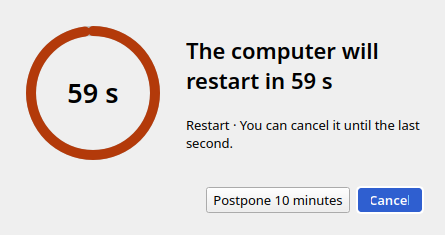 The countdown before a power action. The countdown before a power action. |
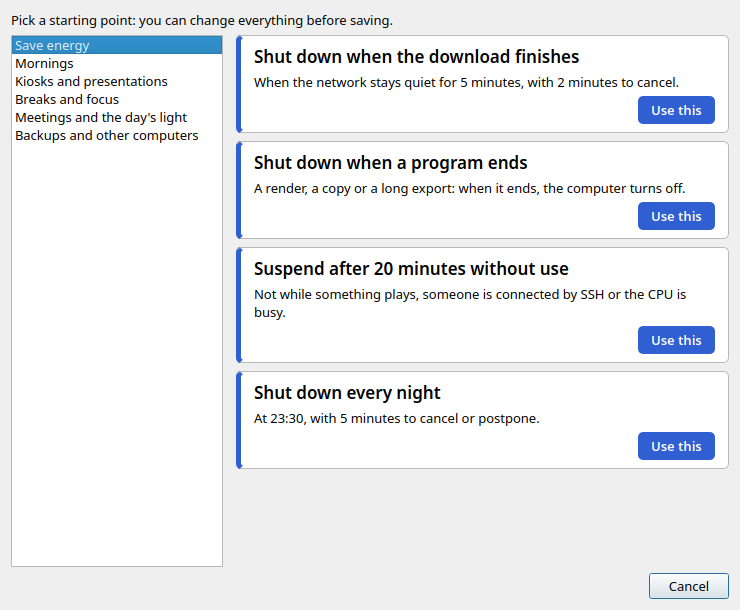 The gallery: ready-made rules by use case. The gallery: ready-made rules by use case. |
Requirements
- Linux with systemd (logind). Tested on Kubuntu 26.04 with KDE Plasma 6 on Wayland; it also supports GNOME and X11, and any desktop for the basics (power actions go through logind).
- Python 3.11 or newer (every current distribution has it) and pipx to install it.
- For the window and the tray: a graphical session. On GNOME, the tray icon needs the AppIndicator extension (Ubuntu enables it by default); without it PowerClock works from its window.
- To turn the computer on at a time: an RTC wake alarm (almost every PC) and, to power on from
off, a BIOS/UEFI that allows it (usually only on AC power for laptops).
powerclock doctortells you. - A server without a desktop (a VPS) can run PowerClock in the background and its command line alone.
Installation
The easy way (Linux)
- Download the installer:
install-powerclock.sh(a few KB). - Allow it to run: right click → Properties → Permissions → Allow executing file as
program (or, in a terminal,
chmod +x install-powerclock.sh). - Double-click it. A terminal shows the download: PowerClock with its own Python and Qt, about 130 MB to download and 400 MB on disk, so it does not depend on what your system has. Then PowerClock's installation window opens.
- Press Install and type your password when asked (once, so that PowerClock can turn the computer on).
That is all: PowerClock is in the tray and in the applications menu, and its service is running.
Everything lives in your home folder except a small program that can only program the wake-up
alarm, so updating never asks for the password. To update: Diagnostics → Check for updates (or powerclock update). To uninstall:
Diagnostics → Uninstall PowerClock… (or powerclock uninstall).
Windows and macOS installers will work the same way when those versions arrive.
With pipx (technical users and servers)
sudo apt install pipx && pipx ensurepath   # once (Debian/Ubuntu shown); then open a new terminal
pipx install "powerclock[gui]"             # on a server, without the window: pipx install powerclock
powerclock setup                           # service, menu, login start and wake-up helper (sudo once)
powerclock doctor                          # what works on this computer
powerclock setup --no-helper, --no-menu, --no-login and --unattended choose what to set up;
powerclock service install and powerclock helper install do it step by step. See
Using it on a server.
Getting started in five minutes
Everything below can be tried safely first in test mode: add --dry-run to a quick command,
or install the service with powerclock service install --dry-run. Power actions are then only
noted down, never done.
From the window (powerclock gui), Quick tab: pick an Action (e.g. Shut down), pick When
(e.g. After a delay → 30m) and press the button, which says what it will do (Schedule
shutdown). It appears under Scheduled with its time, and the tray icon turns blue. Cancel or
postpone it from there, from the tray menu or from the warning window that appears one minute
before acting.
From the command line:
powerclock shutdown --in 30m                   # shut down in 30 minutes
powerclock suspend --at 23:30 --wake 07:30     # suspend at 23:30 and wake up at 07:30
powerclock shutdown --when-exits ffmpeg        # shut down when the render ends
powerclock suspend --when-idle 20m             # suspend after 20 minutes without use
powerclock shutdown --when-net-below 50 --for 5m   # shut down when the download is over
powerclock reboot --when-cpu-below 10 --for 5m # restart when the CPU calms down
powerclock run --at 03:00 --wake -- /home/me/bin/backup.sh   # turn on at 03:00 to run a backup
powerclock wake --at "2026-10-01 07:30"        # just turn the computer on at that time

powerclock status      # what is scheduled, running and being watched
powerclock cancel      # cancel the countdown in progress or the next quick action
powerclock postpone 10m
powerclock history     # what ran and why
With a rule (for anything that repeats): put this in nightly.json and add it with
powerclock rules add nightly.json (or create it in the Rules tab):
{
  "id": "nightly-backup",
  "name": "Nightly backup, then shut down",
  "trigger": {"type": "cron", "expr": "0 3 * * *"},
  "wake": true,
  "conditions": {"type": "power_source", "is": "ac"},
  "guards": {"any": [{"type": "media_playing"}, {"type": "ssh_session"}], "retry": "5m", "max_wait": "2h"},
  "actions": [
    {"type": "run", "cmd": ["/home/me/bin/backup.sh"], "timeout": "2h"},
    {"type": "notify", "title": "PowerClock", "body": "Backup done"},
    {"type": "power", "action": "shutdown"}
  ]
}
Every night the computer turns itself on at 02:58, and at 03:00 it runs the backup if it is on AC. While a video plays or someone is connected by SSH it waits (up to two hours). Then it notifies you and shuts down after a one-minute countdown you can cancel.
How it works: the main ideas
- PowerClock in the background (
powerclock-daemon, the daemon) does everything: it keeps the rules, watches the time and the sensors, runs the actions and records the history. It runs as your user (never as root), as a systemd user service installed bypowerclock service install. The window, the tray and the command line are only clients: closing them changes nothing. - A rule is: when (the trigger) + optional only if… (conditions) + optional wait while… (guards) + what it does (the steps, in order) + options (warning, only once, turn the computer on…).
- A quick action is a rule made for you by the Quick tab, the tray or commands such as
powerclock shutdown --in 30m. It runs once and then disappears (its run stays in the history). - The warning: before any power action PowerClock warns you with a countdown you can cancel
until the last second (60 seconds by default, configurable per rule,
0sto skip it). During it you get a notification and a window with Cancel and Postpone 10 minutes, andpowerclock cancel/powerclock postponework too. - The history records every run: when, where it came from (Schedule, Condition or Manual), how it ended (done, failed, cancelled, skipped) and why, with each step's result and the last lines of each command's output.
- Missed runs: if a scheduled moment passes while the computer is off or asleep, the rule is
skipped by default; with
"on_missed": "run_once"it runs once as soon as possible. - Time zones: times follow your computer's time zone; a rule can set its own
(
"timezone": "Europe/Madrid"). Summer/winter time changes are handled (a 02:30 job moves to 03:30 on the spring change, and runs once on the autumn one).
The graphical interface
Open it with powerclock gui or from the applications menu. Only one copy runs: opening it again
brings up the window that is already running. Closing the window leaves the tray icon; Hide the
icon (PowerClock keeps working) in its menu quits the interface (your rules keep running in the
background).
Colours and states. PowerClock's own colours only mark states; everything else follows your desktop's theme (light or dark) and font. Every state also has a symbol and a word: ◷ Scheduled (dusk blue), ☀ Will turn on (amber), ◉ Watching a condition (lavender), ◴ Countdown (ember), ✔ Done (green), ✘ Failed (crimson) and ⊘ Skipped or cancelled (slate).
The «Next» band. At the top of the window: what PowerClock will do next and when ("Shut down · today 23:30 · in 5 h 12 min · turns the computer back on tomorrow 07:30"), in its state's colour, with Postpone 10 min and Cancel; if PowerClock is not running, it says so and offers Start PowerClock.
Tray icon. In the same colours: grey (nothing scheduled), blue with a clock (something scheduled), lavender with an eye (watching a condition), amber with a sun (it will turn the computer on), ember (a countdown is running) and grey crossed out (PowerClock is not running in the background). Hover it to see what comes next. Its menu has: what comes next, Cancel, Postpone 10 minutes, Now ▸ (shut down, restart, suspend, hibernate, lock, log out, turn off the screen; the first ones with their countdown, locking and screen off at once), Schedule…, Open PowerClock and Hide the icon. A left click opens the window.
Quick tab (like KShutdown): What to do is a set of buttons with icons (shut down, restart, suspend, hibernate, hybrid, lock, log out, screen off, a program or an application); When is one of Now, At a time, In a while and When…, which opens the conditions: after a period without use, when a program ends — pick it from the running ones or type its name or PID —, when the computer goes quiet (CPU below…) or when the download finishes (network below…), with how long it must last. Then Warn me first, whether to force (without waiting for applications to save) and Turn it back on at a time. The one highlighted button says what it will do (Shut down now, Schedule shutdown…). On the right, Scheduled shows the quick actions not done yet as cards, with their state, Cancel and, if they have a time, Postpone 10 min. For the ones waiting for a condition it shows what the sensor sees now ("ffmpeg is running", "idle for 5m 12s", "CPU 35 % · measuring: 2m of 5m").
Rules tab. Every rule with a checkbox to enable or disable it, when it fires (in words: "on weekdays at 07:30") and what comes next with its state (hover the name to see its id). Gallery… opens ready-made rules by use case (save energy, mornings, kiosks and presentations, breaks, meetings and the day's light, backups and other computers): pick one and the editor opens with it to adjust. New…, Edit… (or double click), Run now, Delete, Import… and Export… (JSON files).
Rule editor. On top, the rule read as a sentence ("When: every day at 03:00 · turning the computer on · Only if…: plugged in · Wait while…: ffmpeg is running · What it does: run backup.sh → shut down"); click a piece to go where it is edited. Below, the tabs When (name, enabled, and when it acts; schedules are chosen without cron: every day, on weekdays, on weekends, on these days, once a month, every few hours or minutes, and the cron expression only under Advanced), Only if… (the conditions that must all hold), Wait while… (the reasons to wait, with how often to check again and when to give up), What it does (the steps in order, with ↑ ↓ to reorder), Options and Advanced (JSON). The JSON tab shows the same rule as text and stays in step with the forms when you switch tabs, so you can edit in either. Conditions more complex than a list (an any, nested groups) are kept and can be edited as JSON inside the form. Mistakes are explained before saving (for example, that shutting down must be the last step).
History tab. At the top, the last 30 days in brief (hours on and off and what was saved). Below, every run with when it finished, the rule, the result (✔ ✘ ⊘), its source and the reason; select one to see its steps and their output.
Diagnostics tab. Whether PowerClock is running in the background (and a button to start
it), everything powerclock doctor checks, by name, with how to fix what does not work, the next
wake-up alarm, Allow turning the computer on… (shows the exact commands and runs them asking
for your password in a desktop window), Test a wake-up in 2 minutes… and two checkboxes: Show PowerClock in the
applications menu and Start the tray icon when the session starts, and Electricity: the
tariff (only with time-of-use prices), the computer's consumption and the price of a kWh to
estimate the savings.
Warning window. Appears on top of the others when a power action is about to happen: a ring that empties with the seconds in large type, what will happen ("The computer will shut down in 42 s") and that you can cancel it until the last second. Cancel (or Esc) is the highlighted button, because it is the safe choice; next to it, Postpone 10 minutes.
The interface follows your desktop's colours, icons, font and light or dark mode. Installed with pipx, Qt draws the controls in its own Fusion style; see native look on KDE to get Breeze exactly.
The command line
powerclock --help and powerclock COMMAND --help explain every option. Times accept 23:30 (its next
occurrence), "2026-10-01 07:30" (local time) or ISO 8601 with a time zone. Durations are written
as 30s, 5m, 2h, 1d or combined (1h30m).
Quick actions — one command per action: shutdown, reboot, suspend, hibernate,
hybrid-sleep, lock, logout, screen-off, run -- PROGRAM ARGS… and
launch APP [--recipe ID] -- ARGS… (open an installed application).
| Option | Meaning |
|---|---|
| (none) | Now (after the countdown). |
--in 30m |
After a delay. |
--at 23:30 |
At a time. |
--when-idle 20m |
When nobody has used the computer for that long. |
--when-exits NAME|PID |
When that program ends. If it is not running yet, PowerClock waits for it to start: a mistyped name never shuts the computer down. |
--when-cpu-below 10 |
When the average CPU usage stays below 10 % … |
--when-net-below 50 |
… or the network traffic below 50 kbit/s … |
--for 5m |
… for this long (default 5m). |
--warning 2m |
Warn this long before acting (default 60s; 0s for none). |
--force |
Do not let applications ask to save. |
--wake 07:30 |
(power actions) Also turn the computer on at that time — e.g. suspend now, wake up in the morning. |
--wake |
(run, launch) Turn the computer on to run or open it (with --in/--at). |
--log-in |
With --wake (or powerclock wake): log in by itself when that turns the computer on, screen locked. |
--recipe ID |
(launch) Take the arguments from a recipe; what it asks for (<url>, <file>…) goes after --, in order. |
--dry-run |
Global option (powerclock --dry-run shutdown …): test mode, the power action is only noted down. |
Other commands
| Command | What it does |
|---|---|
powerclock wake --at TIME |
Turn the computer on at that time (from suspend, or from off if the BIOS allows it). |
powerclock apps [TEXT] |
The installed applications (launch opens them by id), with their recipes. |
powerclock recipes [APP] |
Ready-made arguments for common applications. |
powerclock wake-lan MAC [--broadcast IP] [--port 9] |
Turns on another computer on the network now (Wake-on-LAN). |
powerclock stats [--days 30] [--watts W|auto] [--price P|auto] |
Hours on and off and what PowerClock saved (estimated; see below). |
powerclock tariff [es-2.0td|none] |
The electricity tariff for the tariff period condition (only with time-of-use prices). |
powerclock secrets set NAME · list · rm NAME |
Tokens that steps use by name (telegram_token), kept out of rules.json in secrets.json (0600). |
powerclock status |
What is running, what comes next, what is being watched, and the next wake-up alarm. |
powerclock cancel [RUN_ID] |
Cancel the countdown in progress; otherwise the quick action running, the next timed one, or the last one waiting for a condition. |
powerclock postpone [10m] [--run RUN_ID] |
Postpone the countdown in progress or the next timed quick action. |
powerclock history [-n 20] [--rule ID] |
Past runs, their result and why. |
powerclock rules list |
Every rule and when it fires next (or what it is watching). |
powerclock rules show ID |
A rule as JSON. |
powerclock rules add FILE.json |
Add the rules in a file (one rule or a list). |
powerclock rules edit ID |
Edit a rule in your $EDITOR. |
powerclock rules enable|disable ID |
Turn a rule on or off (it stays saved). |
powerclock rules run ID |
Run a rule now (its conditions, guards and countdown still apply). |
powerclock rules rm ID |
Delete a rule. |
powerclock rules export [FILE] / powerclock rules import FILE [--replace] |
Back up and restore rules. |
powerclock doctor [--json] |
What works on this computer and how to fix what does not. |
powerclock doctor --test-wake 120 |
Program a wake-up in N seconds (60–3600) and suspend now, then say whether it woke up by itself and what woke it. Asks first and gives 10 seconds to take your hands off. |
powerclock service install [--linger] [--dry-run] · uninstall · status |
The daemon as a systemd user service. --linger keeps it running without a login. |
powerclock helper install [--unattended] [--print] · uninstall |
The small root helper that programs the wake alarm (shows the sudo commands and asks before running them). |
powerclock gui [--tray] |
Open the window (or only the tray icon). |
powerclock setup [--no-menu] [--no-login] [--no-helper] [--unattended] |
Set PowerClock up in this session: service, menu entry, login start and wake-up helper (what the installer's window does). |
powerclock update |
Install the newest version and restart the service. |
powerclock uninstall [--purge] |
Remove everything (with --purge, also rules and history). |
Rules in detail
Rules are JSON. The editor writes it for you, but it is short enough to write by hand, and the
daemon validates every rule: a typo in a field name is reported, never silently ignored. The full
JSON Schema is served at /schema/rule by the local API; examples/ has ready-made
rules.
{
  "id": "nightly-backup",              // letters, digits, - and _ (optional when creating)
  "name": "Nightly backup",
  "enabled": true,
  "trigger": { … },                     // when
  "conditions": { … },                  // only if (optional)
  "guards": { "any": [ … ], "retry": "5m", "max_wait": "2h" },   // wait while (optional)
  "actions": [ { … }, { … } ],          // what to do, in order
  "warning": "60s",                     // countdown before power actions
  "wake": false,                        // turn the computer on for it (time triggers only)
  "on_missed": "skip",                  // or "run_once"
  "on_error": "stop",                   // or "continue"
  "one_shot": false,                    // disable it after it fires once
  "dry_run": false,                     // only log its power actions
  "timezone": "Europe/Madrid"           // optional; default: the computer's
}
(JSON has no comments: they are only explanations here.)
Triggers
type |
Fields | Fires |
|---|---|---|
at |
when (ISO 8601 with time zone) |
Once at that moment. |
countdown |
duration |
That long after the rule is enabled. Survives restarts. |
cron |
expr (5 fields or @daily, @hourly…) |
On that schedule, in the rule's time zone. |
idle |
for |
When nobody has used the keyboard or mouse for that long. |
process_exit |
name or pid |
When the program ends. With a name, when none of that name is left. It must have been seen running first. A PID reused by another process counts as ended. |
cpu_below |
percent, for |
When the average CPU usage over the last for is below percent. |
net_below |
kbps, for, direction (down, up, both), interface (optional) |
When the average network traffic over the last for is below kbps kilobits per second. |
battery |
below or above (%), for (optional) |
When the battery level crosses that threshold (held for for). |
power_source |
is (ac or battery), for (optional) |
When the computer is on that power source (held for for). |
desktop_session |
— | When a desktop session starts (someone logs in), so applications can be opened. |
sun |
event (sunrise, sunset), offset_minutes, latitude/longitude (optional) |
At sunrise or sunset (plus or minus those minutes). Without coordinates it uses your time zone's city (Europe/Madrid → Madrid); computed on the computer, no internet. |
calendar |
source (.ics/webcal:// address or file), match (optional), before |
Before each calendar event whose title contains match: Google, Nextcloud, Outlook… export that address. Read every 15 minutes; offline, the last copy is used. |
wifi_ssid |
ssid |
When connecting to that Wi-Fi network. |
active |
for, pause (5m) |
After for of use without a pause break: time to stop for a while. |
used_today |
for |
When today's use reaches that total. |
file |
path, pattern (optional, *.pdf) |
When that file appears, or a file like that in that folder. |
device |
name (or part of it) |
When a device is plugged in: a USB stick or disk (its name or label), Bluetooth headphones… |
temperature |
above (°C), sensor (optional) |
When the hottest sensor (or that one) goes above that temperature. |
startup |
on (daemon_start, resume), delay |
When PowerClock starts (e.g. at boot) and/or after resuming from sleep, after delay. |
manual |
— | Only when run by hand. |
Triggers that watch a state (idle, process_exit, cpu_below, net_below, battery,
power_source, desktop_session, wifi_ssid, active, used_today, file, device,
temperature) fire once when the state becomes true, and fire again only after it has been
false. Staying idle does not suspend the computer again and again; using it re-arms the rule. If
the state already holds when you enable the rule (the battery is already low), it fires.
Conditions and guards
Both use the same predicates:
type |
Fields | True when |
|---|---|---|
process_running |
name |
A program with that name is running. |
media_playing |
— | A media player is playing (MPRIS). |
ssh_session |
— | Someone is logged in over SSH. |
idle |
for |
Nobody has used the computer for that long. |
cpu_below |
percent, for |
Average CPU usage over for is below percent. |
net_below |
kbps, for, direction, interface |
Average network traffic over for is below kbps. |
battery |
below or above, for |
Battery level below/above that. |
power_source |
is, for |
On AC or on battery. |
time_window |
start, end ("22:00") |
The time of day is in that window (it can cross midnight: 22:00 → 07:00). |
weekday |
days (mon … sun) |
Today is one of those days. |
wifi_ssid |
ssid |
Connected to that Wi-Fi network. |
desktop_session |
— | A desktop session is up. |
holiday |
country (ES), extra (dates) |
Today is a national holiday (Spain, Good Friday computed) or one of extra: regional and local holidays, your days off. |
tariff_period |
period (valley, flat, peak) |
The electricity tariff is in that period. Only if you chose a tariff (see below); unknown without one. |
active, used_today, file, device, temperature |
as above | The same as the triggers of that name, right now. |
Combine them with {"all": [ … ]}, {"any": [ … ]} and {"not": … }, nested as you like.
- Conditions are checked when the rule fires: if they do not hold, the run is skipped (and recorded as such).
- Guards (
"guards": {"any": [ … ]}) are checked just before acting: while any of them holds, the run waits and checks again everyretry(default5m), up tomax_wait(default2h); after that it is skipped. - A sensor that cannot be read makes its predicate unknown, never a guess. Unknown conditions
do not let the rule run; unknown guards do not block it;
wait_untilkeeps waiting.
Steps
type |
Fields | Does |
|---|---|---|
power |
action (shutdown, reboot, suspend, hibernate, hybrid_sleep, lock, logout, screen_off), mode (graceful or force) |
A power action, after the countdown. Shut down, restart and log out must be the last step. |
run |
cmd (list: program and arguments), cwd, env, shell, timeout, wait |
Runs a program. With "shell": true, cmd is one command line. With wait (default) it waits for it and fails if it returns an error; its output is kept in the history. On cancel or timeout it is asked to stop, then killed 5 s later. |
launch |
app (its id, see powerclock apps), args, recipe, window (screen, desktop, state: normal/maximized/fullscreen/minimized, above), keep_open, stop_signal (TERM, INT, HUP), wait_desktop (default 2m) |
Opens an installed application in your desktop session, waiting up to wait_desktop for one. It runs as a unit of its own (app-powerclock-….service), so it sees your screen even if PowerClock started before you logged in. window places it (KDE Plasma); keep_open opens it again if it closes (at most 3 times an hour). |
media |
command (play, pause, toggle, stop, next, previous, open), player (part of its name), uri (with open) |
Controls a media player (MPRIS: VLC, Spotify, Elisa, browsers…): the one named, else the one playing, else the first one open. |
volume |
level (0–150 %), mute (on/off), fade |
Sets the output volume (PipeWire or PulseAudio), little by little over fade (a wake-up alarm that gets louder). |
sound |
file (a path or a sound of the theme, e.g. alarm-clock-elapsed) or say, language |
Plays a sound, or says a text aloud (speech-dispatcher or espeak-ng) and waits until it is said. |
desktop |
theme (light, dark or a colour scheme), wallpaper, brightness (%), power_profile (power-saver, balanced, performance) |
Desktop settings (KDE Plasma and GNOME). |
network |
connect, disconnect (a saved connection: a VPN…), wifi (on/off) |
NetworkManager connections. |
inhibit |
screen_on, do_not_disturb, no_sleep, duration |
For duration, keeps the screen on, holds the notifications and/or keeps the computer awake; the next steps go on at once. |
screenshot |
file (default {data}/screenshots/{rule}-{datetime}.png) |
Saves a picture of the screen; the history shows where. |
push |
service (ntfy, telegram, webhook), url (ntfy topic or webhook), chat (Telegram), title, message, priority |
Sends a message out: to your phone with ntfy (no account: subscribe to your topic in its app) or a Telegram bot (its token goes in powerclock secrets set telegram_token, never in the rules), or as JSON to any webhook. |
ask |
title, body, buttons (1–3), go_on, repeat, timeout (default 1h), if_no_answer (stop or continue) |
A notification with buttons that waits for an answer; the rule goes on with go_on and stops with any other answer. Without an answer it is shown again every repeat. |
open |
target |
Opens a file or URL with your default application. |
close_app |
name and signal (TERM, INT or HUP), or app; timeout (default 30s) |
Asks your programs with that name to quit, or closes the instances of app that PowerClock opened; kills them after timeout. |
notify |
title, body |
A desktop notification (skipped on a computer without a desktop). |
wait |
duration |
Waits. |
wait_until |
condition (a predicate), timeout (optional) |
Waits until the condition holds; fails after timeout. |
set_wake |
when or after |
Programs a wake-up (e.g. "wake me up again in 8 h"). |
wake_lan |
mac, broadcast (255.255.255.255), port (9) |
Turns on another computer on the local network (Wake-on-LAN): the NAS before the backup, the office PC… Its network card must have it enabled in the BIOS/UEFI. Not sent in test mode. |
Variables: in run (cmd, cwd, env), launch (args), open and notify,
{date} (2026-09-25), {time} (07-30), {datetime} (2026-09-25_07-30), {weekday} (thu),
{rule} (its id), {home} and {data} (PowerClock's data folder) are replaced when the step
runs, e.g. ffmpeg -i URL -t 2h radio-{date}.mp3. Any other braces stay as they are. run also
gets the variables of your desktop session, so a program with a window finds your screen.
If a step fails ("on_failure": [ … ]): steps that run only then, with {error} saying
what went wrong, e.g. {"type": "push", "url": "https://ntfy.sh/my-topic", "message": "{rule}: {error}"}. The editor has them under What it does.
If a step fails, the rule stops ("on_error": "stop") or goes on with the next one
("continue"); the history says which step failed and why. The same rule never runs twice at the
same time, and only one power action (and one countdown) happens at a time.
Options
| Field | Default | Meaning |
|---|---|---|
warning |
60s |
Countdown before each power action (0s for none). |
wake |
false |
Turn the computer on for this rule (only with at, countdown or cron). |
log_in |
null |
With wake: log in by itself when that turns the computer on from off, leaving the screen locked or unlocked (see below). |
on_missed |
skip |
If its moment passed while the computer was off or asleep (more than 2 minutes late): skip or run_once. |
on_error |
stop |
stop or continue when a step fails. |
one_shot |
false |
Disable the rule after it fires once. |
dry_run |
false |
Only log this rule's power actions. |
timezone |
the computer's | IANA name (Europe/Madrid) for cron, time_window and weekday. |
The examples
| File | What it does |
|---|---|
backup-nocturno.json |
Turns on at night, runs a backup if on AC and nobody is watching a video or connected by SSH, waits for the network to calm down, notifies and shuts down. |
buenos-dias-laborables.json |
Turns on at 07:30 on weekdays and opens the calendar; if the computer was off at that time, runs once when it can. |
suspender-inactivo.json |
Suspends after 20 idle minutes, but not while media plays, someone is connected by SSH or the CPU is busy. |
apagar-al-terminar-ffmpeg.json |
Shuts down when ffmpeg finishes, once. |
apagar-tras-descarga.json |
Shuts down when the download traffic stays below 50 kbit/s for 5 minutes. |
Turning the computer on and waking it up
Computers have a hardware clock (RTC) with one alarm that can wake them from suspend and, if the BIOS/UEFI allows it, power them on from off. PowerClock manages that alarm for you:
- It works out the next wake-up needed by your rules (
"wake": true,--wake,powerclock wake) and programs it 2 minutes early, so the daemon is ready on time. It reprograms it whenever rules change, after each run and right before the computer suspends or shuts down. - It never moves an earlier alarm that is not its own, and it leaves its alarm in place when the daemon stops (it must still turn the computer on).
- Writing the alarm needs root, so a tiny helper does only that:
powerclock helper installcopies it to/usr/local/libexec/powerclock-helperwith a polkit policy. It asks for your password once; after that wake-ups need no password while you are logged in (even with the screen locked). It only accepts "set / clear / read the alarm", validates the time strictly and runsrtcwakewith an absolute path and a clean environment. - Logging in by itself (
"log_in": "locked",--log-in, and log in in the Quick tab): programs with a window need a desktop session, and after powering on from off the computer waits at the login screen. PowerClock never turns on automatic log-in for good. Instead, the helper keeps a one-time ticket with the alarm's time for your user (the one who asked, never another account or root). At boot, before the login screen,powerclock-boot.servicelooks at it: only if this boot is that alarm's (from the alarm to 10 minutes later, and not switched on with the power button when the BIOS tells) does it write the automatic log-in to/run(memory), where the display manager's settings point. PowerClock then locks the screen at once (unless the rule saysunlocked, for a kiosk with a user of its own) and removes that setting. Any other start-up asks for your password as usual, and a power cut leaves nothing behind. Works with SDDM (KDE) and LightDM; GDM not yet. The alarm goes 3 minutes early instead of 2. With automatic log-in the KDE wallet does not open: the browser recipes use a profile of their own that does not need it. - Unattended mode (turn on → run → shut down with nobody logged in):
powerclock helper install --unattendedadds a polkit rule for your user, andpowerclock service install --lingerkeeps the daemon running without a login.
Try it: powerclock doctor --test-wake 120 (or Test a wake-up in 2 minutes in Diagnostics)
suspends the computer and checks that it wakes up by itself; it also tells you what woke it if it
was something else. Things learnt on a Dell Latitude 5480:
- A touchpad or pointing stick can wake a laptop the moment it suspends: keep your hands off during the test (PowerClock gives you 10 seconds).
- Waking from suspend worked out of the box (2 s after the alarm).
- Powering on from off worked too, on AC power, with the BIOS defaults (the kernel was
starting 14 s after the alarm). Many laptops need AC for this, and some BIOSes need
Power Management → Auto On Time (Dell) or a similar option;
powerclock doctorgives a hint for your brand.
Conditions and sensors
PowerClock only reads the sensors your rules use: with no rule watching the CPU, it never reads the CPU.
- Idle time comes from the desktop: on Wayland through
ext-idle-notify(KDE Plasma, Sway, Hyprland…), on GNOME through Mutter, otherwise from logind, and on X11 withxprintidle. On Wayland only the keyboard and the mouse count: a film playing does not keep the computer "in use", so add amedia_playingguard to idle rules (as the examples do). - CPU and network are sampled every 5 seconds;
cpu_belowandnet_belowuse the average of the lastfor, so a 5-second spike does not break a 5-minute average, but real work does. Until PowerClock has measured the wholefor(e.g. the first 5 minutes after you create the rule), the value is unknown; a gap in the samples (a suspend) starts the measurement again.net_belowwithoutinterfaceadds up the physical interfaces (notlo, Docker or virtual bridges); withdirection: both, download + upload. - Programs are listed every 3 seconds; battery and AC every 5; SSH sessions every 10.
- Media comes from MPRIS (any player that shows up in your desktop's media controls) and Wi-Fi from NetworkManager.
- Use of the computer comes from idleness: any minute with keyboard or mouse input counts (today's total starts from zero at midnight in the rule's time zone). Files and devices are checked every 5 seconds (USB, disk labels and Bluetooth through BlueZ); temperature every 10.
powerclock statusand the window show what each watching rule sees right now.
The electricity tariff (optional). It only matters if your contract has different prices by
hour (Spain's PVPC or three periods); with a flat price it makes no difference. It is off: choose
it in Diagnostics or with powerclock tariff es-2.0td (Spain 2.0TD: valley 0–8 h and weekends and
national holidays; peak 10–14 and 18–22; flat the rest) and the "Electricity tariff period"
condition appears, e.g. to leave backups and downloads for the valley. powerclock tariff none
turns it off.
Savings (estimated). PowerClock notes every minute the computer is on; a gap is time off or
asleep, and if PowerClock shut it down or suspended it just before the gap, that time counts as
saved. The energy is that time times the computer's consumption when on (minus the 1 W it still
draws), and the money, times the price of a kWh. Without your figures it uses typical values
(15 W a laptop, 60 W a desktop, 0.15 €/kWh): set them in Diagnostics → Electricity or with
powerclock stats --watts 45 --price 0.18. The last 30 days are summed up at the top of History.
It is an estimate: time with PowerClock stopped counts as off.
Safety
- Nothing turns off without warning: every power action has a cancellable countdown (unless
you set
warning: 0s), with buttons in a notification and in a window, pluspowerclock cancel. - Graceful by default: on KDE and GNOME, shutting down, restarting and logging out go through
the session manager so applications can ask to save.
forceis only used when you ask for it. - Test mode (dry run) everywhere: per quick action (
--dry-run), per rule ("dry_run": true), for the whole daemon (powerclock service install --dry-run,"dry_run": trueindaemon.json, orPOWERCLOCK_DRY_RUN=1). Power actions and alarms are then only noted down; the rest still runs. - Wait while… (guards) prevents acting at a bad moment (a render, a video, an SSH session…).
- Least privilege: the daemon runs as your user. Only the wake helper runs as root, it only touches the RTC alarm, and it is installed by you with the exact commands shown first.
- Private API: it only listens on
127.0.0.1and needs a token stored in a file only your user can read. runexecutes programs without a shell unless you set"shell": true.- Everything that ran, was skipped or postponed is in the history, with the reason.
Using it on a server
On a computer without a desktop (a VPS, a home server):
pipx install powerclock                   # without the window
powerclock service install --linger       # the daemon keeps running without anyone logged in
powerclock doctor
Everything works from the command line; notifications are skipped. Examples: restart every Sunday
at 05:00 with a cron rule, restart when a long job finishes (powerclock reboot --when-exits my-job), run maintenance scripts on a schedule. Waking up from off is usually not available on
virtual machines.
Files and settings
| File | What it is |
|---|---|
~/.config/powerclock/rules.json |
Your rules ({"version": 1, "rules": [ … ]}). You can edit it by hand: the daemon reloads it within 2 seconds. If it has an error, the daemon keeps the last good rules, shows the error in powerclock status and does not write the file until you fix it, so your edit is never lost. |
~/.config/powerclock/daemon.json |
Daemon settings: port (default 47831), dry_run (false), log_level (info), tariff (null or "es-2.0td"), watts and price_kwh (for the savings; null: typical values), currency (€). |
~/.config/powerclock/api.token |
The API's secret token (readable only by you). |
~/.local/share/powerclock/history.sqlite |
The history of runs. |
~/.config/systemd/user/powerclock.service |
The user service (powerclock service install). |
~/.local/share/applications/powerclock.desktop, ~/.config/autostart/powerclock-gui.desktop |
Menu entry and login start (Diagnostics tab). |
Environment variables: POWERCLOCK_DRY_RUN=1 (test mode), POWERCLOCK_HOME=/some/dir (keep every file in one
folder, handy to experiment without touching your rules) and POWERCLOCK_BACKEND=fake (a simulated
computer, used by the tests).
Logs: journalctl --user -u powerclock -f.
The local API
Other programs can drive PowerClock through its HTTP API on http://127.0.0.1:47831 with the header
Authorization: Bearer <token> (the token is in ~/.config/powerclock/api.token).
TOKEN=$(cat ~/.config/powerclock/api.token)
curl -s -H "Authorization: Bearer $TOKEN" http://127.0.0.1:47831/pending
curl -s -H "Authorization: Bearer $TOKEN" -H "Content-Type: application/json" \
     -d '{"action": "suspend", "in": "30m"}' http://127.0.0.1:47831/quick
| Method | Path | Use |
|---|---|---|
| GET | /health |
Version, backend, time zone, uptime, rule errors. |
| GET · POST | /rules |
List · create. |
| GET · PUT · DELETE | /rules/{id} |
Read · replace · delete. |
| POST | /rules/{id}/enable · /disable · /run · /cancel · /postpone |
Act on one rule. |
| GET | /apps · /recipes |
The installed applications (with their recipes) · the recipes. |
| GET | /stats?days=30 |
Hours on, off and off thanks to PowerClock, actions and estimated savings. |
| GET · PATCH | /settings |
The settings that change while running: tariff, watts, price_kwh, currency. |
| POST | /quick |
A quick action: action, command or app (+ args), and in, at, when_idle, when_exits, when_cpu_below, when_net_below (+ for), warning, mode, wake, wake_at, dry_run. |
| POST | /wake |
{"at": "07:30"}: turn the computer on at that time. |
| GET | /pending |
What comes next, what is running, what is watched, the wake-up alarm. |
| GET | /runs/{id} |
One run. |
| POST | /runs/{id}/cancel · /cancel |
Cancel a run · the current countdown or next quick action. |
| POST | /runs/{id}/postpone · /postpone |
Postpone ({"delay": "10m"}). |
| GET | /history?limit=&offset=&rule_id= |
Past runs. |
| GET | /capabilities |
The powerclock doctor report. |
| GET | /schema/rule |
The JSON Schema of a rule. |
| WebSocket | /events |
Live events: run_started, warning_started, tick, postponed, cancelled, run_finished, rule_changed, wake_changed (the token can also go in ?token=). |
Troubleshooting
- "PowerClock is not running in the background" —
powerclock service install(orpowerclock service status; logs:journalctl --user -u powerclock). To try it in the foreground:POWERCLOCK_DRY_RUN=1 powerclock-daemon. - A power action does nothing —
powerclock doctor: eachpower.*line says whether your system allows it (e.g. hibernation needs swap andresume=). If a rule hasdry_runor the daemon runs in test mode,powerclock statussays so. - Applications are not asked to save —
powerclock doctor→power.gracefulshows the method found (KDE'sorg.kde.Shutdown, GNOME'sgnome-session-quit); without one, logind is used directly. - The computer does not wake up — run
powerclock doctor --test-wake 120and read what woke it (or that it did not suspend). Checkwake.helperandwake.authorizedinpowerclock doctor; from off, check the BIOS option and use AC power. - It woke up right after suspending — a touchpad, pointing stick, mouse or keyboard set as a
wake-up device;
powerclock doctor --test-wakenames it. - An idle or CPU rule never fires — look at
powerclock status(Watching): it shows what the sensor reads and how much of theforhas been measured. If idle time is "unknown", your desktop does not expose it (see Conditions and sensors). --when-exitsdoes nothing — PowerClock waits until it sees the program running (powerclock statussays "not running yet"). Check the exact process name withps -e.- No tray icon on GNOME — install/enable the AppIndicator and KStatusNotifierItem Support extension, or use the window.
- My hand edit of
rules.jsonis ignored —powerclock statusshows the error; fix it and the daemon loads it within 2 seconds.
Native look on KDE
With pipx, PowerClock brings its own copy of Qt, which cannot load KDE's Breeze style, so controls are drawn with Qt's Fusion style (colours, icons and dark mode still follow Plasma). For the exact Breeze look, use your system's Qt:
sudo apt install python3-pyside6.qtwidgets python3-pyside6.qtnetwork python3-qasync qt6-svg-plugins
pipx install --system-site-packages powerclock    # without [gui]
Uninstalling
Diagnostics → Uninstall PowerClock…, or:
powerclock uninstall            # service, menu, login start, wake-up helper (password) and the program
powerclock uninstall --purge    # …and your rules and history too
Installed with pipx, the last step is pipx uninstall powerclock.
Development
uv sync --all-extras                     # everything, including the GUI and the dev tools
uv run pytest                            # tests (never touch the real system)
uv run ruff check --fix . && uv run ruff format .
POWERCLOCK_DRY_RUN=1 uv run powerclock-daemon --foreground    # a daemon that turns nothing off
uv run powerclock-gui
uv run python scripts/i18n.py update     # new texts into the translation catalogues
uv run python scripts/i18n.py compile
uv run python scripts/screenshots.py     # regenerate the README images
The design is described in docs/ARCHITECTURE.md and the plan in
docs/ROADMAP.md. The code is in src/powerclock/: models.py (rules; the source of
truth, also for the JSON Schema), engine/ (scheduler, watcher of states, evaluator, executor,
wake planner), sensors/, daemon/ (API, storage), cli/, gui/ and platform/linux/
(everything specific to Linux). Tests run against a simulated computer and a fake clock; the few
that read the real system are marked real and skipped by default.
Roadmap
- 0.1 — Linux (now): everything above: shutting down, suspending and turning on at a time or on conditions, logging in when it turns the computer on (only that boot, with the screen locked), opening applications with recipes, media players, volume and desktop settings, phone notifications, sunrise and sunset, calendars, holidays, files and devices, the electricity tariff as an option, Wake-on-LAN, estimated savings and the new design.
- 0.2: what the tests on real computers bring up, and custom electricity tariff periods (other countries).
- 0.3 — Windows and 0.4 — macOS.
- 1.0: remote control (Telegram bot, web interface), several computers, MQTT/Home Assistant, KDE Connect, and describing rules in plain language.
License
GPL-3.0-or-later. PowerClock is free software: you can use, study, share and improve it; if you distribute a modified version, it must stay free under the same license.
1 maintainer

Release files for powerclock 0.1.0
For a detailed explanation of source distributions (sdists) and built distributions (wheels), please see the package formats documentation.
Source distribution (sdist)
| File | Size | Uploaded | |
|---|---|---|---|
| powerclock-0.1.0.tar.gz | 1.8 MB | Details |
Built distribution (wheel)
| File | Interpreter | ABI | Platform | Reset |
|---|---|---|---|---|
| powerclock-0.1.0-py3-none-any.whl | Python 3 | none | any | Details |
Total release size: 2.2 MB
Release files / powerclock-0.1.0.tar.gz
| Download URL | powerclock-0.1.0.tar.gz |
|---|---|
| Size | 1.8 MB |
| Tags | Source |
|
SHA-256 checksum How to use checksums |
7b8a7bac1d96e5e7b7839b31daca79ec83c051ab2c2c2ad5c95af1fb8e76d56c
|
|
BLAKE2b-256 checksum How to use checksums |
6947ac5fb083f33f55239b155b23cdb7a28b4e9248fbdd59e9dae88a62d68c6e
|
| Upload date | |
|
Uploaded using Trusted Publishing? What is trusted publishing? |
Yes |
| Uploaded via |
twine/7.0.0 CPython/3.13.14
|
Provenance
Provenance describes where a file came from. On PyPI, provenance is shared via attestations, which provide a verifiable record of the build or publishing details. View details, limitations and caveats.


PyPI Publish Attestation
PyPI verified that this artifact, at this checksum, originated from the publisher listed below.
Signed by GitHub Actions, verified by PyPI on Sep 25, 2026.
Transparency logRelease files / powerclock-0.1.0-py3-none-any.whl
| Download URL | powerclock-0.1.0-py3-none-any.whl |
|---|---|
| Size | 322.7 kB |
| Tags | Python 3 |
|
SHA-256 checksum How to use checksums |
4e52c9d39bca647b007faa17cab019db4b0c93af8520d49de39ddf04328eb22f
|
|
BLAKE2b-256 checksum How to use checksums |
489c00f5cdf31f4c78472f864422497941c194d39670443752f2449f088771e8
|
| Upload date | |
|
Uploaded using Trusted Publishing? What is trusted publishing? |
Yes |
| Uploaded via |
twine/7.0.0 CPython/3.13.14
|
Provenance
Provenance describes where a file came from. On PyPI, provenance is shared via attestations, which provide a verifiable record of the build or publishing details. View details, limitations and caveats.
PyPI Publish Attestation
PyPI verified that this artifact, at this checksum, originated from the publisher listed below.
Signed by GitHub Actions, verified by PyPI on Sep 25, 2026.
Transparency log












