
ppicker
Press a hotkey, type a few letters, hit Enter: the project opens in your editor. No typing paths, no dozens of hotkeys, no remembering which editor goes with which project.
ppicker is a ~1 MB program that starts instantly. It was built as a popup for tiling window managers (i3, sway) but works in any terminal, and through rofi, wofi, fuzzel or fzf if you prefer those.
- Fuzzy search over project names and paths, with tag filters
- Opens the project in the editor you used last time, per project
- Shows the git branch and when you last opened each project
- Linux is the main target; macOS and Windows build and pass the tests in CI
Quick start
1. Install. The command it gives you is pp.
pipx install ppicker      # or: uv tool install ppicker
cargo install ppicker     # alternative
2. Tell it about your projects.
pp scan ~/code            # adds every git repository directly inside ~/code
pp add ~/work/shop        # or add one by hand ("pp add ." for the current directory)
3. Open the picker.
pp
4. Bind it to a key so it pops up when you need it. See i3 / sway.
How it works
Find a project
Start typing. ppicker matches against the project name and its path, so shop or work/sh
both find ~/work/shop. The list narrows as you type, the best match is on top, and the matched
letters are highlighted. Projects you opened recently come first when the search box is empty.
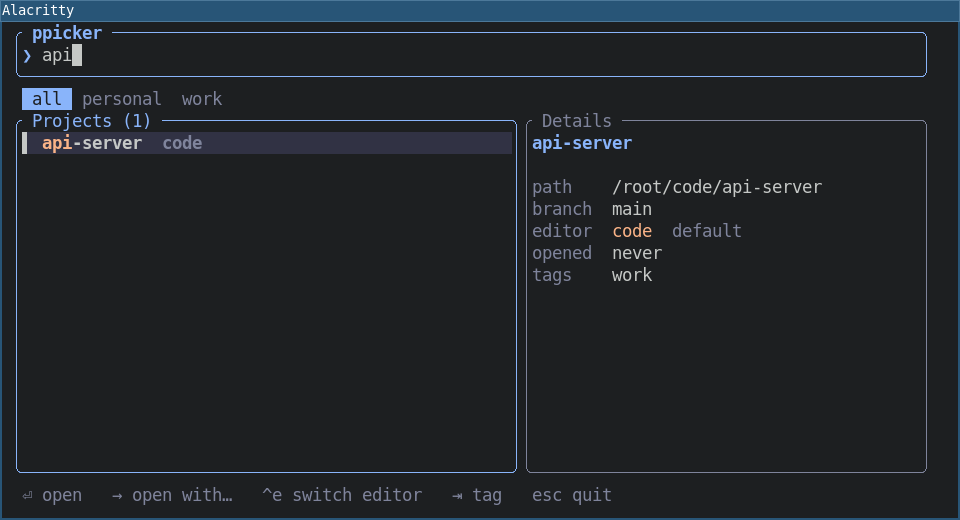
The right-hand panel shows what you are about to open: the path, the current git branch, which
editor will be used, when you last opened it, and its tags. Press Tab to filter by a tag
(work, personal, ...) and Shift-Tab to go back.
Open it
Press Enter. The project opens in its editor and ppicker closes. The editor is started in the project's folder and keeps running on its own, so closing the terminal does not close it.
Open several projects at once
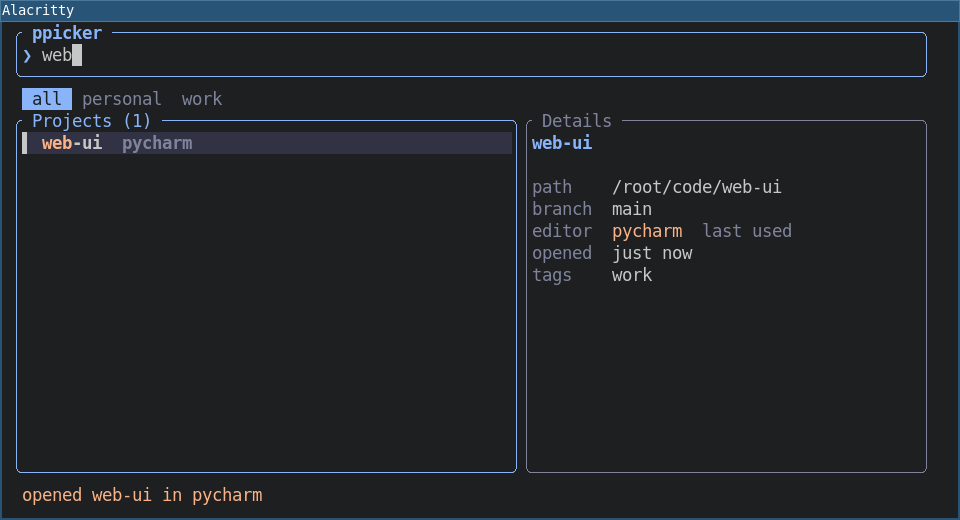
Press Ctrl-o instead of Enter. The project opens just the same, but ppicker stays open, so
you can go straight on to the next one: type, Ctrl-o, type, Ctrl-o, then Esc when you are
done. A line at the bottom confirms each one (opened web-ui in pycharm), and the list updates
the editor and "last used" time as you go.
Prefer it the other way round? Set keep_open = true in the config: then Enter opens and stays,
and Ctrl-o opens and quits. If an editor cannot be started (say, its command is not installed),
ppicker stays open and shows the error instead of closing.
The first time you open a project, it uses your default editor, the first one in your config (see Editors). After that it uses whichever editor you opened it with last.
Open it with a different editor
Press → (right arrow) instead of Enter to choose an editor for this one.
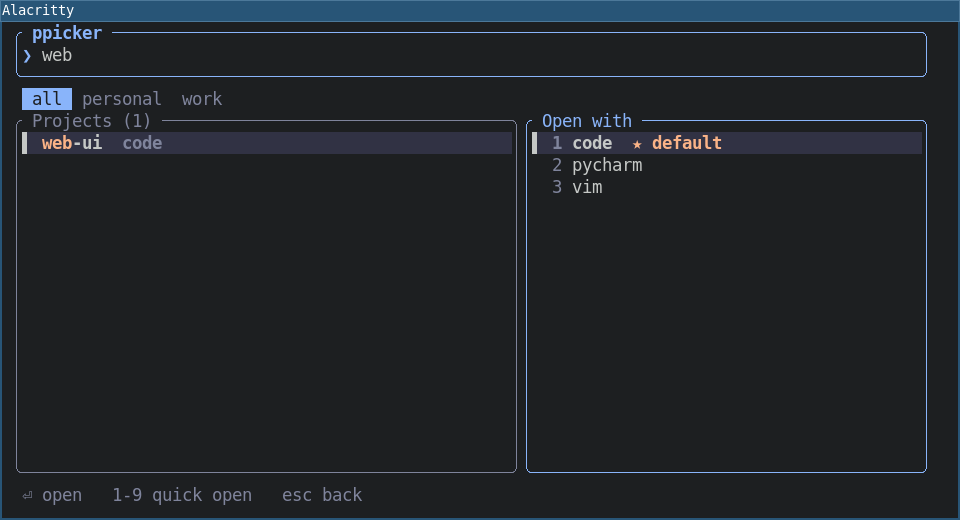
Pick one with the arrow keys and Enter, or press its number (1-9). The project opens, and
ppicker remembers your choice for next time.
It remembers
Whichever editor you open a project with becomes that project's editor. The list shows it next to each name, and Enter uses it.
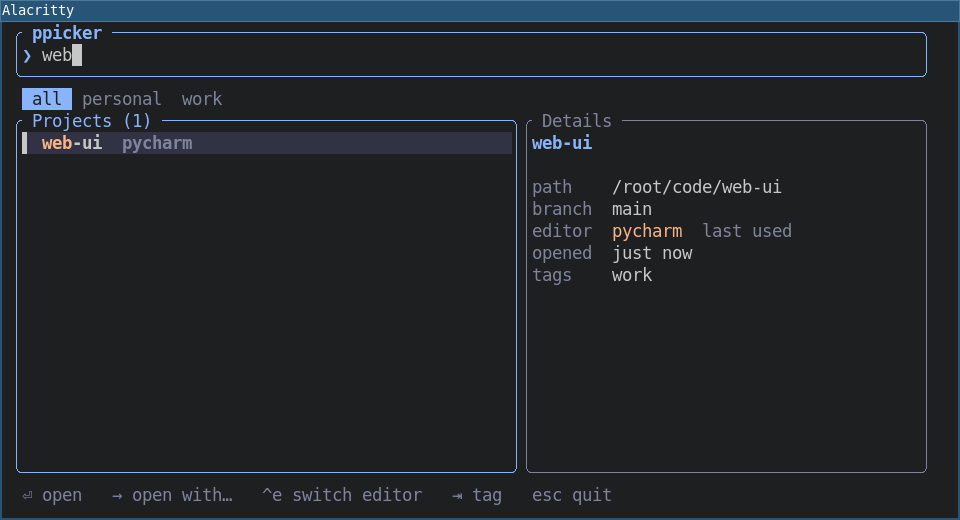
So you can keep a Python service in PyCharm, your dotfiles in vim and everything else in VS Code, and never think about it again. Just press Enter.
Change the editor without opening the project
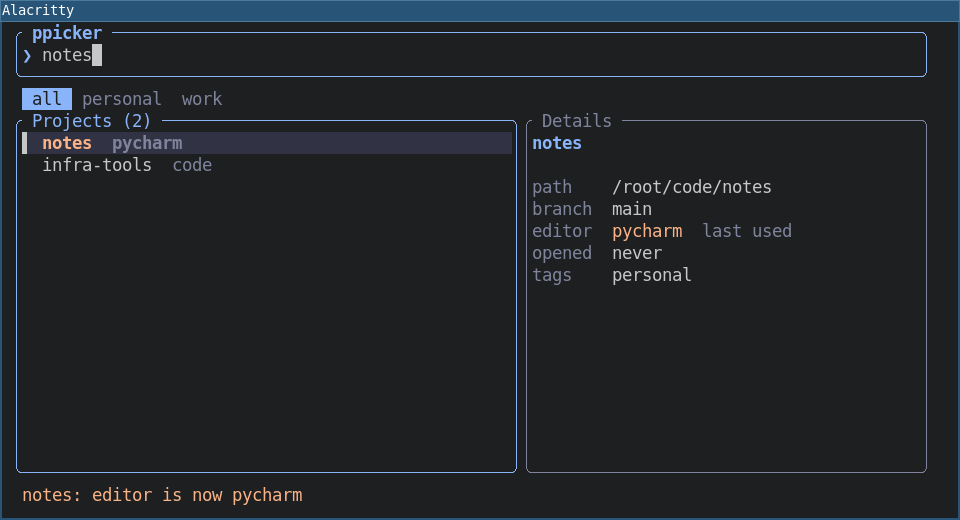
Press Ctrl-e to step the selected project to the next editor in your list. It is saved at once and a note at the bottom tells you what changed. After the last editor it wraps back to your default.
Workspaces, not just folders
A project does not have to be a folder. You can add a workspace file too, and ppicker opens it the way the editor expects:
pp add ~/work/shop.code-workspace     # a VS Code workspace
pp add ~/work/site.sublime-project    # a Sublime Text project
pp scan ~/work --workspaces           # also pick up workspace files while scanning
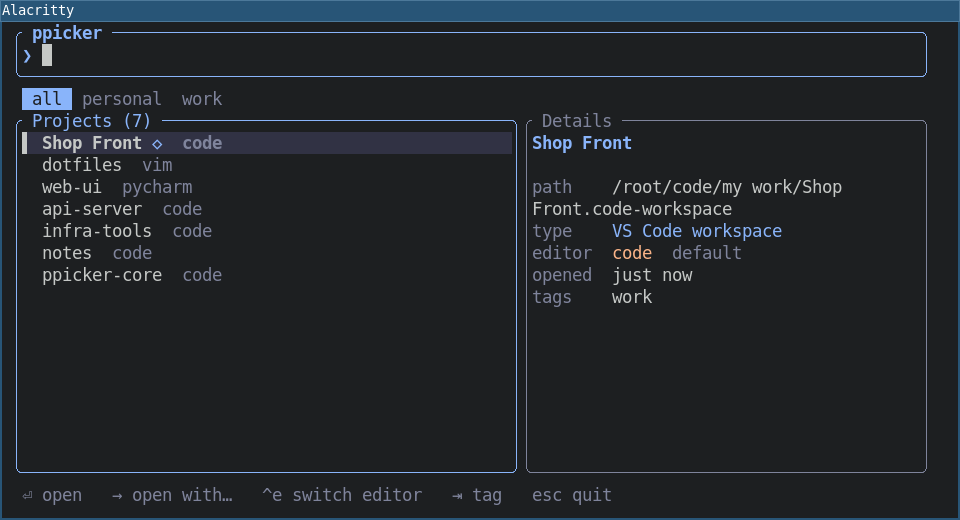
A workspace is named after its file (Shop Front) and marked with ◇ in the list; the details
panel says what kind it is.
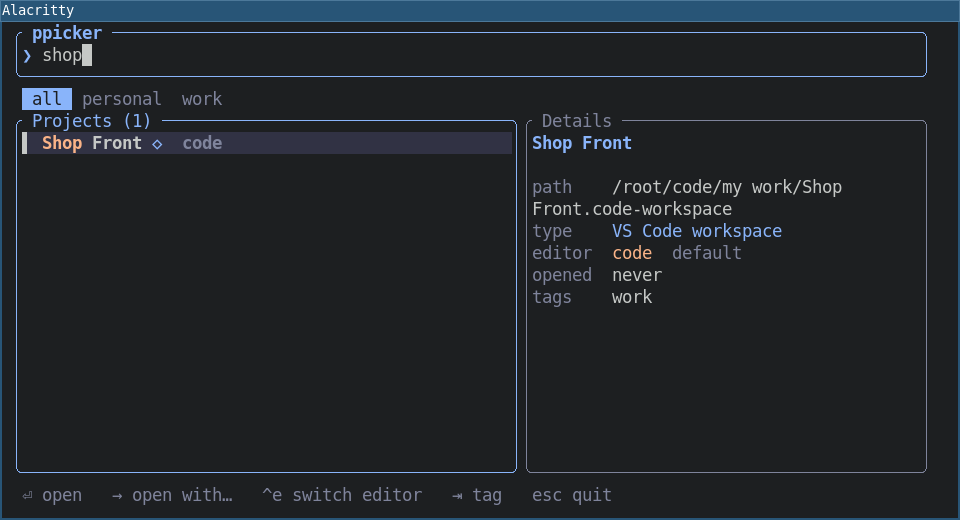
A .code-workspace file means something only to VS Code, so ppicker offers only editors that can
open it. Enter uses the first VS Code editor in your ides, → lists just those (below, code
only: vim and PyCharm are left out), and Ctrl-e cycles only through them.
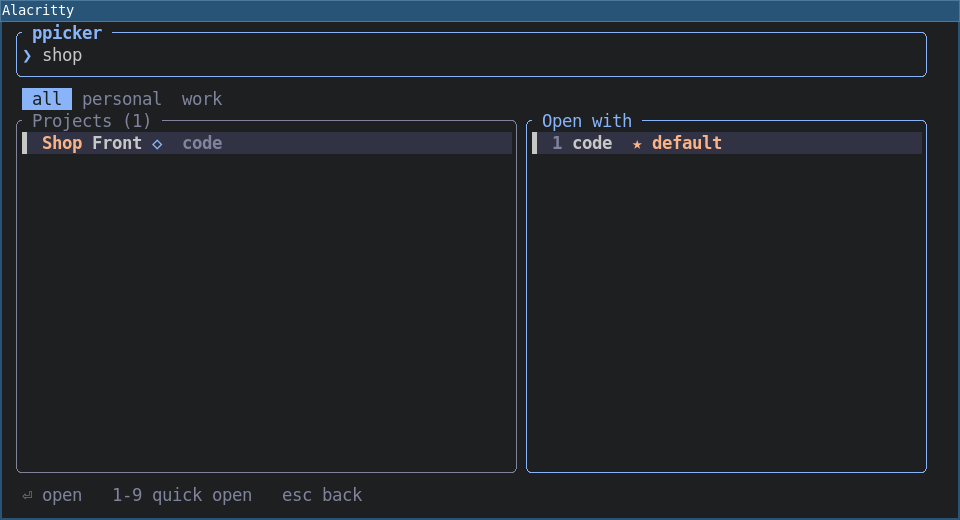
If none of your editors can open it, ppicker says which one to add instead of failing silently. A folder and a workspace file are separate entries, so one repository can appear as both.
Use rofi, wofi or fuzzel instead
If you already have a launcher you like, use it for the picking:
pp menu
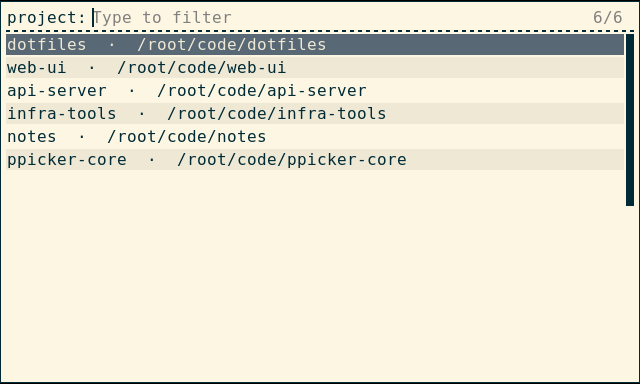
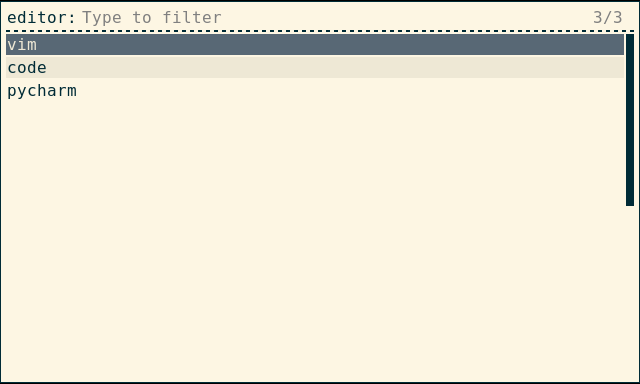
It lists your projects, you choose one, and it opens in the remembered editor. Add --ask to get
a second step where you choose the editor:
pp menu --ask
For other launchers, pass the command to use: pp menu --cmd "fuzzel --dmenu" (or wofi --dmenu,
fzf). {prompt} in the command is replaced by the step name.
Keys
| Key | What it does |
|---|---|
| type | search by name or path |
↑ ↓ (or Ctrl-p Ctrl-n) |
move through the list |
Enter |
open the project in its editor, then close |
Ctrl-o |
open the project and keep the picker open (to open several) |
→ |
open with a different editor |
1-9 |
in the editor list, open with that editor |
Ctrl-e |
switch the project's editor without opening it |
Tab / Shift-Tab |
next / previous tag filter |
Ctrl-u |
clear the search |
← or Esc |
back from the editor list; Esc in the main list quits |
The Ctrl shortcuts also work when a Russian keyboard layout is active (Ctrl-щ is Ctrl-o).
With keep_open = true in the config, Enter and Ctrl-o swap roles.
Editors
List the editors you use in the config file (run pp paths to see where it is). The first one is
the default for projects you have not opened yet:
ides = ["vscode", "pycharm", "zed"]
scan_dirs = ["/home/me/code"]     # used by `pp scan` when you give no folder
keep_open = false                 # true: Enter opens and stays open, Ctrl-o opens and quits
Each entry is either a name ppicker knows, or a plain command.
Names: the same editor on every system
Editor commands are called different things on different systems: code on Linux, code.cmd on
Windows, codium, a flatpak... A name stands for a list of commands, and ppicker runs the first
one it finds on your PATH. So the same config works everywhere:
| Name | Tries, in order |
|---|---|
vscode |
code, code-insiders, codium, vscodium, the VS Code flatpak |
pycharm |
pycharm, pycharm-professional, pycharm-community, charm, pycharm64, the PyCharm flatpaks |
idea, webstorm, goland, rustrover, clion, phpstorm, rider, rubymine |
the usual launcher name of each (and its 64 variant) |
sublime |
subl, sublime_text, sublime-text |
zed |
zed, zeditor |
cursor, windsurf |
the same name |
If a name is not found you get an error that lists what was tried.
Plain commands
Anything else is run as written, for example code, idea, code -n or alacritty -e nvim.
Put a path with spaces in quotes: "C:\Program Files\Some Editor\editor.exe". ppicker recognises
the well-known commands (code, codium, cursor, subl, pycharm, ...) so it knows which
projects they can open.
Your own command list
If your install is somewhere unusual, or you want a different order, override a name (or define a
new one) in config.toml. The first command that exists is used:
[commands]
vscode = ['C:\Tools\VSCode\bin\code.cmd', "code"]   # my install first, then whatever is on PATH
work = ["codium", "code"]                           # a new name, usable in `ides`
How a project is opened
A folder is opened as <editor> . from inside the folder. A workspace file is opened as
<editor> <file> (see Workspaces). The editor is started detached,
so it keeps running after ppicker exits.
Terminal editors such as vim or nvim need a terminal to run in. Use a command that starts one, for example
ides = ["vscode", "alacritty -e nvim"].
Commands
Everything the picker does is also available from the command line:
pp                              # open the picker
pp open myproj                  # open a project without the picker
pp open myproj pycharm          # open with a specific editor (and remember it)
pp editor myproj                # show which editor a project uses
pp editor myproj pycharm        # set it without opening
pp editor myproj --reset        # forget it, back to the default editor
pp add . --ide pycharm          # register the current folder and set its editor
pp add . --name api -t work     # custom name, add a tag (repeat -t for more)
pp add ~/w/shop.code-workspace  # add a workspace file instead of a folder
pp scan ~/code -t work          # add every git repository in a folder
pp scan ~/code --workspaces     # ...and the workspace files in it (one level down)
pp list                         # show projects with their editors (workspaces marked ◇)
pp rm myproj                    # remove from the list (files are untouched)
pp menu [--ask]                 # pick through rofi or another launcher
pp paths                        # where the config and project list are stored
pp rm only forgets the project; it never deletes anything on disk.
i3 / sway
Open the picker in a small centred floating window on a hotkey. Add to ~/.config/i3/config:
bindsym $mod+p exec --no-startup-id alacritty --class pp-popup,pp-popup -e pp
for_window [class="pp-popup"] floating enable, resize set 960 520, move position center
(In sway, use app_id="pp-popup" and alacritty --class pp-popup or foot --app-id pp-popup.)
Prefer rofi? One line is enough:
bindsym $mod+p exec --no-startup-id pp menu
Where your data lives
Two small text files you can read and edit; pp paths prints the exact locations.
config.toml: your settings (editors, scan folders).projects.toml: your projects, their tags, last-opened time and remembered editor.
To keep both somewhere else (a portable install, or to try things out without touching your
real list), set PPICKER_HOME to a folder; ppicker then uses config/ and data/ inside it.
Moving from code-compass
ppicker replaces the old Qt-based code-compass package. See docs/MIGRATION.md
for what changed and how to bring your projects over:
pipx install ppicker
pipx run code-compass==0.2.0 migrate
Development
cargo test                # unit tests
cargo clippy --all-targets -- -D warnings
A Linux end-to-end test that drives the real program inside i3 and rofi, and produces the screenshots above, is described in e2e/README.md.
1 maintainer

Metadata
1 maintainer
Release files for ppicker 0.3.0
For a detailed explanation of source distributions (sdists) and built distributions (wheels), please see the package formats documentation.
Source distribution (sdist)
| File | Size | Uploaded | Provenance | Actions |
|---|---|---|---|---|
| ppicker-0.3.0.tar.gz | 308.1 kB | With provenance | Details for ppicker-0.3.0.tar.gz |
Built distributions (wheels)
| File | Actions Reset | |||
|---|---|---|---|---|
| ppicker-0.3.0-py3-none-win_amd64.whl | Python 3 | none | Windows x86-64 | Details for ppicker-0.3.0-py3-none-win_amd64.whl |
| ppicker-0.3.0-py3-none-manylinux2014_x86_64.manylinux_2_17_x86_64.whl | Python 3 | none | Linux glibc 2.17+ x86-64 | Details for ppicker-0.3.0-py3-none-manylinux2014_x86_64.manylinux_2_17_x86_64.whl |
| ppicker-0.3.0-py3-none-manylinux2014_aarch64.manylinux_2_17_aarch64.whl | Python 3 | none | Linux glibc 2.17+ ARM64 | Details for ppicker-0.3.0-py3-none-manylinux2014_aarch64.manylinux_2_17_aarch64.whl |
| ppicker-0.3.0-py3-none-macosx_11_0_arm64.whl | Python 3 | none | macOS 11.0+ ARM64 | Details for ppicker-0.3.0-py3-none-macosx_11_0_arm64.whl |
| ppicker-0.3.0-py3-none-macosx_10_12_x86_64.whl | Python 3 | none | macOS 10.12+ x86-64 | Details for ppicker-0.3.0-py3-none-macosx_10_12_x86_64.whl |
Total release size: 3.2 MB
Release files / ppicker-0.3.0.tar.gz
| Download URL | ppicker-0.3.0.tar.gz |
|---|---|
| Size | 308.1 kB |
| Tags | Source |
|
SHA-256 checksum How to use checksums |
7460ebc3cbdf103b58085372b0f490106a1ff74f8b6d0ab24b56f3827a1db83b
|
|
BLAKE2b-256 checksum How to use checksums |
cc518b4fd3dab44220c777bdaa6f56326ebad20655159ae31b9ba5699d12419b
|
| Upload date | |
|
Uploaded using Trusted Publishing? What is trusted publishing? |
Yes |
| Uploaded via |
twine/7.0.0 CPython/3.13.16
|
Provenance
Provenance describes where a file came from. On PyPI, provenance is shared via attestations, which provide a verifiable record of the build or publishing details. View details, limitations and caveats.


PyPI Publish Attestation
PyPI verified that this artifact, at this checksum, originated from the publisher listed below.
Signed by GitHub Actions, verified by PyPI on Nov 13, 2026.
Transparency logRelease files / ppicker-0.3.0-py3-none-win_amd64.whl
| Download URL | ppicker-0.3.0-py3-none-win_amd64.whl |
|---|---|
| Size | 529.2 kB |
| Tags | Python 3 Windows x86-64 |
|
SHA-256 checksum How to use checksums |
c7c7f8bd87c24b9295e58b25f775f1d6a1a89c275af85028735c7290334628b4
|
|
BLAKE2b-256 checksum How to use checksums |
095d726ac7b387d68d26a2d3bd80dafc98b8c874258495968ee503782bf69592
|
| Upload date | |
|
Uploaded using Trusted Publishing? What is trusted publishing? |
Yes |
| Uploaded via |
twine/7.0.0 CPython/3.13.16
|
Provenance
Provenance describes where a file came from. On PyPI, provenance is shared via attestations, which provide a verifiable record of the build or publishing details. View details, limitations and caveats.
PyPI Publish Attestation
PyPI verified that this artifact, at this checksum, originated from the publisher listed below.
Signed by GitHub Actions, verified by PyPI on Nov 13, 2026.
Transparency logRelease files / ppicker-0.3.0-py3-none-manylinux2014_x86_64.manylinux_2_17_x86_64.whl
| Download URL | ppicker-0.3.0-py3-none-manylinux2014_x86_64.manylinux_2_17_x86_64.whl |
|---|---|
| Size | 629.7 kB |
| Tags | Linux glibc 2.17+ x86-64 Python 3 |
|
SHA-256 checksum How to use checksums |
7af6d69e9beb670f28ac2ad6055d66a1e5eca08b20786b6b14b5d17097637a88
|
|
BLAKE2b-256 checksum How to use checksums |
eb6483b524cf624d1b623dc8029eb286ef3cc0b19e2e82e93e79edf8f6104928
|
| Upload date | |
|
Uploaded using Trusted Publishing? What is trusted publishing? |
Yes |
| Uploaded via |
twine/7.0.0 CPython/3.13.16
|
Provenance
Provenance describes where a file came from. On PyPI, provenance is shared via attestations, which provide a verifiable record of the build or publishing details. View details, limitations and caveats.
PyPI Publish Attestation
PyPI verified that this artifact, at this checksum, originated from the publisher listed below.
Signed by GitHub Actions, verified by PyPI on Nov 13, 2026.
Transparency logRelease files / ppicker-0.3.0-py3-none-manylinux2014_aarch64.manylinux_2_17_aarch64.whl
| Download URL | ppicker-0.3.0-py3-none-manylinux2014_aarch64.manylinux_2_17_aarch64.whl |
|---|---|
| Size | 621.3 kB |
| Tags | Linux glibc 2.17+ ARM64 Python 3 |
|
SHA-256 checksum How to use checksums |
964d9645a14856e6d85fe3bb1aadaf74f46ec98b905d8d8451eb9d8c6cac9f56
|
|
BLAKE2b-256 checksum How to use checksums |
d281472a69694804aa186a9aad2321825df7a6ab0abba99883a63eb9b9fca173
|
| Upload date | |
|
Uploaded using Trusted Publishing? What is trusted publishing? |
Yes |
| Uploaded via |
twine/7.0.0 CPython/3.13.16
|
Provenance
Provenance describes where a file came from. On PyPI, provenance is shared via attestations, which provide a verifiable record of the build or publishing details. View details, limitations and caveats.
PyPI Publish Attestation
PyPI verified that this artifact, at this checksum, originated from the publisher listed below.
Signed by GitHub Actions, verified by PyPI on Nov 13, 2026.
Transparency logRelease files / ppicker-0.3.0-py3-none-macosx_11_0_arm64.whl
| Download URL | ppicker-0.3.0-py3-none-macosx_11_0_arm64.whl |
|---|---|
| Size | 559.4 kB |
| Tags | Python 3 macOS 11.0+ ARM64 |
|
SHA-256 checksum How to use checksums |
513ca9511b9a468643cc6f3398d06ae927d1f4126e9d5d3ad6400fbbd34151c0
|
|
BLAKE2b-256 checksum How to use checksums |
9c211564949bb90dc4ec4f7f0f2efc73e39a17a1926d05c0cc867b598f61d14a
|
| Upload date | |
|
Uploaded using Trusted Publishing? What is trusted publishing? |
Yes |
| Uploaded via |
twine/7.0.0 CPython/3.13.16
|
Provenance
Provenance describes where a file came from. On PyPI, provenance is shared via attestations, which provide a verifiable record of the build or publishing details. View details, limitations and caveats.
PyPI Publish Attestation
PyPI verified that this artifact, at this checksum, originated from the publisher listed below.
Signed by GitHub Actions, verified by PyPI on Nov 13, 2026.
Transparency logRelease files / ppicker-0.3.0-py3-none-macosx_10_12_x86_64.whl
| Download URL | ppicker-0.3.0-py3-none-macosx_10_12_x86_64.whl |
|---|---|
| Size | 580.4 kB |
| Tags | Python 3 macOS 10.12+ x86-64 |
|
SHA-256 checksum How to use checksums |
2d7c9e316dd80bed56a54899839297eca3f3f99c915d498297e256b38199f436
|
|
BLAKE2b-256 checksum How to use checksums |
6a0d59c35c39b32f6b5453dc571800d5c27c7f44b524b62fe8e7b35a4c3cdbca
|
| Upload date | |
|
Uploaded using Trusted Publishing? What is trusted publishing? |
Yes |
| Uploaded via |
twine/7.0.0 CPython/3.13.16
|
Provenance
Provenance describes where a file came from. On PyPI, provenance is shared via attestations, which provide a verifiable record of the build or publishing details. View details, limitations and caveats.
PyPI Publish Attestation
PyPI verified that this artifact, at this checksum, originated from the publisher listed below.
Signed by GitHub Actions, verified by PyPI on Nov 13, 2026.
Transparency logSecurity for ppicker 0.3.0
Provenance
Provenance describes where a file came from. On PyPI, provenance is shared via attestations, which provide a verifiable record of the build or publishing details. View details, limitations and caveats.
Full provenance
All 6 files in this release have been uploaded with provenance metadata.
Attestation for ppicker-0.3.0.tar.gz
PyPI Publish Attestation
PyPI verified that this artifact, at this checksum, originated from the publisher listed below.
Signed by GitHub Actions, verified by PyPI on Nov 13, 2026.
Transparency logA note on package security
PyPI is a repository for distributing packages, not a service for auditing them. While third-party security researchers and our staff do their best to detect and remove malicious packages, PyPI cannot guarantee the quality, security or suitability of any given package.
To learn more about protecting yourself from malicious actors, visit our package security documentation.














