
Programmify
Quickly make a windows executable with a system tray icon and an configurable (read empty) PyQT5 window
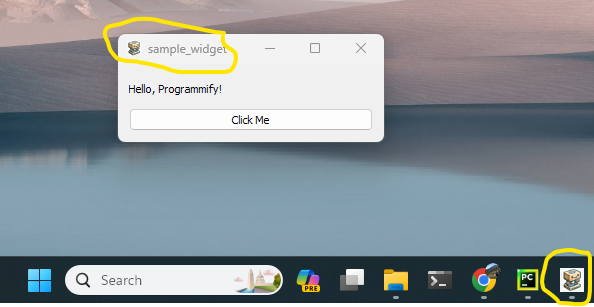
Task Manager

Yes! You can use your own icon
Features
- Use your own icon
- System tray icon (in task bar)
- Window title (in window title bar)
- Window icon (in window title bar)
- Executable name (in File Explorer & Task Manager)
- Executable file icon (in File Explorer & Task Manager)
- PyQT Widget OR PyQT Main Window
- executable with icon on desktop
- can be pinned to taskbar
Support
- Windows
- Linux
- Mac
Quickstart
-
Make a new python project folder, let's call it
myprogram -
Make a virtual environment if you want, or just use your system python
-
Install
programmifypip install programmify
-
Make a new file in
myprogram, let's call itmyapp.py -
import and use either
ProgrammifyWidgetorProgrammifyMainWindowfromprogrammifyin your script# myprogram/myapp.py from PyQt5 import QtWidgets from programmify import ProgrammifyWidget class MyWidget(ProgrammifyWidget): def setupUI(self): # Create a layout layout = QtWidgets.QVBoxLayout(self) # Add a label label = QtWidgets.QLabel("Hello, Programmify!") layout.addWidget(label) # Add a button button = QtWidgets.QPushButton("Click Me") button.clicked.connect(self.on_button_clicked) # Connect to a method to handle the click event layout.addWidget(button) # Set the layout on the QWidget self.setLayout(layout) def on_button_clicked(self): QtWidgets.QMessageBox.information(self, "Action", "Button was clicked!") if __name__ == '__main__': MyWidget.run()
-
Build the executable
From command prompt in the project directory:
(venv) C:\Users\user\myprogram>
programmify --desktop
NOTES:
- If you have ONLY one .py file in the current working directory you don't need to specify the file to build, otherwise you may need to specify
programmify myapp.py - include a
favicon.icoin your current working directory to use as the icon for the program --desktopwill copy the executable to your desktop
- Run
An executable should have been created at
myprogram/myapp.exeand also copied to your desktop. Double click to run!
Usage:
programmify myapp.py --name testprogram --icon testicon.ico
Advanced usage:
programmify --helpto see all options- add
--show_cmdto show thepyinstallercommand that will be run instead of running it (useful for debugging)
>programmify --help
usage: programmify [-h] [--name NAME] [--dst DST] [--icon ICON] [--mode MODE] [--nocleanup] [--show_cmd] [--cmd CMD] [--hidden_imports [HIDDEN_IMPORTS ...]]
                   [--extra_files [EXTRA_FILES ...]] [--debug] [--args ...] [--desktop] [--version VERSION]
                   file

positional arguments:
  file                  File to build. If not specified, will try ...
                            1. main.py in current working directory if found
                            2. __main__.py
                            3. the only .py file in the current working directory if only one is found (excluding __init__.py)
                            4. if there is a src directory, will search in src and its subdirectories to find a single option
                            5. if the above fails, will raise an error and you will need to specify the file to build.

options:
  -h, --help            show this help message and exit
  --name NAME           Program name. If not specified, the name of the either the file or its parent directory will be used.
  --dst DST             Destination directory for the built program
  --icon ICON           Path to a 16x16 .ico file. If not specified, will try to find favicon.ico or any other .ico or .png in the current working directory.
  --mode MODE           Program mode: window or widget
  --nocleanup           Cleanup build files
  --show_cmd            Show the command that will be run instead of running it
  --cmd CMD             Expert level: command to run instead of pyinstaller
  --hidden_imports [HIDDEN_IMPORTS ...]
                        Hidden imports
  --extra-files [EXTRA_FILES ...]
                        Extra files to include
  --debug               Does not run in windowed mode, instead shows the terminal and stdout
  --args ...            Additional arguments to pass to pyinstaller
  --desktop             Copy the file to the desktop
  --version VERSION     Adds the version string to the end of the program name. e.g. --version 1 => my_program v1
Other Installed Scripts
png2icoto convert a.pngto a.icofile- see
png2ico --helpfor usage
- see
Uses
Subprocess Widget
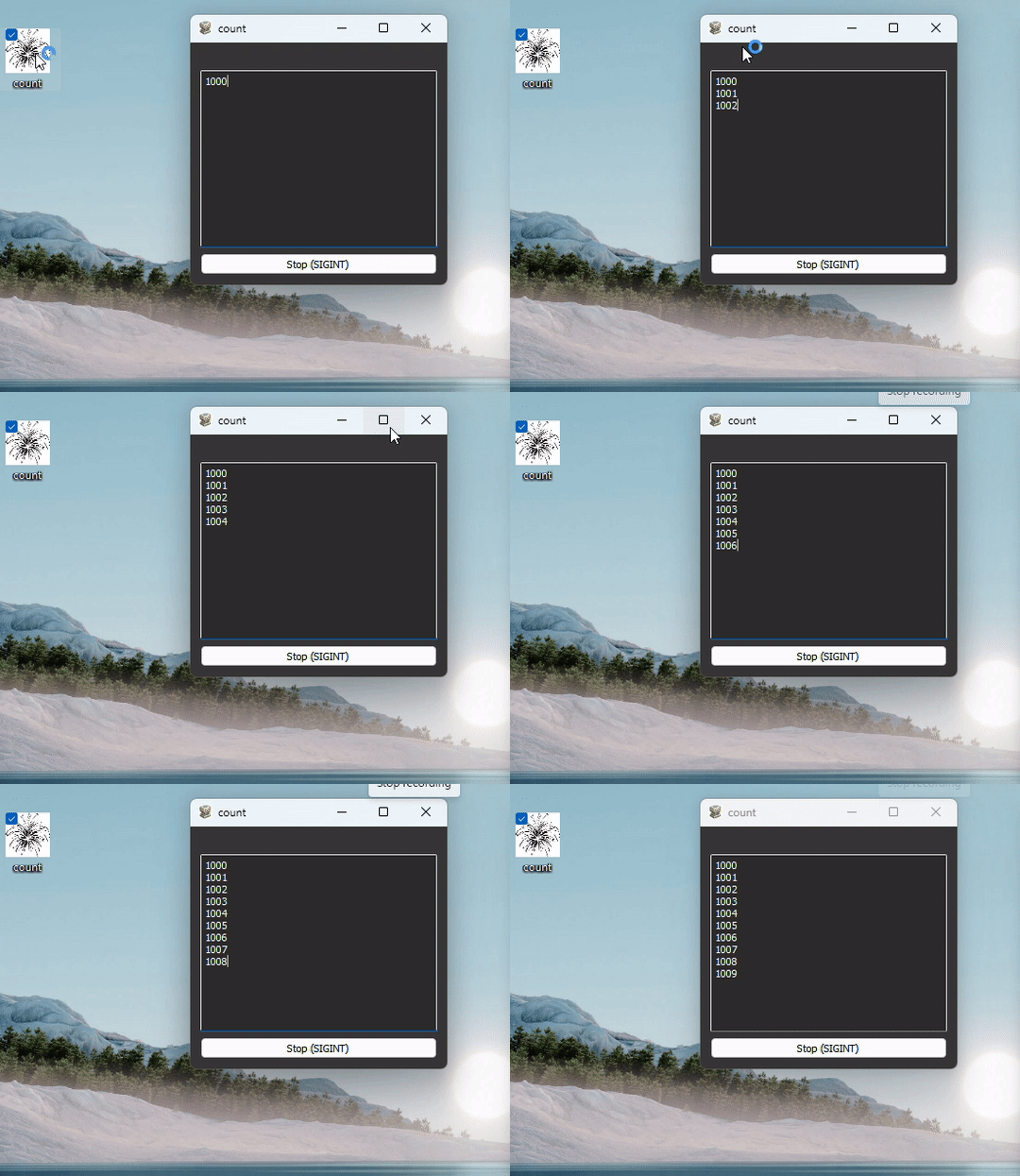
Run any subprocess command (bash) and display a live feed of stdout and stderr in a PyQT5 widget.
- The program which gets called
# count.py
import time
import sys

def count(start, stop, interval=1):
    for i in range(start, stop):
        print(i)
        sys.stdout.flush() # unfortunately, this is necessary to get the output to show up in the widget
        time.sleep(interval)
    sys.stderr.flush()

if __name__ == '__main__':
    start = int(sys.argv[1])
    stop = int(sys.argv[2])
    interval = int(sys.argv[3])
    count(start, stop, interval)
BUG
IMPORTANT: sys.stdout.flush() is necessary to get the output to show up in the widget.
This is a bug I am working on fixing. It is not necessary when running main.py directly, only when running the executable.
- The application which makes the widget and runs the subprocess command
# main.py
from programmify import SubprocessWidget

if __name__ == '__main__':
    cmd = ["python", "count.py", '1000', '1010', '1']
    SubprocessWidget.run(cmd=cmd)
- Build the executable
programmify main.py --name count --extra-files count.py
- Note:
pyinstallerdoesn't see that we are depending on thecount.pyto be included as well, so we must specify
- The output
1 maintainer

Metadata
1 maintainer
Release files for programmify 0.0.8
For a detailed explanation of source distributions (sdists) and built distributions (wheels), please see the package formats documentation.
Source distribution (sdist)
| File | Size | Uploaded | |
|---|---|---|---|
| programmify-0.0.8.tar.gz | 2.0 MB | Details |
Built distribution (wheel)
| File | Interpreter | ABI | Platform | Reset |
|---|---|---|---|---|
| programmify-0.0.8-py3-none-any.whl | Python 3 | none | any | Details |
Total release size: 2.0 MB
Release files / programmify-0.0.8.tar.gz
| Download URL | programmify-0.0.8.tar.gz |
|---|---|
| Size | 2.0 MB |
| Tags | Source |
|
SHA-256 checksum How to use checksums |
f8b066cdd389564544d4045d4fc398fbc256122766b2d1b88d11e8452e3010fb
|
|
BLAKE2b-256 checksum How to use checksums |
87004976fc5bf97b037ba054616f4955196263f7cab30ea0389c0ca89497db13
|
| Upload date | |
|
Uploaded using Trusted Publishing? What is trusted publishing? |
No |
| Uploaded via |
twine/5.0.0 CPython/3.9.18
|
Release files / programmify-0.0.8-py3-none-any.whl
| Download URL | programmify-0.0.8-py3-none-any.whl |
|---|---|
| Size | 15.2 kB |
| Tags | Python 3 |
|
SHA-256 checksum How to use checksums |
fe3cf77170f506b7e5dc12d383a4c504a734f46c69f6dae6fd155c1f7f9ee77c
|
|
BLAKE2b-256 checksum How to use checksums |
5da8d6ded55742e66c37d21eef01a5c146a945711bca3b33e3ed3788b08d1569
|
| Upload date | |
|
Uploaded using Trusted Publishing? What is trusted publishing? |
No |
| Uploaded via |
twine/5.0.0 CPython/3.9.18
|














