
PCC — Prompt Command Center
A keyboard-first prompt palette for Windows. Press CapsLock+Space anywhere, pick a template, hit Enter — it pastes straight back into whatever text box you were in.









Install · Quick start · Shortcuts · Templates · How it works
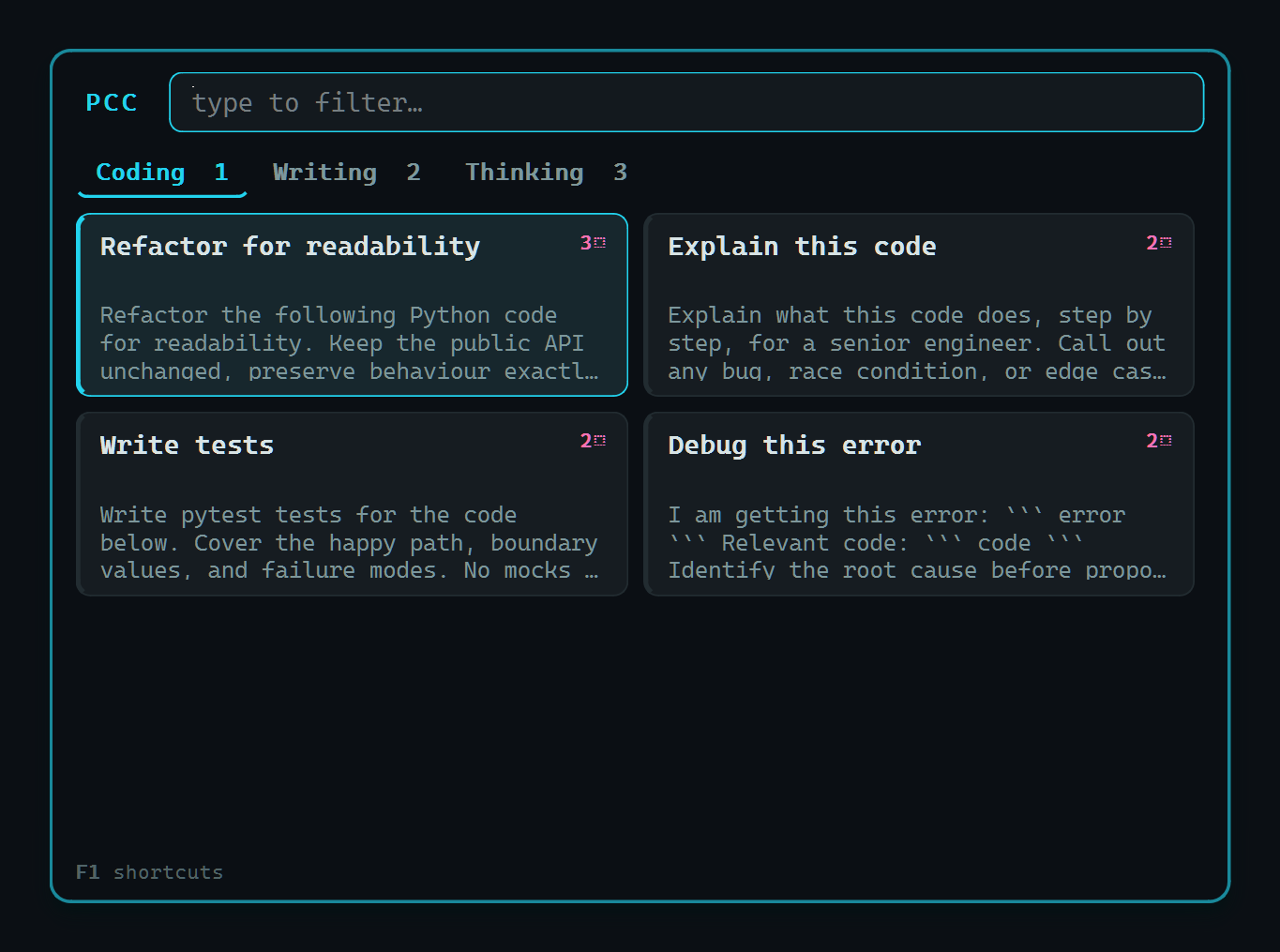
Summon it anywhere with CapsLock+Space — filter, pick, paste.
PCC is a launcher for the prompts you reuse. It lives in the system tray and appears the instant you summon it — a cold Python+Qt start would cost 400–1200 ms, so the app stays resident and a single keystroke shows it in about 30 ms. You feed prompts into an AI chat, a code editor, a terminal, an email — anywhere you can paste. Templates carry fill-in slots and magic slots that pull from your clipboard, selection, and environment, so a two-line template becomes hundreds of finished prompts.
- Fast — resident process, message-triggered, ~30 ms to show; paste is O(1) via the clipboard.
- Slots & magic —
{{name}}fields,{{name|a|b|c}}choices, and{{clipboard}}/{{selection}}/{{app}}auto-filled from context. - Composition — stack templates, layer reusable modifiers, and
{{>include}}shared fragments. - Memory & health — frecency ranks what you use per app; a health check flags empty, duplicate, broken, and never-used templates.
- Themeable — seven colour schemes, each derived from three hex codes and WCAG-contrast tested; live preview while you edit.
- Careful — undo on every destructive edit, on-disk snapshots, and an inline spell-checker that leaves your code alone.
Table of contents
- Screenshots
- Prerequisites
- Install
- Quick start
- Keys
- Templates
- Spelling
- Appearance
- How it works
- Project layout
- Development
- Contributing
- Known limitations
- License
Screenshots
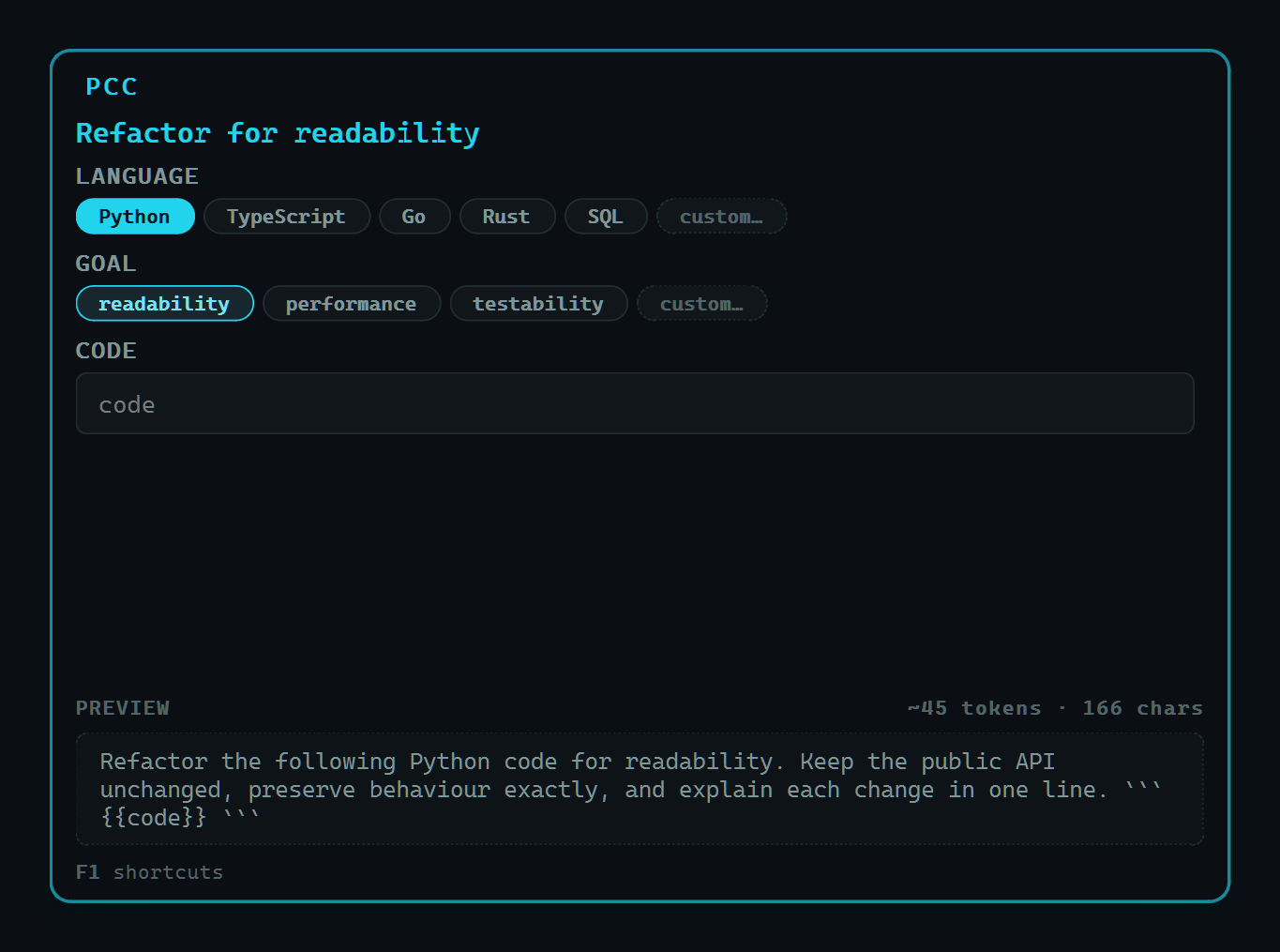
The fill panel — choice chips, free text, live preview with a token estimate. |
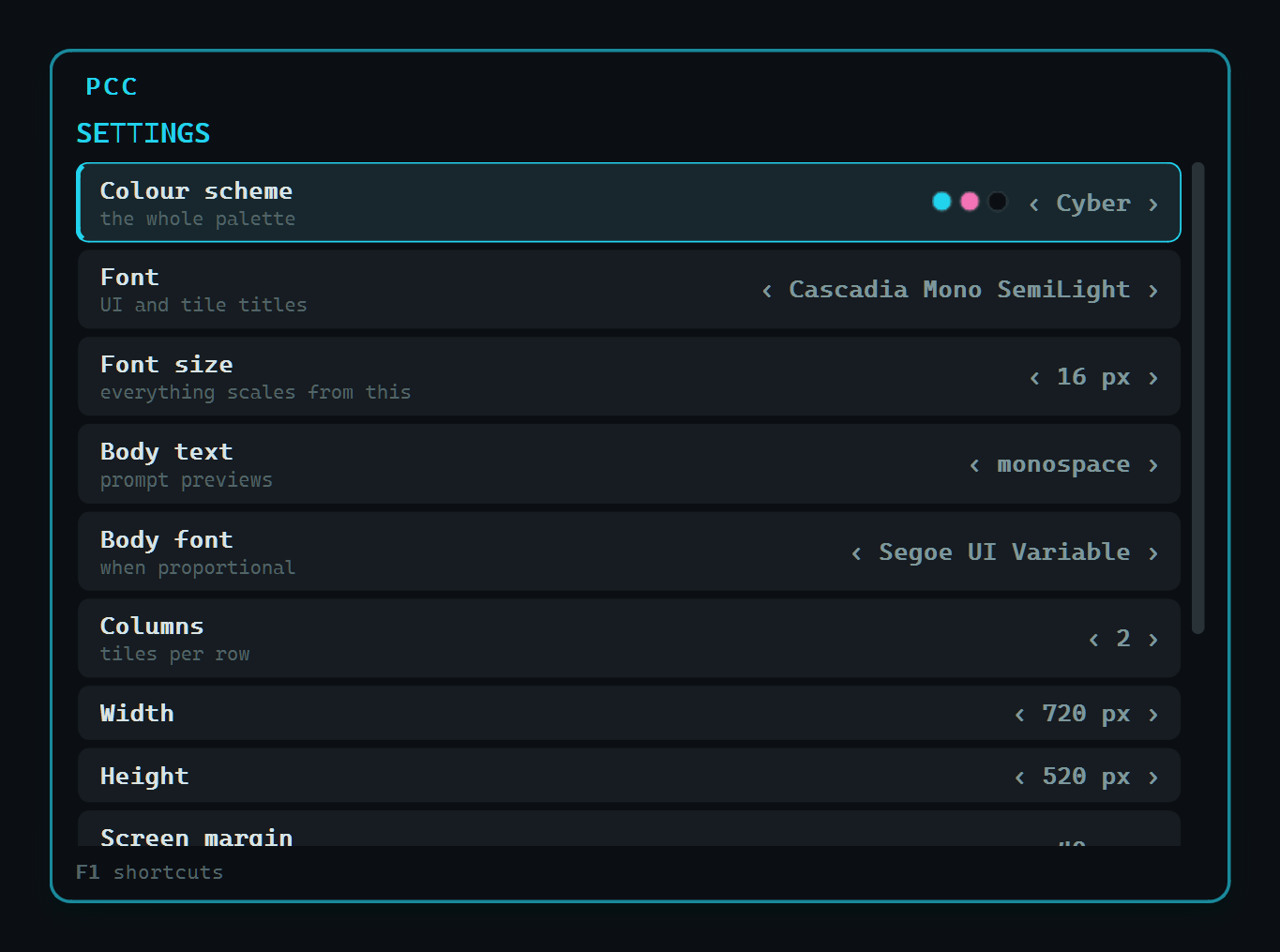
Settings ( |
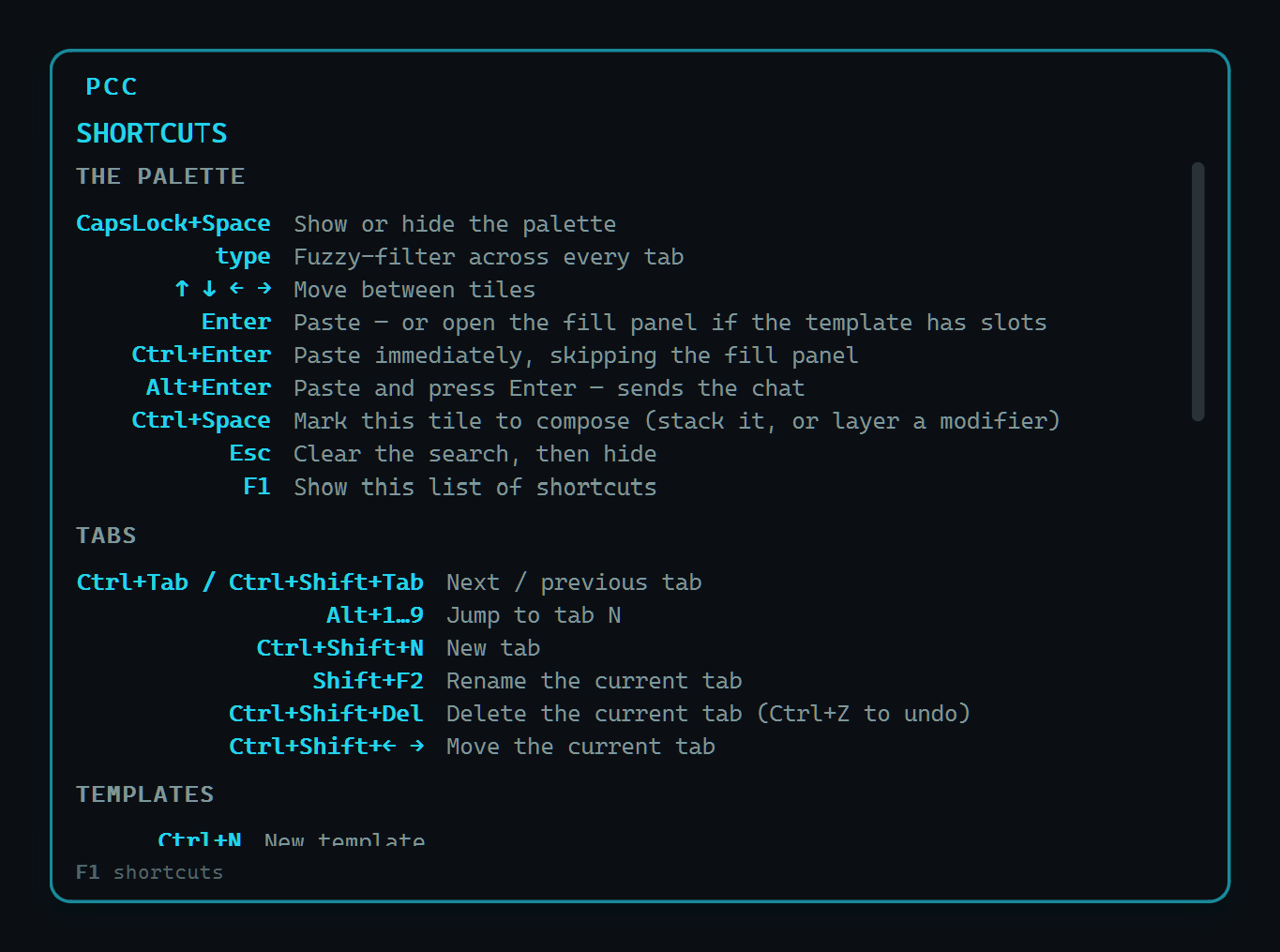
Every shortcut on one page ( |
The palette — tabs, fuzzy filter, the top hit auto-selected. |
Prerequisites
- Windows 10 or 11. PCC is Windows-only by design — it leans on Win32 foreground
handling, the Windows clipboard,
SendInput, and the built-in Windows spell-checker. - Python 3.11 or newer, reachable through the
pylauncher (the standard Windows installer adds it). - AutoHotkey v1.1 — provides the global
CapsLock+Spacehotkey.
Install
1. Clone and run the installer
git clone https://github.com/ami-a/prompt-command-center.git
cd prompt-command-center
powershell -ExecutionPolicy Bypass -File scripts\setup.ps1
That one command does everything, and it's idempotent — re-run it any time. It:
- creates a
.venvand installs the pinned dependencies, - verifies the imports and runs the test suite,
- wires up the
CapsLock+Spacetrigger (step 2 below), and - drops a Startup shortcut so PCC launches with Windows.
2. Enable the hotkey
PCC's global CapsLock+Space comes from a one-line AutoHotkey include. You have two options:
-
Let setup wire it for you — point it at your existing AutoHotkey script and it appends the include, keeping a timestamped backup:
powershell -ExecutionPolicy Bypass -File scripts\setup.ps1 -AhkScript C:\path\to\your.ahk
-
Add it yourself — if you run setup without
-AhkScript, it prints this line for you to paste into any AutoHotkey script:#Include <path-to-repo>\scripts\pcc.ahk
pcc.ahk figures out the repo location from its own path, so the include works no
matter where you cloned. Reload AutoHotkey afterwards for the hotkey to take effect.
3. You're set
Press CapsLock+Space — the palette appears. PCC now starts with Windows and lives in the tray; right-click the tray icon for Settings…, Reload, and Quit.
Nothing happens on CapsLock+Space? Make sure AutoHotkey is running and was reloaded after adding the include. If the tray icon is missing, start PCC directly with
.venv\Scripts\pythonw -m pcc. See Known limitations for the elevated-window and locked-session cases.
Manual install — without the installer script
py -3 -m venv .venv
.venv\Scripts\python -m pip install -r requirements.txt
.venv\Scripts\python -m pytest tests        # optional: confirm it's healthy

# Add the trigger to your AutoHotkey script, then reload AHK:
#   #Include <path-to-repo>\scripts\pcc.ahk

.venv\Scripts\pythonw -m pcc                 # start it (pythonw = no console)
From PyPI — no clone
pipx install prompt-command-center   # or: py -m pip install prompt-command-center
pcc                                  # starts PCC in the tray
Then bind the hotkey in any AutoHotkey script. Running pcc again forwards to the
instance that is already resident, so this one line is the whole trigger:
Capslock & Space::Run, pcc
Each press starts a short-lived process that only forwards the message. The
clone install's pcc.ahk posts to the window directly and skips that process, so it is the faster
trigger.
Quick start
- Press CapsLock+Space anywhere. The palette appears over the app you were in.
- Arrow to a template, or just type to fuzzy-filter — the top hit is auto-selected.
- Press Enter. If the template has slots you get the fill panel; otherwise it pastes straight into the box you came from. Press F1 any time for the full key list.
Keys
| Key | Action |
|---|---|
CapsLock+Space |
Show the palette |
F1 |
All shortcuts — the full list, on its own page (the footer only shows this) |
| type | Fuzzy-filter across all tabs; top hit auto-selected |
↑ ↓ ← → |
Move between tiles |
Ctrl+Tab / Ctrl+Shift+Tab |
Next / previous tab |
Alt+1..9 |
Jump to tab N |
Enter |
Paste — or open the fill panel if the template has slots |
Ctrl+Enter |
Paste immediately, skipping the fill panel |
Alt+Enter |
Paste and press Enter — sends the chat in one keystroke |
Ctrl+Space |
Mark this tile for composition (stack it, or layer a modifier) |
Esc |
Clear the search, then hide |
Ctrl+Q |
Quit PCC — the next CapsLock+Space starts it again |
Ctrl+Z |
Undo the last delete |
Ctrl+H |
Library health — flags empty, duplicate, broken, never-used |
Tab / Shift+Tab |
Next / previous slot (fill panel) |
← → |
Pick an option on a choice slot; type for anything else |
Ctrl+P |
Toggle the full, untruncated preview (fill panel) |
Shift+Enter |
Newline inside a slot |
Ctrl+. |
Fix the misspelled word at the caret (or right-click it) |
Ctrl+N / Ctrl+Shift+N |
New template / new tab |
F2 / Shift+F2 |
Edit template / rename tab |
Ctrl+D |
Duplicate template |
Ctrl+Del / Ctrl+Shift+Del |
Delete template / delete tab (Ctrl+Z to undo) |
Ctrl+←→↑↓ |
Reorder the selected tile |
Ctrl+Shift+← → |
Move the current tab |
Ctrl+, |
Settings — colours, fonts, layout, with live preview |
Ctrl+E / Ctrl+R |
Open templates.json / reload it |
Ctrl+Shift+E / Ctrl+Shift+R |
Open settings.json / reload + restyle live |
Templates
Stored at %APPDATA%\PCC\templates.json, editable in the app or by hand — the
file is watched and reloads live.
{ "version": 1,
  "tabs": [ { "id": "t_coding", "name": "Coding", "templates": [
      { "id": "p_refactor",
        "title": "Refactor for readability",
        "body": "Refactor this {{language|Python|Go|Rust}} code for {{goal}}." } ] } ] }
| Written | Means |
|---|---|
{{name}} |
a fill-in slot |
{{name|default}} |
…with a default |
{{name|one|two|three}} |
…offered as a choice, one preselected |
{{name||two|three}} |
…a choice with nothing preselected |
{{name|a \\| b}} |
a default containing a literal | |
{{clipboard}} {{selection}} {{app}} {{window}} {{date}} {{time}} |
auto-filled from context — never typed |
{{>title}} or {{>id}} |
includes another template's body inline |
{{^}} |
parks the caret here after pasting |
On Enter, each slot resolves in order:
- a value you chose or typed wins,
- otherwise the default — the first option, for a choice — is used,
- otherwise a context value, if it's a magic slot like
{{clipboard}}, - otherwise the literal
{{name}}is pasted — nothing is ever silently dropped, so you can finish the prompt in the chat box.
The same {{name}} used twice shares one input and fills every occurrence.
Magic slots — context, filled in for you
Copy some code, press CapsLock+Space, pick Explain this code — the {{code}}
field is already filled from the clipboard (and pre-selected, so if the guess
is wrong your first keystroke replaces it). A template whose only slots are magic
(Explain {{clipboard}}) skips the fill panel and pastes at once.
Magic slots show up as a dim CONTEXT line in the fill panel — clipboard · 1.2k chars · app · Code.exe — because a value you didn't type should always be visible.
An empty source falls back to the literal token, exactly like an unfilled slot.
{{selection}} goes one better: with capture_selection on (see below) PCC copies
whatever is selected in the app you summoned it over, so you don't even press
Ctrl+C first. It's off by default — it synthesises Ctrl+C, which in a console
is SIGINT — and always skips terminals.
Composition — few pieces, many prompts
Press Ctrl+Space to mark tiles, then Enter to combine them:
- Mark two or three ordinary templates → they paste stacked, joined by blank
lines (a shared
{{code}}collapses to one field). - Tag a template
modifier(e.g. "Be concise.", "Answer as a table.") and it becomes a fragment you layer on: mark it, then Enter on any base applies it. A dozen modifiers over forty templates is hundreds of prompts from one small library.
{{>rules}} includes another template by title or id — write your standing
instructions once and reference them everywhere. Includes are depth-limited and
cycle-safe: a loop yields a visible {{>cycle: name}} marker, never a hang.
Frecency, memory, and health
The templates you use rise in the ranking (a capped nudge — it breaks ties, never
beats a title match), keyed to the app you're in. Short slot answers come back as
ghost text next time. Delete never asks — it deletes and offers Ctrl+Z — and
every destructive save also drops a rotating on-disk snapshot. Ctrl+H runs a
health check that flags the empty, duplicated, broken, and never-used templates a
library accumulates. These live in %APPDATA%\PCC\usage.json, kept out of
templates.json so your library stays git-clean.
The fill panel
←→ walks the options and selects as it goes — there is no separate confirm
step, the same way ←→ edits a row in the settings panel. Options are
shortcuts, never a closed set: just start typing and the row hands the
keystroke to a text field, and Tab moves on to the next slot. A choice slot's
field only appears once you ask for it, so a panel of choices stays one line per
slot.
Spelling
Misspellings get a wavy underline and a translucent wash in the template editor and the fill panel's text fields, both derived from the scheme's secondary colour. The wash is doing the visible work: Qt draws a wave underline one antialiased pixel high, which on these near-black surfaces is easy to miss no matter how bright you make it. The wave is what says spelling rather than selected.
Ctrl+. on the word — or a right-click — offers the fixes, plus Ignore and
Add to dictionary; the first suggestion is preselected, so Ctrl+. ⏎ is the
whole interaction. Right-clicking correctly spelled text still gives you the
usual Cut/Copy/Paste menu.
The checker is the one already built into Windows
(spell.py binds it with ctypes — no extra package, no
dictionary to ship), which means it knows the words you have added elsewhere,
and Add to dictionary teaches them to Word and Edge too.
What it deliberately does not underline: {{slot}} names, `code`,
```-fenced blocks, snake_case, camelCase, ACRONYMS, URLs,
paths like pcc/ui/palette.py, anything containing a digit, and any script
other than Latin. A prompt body is prose threaded with code, and marking the
code would make the marks worthless.
It stays out of the way of the thing this app is measured on: nothing about it
runs on the CapsLock+Space path, the ~20 ms of one-time setup is paid during
the startup prewarm, and a keystroke costs about 30 µs — one paragraph
re-scanned, against a per-word cache. Turn it off with Ctrl+, → Spell check.
Appearance
Press Ctrl+, inside the palette (or tray → Settings…).
↑↓ picks a setting, ←→ changes it, PgUp/PgDn steps numbers by five.
Every change applies instantly — the panel you're editing is the preview.
Enter saves; Esc reverts the entire session, so trying seven colour
schemes costs nothing.
Colour schemes
Cyber · Synthwave · Matrix · Amber · Ice · Void · Blood
Each scheme is defined by only three colours — background, accent, secondary — and the other twenty tokens are derived (schemes.py). Surfaces are lifted toward a desaturated tint of the accent rather than toward neutral grey, which is what makes panels read as part of the theme instead of grey boxes on a coloured background. Adding a scheme is three hex codes, and the test suite checks WCAG contrast on all of them.
The window's own border is the exception to that restraint: it is mixed most of the way to the accent and drawn 2 px, over a shadow carrying the accent's hue. The palette is summoned over an unknown desktop, so where it stops has to be legible before anything inside it is.
Set "accent": "#FF8800" in settings.json to override any scheme's accent;
every derived colour follows.
settings.json
Written on first run to %APPDATA%\PCC\settings.json. Everything above is
editable there too — Ctrl+Shift+R (or tray → Reload settings) restyles in
place, and Ctrl+Shift+E opens the file.
| Key | Default | Effect |
|---|---|---|
scheme |
cyber |
Colour scheme name |
accent |
null |
Hex override for the scheme's accent |
font_family |
Cascadia Code, … |
UI font; comma-separated, first installed wins |
font_size |
13 |
Base px, clamped 8–28. Every other size derives from it |
mono_preview |
true |
false → proportional body text (prose skims better) |
preview_font_family |
Segoe UI, Inter, sans-serif |
Face used when mono_preview is off |
window_width / window_height |
720 / 520 |
Palette size in logical px |
columns |
3 |
Tiles per row |
margin |
40 |
Inset from the active monitor's work area |
paste_key |
ctrl+v |
Use shift+insert for terminals that ignore Ctrl+V |
restore_clipboard |
true |
Put your previous clipboard back after pasting |
capture_selection |
off |
smart copies the target's selection for {{selection}} when a template uses it; always every summon; consoles always skipped |
spellcheck |
true |
Mark misspellings while you write |
spellcheck_language |
null |
BCP-47 tag, e.g. en-GB. null → your Windows locale |
library_path |
null |
Point templates.json somewhere git-tracked |
Sizes scale by ratio rather than fixed offsets, so the hierarchy holds up as
font_size grows; tiles re-measure their own text on FontChange, so rows stay
aligned and text still elides on a whole-line boundary.
How it works
CapsLock+Space
  └─ AHK: PostMessage WM_APP → hidden window "PCC_IPC_HOST"   (~1 ms, no spawn)
       └─ capture GetForegroundWindow()  ← before we show, so we know the target
          position on the active monitor · show · take foreground
             └─ Enter: clipboard ← text · hide · restore focus · SendInput Ctrl+V
                       └─ 300 ms later: previous clipboard restored
PCC stays resident in the tray. AHK posts a message rather than launching a process, because a cold Python+Qt start costs 400–1200 ms and the palette must feel instant. If the process is not running, AHK starts it and retries — so killing PCC never requires a reboot.
Three Win32 details do the heavy lifting:
AttachThreadInputin both directions. Windows only honoursSetForegroundWindowfrom the process that already owns the foreground. Taking focus (force_foreground) and giving it back (restore_focus) both borrow the other thread's input queue; without this the palette appears without keyboard focus and the paste lands in the wrong window.- Clipboard + Ctrl+V, not synthesised keystrokes. O(1) regardless of prompt length, and the only method that survives Hebrew/RTL and emoji intact. The previous clipboard is restored afterwards.
- DPI-correct placement. Qt reports screen origins in physical pixels but
sizes in logical ones; on a 175 % display, scaling both puts the window off
screen. See
placement.physical_geometry.
Project layout
| Path | Role |
|---|---|
| pcc/model.py | Templates, tabs, {{slot}} grammar, rendering |
| pcc/store.py | Atomic JSON, corruption recovery, file watching |
| pcc/winapi.py | Foreground capture/restore, clipboard, SendInput |
| pcc/ipc.py | The hidden window AHK posts to |
| pcc/placement.py | Multi-monitor, DPI-aware positioning |
| pcc/search.py | Prefix → acronym → subsequence → fuzzy ranking, + frecency |
| pcc/context.py | Magic-slot resolvers ({{clipboard}}, {{app}}, …), injected into render |
| pcc/usage.py | Frecency, per-app affinity, slot memory (disposable) |
| pcc/compose.py | Stacking + modifiers, composed at the body level |
| pcc/lint.py | Library health findings (pure) |
| pcc/journal.py | In-session undo ring for destructive edits |
| pcc/ui/schemes.py | Colour schemes; 3 source colours → 21 derived tokens |
| pcc/ui/theme.py | Resolves theme.qss against settings |
| pcc/ui/settings_panel.py | The Ctrl+, panel |
| pcc/ui/fill.py | Slot fields, option chips, live preview |
| pcc/ui/flow.py | Wrapping layout used by the option chips |
| pcc/ui/ | Palette, grid, tiles, editor |
Development
$py = ".venv\Scripts\python.exe"

& $py -m pip install -e ".[dev]" # editable install + pytest, ruff, build, twine
& $py -m pytest tests            # full suite, runs locked/headless
& $py -m ruff check .            # lint, as CI runs it
& $py -m pcc --show              # run with a console attached
$env:PCC_TIMING=1; & $py -m pcc  # log show latency to stderr
Widget tests use Qt's offscreen platform plugin (set in
tests/conftest.py at import time), so grid navigation, key
routing, option chips, fill rendering and authoring are all covered without a
visible desktop — and the same suite runs unchanged on a headless CI runner.
What that cannot cover is the Win32 half — taking the foreground, synthesising Ctrl+V, and landing text in another process. For that:
powershell -ExecutionPolicy Bypass -File scripts\verify.ps1
It drives the real app end to end against a real paste target and checks focus acquisition, defaults, literal-token fallback, Esc-without-pasting, show latency and memory. It needs an unlocked, interactive session — Windows refuses foreground changes, screen reads and synthetic input while locked, so the script detects that and exits rather than reporting false failures.
To refresh the screenshots in this README, start PCC and run
scripts/shot.ps1 (it captures the palette window by title,
DPI-correct, into assets/).
spike/ holds the lower-level harness used to prove the trigger→focus→paste
chain in isolation; spike/host.py is a standalone reproduction if that path
ever regresses.
Contributing
Issues and pull requests are welcome.
- Run the suite and the linter before opening a PR:
.venv\Scripts\python -m pytest tests(headless, no display needed) and.venv\Scripts\python -m ruff check .. - Keep it portable — nothing machine-specific. Paths are derived, not hardcoded; if you touch a script, make sure it still works from a fresh clone at any location.
- The
SHORTCUTStable in pcc/ui/shortcuts.py is the single source of truth for keybindings — update it (and the Keys table above) together. - New colour schemes are three hex codes in pcc/ui/schemes.py; the suite checks WCAG contrast, so run it.
- Releasing: bump
__version__in pcc/__init__.py, then publish a GitHub release taggedv<version>. The release workflow checks that the tag matches, builds, and uploads to PyPI via Trusted Publishing.
Known limitations
- Elevated windows. If the focused app runs as administrator and PCC does
not, Windows UIPI blocks
SendInputand the paste silently fails. Run PCC elevated too if you need this. - Locked session. Nothing can take the foreground while Windows is locked; the trigger is a no-op until you unlock.
- Clipboard restore is text-only. If the clipboard held an image or files, PCC leaves the pasted text there rather than replacing your data with an empty string.
License
PCC is free software, licensed under the GNU General Public License v3.0 (or later). See LICENSE for the full text. You may use, study, share, and modify it; derivative works must remain under the GPL.
Built with
Python ·
PySide6 ·
AutoHotkey ·
RapidFuzz ·
the Win32 API
↑ Back to top
1 maintainer

Release files for prompt-command-center 1.0.0
For a detailed explanation of source distributions (sdists) and built distributions (wheels), please see the package formats documentation.
Source distribution (sdist)
| File | Size | Uploaded | |
|---|---|---|---|
| prompt_command_center-1.0.0.tar.gz | 141.4 kB | Details |
Built distribution (wheel)
| File | Interpreter | ABI | Platform | Reset |
|---|---|---|---|---|
| prompt_command_center-1.0.0-py3-none-any.whl | Python 3 | none | any | Details |
Total release size: 255.3 kB
Release files / prompt_command_center-1.0.0.tar.gz
| Download URL | prompt_command_center-1.0.0.tar.gz |
|---|---|
| Size | 141.4 kB |
| Tags | Source |
|
SHA-256 checksum How to use checksums |
d2e2d68517471b583fb7aca9a19946ccf9567fcde1c12f75b872ec7d1f9681b9
|
|
BLAKE2b-256 checksum How to use checksums |
ca369fbe3237d9709af0fa7e3ec6739270bdadbd829d9a04c699c9742ea174b3
|
| Upload date | |
|
Uploaded using Trusted Publishing? What is trusted publishing? |
Yes |
| Uploaded via |
twine/7.0.0 CPython/3.13.14
|
Provenance
Provenance describes where a file came from. On PyPI, provenance is shared via attestations, which provide a verifiable record of the build or publishing details. View details, limitations and caveats.


PyPI Publish Attestation
PyPI verified that this artifact, at this checksum, originated from the publisher listed below.
Signed by GitHub Actions, verified by PyPI on Sep 23, 2026.
Transparency logRelease files / prompt_command_center-1.0.0-py3-none-any.whl
| Download URL | prompt_command_center-1.0.0-py3-none-any.whl |
|---|---|
| Size | 113.9 kB |
| Tags | Python 3 |
|
SHA-256 checksum How to use checksums |
6d512b2ad83748c52aca41d5b0008ec00e3c59b1ec703fb93537613d1be6cd92
|
|
BLAKE2b-256 checksum How to use checksums |
979f3e52fa0f00d7ac035b1ba119a472a26b1dc354b3985de4fcce95f09649a8
|
| Upload date | |
|
Uploaded using Trusted Publishing? What is trusted publishing? |
Yes |
| Uploaded via |
twine/7.0.0 CPython/3.13.14
|
Provenance
Provenance describes where a file came from. On PyPI, provenance is shared via attestations, which provide a verifiable record of the build or publishing details. View details, limitations and caveats.
PyPI Publish Attestation
PyPI verified that this artifact, at this checksum, originated from the publisher listed below.
Signed by GitHub Actions, verified by PyPI on Sep 23, 2026.
Transparency log












