
Terminal prompt enhancer for macOS and Linux
Verified details
These details have been verified by PyPIProject links
GitHub Statistics
Maintainers

Project description
Promptune




An intelligent AI prompt enhancer. Write a rough prompt, let Promptune analyze and improve it using rule-based, local, or cloud AI — then review the result in a rich TUI before using it.
Promptune runs locally. Tier 0 (rule-based) needs no API key and no network. Local and cloud tiers are opt-in.
Contents
- Features
- How It Works
- Ways to Use Promptune
- Compatibility
- Installation
- Quick Start
- CLI Commands
- MCP Server Setup
- Auto-Enhance in AI Coding Tools
- Shell Integration
- System-Wide Daemon
- Configuration
- Supported Providers
- Development
- Roadmap
Features
- Zero-config first run: works instantly — no setup needed for Tier 0 rule-based enhancement
- 3-tier enhancement: deterministic rules (free, instant) → local LLM → cloud API
- Quality scoring (PQS): 7-dimension prompt analysis with before/after comparison
- Context-aware: auto-detects git branch, tech stack, shell history, and environment
- Provider-flexible: Claude, OpenAI, OpenRouter, or any OpenAI-compatible local LLM
- Rich TUI: side-by-side diff with Accept/Edit/Reject workflow
- System-wide daemon: background hotkey daemon (Ctrl+Shift+E) — enhances selected text in any macOS or Linux app
- Shell integration: Ctrl+E widget for Zsh, Bash, and Fish — enhances prompts inline
- MCP server: exposes
enhanceandscoretools to any MCP client (Claude Code, Cursor, Codex) - Auto-enhance hook: intercepts low-quality prompts in AI coding tools, enhances them, and silently injects the enhanced prompt as context
- Provider-specific formatting: auto-selects XML, Markdown, or Plain based on target model
- Interactive setup wizard: guided config init with provider selection and masked API key input
- Semantic deduplication: detects near-duplicate prompts and returns cached results instantly
- Preference learning: learns from accept/reject/edit decisions to skip disliked rules automatically
- Team templates:
.prompts/directory with intent/domain matching and variable injection - Enhancement history: SQLite-backed history with statistics and acceptance tracking
- System health check:
promptune doctorverifies config, tiers, shell, and hook status - Configurable enhancement styles: minimal, balanced, detailed
- TOML-based configuration
How It Works
Every entry point funnels a raw prompt through the same routing engine and returns an enhanced prompt plus a quality score.
raw prompt
    │
    ▼
┌─────────────────┐   cache hit
│ 1. Dedup check  │ ──────────────► return cached enhancement (instant)
└─────────────────┘
    │ miss
    ▼
┌─────────────────┐
│ 2. Tier 0 rules │  9 deterministic rewrite rules (free, offline, ~0 ms)
└─────────────────┘
    │
    ▼
┌─────────────────┐   score ≥ 70
│ 3. Re-score PQS │ ──────────────► done — return Tier 0 result
└─────────────────┘
    │ score < 70  (and max_tier allows)
    ▼
┌─────────────────┐   fails / unavailable
│ 4. Tier 1 local │ ──────────────┐
└─────────────────┘               │ graceful fallback
    │ still weak                  ▼
    ▼                       (drop to tier below)
┌─────────────────┐
│ 5. Tier 2 cloud │  Claude / OpenAI / OpenRouter
└─────────────────┘
    │
    ▼
context injection · preference filtering · template match · provider formatting
    │
    ▼
enhanced prompt + before/after PQS
Tiers
| Tier | Engine | Cost | Needs |
|---|---|---|---|
| 0 | 9-rule deterministic rewrite engine | Free, instant, offline | Nothing |
| 1 | Local LLM (Ollama / any OpenAI-compatible) | Free, local | [local_llm] enabled = true |
| 2 | Cloud API | Paid | Provider API key |
The router always tries the cheapest tier first and degrades gracefully — if a tier fails or is unavailable, it falls back to the tier below. max_tier (config) caps how far it climbs; --tier N forces one tier.
Quality Score (PQS) rates a prompt 0–100 across 7 dimensions (specificity, clarity, structure, actionability, context, completeness, conciseness) and drives both the routing decision and the auto-enhance gate.
Ways to Use Promptune
Five surfaces, one engine. Pick whichever fits your workflow:
| Way | Trigger | Best for |
|---|---|---|
| CLI | promptune enhance "..." |
Scripting, one-offs, piping |
| Shell widget | Ctrl+E in your terminal | Enhancing the command line you're typing |
| System daemon | Ctrl+Shift+E anywhere | Enhancing selected text in any app (browser, editor, chat) |
| MCP server | Ask your AI tool to enhance/score | Inside Claude Code, Cursor, Codex, or any MCP client |
| Auto-enhance hook | Automatic on prompt submit | Upgrading weak prompts in tools that expose a hook (Claude Code, Codex) |
Not every AI tool can auto-trigger Promptune. See Auto-Enhance in AI Coding Tools for the per-tool support matrix.
Compatibility
The CLI runs in every terminal and OS — it's a plain Python program. The convenience integrations are constrained not by your terminal emulator but by your shell (the inline widget) and your OS (the system daemon).
| Surface | macOS | Linux | Windows | Requirements |
|---|---|---|---|---|
CLI (enhance / score / doctor …) |
✅ | ✅ | ✅ | Python 3.9+; any terminal emulator |
| Interactive TUI (Accept/Edit/Reject) | ✅ | ✅ | ✅ | a real TTY (ANSI) — degrades in pipes |
| Shell widget (Ctrl+E inline) | ✅ | ✅ | ⚠️ via WSL / Git Bash | zsh / bash / fish only — ❌ Warp, PowerShell, nushell, cmd |
| System daemon (Ctrl+Shift+E global) | ✅ | ✅ X11 / Wayland | ❌ | macOS: Accessibility grant · Linux X11: xclip + xdotool · Wayland: wl-clipboard + ydotool + input group |
| Auto-enhance hook (silent gate) | ✅ | ✅ | ✅ | tool exposing a UserPromptSubmit hook → Claude Code, Codex |
| MCP server | ✅ | ✅ | ✅ | any MCP client (Claude Code, Cursor, Codex …) |
Terminal emulators: the CLI, TUI, and widget work in iTerm2, kitty, Alacritty, GNOME Terminal, Windows Terminal, tmux, and over SSH. The one explicit exception is the Ctrl+E widget in Warp, which Warp's input model doesn't support (promptune doctor flags it and points you to promptune enhance).
promptune doctorreports exactly what's available on your machine — tiers, shell-widget compatibility, daemon permissions, and the auto-enhance hook per detected tool.
Installation
Recommended — pipx (macOS + Linux)
pipx install promptune        # or: python3 -m pip install --user promptune
promptune config init
Verify with promptune --version, then promptune doctor.
Optional extras
Install with the extras you want — use one of these instead of the base command above:
pipx install "promptune[mcp]"               # + MCP server (enables `promptune mcp`)
pipx install "promptune[mcp,linux-daemon]"  # + MCP and Linux system-daemon support
Already installed plain promptune? Add the deps to the existing pipx venv instead (a second pipx install is a no-op):
pipx inject promptune "mcp>=1.0"                    # MCP server
pipx inject promptune python-xlib dbus-next evdev   # Linux daemon
The Linux system-wide hotkey daemon also needs OS tools:
sudo apt install xclip xdotool        # X11
sudo apt install wl-clipboard ydotool # Wayland (+ add yourself to the 'input' group)
One-line installer (macOS + Linux)
curl -fsSL https://raw.githubusercontent.com/kayumuzzaman/promptune/main/install.sh | bash
Or inspect before running:
curl -fsSL https://raw.githubusercontent.com/kayumuzzaman/promptune/main/install.sh -o install.sh
bash install.sh
For development
git clone https://github.com/kayumuzzaman/promptune.git
cd promptune
pip install -e ".[dev]"
Quick Start
# 1. Interactive setup wizard — provider, API key, shell widget, AI-tool hooks + MCP
promptune config init

# 2. Enhance a prompt
promptune enhance "make a todo app"

# 3. Set up the shell widget (Zsh/Bash/Fish)
echo 'eval "$(promptune shell-init)"' >> ~/.zshrc
source ~/.zshrc

# 4. Verify everything
promptune doctor
Now press Ctrl+E in your terminal to enhance the current line.
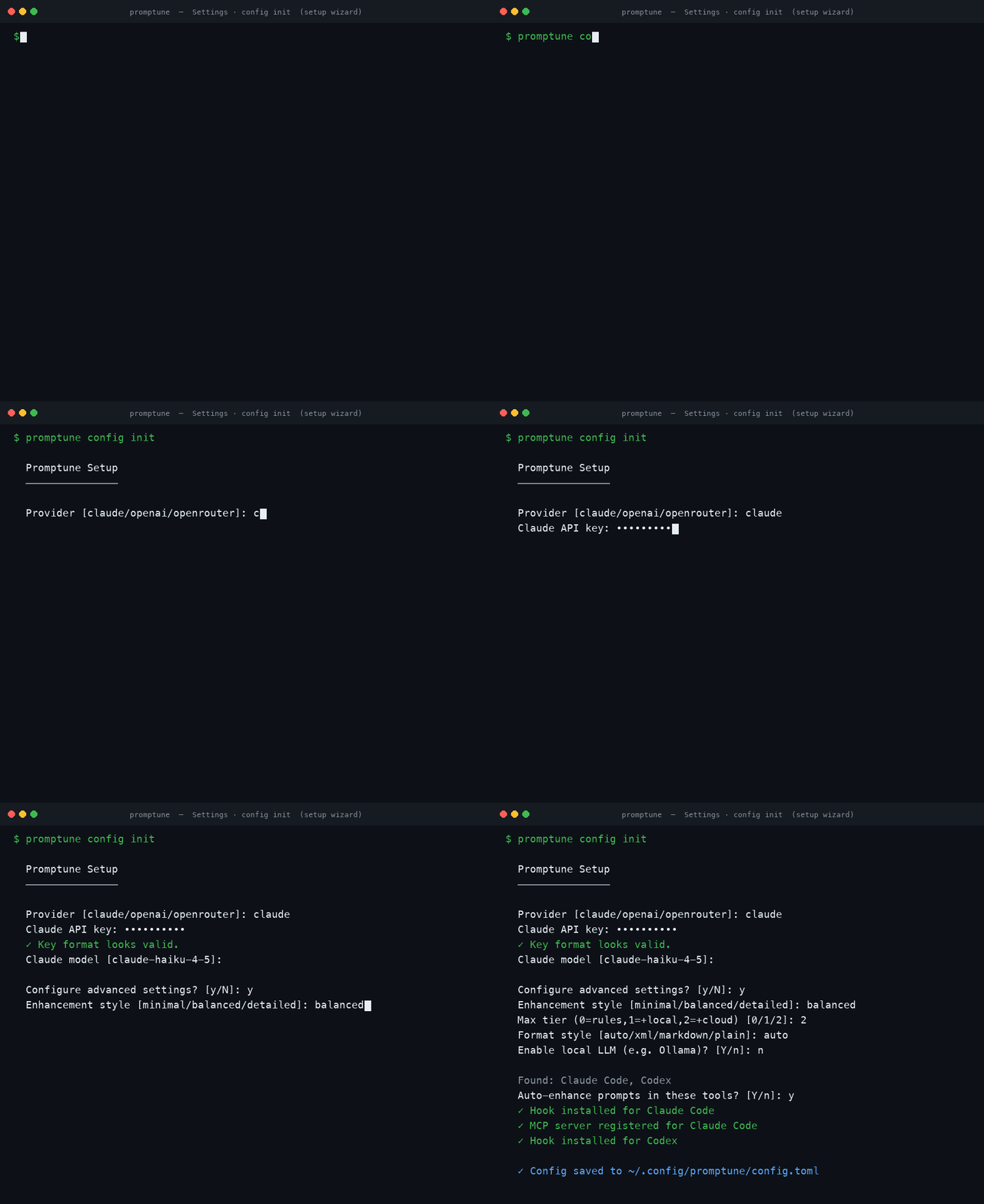
promptune config initalso detects installed AI coding tools (Claude Code, Codex CLI, …) and offers to install the auto-enhance hook and register the MCP server for you. Both are optional.
The setup wizard:
CLI Commands
Run promptune --help for the full list, or promptune <command> --help for any command.
promptune enhance
Enhance a prompt using AI. Opens a TUI with Accept/Edit/Reject workflow by default.
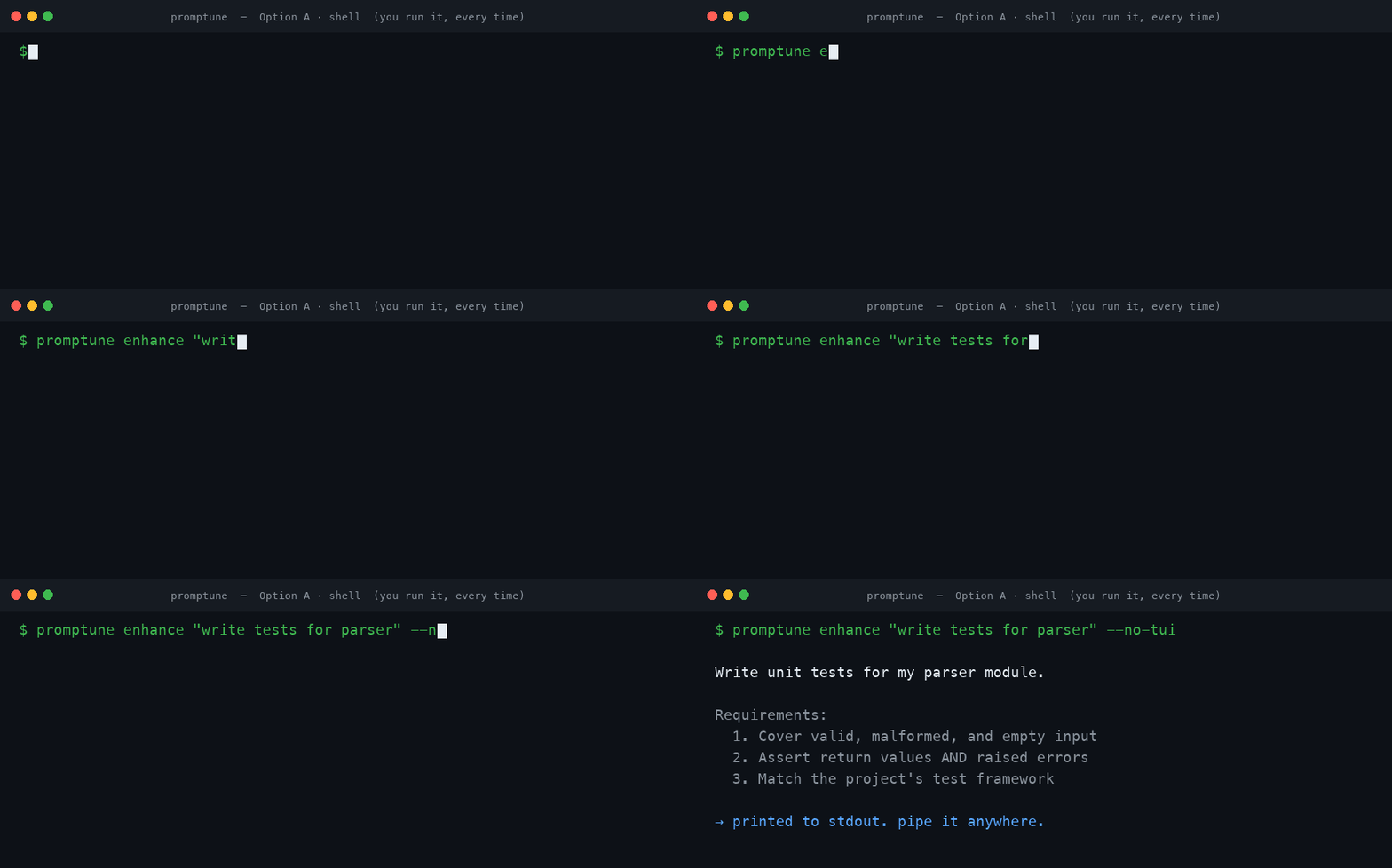
With --no-tui, the enhanced prompt prints straight to stdout — pipe it anywhere:
# Basic — opens TUI with before/after comparison
promptune enhance "make a todo app"

# Override provider for this command
promptune enhance -p openai "optimize this SQL query"

# Override enhancement style
promptune enhance -s detailed "build a payment system"

# Force a specific tier (0=rules only, 1=local LLM, 2=cloud API)
promptune enhance --tier 0 "fix the login bug"

# Skip TUI, print enhanced prompt directly to stdout
promptune enhance --no-tui "add dark mode to my react app"

# Get structured JSON output
promptune enhance --json "write unit tests for the auth module"

# Pipe input
echo "build a REST API" | promptune enhance --no-tui

# Enhance and copy to clipboard (macOS)
promptune enhance --no-tui "refactor the user service" | pbcopy

# Combine flags
promptune enhance -p openrouter -s detailed --no-tui "design a caching layer"
All flags:
| Flag | Short | Description |
|---|---|---|
--provider |
-p |
Override default provider (claude, openai, openrouter) |
--style |
-s |
Override enhancement style (minimal, balanced, detailed) |
--tier |
Force specific tier: 0 (rules only), 1 (local LLM), 2 (cloud API) | |
--no-tui |
Print result directly to stdout, skip interactive TUI | |
--json |
Output structured JSON with scores, tier, latency |
promptune score
Score a prompt across 7 quality dimensions (0–100 PQS) without enhancing it — shows a per-dimension breakdown and actionable suggestions.
promptune score "make a todo app"
promptune score --json "build a REST API with JWT auth"
echo "add dark mode" | promptune score
promptune config
Manage configuration.
promptune config init                                   # interactive setup wizard
promptune config --set-key claude sk-ant-your-key-here  # set a provider API key
promptune config --set-tier 2                           # set max enhancement tier
promptune config --reset                                # reset config to defaults
promptune config show                                   # show current configuration
promptune config path                                   # print config file path
promptune shell-init
Output the shell widget script. Auto-detects shell, or specify one. See Shell Integration.
eval "$(promptune shell-init)"                       # auto-detect shell
eval "$(promptune shell-init --shell bash)"          # force a shell
eval "$(promptune shell-init --key 'alt+e')"         # custom keybinding
eval "$(promptune shell-init --key 'ctrl+x ctrl+e')"
promptune doctor
Run a system health check — verifies Python version, config, tier availability, shell widget compatibility, and the auto-enhance hook / MCP status for each detected AI tool.
promptune doctor
promptune history
View enhancement history stored in SQLite.
promptune history                # recent entries
promptune history --n 50         # last 50 entries
promptune history --stats        # acceptance rate, score improvements
promptune history --clear        # clear all history
promptune history --preferences  # show learned preferences
promptune daemon
Background daemon for system-wide prompt enhancement. See System-Wide Daemon.
promptune daemon start --foreground   # run in foreground (debugging)
promptune daemon start                # run as background process
promptune daemon status               # check status
promptune daemon stop                 # stop
promptune daemon setup                # grant permissions / install deps
promptune daemon diagnose             # run diagnostics
promptune daemon install              # install system service (systemd / LaunchAgent)
promptune daemon uninstall            # remove system service
promptune daemon purge                # remove all daemon files
promptune daemon install-login-item   # legacy macOS-only
promptune daemon uninstall-login-item # legacy macOS-only
promptune mcp
Start the MCP server (stdio transport). See MCP Server Setup.
promptune mcp
promptune local-llm-status
Check local LLM (Ollama) connectivity.
promptune local-llm-status
promptune version
promptune version
MCP Server Setup
Promptune ships an MCP server (promptune mcp, stdio transport) that exposes two tools to any MCP-compatible AI tool:
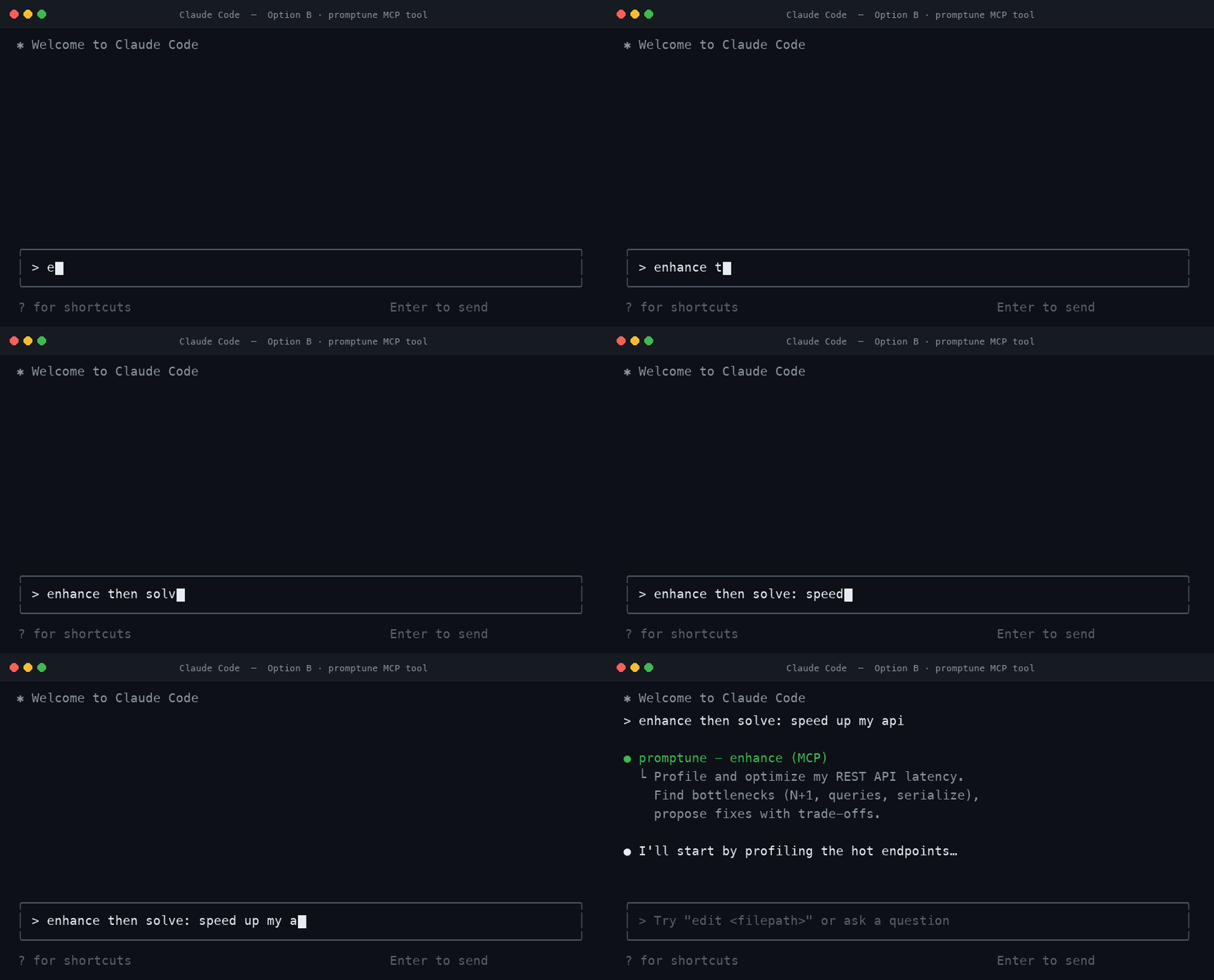
Claude Code calling the enhance tool, then acting on the refined prompt:
| Tool | Arguments | Returns |
|---|---|---|
enhance_prompt |
prompt (str), style = balanced, tier = -1 (auto) |
Enhanced prompt, tier used, before/after scores |
score_prompt_quality |
prompt (str) |
Total PQS, detected intent, per-dimension breakdown + suggestions |
Requires the MCP extra:
pip install "promptune[mcp]"
Option A — automatic (recommended)
promptune config init detects installed AI tools and offers to register the MCP server for you (written to ~/.claude/settings.json). Verify with promptune doctor.
Option B — Claude Code (manual)
claude mcp add promptune -- promptune mcp
Or add it directly to ~/.claude/settings.json (or a project .mcp.json):
{
  "mcpServers": {
    "promptune": {
      "command": "promptune",
      "args": ["mcp"]
    }
  }
}
Option C — Cursor / Codex / other MCP clients
Point your client's MCP config at the same command. Generic shape:
{
  "mcpServers": {
    "promptune": {
      "command": "promptune",
      "args": ["mcp"]
    }
  }
}
If promptune is not on the tool's PATH, use the absolute path (find it with which promptune).
Using it
Once registered, ask your AI assistant naturally — e.g. "score this prompt" or "enhance this prompt before we start" — and it will call the score_prompt_quality / enhance_prompt tools.
Auto-Enhance in AI Coding Tools
The auto-enhance hook intercepts prompts you submit in an AI coding tool, and when a prompt looks weak it enhances it and silently injects the improved version into the conversation as context — no clipboard, no manual paste.
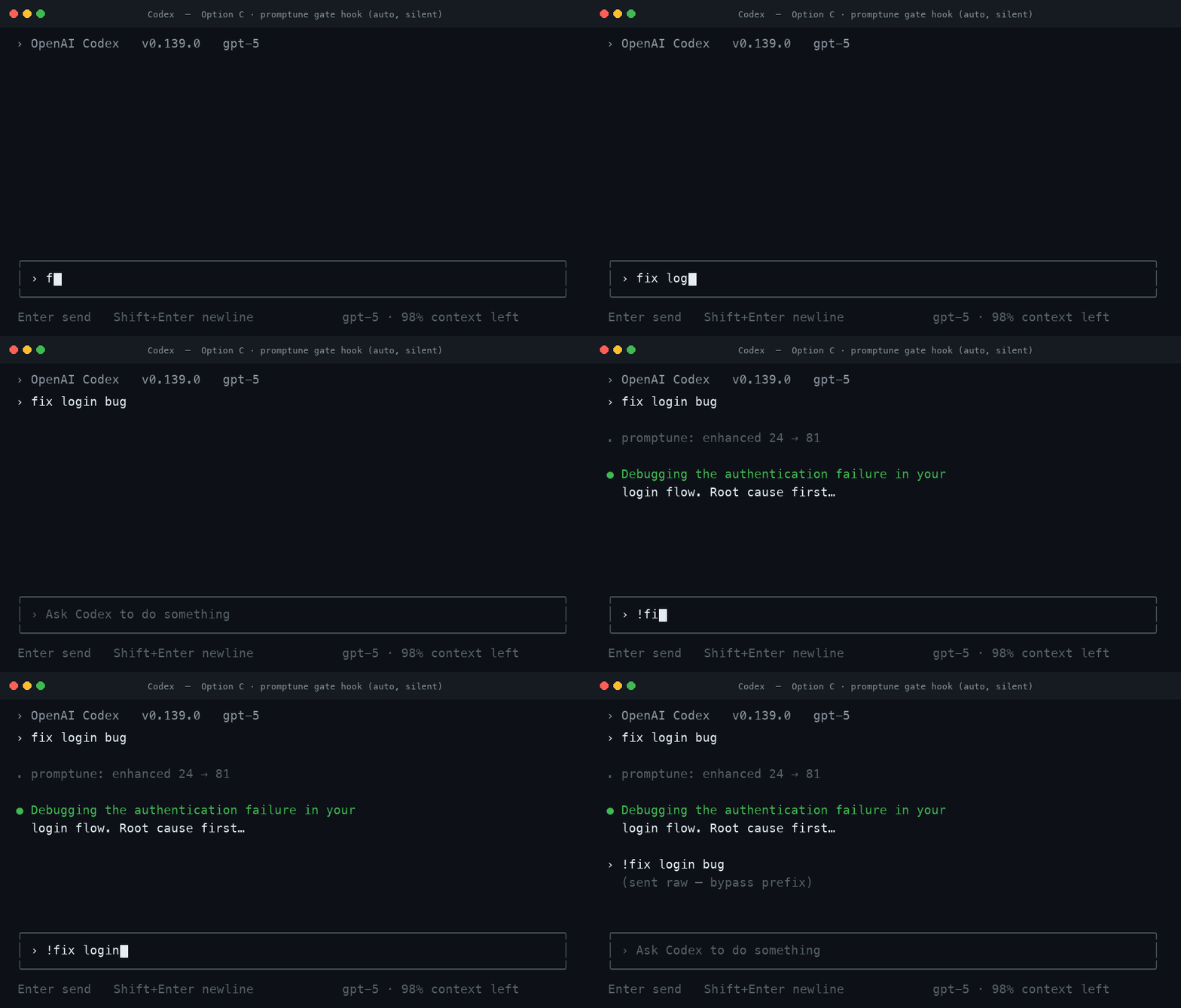
A weak prompt silently enhanced and injected inside Codex (! bypasses):
Which tools auto-trigger?
Promptune integrates with AI coding tools two ways: an auto-enhance hook (fires automatically on every prompt you submit inside the tool's interactive session) and the MCP server (the model calls Promptune on request — never automatic). A tool can only auto-trigger if it exposes a UserPromptSubmit hook and Promptune ships an installer for it.
| Tool | Auto-trigger on prompt submit? | How |
|---|---|---|
| Claude Code | ✅ Yes | UserPromptSubmit hook in ~/.claude/settings.json |
| Codex CLI | ✅ Yes | UserPromptSubmit hook in ~/.codex/hooks.json |
| Cursor / other MCP clients | ❌ No | Use the MCP server (ask the tool to enhance) or run promptune enhance manually and paste/pipe the result |
Note on injection vs. replacement: the gate does not literally replace or overwrite the prompt text you typed — neither Claude Code nor Codex allows a hook to do that. Instead it injects the enhanced prompt as additional context alongside your original, so the model receives both and acts on the enhanced version automatically. The
!bypass prefix still sends your prompt through raw, with no enhancement and no injection.
How it works — the installer adds a UserPromptSubmit hook (to ~/.claude/settings.json for Claude Code, or ~/.codex/hooks.json for Codex CLI) that pipes each submitted prompt into promptune gate. Both tools use the same hook shape and pass the prompt in the same prompt field, so the one gate works for both. The gate:
- Skips if auto-enhance is disabled.
- Skips if the prompt starts with the bypass prefix (
!by default). - Skips prompts shorter than
min_words. - Scores the prompt; if PQS ≥
threshold, lets it through unchanged. - Otherwise enhances it and injects the enhanced prompt into the model's context via the hook's
additionalContextoutput (exit 0, the prompt proceeds), so the model acts on the enhanced version automatically — no clipboard, no paste.
Install
Run the wizard and accept the auto-enhance prompt when it detects your tool (Claude Code, Codex CLI, …):
promptune config init
Verify — doctor prints an Auto-enhance status line per detected tool (Claude Code when ~/.claude/ exists, Codex when ~/.codex/ exists):
promptune doctor # shows: Auto-enhance ✓ <tool> (threshold: NN)
Manual (Claude Code)
Add to ~/.claude/settings.json:
{
  "hooks": {
    "UserPromptSubmit": [
      {
        "matcher": "",
        "hooks": [
          { "type": "command", "command": "promptune gate" }
        ]
      }
    ]
  }
}
Manual (Codex CLI)
Add to ~/.codex/hooks.json (same shape — Codex's UserPromptSubmit payload uses the same prompt field):
{
  "hooks": {
    "UserPromptSubmit": [
      {
        "matcher": "",
        "hooks": [
          { "type": "command", "command": "promptune gate" }
        ]
      }
    ]
  }
}
Tune it
[auto_enhance]
enabled = true        # master switch
threshold = 40        # enhance prompts scoring below this PQS
min_words = 5         # ignore very short prompts
bypass_prefix = "!"   # prefix a prompt with this to skip enhancement
Type !just do exactly this to bypass on a per-prompt basis.
Shell Integration
Add the widget to your shell rc file, then press Ctrl+E to enhance the line you're typing in place. Works in Zsh, Bash, and Fish.
# Zsh — ~/.zshrc
eval "$(promptune shell-init)"

# Bash — ~/.bashrc
eval "$(promptune shell-init --shell bash)"

# Fish — ~/.config/fish/config.fish
promptune shell-init --shell fish | source
Rebind the key with --key (e.g. --key 'alt+e'). The widget talks to the running daemon over a Unix socket when available, so enhancements stay fast.
System-Wide Daemon
The daemon registers a global hotkey (Ctrl+Shift+E by default) that enhances selected text in any application — copy is simulated, the selection is enhanced, and the result is pasted back. Supported on macOS (CGEventTap) and Linux (X11 and Wayland).
promptune daemon setup     # grant Accessibility (macOS) / install deps (Linux)
promptune daemon start     # start in the background
promptune daemon install   # auto-start at login (LaunchAgent / systemd)
promptune daemon status    # confirm it's running
On Linux, install the platform tools the daemon shells out to (xclip/xdotool for X11, wl-clipboard/ydotool for Wayland); promptune daemon diagnose reports what's missing.
Daemon behavior (hotkey, clipboard settle time, notifications, Ollama pre-warm) is configured under [daemon] in the config file.
Configuration
Config lives at ~/.config/promptune/config.toml. Create and edit it interactively with promptune config init, or see config.example.toml for every option with defaults.
Resolution order: CLI flags > environment variables > config file > defaults
Environment variables: PROMPTUNE_PROVIDER, PROMPTUNE_STYLE
Key sections:
| Section | Controls |
|---|---|
[provider] |
Default provider and per-provider model |
[api_keys] |
Claude / OpenAI / OpenRouter keys |
[enhancement] |
max_tier, default style, dedup, preference learning |
[local_llm] |
Ollama / OpenAI-compatible host + model (Tier 1) |
[context] |
Git / shell-history / stack-detection toggles |
[history] |
SQLite history location + size |
[tui] |
TUI display options |
[daemon] |
Global hotkey + daemon behavior |
[auto_enhance] |
Hook threshold, min words, bypass prefix |
Supported Providers
| Provider | SDK | Config Key |
|---|---|---|
| Claude | anthropic |
[api_keys] claude = "sk-ant-..." |
| OpenAI | openai |
[api_keys] openai = "sk-..." |
| OpenRouter | httpx |
[api_keys] openrouter = "sk-or-..." |
| Local LLM | OpenAI-compatible | [local_llm] host = "http://localhost:11434" |
Development
pip install -e ".[dev]"

# Full check (lint + types + tests), as CI runs it
ruff check . && mypy promptune/ && pytest -m "not linux" --cov=promptune --cov-report=term-missing --cov-fail-under=85

# Tests only
pytest -m "not linux" -v
CI runs on Linux (Python 3.12 and 3.13). macOS-only daemon tests self-skip there, and -m "not linux" excludes the real-hardware X11/Wayland integration tests. Coverage gate: ≥ 85%.
Roadmap
- Phase 1: Core CLI, providers, TUI, shell integration (Zsh/Bash/Fish)
- Phase 1.1: 3-tier enhancement, quality scoring, context fingerprinting, SQLite history
- Phase 1.2: Interactive config setup wizard
- Enhancement Phase: Preference learning, semantic deduplication, team templates, Ollama auto-check
- Phase 2: OS-level hotkey daemon (macOS) — system-wide Ctrl+Shift+E
- Phase 3: Linux hotkey daemon — X11 and Wayland support via platform abstraction
- MCP server, auto-enhance gate, AI-tool hooks,
scorecommand
License
MIT
Project details
Verified details
These details have been verified by PyPIProject links
GitHub Statistics
Maintainers
Release history Release notifications | RSS feed


Download files
Download the file for your platform. If you're not sure which to choose, learn more about installing packages.
Source Distribution
Built Distribution
Filter files by name, interpreter, ABI, and platform.
If you're not sure about the file name format, learn more about wheel file names.
Copy a direct link to the current filters
File details
Details for the file promptune-0.2.1.tar.gz.
File metadata
- Download URL: promptune-0.2.1.tar.gz
- Upload date:
- Size: 162.5 kB
- Tags: Source
- Uploaded using Trusted Publishing? Yes
- Uploaded via: twine/6.1.0 CPython/3.13.12
File hashes
| Algorithm | Hash digest | |
|---|---|---|
| SHA256 |
ccd9db448c7654521c22b9a8fdfbb2e8a38f08e083b783280705f67f6e9ba518
|
|
| MD5 |
69879c4af9d55f4b7d607cdc807935a6
|
|
| BLAKE2b-256 |
71fee0ee14a3799a8f519fee314fdba80c39623415b9d87bc1495e0ae4f3ff5b
|
Provenance
The following attestation bundles were made for promptune-0.2.1.tar.gz:
Publisher:
release.yml on kayumuzzaman/promptune
-
Statement:
-
Statement type:
https://in-toto.io/Statement/v1 -
Predicate type:
https://docs.pypi.org/attestations/publish/v1 -
Subject name:
promptune-0.2.1.tar.gz -
Subject digest:
ccd9db448c7654521c22b9a8fdfbb2e8a38f08e083b783280705f67f6e9ba518 - Sigstore transparency entry: 1915337627
- Sigstore integration time:
-
Permalink:
kayumuzzaman/promptune@1375631870de93bfe37be402da9124e0a10dc464 -
Branch / Tag:
refs/tags/v0.2.1 - Owner: https://github.com/kayumuzzaman
-
Access:
public
-
Token Issuer:
https://token.actions.githubusercontent.com -
Runner Environment:
github-hosted -
Publication workflow:
release.yml@1375631870de93bfe37be402da9124e0a10dc464 -
Trigger Event:
push
-
Statement type:
File details
Details for the file promptune-0.2.1-py3-none-any.whl.
File metadata
- Download URL: promptune-0.2.1-py3-none-any.whl
- Upload date:
- Size: 119.4 kB
- Tags: Python 3
- Uploaded using Trusted Publishing? Yes
- Uploaded via: twine/6.1.0 CPython/3.13.12
File hashes
| Algorithm | Hash digest | |
|---|---|---|
| SHA256 |
0c50c54379c446eb9b220c30089080d02f4bab713958e3848482a99ee2772e24
|
|
| MD5 |
d825c414f8f60410d60181218ca6648b
|
|
| BLAKE2b-256 |
bc2ea2bb6d8e109abd70aee269b6378ede39024682c4ef80521010e0d4b7fd8c
|
Provenance
The following attestation bundles were made for promptune-0.2.1-py3-none-any.whl:
Publisher:
release.yml on kayumuzzaman/promptune
-
Statement:
-
Statement type:
https://in-toto.io/Statement/v1 -
Predicate type:
https://docs.pypi.org/attestations/publish/v1 -
Subject name:
promptune-0.2.1-py3-none-any.whl -
Subject digest:
0c50c54379c446eb9b220c30089080d02f4bab713958e3848482a99ee2772e24 - Sigstore transparency entry: 1915337791
- Sigstore integration time:
-
Permalink:
kayumuzzaman/promptune@1375631870de93bfe37be402da9124e0a10dc464 -
Branch / Tag:
refs/tags/v0.2.1 - Owner: https://github.com/kayumuzzaman
-
Access:
public
-
Token Issuer:
https://token.actions.githubusercontent.com -
Runner Environment:
github-hosted -
Publication workflow:
release.yml@1375631870de93bfe37be402da9124e0a10dc464 -
Trigger Event:
push
-
Statement type:






