
A simple wrapper for running Winetricks commands for Proton-enabled games.

Project description
[!CAUTION]
hxxps[://]protontricks[.]comIS A FAKE SITE and not affiliated with any of the Protontricks developers. https://github.com/Matoking/protontricks is the only official page for Protontricks.
Protontricks




Run Winetricks commands for Steam Play/Proton games among other common Wine features, such as launching external Windows executables.
This is a fork of the original project created by sirmentio. The original repository is available at Sirmentio/protontricks.
Table of Contents
What is it?
This is a wrapper script that allows you to easily run Winetricks commands for Steam Play/Proton games among other common Wine features, such as launching external Windows executables. This is often useful when a game requires closed-source runtime libraries or applications that are not included with Proton.
Requirements
- Python 3.7 or newer
- Winetricks
- Steam
- YAD (recommended) or Zenity. Required for GUI.
Usage
Protontricks can be launched from desktop or using the protontricks command.
Command-line
The basic command-line usage is as follows:
# Find your game's App ID by searching for it
protontricks -s <GAME NAME>

# or by listing all games
protontricks -l

# Run winetricks for the game.
# Any parameters in <ACTIONS> are passed directly to Winetricks.
# Parameters specific to Protontricks need to be placed *before* <APPID>.
protontricks <APPID> <ACTIONS>

# Run a custom command for selected game
protontricks -c <COMMAND> <APPID>

# Run the Protontricks GUI
protontricks --gui

# Launch a Windows executable using Protontricks
protontricks-launch <EXE>

# Launch a Windows executable for a specific Steam app using Protontricks
protontricks-launch --appid <APPID> <EXE>

# Print the Protontricks help message
protontricks --help
Since this is a wrapper, all commands that work for Winetricks will likely work for Protontricks as well.
If you have a different Steam directory, you can export $STEAM_DIR to the directory where Steam is.
If you'd like to use a local version of Winetricks, you can set $WINETRICKS to the location of your local winetricks installation.
You can also set $PROTON_VERSION to a specific Proton version manually. This is usually the name of the Proton installation without the revision version number. For example, if Steam displays the name as Proton 5.0-3, use Proton 5.0 as the value for $PROTON_VERSION.
Protontricks supports $STEAM_COMPAT_DATA_PATH variable to set a custom path to a Wine prefix (WINEPREFIX=$STEAM_COMPAT_DATA_PATH/pfx). This is supported by Proton and can be set for the game itself under Steam (STEAM_COMPAT_DATA_PATH=<path> %command% in game launch options).
Wanna see Protontricks in action?
Desktop
Protontricks comes with desktop integration, adding the Protontricks app shortcut and the ability to launch external Windows executables for Proton apps. To run an executable for a Proton app, select Protontricks Launcher when opening a Windows executable (eg. EXE) in a file manager.
The Protontricks app shortcut should be available automatically after installation. If not, you may need to run protontricks-desktop-install in a terminal to enable this functionality.
Troubleshooting
For common issues and solutions, see TROUBLESHOOTING.md.
Installation
You can install Protontricks using a community package, Flatpak or pipx. pip can also be used, but it is not recommended due to possible problems.
If you're using a Steam Deck, Flatpak is the recommended option. Open the Discover application store in desktop mode and search for Protontricks.
If you're using the Flatpak version of Steam, follow the Flatpak-specific installation instructions instead.
Community packages (recommended)
Community packages allow easier installation and updates using distro-specific package managers. They also take care of installing dependencies and desktop features out of the box, making them the recommended option if available for your distribution.
Community packages are maintained by community members and might be out-of-date compared to releases on PyPI. Note that some distros such as Debian / Ubuntu often have outdated packages for either Protontricks or Winetricks. If so, install the Flatpak version instead as outdated releases may fail to work properly.
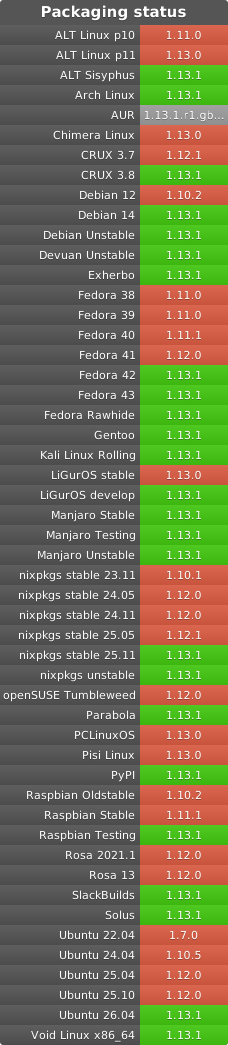
Flatpak (recommended)
Protontricks is available on the Flathub app store:
To use Protontricks as a command-line application, add shell aliases by running the following commands:
echo "alias protontricks='flatpak run com.github.Matoking.protontricks'" >> ~/.bashrc
echo "alias protontricks-launch='flatpak run --command=protontricks-launch com.github.Matoking.protontricks'" >> ~/.bashrc
You will need to restart your terminal emulator for the aliases to take effect.
The Flatpak installation is sandboxed and only has access to the Steam installation directory by default. You will need to add filesystem permissions when using additional Steam library locations or running external Windows applications. See here for instructions on changing the Flatpak permissions.
pipx
You can use pipx to install the latest version on PyPI or the git repository for the current user. Installing Protontricks using pipx is recommended if a community package doesn't exist for your Linux distro.
pipx does not install Winetricks and other dependencies out of the box. You can install Winetricks using the installation instructions provided by the Winetricks project.
pipx requires Python 3.7 or newer.
You will need to install pip, setuptools and virtualenv first. Install the correct packages depending on your distribution:
-
Arch Linux:
sudo pacman -S python-pip python-pipx python-setuptools python-virtualenv -
Debian-based (Ubuntu, Linux Mint):
sudo apt install python3-pip python3-setuptools python3-venv pipx -
Fedora:
sudo dnf install python3-pip python3-setuptools python3-libs pipx -
Gentoo:
sudo emerge -av dev-python/pip dev-python/virtualenv dev-python/setuptools
python3 -m pip install --user pipx
~/.local/bin/pipx ensurepath
Close and reopen your terminal. After that, you can install Protontricks.
pipx install protontricks
To enable desktop integration as well, run the following command after installing Protontricks
protontricks-desktop-install
To upgrade to the latest release:
pipx upgrade protontricks
To install the latest development version (requires git):
pipx install git+https://github.com/Matoking/protontricks.git
# '--spec' is required for older versions of pipx
pipx install --spec git+https://github.com/Matoking/protontricks.git protontricks
pip (not recommended)
You can use pip to install the latest version on PyPI or the git repository. This method should work in any system where Python 3 is available.
Note that this installation method might cause conflicts with your distro's package manager. To prevent this, consider using the pipx method or a community package instead.
You will need to install pip and setuptools first. Install the correct packages depending on your distribution:
- Arch Linux:
sudo pacman -S python-pip python-setuptools - Debian-based (Ubuntu, Linux Mint):
sudo apt install python3-pip python3-setuptools - Fedora:
sudo dnf install python3-pip python3-setuptools - Gentoo:
sudo emerge -av dev-python/pip dev-python/setuptools
To install the latest release using pip:
sudo python3 -m pip install protontricks
To upgrade to the latest release:
sudo python3 -m pip install --upgrade protontricks
To install Protontricks only for the current user:
python3 -m pip install --user protontricks
To install the latest development version (requires git):
sudo python3 -m pip install git+https://github.com/Matoking/protontricks.git
Release history Release notifications | RSS feed


Download files
Download the file for your platform. If you're not sure which to choose, learn more about installing packages.
Source Distribution
Built Distribution
Filter files by name, interpreter, ABI, and platform.
If you're not sure about the file name format, learn more about wheel file names.
Copy a direct link to the current filters
File details
Details for the file protontricks-1.14.0.tar.gz.
File metadata
- Download URL: protontricks-1.14.0.tar.gz
- Upload date:
- Size: 186.9 kB
- Tags: Source
- Uploaded using Trusted Publishing? No
- Uploaded via: twine/6.2.0 CPython/3.14.3
File hashes
| Algorithm | Hash digest | |
|---|---|---|
| SHA256 |
d313d017665423a8f526e5fe8a44471a3e27be752074dbdeed29f9d6b6f7bf87
|
|
| MD5 |
a466e812ce878844902238e356a44669
|
|
| BLAKE2b-256 |
086064166f6b83a17144747d299c5fa83ebabd2c58b3d5a350326817fa150f65
|
File details
Details for the file protontricks-1.14.0-py3-none-any.whl.
File metadata
- Download URL: protontricks-1.14.0-py3-none-any.whl
- Upload date:
- Size: 78.9 kB
- Tags: Python 3
- Uploaded using Trusted Publishing? No
- Uploaded via: twine/6.2.0 CPython/3.14.3
File hashes
| Algorithm | Hash digest | |
|---|---|---|
| SHA256 |
c92b6ac1a40bc479ac555aaa263f2ffd44421ee0844311c13a317566c24e9d5f
|
|
| MD5 |
f6de0ed1389f7bcd93e17d99fb9571eb
|
|
| BLAKE2b-256 |
b92d74fca3c315b69c0cd2b6e8bfe34dcfe3404ced77fc81baaae07cda7efa56
|






