
purple-soul
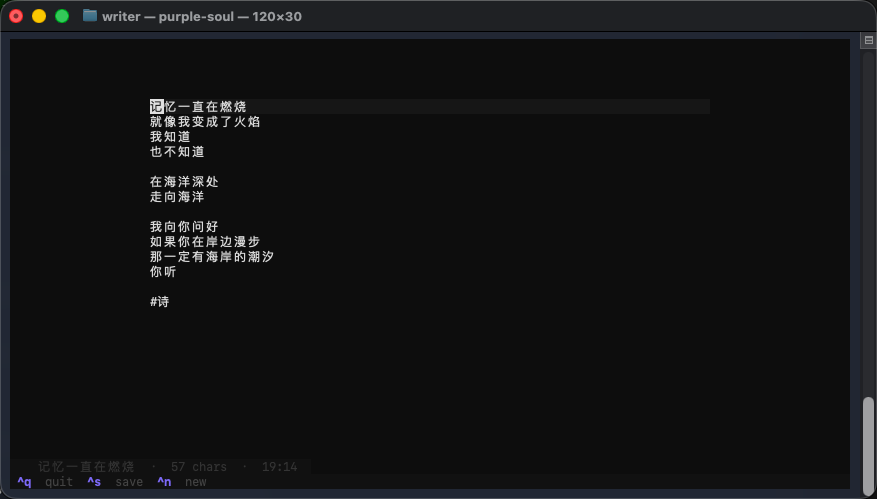
A minimalist writing tool for terminal geeks.
给极客的极简终端写作工具。
No Markdown preview. No sidebar. No distraction.
Just you, your words, and a black screen.
没有预览,没有侧边栏,没有任何干扰。
只有你、你的文字,和一块纯黑的屏幕。
Install · 安装
需要先安装 pipx(如果没有):
# Mac
brew install pipx

# Windows / Linux
pip install pipx
安装 purple-soul:
pipx install purple-soul
Run · 启动
purple-soul
Shortcuts · 快捷键
键位用 Mac 键盘上印的符号标注:⌘ 念 Command(空格键左边的苹果键),⌃ 念 Control(键盘左下角那个键)。记住一个原则就不会乱:
- ✂️ 处理文字(复制 / 剪切 / 粘贴)用
⌘(Command 苹果键) —— 跟你在备忘录、浏览器里的习惯一模一样 - ⚙️ 软件自己的功能(保存 / 新建 / 列表 / 搜索…)用
⌃(Control 键)
一、复制 · 剪切 · 粘贴 → 按 ⌘(Command 苹果键)
| 按键 | 作用 |
|---|---|
⌘ C |
复制。先用鼠标选中要复制的文字再按;如果一个字都没选中,就复制整篇全文 |
⌘ X |
剪切。把选中的文字剪走(复制到剪贴板 + 从文中删掉) |
⌘ V |
粘贴。把刚复制 / 剪切的内容,贴到光标所在的位置 |
- 怎么选中文字:按住鼠标左键拖过要选的字;或按住
Shift再按←→↑↓。- 复制出去的文字能贴到任何地方(微信、浏览器、备忘录…),反过来别处的文字也能
⌘ V贴进来。- 习惯用
⌃ C/⌃ X/⌃ V(Control 版)的话也都好使,效果一样。- (Windows / Linux 上复制粘贴可能不通,纯写作、保存不受影响。)
二、软件功能 → 按 ⌃(Control 键,键盘左下角)
| 按键 | 作用 |
|---|---|
⌃ S |
保存当前这篇(其实每 30 秒会自动存一次,这个是手动立刻存) |
⌃ N |
新建一篇空白文章 |
⌃ R |
重命名当前这篇(改文件名 / 列表里显示的标题,正文一个字不动) |
⌃ E |
复制整篇全文到剪贴板 —— 不用先选中,一键把这篇全文拷走 |
⌃ L |
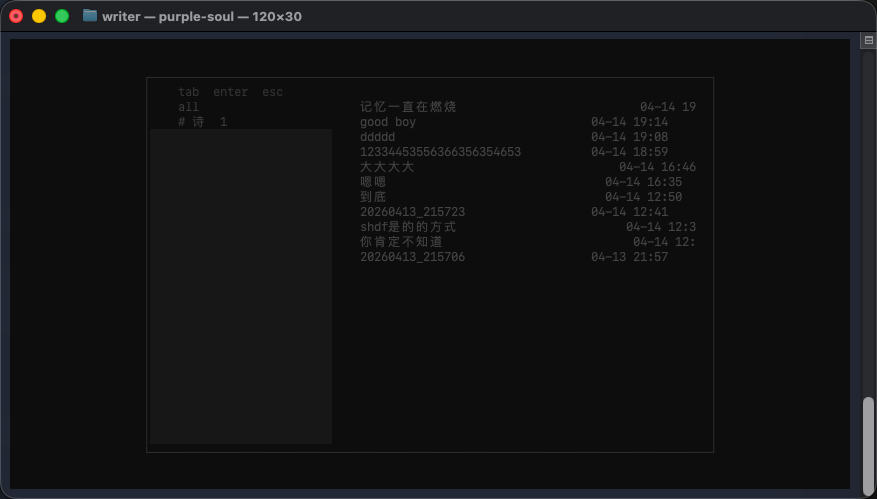
打开文件列表,左边还能按 #标签 筛选 |
⌃ G |
全局搜索所有文章;搜到后回车,自动跳到那篇并高亮关键词 |
⌃ P |
设置文件存到哪个文件夹(存储路径) |
⌃ Q |
退出程序(退出前自动保存) |
Esc |
关掉搜索框 / 关掉弹出的小窗 |
为什么功能键用
⌃(Control)不用⌘?因为⌘ S、⌘ N这些会被 Mac 系统或终端先抢走,所以软件功能统一用⌃,不冲突。
三、文件列表里的操作(按 ⌃ L 打开后)
| 按键 | 作用 |
|---|---|
↑ / ↓ |
上下选择文件 |
Tab |
在左边「标签栏」和右边「文件栏」之间切换 |
Enter |
打开选中的那篇 |
P |
把当前标签置顶 / 取消置顶(光标在左边标签栏时才有效) |
D |
删除当前文件(光标在右边文件栏时才有效;5 秒内连按两下 D 确认,删掉的进系统回收站,能找回) |
Esc |
关闭列表 |
Storage · 存储路径
默认路径
首次启动后,文件默认保存到:
~/Documents/purple-soul/
在 app 内修改路径
按 Ctrl+P 打开路径设置界面,输入新路径后按回车确认。
路径写法示例:
| 存储位置 | 路径写法 |
|---|---|
| 桌面 | ~/Desktop/purple-soul |
| 文稿 | ~/Documents/我的笔记 |
| iCloud | ~/Library/Mobile Documents/com~apple~CloudDocs/purple-soul |
| 外置硬盘 / 固态硬盘 | /Volumes/硬盘名称/文件夹名 |
~是你的主目录的简写,相当于/Users/你的用户名,不需要写完整路径。
如何找到外置硬盘的路径(/Volumes 是什么)
Mac 上所有外接硬盘、U盘、固态硬盘插入后,都会挂载到 /Volumes/ 这个目录下。
第一步:查看硬盘名称
打开 Finder,左侧边栏找到你的硬盘,记住它的名字(比如"剪辑"、"SSD")。
第二步:在终端确认路径
ls /Volumes/
会列出所有已连接的硬盘名称。
第三步:填写路径
假设硬盘名叫"剪辑",想把文件存在里面的 writer_notes 文件夹:
/Volumes/剪辑/writer_notes
⚠️ 外置硬盘拔掉后路径会失效,purple-soul 启动时会自动重新创建文件夹(如果硬盘已连接)。建议只在硬盘常驻连接时使用这个路径。
手动修改路径
也可以直接编辑配置文件:
open ~/.config/purple-soul/config
把文件里的路径改成你想要的目录,保存后重启 purple-soul 生效。
Tags · 标签系统
在文字中直接写 #标签 或 #父级/子级,自动归类文件。
今天去了海边 #日记

这个想法很重要 #灵感/产品

读完了这本书 #读书/2026
按 Ctrl+L 打开文件列表,左侧可以按标签筛选文件。
Update · 更新
pipx install purple-soul --force
或指定版本:
pipx install purple-soul==0.2.0 --force
Design · 设计理念
- 纯黑背景
#0d0d0d - 跟随终端字色
- 紫色点缀
#7c6af7 - 呼吸感状态栏
- 每 30 秒自动保存
- 纯文本
.txt存储,永不锁定你的数据
1 maintainer

Metadata
1 maintainer
Release files for purple-soul 0.2.17
For a detailed explanation of source distributions (sdists) and built distributions (wheels), please see the package formats documentation.
Source distribution (sdist)
| File | Size | Uploaded | Provenance | Actions |
|---|---|---|---|---|
| purple_soul-0.2.17.tar.gz | 76.0 kB | Without provenance | Details for purple_soul-0.2.17.tar.gz |
Built distribution (wheel)
| File | Interpreter | ABI | Platform | Actions Reset |
|---|---|---|---|---|
| purple_soul-0.2.17-py3-none-any.whl | Python 3 | none | any | Details for purple_soul-0.2.17-py3-none-any.whl |
Total release size: 87.8 kB
Release files / purple_soul-0.2.17.tar.gz
| Download URL | purple_soul-0.2.17.tar.gz |
|---|---|
| Size | 76.0 kB |
| Tags | Source |
|
SHA-256 checksum How to use checksums |
c04c3cb2414b7980f133a7cc845761305191605ad1420a76a68433137bd95e9d
|
|
BLAKE2b-256 checksum How to use checksums |
dcf01b819e1bedb527cf6e90f1d6c7c4caacc5ea8b24bc8caca3703077608660
|
| Upload date | |
|
Uploaded using Trusted Publishing? What is trusted publishing? |
No |
| Uploaded via |
twine/6.2.0 CPython/3.14.5
|
Release files / purple_soul-0.2.17-py3-none-any.whl
| Download URL | purple_soul-0.2.17-py3-none-any.whl |
|---|---|
| Size | 11.8 kB |
| Tags | Python 3 |
|
SHA-256 checksum How to use checksums |
cdc3bf98c50e7e7f511b99fd8efaee6bb019c97b7699f48ef1a5e7548c7ed54f
|
|
BLAKE2b-256 checksum How to use checksums |
843ff2bd2735d19e75eb5529e7922886d198548fce34336fe79c6ff0f62a9b34
|
| Upload date | |
|
Uploaded using Trusted Publishing? What is trusted publishing? |
No |
| Uploaded via |
twine/6.2.0 CPython/3.14.5
|
Security for purple-soul 0.2.17
Provenance
Provenance describes where a file came from. On PyPI, provenance is shared via attestations, which provide a verifiable record of the build or publishing details. View details, limitations and caveats.
No provenance found
None of the files in this release were uploaded with provenance metadata.
A note on package security
PyPI is a repository for distributing packages, not a service for auditing them. While third-party security researchers and our staff do their best to detect and remove malicious packages, PyPI cannot guarantee the quality, security or suitability of any given package.
To learn more about protecting yourself from malicious actors, visit our package security documentation.














