
Encrypted, project-local notes for your terminal.
Verified details
These details have been verified by PyPIProject links
GitHub Statistics
Maintainers

Project description
pwdNote

Encrypted, project-local notes for your terminal.
pwdnote keeps encrypted project notes — deployment notes, reminders,
troubleshooting notes, architecture notes, customer context, TODOs, session
information, feature flags, and infrastructure reminders — on disk, right next
to your code, without exposing plaintext inside the repository.
It is intended for notes about systems and project work. It is not a password manager, and it is not a replacement for enterprise secrets-management systems.
It is local-first, encrypted-by-default, Git-friendly, and
terminal-native. The single encrypted file (.pwdnote.enc) is safe to
commit; without your key it is just ciphertext.
pwdnote started as a simple way to keep personal project notes close to my code, without worrying about accidentally committing plaintext notes or overcomplicating the workflow.
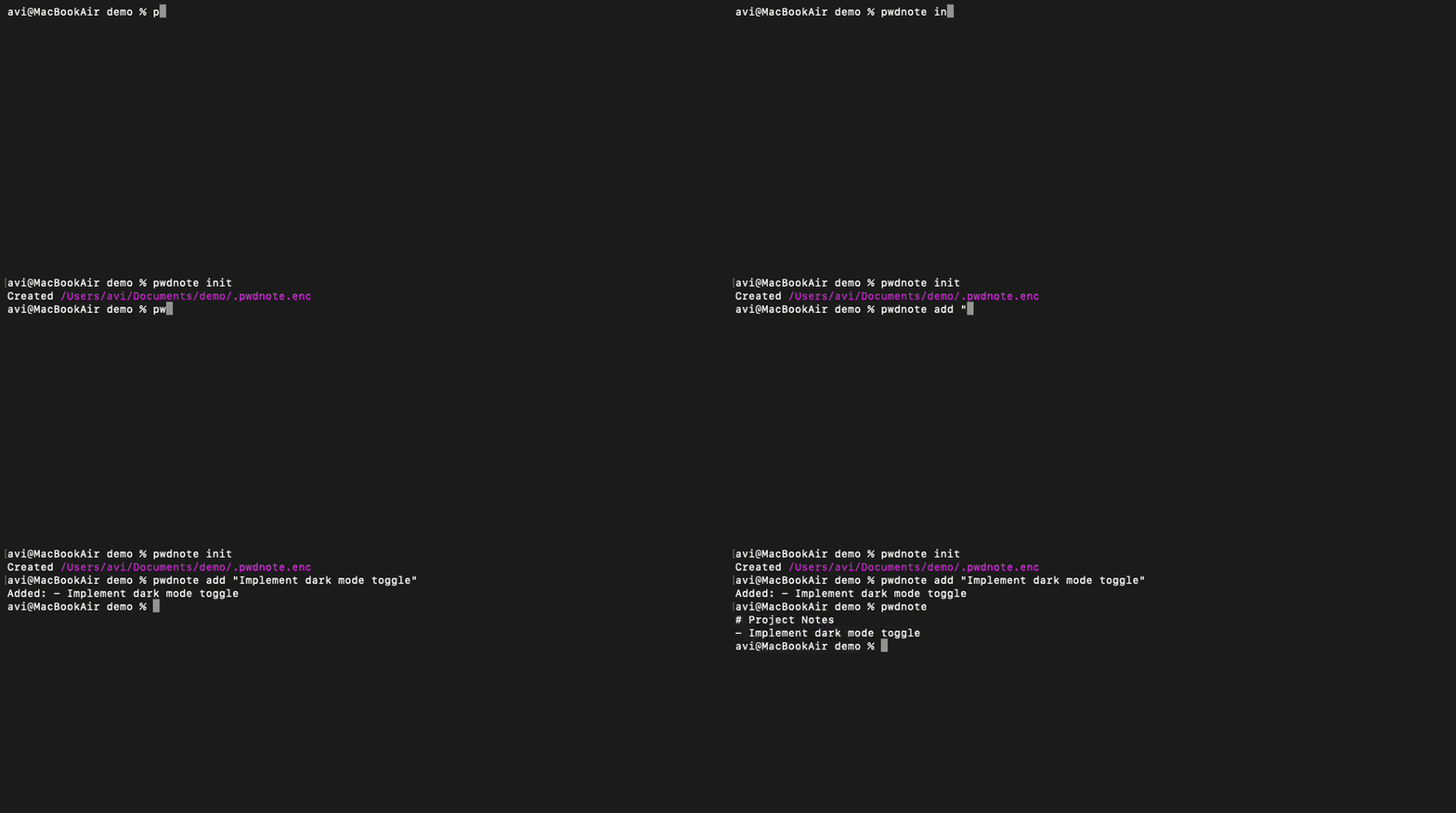
Demo
A companion VS Code extension is also available.
Installation
uv tool install pwdnote
That's it — no further setup. The encryption key is generated automatically on first use.
VS Code Extension
The official pwdnote VS Code extension provides a graphical interface for the CLI. It lets you:
- open project notes directly from VS Code
- edit encrypted notes without leaving the editor
- initialize new project notes
- add quick notes
- view project status
The extension uses the pwdnote CLI for all encryption and decryption, so the
same encrypted files work seamlessly from both the terminal and VS Code.
- Marketplace: https://marketplace.visualstudio.com/items?itemName=inspiringsource.pwdnote-vscode
- Source: https://github.com/inspiringsource/pwdnote-vscode
Quick start
cd my-project
pwdnote init                                  # create .pwdnote.enc
pwdnote edit                                  # open it in your editor
pwdnote                                        # print the decrypted note
pwdnote add "Restart the worker after deployment" # appends a new line
Commands
| Command | Description |
|---|---|
pwdnote |
Show the decrypted project note. |
pwdnote init |
Create an encrypted note (# Project Notes). |
pwdnote edit |
Decrypt, open in $VISUAL/$EDITOR, re-encrypt on save. |
pwdnote add "text" |
Append - text to the note without opening an editor. |
pwdnote head |
Print the first 10 lines of the decrypted note. |
pwdnote head -n 5 |
Print the first 5 lines of the decrypted note. |
pwdnote tail |
Print the last 10 lines of the decrypted note. |
pwdnote tail -n 5 |
Print the last 5 lines of the decrypted note. |
pwdnote log |
Show commits where .pwdnote.enc changed. |
pwdnote show HEAD~1 |
Decrypt and print the note from a Git revision. |
pwdnote diff HEAD~1 HEAD |
Show a readable diff between two encrypted note revisions. |
pwdnote diff |
Compare the committed note with the working tree note. |
pwdnote status |
Show the project root, note file, and encryption status. |
pwdnote gitignore |
Add recommended ignore entries (.pwdnote.tmp, .pwdnote.cache). |
pwdnote key path |
Print the key file path. |
pwdnote key export |
Print the key to stdout for backup or transfer. |
pwdnote key import |
Import a key from stdin. |
pwdnote config path |
Print the config file path. |
pwdnote config show |
Print the effective configuration. |
pwdnote config init |
Create config.toml with defaults. |
Aliases
Short built-in aliases are available for the most common commands:
| Alias | Command |
|---|---|
pwdnote i |
pwdnote init |
pwdnote e |
pwdnote edit |
pwdnote a |
pwdnote add |
pwdnote s |
pwdnote status |
Note previews
Use head and tail to preview only part of a decrypted project note:
pwdnote head
pwdnote head --lines 5
pwdnote tail
pwdnote tail -n 5
These commands print plaintext note content to stdout without extra formatting.
Readable Git history
GitHub and normal Git diffs show .pwdnote.enc as ciphertext. Because
pwdnote has access to your local key, it can decrypt historical versions
locally and show readable history without writing plaintext to disk.
pwdnote log
pwdnote show HEAD~1
pwdnote diff HEAD~1 HEAD
pwdnote diff
pwdnote diff compares the HEAD version of .pwdnote.enc with the working
tree version. pwdnote diff HEAD~1 HEAD compares two committed versions.
Key management
The file key backend stores your encryption key at ~/.config/pwdnote/key,
honouring XDG_CONFIG_HOME. The key file is created with 0600 permissions
inside a 0700 config directory.
Show the current key path:
pwdnote key path
Export the key for backup or another trusted device:
pwdnote key export > pwdnote-key.backup
Handle exported keys like passwords. Anyone with the exported key can decrypt the associated notes.
Import the key on another trusted device:
cat pwdnote-key.backup | pwdnote key import
Replace an existing key only when you intend to:
cat pwdnote-key.backup | pwdnote key import --force
Losing the key means losing access to encrypted notes. Anyone with the key can decrypt your notes, so store backups in a trusted password manager or another secure location.
Configuration
Configuration is optional. With no config file the defaults apply and behaviour is unchanged.
The config file lives at ~/.config/pwdnote/config.toml (honouring
XDG_CONFIG_HOME). Run pwdnote config init to create it with the defaults:
[notes]
initial_content = "# Project Notes\n"
auto_gitignore_note_file = false

[editor]
command = ""

[security]
key_backend = "file"
notes.initial_content— content used bypwdnote initfor a new note.notes.auto_gitignore_note_file— whentrue,pwdnote initadds.pwdnote.encto.gitignore.editor.command— when set, overrides$VISUAL/$EDITOR.security.key_backend— onlyfileis supported today. Other values fail with a clear error; advanced key backends may come later.
Project root detection
pwdnote does not operate only on the current directory. Starting from your
working directory it searches upward:
- If
.pwdnote.encexists, that location is used. - Otherwise, if
.gitexists, that location is treated as the project root. - The search stops at the filesystem root.
So from project/backend/api, running pwdnote finds
project/.pwdnote.enc.
Editor integrations
pwdnote exposes a few non-interactive commands for tools such as a VS Code
extension:
| Command | Purpose |
|---|---|
pwdnote read |
Print the decrypted note to stdout (no formatting). |
pwdnote write --stdin |
Replace the note with content from stdin (add --create to create it). |
pwdnote root |
Print the detected project root. |
pwdnote note-path |
Print the resolved .pwdnote.enc path. |
These write machine-readable output to stdout and errors to stderr. Encryption is always handled by the CLI, so integrations never touch the key or the file format. These are the commands that power the official VS Code extension.
About the .pwdnote.enc file in this repository
This repository intentionally includes a .pwdnote.enc file.
The file contains real project note data encrypted by pwdnote. It is included to demonstrate one of the core design goals of the tool: project notes can be stored alongside source code and committed to Git while remaining encrypted on disk.
The repository stores only ciphertext. Without the corresponding encryption key, the contents cannot be read.
By default, .pwdnote.enc is designed to be commit-safe. If you prefer not to commit your project notes, you can manually add .pwdnote.enc to your .gitignore or use pwdnote gitignore to add it automatically.
Security model
pwdnote encrypts notes on disk. The encrypted .pwdnote.enc file is designed
to be safely committed to Git, but anyone with both that file and the
corresponding key can decrypt it. The primary goal is protecting project notes
when repositories are shared or stored remotely; pwdnote is not designed to
replace dedicated secrets-management tools.
- Authenticated encryption. Notes are encrypted with
Fernet (AES-128-CBC with an
HMAC-SHA256 authentication tag) from the well-maintained
cryptographylibrary. We do not implement custom cryptography. - Integrity protection. Tampered or corrupted files fail to decrypt rather than returning garbage.
- Key storage. A single key is generated on first use and stored at
~/.config/pwdnote/key(honouringXDG_CONFIG_HOME) with0600permissions inside a0700directory. - No plaintext on disk.
pwdnote editwrites to a temporary file with restrictive permissions and always deletes it afterwards. - Commit-safe.
.pwdnote.encis meant to be committed; it is ciphertext. Do not ignore it. (The temporary/cache artifacts are ignored instead.)
The crypto backend lives behind a small abstraction (encrypt_text /
decrypt_text), so it can be replaced later — and future versions may add
macOS Keychain, 1Password, age, or GPG key backends.
By default, pwdnote uses one local encryption key. Multiple projects have
separate encrypted note files, but they share the same local key. This keeps
the tool simple and makes backup straightforward; future releases may support
additional key backends.
FAQ
Can I commit .pwdnote.enc?
Yes. .pwdnote.enc is designed to be committed because it contains encrypted
data, not plaintext notes. Keep the corresponding key private.
Is pwdnote a password manager?
No. pwdnote is intended for encrypted project notes, not for managing
passwords or production secrets.
Limitations
- The key lives on your machine. If you lose
~/.config/pwdnote/key, encrypted notes cannot be recovered. Back the key up somewhere safe. - There is no built-in sync. Sharing a note across machines means sharing the same key through a trusted backup or transfer method.
- One note per project root.
pwdnoteis intentionally simple — no databases, no cloud, no plugins, no AI features. - The VS Code extension is simply another frontend for the CLI. It shares the same encryption key and note format, so it adds no separate storage or security model.
Contributing
git clone https://github.com/inspiringsource/pwdnote
cd pwdnote
uv sync                 # install deps + dev tools
uv run pytest           # run the test suite
uv run pwdnote --help   # try the CLI from source
Issues and pull requests are welcome. Please keep the tool small and reliable — new storage/key backends should slot in behind the existing abstractions.
License
Project details
Verified details
These details have been verified by PyPIProject links
GitHub Statistics
Maintainers


Download files
Download the file for your platform. If you're not sure which to choose, learn more about installing packages.
Source Distribution
Built Distribution
Filter files by name, interpreter, ABI, and platform.
If you're not sure about the file name format, learn more about wheel file names.
Copy a direct link to the current filters
File details
Details for the file pwdnote-0.3.3.tar.gz.
File metadata
- Download URL: pwdnote-0.3.3.tar.gz
- Upload date:
- Size: 88.4 kB
- Tags: Source
- Uploaded using Trusted Publishing? Yes
- Uploaded via: uv/0.11.26 {"installer":{"name":"uv","version":"0.11.26","subcommand":["publish"]},"python":null,"implementation":{"name":null,"version":null},"distro":{"name":"Ubuntu","version":"24.04","id":"noble","libc":null},"system":{"name":null,"release":null},"cpu":null,"openssl_version":null,"setuptools_version":null,"rustc_version":null,"ci":true}
File hashes
| Algorithm | Hash digest | |
|---|---|---|
| SHA256 |
288b294cb8439a2e5e7bf4dd2b820b7913141c5342cee24456c2cce9a50dd38b
|
|
| MD5 |
6b834618614d399dd63b32780af4aecf
|
|
| BLAKE2b-256 |
9a77414b55d1a91f9f886ffc2fa83b6ea449296d3e919bafa1a500641c9ebe84
|
File details
Details for the file pwdnote-0.3.3-py3-none-any.whl.
File metadata
- Download URL: pwdnote-0.3.3-py3-none-any.whl
- Upload date:
- Size: 17.3 kB
- Tags: Python 3
- Uploaded using Trusted Publishing? Yes
- Uploaded via: uv/0.11.26 {"installer":{"name":"uv","version":"0.11.26","subcommand":["publish"]},"python":null,"implementation":{"name":null,"version":null},"distro":{"name":"Ubuntu","version":"24.04","id":"noble","libc":null},"system":{"name":null,"release":null},"cpu":null,"openssl_version":null,"setuptools_version":null,"rustc_version":null,"ci":true}
File hashes
| Algorithm | Hash digest | |
|---|---|---|
| SHA256 |
da0bcc48b4ba1226bed174c3cd5ebcc83872b7dd695c9a72bc7a77b8cbd18b3f
|
|
| MD5 |
0b5349013b06d598b3c65dcacfb60cb9
|
|
| BLAKE2b-256 |
41711bbaa3b9904ea887594746437cb6feff9992158051d42dd21fd916eb147d
|






