
A GTK tray applet for power management for i3/sway/KDE

Project description
pwr-tray
pwr-tray is a PyQt5 Tray Applet for Power/Energy Saving and System/DE Controls. Tested DEs include i3wm, swaywm, Hyprland, and KDE (X11 and Wayland). Additional DEs with built-in configs: XFCE, Cinnamon, MATE, and LXQt. systemd is required. The pwr-tray menu will look similar to:
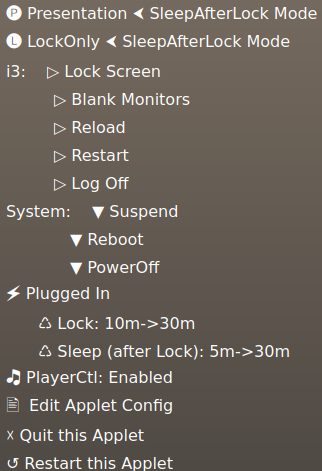
With just a right-click and a left-click, you can do most operations such as change to Presentation Mode, change screen lock and sleep timeouts, log off, lock and blank your monitors, and more. The pwr-tray icon changes based on state:
Presentation Mode (i.e., the full sun)
SleepAfterLock Mode (i.e., the setting sun)
SleepAfterLock Mode and Locking Screen Soon
LockOnly Mode (i.e., the unlocked lock)
LockOnly Mode and Locking Screen Soon
LowBattery State (going down).
Inhibited by playing media.
Inhibited by systemd inhibitors.
Requirements
- Python 3.8+ with PyQt5 (5.15+) and ruamel.yaml (0.17+)
- systemd (for
systemctl,loginctl,systemd-inhibit) - pipx (recommended for installation)
Per-DE requirements:
| DE | Required Packages | Notes |
|---|---|---|
| i3wm | i3lock, xprintidle, xset |
X11 only; xss-lock recommended (see below) |
| sway | swaylock, swayidle (1.8+) |
pwr-tray manages swayidle |
| Hyprland | swaylock, swayidle (1.8+) |
pwr-tray manages swayidle |
| KDE Wayland | swayidle (1.8+) |
Requires Plasma 6; pwr-tray manages swayidle |
| KDE X11 | xprintidle, xset |
Plasma 6 (Plasma 5 untested); qdbus/qdbus6 auto-detected |
| XFCE | xprintidle, xset |
X11 only |
| Cinnamon | xprintidle, xset |
X11 only |
| MATE | xprintidle, xset |
X11 only |
| LXQt | xprintidle, xset |
X11 only |
Distro notes:
- Developed and tested on Debian 13 (trixie). Should work on any distro with sufficiently recent packages.
- KDE Wayland support requires Plasma 6 (uses the
org.kde.ShutdownD-Bus API) and swayidle 1.8+ (forext-idle-notify-v1protocol support). - Debian 12 (bookworm) and Ubuntu 24.04 ship Plasma 5 and swayidle 1.7 -- KDE Wayland will not work on those. i3 and sway should be fine.
- Arch Linux and Fedora 40+ ship current versions and should work for all DEs.
HowTo Install and Start pwr-tray
-
Basically:
pipx install pwr-tray(exactly how depends on your installation and its state) -
Manually run as
pwr-tray -o:- Creates config (in
~/.config/pwr-tray/config.ini). - Copies default DE commands to
~/.config/pwr-tray/commands.yaml. - Shows system-level commands (DE dependent) that must be installed if missing. Note:
systemctlis always required.- Optionally, install
playerctlif you wish playing media to inhibit screen saving and sleeping.
- If you find you are missing PyQt5, then you'll need to install it; examples:
sudo apt install python3-pyqt5# if debian basedsudo pacman -S python-pyqt5# if arch basedsudo dnf install python3-qt5# if fedora based
- Creates config (in
-
Then, follow the "Per-DE Specific Notes" below to ensure proper operation. To just kick the tires, you can defer this until ready to go forward.
-
Read the other sections for customization and everyday use.
-
From the CLI, you can start/restart pwr-tray in the background with
setsid pwr-tray; typically, you will "autostart"pwr-traywhen you log in however your DE/WM manages autostarts.
Command Line Options
| Option | Description |
|---|---|
-o, --stdout |
Log to stdout (in addition to the log file); useful for debugging from a terminal. |
-D, --debug |
Enable debug mode (more frequent/elaborate logging); overrides the debug_mode config setting. |
-q, --quick |
Quick mode: sets lock and sleep timeouts to 1 minute and runs double-time (timers expire in 30s wall clock). Useful for testing. |
-e, --edit-config |
Open ~/.config/pwr-tray/config.ini in $EDITOR (default: vim). |
-f, --follow-log |
Tail the log file (~/.config/pwr-tray/debug.log). |
--de NAME |
Force desktop detection (e.g., --de i3-x11, --de sway-wayland, --de kde-wayland). Useful when env vars are unreliable. |
For initial setup and troubleshooting, pwr-tray -D -o is a good starting point.
HowTo Use pwr-tray
Open the pwr-tray menu with a right-click. Then left-click a line to have an effect ...
Choose from three major power modes (to control the effects of timeouts):
- 🅟 Presentation ⮜ - Keeps the screen unlocked/on and system up.
- 🅛 LockOnly ⮜ - Keeps the system up, but the screen may lock.
- 🅢 SleepAfterLock ⮜ - Allows screen locking and system to go down (the "normal" mode).
Or choose from various locking/blanking/DE operations:
- ▷ Lock Screen - locks the screen immediately.
- ▷ Blank Monitors - blanks the screen after locking the screen.
- ▷ Reload - various DE-dependent actions (reload WM config, etc.).
- ▷ Log Off - terminate your user session.
Or choose a new system state:
- ▼ Suspend System - suspends the system immediately.
- ▼ Reboot System - reboots the system immediately.
- ▼ Poweroff System - power down the system immediately.
Next, you may see:
- 🗲 Plugged In (or HiBattery or LoBattery). Shows the state of the battery.
- ♺ Chg Screen Idle: 15m->30m - change the time to start the screen saver; each time clicked, it changes to the next choice.
- ♺ Chg System Idle: 5m->30m - change the time to take the system down; clicking selects the next choice.
- 🎝 PlayerCtl - shows the state (not installed, enabled, disabled); if installed, a click toggles whether playing media inhibits screen locking and sleeping.
Or act on the applet itself:
- 🖹 Edit Applet Config - edit the applet's .ini file.
- ☓ Quit this Applet - exit applet.
- ↺ Restart this Applet - restart applet.
Testing pwr-tray
- Running
pwr-tray --quickreduces the lock and sleep timeout to 1 minute (although you can 'click' the current value to try others), and--quickruns double-time (so 1 minute timers expire in 30s per the wall clock). - You can run in various modes, but the default,
SleepAfterLock, exercises the most code paths. - Then, ensure closing the lid, hitting the power button, etc., have the desired effects.
- To test systemd inhibits: create a test inhibit with
systemd-inhibit --why="Prevent sleep for demonstration" sleep infinity - To test Hi/Lo Battery states (only on a system w/o a battery), click the battery state which artificially changes to HiBattery or LoBattery states for testing behaviors in those states.
HowTo Configure pwr-tray
config.ini
- When the program is started w/o a
config.ini, that file is created with defaults. - It has three sections:
- Settings: The settings for when plugged in. Missing/invalid settings are inherited from the defaults. Here are the defaults:
- HiBattery: The settings for when on battery on and not a low battery condition. Missing/invalid settings are inherited from 'Settings'.
- LoBattery: The settings for when on battery in a low battery condition. Missing/invalid settings are inherited from 'Settings'.
Here are the current 'Settings' defaults with explanation.
    [Settings]
    debug_mode = False                  # more frequent and elaborate logging
    power_down = False                  # power down (rather than suspend)
    turn_off_monitors = False           # turn off monitors after locking screen
    lock_min_list = [15, 30]            # lock minutes choices
    sleep_min_list = [5, 30]            # sleep minutes choices (after lock)
    lo_battery_pct = 10                 # define "low battery" state
    gui_editor = geany                  # gui editor for .ini file
NOTES:
- If you have issues with monitors failing to sleep or the system cannot wake when the monitors are off, then disable the
turn_off_monitorsfeature. - You can set
gui_editor = konsole -e vim, for example, to use vim in a terminal window. If you don't havegeanyinstalled, then be sure to changegui_editor. pwr-traychanges directory to~/.config/pwr-tray.- Your picks of mode, timeouts, etc. are saved to disk when changed, and restored on the next start.
- Items may be absent depending on the mode and battery state.
- NOTE: when in LoBattery, SleepAfterLock becomes the effective mode. The icon will change per your selection and the battery state.
commands.yaml (DE commands)
On each startup, pwr-tray copies its built-in commands.yaml to ~/.config/pwr-tray/commands.yaml so you can always see the current defaults. To customize DE commands (e.g., fix a logoff command, change the locker, add a new DE):
- Copy
commands.yamltomy-commands.yamlin the same folder:cp ~/.config/pwr-tray/commands.yaml ~/.config/pwr-tray/my-commands.yaml - Edit
my-commands.yamlas needed. - Restart
pwr-tray.
pwr-tray loads my-commands.yaml if it exists, otherwise falls back to the built-in commands.yaml. The my-commands.yaml file is never overwritten by pwr-tray.
The config uses a three-layer merge: defaults → session_type (x11 or wayland) → desktop. Later layers override earlier ones. Desktop entries are keyed by compound names like i3-x11 or kde-wayland; the part before the last - is matched against environment variables ($XDG_CURRENT_DESKTOP, $XDG_SESSION_DESKTOP, $DESKTOP_SESSION), and the suffix must match $XDG_SESSION_TYPE.
Per-DE Specific Notes
i3wm Specific Notes
- Uninstall or disable all competing energy saving programs (e.g.,
xscreensaver,xfce4-power-manager, etc.) when runningi3whether started bysystemdori3/configor whatever; defeat the X11 defaults somehow such as in~/.config/i3/config:
exec --no-startup-id xset s off ; xset s noblank ; xset -dpms
- Recommended: Install
xss-lockand configure it in your i3 config to handle lid close and power button events:
set $screenlock i3lock -t -i ~/.config/pwr-tray/lockpaper.png --ignore-empty-password --show-failed-attempts
exec --no-startup-id xss-lock --transfer-sleep-lock -- $screenlock --nofork
bindsym XF86PowerOff exec --no-startup-id $screenlock && systemctl suspend
bindsym $mod+Escape exec --no-startup-id $screenlock  # create shortcut to lock screen only
- Edit
/etc/systemd/logind.confand uncommentHandlePowerKey=andHandleLidSwitch=, set each action tosuspend, and then either reboot or restartsystemd-logind. - Finally, start your pwr-tray somehow. Below is a simplest case using
i3status, but it may depend on your status bar:
        bar {
            status_command i3status
            tray_output primary
        }
        exec_always --no-startup-id ~/.local/bin/pwr-tray
- If you use
polybarfor status, then it may be best to runpwr-trayfrom polybar's 'launch' script; e.g.,sleep 1.5 && setsid ~/.local/bin/pwr-tray &; the delay may be need to allow time for the tray to become ready.
sway Specific Notes
- Uninstall or disable any other
swayidleinstances or competing energy savers.pwr-traymanages its ownswayidleprocess and will kill any stray instances on startup. - NOTE: on
sway,pwr-traycannot read the idle time directly; instead, it manages aswayidleprocess whose arguments vary with your settings. - Edit
/etc/systemd/logind.confand uncommentHandlePowerKey=andHandleLidSwitch=, and set each action tosuspend; then either reboot or restartsystemd-logind. That enables the ever-runningswayidleto handle the suspend / resume events. - Again, find a way to start
pwr-tray; perhaps adding to sway's config:exec_always --no-startup-id sleep 2 && ~/.local/bin/pwr-tray; a delay may be required to let the tray initialize.
Hyprland Specific Notes
- Disable any other idle managers.
pwr-traymanages its ownswayidleprocess. - Start
pwr-trayvia Hyprland'sexec-once:
exec-once = sleep 2 && ~/.local/bin/pwr-tray
- Screen locking uses
swaylock; monitor control useshyprctl dispatch dpms.
KDE Specific Notes
- In Settings/Energy Saving, disable "Screen Energy Saving", "Suspend session", etc., except keep the "Button events handling" and make it as you wish (e.g., "When power button pressed", "Sleep").
- In Settings/AutoStart, add the full path of
~/.local/bin/pwr-tray. qdbus(orqdbus6on Plasma 6) is required for X11;pwr-trayauto-detects which is available.- On KDE Wayland,
swayidleis required (install it if missing).pwr-traymanagesswayidlefor idle timeout handling. Locking usesloginctl lock-session. - On KDE X11, idle time is read via
xprintidleand screen locking usesloginctl lock-session.
Other DEs (XFCE, Cinnamon, MATE, LXQt)
- These DEs have built-in configs that should work out of the box on X11.
- Disable any competing energy saving features in the DE's own power settings.
- Screen locking uses
loginctl lock-session(the DE provides the lock handler). - If the built-in commands don't work for your setup, create a
my-commands.yamloverride (see above).
Release history Release notifications | RSS feed


Download files
Download the file for your platform. If you're not sure which to choose, learn more about installing packages.
Source Distribution
Built Distribution
Filter files by name, interpreter, ABI, and platform.
If you're not sure about the file name format, learn more about wheel file names.
Copy a direct link to the current filters
File details
Details for the file pwr_tray-1.0.12.tar.gz.
File metadata
- Download URL: pwr_tray-1.0.12.tar.gz
- Upload date:
- Size: 133.7 kB
- Tags: Source
- Uploaded using Trusted Publishing? No
- Uploaded via: python-requests/2.32.5
File hashes
| Algorithm | Hash digest | |
|---|---|---|
| SHA256 |
cda6b598ed18151a7873b5dfe560da43c16df9cb3e5f09d28f6f407d18a979b0
|
|
| MD5 |
95ab32f40e605e7dfb74317392db66c0
|
|
| BLAKE2b-256 |
a680754981cdf4f5ac9ef6333f38fe9ccd48921441f74ee044d983425a2f7e32
|
File details
Details for the file pwr_tray-1.0.12-py3-none-any.whl.
File metadata
- Download URL: pwr_tray-1.0.12-py3-none-any.whl
- Upload date:
- Size: 82.1 kB
- Tags: Python 3
- Uploaded using Trusted Publishing? No
- Uploaded via: python-requests/2.32.5
File hashes
| Algorithm | Hash digest | |
|---|---|---|
| SHA256 |
587f5ad0cc0a5487f351e643c65a4a95ca6fbd5c062e8edcd844351d8286fc66
|
|
| MD5 |
6a7f4b3677174e83f7517ab0e0004f02
|
|
| BLAKE2b-256 |
bc6ddce69950d9a6fd33f0d956aba0db09316f507d7df5a8d0301e7dd9a38476
|






