
PyAzBlob
Python tool to upload files into Azure Storage Blob Service from local file system.
Disclaimer
AzCopy is the official tool from Microsoft that, among many other things, implements bulk upload of files from local file system to Azure Storage Blob Service. PyAzBlob is a simple console application created in a few hours, mostly for fun and to practice with Microsoft Azure Storage SDK for Python. However, it does implement a couple of features that I find useful for my personal use, that are not available in AzCopy.
  _____                     ____  _       _
 |  __ \         /\        |  _ \| |     | |
 | |__) |   _   /  \    ___| |_) | | ___ | |__
 |  ___/ | | | / /\ \  |_  /  _ <| |/ _ \| '_ \
 | |   | |_| |/ ____ \  / /| |_) | | (_) | |_) |
 |_|    \__, /_/    \_\/___|____/|_|\___/|_.__/
         __/ |
        |___/
Features
- user friendly console application with integrated help
- recursive upload of files, keeping the same folder structure of local file system
- definition of ignored files by Unix-style glob patterns, in
.pyazblobignorefile (read from command CWD) - supports definition of Azure Storage keys inside environmental variables or in .ini file
- supports specifying mime types by file extension in
settings.jsonfile (read from command CWD)
Requirements
- Python >= 3.7
How to use
Install:
pip install pyazblob
Verify that the CLI was installed:
pyazblob --help
2. Configure the Azure Storage
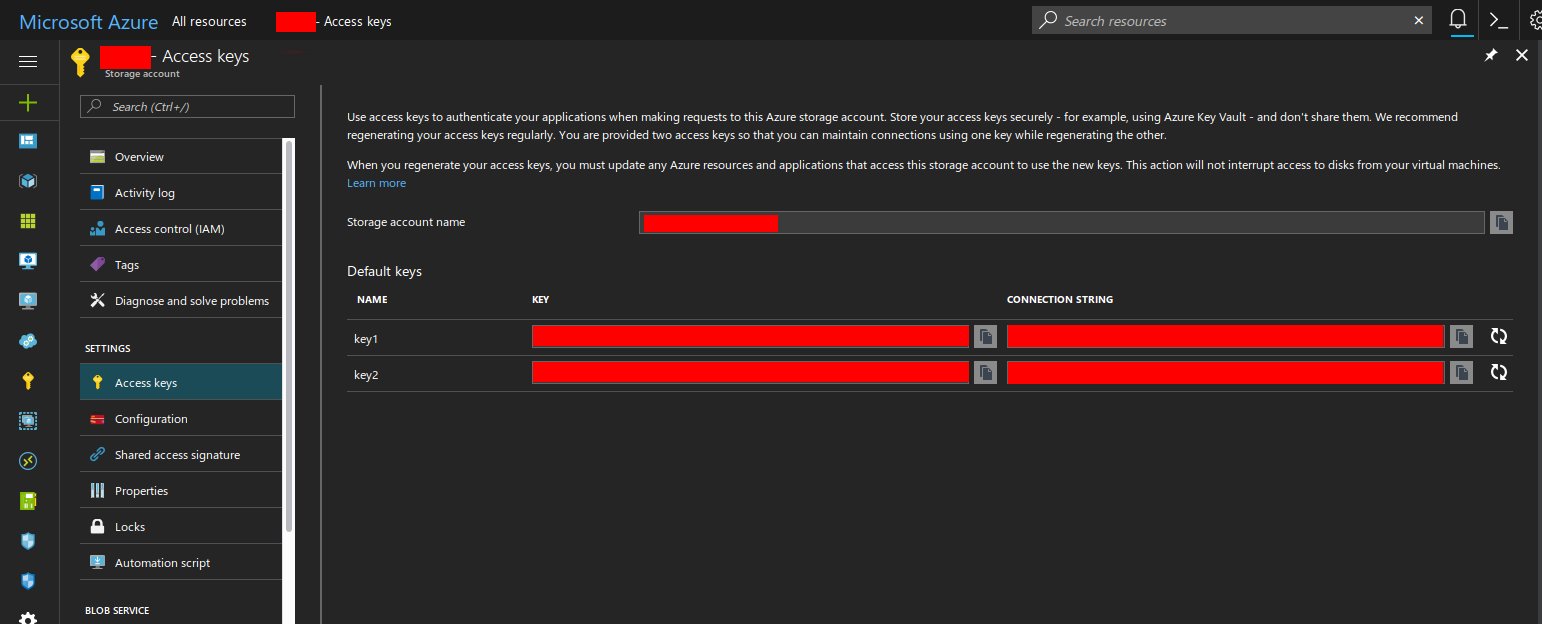
The CLI works by storage account name and key. These parameters can be either configured as environmental variables (recommended) or passed as input parameters.
Recommendations: if you are creating an Azure Storage for backups, use Standard performance and LRS (Locally Redundant Storage). Make sure to use Private containers if you want your data to be kept private.
2.1 Useful links
Storage account name and settings can be found in the Azure Portal under Settings > Access keys.
3. Run the console application
Example: upload all files from /home/username/Pictures/ recursively, recreating the folder structure:
pyazblob -p /home/username/Pictures/ -r
Upload all files from C:\Users\username\Documents\ recursively, keeping folder structure starting from \Documents\:
python pyazblob.py -p C:\Users\username\Documents\ -c C:\Users\username\
Configuration options
- define ignored file paths (Unix-style globs) using
.pyazblobignorefile - define Azure Storage name and key either by CLI option, or using the following environmental variables (for the key is is recommended to use the environmental variable):
| Name | Scope |
|---|---|
| PYAZ_ACCOUNT_NAME | account name |
| PYAZ_ACCOUNT_KEY | account key |
1 maintainer

Metadata
1 maintainer
Release files for pyazblob 0.0.6
For a detailed explanation of source distributions (sdists) and built distributions (wheels), please see the package formats documentation.
Source distribution (sdist)
| File | Size | Uploaded | |
|---|---|---|---|
| pyazblob-0.0.6.tar.gz | 9.3 kB | Details |
Built distribution (wheel)
| File | Interpreter | ABI | Platform | Reset |
|---|---|---|---|---|
| pyazblob-0.0.6-py3-none-any.whl | Python 3 | none | any | Details |
Total release size: 18.5 kB
Release files / pyazblob-0.0.6.tar.gz
| Download URL | pyazblob-0.0.6.tar.gz |
|---|---|
| Size | 9.3 kB |
| Tags | Source |
|
SHA-256 checksum How to use checksums |
57298338d9439e7bcf98bb2f32f23a23faad480858319e170b74d89b44366a82
|
|
BLAKE2b-256 checksum How to use checksums |
b80dd29f1d713fd6cc1ffe6a17d4e82c0ee762a4bc71afd844fcb56957919aca
|
| Upload date | |
|
Uploaded using Trusted Publishing? What is trusted publishing? |
No |
| Uploaded via |
twine/4.0.1 CPython/3.9.13
|
Release files / pyazblob-0.0.6-py3-none-any.whl
| Download URL | pyazblob-0.0.6-py3-none-any.whl |
|---|---|
| Size | 9.2 kB |
| Tags | Python 3 |
|
SHA-256 checksum How to use checksums |
00eecca999dd72212ffedf9d70789ed9af1df4bc250934f0bc995a66c7a9caa7
|
|
BLAKE2b-256 checksum How to use checksums |
f6d254e17f86d775e14e68fd8487cbbde4a9e23795bca40b64f7cc702b7b497b
|
| Upload date | |
|
Uploaded using Trusted Publishing? What is trusted publishing? |
No |
| Uploaded via |
twine/4.0.1 CPython/3.9.13
|














