
Pybites Carbon
A small utility to generate beautiful code images using the awesome carbon service.
Install Package
Install as a Standalone Tool using uv tool (Recommended)
The uv package manager is a "fast Python package and project manager."
You can add the package to uv tools.
When using playwright, you must also download the browser binary. This package specifically uses the chromium browser.
# Add package to your tools
uv tool add pybites-carbon

# Install playwright
uv tool run playwright install chromium
# Another way to install playwright. 'uvx' is a alias for 'uv tool run'
uvx playwright install chromium

# To use pybites-carbon as a tool, run it with the command below using the '--from' option
# because it clashes with another PyPI package called 'carbon'
uv tool run --from pybites-carbon carbon

# Run using the 'uvx' alias
uvx --from pybites-carbon carbon
Install as a Project Dependency using uv Package Manager
If you already have a virtual environment and pyproject.toml file set up, ignore the first two steps.
# Create a new virtual environment
uv venv

# Create a new project
uv init

# Install package as project dependency
uv add pybites-carbon
# Install playwright browser
uv run playwright install chromium
Install with pip
Install from PyPI using pip.
# Create a new virtual environment
python -m venv .venv

# Activate virtual environment
# On macOS/Linux:
source .venv/bin/activate

# On Windows:
.venv\Scripts\activate

# Install packages
pip install pybites-carbon
playwright install chromium
Usage
You can load in code from a file, the clipboard or a snippet. You can change the language, the image background and theme. You can also provide a different directory to store the image.
$ carbon -h
usage: carbon [-h] [-v] (-f CODE | -c | -s CODE) [-i] [-l LANGUAGE] [-b BACKGROUND] [-t THEME] [-d DESTINATION] [-w WT]
              [--driver-path DRIVER_PATH]

Create a carbon code image

options:
  -h, --help            show this help message and exit
  -v, --version         show program's version number and exit
  -f CODE, --file CODE  File with code (default: None)
  -c, --clipboard       Use code on clipboard (default: None)
  -s CODE, --snippet CODE
                        Code snippet (default: None)
  -l LANGUAGE, --language LANGUAGE
                        Programming language (default: python)
  -b BACKGROUND, --background BACKGROUND
                        Background color (default: #ABB8C3)
  -t THEME, --theme THEME
                        Name of the theme (default: seti)
  -d DESTINATION, --destination DESTINATION
                        Specify folder where image should be stored (defaults to current directory) (default:
                        /Users/bbelderbos/code/pybites-carbon)
  -w WT, --wt WT        Windows control theme (default: sharp)
Examples
-
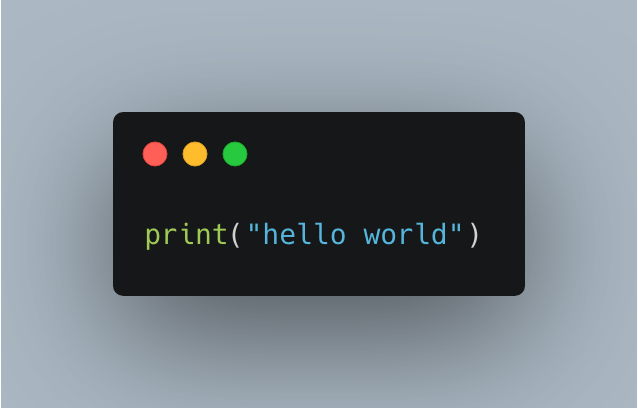
Make a hello world snippet carbon image:
$ carbon -s 'print("hello world")'Resulting image:
-
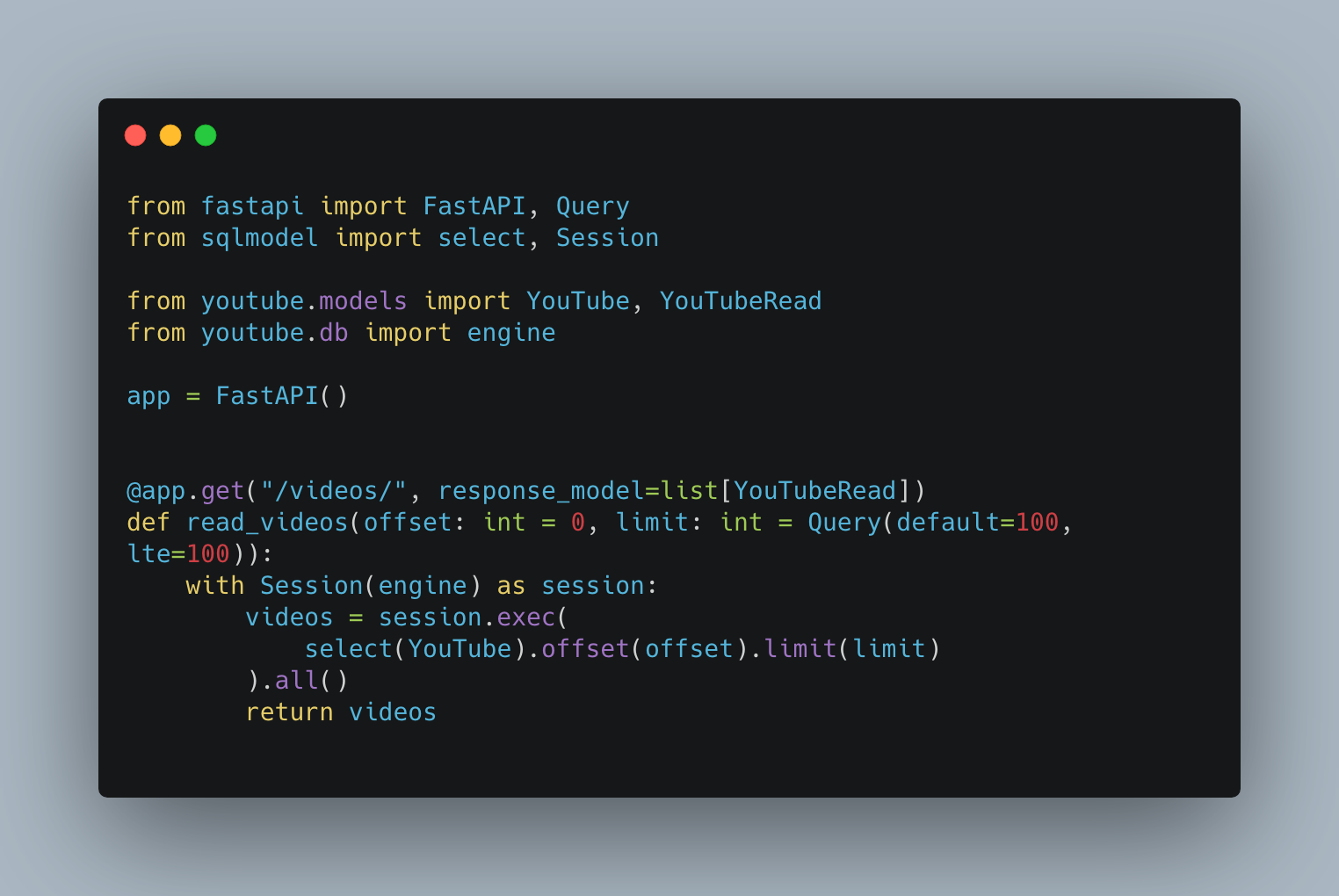
Make a code image of a file, let's pick a FastAPI app I am working on:
$ cat $HOME/code/infinite-scroll/main.py
from fastapi import FastAPI, Query
from sqlmodel import select, Session

from youtube.models import YouTube, YouTubeRead
from youtube.db import engine

app = FastAPI()


@app.get("/videos/", response_model=list[YouTubeRead])
def read_videos(offset: int = 0, limit: int = Query(default=100, lte=100)):
	with Session(engine) as session:
		videos = session.exec(
			select(YouTube).offset(offset).limit(limit)
		).all()
		return videos
Run the script with the
-foption:carbon -f $HOME/code/infinite-scroll/main.pyResulting image:
-
Copying the following lines to the clipboard:
Here is my favorite feature: make an image from code I currently have on my OS clipboard (thanks
pyperclip):Try it out, copy this code:
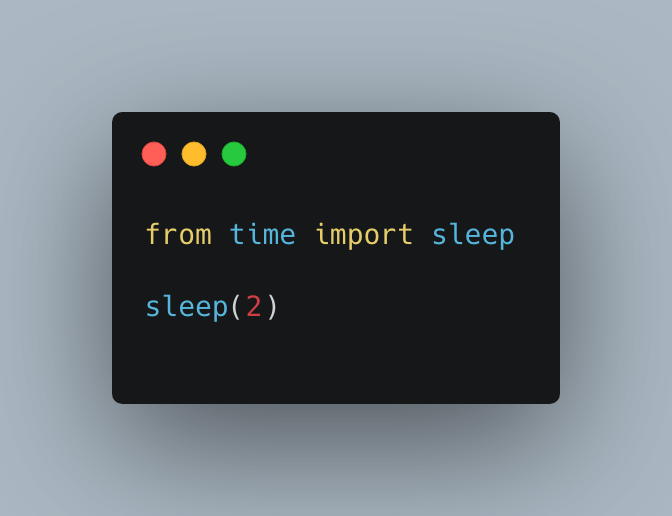
from time import sleep

sleep(2)
Then run the script with
-c:$ carbon -cResulting image:
Useful shell aliases
I added this alias to my .zshrc to make it even easier:
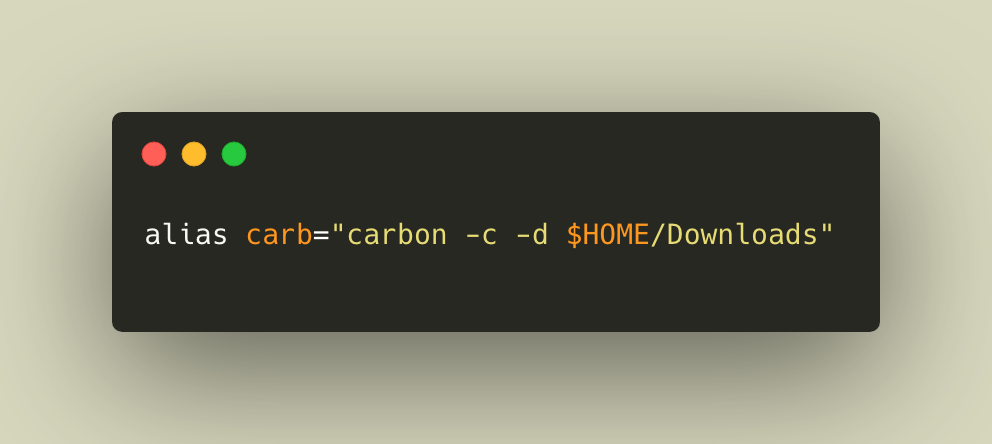
(Actually I created this image having this alias line on my clipboard, then I ran: carbon -c -l application/x-sh -t monokai -b #D7D7BE -d $HOME/Downloads)
Developer setup
Installation
-
Clone or fork this repository
-
Install packages using the following options.
-
Install using the uv package manager (recommended).
uv syncalso creates project virtual environment if it doesn't exist.uv sync uv run playwright install chromium
-
Install using pip.
Create a virtual environment and install packages using the requirements-dev.txt file.
 python -m venv .venv
 pip install requirements-dev.txt
 playwright install chromium
-
Install using the Makefile via
make setup.
-
-
Install Tesseract.
Refer to their instructions on the GitHub repo or the documentation for details.
-
Install on Ubuntu with:
sudo apt install tesseract-ocr -
Install on Windows following the Mannheim University Library wiki.
-
Running pybites-carbon
The resulting carbon_image.png image will be downloaded to your current directory unless you specify a different destination directory using -d (or --destination).
To run the tests, type pytest or make test (it uses pytesseract - in the dev requirements - to read the text from the generated carbon image file).
We recommend running ruff before committing code. To set this up, run this after checking out the repo:
$ pre-commit install
pre-commit installed at .git/hooks/pre-commit
Enjoy and feel free to mention me or Pybites when you post one of the created images on Twitter.
1 maintainer

Metadata
1 maintainer
Release files for pybites-carbon 0.8.1
For a detailed explanation of source distributions (sdists) and built distributions (wheels), please see the package formats documentation.
Source distribution (sdist)
| File | Size | Uploaded | Provenance | Actions |
|---|---|---|---|---|
| pybites_carbon-0.8.1.tar.gz | 7.3 kB | Without provenance | Details for pybites_carbon-0.8.1.tar.gz |
Built distribution (wheel)
| File | Interpreter | ABI | Platform | Actions Reset |
|---|---|---|---|---|
| pybites_carbon-0.8.1-py3-none-any.whl | Python 3 | none | any | Details for pybites_carbon-0.8.1-py3-none-any.whl |
Total release size: 15.0 kB
Release files / pybites_carbon-0.8.1.tar.gz
| Download URL | pybites_carbon-0.8.1.tar.gz |
|---|---|
| Size | 7.3 kB |
| Tags | Source |
|
SHA-256 checksum How to use checksums |
3e7c6ef4cadb8ac26dcdd6b6921b632344f443503f433e1405a47728ae5f9178
|
|
BLAKE2b-256 checksum How to use checksums |
723190033b7206e0f80d277ad83c4db6bcf043cb2c73451e82247ecdb9930ace
|
| Upload date | |
|
Uploaded using Trusted Publishing? What is trusted publishing? |
No |
| Uploaded via |
uv/0.6.6
|
Release files / pybites_carbon-0.8.1-py3-none-any.whl
| Download URL | pybites_carbon-0.8.1-py3-none-any.whl |
|---|---|
| Size | 7.7 kB |
| Tags | Python 3 |
|
SHA-256 checksum How to use checksums |
e2fb163acf1f14b96846bf0da4ead6808348d6eeebfb8b4f0785be513963caf1
|
|
BLAKE2b-256 checksum How to use checksums |
cd90751ac95f0a6001d2e9240b5f7851c008c7a948ee81b126a0f8a1b1f669dc
|
| Upload date | |
|
Uploaded using Trusted Publishing? What is trusted publishing? |
No |
| Uploaded via |
uv/0.6.6
|
Security for pybites-carbon 0.8.1
Provenance
Provenance describes where a file came from. On PyPI, provenance is shared via attestations, which provide a verifiable record of the build or publishing details. View details, limitations and caveats.
No provenance found
None of the files in this release were uploaded with provenance metadata.
A note on package security
PyPI is a repository for distributing packages, not a service for auditing them. While third-party security researchers and our staff do their best to detect and remove malicious packages, PyPI cannot guarantee the quality, security or suitability of any given package.
To learn more about protecting yourself from malicious actors, visit our package security documentation.














