
CLAI 2.0
A coding agent for your terminal, built on Pydantic AI.
CLAI reads your code, edits files, and runs commands, and you see every step as it happens. Use the model you like: sign in with your ChatGPT or GitHub Copilot subscription, or bring an API key for OpenAI, Anthropic, or another provider Pydantic AI supports. The coding tools and integrations are plugins, so you can add tools, commands, and menus without forking anything.
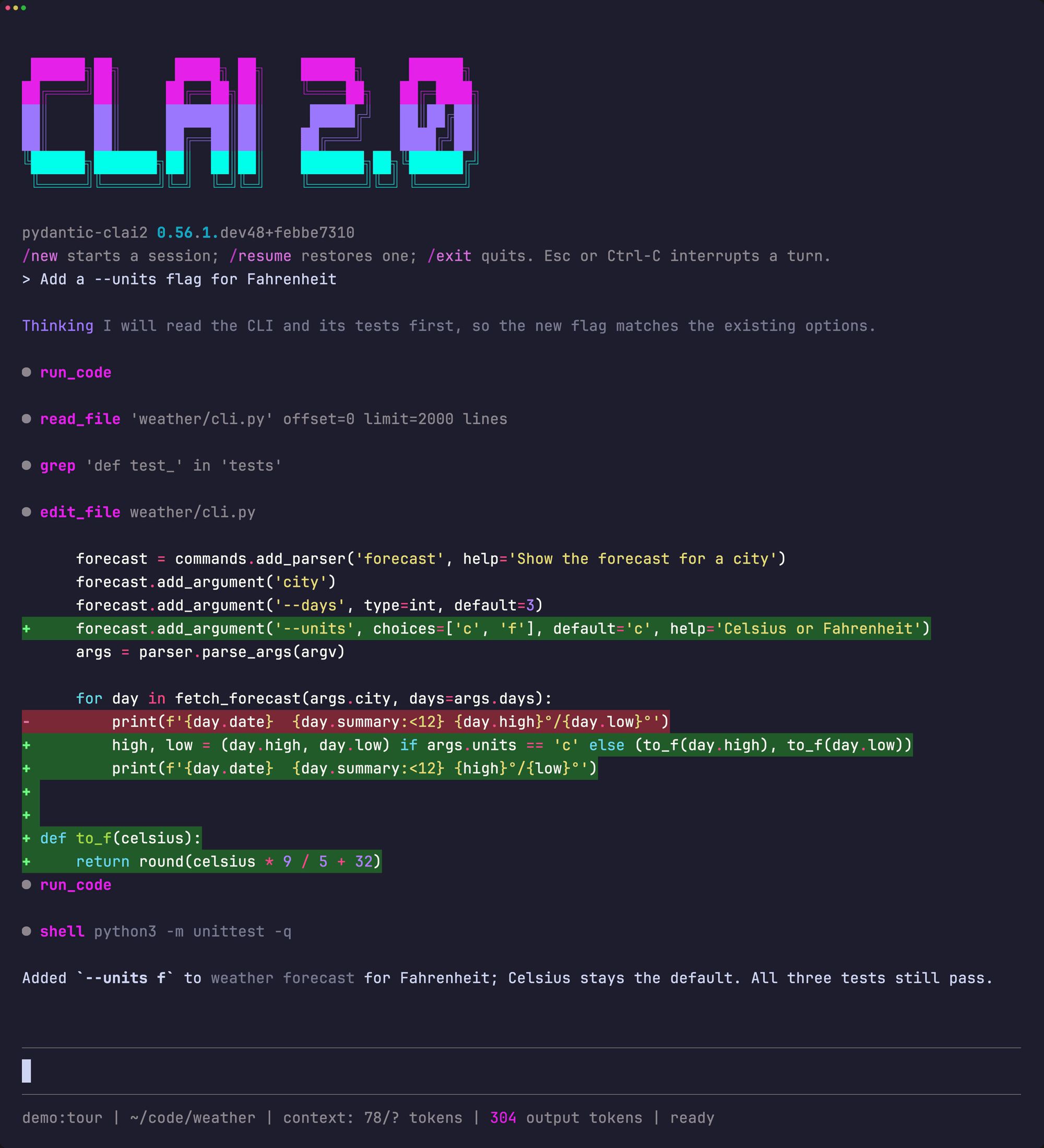
- Any model, any account. Switch models mid-conversation. Sign in to several accounts and let CLAI move to the next one when you hit a limit.
- Fast. In code mode, CLAI runs the model's tool calls while the model is still writing them.
- Nothing gets lost. Every conversation is saved. Resume it, fork it into the background, or rewind it to an earlier prompt. You can even pick up sessions from Claude Code and Codex.
- Yours to change. Turn plugins on and off from a menu, install one from Git, or write your own in a few lines of Python.
CLAI runs commands and edits files as you, with no sandbox and no approval step. Run it in a project you trust.
Contents: Install · First run · Updating · Models and accounts · A tour · Make it yours · Plugins · CLAI in your own code · Reference
Install
CLAI needs Python 3.11 or newer. Install it with uv:
uv tool install pydantic-clai2
This gives you the clai2 command (and pydantic-clai2, which does the same). To try it
without installing, run uvx pydantic-clai2.
CLAI comes with the OpenAI and Anthropic SDKs. Other providers may need their SDK
installed too; /model tells you which one when you pick the model. TypeSafe's Jev
models need an extra:
uv tool install 'pydantic-clai2[typesafe]'
First run
Open a terminal in your project and start CLAI:
cd my-project
clai2
You get the CLAI banner, a prompt at the bottom, and a status row under it with the model, the folder, and how much context the conversation uses. Type what you want and press Enter.
The default model is openai-codex:gpt-6-astra, which runs on a ChatGPT subscription. Run
/login openai-codex to sign in, or pick another model with /model
(see below).
A few keys to know:
| Key | What it does |
|---|---|
| Enter | Send. While CLAI works, Enter queues your message for after the current turn. |
| Alt+Enter (Option+Enter) | Steer: send your message to the turn that is running now. |
| Esc or Ctrl-C | Stop the current turn. Your draft stays. |
| Esc Esc | Rewind to an earlier prompt (see below). |
| Ctrl-V | Paste an image from the clipboard. |
@ then Tab |
Complete a file path. |
Ctrl-D or /exit |
Quit. |
Type / to see every command, or /help for the full list.
CLAI reads AGENTS.md or CLAUDE.md from the folder you start it in and follows what it
says (not yet on Windows). If the folder (or a parent) has a .env file, CLAI loads it at startup.
Where CLAI keeps things
Your settings, saved sessions, and plugins live in ~/.config/pydantic-clai2/, or in
$XDG_CONFIG_HOME/pydantic-clai2/ if you set XDG_CONFIG_HOME:
config.db: settings, saved models, and plugin choicessessions.db: saved conversationsplugins/: plugins you drop ininput-history: what you typed, for the Up arrow
Sign-ins and API keys are encrypted, with the key kept in your system keychain. Without a
keychain, they are saved unencrypted in a file only you can read. A
repository can also pin settings for everyone who works in it with a
.clai/settings.json file. See files
and project settings
in the reference.
Updating
Run /update. CLAI installs the newest build, then restarts into it with the same
conversation open.
When a newer build is out, the status row tells you, for example
update 0.57.0: /update. CLAI checks once at startup and again when you change channel.
It shows nothing when you are offline.
There are two channels. Pick one with /set updates.channel:
stable(the default): the newest release on PyPI.main: the newest build of themainbranch, for trying fixes and features before they are released. The status row names the build by its commit.
/set updates.channel main
/update
/update works when CLAI was installed with uv tool install. On Windows, CLAI closes
first and installs in a new PowerShell window; start clai2 again when it is done.
/update reinstalls pydantic-clai2 without extras or --with packages, so add those
again afterwards. See
Updating
in the reference for the details.
Models and accounts
Pick a model: /model
/model lists the models you have added, with details for the highlighted one. Press
Enter to switch. The next prompt uses the new model, and the conversation carries on.
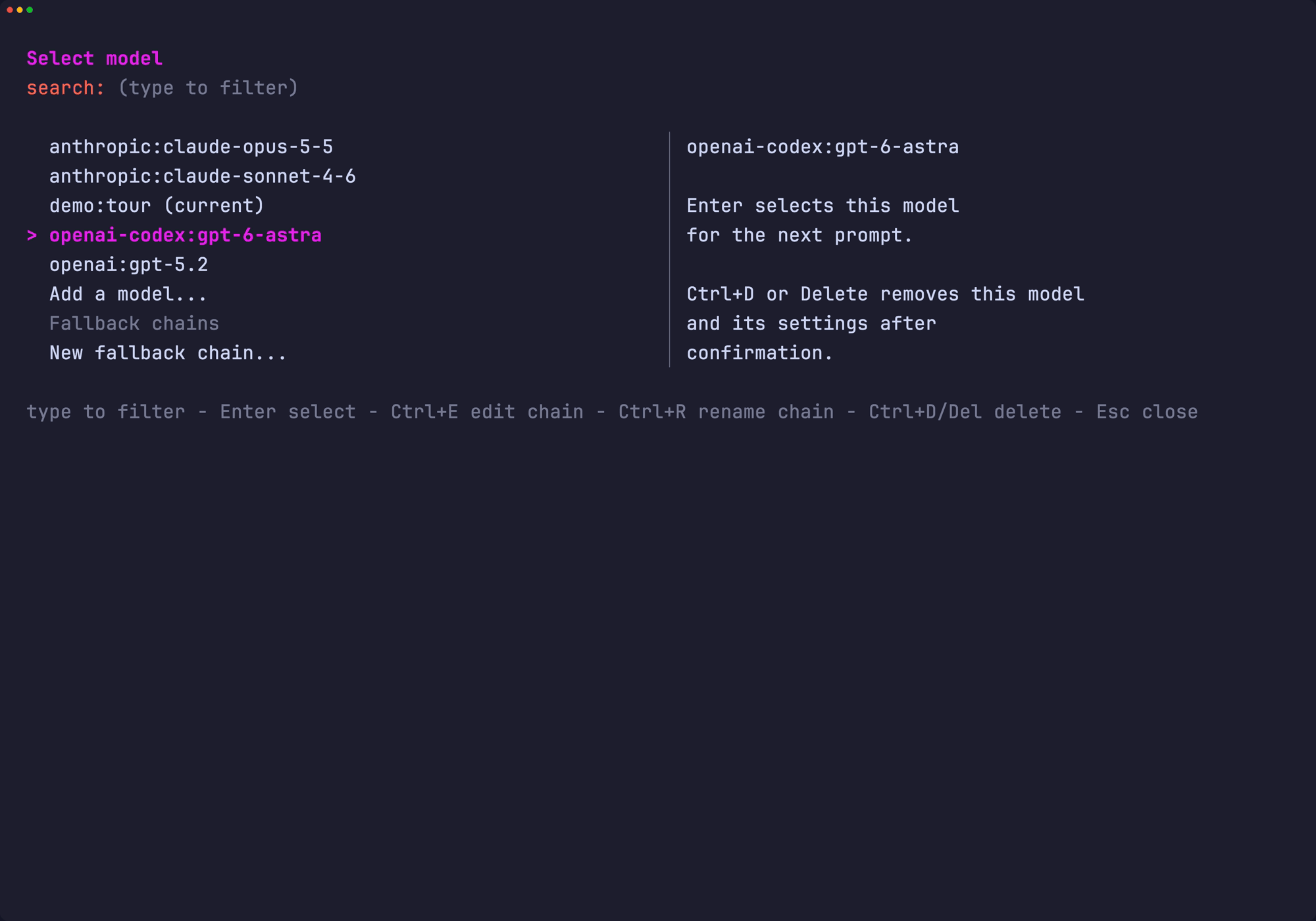
You can also type a model name directly, such as /model anthropic:claude-sonnet-4-6.
Tab completes names. Highlight a model and press Ctrl+D to remove it from the list.
Find a new one: /model add
/model add lists every provider, then that provider's models, with the context size and
price of each. Type to filter. Press Enter to use a model, or Ctrl+S to change its
settings first, such as reasoning effort or thinking.
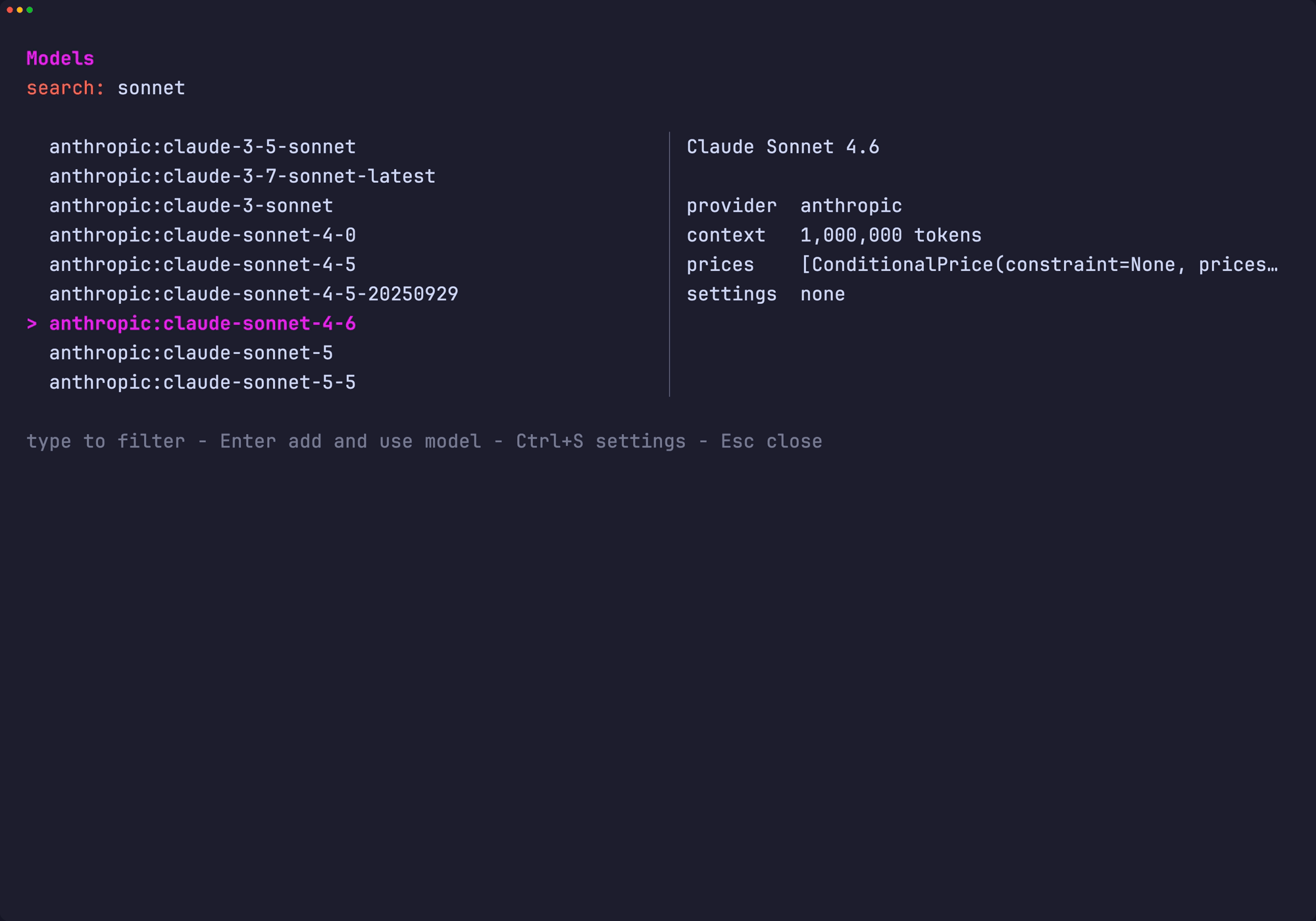
Each model keeps its own settings. Change them later with /model settings, or use the
shortcuts: /effort high sets reasoning effort, and /fast turns on priority
processing for Codex models.
Sign in: /login and /accounts
/login openai-codex signs in with your ChatGPT subscription. /login github-copilot
signs in with GitHub Copilot. Neither needs an API key.
/accounts shows every account you are signed in to, grouped by provider, with usage
limits where the provider reports them. Press a to add an account, r to rename one,
[ and ] to change the order, and d to sign out.
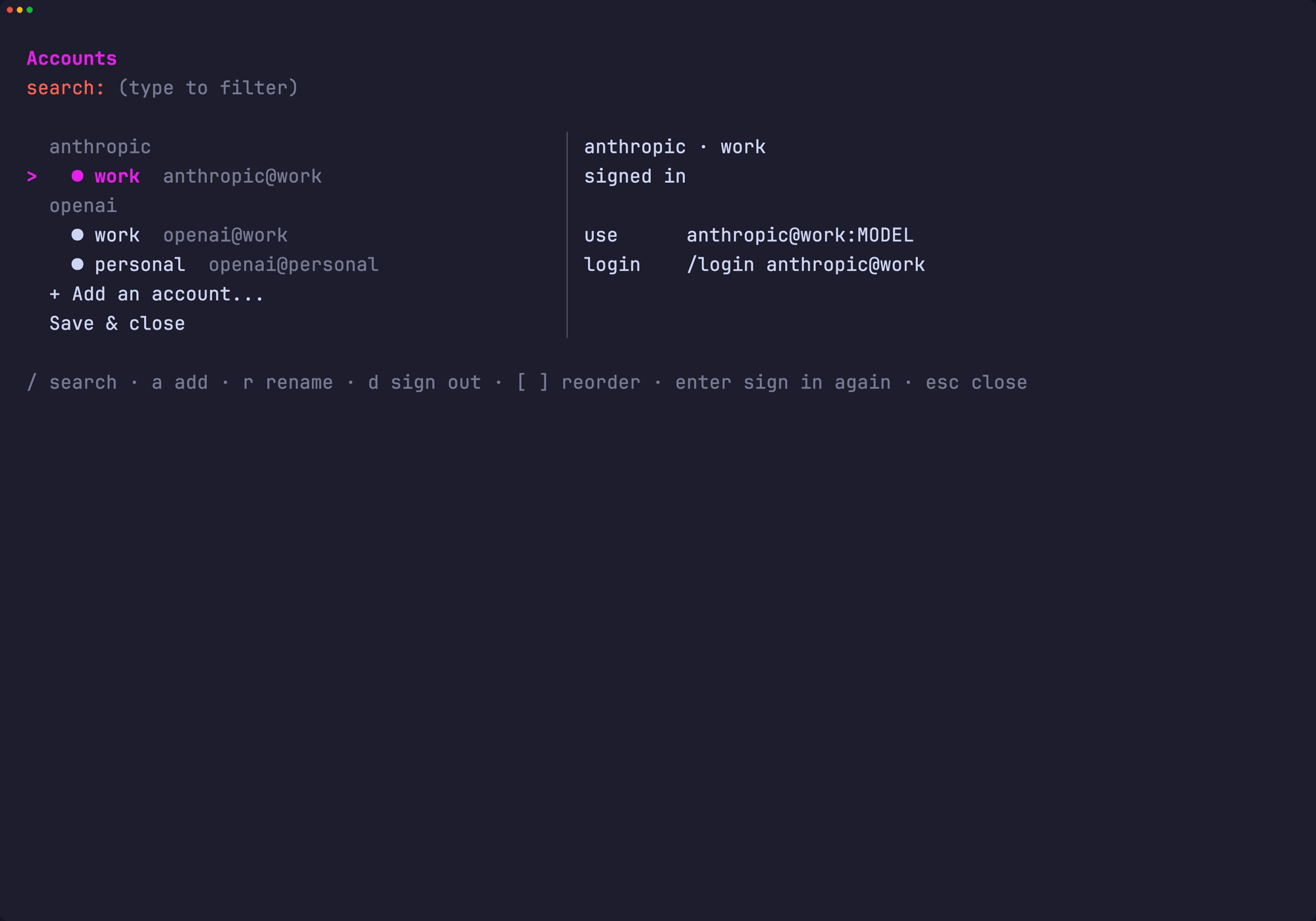
A second account of the same provider is a profile, written PROVIDER@PROFILE:
/login openai-codex@work        # a second ChatGPT account
/login openai@work              # an OpenAI API key, saved for this profile
/model openai-codex@work:gpt-6-astra
/model openai-codex@*:gpt-6-astra   # every signed-in Codex account, in /accounts order
When a provider has more than one account, a model runs on the first one and moves to the next when it hits a rate or usage limit.
Fallback chains
A fallback chain tries several models in order, such as Codex first and Claude after it.
Make one in the /model picker with New fallback chain..., then select it like any
other model. It shows up as chain:NAME.
API keys and environment variables
For providers that use an API key, set the usual environment variable before you start
CLAI, such as OPENAI_API_KEY or ANTHROPIC_API_KEY. You can also put them in a .env
file. CLAI loads the nearest .env from the folder you start in, or one of its parents.
Variables already set in your shell win. In a folder you do not trust, start CLAI with
PYTHON_DOTENV_DISABLED=1 so it skips .env files.
Shell commands the agent runs do not see your provider API keys.
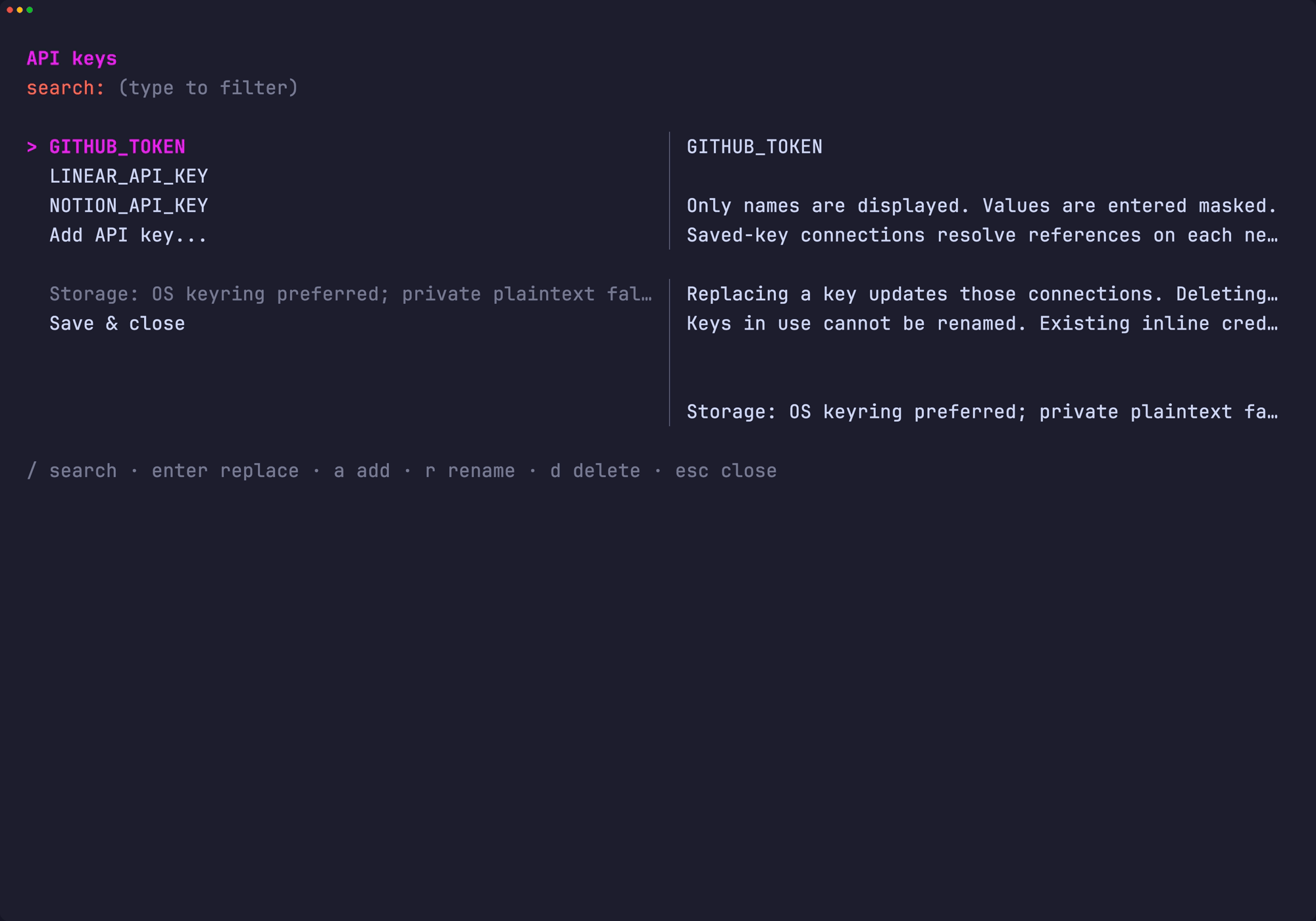
/keys keeps named API keys in an encrypted store. vLLM and OpenRouter connections,
/login PROVIDER@PROFILE, and plugins such as Linear and Notion can use a saved key by
name, so you change it in one place. The names are labels: CLAI does not set them as
environment variables. Press a to add a key, Enter to replace one, r to rename, and
d to delete. Values are never shown.
See Models and their settings, Several accounts and fallback chains, and Environment variables in the reference for everything else, including vLLM and OpenRouter.
A tour
Tool calls and diffs
Each tool call gets one line: the tool and what it worked on, as in the screenshot at
the top. When CLAI edits or writes a file, you see the diff. Shell output stays out of
the way unless you ask for it with /set display.tool_output true; the model always gets
the full output. To list fewer lines, /set display.tool_calls grouped counts calls in
a row instead, such as ● shell 4, grep 2.
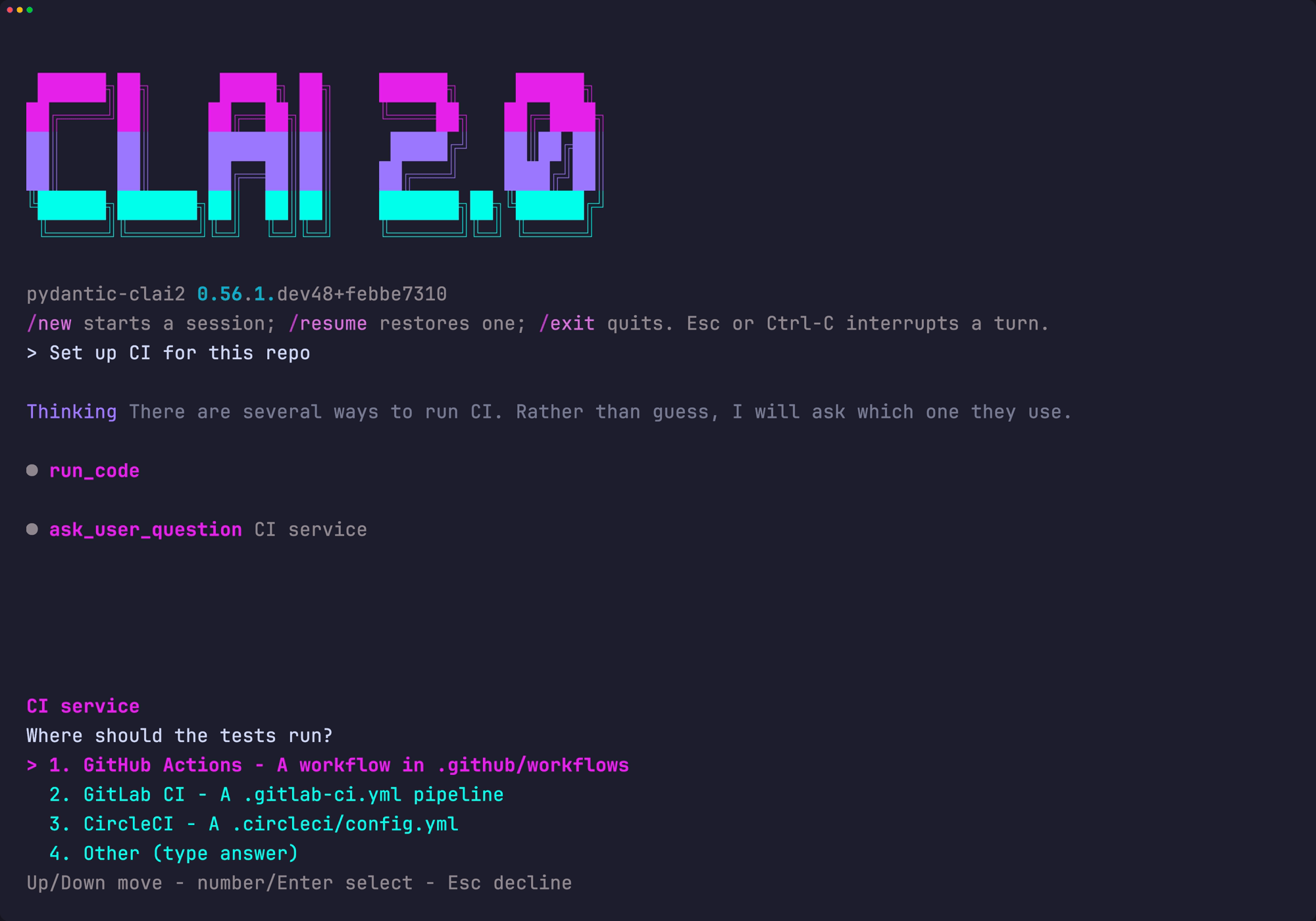
Questions from the model
When a task could go more than one way, the model can ask you instead of guessing. Pick an answer with the arrow keys and Enter, or press its number. Other lets you type your own answer. Esc declines; the model is told, and carries on with a choice it states.
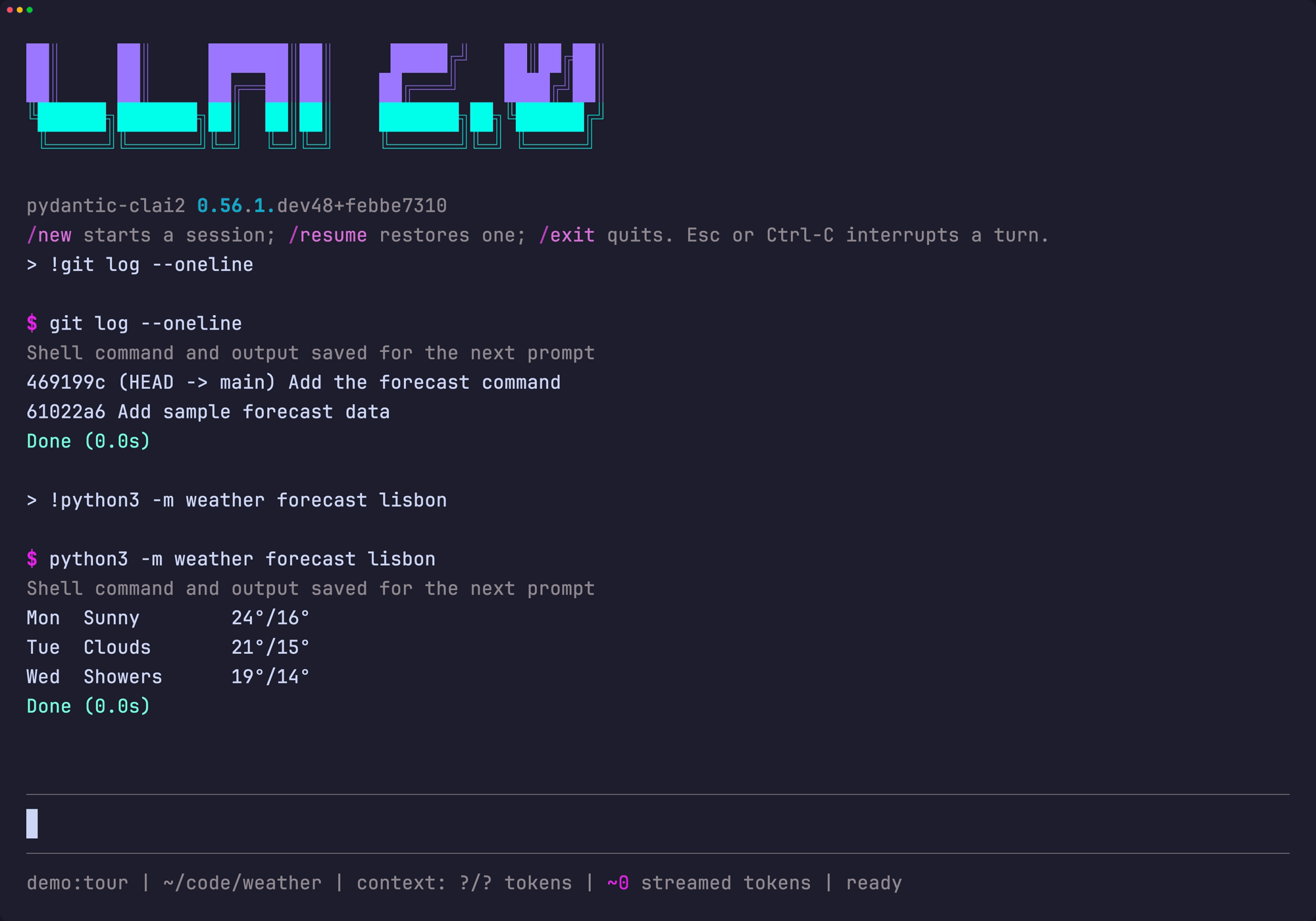
Run a shell command: !
Start a line with ! to run it as a shell command, without asking the model. The command and
its output are saved, so the model sees them on your next prompt. Use !! for
interactive programs, such as !!python, to give them the whole terminal.
Code mode and speculative execution
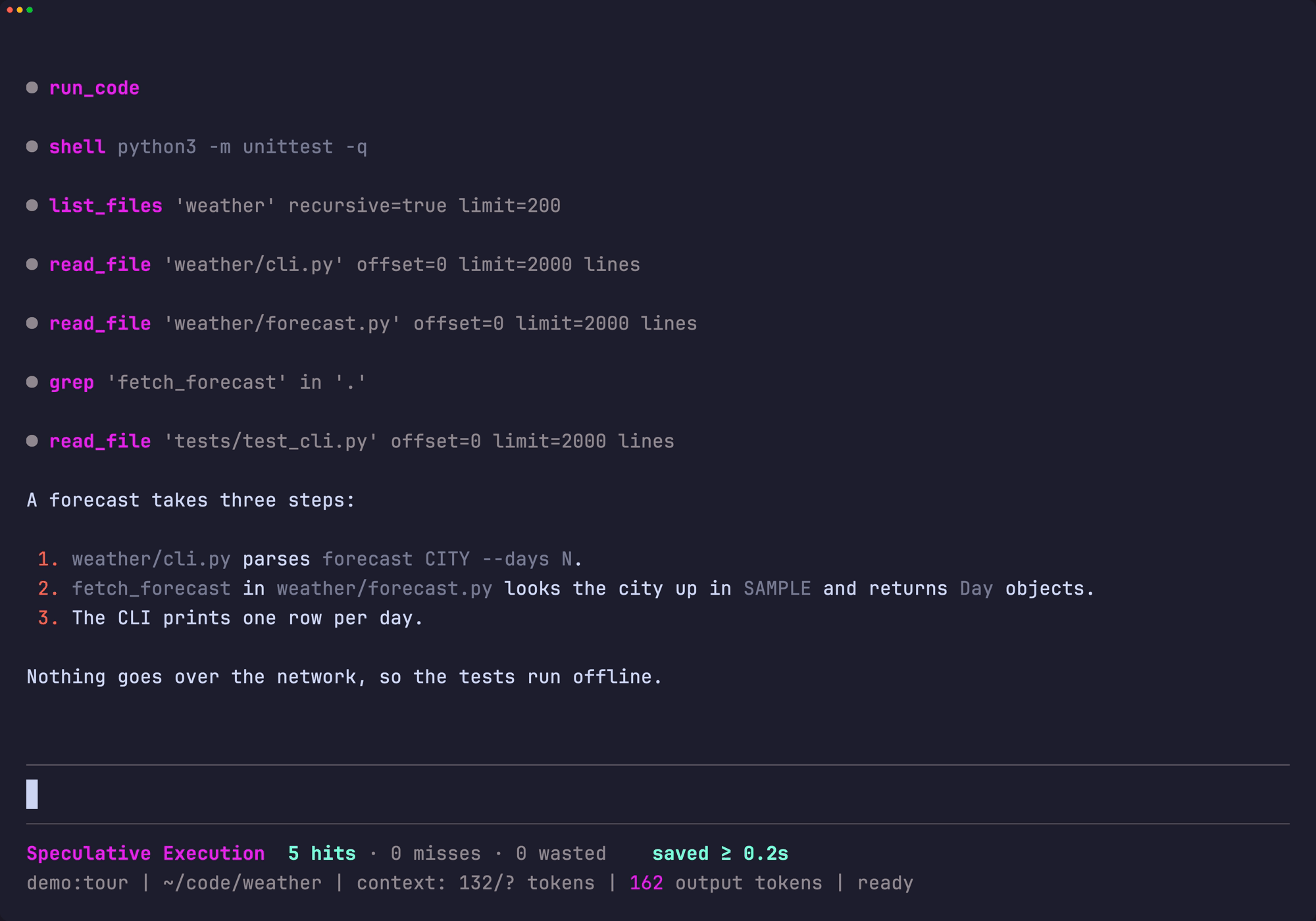
Code mode is on by default. The model writes one short Python snippet that calls many tools, and CLAI runs each statement as soon as it arrives, so a slow test run starts before the model has finished writing.
Press Ctrl+X Ctrl+S to turn on speculative execution as well. CLAI then starts file reads and searches the moment their line appears. A row above the status line counts how many early starts paid off, and the time they saved.
Rewind a conversation
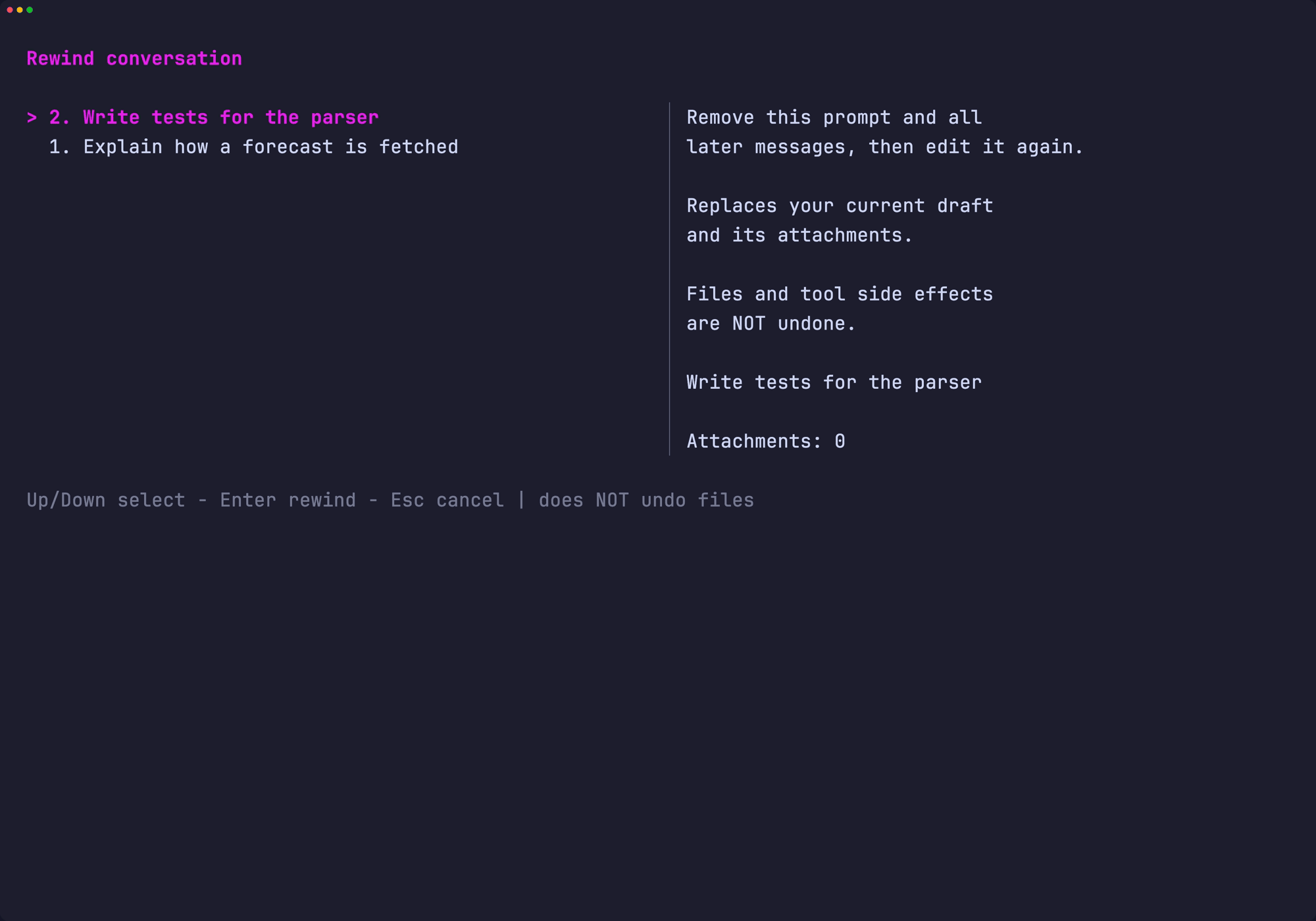
Between turns, press Esc twice to open Rewind conversation. Pick an earlier prompt and press Enter. CLAI removes it and everything after it from the conversation, and puts it back in the editor so you can change it. Rewinding does not undo changes to files.
Pick up where you left off: /resume
Every conversation is saved. /resume opens a browser with your projects on the left
and their sessions on the right. CLAI names sessions in the background so you can find
them, using your current model. Press / to search, Right to read a transcript, and Enter to resume.
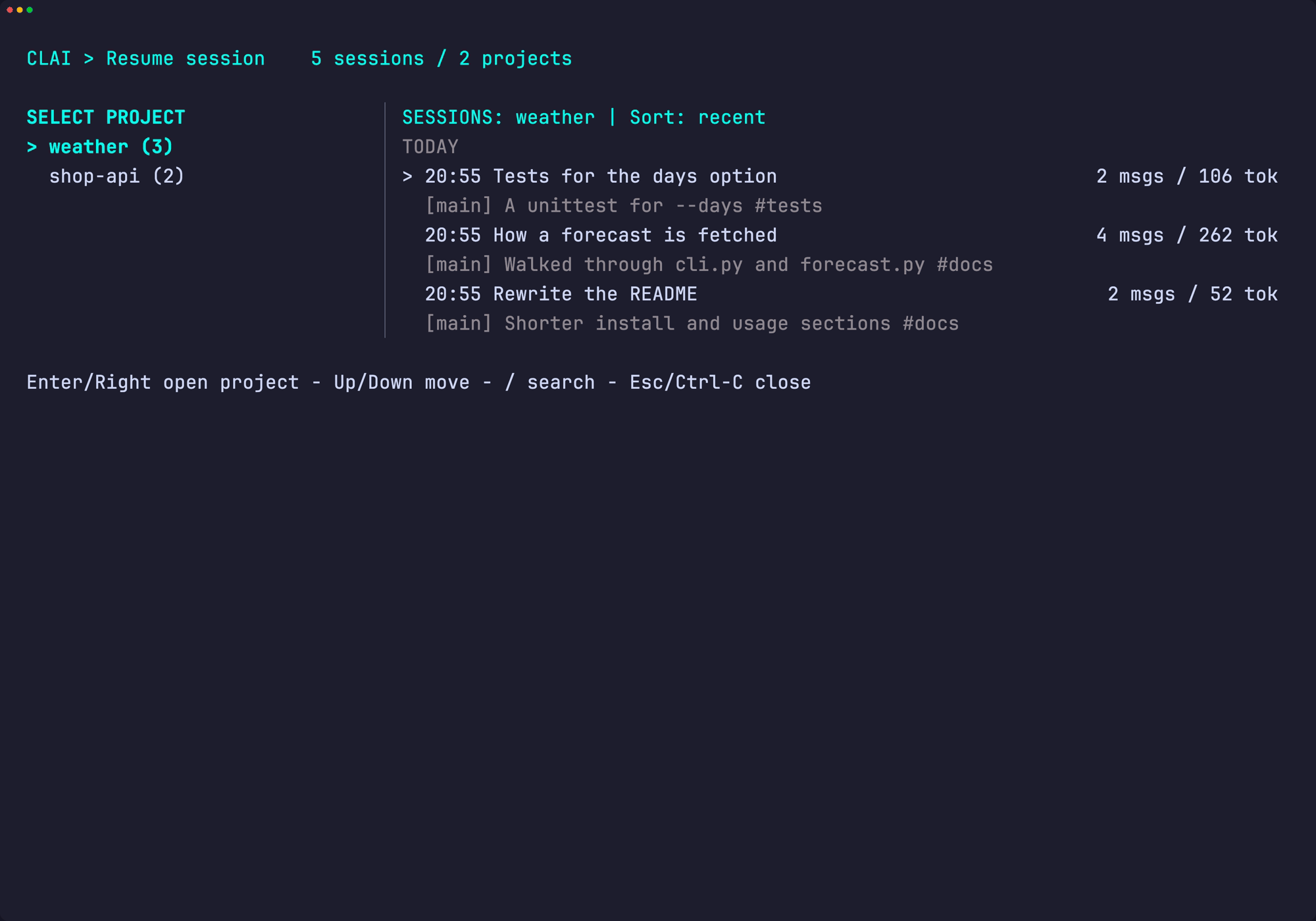
From your shell, clai2 --resume opens the same browser. /resume claude and
/resume codex continue a session you started in Claude Code or Codex.
Work in the background: /fork
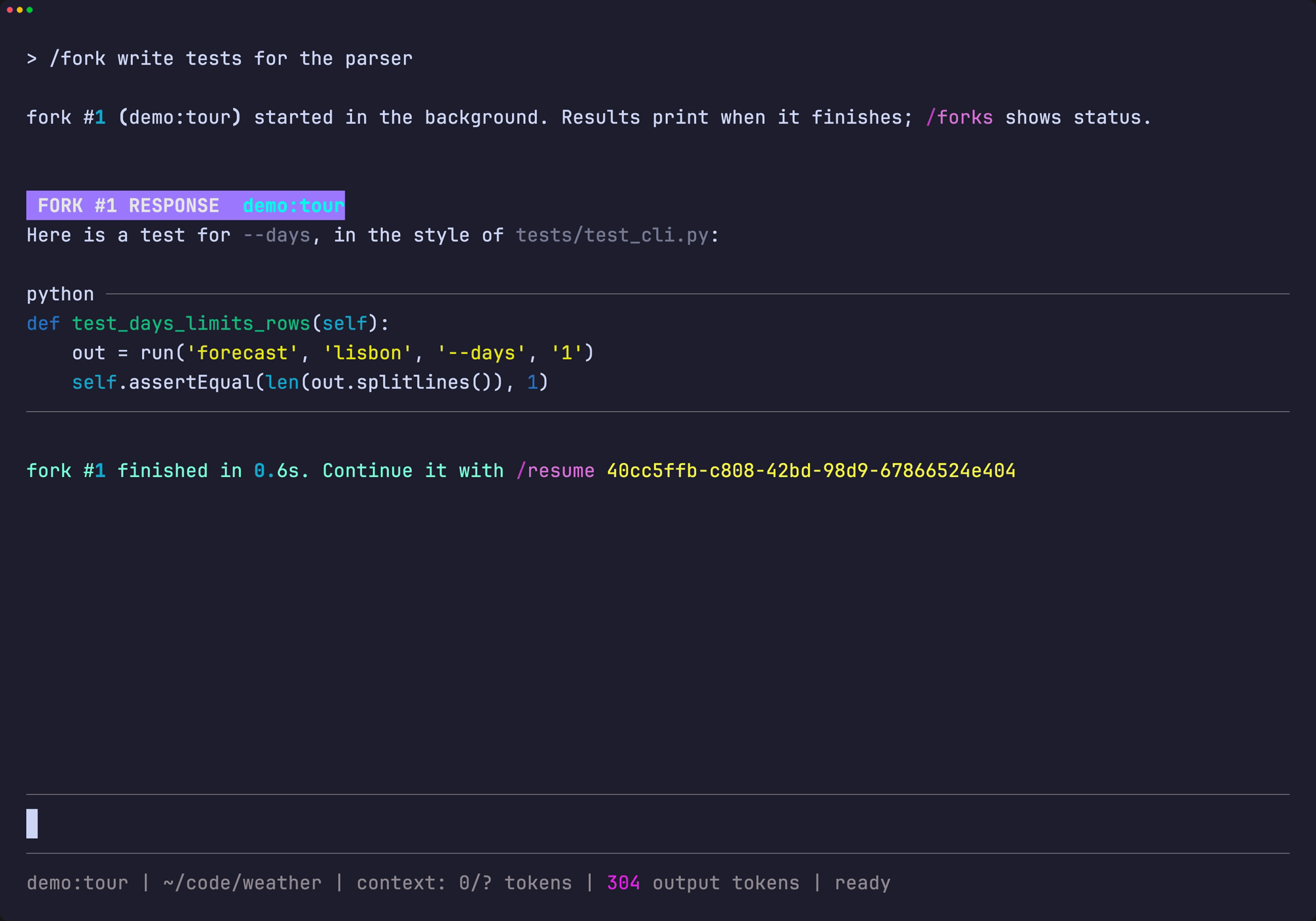
/fork PROMPT runs a copy of the conversation in the background while you keep working.
Add @MODEL to use a different model for it. When it finishes, CLAI prints its answer
and the session to resume if you want to continue it.
Usage, cost, and /compact
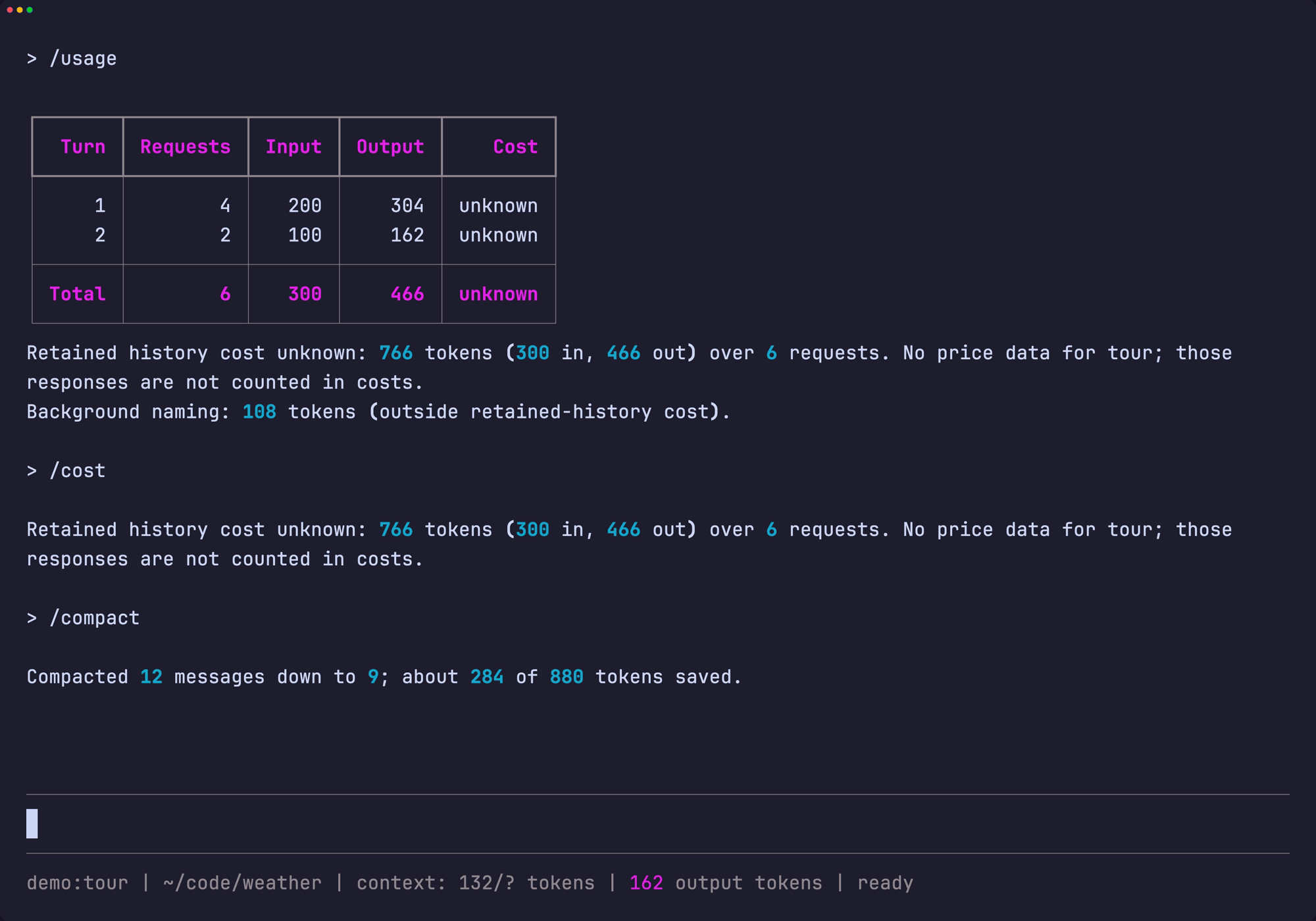
/usage shows the tokens and cost of each turn, and /cost the total. Costs come from
public price data; a model without a price, like the scripted one in these screenshots,
shows unknown.
When the conversation nears the model's context limit, CLAI summarises older messages
for you. Run /compact to do it now, and add a note to say what the summary must keep,
such as /compact keep the API decisions.
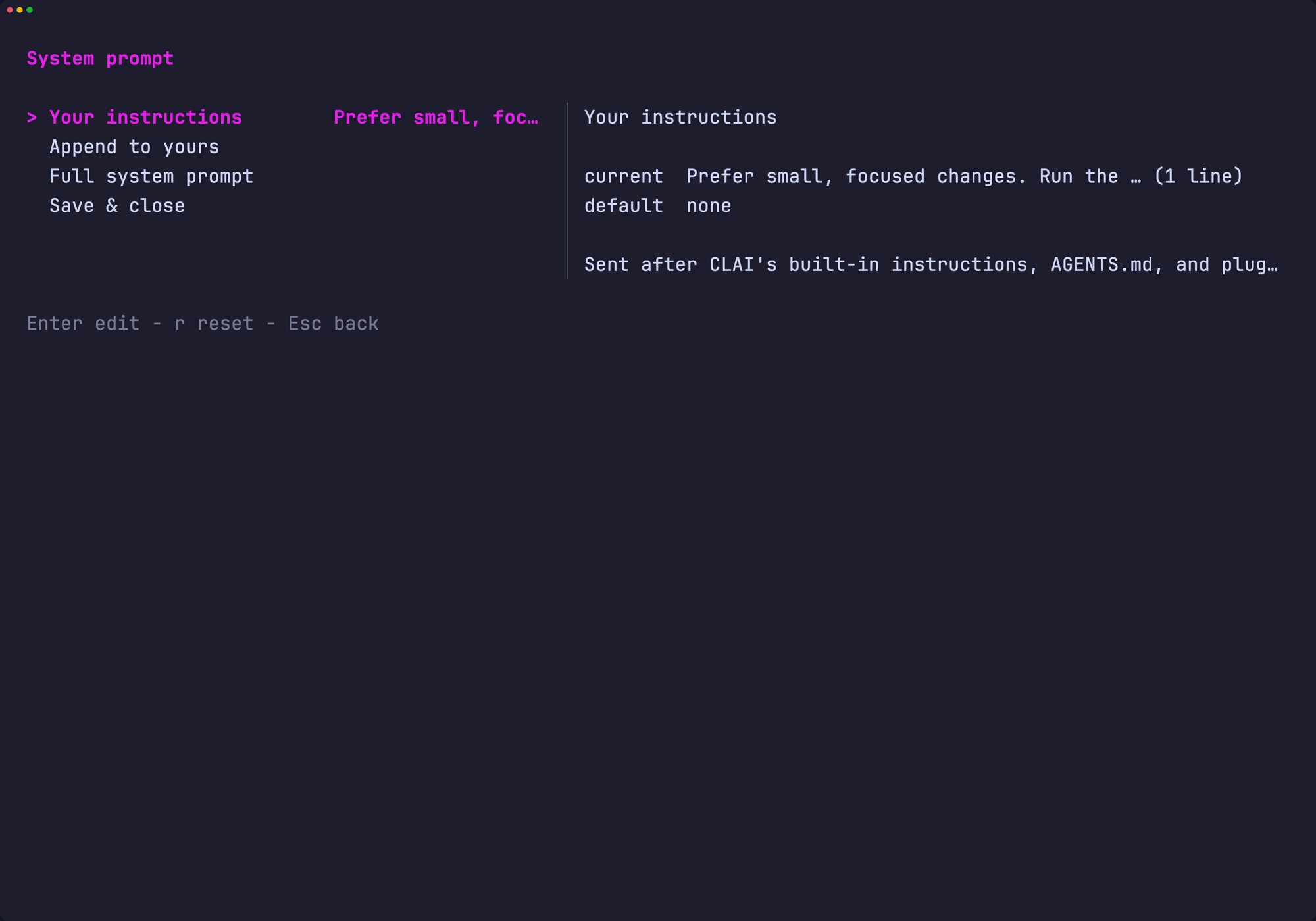
Your own instructions: /system_prompt
/system_prompt shows what the model is told: CLAI's instructions, your project's
AGENTS.md, and what your plugins add. Add instructions of your own and CLAI sends them
with every prompt, in this and later sessions.
Make it yours
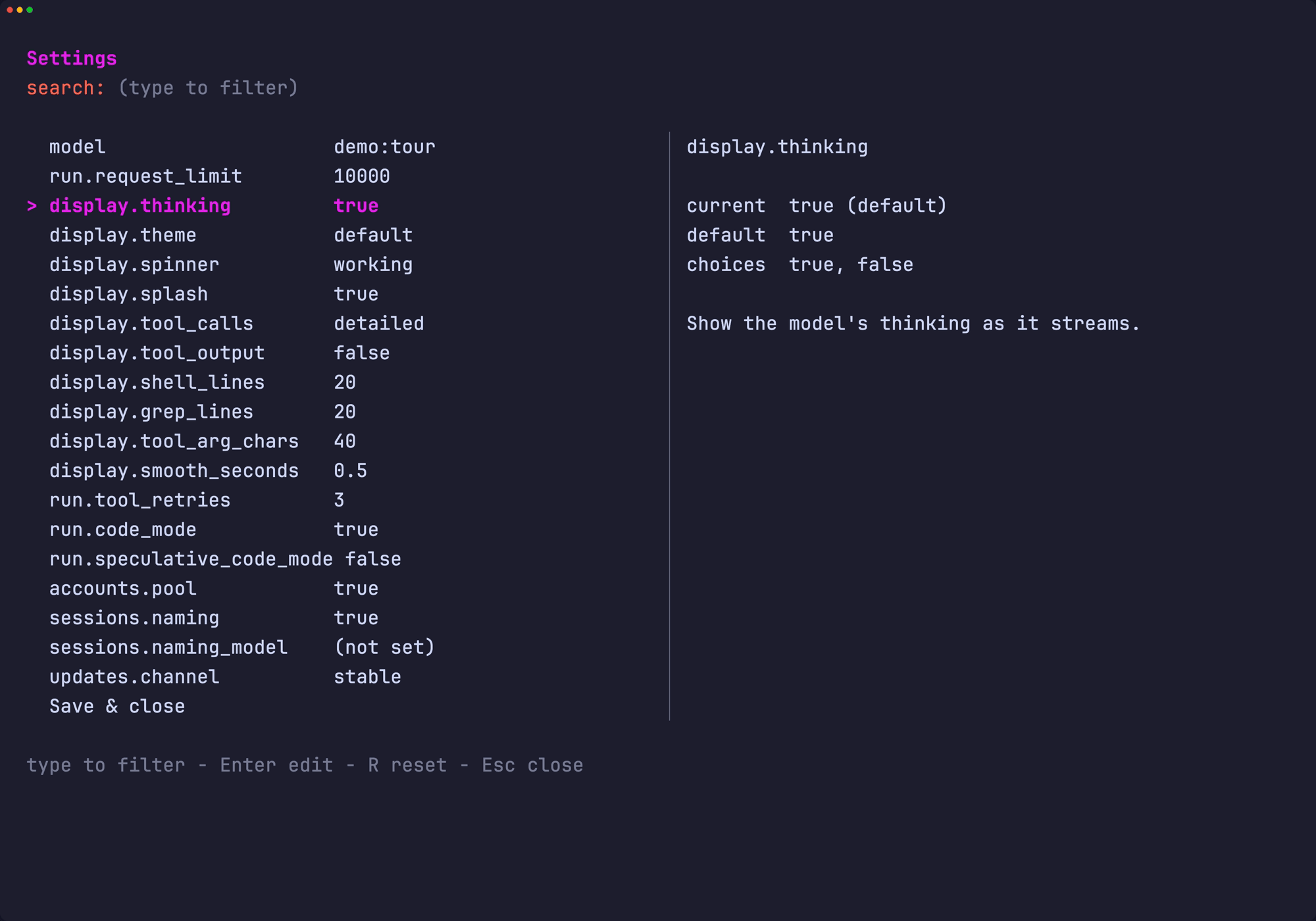
Settings: /set
/set lists every setting with its value, its default, and what it does. Changes save
and apply right away. You can also type one directly, such as
/set display.thinking false.
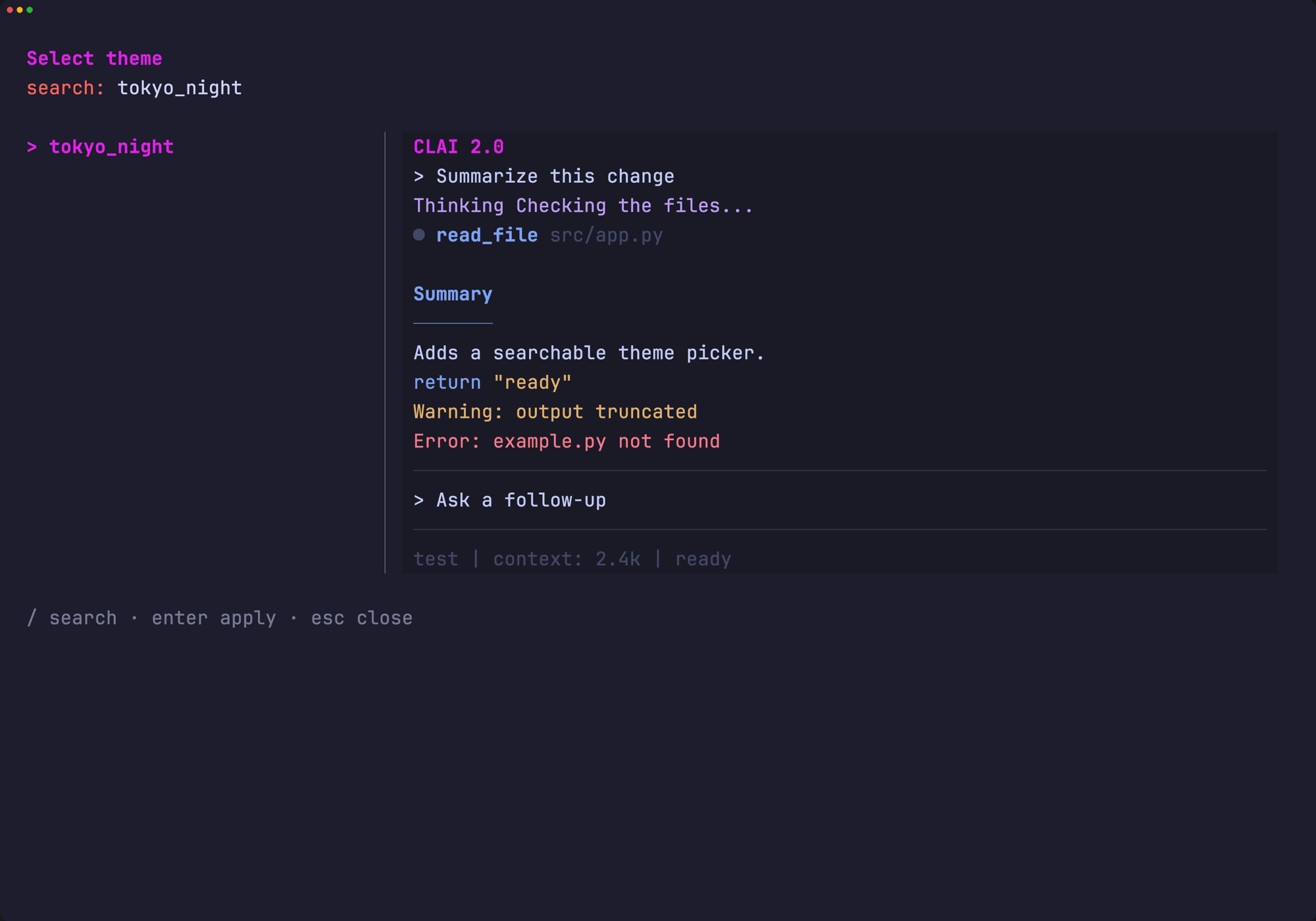
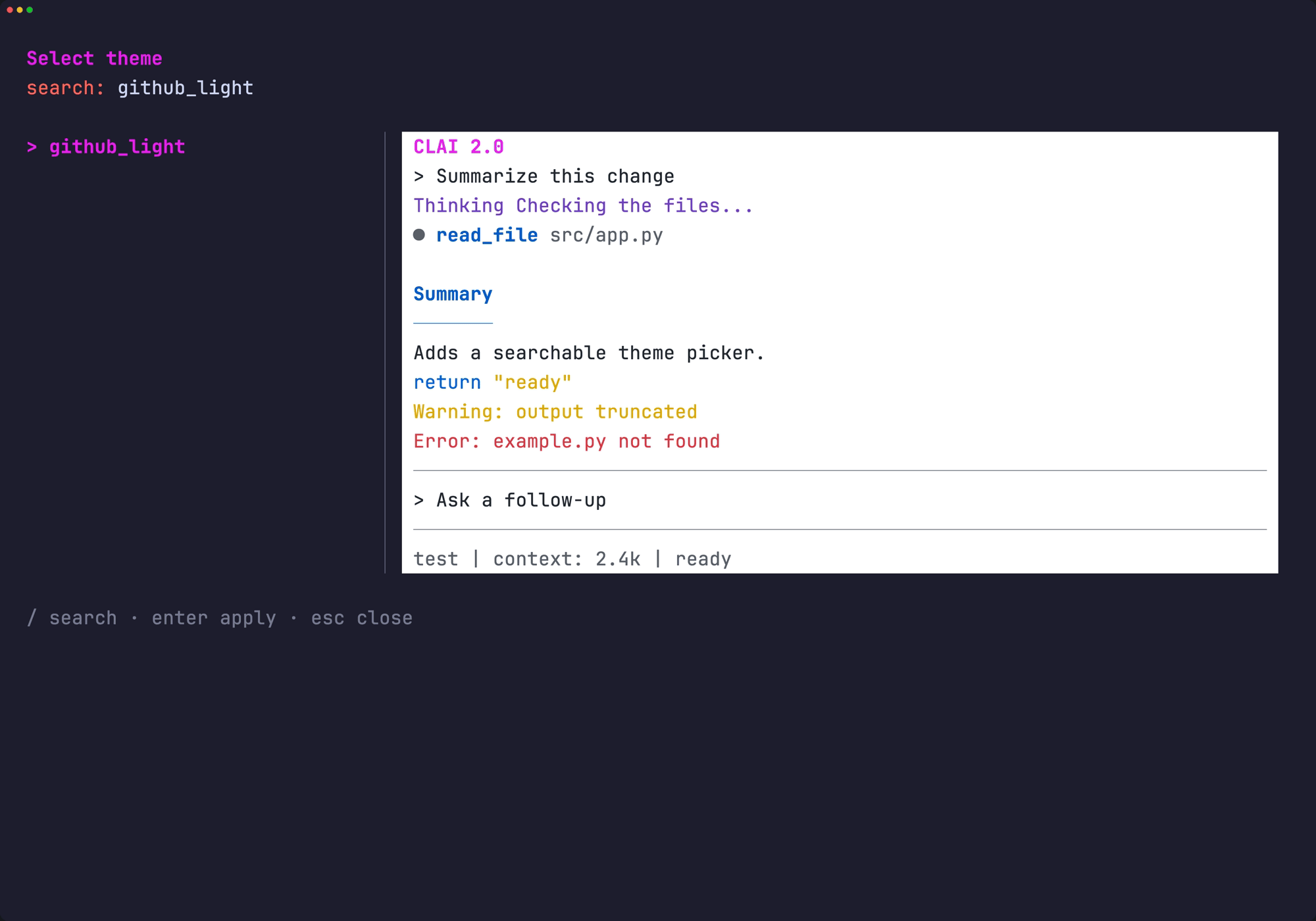
Colours: /theme
/theme previews each palette on a sample conversation before you pick it. default
keeps CLAI's usual colours and leaves your terminal's palette alone.
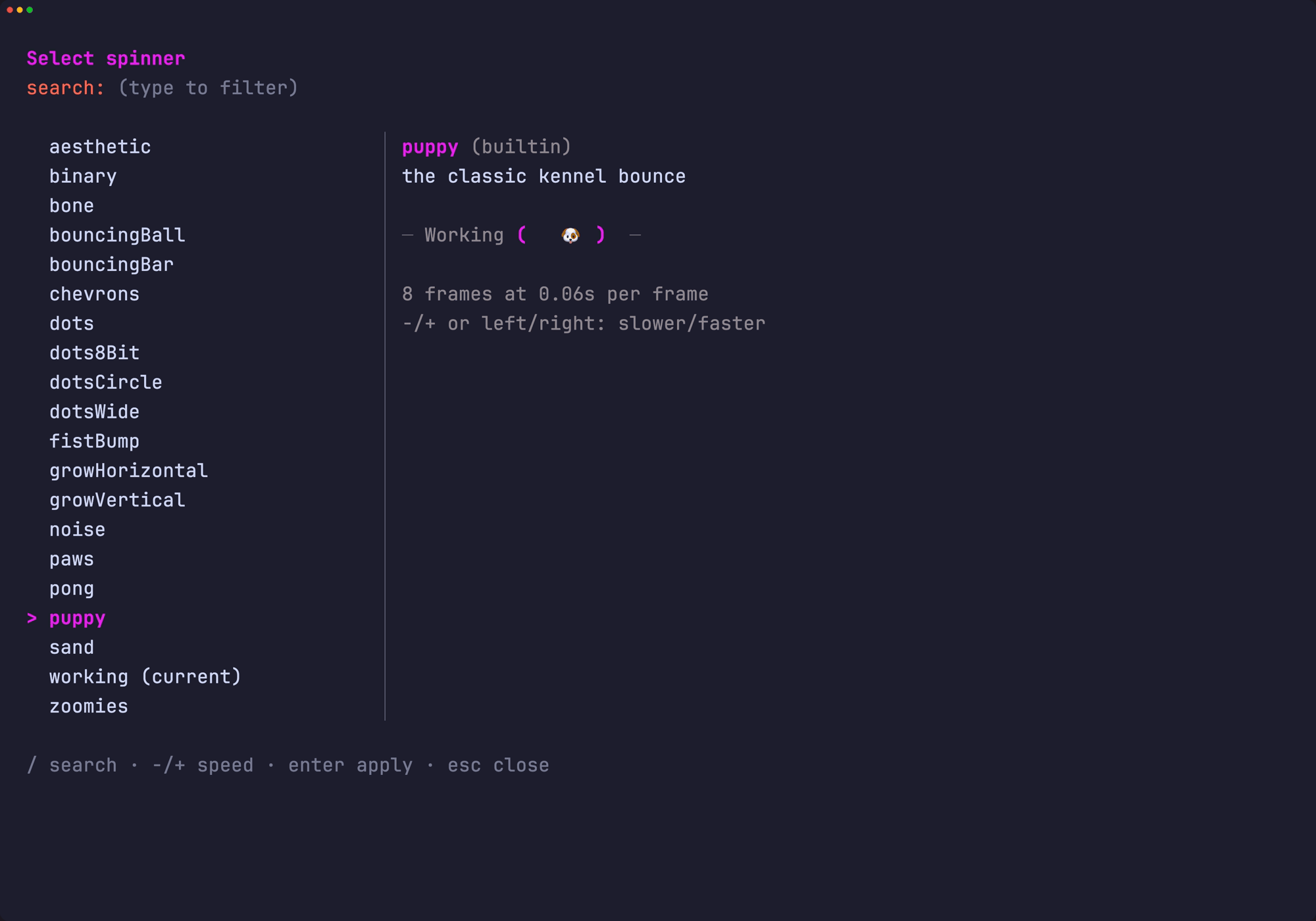
The working animation: /spinner
/spinner picks the animation that runs while CLAI works, with a live preview. Use -
and + to change its speed. Add your own in spinners.json; /spinner init writes a
starter file.
Plugins
The coding tools are a plugin, and so are the integrations. /plugins lists them all:
press Space to turn one on or off, c to configure it, r to reload it, and d to
remove it. Changes apply from your next prompt, with no restart.
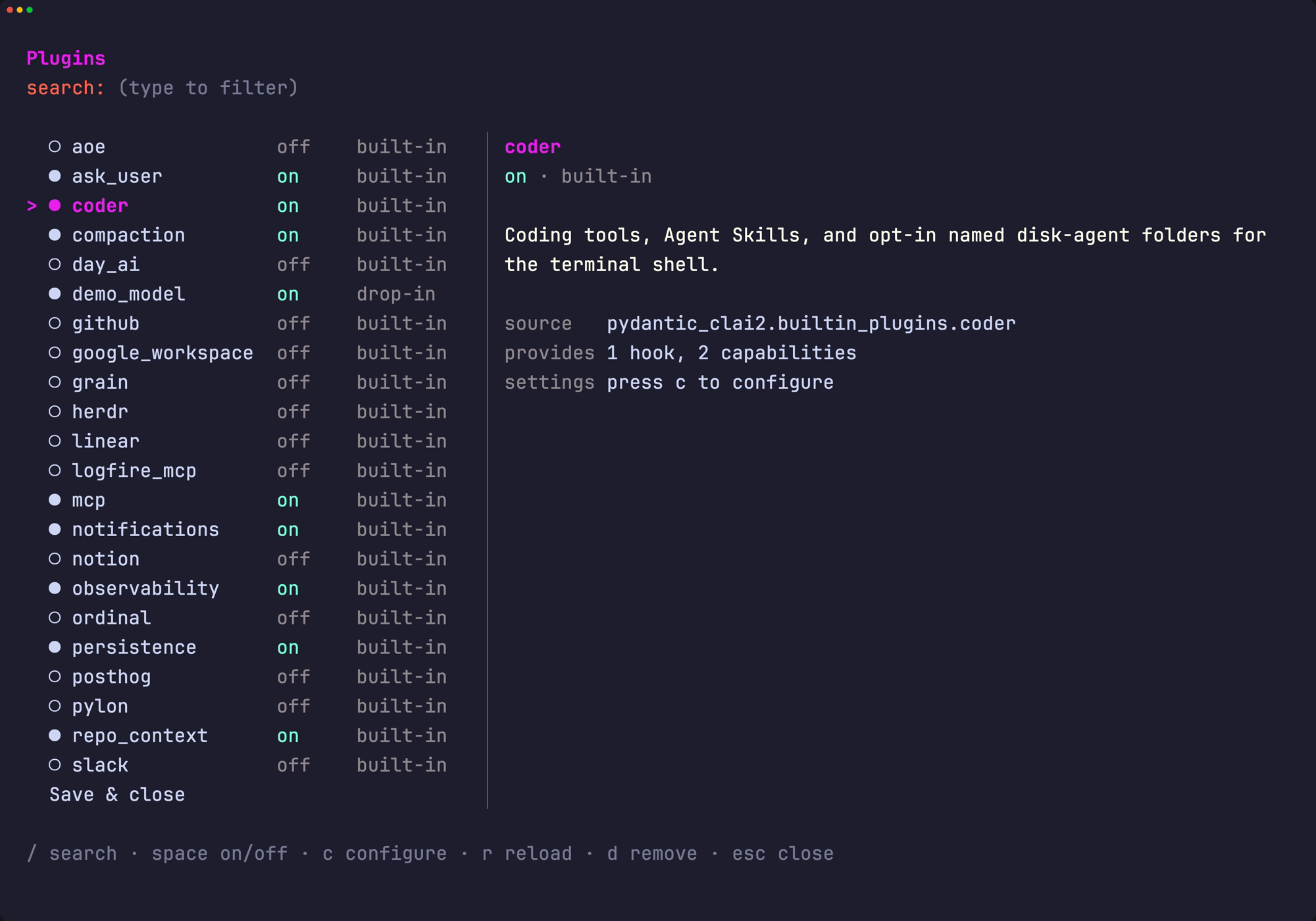
These are on from the start:
coder: the file and shell tools, delegating tasks to sub-agents, and Agent Skillsask_user: questions from the modelrepo_context: readsAGENTS.mdorCLAUDE.mdcompaction: summarises older messages, and/compactpersistence: extra checkpoints so an interrupted session can recovermcp: MCP servers, managed with/mcpnotifications: a desktop notification when a turn finishesobservability: traces to Logfire, when you set a token
Turn on more when you need them, such as github, linear, notion, slack,
google_workspace, and logfire_mcp.
To install a plugin, clone it from Git, name a plugin or a harness capability by its import
path, or drop a file in ~/.config/pydantic-clai2/plugins/:
/plugins add https://github.com/your-org/my-plugin.git
/plugins add exa pydantic_ai_harness.exa:ExaSearch '{"num_results": 8}'
The second line adds web search from
Pydantic AI Harness. It needs the exa extra and an EXA_API_KEY:
uv tool install pydantic-clai2 --with 'pydantic-ai-harness[exa]'
export EXA_API_KEY=...
Plugins are Python code that runs as you, so only install ones you trust.
To write your own, read the plugin guide.
Or ask CLAI: it has a guide to its own plugin API, so you can ask it to "make a plugin
that adds a /standup command".
CLAI in your own code
clai2 -p "Explain this repository"runs one prompt and prints only the answer.clai2 --agent my_module:agentchats with your own Pydantic AI agent.open_stock_agent(...)gives your Python code CLAI's coding agent, without the terminal.chat(agent, deps=...)opens the CLAI terminal on any agent.
See Using CLAI from code in the reference.
Reference
The reference covers everything in detail:
- Commands, command-line options, settings, environment variables, and files
- Models and accounts: per-model settings, Codex, Copilot, vLLM, OpenRouter, and saved keys
- The prompt:
keys, images, history, and
!commands - Sessions:
/resume,/fork, and Git worktrees - Plugins and integrations: MCP, notifications, herdr, Agent of Empires, and telemetry
- The plugin guide: every plugin method, event, and rule
The screenshots are real CLAI sessions. Only the model is scripted (demo:tour), so they
need no account and cost nothing. To make them again, run
src/pydantic_clai2/scripts/screenshots/capture.sh.
Metadata
Release files for pydantic-clai2 0.57.0
For a detailed explanation of source distributions (sdists) and built distributions (wheels), please see the package formats documentation.
Source distribution (sdist)
| File | Size | Uploaded | |
|---|---|---|---|
| pydantic_clai2-0.57.0.tar.gz | 591.8 kB | Details |
Built distribution (wheel)
| File | Interpreter | ABI | Platform | Reset |
|---|---|---|---|---|
| pydantic_clai2-0.57.0-py3-none-any.whl | Python 3 | none | any | Details |
Total release size: 1.3 MB
Release files / pydantic_clai2-0.57.0.tar.gz
| Download URL | pydantic_clai2-0.57.0.tar.gz |
|---|---|
| Size | 591.8 kB |
| Tags | Source |
|
SHA-256 checksum How to use checksums |
3a8eff3bd8d681c632ec9265e8c396884122c31ca6f38e8ff856b03a847d494f
|
|
BLAKE2b-256 checksum How to use checksums |
85dfcebf040070d4e589a90d7aebe983b1c31fa67e1e1f133d96a6230e0f023b
|
| Upload date | |
|
Uploaded using Trusted Publishing? What is trusted publishing? |
Yes |
| Uploaded via |
twine/6.1.0 CPython/3.13.13
|
Provenance
Provenance describes where a file came from. On PyPI, provenance is shared via attestations, which provide a verifiable record of the build or publishing details. View details, limitations and caveats.


PyPI Publish Attestation
PyPI verified that this artifact, at this checksum, originated from the publisher listed below.
Signed by GitHub Actions, verified by PyPI on Oct 16, 2026.
Transparency logRelease files / pydantic_clai2-0.57.0-py3-none-any.whl
| Download URL | pydantic_clai2-0.57.0-py3-none-any.whl |
|---|---|
| Size | 712.3 kB |
| Tags | Python 3 |
|
SHA-256 checksum How to use checksums |
1dd6aeee4e5ed625016d48e9380c201e7f161421d134acf6b7c954150239b028
|
|
BLAKE2b-256 checksum How to use checksums |
53933f8cb48b47e13d63ff18148085c0a4f4d1e5b4815e4d54732dff47912dc2
|
| Upload date | |
|
Uploaded using Trusted Publishing? What is trusted publishing? |
Yes |
| Uploaded via |
twine/6.1.0 CPython/3.13.13
|
Provenance
Provenance describes where a file came from. On PyPI, provenance is shared via attestations, which provide a verifiable record of the build or publishing details. View details, limitations and caveats.
PyPI Publish Attestation
PyPI verified that this artifact, at this checksum, originated from the publisher listed below.
Signed by GitHub Actions, verified by PyPI on Oct 16, 2026.
Transparency log













