

PydanticUI
A dynamic, modern UI for editing deeply nested Pydantic models with FastAPI integration.


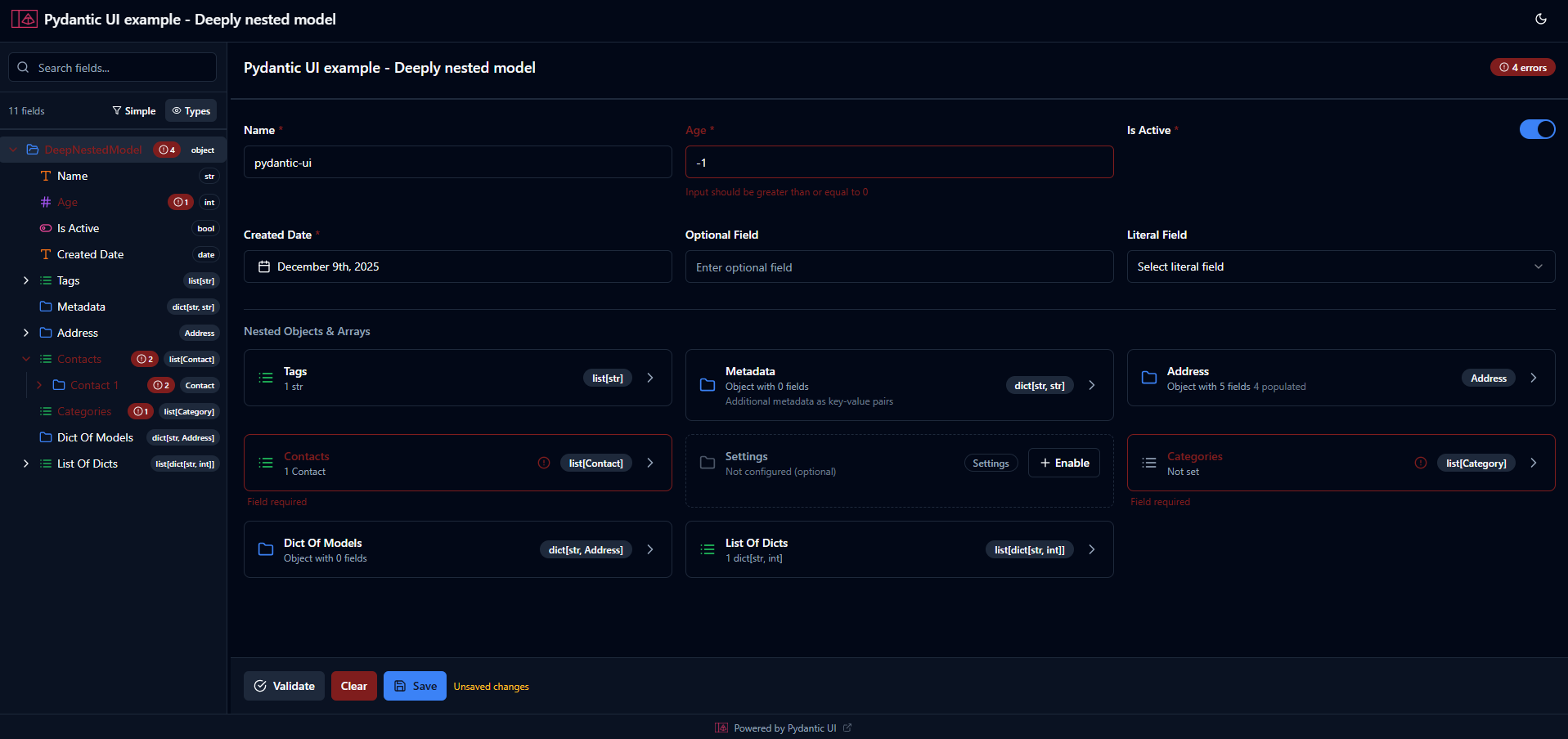
Features
- 🌳 Tree Navigation: Sidebar showing hierarchical structure of nested models
- 🎨 Dynamic Renderers: Auto-detect appropriate input components based on field types
- ⚙️ Customizable: Override default renderers with sliders, dropdowns, date pickers, etc.
- 🌓 Theme Support: Light and dark mode with system preference detection
- ✅ Validation: Real-time validation using Pydantic validators
- 📦 Easy Integration: Mount as a FastAPI router in your existing application
- 🔘 Action Buttons: Custom action buttons with Python callbacks
- 📡 Real-time Updates: Server-Sent Events (SSE) for live UI updates
- 💾 Session Management: Per-user session state with data persistence
- 📋 Copy/Paste: Clipboard support for tree nodes
Installation
pip install pydantic-ui
Quick Start
from fastapi import FastAPI
from pydantic import BaseModel, Field
from pydantic_ui import create_pydantic_ui, DisplayConfig, FieldConfig, Renderer, UIConfig


# Define your Pydantic model
class Address(BaseModel):
    street: str
    city: str
    zipcode: str


class Person(BaseModel):
    name: str = Field(min_length=1, max_length=100)
    age: int = Field(gt=0, lt=150)
    email: str
    address: Address = Field(description="Permanent address")
    tags: list[str] = []


# Create FastAPI app and mount pydantic-ui
app = FastAPI()

app.include_router(
    create_pydantic_ui(
        Person,
        prefix="/editor",
        ui_config=UIConfig(
            title="Person Editor",
            show_save_reset=True,
            attr_configs={
                "age": FieldConfig(
                    renderer=Renderer.SLIDER,
                    display=DisplayConfig(
                        title="User Age",
                    )
                )
            },
        ),
    ),
)

if __name__ == "__main__":
    import uvicorn
    uvicorn.run(app, host="0.0.0.0", port=8000)
Then visit http://localhost:8000/editor to see the UI.
Public API
The package exports the following from pydantic_ui:
| Export | Description |
|---|---|
create_pydantic_ui |
Factory function to create a FastAPI router for a Pydantic model |
UIConfig |
Global UI configuration class |
FieldConfig |
Per-field UI configuration class |
DisplayConfig |
Display configuration (title, subtitle, help_text, view overrides) |
ViewDisplay |
Per-view display overrides (tree, detail, table, card) |
Renderer |
Enum of available field renderers |
ActionButton |
Configuration for custom action buttons |
PydanticUIController |
Controller for programmatic UI interaction |
Note: If you're upgrading from an older version, see the Migration Guide for breaking changes in v0.4.0+.
UI Configuration
Global Configuration (UIConfig)
All available options for UIConfig:
from pydantic_ui import create_pydantic_ui, UIConfig

ui_config = UIConfig(
    # Basic Settings
    title="Data Editor",              # Title shown in header (default: "Data Editor")
    description="",                   # Description below title

    # Logo/Branding
    logo_text=None,                   # Short text for logo (e.g., "P", "UI").
                                      # If not set, uses first letter of title
    logo_url=None,                    # URL to logo image. Overrides logo_text if set

    # Theme
    theme="system",                   # "light", "dark", or "system" (default: "system")

    # Form Behavior
    read_only=False,                  # Make entire form read-only (default: False)
    show_validation=True,             # Show validation errors (default: True)
    auto_save=False,                  # Auto-save changes (default: False)
    auto_save_delay=1000,             # Delay in ms before auto-saving (default: 1000)

    # Tree Panel
    collapsible_tree=True,            # Allow tree nodes to collapse (default: True)
    show_types=True,                  # Show type badges in tree (default: True)

    # Footer
    show_save_reset=False,            # Show Save/Reset buttons in footer (default: False)
    footer_text="Powered by Pydantic UI",  # Footer text (empty string hides footer)
    footer_url="https://github.com/idling-mind/pydantic-ui",  # Footer link URL

    # Layout
    responsive_columns={              # Responsive column breakpoints (based on detail panel width)
        640: 1,                       # 1 column when panel width is <= 640px
        1000: 2,                      # 2 columns when panel width is <= 1000px
        1600: 3                       # 3 columns when panel width is > 1000px
    },

    # Custom Actions (see Action Buttons section)
    actions=[],                       # List of ActionButton configurations

    # Control the display properties (title/subtitle) and renderer for specific fields
    # either based on class name or full path to the attribute. Look into examples to understand more.
    class_configs={},                  # Map[class_name, FieldConfig] - global per-class FieldConfig
    attr_configs={},                   # Map[path, FieldConfig] - per-field configs by path (e.g., 'users.[].age')
)

app.include_router(
    create_pydantic_ui(
        Person,
        ui_config=ui_config,
        prefix="/editor"
    ),
)
Per-Field Configuration (FieldConfig)
Use Annotated with FieldConfig to customize individual fields:
from typing import Annotated
from pydantic_ui import FieldConfig, Renderer

class Settings(BaseModel):
    # Slider for numeric values
    volume: Annotated[int, FieldConfig(
        renderer=Renderer.SLIDER,
        display=DisplayConfig(
            title="Volume Level",      # Custom label (defaults to field name)
            subtitle="Adjust the volume",  # Help text below field
        ),
        placeholder="Enter value",     # Placeholder text
        props={"min": 0, "max": 100, "step": 5}  # Renderer-specific props
    )] = 50

    # Dropdown for enum-like fields
    theme: Annotated[str, FieldConfig(
        renderer=Renderer.SELECT,
        props={"options": ["light", "dark", "auto"]}
    )] = "auto"

    # Toggle instead of checkbox
    notifications: Annotated[bool, FieldConfig(
        renderer=Renderer.TOGGLE
    )] = True

    # Text area for long text
    bio: Annotated[str, FieldConfig(
        renderer=Renderer.TEXT_AREA,
        props={"rows": 5, "placeholder": "Tell us about yourself..."}
    )] = ""

    # Hidden fields (not shown in UI)
    internal_id: Annotated[str, FieldConfig(hidden=True)]

    # Read-only fields (visible but not editable)
    created_at: Annotated[str, FieldConfig(read_only=True)]
Class-Based Configuration
License ✅
This project is licensed under the MIT License — see the LICENSE file for details.
You can configure specific classes globally using class_configs in UIConfig. This is useful when you want to apply the same configuration to a type wherever it appears in your model hierarchy.
from typing import NewType
from enum import Enum
from pydantic_ui import UIConfig, FieldConfig, Renderer

# Define custom types
Email = NewType('Email', str)

class Color(str, Enum):
    RED = "red"
    BLUE = "blue"

# Configure them globally
ui_config = UIConfig(
    class_configs={
        "Email": FieldConfig(
            renderer=Renderer.EMAIL,
            placeholder="user@example.com",
            display=DisplayConfig(
                subtitle="Enter a valid email address"
            )
        ),
        "Color": FieldConfig(
            renderer=Renderer.SELECT,
            display=DisplayConfig(
                title="Pick a color"
            )
        )
    }
)

# Now any field of type Email or Color will use these configs automatically
class User(BaseModel):
    primary_email: Email  # Uses global Email config
    backup_email: Email   # Uses global Email config
    favorite_color: Color # Uses global Color config

    # You can still override specific instances using Annotated
    admin_email: Annotated[Email, FieldConfig(display=DisplayConfig(title="Admin Contact"))]
Attr Configs via Path (Alternative Method)
You can also configure fields by path without using Annotated, using UIConfig.attr_configs:
ui_config = UIConfig(
    attr_configs={
        # Direct field path
        "server.name": FieldConfig(
            display=DisplayConfig(
                title="Application Name",
            ),
            placeholder="Enter your app name",
        ),

        # Array item fields using [] syntax
        "users.[].age": FieldConfig(
            display=DisplayConfig(
                title="User Age",
            ),
            renderer=Renderer.SLIDER,
            props={"min": 0, "max": 120, "step": 1},
        ),

        # Nested paths
        "database.password": FieldConfig(
            display=DisplayConfig(
                title="Database Password",
            ),
            props={"type": "password"},
        ),
    }
)

pydantic_ui_router = create_pydantic_ui(
    model=AppConfig,
    ui_config=ui_config,
    prefix="/config",
)
Available Renderers
| Renderer | Enum Value | Description | Props |
|---|---|---|---|
| Auto | Renderer.AUTO |
Auto-detect based on type | - |
| Text Input | Renderer.TEXT_INPUT |
Single-line text input | placeholder, maxLength |
| Text Area | Renderer.TEXT_AREA |
Multi-line text input | rows, placeholder |
| Number Input | Renderer.NUMBER_INPUT |
Numeric input | min, max, step |
| Slider | Renderer.SLIDER |
Range slider | min, max, step, marks |
| Checkbox | Renderer.CHECKBOX |
Checkbox | - |
| Toggle | Renderer.TOGGLE |
Toggle switch | - |
| Select | Renderer.SELECT |
Dropdown select | options |
| Multi-Select | Renderer.MULTI_SELECT |
Multi-select dropdown | options |
| Date Picker | Renderer.DATE_PICKER |
Date picker | format |
| DateTime Picker | Renderer.DATETIME_PICKER |
DateTime picker | format |
| Color Picker | Renderer.COLOR_PICKER |
Color picker | - |
| File Upload | Renderer.FILE_UPLOAD |
File upload | - |
| File Select | Renderer.FILE_SELECT |
File selector | - |
| Password | Renderer.PASSWORD |
Password input | - |
Renderer.EMAIL |
Email input | - | |
| URL | Renderer.URL |
URL input | - |
Action Buttons
Add custom action buttons to the UI header that trigger Python callbacks:
Defining Action Buttons
from pydantic_ui import UIConfig, ActionButton

ui_config = UIConfig(
    title="App Settings",
    actions=[
        ActionButton(
            id="validate",             # Unique identifier (required)
            label="Validate",          # Button label (required)
            variant="secondary",       # "default", "secondary", "outline",
                                       # "ghost", "destructive"
            icon="check-circle",       # Lucide icon name (optional)
            tooltip="Run validation",  # Tooltip on hover (optional)
            disabled=False,            # Whether button is disabled
            confirm=None,              # Confirmation message before action
                                       # If set, shows dialog before triggering
        ),
        ActionButton(
            id="reset",
            label="Reset All",
            variant="destructive",
            icon="refresh-cw",
            confirm="Are you sure you want to reset all settings?"
        ),
        ActionButton(
            id="save",
            label="Save",
            variant="default",
            icon="save",
        ),
    ],
)
Registering Action Handlers
from pydantic_ui import create_pydantic_ui, PydanticUIController

router = create_pydantic_ui(model=AppSettings, ui_config=ui_config, prefix="/settings")
app.include_router(router)

@router.action("validate")
async def handle_validate(data: dict, controller: PydanticUIController):
    """Handler receives current data and a controller for UI interaction."""
    errors = []

    # Custom validation logic
    if data.get("environment") == "production" and data.get("server", {}).get("debug"):
        errors.append({
            "path": "server.debug",
            "message": "Debug mode should not be enabled in production"
        })

    if errors:
        await controller.show_validation_errors(errors)
        await controller.show_toast("Validation failed", "error")
    else:
        await controller.clear_validation_errors()
        await controller.show_toast("All validations passed!", "success")

    return {"valid": len(errors) == 0}

@router.action("save")
async def handle_save(data: dict, controller: PydanticUIController):
    """Save handler with Pydantic validation."""
    from pydantic import ValidationError

    try:
        validated = AppSettings.model_validate(data)
        # Save to database, file, etc.
        await controller.show_toast("Settings saved!", "success")
        return {"saved": True}
    except ValidationError as e:
        await controller.show_toast(f"Validation error: {e}", "error")
        return {"saved": False}
Controller Methods (PydanticUIController)
The controller provides methods for programmatic UI interaction:
Validation Errors
# Show validation errors
await controller.show_validation_errors([
    {"path": "users[0].age", "message": "Age must be positive"},
    {"path": "name", "message": "Name is required"}
])

# Clear all validation errors
await controller.clear_validation_errors()
Toast Notifications
# Show toast notification
await controller.show_toast(
    message="Operation completed!",
    type="success",         # "success", "error", "warning", "info"
    duration=5000           # ms (0 for persistent)
)

# Broadcast toast to ALL connected sessions
await controller.broadcast_toast("Server restarting...", "warning")
Data Updates
# Push new data to the UI
new_data = AppSettings(name="Updated", ...)
await controller.push_data(new_data)  # Accepts BaseModel or dict

# Get current data from session
current_data = controller.get_current_data()

# Get validated model instance (returns None if invalid)
model_instance = controller.get_model_instance()

# Tell UI to refresh from server
await controller.refresh()

# Broadcast refresh to all sessions
await controller.broadcast_refresh()
Confirmation Dialogs
# Request user confirmation (async - waits for response)
confirmed = await controller.request_confirmation(
    message="Delete all users?",
    title="Confirm Deletion",       # Dialog title
    confirm_text="Delete",          # Confirm button text
    cancel_text="Cancel",           # Cancel button text
    variant="destructive"           # "default" or "destructive"
)

if confirmed:
    # User clicked confirm
    delete_all_users()
Navigation
# Navigate to a URL
await controller.navigate_to("https://example.com")

# Open in new tab
await controller.navigate_to("/reports", new_tab=True)
File Downloads
# Trigger a file download in the browser
# Data must be a base64 data URL
import base64

content = "Hello, World!"
b64_content = base64.b64encode(content.encode()).decode()
data_url = f"data:text/plain;base64,{b64_content}"

await controller.download_file("hello.txt", data_url)
Progress Bar
# Show progress bar (0-100)
await controller.show_progress(50)

# Update progress
await controller.show_progress(75)

# Hide progress bar
await controller.hide_progress()
# Or equivalently:
await controller.show_progress(None)
File Uploads
When an action button triggers a file upload, access the uploaded file via the controller:
@router.action("upload")
async def handle_upload(data: dict, controller: PydanticUIController):
    file = controller.uploaded_file
    if file:
        # file is a dict with: name, size, type, data (base64 string)
        print(f"Received: {file['name']} ({file['size']} bytes)")
        # Decode the base64 data
        import base64
        content = base64.b64decode(file['data'])
Controller Method Reference
| Method | Description |
|---|---|
show_validation_errors(errors) |
Display validation errors in the UI |
clear_validation_errors() |
Clear all validation errors |
show_toast(message, type, duration) |
Show a toast notification |
broadcast_toast(message, type, duration) |
Show toast to ALL connected sessions |
push_data(data) |
Push new data to the UI |
get_current_data() |
Get current data from session (sync) |
get_model_instance() |
Get validated model instance (sync) |
refresh() |
Tell UI to refresh data from server |
broadcast_refresh() |
Tell ALL UIs to refresh |
request_confirmation(...) |
Show confirmation dialog (async, waits for response) |
navigate_to(url, new_tab) |
Navigate the browser to a URL |
download_file(filename, data) |
Trigger a file download |
show_progress(progress) |
Show progress bar (0-100) or hide (None) |
hide_progress() |
Hide the progress bar |
uploaded_file |
Property: get uploaded file from current action |
Data Handlers
Custom Data Loading and Saving
Use decorators to set custom data loader/saver:
from pydantic_ui import create_pydantic_ui

router = create_pydantic_ui(Person, prefix="/editor")
app.include_router(router)

@router.data_loader
async def load_person() -> Person:
    """Load data from your database or file."""
    return await database.get_person(id=1)

@router.data_saver
async def save_person(data: Person) -> None:
    """Save data to your database or file."""
    await database.update_person(id=1, data=data)
Initial Data via Parameter
initial_person = Person(
    name="John Doe",
    age=30,
    email="john@example.com",
    address=Address(street="123 Main St", city="NYC", zipcode="10001"),
)

app.include_router(
    create_pydantic_ui(
        Person,
        initial_data=initial_person,
        prefix="/editor"
    ),
)
Inline Data Loader/Saver
app.include_router(
    create_pydantic_ui(
        Person,
        data_loader=lambda: load_from_db(),
        data_saver=lambda data: save_to_db(data),
        prefix="/editor"
    ),
)
Factory Function Reference
Complete signature for create_pydantic_ui:
def create_pydantic_ui(
    model: type[BaseModel],           # The Pydantic model class (required)
    *,
    ui_config: UIConfig | None = None,           # Global UI configuration (includes attr_configs)
    initial_data: BaseModel | None = None,       # Initial data to populate form
    data_loader: Callable[[], BaseModel | dict] | None = None,  # Data loader function
    data_saver: Callable[[BaseModel], None] | None = None,      # Data saver function
    prefix: str = "",                 # URL prefix for router
) -> APIRouter:
    ...
The returned router has additional attributes:
| Attribute | Description |
|---|---|
router.controller |
PydanticUIController instance |
@router.action(id) |
Decorator to register action handlers |
@router.data_loader |
Decorator to set custom data loader |
@router.data_saver |
Decorator to set custom data saver |
API Endpoints
When mounted at /editor, the following endpoints are available:
| Method | Endpoint | Description |
|---|---|---|
| GET | /editor/ |
Serve the React UI |
| GET | /editor/api/schema |
Get the model schema |
| GET | /editor/api/data |
Get current session data |
| POST | /editor/api/data |
Update entire data (validates with Pydantic) |
| PATCH | /editor/api/data |
Partial update (path + value) |
| POST | /editor/api/validate |
Validate data without saving |
| GET | /editor/api/config |
Get UI configuration |
| GET | /editor/api/session |
Get or create session ID |
| GET | /editor/api/events |
SSE endpoint for real-time events |
| GET | /editor/api/events/poll |
Polling fallback for events |
| POST | /editor/api/actions/{id} |
Trigger action handler |
| POST | /editor/api/confirmation/{id} |
Handle confirmation response |
Supported Pydantic Types
The UI automatically handles these types:
| Type | Renderer |
|---|---|
str |
Text Input |
int, float |
Number Input (Slider if min/max defined) |
bool |
Toggle |
datetime, date |
Date/DateTime Picker |
Enum, StrEnum |
Select Dropdown |
Literal["a", "b"] |
Select Dropdown |
list[T] |
Array Editor with add/remove |
dict[str, T] |
JSON Editor or Key-Value |
Optional[T] / T | None |
Nullable field |
Nested BaseModel |
Nested object navigation |
Examples
See the examples directory for complete examples:
- simple.py - Basic usage with field configs
- main.py - Full configuration example
- callbacks.py - Action buttons, validation, toasts, confirmations
Running Examples
# Run the simple example
cd examples/basic
python simple.py
# Visit http://localhost:8000/config

# Run the callbacks example
python callbacks.py
# Visit http://localhost:8000/settings
Development
Setup
# Clone the repository
git clone https://github.com/idling-mind/pydantic-ui.git
cd pydantic-ui

# Install dependencies
pip install -e ".[dev]"

# Install frontend dependencies
cd frontend
npm install
Running Tests
# Backend tests (unit and integration)
uv run pytest

# Frontend unit tests
cd frontend
npm test

# E2E tests with Playwright
cd frontend
npm run test:e2e          # Run all E2E tests
npm run test:e2e:ui       # Interactive UI mode (recommended)
npm run test:e2e:headed   # Watch tests run in browser
npm run test:e2e:debug    # Debug mode with inspector

# View E2E test report
npx playwright show-report
For detailed E2E testing documentation, see:
- E2E Testing Guide - Comprehensive guide
- Playwright Quick Reference - Quick reference card
- E2E Test README - Test directory documentation
Building
# Build frontend and copy to package
cd frontend
npm run build:package

# Or use the PowerShell script (Windows)
./scripts/build-test.ps1

# Build Python package
python -m build
Build Script Options
# Full build and run
./scripts/build-test.ps1

# Skip frontend build (use existing)
./scripts/build-test.ps1 -SkipBuild

# Run specific example on different port
./scripts/build-test.ps1 -Example callbacks -Port 3000 -OpenBrowser
Data Attributes for Testing & Automation
Pydantic UI includes comprehensive data-pydantic-ui-* attributes on all major UI components for easy testing, automation, and integration with tools like Playwright, Selenium, and Cypress.
Application Structure
| Attribute | Element | Description |
|---|---|---|
data-pydantic-ui="app-container" |
Main app container | Root application container |
data-pydantic-ui="header" |
Header component | Application header |
data-pydantic-ui="header-logo-title" |
Logo/title container | Combined logo and title area |
data-pydantic-ui="header-logo" |
Logo container | Application logo |
data-pydantic-ui="header-title" |
Title text | Application title text |
data-pydantic-ui="theme-toggle" |
Theme button | Light/dark theme toggle button |
Layout & Panels
| Attribute | Element | Description |
|---|---|---|
data-pydantic-ui="tree-panel-container" |
Tree panel container | Left sidebar container |
data-pydantic-ui="detail-panel-container" |
Detail panel container | Right main content container |
data-pydantic-ui="resize-handle" |
Resize handle | Draggable divider between panels |
Tree Panel
| Attribute | Element | Description |
|---|---|---|
data-pydantic-ui="tree-panel" |
Tree panel | Tree navigation panel |
data-pydantic-ui="tree-search-container" |
Search container | Search field container |
data-pydantic-ui="tree-search" |
Search input | Tree field search input |
data-pydantic-ui="tree-toolbar" |
Toolbar | Tree toolbar with filter/type toggles |
data-pydantic-ui="tree-filter-simple" |
Filter button | Toggle simple fields visibility |
data-pydantic-ui="tree-toggle-types" |
Types button | Toggle type badges visibility |
data-pydantic-ui="tree-actions" |
Actions container | Expand/collapse/up actions |
data-pydantic-ui="tree-expand-all" |
Expand button | Expand all tree nodes |
data-pydantic-ui="tree-collapse-all" |
Collapse button | Collapse all tree nodes |
data-pydantic-ui="tree-up-level" |
Up button | Navigate up one level |
data-pydantic-ui="tree-content" |
Content container | Tree nodes container |
Tree Nodes
| Attribute | Element | Description | Additional Attributes |
|---|---|---|---|
data-pydantic-ui="tree-node" |
Tree node | Individual tree node | data-pydantic-ui-path: field pathdata-pydantic-ui-type: field typedata-pydantic-ui-selected: "true"/"false"data-pydantic-ui-expanded: "true"/"false" |
Example usage:
// Select a specific tree node by path
await page.locator('[data-pydantic-ui="tree-node"][data-pydantic-ui-path="user.address"]').click();

// Find all expanded nodes
const expandedNodes = await page.locator('[data-pydantic-ui="tree-node"][data-pydantic-ui-expanded="true"]').all();

// Find all object-type nodes
const objectNodes = await page.locator('[data-pydantic-ui="tree-node"][data-pydantic-ui-type="object"]').all();
Detail Panel
| Attribute | Element | Description |
|---|---|---|
data-pydantic-ui="detail-panel" |
Detail panel | Main editing panel |
data-pydantic-ui="detail-header" |
Header | Detail panel header |
data-pydantic-ui="detail-title" |
Title | Current field title |
data-pydantic-ui="detail-subtitle" |
Subtitle | Current field subtitle |
data-pydantic-ui="detail-path" |
Path display | Field path breadcrumb |
data-pydantic-ui="detail-content" |
Content area | Main editing content |
data-pydantic-ui="detail-footer" |
Footer | Action buttons footer |
data-pydantic-ui="save-reset-buttons" |
Button group | Save/reset button container |
data-pydantic-ui="save-button" |
Save button | Save changes button |
data-pydantic-ui="reset-button" |
Reset button | Reset changes button |
data-pydantic-ui="unsaved-indicator" |
Indicator | "Unsaved changes" text |
Nested Field Cards
| Attribute | Element | Description | Additional Attributes |
|---|---|---|---|
data-pydantic-ui="nested-card" |
Card | Nested object/array card | data-pydantic-ui-path: field pathdata-pydantic-ui-type: "object" or "array"data-pydantic-ui-enabled: "true"/"false" |
Example usage:
// Click on a nested address card
await page.locator('[data-pydantic-ui="nested-card"][data-pydantic-ui-path="user.address"]').click();

// Find all enabled nested cards
const enabledCards = await page.locator('[data-pydantic-ui="nested-card"][data-pydantic-ui-enabled="true"]').all();
Field Renderers
All field renderers include standard attributes for identification:
| Attribute | Element | Description | Additional Attributes |
|---|---|---|---|
data-pydantic-ui="field" |
Field container | Field wrapper | data-pydantic-ui-field-type: renderer typedata-pydantic-ui-path: field path |
data-pydantic-ui="field-label" |
Label | Field label/title | |
data-pydantic-ui="field-subtitle" |
Subtitle | Field description | |
data-pydantic-ui="field-control" |
Input/Control | Actual input element (input, textarea, select, slider, etc.) |
Field Types:
text- Single-line text inputtextarea- Multi-line text inputnumber- Numeric inputslider- Range slidercheckbox- Checkbox inputtoggle- Toggle switchselect- Dropdown selectradio-group- Radio button groupcolor- Color picker with hex inputdate- Date/datetime pickerchecklist- Multiple checkboxes for array of stringssegmented-control- Segmented control (tabs-style selection)json- JSON editor (textarea)markdown- Markdown editor with previewfile-select- File path selectorfile-upload- File upload with drag-and-dropunion- Union type variant selector
Example usage:
// Find and fill a text field by path using field-control
await page.locator('[data-pydantic-ui="field"][data-pydantic-ui-path="user.name"] [data-pydantic-ui="field-control"]').fill('John Doe');

// Alternative: target the input directly
await page.locator('[data-pydantic-ui="field"][data-pydantic-ui-path="user.name"] input').fill('John Doe');

// Find all slider controls
const sliders = await page.locator('[data-pydantic-ui="field-control"][role="slider"]').all();

// Get field label text
const label = await page.locator('[data-pydantic-ui="field"][data-pydantic-ui-path="age"] [data-pydantic-ui="field-label"]').textContent();

// Check a checkbox
await page.locator('[data-pydantic-ui="field"][data-pydantic-ui-field-type="checkbox"] [data-pydantic-ui="field-control"]').check();

// Select from dropdown
await page.locator('[data-pydantic-ui="field"][data-pydantic-ui-field-type="select"] [data-pydantic-ui="field-control"]').click();
Table View
| Attribute | Element | Description | Additional Attributes |
|---|---|---|---|
data-pydantic-ui="table-view" |
Container | Table view container | data-pydantic-ui-path: array path |
data-pydantic-ui="table-toolbar" |
Toolbar | Table action toolbar | |
data-pydantic-ui="table-add-row" |
Button | Add row button | |
data-pydantic-ui="table-duplicate-rows" |
Button | Duplicate selected rows | |
data-pydantic-ui="table-delete-rows" |
Button | Delete selected rows | |
data-pydantic-ui="table-grid" |
Grid | RevoGrid table element |
Example usage:
// Add a row to a table
await page.locator('[data-pydantic-ui="table-view"][data-pydantic-ui-path="users"] [data-pydantic-ui="table-add-row"]').click();

// Delete selected rows
await page.locator('[data-pydantic-ui="table-delete-rows"]').click();
Complete Testing Example
import { test, expect } from '@playwright/test';

test('edit user profile', async ({ page }) => {
  await page.goto('http://localhost:8000/editor');

  // Navigate to user.name field in tree
  await page.locator('[data-pydantic-ui="tree-node"][data-pydantic-ui-path="user"]').click();
  await page.locator('[data-pydantic-ui="tree-node"][data-pydantic-ui-path="user.name"]').click();

  // Edit the name field
  await page.locator('[data-pydantic-ui="field"][data-pydantic-ui-path="user.name"] [data-pydantic-ui="field-control"]').fill('Jane Smith');

  // Navigate to age field using tree
  await page.locator('[data-pydantic-ui="tree-node"][data-pydantic-ui-path="user.age"]').click();

  // Adjust age slider
  const slider = page.locator('[data-pydantic-ui="field"][data-pydantic-ui-path="user.age"] [data-pydantic-ui="field-control"]');
  await slider.fill('30');

  // Click nested address card
  await page.locator('[data-pydantic-ui="nested-card"][data-pydantic-ui-path="user.address"]').click();

  // Verify we're editing the address
  await expect(page.locator('[data-pydantic-ui="detail-title"]')).toContainText('Address');

  // Save changes
  await page.locator('[data-pydantic-ui="save-button"]').click();

  // Verify save success
  await expect(page.locator('[data-pydantic-ui="detail-footer"]')).toContainText('Saved');
});
License
MIT License - see LICENSE for details.
1 maintainer

Metadata
1 maintainer
Release files for pydantic-ui 0.6.0
For a detailed explanation of source distributions (sdists) and built distributions (wheels), please see the package formats documentation.
Source distribution (sdist)
| File | Size | Uploaded | Provenance | |
|---|---|---|---|---|
| pydantic_ui-0.6.0.tar.gz | 902.6 kB | Without provenance | Details |
Built distribution (wheel)
| File | Interpreter | ABI | Platform | Reset |
|---|---|---|---|---|
| pydantic_ui-0.6.0-py3-none-any.whl | Python 3 | none | any | Details |
Total release size: 1.8 MB
Release files / pydantic_ui-0.6.0.tar.gz
| Download URL | pydantic_ui-0.6.0.tar.gz |
|---|---|
| Size | 902.6 kB |
| Tags | Source |
|
SHA-256 checksum How to use checksums |
65af691f17edf3cd45cfd3398c01267d455f0d1bc43f8abc6a3e06a95626bc6d
|
|
BLAKE2b-256 checksum How to use checksums |
42538c675d966fe3607c33293a3578994d00ffab940009012743392382e4e623
|
| Upload date | |
|
Uploaded using Trusted Publishing? What is trusted publishing? |
Yes |
| Uploaded via |
uv/0.12.9 {"installer":{"name":"uv","version":"0.12.9","subcommand":["publish"]},"python":null,"implementation":{"name":null,"version":null},"distro":{"name":"Ubuntu","version":"24.04","id":"noble","libc":null},"system":{"name":null,"release":null},"cpu":null,"openssl_version":null,"setuptools_version":null,"rustc_version":null,"ci":true}
|
Release files / pydantic_ui-0.6.0-py3-none-any.whl
| Download URL | pydantic_ui-0.6.0-py3-none-any.whl |
|---|---|
| Size | 889.2 kB |
| Tags | Python 3 |
|
SHA-256 checksum How to use checksums |
1d00d295b1eb072fa3e092ac8f9f1780df6f3ad8c406b9813b7f7983751c47b9
|
|
BLAKE2b-256 checksum How to use checksums |
bdab685c53cc7bb78783f73fc1a79b224063e99098c6e9310f51b18a9ad923e7
|
| Upload date | |
|
Uploaded using Trusted Publishing? What is trusted publishing? |
Yes |
| Uploaded via |
uv/0.12.9 {"installer":{"name":"uv","version":"0.12.9","subcommand":["publish"]},"python":null,"implementation":{"name":null,"version":null},"distro":{"name":"Ubuntu","version":"24.04","id":"noble","libc":null},"system":{"name":null,"release":null},"cpu":null,"openssl_version":null,"setuptools_version":null,"rustc_version":null,"ci":true}
|
Security for pydantic-ui 0.6.0
Provenance
Provenance describes where a file came from. On PyPI, provenance is shared via attestations, which provide a verifiable record of the build or publishing details. View details, limitations and caveats.
No provenance found
None of the files in this release were uploaded with provenance metadata.
A note on package security
PyPI is a repository for distributing packages, not a service for auditing them. While third-party security researchers and our staff do their best to detect and remove malicious packages, PyPI cannot guarantee the quality, security or suitability of any given package.
To learn more about protecting yourself from malicious actors, visit our package security documentation.














