
pygame-essentials




Well-documented building blocks for pygame games. You get UI widgets, timers, sprite animation, a camera, particles, save data and a debug overlay, and you keep your own game loop.
import pygame_essentials as pk
Every example in this README is a complete program. Copy it into a .py file and run it. They don't need any image or sound files. (The test suite runs every one of them, so they stay working.)
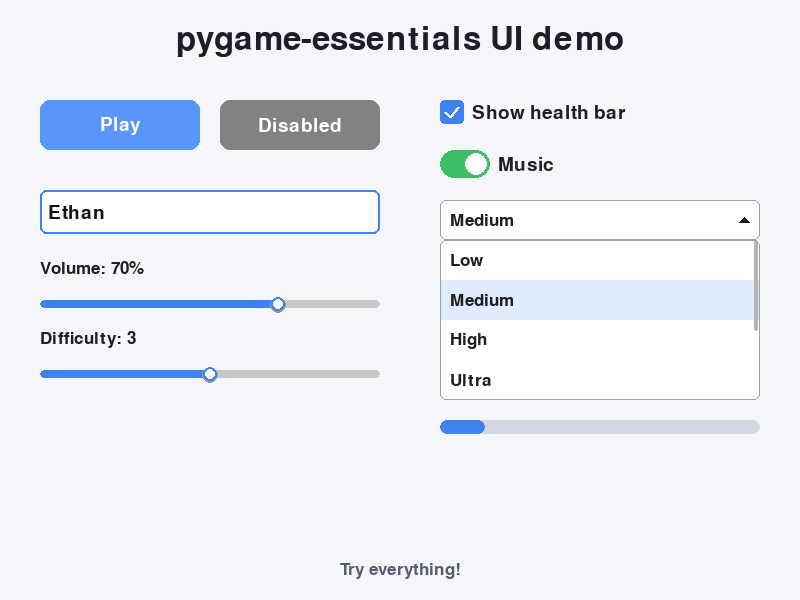
Contents
- Install
- Quick start
- Core ideas (read this first!)
- UI widgets
- Time
- Graphics
- Extras
- Recipe: a settings menu that remembers
- Troubleshooting
- Working on pygame-essentials (tests, releasing)
Install
pip install pygame-essentials
This needs Python 3.9–3.14. It installs pygame-ce (pygame Community Edition, the actively maintained version of pygame) automatically. You still write import pygame as usual.
Already have classic pygame installed? pygame and pygame-ce can't be installed at the same time, because they share the same
pygamefolder. See Using classic pygame or switch to pygame-ce:pip uninstall -y pygame pygame-ce pip install pygame-essentials
To get the newest unreleased code straight from GitHub instead:
pip install git+https://github.com/ethandadev/pygame-essentials
To check it worked:
python -c "import pygame_essentials; print(pygame_essentials.__version__)"
Quick start
import pygame
import pygame_essentials as pk

pygame.init()
screen = pygame.display.set_mode((800, 600))
pygame.display.set_caption("pygame-essentials quick start")
clock = pygame.time.Clock()

clicks = 0


def on_play():
    global clicks
    clicks += 1
    label.text = f"Clicked {clicks} time(s)"


play = pk.Button((400, 280), size=(220, 64), text="Click me", anchor="center",
                 border_radius=14, on_click=on_play)
label = pk.Label((400, 360), "Not clicked yet", color=(40, 40, 40), anchor="center")

running = True
while running:
    dt = clock.tick(60) / 1000          # seconds since the last frame

    for event in pygame.event.get():
        if event.type == pygame.QUIT:
            running = False
        play.handle_event(event)        # 1. give the widget every event

    play.update(dt)                     # 2. update once per frame

    screen.fill((245, 245, 250))
    play.draw(screen)                   # 3. draw it
    label.draw(screen)
    pygame.display.flip()

pygame.quit()
Core ideas
The three calls
Almost everything in pygame-essentials uses the same three methods, so once you learn them you know the whole library:
| Call | When | What it does |
|---|---|---|
thing.handle_event(event) |
For every event, inside for event in pygame.event.get() |
Reacts to clicks, typing and keys |
thing.update(dt) |
Once per frame | Moves animations, timers, cameras and particles forward |
thing.draw(screen) |
Once per frame, after screen.fill(...) |
Draws it |
Not everything needs all three. A Label only needs draw, and a Timer only needs update. If you call one that isn't needed, nothing happens, so calling all three is always safe.
dt: time since the last frame
dt = clock.tick(60) / 1000
clock.tick(60) limits the game to 60 FPS and returns how many milliseconds passed since the last frame. Dividing by 1000 gives seconds (about 0.0167 at 60 FPS).
Everything in pygame-essentials that changes over time uses seconds. Timer(2) means 2 seconds and Animation(fps=10) means 10 frames per second, no matter how fast your game runs. A slow computer at 30 FPS and a fast one at 144 FPS behave the same.
Positions and anchor
Every widget takes a pos as its first argument. By default that's the top-left corner. Use anchor to pick a different point:
topleft ────── midtop ────── topright
   │                            │
midleft        center        midright
   │                            │
bottomleft ── midbottom ── bottomright
pk.Button((400, 300), size=(200, 50), anchor="center") puts the button's center at (400, 300).
After creating a widget, move it with its rect (a normal pygame.Rect):
button.rect.x += 10
button.rect.center = (400, 300)
Colors
Anywhere a color is needed you can use:
(255, 0, 0): red, green, blue from 0-255(255, 0, 0, 128): with transparency, where supported"red","skyblue","gold": any pygame color namepygame.Color(...)
Fonts
Anything with text takes font and font_size:
font= |
Meaning |
|---|---|
None (default) |
pygame's built-in font |
"arial", "comicsansms", "menlo" |
A font installed on the computer |
"assets/pixel.ttf" |
A font file (.ttf or .otf) |
pygame.font.Font(...) |
A font you already loaded (then font_size is ignored) |
Fonts are loaded once and reused, so creating many widgets with the same font is fast.
Callbacks vs. polling
Widgets can tell you something happened in two ways. Use whichever you prefer:
# Callback: pygame-essentials calls your function
button = pk.Button((20, 20), size=(100, 40), on_click=start_game)

# Polling: you ask each frame
if button.was_clicked():
    start_game()
A callback must be a function (on_click=start_game), not the result of calling one (on_click=start_game()). For quick one-liners, use lambda: on_click=lambda: print("hi").
handle_event returns True when it "used" the event
for event in pygame.event.get():
    if menu_button.handle_event(event):
        continue            # the click was on the button, so don't also shoot a bullet
    player.handle_event(event)
Draw order
Things drawn later appear on top. Draw backgrounds first and UI last. If you use a Dropdown, draw it after everything else.
Widget
pk.Widget is the base class of every UI widget. You don't create it directly, but everything here applies to Button, Label, TextInput, Slider, Checkbox, Toggle, Dropdown and ProgressBar.
Shared parameters
| Parameter | Default | Description |
|---|---|---|
pos |
required | (x, y) in pixels. The top-left corner unless anchor says otherwise. |
size |
required | (width, height) in pixels. Many widgets have a default size or work it out for you. |
anchor |
"topleft" |
Which point of the widget pos refers to. See Positions and anchor. |
visible |
True |
If False, it isn't drawn and ignores events. |
enabled |
True |
If False, it's drawn grayed out and ignores input. |
Shared attributes
| Attribute | Description |
|---|---|
rect |
A pygame.Rect with the widget's position and size. Change it to move the widget. |
visible, enabled |
Same as the parameters. You can change them at any time. |
hovered |
True while the mouse is over the widget. |
pressed |
True while the left mouse button is held down after pressing on the widget. |
anchor |
The anchor name it was created with. It's kept when the widget changes size. |
Shared methods
| Method | Description |
|---|---|
handle_event(event) |
React to one event. Returns True if the widget used it. |
update(dt=0.0) |
Advance animations such as the cursor blink or toggle slide. |
draw(surface) |
Draw onto surface. |
active |
Property: visible and enabled. |
pk.resolve_font(font=None, size=28) is also available. It turns any of the font options into a real pygame.font.Font, using the same cache the widgets use.
Button
A clickable button made from a colored rectangle or your own images. A click counts when the mouse is pressed and released over the button, so holding the mouse counts once, and dragging off cancels the click.
Example
import pygame
import pygame_essentials as pk

pygame.init()
screen = pygame.display.set_mode((800, 600))
pygame.display.set_caption("Button example")
clock = pygame.time.Clock()


def make_star(color, size=110):
    """Draw a star image in code, so this example doesn't need image files."""
    image = pygame.Surface((size, size), pygame.SRCALPHA)
    points = []
    for i in range(10):
        radius = size / 2 if i % 2 == 0 else size / 5
        corner = pygame.Vector2(0, -radius).rotate(i * 36)
        points.append((size / 2 + corner.x, size / 2 + corner.y))
    pygame.draw.polygon(image, color, points)
    return image


score = 0


def add_point():
    global score
    score += 1


def toggle_locked():
    add.enabled = not add.enabled
    star.enabled = not star.enabled
    lock.text = "Unlock" if not add.enabled else "Lock"


# 1. A colored button with a callback
add = pk.Button((60, 60), size=(220, 56), text="+1 point", border_radius=10,
                color=(60, 130, 240), hover_color=(90, 150, 250), pressed_color=(40, 100, 200),
                on_click=add_point)

# 2. An outlined button that disables the other two
lock = pk.Button((60, 140), size=(220, 56), text="Lock", text_color=(40, 40, 40),
                 color=(245, 245, 250), hover_color=(230, 230, 240), pressed_color=(210, 210, 225),
                 border_width=2, border_color=(40, 40, 40), border_radius=10,
                 on_click=toggle_locked)

# 3. An image button, centered, checked by polling instead of a callback
star = pk.Button((560, 128), image=make_star((255, 200, 40)),
                 hover_image=make_star((255, 230, 120)),
                 pressed_image=make_star((220, 160, 20)), anchor="center")

info = pk.Label((60, 260), "", color=(40, 40, 40))
hint = pk.Label((60, 300), "The star is worth 10 points", font_size=24, color=(120, 120, 120))
buttons = [add, lock, star]

running = True
while running:
    dt = clock.tick(60) / 1000
    for event in pygame.event.get():
        if event.type == pygame.QUIT:
            running = False
        for button in buttons:
            button.handle_event(event)

    if star.was_clicked():              # True once per click, then resets
        score += 10

    info.text = f"Score: {score}    star hovered={star.hovered} pressed={star.pressed}"

    screen.fill((245, 245, 250))
    for button in buttons:
        button.draw(screen)
    info.draw(screen)
    hint.draw(screen)
    pygame.display.flip()

pygame.quit()
Parameters
pk.Button(pos, size=None, text="", *, ...)
| Parameter | Default | Description |
|---|---|---|
pos |
required | Position in pixels (see anchor). |
size |
None |
(width, height). Required for colored buttons. For image buttons it defaults to the image size, and if given, the images are scaled to fit. |
text |
"" |
Text drawn in the center. |
font |
None |
See Fonts. |
font_size |
28 |
Text size in pixels. |
text_color |
(255, 255, 255) |
Text color. |
color |
(40, 40, 40) |
Normal background. |
hover_color |
(62, 62, 62) |
Background while the mouse is over it. |
pressed_color |
(25, 25, 25) |
Background while held down. |
disabled_color |
(130, 130, 130) |
Background when enabled=False. |
image |
None |
A pygame.Surface to draw instead of a rectangle. |
hover_image |
None |
Image while hovering. Defaults to image. |
pressed_image |
None |
Image while pressed. Defaults to hover_image. |
border_radius |
0 |
Rounded corners in pixels. |
border_width |
0 |
Outline thickness. 0 = no outline. |
border_color |
(0, 0, 0) |
Outline color. |
anchor |
"topleft" |
See anchor. |
on_click |
None |
Function with no arguments, called on each click. |
visible |
True |
Hidden buttons can't be clicked. |
enabled |
True |
Disabled buttons are grayed out and can't be clicked. |
Errors: TypeError if you give neither size nor image, or give hover_image/pressed_image without image.
Methods and attributes
| Method | Description |
|---|---|
handle_event(event) |
Returns True if this event finished a click. Calls on_click. |
was_clicked() |
True once per click, then False until the next click. |
draw(surface) |
Draws the background or image, then the outline, then the text. |
You can change text, color, hover_color, image, on_click and the other settings at any time. hovered and pressed tell you the current state.
Label
Text on screen without font.render and blit every frame. It only re-renders when the text or color actually changes, so setting label.text every frame is fine. The label's rect always fits the text and keeps its anchor point in place as the text changes size.
Example
import pygame
import pygame_essentials as pk

pygame.init()
screen = pygame.display.set_mode((800, 600))
pygame.display.set_caption("Label example")
clock = pygame.time.Clock()

title = pk.Label((400, 50), "Labels", font_size=72, color=(30, 30, 60), anchor="center")

# anchor="topright": the right edge stays put while the number gets longer
timer_label = pk.Label((780, 20), "", font_size=36, color="white", background=(30, 30, 60),
                       padding=10, border_radius=8, anchor="topright")

crisp = pk.Label((20, 560), "antialias=False gives crisp pixel edges", font_size=24,
                 color=(90, 90, 90), antialias=False)

mouse_label = pk.Label((0, 0), "", font_size=22, color=(200, 40, 40), anchor="midbottom")

# A 3x3 grid showing what every anchor does: each label's anchor point sits on the red dot
anchor_names = [["topleft", "midtop", "topright"],
                ["midleft", "center", "midright"],
                ["bottomleft", "midbottom", "bottomright"]]
dots = []
anchor_labels = []
for row, names in enumerate(anchor_names):
    for col, name in enumerate(names):
        dot = (180 + col * 220, 180 + row * 120)
        dots.append(dot)
        anchor_labels.append(pk.Label(dot, name, font_size=24, color=(30, 30, 30),
                                      background=(220, 230, 250), padding=4, anchor=name))

elapsed = 0.0
running = True
while running:
    dt = clock.tick(60) / 1000
    for event in pygame.event.get():
        if event.type == pygame.QUIT:
            running = False

    elapsed += dt
    timer_label.text = f"{elapsed:.1f} s"
    title.color = (30, 30, 60) if int(elapsed) % 2 == 0 else (60, 130, 240)

    mx, my = pygame.mouse.get_pos()
    mouse_label.text = f"({mx}, {my})"
    mouse_label.rect.midbottom = (mx, my - 8)   # move a label through its rect

    screen.fill((245, 245, 250))
    for label in anchor_labels:
        label.draw(screen)
    for dot in dots:
        pygame.draw.circle(screen, (220, 40, 40), dot, 4)
    for label in (title, timer_label, crisp, mouse_label):
        label.draw(screen)
    pygame.display.flip()

pygame.quit()
Parameters
pk.Label(pos, text="", *, ...)
| Parameter | Default | Description |
|---|---|---|
pos |
required | Position in pixels (see anchor). |
text |
"" |
What to show. Numbers and other values are converted with str(). |
font |
None |
See Fonts. |
font_size |
28 |
Text size in pixels. |
color |
(255, 255, 255) |
Text color. Note: white by default. |
background |
None |
Background color, or None for transparent. |
padding |
0 |
Space around the text in pixels (useful with a background). |
border_radius |
0 |
Rounded corners for the background. |
antialias |
True |
Smooth edges. Use False for pixel fonts. |
anchor |
"topleft" |
See anchor. |
visible |
True |
Whether it's drawn. |
Properties
| Property | Description |
|---|---|
text |
The current text. Set it to change it. |
color |
The text color. Set it to recolor. |
TextInput
A one-line text box. Click it to type, and click elsewhere (or press Escape) to stop.
Keys: typing, Backspace, Delete, ← →, Home, End, Enter (calls on_submit), Escape (unfocus). Long text scrolls so the cursor stays visible.
Tip: call
pygame.key.set_repeat(400, 35)afterpygame.init()so holding Backspace or the arrow keys repeats.
Example
import pygame
import pygame_essentials as pk

pygame.init()
pygame.key.set_repeat(400, 35)
screen = pygame.display.set_mode((800, 600))
pygame.display.set_caption("TextInput example")
clock = pygame.time.Clock()

messages = []


def send(text):
    if text.strip():
        messages.append(f"{name_box.text or 'Anonymous'}: {text}")
        del messages[:-9]   # keep only the last 9 messages


name_box = pk.TextInput((20, 20), size=(240, 42), placeholder="Your name", max_length=16)
age_box = pk.TextInput((280, 20), size=(110, 42), placeholder="Age", max_length=3,
                       allowed_chars="0123456789")
chat_box = pk.TextInput((20, 536), size=(760, 44), placeholder="Say something, then press Enter",
                        clear_on_submit=True, on_submit=send)
chat_box.focused = True     # start with the chat box ready for typing

age_label = pk.Label((410, 30), "", font_size=26, color=(60, 60, 60))
counter = pk.Label((780, 500), "", font_size=22, color=(140, 140, 140), anchor="topright")
chat_lines = [pk.Label((24, 90 + i * 44), "", font_size=30, color=(30, 30, 30)) for i in range(9)]

boxes = [name_box, age_box, chat_box]

running = True
while running:
    dt = clock.tick(60) / 1000
    for event in pygame.event.get():
        if event.type == pygame.QUIT:
            running = False
        for box in boxes:
            box.handle_event(event)

    for box in boxes:
        box.update(dt)      # makes the cursor blink

    age_label.text = f"Next year you'll be {int(age_box.text) + 1}" if age_box.text else ""
    counter.text = f"{len(chat_box.text)} characters"
    for line, message in zip(chat_lines, messages + [""] * 9):
        line.text = message

    screen.fill((245, 245, 250))
    for thing in (*boxes, age_label, counter, *chat_lines):
        thing.draw(screen)
    pygame.display.flip()

pygame.quit()
Parameters
pk.TextInput(pos, size=(240, 40), text="", *, ...)
| Parameter | Default | Description |
|---|---|---|
pos |
required | Position in pixels (see anchor). |
size |
(240, 40) |
Box size. |
text |
"" |
Starting text. |
placeholder |
"" |
Gray hint shown while empty and not focused. |
font |
None |
See Fonts. |
font_size |
28 |
Text size. |
text_color |
(20, 20, 20) |
Typed text color. |
placeholder_color |
(150, 150, 150) |
Hint color. |
background |
(255, 255, 255) |
Box color. |
border_color |
(160, 160, 160) |
Outline when not focused. |
focus_border_color |
(60, 130, 240) |
Outline while typing. |
border_width |
2 |
Outline thickness. |
border_radius |
6 |
Rounded corners. |
padding |
8 |
Space between the edge and the text. |
max_length |
None |
Character limit, or None for unlimited. |
allowed_chars |
None |
Only allow these characters, like "0123456789". |
clear_on_submit |
False |
Empty the box after Enter. |
on_submit |
None |
Called as on_submit(text) when Enter is pressed. |
on_change |
None |
Called as on_change(text) whenever the player changes the text (including clear_on_submit). |
anchor |
"topleft" |
See anchor. |
visible |
True |
Whether it's shown and usable. |
enabled |
True |
Whether it can be focused. |
Errors: ValueError if max_length is negative.
Properties and methods
| Property | Description |
|---|---|
text |
The current text. Setting it moves the cursor to the end, still respects max_length/allowed_chars, and doesn't call on_change. |
focused |
True while typing. Set it to True to focus from code. |
| Method | Description |
|---|---|
handle_event(event) |
Handles clicks and typing. Returns True for clicks on the box and for any key while focused, so you can ignore game controls while the player types. |
update(dt) |
Blinks the cursor. |
Also available: cursor (the cursor position as a character index) and TextInput.CURSOR_BLINK_SECONDS (default 0.5).
Slider
Drag the handle, or click anywhere on the track, to pick a number.
Example
import pygame
import pygame_essentials as pk

pygame.init()
screen = pygame.display.set_mode((800, 600))
pygame.display.set_caption("Slider example")
clock = pygame.time.Clock()

# Whole numbers from 0 to 255 for each color channel
red = pk.Slider((40, 90), size=(320, 10), min_value=0, max_value=255, step=1, value=230,
                fill_color=(220, 60, 60))
green = pk.Slider((40, 170), size=(320, 10), min_value=0, max_value=255, step=1, value=120,
                  fill_color=(60, 180, 90))
blue = pk.Slider((40, 250), size=(320, 10), min_value=0, max_value=255, step=1, value=40,
                 fill_color=(60, 110, 230))

# A smooth slider (no step) that reports changes with on_change
radius_label = pk.Label((40, 300), "", font_size=28, color=(40, 40, 40))


def radius_changed(value):
    radius_label.text = f"Radius: {value:.1f} px  (changed by dragging)"


radius = pk.Slider((40, 350), size=(320, 10), min_value=20, max_value=180, value=100,
                   on_change=radius_changed)
radius_changed(radius.value)

# A disabled slider shows how far along another slider is, using .fraction
mirror = pk.Slider((40, 430), size=(320, 10), enabled=False)

labels = [pk.Label((40, 50 + i * 80), "", font_size=28, color=(40, 40, 40)) for i in range(3)]
sliders = [red, green, blue, radius, mirror]

running = True
while running:
    dt = clock.tick(60) / 1000
    for event in pygame.event.get():
        if event.type == pygame.QUIT:
            running = False
        for slider in sliders:
            slider.handle_event(event)

    for label, name, slider in zip(labels, ("Red", "Green", "Blue"), (red, green, blue)):
        label.text = f"{name}: {int(slider.value)}"
    mirror.value = radius.fraction          # setting .value from code does not call on_change

    color = (int(red.value), int(green.value), int(blue.value))
    screen.fill((245, 245, 250))
    pygame.draw.circle(screen, color, (590, 300), round(radius.value))
    for thing in (*labels, radius_label, *sliders):
        thing.draw(screen)
    pygame.display.flip()

pygame.quit()
Parameters
pk.Slider(pos, size=(200, 8), *, ...)
| Parameter | Default | Description |
|---|---|---|
pos |
required | Position of the track (see anchor). |
size |
(200, 8) |
Track size. The handle sticks out above and below. |
min_value |
0.0 |
Value at the far left. |
max_value |
1.0 |
Value at the far right. |
value |
None |
Starting value. None means min_value. |
step |
None |
Snap to multiples of this, counted from min_value (1 = whole numbers). None = smooth. |
track_color |
(200, 200, 200) |
Empty part of the track. |
fill_color |
(60, 130, 240) |
Filled part and handle ring. |
handle_color |
(255, 255, 255) |
Handle. |
handle_hover_color |
(230, 240, 255) |
Handle while hovering or dragging. |
handle_radius |
None |
Handle size. None picks one that fits the track. |
on_change |
None |
Called as on_change(value) when the player changes the value. |
anchor |
"topleft" |
See anchor. |
visible |
True |
Whether it's shown and usable. |
enabled |
True |
Whether it can be dragged. |
Errors: ValueError if max_value <= min_value or step <= 0.
Properties
| Property | Description |
|---|---|
value |
Current value. Setting it clamps and snaps, but doesn't call on_change. |
fraction |
Position from 0.0 (left) to 1.0 (right). |
Also available: dragging (True while the handle is being dragged).
Checkbox and Toggle
On/off controls. A Checkbox is a square with a check mark. A Toggle is a sliding phone-style switch. They work the same way: checked, on_change, and label. Clicking the label text also toggles them.
Example
import pygame
import pygame_essentials as pk

pygame.init()
screen = pygame.display.set_mode((800, 600))
pygame.display.set_caption("Checkbox and Toggle example")
clock = pygame.time.Clock()

status = pk.Label((20, 560), "Click the controls on the left", font_size=24, color=(120, 120, 120))


def dark_mode_changed(on):
    status.text = f"Dark mode {'on' if on else 'off'}"
    for control in controls:
        control.label_color = (235, 235, 240) if on else (30, 30, 30)


show_grid = pk.Checkbox((20, 20), label="Show grid", checked=True)
show_ball = pk.Checkbox((20, 64), label="Show ball", checked=True)
big_box = pk.Checkbox((20, 108), size=36, label="Big checkbox", check_color=(230, 120, 40))
dark_mode = pk.Toggle((20, 170), label="Dark mode", on_change=dark_mode_changed)
paused = pk.Toggle((20, 220), size=(64, 34), label="Pause ball", on_color=(230, 90, 90))
locked = pk.Checkbox((20, 280), label="Disabled (can't click)", checked=True, enabled=False)
controls = [show_grid, show_ball, big_box, dark_mode, paused, locked]

ball = pygame.Vector2(500, 300)
velocity = pygame.Vector2(240, 180)
area = pygame.Rect(300, 20, 480, 520)

running = True
while running:
    dt = clock.tick(60) / 1000
    for event in pygame.event.get():
        if event.type == pygame.QUIT:
            running = False
        for control in controls:
            control.handle_event(event)

    for control in controls:
        control.update(dt)          # Toggles slide smoothly

    if not paused.checked:
        ball += velocity * dt
        if not area.left + 20 < ball.x < area.right - 20:
            velocity.x *= -1
        if not area.top + 20 < ball.y < area.bottom - 20:
            velocity.y *= -1

    screen.fill((30, 32, 40) if dark_mode.checked else (245, 245, 250))
    pygame.draw.rect(screen, (120, 120, 140), area, 2)
    if show_grid.checked:
        for x in range(area.left, area.right, 40):
            pygame.draw.line(screen, (150, 150, 170), (x, area.top), (x, area.bottom))
        for y in range(area.top, area.bottom, 40):
            pygame.draw.line(screen, (150, 150, 170), (area.left, y), (area.right, y))
    if show_ball.checked:
        size = 34 if big_box.checked else 20
        pygame.draw.circle(screen, (60, 130, 240), ball, size)
    for control in controls:
        control.draw(screen)
    status.draw(screen)
    pygame.display.flip()

pygame.quit()
Checkbox
pk.Checkbox(pos, size=24, *, ...)
| Parameter | Default | Description |
|---|---|---|
pos |
required | Position of the whole widget, box plus label (see anchor). |
size |
24 |
Width and height of the square box. |
checked |
False |
Starting state. |
label |
"" |
Text to the right of the box. |
font |
None |
See Fonts. |
font_size |
28 |
Label size. |
label_color |
(30, 30, 30) |
Label color. |
box_color |
(255, 255, 255) |
Box background when unchecked. |
check_color |
(60, 130, 240) |
Box fill when checked (and hover outline). |
border_color |
(140, 140, 140) |
Box outline when unchecked. |
label_gap |
8 |
Space between the box and the label. |
on_change |
None |
Called as on_change(checked) when clicked. |
anchor |
"topleft" |
See anchor. |
visible |
True |
Whether it's shown and usable. |
enabled |
True |
Whether it can be clicked. |
| Method | Description |
|---|---|
toggle() |
Flip the state and call on_change. |
label |
Property: the label text. Changing it also resizes the clickable area. |
box_rect |
Property: where the box or switch is drawn (without the label). |
checked can be read or set at any time. Setting it from code doesn't call on_change.
Toggle
pk.Toggle(pos, size=(50, 28), *, ...) accepts everything Checkbox does, plus:
| Parameter | Default | Description |
|---|---|---|
pos |
required | Position (see anchor). |
size |
(50, 28) |
(width, height) of the switch. |
checked |
False |
Starting state (on/off). |
label |
"" |
Text to the right. |
on_color |
(60, 190, 100) |
Track color when on. |
off_color |
(190, 190, 190) |
Track color when off. |
knob_color |
(255, 255, 255) |
Knob color. |
slide_time |
0.12 |
Seconds for the knob to slide across. 0 = jump instantly. |
**kwargs |
Any other Checkbox parameter: font, font_size, label_color, label_gap, on_change, anchor, visible, enabled. |
| Method | Description |
|---|---|
update(dt) |
Slides the knob. Without it the knob doesn't move. |
Dropdown
Click to open a list, click an option to choose it. Long lists scroll with the mouse wheel.
Two rules for dropdowns. The open list hangs over other widgets, so:
- Give the dropdown events first, and
continueifhandle_eventreturns True. Otherwise clicking an option could also click a button under the list.- Draw the dropdown last, so the list is on top.
Example
import pygame
import pygame_essentials as pk

pygame.init()
screen = pygame.display.set_mode((800, 600))
pygame.display.set_caption("Dropdown example")
clock = pygame.time.Clock()

COLORS = {"Blue": (60, 130, 240), "Red": (220, 60, 60), "Green": (60, 180, 90), "Gold": (240, 190, 40)}

status = pk.Label((20, 560), "", font_size=24, color=(100, 100, 100))

shape = pk.Dropdown((20, 20), ["Circle", "Square", "Triangle"], size=(200, 40),
                    on_change=lambda option: setattr(status, "text", f"Shape changed to {option}"))
color = pk.Dropdown((240, 20), list(COLORS), size=(200, 40))
size = pk.Dropdown((460, 20), [20, 40, 60, 80, 100, 120, 140, 160, 180], size=(200, 40),
                   selected_index=None, placeholder="Pick a size", max_visible=4)
dropdowns = [shape, color, size]

# This button sits right under the Shape list, to show why rule 1 matters
reset = pk.Button((20, 110), size=(200, 44), text="Reset", border_radius=8)

running = True
while running:
    dt = clock.tick(60) / 1000
    for event in pygame.event.get():
        if event.type == pygame.QUIT:
            running = False

        used = False
        for dropdown in dropdowns:
            if dropdown.handle_event(event):
                used = True
        if used:
            continue                # a dropdown used it: don't pass it to the button
        reset.handle_event(event)

    if reset.was_clicked():
        shape.selected_index = 0
        color.selected_index = 0
        size.selected_index = None
        status.text = "Reset!"

    screen.fill((245, 245, 250))
    radius = size.selected if size.selected is not None else 60   # .selected is the option itself
    center = (560, 340)
    fill = COLORS[color.selected]
    if shape.selected == "Circle":
        pygame.draw.circle(screen, fill, center, radius)
    elif shape.selected == "Square":
        pygame.draw.rect(screen, fill, pygame.Rect(0, 0, radius * 2, radius * 2).move(center[0] - radius, center[1] - radius))
    else:
        pygame.draw.polygon(screen, fill, [(center[0], center[1] - radius),
                                           (center[0] - radius, center[1] + radius),
                                           (center[0] + radius, center[1] + radius)])
    reset.draw(screen)
    status.draw(screen)
    # rule 2: dropdowns last, and the open one on top of the closed ones
    for dropdown in sorted(dropdowns, key=lambda d: d.is_open):
        dropdown.draw(screen)
    pygame.display.flip()

pygame.quit()
Parameters
pk.Dropdown(pos, options, size=(200, 36), *, ...)
| Parameter | Default | Description |
|---|---|---|
pos |
required | Position of the closed box (see anchor). |
options |
required | The choices. Anything works: they're shown with str(), and selected gives back the original object. |
size |
(200, 36) |
Size of the closed box. Each row in the list has the same height. |
selected_index |
0 |
Starting choice, or None for nothing selected. |
placeholder |
"Select..." |
Shown when nothing is selected. |
max_visible |
6 |
Rows shown before scrolling. |
font |
None |
See Fonts. |
font_size |
26 |
Text size. |
text_color |
(30, 30, 30) |
Text color. |
background |
(255, 255, 255) |
Box and list background. |
hover_color |
(225, 235, 255) |
Row under the mouse. |
selected_color |
(240, 240, 240) |
Currently selected row in the list. |
border_color |
(160, 160, 160) |
Outline. |
border_radius |
6 |
Rounded corners. |
padding |
10 |
Space left of the text. |
on_change |
None |
Called as on_change(option) when the player picks a different option. |
anchor |
"topleft" |
See anchor. |
visible |
True |
Whether it's shown and usable. |
enabled |
True |
Whether it can be opened. |
Errors: ValueError if selected_index is out of range or max_visible < 1.
Methods and properties
| Method | Description |
|---|---|
selected |
Property: the chosen option itself, or None. |
open() |
Open the list, scrolled to the selected option. |
close() |
Close without changing the selection. |
list_rect |
Property: the area the open list covers. |
handle_event(event) |
Returns True when it used the event. Skip other widgets when True. |
Also available: selected_index (read/set, no callback), options (the list), and is_open.
ProgressBar
A bar that fills from left to right. value goes from 0.0 (empty) to 1.0 (full). Use set_from(current, maximum) for things like 37 / 50 HP.
Example
import pygame
import pygame_essentials as pk

pygame.init()
screen = pygame.display.set_mode((800, 600))
pygame.display.set_caption("ProgressBar example")
clock = pygame.time.Clock()

MAX_HP = 120
hp = MAX_HP
xp = 0


def hp_color(value):
    """fill_color can be a function: green when healthy, orange when hurt, red when low."""
    if value > 0.6:
        return (60, 200, 90)
    if value > 0.3:
        return (240, 160, 40)
    return (230, 60, 60)


def hurt():
    global hp
    hp = max(0, hp - 23)


def heal():
    global hp
    hp = min(MAX_HP, hp + 30)


def gain_xp():
    global xp
    xp += 35


health = pk.ProgressBar((40, 60), size=(460, 30), smooth=True, speed=1.5,
                        trail_color=(255, 215, 130), border_color=(30, 30, 30),
                        fill_color=hp_color, background=(70, 70, 80),
                        text_format=lambda v: f"{hp} / {MAX_HP} HP")
experience = pk.ProgressBar((40, 180), size=(460, 22), value=0, smooth=True,
                            fill_color=(150, 90, 230), background=(220, 215, 235),
                            border_radius=4, show_text=True, text_color=(40, 20, 60))
loading = pk.ProgressBar((40, 300), size=(460, 12), value=0,
                         fill_color=(60, 130, 240), background=(210, 215, 225))

buttons = [
    pk.Button((40, 110), size=(140, 44), text="Hurt (H)", border_radius=8,
              color=(220, 70, 70), hover_color=(240, 100, 100), on_click=hurt),
    pk.Button((200, 110), size=(140, 44), text="Heal (J)", border_radius=8,
              color=(60, 170, 90), hover_color=(80, 200, 110), on_click=heal),
    pk.Button((40, 220), size=(140, 44), text="+XP (X)", border_radius=8,
              color=(140, 80, 220), hover_color=(165, 110, 240), on_click=gain_xp),
]
level_label = pk.Label((360, 228), "", font_size=30, color=(40, 20, 60))
loading_label = pk.Label((40, 320), "", font_size=24, color=(100, 100, 100))

running = True
while running:
    dt = clock.tick(60) / 1000
    for event in pygame.event.get():
        if event.type == pygame.QUIT:
            running = False
        if event.type == pygame.KEYDOWN:
            if event.key == pygame.K_h:
                hurt()
            elif event.key == pygame.K_j:
                heal()
            elif event.key == pygame.K_x:
                gain_xp()
        for button in buttons:
            button.handle_event(event)

    health.set_from(hp, MAX_HP)
    level, into_level = divmod(xp, 100)
    experience.value = into_level / 100
    level_label.text = f"Level {level + 1}"
    loading.value = (loading.value + dt * 0.3) % 1.0
    loading_label.text = f"Loading... {round(loading.value * 100)}%"

    for bar in (health, experience, loading):
        bar.update(dt)          # needed for smooth filling and the trail

    screen.fill((245, 245, 250))
    for thing in (health, experience, loading, level_label, loading_label, *buttons):
        thing.draw(screen)
    pygame.display.flip()

pygame.quit()
Parameters
pk.ProgressBar(pos, size=(200, 20), *, ...)
| Parameter | Default | Description |
|---|---|---|
pos |
required | Position (see anchor). |
size |
(200, 20) |
Bar size. |
value |
1.0 |
Starting fill, 0.0 to 1.0. |
background |
(60, 60, 60) |
Empty part. |
fill_color |
(60, 200, 90) |
Filled part. Can be a function fill_color(value) -> color. |
trail_color |
None |
When the value drops, the lost part lingers in this color, then shrinks ("damage trail"). |
border_color |
None |
Outline color, or None for no outline. |
border_width |
2 |
Outline thickness. |
border_radius |
None |
Rounded corners. None = fully rounded ends. |
smooth |
False |
Glide to new values instead of jumping. |
speed |
2.0 |
How fast smooth filling and the trail move, in full bars per second. |
show_text |
False |
Show a percentage like 75% in the middle. |
text_format |
None |
Function text_format(value) -> str for custom text. Turns on show_text. |
font |
None |
See Fonts. |
font_size |
22 |
Text size. |
text_color |
(255, 255, 255) |
Text color. |
anchor |
"topleft" |
See anchor. |
visible |
True |
Whether it's drawn. |
Methods and properties
| Method | Description |
|---|---|
value |
Property: target fill (always clamped to 0-1). |
set_from(current, maximum) |
Sets value = current / maximum (0 if maximum <= 0). |
update(dt) |
Animates smooth and trail_color. |
Also available: shown_value, the fill currently drawn, which differs from value while animating.
Making your own widget
Subclass pk.Widget and override the methods you need. You get rect, anchor, visible, enabled, hovered and pressed for free.
import pygame
import pygame_essentials as pk

pygame.init()
screen = pygame.display.set_mode((800, 600))
pygame.display.set_caption("Custom widget example")
clock = pygame.time.Clock()


class Counter(pk.Widget):
    """A number with - and + halves. Click the left half to go down, the right half to go up."""

    def __init__(self, pos, value=0, *, minimum=0, maximum=10, on_change=None, **kwargs):
        super().__init__(pos, (160, 50), **kwargs)
        self.value = value
        self.minimum = minimum
        self.maximum = maximum
        self.on_change = on_change
        self.font = pk.resolve_font(None, 36)

    def handle_event(self, event):
        if not self.active:
            return False
        if event.type == pygame.MOUSEMOTION:
            self.hovered = self.rect.collidepoint(event.pos)
        if event.type == pygame.MOUSEBUTTONDOWN and event.button == 1 and self.rect.collidepoint(event.pos):
            step = -1 if event.pos[0] < self.rect.centerx else 1
            new_value = max(self.minimum, min(self.maximum, self.value + step))
            if new_value != self.value:
                self.value = new_value
                if self.on_change:
                    self.on_change(new_value)
            return True
        return False

    def draw(self, surface):
        if not self.visible:
            return
        color = (225, 235, 255) if self.hovered else (255, 255, 255)
        pygame.draw.rect(surface, color, self.rect, border_radius=10)
        pygame.draw.rect(surface, (60, 130, 240), self.rect, 2, border_radius=10)
        for text, x in (("-", self.rect.left + 22), (str(self.value), self.rect.centerx), ("+", self.rect.right - 22)):
            image = self.font.render(text, True, (30, 30, 30))
            surface.blit(image, image.get_rect(center=(x, self.rect.centery)))


lives = Counter((400, 250), value=3, minimum=1, maximum=9, anchor="center",
                on_change=lambda v: print("lives:", v))
hearts = pk.Label((400, 330), "", font_size=40, color=(220, 60, 60), anchor="center")

running = True
while running:
    dt = clock.tick(60) / 1000
    for event in pygame.event.get():
        if event.type == pygame.QUIT:
            running = False
        lives.handle_event(event)

    hearts.text = "<3 " * lives.value
    screen.fill((245, 245, 250))
    lives.draw(screen)
    hearts.draw(screen)
    pygame.display.flip()

pygame.quit()
Timer
"Do something after X seconds", once or repeating. Call update(dt) every frame. It only counts while you call it, so pausing your game pauses your timers for free.
Example
import random

import pygame
import pygame_essentials as pk

pygame.init()
screen = pygame.display.set_mode((800, 600))
pygame.display.set_caption("Timer example  (P = pause spawner, R = restart countdown)")
clock = pygame.time.Clock()

dots = []


def spawn_dot():
    dots.append((random.randint(40, 760), random.randint(160, 560),
                 random.choice([(60, 130, 240), (220, 60, 60), (60, 180, 90)])))
    del dots[:-30]


def countdown_finished():
    message.text = "GO!"
    hide_message.start()        # start another timer from inside a callback


# Repeats every 0.5 seconds, forever
spawner = pk.Timer(0.5, spawn_dot, repeat=True)

# Runs once, 3 seconds after starting
countdown = pk.Timer(3.0, countdown_finished)

# Created stopped (autostart=False), started by countdown_finished
hide_message = pk.Timer(1.0, lambda: setattr(message, "text", ""), autostart=False)

message = pk.Label((400, 60), "Get ready...", font_size=64, color=(30, 30, 60), anchor="center")
countdown_bar = pk.ProgressBar((250, 100), size=(300, 12), value=0, fill_color=(60, 130, 240))
info = pk.Label((20, 570), "", font_size=24, color=(100, 100, 100), anchor="bottomleft")

running = True
while running:
    dt = clock.tick(60) / 1000
    for event in pygame.event.get():
        if event.type == pygame.QUIT:
            running = False
        if event.type == pygame.KEYDOWN and event.key == pygame.K_p:
            if spawner.running:
                spawner.pause()
            else:
                spawner.resume()
        if event.type == pygame.KEYDOWN and event.key == pygame.K_r:
            message.text = "Get ready..."
            countdown.restart()

    spawner.update(dt)
    if countdown.update(dt):        # update() also returns True on the frame it finishes
        print("countdown done!")
    hide_message.update(dt)

    countdown_bar.value = countdown.progress
    state = "running" if spawner.running else "paused"
    info.text = (f"spawner {state}, next dot in {spawner.remaining:.2f}s    "
                 f"countdown: {countdown.remaining:.1f}s left, done={countdown.done}")

    screen.fill((245, 245, 250))
    for x, y, color in dots:
        pygame.draw.circle(screen, color, (x, y), 12)
    message.draw(screen)
    countdown_bar.draw(screen)
    info.draw(screen)
    pygame.display.flip()

pygame.quit()
Parameters
pk.Timer(duration, on_done=None, *, repeat=False, autostart=True)
| Parameter | Default | Description |
|---|---|---|
duration |
required | Seconds to wait. |
on_done |
None |
Function with no arguments called each time the timer finishes. |
repeat |
False |
Start over automatically after finishing. |
autostart |
True |
Start counting immediately. If False, call start(). |
Errors: ValueError if duration is negative, or 0 with repeat=True.
Methods and properties
| Method | Description |
|---|---|
update(dt) |
Counts time. Returns True if it finished during this call. With repeat, a big dt fires on_done once for every repeat it covers. |
start() |
Start from zero (also resets done). |
restart() |
Same as start(). |
pause() |
Stop counting and keep the progress. |
resume() |
Continue after pause(). |
stop() |
Stop and reset to zero without calling on_done. |
remaining |
Property: seconds left. |
progress |
Property: 0.0 → 1.0 through the countdown. |
Also available: duration, elapsed, running, done, repeat, on_done.
Cooldown
"Only allow this once every X seconds", for shooting, dashing, abilities, and so on.
if keys[pygame.K_SPACE] and shoot.use():   # use() = "if ready, start cooling down and return True"
    fire()
Example
import pygame
import pygame_essentials as pk

pygame.init()
screen = pygame.display.set_mode((800, 600))
pygame.display.set_caption("Cooldown example  (←/→ move, Space shoot, E blast)")
clock = pygame.time.Clock()

player = pygame.Rect(380, 530, 40, 40)
bullets = []
blast_rings = []

shoot = pk.Cooldown(0.2)                        # 5 shots per second max
blast = pk.Cooldown(3.0, start_ready=False)     # not usable during the first 3 seconds

shoot_bar = pk.ProgressBar((20, 20), size=(200, 14), fill_color=(60, 130, 240), background=(210, 215, 225))
blast_bar = pk.ProgressBar((20, 60), size=(200, 14), fill_color=(230, 120, 40), background=(210, 215, 225),
                           text_format=lambda v: "READY" if blast.ready() else f"{blast.remaining:.1f}s",
                           font_size=18, text_color=(40, 40, 40))
labels = [pk.Label((232, 14), "Shoot", font_size=24, color=(40, 40, 40)),
          pk.Label((232, 54), "Blast (E)", font_size=24, color=(40, 40, 40))]

running = True
while running:
    dt = clock.tick(60) / 1000
    for event in pygame.event.get():
        if event.type == pygame.QUIT:
            running = False
        if event.type == pygame.KEYDOWN and event.key == pygame.K_e and blast.use():
            blast_rings.append([pygame.Vector2(player.center), 10.0])

    shoot.update(dt)
    blast.update(dt)

    keys = pygame.key.get_pressed()
    player.x += round((keys[pygame.K_RIGHT] - keys[pygame.K_LEFT]) * 400 * dt)
    player.clamp_ip(screen.get_rect())

    # Holding space shoots only as fast as the cooldown allows
    if keys[pygame.K_SPACE] and shoot.use():
        bullets.append(pygame.Vector2(player.centerx, player.top))

    for bullet in bullets:
        bullet.y -= 700 * dt
    bullets = [b for b in bullets if b.y > -10]
    for ring in blast_rings:
        ring[1] += 600 * dt
    blast_rings = [r for r in blast_rings if r[1] < 500]

    shoot_bar.value = shoot.progress
    blast_bar.value = blast.progress

    screen.fill((245, 245, 250))
    for center, radius in blast_rings:
        pygame.draw.circle(screen, (230, 120, 40), center, radius, 4)
    for bullet in bullets:
        pygame.draw.rect(screen, (60, 130, 240), (bullet.x - 2, bullet.y, 4, 12))
    pygame.draw.rect(screen, (30, 30, 60), player, border_radius=8)
    for thing in (shoot_bar, blast_bar, *labels):
        thing.draw(screen)
    pygame.display.flip()

pygame.quit()
Parameters
pk.Cooldown(duration, *, start_ready=True)
| Parameter | Default | Description |
|---|---|---|
duration |
required | Seconds to wait after each use. |
start_ready |
True |
Usable immediately. If False, it starts cooling down. |
Errors: ValueError if duration is negative.
Methods and properties
| Method | Description |
|---|---|
update(dt) |
Counts down. Call every frame. |
use() |
If ready, start the cooldown and return True. Otherwise return False. |
ready() |
True if it can be used now. |
trigger() |
Start the cooldown now, ready or not. |
reset() |
Make it ready immediately. |
remaining |
Property: seconds until ready. |
progress |
Property: 0.0 (just used) → 1.0 (ready). Great for ability icons. |
You can change duration at any time (for example after a fire-rate upgrade).
Spritesheet, Animation and AnimationSet
Spritesheetcuts a grid image into frames.Animationplays a list of frames at a chosen speed.AnimationSetholds named animations (idle, run, jump) and plays one at a time.
Frames are counted from the top-left corner: column 0 row 0 is the first frame.
Example
import pygame
import pygame_essentials as pk

pygame.init()
screen = pygame.display.set_mode((800, 600))
pygame.display.set_caption("Animation example  (←/→ walk, click for an explosion)")
clock = pygame.time.Clock()


def make_sheet():
    """Draw a 6x2 sheet of 16x16 frames. Row 0: a spinning coin. Row 1: a walking robot.

    In a real game you'd use:  pk.Spritesheet("player.png", 16, 16, scale=4)
    """
    sheet = pygame.Surface((6 * 16, 2 * 16), pygame.SRCALPHA)
    for i in range(6):
        width = [14, 10, 4, 2, 4, 10][i]                      # coin gets thin as it turns
        pygame.draw.ellipse(sheet, (240, 190, 40), (i * 16 + 8 - width // 2, 1, width, 14))
        x, y = i * 16, 16
        pygame.draw.rect(sheet, (90, 150, 230), (x + 4, y + 2, 8, 9), border_radius=2)
        pygame.draw.rect(sheet, (20, 20, 40), (x + 9, y + 4, 2, 2))
        left_leg, right_leg = [(4, 9), (5, 8), (6, 7), (7, 6), (6, 7), (5, 8)][i]
        pygame.draw.rect(sheet, (50, 80, 140), (x + left_leg, y + 11, 2, 5))
        pygame.draw.rect(sheet, (50, 80, 140), (x + right_leg, y + 11, 2, 5))
    return sheet


sheet = pk.Spritesheet(make_sheet(), 16, 16, scale=4)       # 16x16 frames drawn at 64x64
print(f"sheet has {sheet.columns} columns and {sheet.rows} rows")

coin = pk.Animation(sheet.frames(row=0), fps=10)             # loops forever
still_coin = sheet.frame(0, 0)                               # a single frame

walk_right = pk.Animation(sheet.frames(row=1), fps=12)
robot = pk.AnimationSet({
    "idle_right": pk.Animation(sheet.frames(row=1, count=1), fps=1),
    "walk_right": walk_right,
    "idle_left": pk.Animation(sheet.frames(row=1, count=1), fps=1).flipped(),
    "walk_left": walk_right.flipped(),                       # mirror image, same speed
})

# An Animation can play any list of Surfaces, not just spritesheet frames
explosion_frames = []
for i in range(8):
    frame = pygame.Surface((120, 120), pygame.SRCALPHA)
    pygame.draw.circle(frame, (255, 180 - i * 20, 40, 255 - i * 30), (60, 60), 10 + i * 7)
    explosion_frames.append(frame)
explosions = []     # [animation, position] pairs

robot_x = 400
facing = "right"
info = pk.Label((20, 570), "", font_size=24, color=(90, 90, 90), anchor="bottomleft")

running = True
while running:
    dt = clock.tick(60) / 1000
    for event in pygame.event.get():
        if event.type == pygame.QUIT:
            running = False
        if event.type == pygame.MOUSEBUTTONDOWN:
            # loop=False: plays once. on_finish could remove it; here we filter by .finished below
            explosions.append([pk.Animation(explosion_frames, fps=20, loop=False), event.pos])

    keys = pygame.key.get_pressed()
    move = keys[pygame.K_RIGHT] - keys[pygame.K_LEFT]
    if move:
        facing = "right" if move > 0 else "left"
        robot_x += move * 180 * dt
    robot.play(("walk_" if move else "idle_") + facing)      # safe every frame: only restarts on a change

    coin.update(dt)
    robot.update(dt)
    for animation, _ in explosions:
        animation.update(dt)
    explosions = [e for e in explosions if not e[0].finished]
    info.text = f"robot: {robot.current_name}, frame {robot.current.frame_index}    coin frame {coin.frame_index}"

    screen.fill((245, 245, 250))
    screen.blit(still_coin, (100, 100))
    screen.blit(coin.image, (200, 100))
    screen.blit(robot.image, robot.image.get_rect(midbottom=(robot_x, 400)))
    pygame.draw.line(screen, (180, 180, 190), (0, 400), (800, 400), 2)
    for animation, pos in explosions:
        screen.blit(animation.image, animation.image.get_rect(center=pos))
    info.draw(screen)
    pygame.display.flip()

pygame.quit()
Spritesheet
pk.Spritesheet(image, frame_width, frame_height, *, margin=0, spacing=0, scale=1)
| Parameter | Default | Description |
|---|---|---|
image |
required | A pygame.Surface or a file path. Paths are loaded for you (with convert_alpha() if a window exists). |
frame_width |
required | Width of one frame in the original image. |
frame_height |
required | Height of one frame in the original image. |
margin |
0 |
Empty pixels around the edge of the whole sheet. |
spacing |
0 |
Empty pixels between frames. |
scale |
1 |
Enlarge frames (crisp scaling, ideal for pixel art). |
Errors: ValueError for a bad frame size, FileNotFoundError for a missing file, IndexError for a frame outside the sheet.
| Method | Description |
|---|---|
frame(column, row=0) |
One frame as a Surface. |
frames(row=None, start=0, count=None) |
A list of frames. row=None reads the whole sheet like a book. start skips frames and count limits how many. |
Also available: columns, rows, image.
Animation
pk.Animation(frames, fps=10, *, loop=True, on_finish=None, playing=True)
| Parameter | Default | Description |
|---|---|---|
frames |
required | List of Surfaces. |
fps |
10 |
Animation speed in frames per second (not your game's FPS). |
loop |
True |
Start over at the end. If False, stop on the last frame. |
on_finish |
None |
Called when a non-looping animation ends. |
playing |
True |
If False, starts paused. |
Errors: ValueError if frames is empty or fps <= 0.
| Method | Description |
|---|---|
update(dt) |
Advance time. |
image |
Property: the frame to draw now. |
play() |
Continue (restarts if a non-looping animation had finished). |
pause() |
Freeze on the current frame. |
restart() |
Back to frame 0 and play. |
flipped(horizontal=True, vertical=False) |
A mirrored copy. |
duration |
Property: seconds for one play-through. |
Also available: frame_index, playing, finished, fps (changeable while playing), loop, frames.
AnimationSet
pk.AnimationSet(animations, start=None)
| Parameter | Default | Description |
|---|---|---|
animations |
required | A dict of name → Animation. |
start |
None |
Name to start with. Defaults to the first one. |
Errors: ValueError if empty, KeyError for an unknown name.
| Method | Description |
|---|---|
play(name, restart=False) |
Switch animations. Does nothing if it's already playing, so it's safe every frame. |
update(dt) |
Advance the current animation. |
image |
Property: the frame to draw now. |
current |
Property: the current Animation object. |
Also available: current_name, animations.
Camera
Lets your level be bigger than the window. Things keep their world position, and the camera turns that into a screen position when you draw.
The rule is: draw everything in the world through camera.apply(...), but draw UI (score, buttons) normally.
Example
import random

import pygame
import pygame_essentials as pk

pygame.init()
screen = pygame.display.set_mode((800, 600))
pygame.display.set_caption("Camera example  (WASD/arrows move, Space shake, click to place, Z deadzone)")
clock = pygame.time.Clock()

WORLD = pygame.Rect(0, 0, 3000, 2000)
random.seed(1)
rocks = [pygame.Rect(random.randint(0, 2950), random.randint(0, 1950), 50, 50) for _ in range(150)]
flags = []

player = pygame.Rect(1500, 1000, 40, 40)
camera = pk.Camera(screen.get_size(), world_rect=WORLD, follow_speed=6)
camera.follow(player)      # a Rect object: the camera keeps tracking it as it moves
camera.snap_to()           # start already centered, no gliding at the start

hud = pk.Label((10, 10), "", font_size=24, color="white", background=(0, 0, 0), padding=6)

running = True
while running:
    dt = clock.tick(60) / 1000
    for event in pygame.event.get():
        if event.type == pygame.QUIT:
            running = False
        if event.type == pygame.KEYDOWN and event.key == pygame.K_SPACE:
            camera.shake(12, 0.4)
        if event.type == pygame.KEYDOWN and event.key == pygame.K_z:
            camera.deadzone = None if camera.deadzone else (200, 150)
        if event.type == pygame.MOUSEBUTTONDOWN:
            flags.append(camera.to_world(event.pos))      # screen → world

    keys = pygame.key.get_pressed()
    dx = (keys[pygame.K_d] or keys[pygame.K_RIGHT]) - (keys[pygame.K_a] or keys[pygame.K_LEFT])
    dy = (keys[pygame.K_s] or keys[pygame.K_DOWN]) - (keys[pygame.K_w] or keys[pygame.K_UP])
    player.x += round(dx * 400 * dt)
    player.y += round(dy * 400 * dt)
    player.clamp_ip(WORLD)

    camera.update(dt)      # after moving the player, before drawing

    screen.fill((70, 130, 90))
    # world grid lines, converted with apply()
    for x in range(0, WORLD.width + 1, 200):
        pygame.draw.line(screen, (80, 145, 100), camera.apply((x, 0)), camera.apply((x, WORLD.height)))
    for y in range(0, WORLD.height + 1, 200):
        pygame.draw.line(screen, (80, 145, 100), camera.apply((0, y)), camera.apply((WORLD.width, y)))
    drawn = 0
    for rock in rocks:
        if camera.is_visible(rock):                        # skip what's off-screen
            pygame.draw.rect(screen, (120, 110, 100), camera.apply(rock), border_radius=8)
            drawn += 1
    for flag in flags:
        x, y = camera.apply(flag)
        pygame.draw.line(screen, (40, 40, 40), (x, y), (x, y - 30), 3)
        pygame.draw.polygon(screen, (220, 60, 60), [(x, y - 30), (x + 20, y - 24), (x, y - 18)])
    pygame.draw.rect(screen, (60, 130, 240), camera.apply(player), border_radius=8)
    if camera.deadzone:
        zone = pygame.Rect((0, 0), camera.deadzone)
        zone.center = screen.get_rect().center
        pygame.draw.rect(screen, (255, 255, 255), zone, 1)

    view = camera.view_rect
    hud.text = f"view: {view.x},{view.y}   rocks drawn: {drawn}/{len(rocks)}   shaking: {camera.is_shaking}"
    hud.draw(screen)                                       # UI: drawn without the camera
    pygame.display.flip()

pygame.quit()
Parameters
pk.Camera(screen_size, *, world_rect=None, follow_speed=None, offset=(0, 0), deadzone=None)
| Parameter | Default | Description |
|---|---|---|
screen_size |
required | (width, height) of the window, like screen.get_size(). |
world_rect |
None |
The level's bounds. The camera never shows outside it, and a level smaller than the screen is centered. None = no limits. |
follow_speed |
None |
Smoothing. None snaps instantly. 4-10 feels smooth, and bigger is snappier. |
offset |
(0, 0) |
Shift the target on screen. (0, -80) shows more above the player. |
deadzone |
None |
(width, height) box in the middle where the target moves without the camera moving. |
Methods and properties
| Method | Description |
|---|---|
follow(target) |
What to follow: a Rect, a sprite (anything with .rect), an (x, y), or None. |
update(dt) |
Move toward the target and update shaking. Call before drawing. |
snap_to(target=None) |
Jump straight to the target, for level starts and teleports. |
shake(strength=6, duration=0.25) |
Shake by up to strength pixels, fading out over duration seconds. |
apply(thing) |
World Rect → screen Rect, or world (x, y) → screen (x, y). |
to_screen(thing) |
Same as apply. |
to_world(screen_pos) |
Screen position (like the mouse) → world Vector2. |
is_visible(rect, margin=0) |
True if a world Rect is on screen. |
view_rect |
Property: the visible part of the world. |
is_shaking |
Property: True during a shake. |
Also available: position (world position of the view's top-left, a Vector2 you can set), plus world_rect, follow_speed, offset and deadzone, which are all changeable.
ParticleEmitter
Makes lots of little particles for sparks, smoke, dust, fire, confetti, and so on. Particles come from bursts (burst(count)) and/or a steady rate (per second).
Settings marked Range accept one number or (min, max), and each particle gets a random value in that range.
Example
import random

import pygame
import pygame_essentials as pk

pygame.init()
screen = pygame.display.set_mode((800, 600))
pygame.display.set_caption("Particles  (left click sparks, right click confetti, S smoke, F fire)")
clock = pygame.time.Clock()

# Continuous fire that follows the mouse: shoots up, yellow → red, fades out
fire = pk.ParticleEmitter(rate=160, angle=-90, spread=35, speed=(60, 160), lifetime=(0.4, 0.9),
                          size=(6, 11), end_size=0, colors=[(255, 230, 120), (255, 190, 60)],
                          end_color=(200, 40, 20), gravity=(0, -80), fade=True)

# Bursts only (rate=0): sparks that fall with gravity
sparks = pk.ParticleEmitter(colors=["gold", "orange", "white"], speed=(120, 380),
                            lifetime=(0.3, 0.8), size=(2, 4), gravity=(0, 700), drag=1)

# Square confetti that slows down with drag
confetti = pk.ParticleEmitter(shape="square", colors=[(230, 60, 90), (60, 130, 240), (60, 180, 90), (240, 190, 40)],
                              speed=(200, 500), angle=-90, spread=120, lifetime=(1.0, 2.0),
                              size=(3, 6), end_size=None, gravity=(0, 400), drag=2.5)

# Slow rising smoke in the corner, switched on and off with S
smoke = pk.ParticleEmitter((680, 560), rate=25, angle=-90, spread=30, speed=(20, 50),
                           lifetime=(1.5, 3.0), size=(8, 14), end_size=40,
                           colors=[(150, 150, 160)], gravity=(10, -20), fade=True, emitting=False)

emitters = [smoke, fire, sparks, confetti]
counter = pk.Label((10, 10), "", font_size=24, color=(230, 230, 240))

running = True
while running:
    dt = clock.tick(60) / 1000
    for event in pygame.event.get():
        if event.type == pygame.QUIT:
            running = False
        if event.type == pygame.MOUSEBUTTONDOWN and event.button == 1:
            sparks.burst(60, pos=event.pos)
        if event.type == pygame.MOUSEBUTTONDOWN and event.button == 3:
            confetti.burst(120, pos=event.pos)
        if event.type == pygame.KEYDOWN and event.key == pygame.K_s:
            smoke.emitting = not smoke.emitting
        if event.type == pygame.KEYDOWN and event.key == pygame.K_f:
            fire.emitting = not fire.emitting

    fire.pos = pygame.mouse.get_pos()
    fire.angle = -90 + random.uniform(-8, 8)      # every setting can be changed live
    for emitter in emitters:
        emitter.update(dt)

    counter.text = "particles alive: " + ", ".join(f"{len(e)}" for e in emitters)

    screen.fill((25, 25, 35))
    for emitter in emitters:
        emitter.draw(screen)
    counter.draw(screen)
    pygame.display.flip()

pygame.quit()
Parameters
pk.ParticleEmitter(pos=(0, 0), *, ...)
| Parameter | Default | Description |
|---|---|---|
pos |
(0, 0) |
Where particles appear (change emitter.pos to move it). |
rate |
0 |
Particles per second while emitting. 0 = bursts only. |
lifetime |
(0.5, 1.0) |
Range. Seconds each particle lives. |
speed |
(50, 150) |
Range. Starting speed in pixels per second. |
angle |
-90 |
Main direction in degrees: 0 right, 90 down, 180 left, -90 up. |
spread |
360 |
Width of the spray in degrees. 360 = all directions. |
size |
(2, 5) |
Range. Starting radius in pixels. |
end_size |
0 |
Size at the end of life (grows or shrinks toward it). None = never changes. |
colors |
((255, 255, 255),) |
List of colors, and each particle picks one. |
end_color |
None |
Fade toward this color over the particle's life. |
gravity |
(0, 0) |
Acceleration in pixels/second². (0, 500) falls and (0, -50) rises. |
drag |
0.0 |
Slow-down. 0 = none, and 2-5 gives a puff that stops. |
fade |
False |
Become transparent with age (a little slower to draw). |
shape |
"circle" |
"circle" or "square". |
max_particles |
2000 |
Safety limit so effects can't lag your game. |
emitting |
True |
Whether rate is currently spawning. |
Errors: ValueError for an unknown shape or an empty colors list.
Methods and properties
| Method | Description |
|---|---|
burst(count, pos=None) |
Create count particles at once, at pos or the emitter's pos. |
update(dt) |
Spawn from rate, move everything, and remove dead particles. |
draw(surface, camera=None) |
Draw. With a camera, particles are in world coordinates. |
clear() |
Remove all particles. |
alive_count |
Property: number of living particles (len(emitter) works too). |
Every parameter is also an attribute you can change at any time. emitter.particles is the list of pk.Particle objects, each with pos, vel, age, lifetime, start_size, color and life_fraction.
SaveData
A dictionary that saves itself to a JSON file, for high scores, settings and unlocks.
Files go in the normal app-data folder for each system, not next to your code:
| System | Folder |
|---|---|
| macOS | ~/Library/Application Support/<game name>/ |
| Windows | %APPDATA%\<game name>\ |
| Linux | ~/.local/share/<game name>/ |
Saving is crash-safe: it writes a temporary file and swaps it in. If the file is ever broken, it's renamed to .corrupt and the defaults are used, so the game doesn't crash.
Example
import pygame
import pygame_essentials as pk

pygame.init()
screen = pygame.display.set_mode((800, 600))
pygame.display.set_caption("SaveData example  (close and reopen: everything is remembered)")
clock = pygame.time.Clock()

COLORS = {"Blue": [60, 130, 240], "Red": [220, 60, 60], "Green": [60, 180, 90]}

save = pk.SaveData("pygame-essentials-docs-example", defaults={
    "total_clicks": 0,
    "best_streak": 0,
    "fastest_ten": None,
    "color": "Blue",
})
print("Save file is at:", save.path)

streak = 0
streak_timer = pk.Timer(0.5, autostart=False)       # the streak ends if you stop clicking for 0.5s
ten_clicks_time = 0.0
record_label = pk.Label((400, 470), "", font_size=36, color=(230, 120, 40), anchor="center")


def clicked():
    global streak, ten_clicks_time
    save["total_clicks"] = save["total_clicks"] + 1     # saved to disk immediately
    if not streak_timer.running:
        streak = 0
        ten_clicks_time = 0.0
    streak += 1
    streak_timer.start()
    if save.set_max("best_streak", streak):              # True only when it's a new record
        record_label.text = f"New best streak: {streak}!"
    if streak == 10 and save.set_min("fastest_ten", round(ten_clicks_time, 2)):
        record_label.text = f"Fastest 10 clicks: {ten_clicks_time:.2f}s!"


def reset_everything():
    save.clear()                                        # back to the defaults
    color_picker.selected_index = list(COLORS).index(save["color"])
    record_label.text = "Progress reset"


big_button = pk.Button((400, 220), size=(260, 120), text="CLICK FAST", font_size=40,
                       anchor="center", border_radius=20, on_click=clicked)
color_picker = pk.Dropdown((20, 20), list(COLORS), size=(180, 40),
                           selected_index=list(COLORS).index(save["color"]),
                           on_change=lambda name: save.set("color", name))
reset = pk.Button((780, 20), size=(120, 40), text="Reset", anchor="topright", border_radius=8,
                  color=(200, 60, 60), hover_color=(230, 90, 90), on_click=reset_everything)
stats = [pk.Label((400, 330 + i * 40), "", font_size=30, color=(40, 40, 40), anchor="center") for i in range(3)]
path_label = pk.Label((400, 580), f"saved in .../{save.path.parent.name}/{save.path.name}", font_size=20,
                      color=(150, 150, 150), anchor="midbottom")

running = True
while running:
    dt = clock.tick(60) / 1000
    for event in pygame.event.get():
        if event.type == pygame.QUIT:
            running = False
        if color_picker.handle_event(event):
            continue
        big_button.handle_event(event)
        reset.handle_event(event)

    streak_timer.update(dt)
    ten_clicks_time += dt
    big_button.color = COLORS[save["color"]]
    big_button.hover_color = [min(255, c + 30) for c in COLORS[save["color"]]]

    fastest = save["fastest_ten"]
    stats[0].text = f"Total clicks (all time): {save['total_clicks']}"
    stats[1].text = f"Current streak: {streak if streak_timer.running else 0}    Best: {save['best_streak']}"
    stats[2].text = f"Fastest 10-click streak: {'-' if fastest is None else f'{fastest:.2f}s'}"

    screen.fill((245, 245, 250))
    for thing in (big_button, reset, *stats, record_label, path_label):
        thing.draw(screen)
    color_picker.draw(screen)
    pygame.display.flip()

pygame.quit()
Parameters
pk.SaveData(game_name, *, filename="save.json", defaults=None, folder=None, autosave=True)
| Parameter | Default | Description |
|---|---|---|
game_name |
required | Decides the folder name. Keep it the same between versions of your game! |
filename |
"save.json" |
File name. Use different names for save slots or settings. |
defaults |
None |
Values used for keys that haven't been saved yet. |
folder |
None |
Save somewhere else instead, like "saves". |
autosave |
True |
Write to disk on every change. If False, call save() yourself. |
Methods and properties
| Method | Description |
|---|---|
get(key, default=None) |
Saved value → default from defaults → default. Returns a copy. |
set(key, value) |
Store a value (and save if autosave). |
set_max(key, value) |
Store only if bigger. Returns True for a new record (high scores). |
set_min(key, value) |
Store only if smaller. Returns True for a new record (best times). |
delete(key) |
Remove a saved value (falls back to defaults). |
has(key) |
True if saved or has a default. |
clear() |
Erase every saved value. |
save() |
Write to disk now (only needed with autosave=False). |
reload() |
Read the file again, discarding unsaved changes. |
data |
Property: a copy of defaults + saved values as a normal dict. |
It also works like a dict: save["coins"], save["coins"] = 5, del save["coins"], "coins" in save, for key in save. save["missing"] raises KeyError if there's no saved value and no default.
What can be saved: str, int, float, bool, None, and lists/dicts of those. Tuples come back as lists. Surfaces, Rects and custom objects can't be saved. Store their numbers instead, like [rect.x, rect.y]. Saving something invalid raises TypeError with a helpful message.
pk.default_save_folder(game_name) returns the folder path without creating anything.
DebugOverlay
Press F3 to see FPS, which pygame is running (like pygame-ce 2.5.8), the mouse position, any values you watch, and hitbox outlines. When hidden, it does almost no work, so you can leave the debug calls in your game.
Example
import random

import pygame
import pygame_essentials as pk

pygame.init()
screen = pygame.display.set_mode((800, 600))
pygame.display.set_caption("DebugOverlay example  (F3 toggles, click to add balls)")
clock = pygame.time.Clock()


class Ball:
    def __init__(self, pos):
        self.pos = pygame.Vector2(pos)
        self.vel = pygame.Vector2(random.uniform(-300, 300), random.uniform(-300, 300))
        self.radius = random.randint(10, 30)

    @property
    def rect(self):
        return pygame.Rect(self.pos.x - self.radius, self.pos.y - self.radius, self.radius * 2, self.radius * 2)

    def update(self, dt):
        self.pos += self.vel * dt
        if not self.radius < self.pos.x < 800 - self.radius:
            self.vel.x *= -1
        if not self.radius < self.pos.y < 600 - self.radius:
            self.vel.y *= -1
        self.pos.x = max(self.radius, min(800 - self.radius, self.pos.x))
        self.pos.y = max(self.radius, min(600 - self.radius, self.pos.y))


balls = [Ball((400, 300)) for _ in range(5)]
paused = False

debug = pk.DebugOverlay(visible=True, position=(10, 10), font_size=22)
debug.watch("balls", lambda: len(balls))
debug.watch("fastest", lambda: f"{max((b.vel.length() for b in balls), default=0):.0f} px/s")
debug.watch("paused (P)", lambda: paused)

running = True
while running:
    dt = clock.tick(60) / 1000
    for event in pygame.event.get():
        if event.type == pygame.QUIT:
            running = False
        debug.handle_event(event)               # F3
        if event.type == pygame.MOUSEBUTTONDOWN:
            balls.append(Ball(event.pos))
        if event.type == pygame.KEYDOWN and event.key == pygame.K_p:
            paused = not paused

    if not paused:
        for ball in balls:
            ball.update(dt)
    debug.update(dt)                             # measures FPS

    screen.fill((245, 245, 250))
    for ball in balls:
        pygame.draw.circle(screen, (60, 130, 240), ball.pos, ball.radius)
        debug.draw_rect(ball.rect)               # only drawn while the overlay is on
    if balls:
        debug.draw_rect(balls[0].rect, (255, 140, 0), 3)   # highlight one in orange
    debug.draw(screen)                           # last, so it's on top
    pygame.display.flip()

pygame.quit()
Parameters
pk.DebugOverlay(*, ...)
| Parameter | Default | Description |
|---|---|---|
toggle_key |
pygame.K_F3 |
Key that shows/hides it. None = no key. |
visible |
False |
Start shown. |
position |
(8, 8) |
Top-left of the panel. |
font |
None |
See Fonts. Monospace fonts like "menlo" or "consolas" line up nicely. |
font_size |
20 |
Text size. |
text_color |
(255, 255, 255) |
Text color. |
background |
(0, 0, 0, 170) |
Panel color. The 4th number is transparency. |
hitbox_color |
(255, 0, 255) |
Default draw_rect color. |
Methods
| Method | Description |
|---|---|
handle_event(event) |
Toggles on toggle_key. Returns True for that key press. |
update(dt) |
Measures FPS (smoothed). |
watch(name, getter) |
Show name: getter() every frame. getter must be a function, like lambda: player.speed. If it raises an error, the error is shown instead of crashing. |
unwatch(name) |
Stop showing a value. |
draw_rect(rect, color=None, width=1) |
Outline a Rect on the next draw. Call every frame. |
draw(surface, camera=None) |
Draw hitboxes and the panel. With a camera, hitboxes use world coordinates and the mouse's world position is shown. |
toggle() |
Show or hide. |
lines(camera=None) |
The text lines as a list, if you'd rather print them. |
Also available: visible (read/set) and fps.
Recipe: a settings menu that remembers
Everything together: widgets whose values are loaded from SaveData at startup and saved whenever they change. Press Escape to open and close the menu.
import pygame
import pygame_essentials as pk

pygame.init()
screen = pygame.display.set_mode((800, 600))
pygame.display.set_caption("Settings menu recipe  (Esc opens settings)")
clock = pygame.time.Clock()

settings = pk.SaveData("pygame-essentials-docs-example", filename="settings.json", defaults={
    "volume": 0.8,
    "show_fps": False,
    "difficulty": "Normal",
    "player_name": "",
})

DIFFICULTIES = ["Easy", "Normal", "Hard"]
panel = pygame.Rect(0, 0, 460, 400)
panel.center = (400, 300)

title = pk.Label((panel.centerx, panel.top + 36), "Settings", font_size=48, color=(30, 30, 30), anchor="center")
volume_label = pk.Label((panel.left + 30, panel.top + 80), "", font_size=28, color=(30, 30, 30))
volume = pk.Slider((panel.left + 30, panel.top + 120), size=(400, 8), value=settings["volume"],
                   on_change=lambda v: settings.set("volume", round(v, 2)))
show_fps = pk.Toggle((panel.left + 30, panel.top + 150), label="Show FPS", checked=settings["show_fps"],
                     on_change=lambda on: settings.set("show_fps", on))
name = pk.TextInput((panel.left + 30, panel.top + 200), size=(400, 42), text=settings["player_name"],
                    placeholder="Player name", max_length=20,
                    on_change=lambda text: settings.set("player_name", text))
difficulty = pk.Dropdown((panel.left + 30, panel.top + 260), DIFFICULTIES, size=(400, 40),
                         selected_index=DIFFICULTIES.index(settings["difficulty"]),
                         on_change=lambda d: settings.set("difficulty", d))
close = pk.Button((panel.centerx, panel.bottom - 40), size=(160, 44), text="Done", anchor="center",
                  border_radius=10, color=(60, 130, 240), hover_color=(90, 150, 250))
menu_widgets = [volume, show_fps, name, close]      # the dropdown is handled separately (first)

open_settings = pk.Button((20, 20), size=(160, 44), text="Settings", border_radius=10)
fps_label = pk.Label((780, 20), "", font_size=26, color=(30, 30, 30), anchor="topright")
greeting = pk.Label((400, 300), "", font_size=40, color=(30, 30, 30), anchor="center")

menu_open = False
running = True
while running:
    dt = clock.tick(60) / 1000
    for event in pygame.event.get():
        if event.type == pygame.QUIT:
            running = False
        if event.type == pygame.KEYDOWN and event.key == pygame.K_ESCAPE and not name.focused:
            menu_open = not menu_open
        if menu_open:
            if difficulty.handle_event(event):
                continue
            for widget in menu_widgets:
                widget.handle_event(event)
        else:
            open_settings.handle_event(event)

    if open_settings.was_clicked():
        menu_open = True
    if close.was_clicked():
        menu_open = False
        name.focused = False

    show_fps.update(dt)
    name.update(dt)
    volume_label.text = f"Volume: {round(volume.value * 100)}%"
    fps_label.text = f"FPS: {clock.get_fps():.0f}" if show_fps.checked else ""
    greeting.text = f"Hi {settings['player_name'] or 'there'}! Difficulty: {settings['difficulty']}"

    screen.fill((200, 220, 240))
    greeting.draw(screen)
    fps_label.draw(screen)
    open_settings.draw(screen)
    if menu_open:
        dim = pygame.Surface(screen.get_size(), pygame.SRCALPHA)
        dim.fill((0, 0, 0, 120))
        screen.blit(dim, (0, 0))
        pygame.draw.rect(screen, (250, 250, 252), panel, border_radius=16)
        for widget in (title, volume_label, *menu_widgets):
            widget.draw(screen)
        difficulty.draw(screen)
    pygame.display.flip()

pygame.quit()
Troubleshooting
My button/slider/checkbox doesn't react.
Make sure you call widget.handle_event(event) inside the for event in pygame.event.get() loop, for every event. Also check that visible and enabled are True.
My timer / cooldown / animation / camera doesn't move.
Call update(dt) once per frame, and make sure dt is in seconds (clock.tick(60) / 1000, not clock.tick(60)).
on_click runs immediately when the game starts.
You wrote on_click=my_function() (calling it). Write on_click=my_function without the (), or use lambda.
The dropdown list is hidden behind other things, or clicks go through it. Handle the dropdown's events first (skip others when it returns True) and draw it last. See Dropdown.
Holding Backspace in a TextInput only deletes one letter.
Call pygame.key.set_repeat(400, 35) once after pygame.init().
Things jump around when the camera shakes, but my score text shouldn't move.
Only draw world objects through camera.apply(...). Draw UI normally.
TypeError: can't save ... from SaveData.
You can only save JSON types. Convert Rects, Vectors and objects to lists or dicts of numbers first.
Where is my save file?
print(save.path)
Warning: Both pygame-ce ... and pygame ... are installed.
pygame and pygame-ce put their files in the same pygame folder, so having both causes missing features and strange crashes. Keep only one:
pip uninstall -y pygame pygame-ce
pip install pygame-ce
ImportError: pygame-essentials needs pygame-ce.
You probably installed with --no-deps. Install pygame-ce (or classic pygame, see below).
Using classic pygame
pygame-essentials installs pygame-ce by default, but it's also tested with classic pygame 2.5 and newer. To use classic pygame, install pygame-essentials without its dependencies so pygame-ce doesn't get added:
pip install pygame
pip install --no-deps pygame-essentials
Everything works the same. Features that only exist in pygame-ce, like pygame.FRect, are supported when available and simply unused otherwise.
In a requirements.txt, list pygame-essentials together with the pygame you want. For pygame-ce (recommended):
pygame-ce
pygame-essentials
Working on pygame-essentials
git clone https://github.com/ethandadev/pygame-essentials
cd pygame-essentials
python3 -m venv .venv
.venv/bin/pip install -e ".[dev]"
.venv/bin/pytest
Your .venv gets pygame-ce. To also test with classic pygame:
python3 -m venv .venv-classic
.venv-classic/bin/pip install --no-deps -e .
.venv-classic/bin/pip install pygame pytest
.venv-classic/bin/pytest
The tests run without opening a window. They include:
- unit tests for every class,
- the docstring examples (doctests),
- every runnable example in this README, each run headless for a couple of seconds with simulated mouse clicks and key presses,
- a check that the parameter tables in this README match the real code (names and defaults).
Releasing a new version
Releases are automatic. Publishing a GitHub Release runs .github/workflows/publish.yml, which tests, builds, and uploads to PyPI using Trusted Publishing (no passwords or tokens).
- Change
__version__insrc/pygame_essentials/__init__.py, for example to"0.2.0". - Move the notes in
CHANGELOG.mdunder that version, then commit and push. - On GitHub, go to Releases → Draft a new release, create the tag
v0.2.0(it must match the version), and click Publish release. - Watch it in the Actions tab. A few minutes later,
pip install pygame-essentialsgets the new version.
If the tag and __version__ don't match, the workflow stops before uploading anything.
Demos
Bigger demos live in examples/:
python examples/ui_demo.py          # every UI widget
python examples/platformer_demo.py  # camera, animation, particles, cooldowns, save data, F3 debug
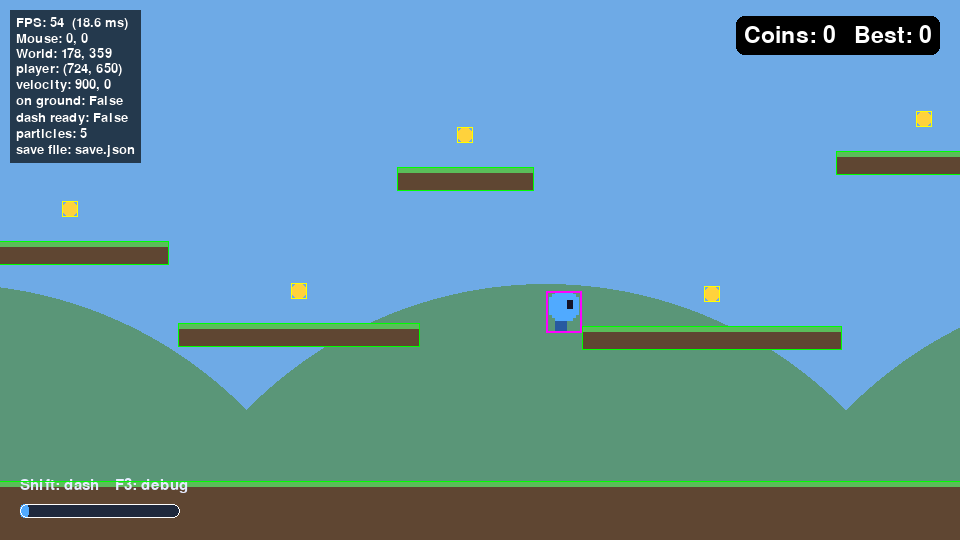
License
MIT © 2026 ethandadev
1 maintainer

Metadata
1 maintainer
Release files for pygame-essentials 0.2.0
For a detailed explanation of source distributions (sdists) and built distributions (wheels), please see the package formats documentation.
Source distribution (sdist)
| File | Size | Uploaded | |
|---|---|---|---|
| pygame_essentials-0.2.0.tar.gz | 128.6 kB | Details |
Built distribution (wheel)
| File | Interpreter | ABI | Platform | Reset |
|---|---|---|---|---|
| pygame_essentials-0.2.0-py3-none-any.whl | Python 3 | none | any | Details |
Total release size: 205.7 kB
Release files / pygame_essentials-0.2.0.tar.gz
| Download URL | pygame_essentials-0.2.0.tar.gz |
|---|---|
| Size | 128.6 kB |
| Tags | Source |
|
SHA-256 checksum How to use checksums |
942ab5cc26489136498f14adf7c01f605538af58bc0b7d2b68bf53b44fea37f3
|
|
BLAKE2b-256 checksum How to use checksums |
48c34792a8face3d75b15e8fb7338e19da465fbf9072b6124e6618578470bdf9
|
| Upload date | |
|
Uploaded using Trusted Publishing? What is trusted publishing? |
Yes |
| Uploaded via |
twine/7.0.0 CPython/3.13.14
|
Provenance
Provenance describes where a file came from. On PyPI, provenance is shared via attestations, which provide a verifiable record of the build or publishing details. View details, limitations and caveats.


PyPI Publish Attestation
PyPI verified that this artifact, at this checksum, originated from the publisher listed below.
Signed by GitHub Actions, verified by PyPI on Sep 14, 2026.
Transparency logRelease files / pygame_essentials-0.2.0-py3-none-any.whl
| Download URL | pygame_essentials-0.2.0-py3-none-any.whl |
|---|---|
| Size | 77.1 kB |
| Tags | Python 3 |
|
SHA-256 checksum How to use checksums |
fb4c4f2420fe8244eacb0a85d978c29dc8d7f63906179601887acdc2bcebd08d
|
|
BLAKE2b-256 checksum How to use checksums |
393168108353878bb07145ffc58451f21ce85894673ebc013e03f37fd3213df6
|
| Upload date | |
|
Uploaded using Trusted Publishing? What is trusted publishing? |
Yes |
| Uploaded via |
twine/7.0.0 CPython/3.13.14
|
Provenance
Provenance describes where a file came from. On PyPI, provenance is shared via attestations, which provide a verifiable record of the build or publishing details. View details, limitations and caveats.
PyPI Publish Attestation
PyPI verified that this artifact, at this checksum, originated from the publisher listed below.
Signed by GitHub Actions, verified by PyPI on Sep 14, 2026.
Transparency log













