

A powerful GUI wrapper for PyInstaller — convert your Python scripts into standalone executables for Windows, macOS, and Linux with ease.
Features
- Cross-platform support: Convert your Python scripts into executables for Windows, macOS, and Linux
- Easy-to-use GUI: No need to remember complex command-line arguments; a simple and intuitive interface
- Full modern PyInstaller coverage: search paths, module excludes,
--collect-alland friends, package metadata, custom hooks, splash screens, UPX control, bytecode optimization, and dedicated Windows (version info, manifest, UAC, console visibility) and macOS (argv emulation, bundle id, target architecture, code signing) option groups - Per-file destinations: choose exactly where each bundled file, folder, or binary lands inside the app, not just the bundle root
- Cancel a running build: a Stop button next to Run lets you cancel PyInstaller mid-build
- Dark & Light Themes: Automatic system theme detection with manual override options
- Drag & Drop Support: Simply drag and drop your Python script into the application
- Recent Files: Quickly access recently used scripts from the dropdown menu
- Configuration Management: Export and import build configurations as JSON files for reuse and sharing
- Syntax Highlighting: Command preview with color-coded syntax highlighting for better readability
- Search & Filter: Search and filter additional files in the file tree
- Edit Files: Edit file paths directly or double-click to modify
- Copy & Save Logs: Copy generated commands or save build logs to files
- Customizable settings: Fine-tune every PyInstaller option that matters, from hidden imports to code signing
- Real-time logging: View everything happening during the conversion process with detailed logs, and open the output folder as soon as the build finishes
Installation
You can install PyInstaller GUI via pip:
pip install --upgrade pyinstaller-gui
Or, if you prefer to clone the repository directly:
git clone https://github.com/inject3r/pyinstaller-gui.git
cd pyinstaller-gui
pip install -e .
Usage
Launching the GUI
To start the PyInstaller GUI, simply run the following command:
pyinstaller-gui
Or:
pyinstallergui
Converting a Script
- Open the PyInstaller GUI application
- Load your Python script by:
- Clicking the Browse button
- Dragging and dropping a
.pyfile into the script field - Selecting from Recent files dropdown
- Configure your build options across the tabs:
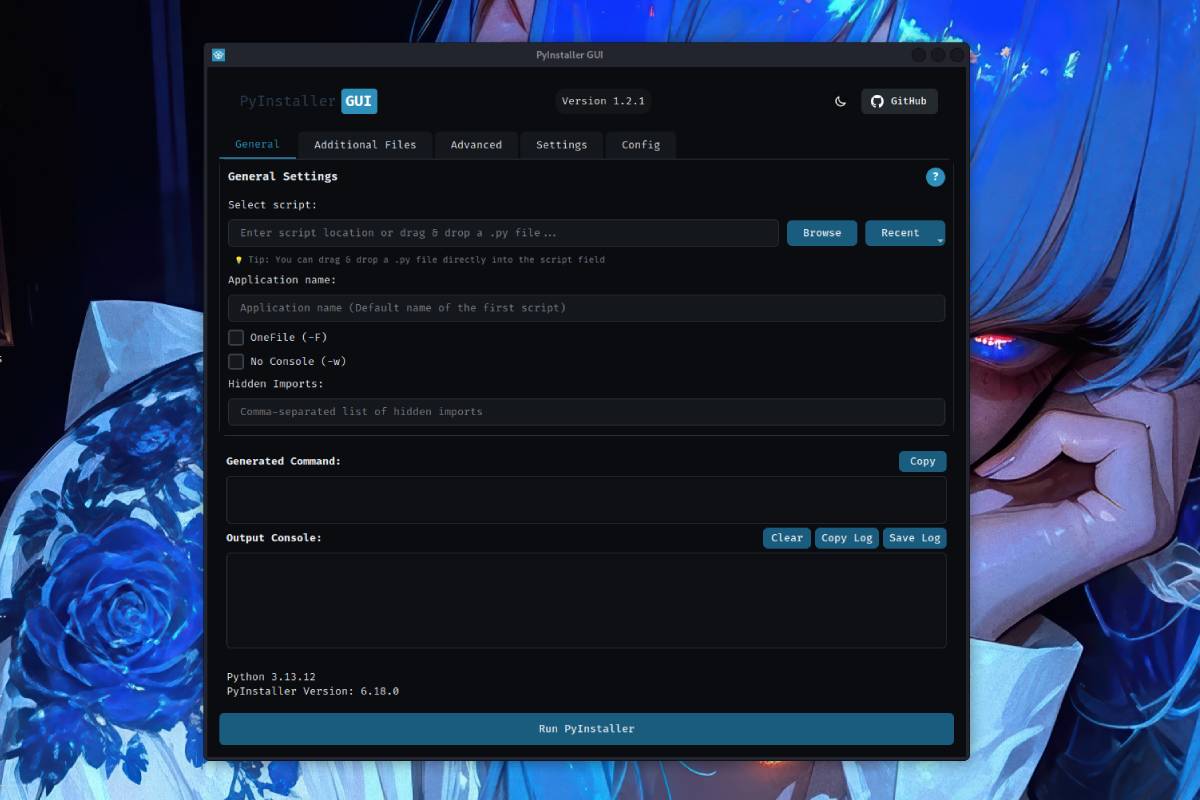
- General: Basic options (OneFile, No Console, Hidden Imports)
- Additional Files: Add files, folders, or binaries to bundle, each with its own destination folder inside the app
- Imports & Hooks: Search paths, excluded modules,
--collect-*helpers, package metadata, custom hooks, splash screen - Advanced: Log level, UPX compression, debug mode, bytecode optimization, stripping, build-behavior toggles
- Settings: Output folder, custom icon, runtime tmpdir, spec/work folders, and dedicated Windows/macOS option groups
- Config: Export/Import build configurations
- Click Run PyInstaller to generate the executable (use Stop to cancel a running build)
Configuration Management
- Export Configuration: Save your current settings as a JSON file
- Import Configuration: Load previously saved settings
- Preview: View a human-readable summary of your current configuration
Keyboard Shortcuts & Tips
- Double-click any file in the Additional Files list to edit its path
- Use the Search box to filter files in the Additional Files tab
- Copy button copies the generated command to clipboard
- Save Log saves the build output to a file with timestamp
- Clear button clears the output console
Custom Settings
| Feature | Description |
|---|---|
| OneFile (-F) | Create a single executable file instead of a folder |
| No Console (-w) | Hide the console window (Windows & macOS; also builds a .app bundle on macOS) |
| Hidden Imports | Specify modules that are imported dynamically |
| Additional Files | Include files, folders, or binaries to bundle, each with its own destination inside the app |
| Search Paths / Exclude Modules | Extra import search paths, and modules to leave out of the build |
| Collect All / Submodules / Data / Binaries | Force-bundle everything PyInstaller's static analysis might miss for a package |
| Copy Metadata | Bundle importlib.metadata for packages that check their own version/entry points at runtime |
| Hooks & Splash | Custom hook directories, runtime hooks, and an optional startup splash image |
| Icon | Choose a custom icon (.ico for Windows, .icns for macOS) |
| Output Folder | Define where the executable will be saved |
| Spec / Work Folders | Control where the generated .spec file and build artifacts are written |
| UPX Directory / Disable UPX | Path to UPX for compression, or turn it off entirely |
| Optimize / Strip | Bytecode optimization level and symbol stripping |
| Log Level | Control build output verbosity (TRACE, DEBUG, INFO, WARN, ERROR, FATAL) |
| Debug Mode | Enable debug features (all, imports, bootloader, noarchive) |
| Runtime Tmpdir | Custom temporary directory for onefile mode |
| Clean Cache / No Confirm | Clear PyInstaller cache before building, or skip the overwrite prompt |
| Windows Options | Version info, manifest, UAC elevation, console-hide behavior, disabled traceback dialog |
| macOS Options | Argv emulation, bundle identifier, target architecture, code signing identity/entitlements |
| Custom Commands | Add any additional PyInstaller arguments |
Note: To generate the executable for a specific operating system, you must run this module on that system. For example, to create a Windows executable, you need to run the module on a Windows machine.
Requirements
- Python 3.9+
- PyInstaller 6.22.0+
- PyQt6 6.8.1+
- darkdetect 0.8.0+ (for automatic system theme detection)
Supported Platforms
- Windows: Create .exe files for Windows
- macOS: Generate .app bundles for macOS
- Linux: Create executables for Linux
Development
Running Tests
# Run all tests with coverage
./scripts/tests.sh

# Clean test output files
./scripts/test_clean.sh

# Run a single test file
python -m pytest tests/test_command_builder.py -v
Building from Source
# Install in development mode
pip install -e .

# Install with dev dependencies
pip install -e ".[dev]"

# Build distribution
python -m build

# Build executable with PyInstaller
pyinstaller pyinstaller-gui.spec
Code Coverage
After running ./scripts/tests.sh, open the coverage report:
# Open HTML coverage report
firefox tests/coverage_html/index.html
# or
google-chrome tests/coverage_html/index.html
Troubleshooting
Common Issues
| Issue | Solution |
|---|---|
| PyInstaller not found | Install with pip install pyinstaller |
| Module not found errors | Add missing modules to Hidden Imports |
| Icon not showing | Ensure icon format is correct (.ico for Windows, .icns for macOS) |
| Permission denied on Linux | Run chmod +x dist/your_app |
| Command preview shows error | Check if script path is valid and file exists |
| Build fails with no console | GUI applications need --windowed flag (already set by No Console option) |
Getting Help
- Check the built-in help dialogs (click the ? button in each tab)
- View the command preview before building to verify arguments
- Check the output console for detailed error messages
- Visit the GitHub Issues page
Screenshots


License
This project is licensed under the MIT License - see the LICENSE file for details.
Contributing
Contributions are welcome! Please feel free to submit a Pull Request.
- Fork the repository
- Create your feature branch (
git checkout -b feature/amazing-feature) - Commit your changes (
git commit -m 'Add some amazing feature') - Push to the branch (
git push origin feature/amazing-feature) - Open a Pull Request
Development Guidelines
- Follow PEP 8 style guidelines
- Add tests for new features
- Update documentation as needed
- Ensure all tests pass before submitting
Acknowledgments
- PyInstaller - The core packaging tool
- PyQt6 - GUI framework
- UPX - Executable compressor
- All contributors and users of this project
1 maintainer

Download files
Download the file for your platform. If you're not sure which to choose, learn more about installing packages.
Source Distribution
Built Distribution
Filter files by name, interpreter, ABI, and platform.
If you're not sure about the file name format, learn more about wheel file names.
Copy a direct link to the current filters
File details
Details for the file pyinstaller_gui-1.3.0.tar.gz.
File metadata
- Download URL: pyinstaller_gui-1.3.0.tar.gz
- Upload date:
- Size: 82.8 kB
- Tags: Source
- Uploaded using Trusted Publishing? No
- Uploaded via:
twine/6.2.0 CPython/3.13.12
File hashes
| Algorithm | Hash digest | |
|---|---|---|
| SHA256 |
40abffae5c5992fb2d5b12408a44e17b3b72e28b2338870a05d986ae17efeeaf
|
|
| MD5 |
506e7610fcea25721106b22a5ce76a9b
|
|
| BLAKE2b-256 |
a3f56a8b924a52bbed6de47c209f37b873fc75891545202c42924ad30ebc7ad7
|
File details
Details for the file pyinstaller_gui-1.3.0-py3-none-any.whl.
File metadata
- Download URL: pyinstaller_gui-1.3.0-py3-none-any.whl
- Upload date:
- Size: 77.2 kB
- Tags: Python 3
- Uploaded using Trusted Publishing? No
- Uploaded via:
twine/6.2.0 CPython/3.13.12
File hashes
| Algorithm | Hash digest | |
|---|---|---|
| SHA256 |
67150dd595664c36c8651ce5e5303a5279af2a88a6c2b11517ff44cf2ffa37f7
|
|
| MD5 |
5f73b10a91d7f0d4c7efa05689515e59
|
|
| BLAKE2b-256 |
693954af2a56464bcdde473b322806338d9b98ea0c9dd702c052c6849b64391a
|














