
Lightweight interactive chart widget for PyQt5 with built-in approximation, multi-series, and extensible fit modes

Project description
pyqt5-chart-widget
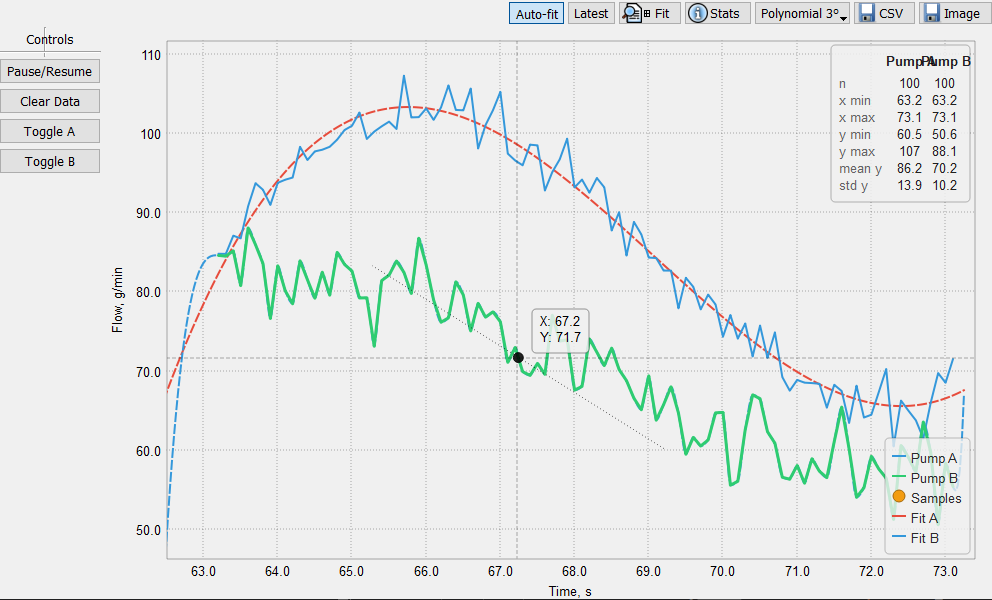
Zero dependencies beyond PyQt5. Drop the package in, plot your data. No matplotlib, no numpy — ~1000 lines total.
Originally built for an industrial powder feeder control application where a calibration curve needed to render fast, look clean, and not require importing half of scipy.
Install
pip install pyqt5-chart-widget
Python >= 3.8, PyQt5 >= 5.15.
Quickstart
import sys
from PyQt5.QtWidgets import QApplication, QMainWindow
from pyqt5_chart_widget import ChartWidget

app = QApplication(sys.argv)
win = QMainWindow()

chart = ChartWidget()
chart.setLabel("left",   "Flow, g/min")
chart.setLabel("bottom", "RPM")

xs = [i * 100 for i in range(20)]
ys = [x * 0.05 + x ** 1.1 * 0.0003 for x in xs]

line = chart.plot(label="Pump A")
line.setData(xs=xs, ys=ys)

scatter = chart.addScatter(size=10, label="Calibration")
scatter.setData(x=xs[::3], y=ys[::3])

fit = chart.addFit(line, mode_key="poly3", label="Polynomial fit")

win.setCentralWidget(chart)
win.resize(900, 500)
win.show()
sys.exit(app.exec_())
ChartWidget
ChartWidget(
    parent=None,
    show_toolbar:  bool = True,
    show_legend:   bool = False,
    show_sidebar:  bool = False,
    font:          QFont | None = None,
    threaded_fit:  bool = False,
    grid_px_x:        int = 7,
    grid_px_y:        int = 7,
)
threaded_fit=True moves fit computation off the main thread. Useful for large datasets or slow spline fits. Leave it False if you can't create additional threads — some embedded runtimes and multiprocessing workers don't allow it.
| Method | Description |
|---|---|
plot(color, width, label, dashed) |
Add a line series → _LineItem |
addScatter(size, color, label) |
Add a scatter series → _ScatterItem |
addFit(source, mode_key, color, width, dashed, label) |
Add a fit curve for a series → _FitItem |
addLine(y=, x=, color, width, dashed) |
Add an infinite reference line → _InfLine |
setLabel(side, text) |
Set axis label — "left" or "bottom" |
autofit() |
Fit view to current data bounds |
setAutofitEnabled(bool) |
Enable/disable auto-fit when data changes (default: True) |
setLatestPointVisible(bool) |
Show/hide latest-point badges on axis rulers |
setThreadedFit(bool) |
Switch threaded fit computation on/off at runtime |
setGridDensity(x, y) |
Update grid line count on both axes at runtime |
setToolbarVisible(visible) |
Show/hide the toolbar |
setSidebarVisible(visible) |
Show/hide the sidebar |
setLegendVisible(visible) |
Show/hide the legend overlay |
sidebar() |
Return the SidebarLabel instance (or None) |
removeItem(item) |
Remove any series or line |
clearAll() |
Remove all series |
refreshFitMenu() |
Rebuild the fit-mode dropdown (call after register_fit_mode) |
exportCsv() |
Open save dialog, write all series to CSV |
exportImage() |
Open save dialog, save canvas as PNG |
grabImage() |
Return QPixmap of the canvas without a dialog |
Color arguments accept any string QColor understands: "#e74c3c", "red", "rgb(200,100,50)". Omit color to get one from the auto-palette.
Series
line = chart.plot(label="Sensor A")
line.setData(xs=[...], ys=[...])
line.setVisible(True)
line.setRawVisible(False)   # hide raw data points; keep the fit curve visible
line.setLabel("New label")

scatter = chart.addScatter(size=10, label="Samples")
scatter.setData(x=[...], y=[...])
scatter.setRawVisible(False)

fit = chart.addFit(line, mode_key="spline", label="Spline fit")
fit.setModeKey("poly3")     # change algorithm live
fit.setVisible(False)

hline = chart.addLine(y=100.0, color="#f39c12", dashed=True)
hline.setValue(150.0)
hline.setVisible(True)
setRawVisible(False) hides the raw line or scatter while leaving any associated fit curve untouched. Use this when you only want to show the approximation.
Getting fit data out of the chart
All three methods run synchronously regardless of whether threaded_fit is on. They are safe to call from any code path that needs the numbers.
getData — raw lists
fit = chart.addFit(line, mode_key="poly3")
line.setData(xs=[...], ys=[...])

xs, ys = fit.getData()
# 400-point dense evaluation across the source data's x range.
# Both xs and ys are plain Python lists of floats.

xs, ys = fit.getData(x_lo=0.0, x_hi=500.0, n_pts=1000)
# Explicit range and resolution.
asDict — dictionary form
result = fit.asDict()
# {"x": [...], "y": [...]}

result = fit.asDict(x_lo=0.0, x_hi=500.0, n_pts=200)
Useful when passing data to JSON serialization or pandas:
import pandas as pd
df = pd.DataFrame(fit.asDict())
asTuples — list of (x, y) pairs
points = fit.asTuples()
# [(x0, y0), (x1, y1), ...]

points = fit.asTuples(x_lo=0.0, x_hi=500.0, n_pts=200)
Convenient for iteration, table rendering, or writing to a file:
for x, y in fit.asTuples():
    print(f"{x:.3f}  {y:.3f}")
evaluate — single point or arbitrary x values
y = fit.evaluate(250.0)
# Returns a single float — the model's prediction at x=250.

ys = fit.evaluate([0.0, 100.0, 200.0, 300.0])
# Returns a list of floats, one per input x.
# Returns None (scalar) or [None, ...] (list) if the fit cannot be computed.
Use evaluate when you need the model's output at specific x values that don't follow a regular grid:
sensor_readings = [12.4, 87.1, 143.9, 210.0]
predicted = fit.evaluate(sensor_readings)
Built-in fit modes
| Key | Method | Min points |
|---|---|---|
linear_origin |
y = kx (through origin) | 1 |
linear |
Ordinary least-squares | 2 |
poly2 |
Polynomial degree 2 | 2 |
poly3 |
Polynomial degree 3 | 2 |
poly4 |
Polynomial degree 4 | 2 |
pchip |
Piecewise Cubic Hermite (monotone) | 2 |
spline |
Natural cubic spline | 2 |
Custom fit modes
from pyqt5_chart_widget import FitMode, register_fit_mode

def my_fit(x_pts, y_pts, x_eval):
    # x_pts / y_pts are pre-sorted and de-duplicated before this is called.
    # Return a list of floats with the same length as x_eval.
    k = sum(xi * yi for xi, yi in zip(x_pts, y_pts)) / sum(xi**2 for xi in x_pts)
    return [k * xi for xi in x_eval]

register_fit_mode(FitMode("my_fit", "My custom fit", my_fit, min_points=2))

# If the chart is already on screen, rebuild the dropdown:
chart.refreshFitMenu()
Threaded fit computation
For large datasets or expensive spline fits, pass threaded_fit=True:
chart = ChartWidget(threaded_fit=True)
Or flip it at runtime:
chart.setThreadedFit(True)
While a fit is computing, the canvas shows the previous cached result. The update arrives asynchronously and triggers a repaint automatically. If you zoom or pan quickly, the pending computation is queued and runs once the in-flight worker finishes.
Leave threaded_fit=False (the default) if creating threads is not allowed in your environment — some embedded runtimes, multiprocessing child processes, and certain test frameworks don't support it.
Grid density
Control how many grid lines appear on each axis:
chart = ChartWidget(grid_x=5, grid_y=4)

# Change at runtime:
chart.setGridDensity(x=10, y=8)
The numbers are targets, not hard counts. nice_ticks rounds them to human-readable values, so the actual line count may be off by one. Minimum on either axis is 2.
Auto-fit toggle
By default, the view refits whenever you push new data via setData. Disable it to manage the viewport yourself:
chart.setAutofitEnabled(False)
chart.autofit()  # still works on demand
The toolbar has an Auto-fit toggle button for this. Double-clicking the chart always triggers a fit regardless of the setting.
Latest-point markers
chart.setLatestPointVisible(True)
Or use the Latest button in the toolbar. Each visible series gets a small colored badge on the X and Y axis rulers showing the last value in the series. Handy when streaming live data and you need to read the current value without hovering.
Crosshair and hover
Hover over the plot area to get a crosshair, a snap dot on the nearest point, and an X/Y tooltip. The snap works on:
- Individual scatter points
- Interpolated positions along line segments (not just the data points)
- Interpolated positions on fit curves
A tangent line is drawn at the snap point for line series and fit curves.
Sidebar
chart = ChartWidget(show_sidebar=True)
sb = chart.sidebar()

sb.addLabel("Controls")
sb.addSeparator()
sb.addButton("Toggle line", lambda: line.setVisible(not line.visible))
sb.addButton("Export CSV",  chart.exportCsv, tooltip="Save data")
sb.clear()
Legend
chart = ChartWidget(show_legend=True)
# or later:
chart.setLegendVisible(True)
Only series that have a label and are visible appear in the legend.
Color palette
from pyqt5_chart_widget import set_palette, reset_colors

set_palette(["#ff0000", "#00ff00", "#0000ff"])  # replace the built-in palette
reset_colors()                                    # restart the auto-color index
Internationalization
from pyqt5_chart_widget import set_tr, update_strings

# Hook into your own translation system:
set_tr(lambda key: my_translations.get(key, key))

# Or patch individual strings:
update_strings({
    "chart_widget.btn_fit":      "Fit view",
    "chart_widget.btn_csv":      "Save CSV",
    "chart_widget.btn_autofit_toggle": "Live fit",
    "chart_widget.btn_latest":   "Now",
})
Interaction
| Action | Result |
|---|---|
| Scroll wheel | Zoom in/out centered on cursor |
| Left drag | Pan |
| Double-click | Reset view to data bounds |
| Hover | Crosshair + snap to nearest point/curve + tangent |
Zoom is clamped to a safe range — no matter how far in or out you scroll, the widget will not hang or crash.
Module layout
pyqt5_chart_widget/
├── __init__.py       — public API re-exports
├── chart_widget.py   — ChartWidget, toolbar
├── canvas.py         — rendering, interaction, hover
├── items.py          — _LineItem, _ScatterItem, _FitItem, _InfLine
├── math_utils.py     — FitMode, built-in fitters, register_fit_mode, nice_ticks
├── sidebar.py        — SidebarLabel
├── palette.py        — auto-color palette
└── i18n.py           — tr(), set_tr(), update_strings()
Why not matplotlib or pyqtgraph?
Matplotlib embedded in Qt is slow to start, awkward to theme, and brings in a lot of machinery for one calibration curve. Pyqtgraph is excellent but requires numpy as a hard dependency. This widget is ~1000 lines, has zero runtime dependencies beyond PyQt5, and does exactly what the name says.
License
MIT
Release history Release notifications | RSS feed


Download files
Download the file for your platform. If you're not sure which to choose, learn more about installing packages.
Source Distribution
Built Distribution
Filter files by name, interpreter, ABI, and platform.
If you're not sure about the file name format, learn more about wheel file names.
Copy a direct link to the current filters
File details
Details for the file pyqt5_chart_widget-3.2.0.tar.gz.
File metadata
- Download URL: pyqt5_chart_widget-3.2.0.tar.gz
- Upload date:
- Size: 26.7 kB
- Tags: Source
- Uploaded using Trusted Publishing? No
- Uploaded via: twine/6.1.0 CPython/3.8.10
File hashes
| Algorithm | Hash digest | |
|---|---|---|
| SHA256 |
6f32ea7598945c4139b7af01216181a93c9617c2ccd33ea1177866a8cade43b9
|
|
| MD5 |
10ce232a6e21eba0a5369e91d794c71a
|
|
| BLAKE2b-256 |
74a134ce86877cc804b7a000de34982cb6ad4c2b0823540008702813fbc4aed2
|
File details
Details for the file pyqt5_chart_widget-3.2.0-py3-none-any.whl.
File metadata
- Download URL: pyqt5_chart_widget-3.2.0-py3-none-any.whl
- Upload date:
- Size: 24.4 kB
- Tags: Python 3
- Uploaded using Trusted Publishing? No
- Uploaded via: twine/6.1.0 CPython/3.8.10
File hashes
| Algorithm | Hash digest | |
|---|---|---|
| SHA256 |
0f215edcf1646ed5d4b5cf4a03f53c4b28847af9e1e63cac9604e9dee1306abe
|
|
| MD5 |
e8879cc6aa9fb07b04842ba7c9210b9a
|
|
| BLAKE2b-256 |
01febd641e9b1e79fa1253f84936fba11bbda2ce0b7eeef209191d5bbe52f19d
|






