
pyrobox 🔥
Note : DEFAULT UPLOAD PASSWORD: SECret
- you can change it by editing the code (see
configclass at top) - to set password from command line, use
-kor--passwordflag
Status

Requesting for more suggesions and ideas
Feel Free to Support Me

Basic FEATURES
- File Hosting system (Serve files from local Storage system)
- Access Shared File System from Multiple Devices
- Has optional account system (Admin can add users or allow signup) (Check Advanced Account System section)
- Set Server Permission (Check Customization Options section)
Extra FEATURES
- 🔽 DOWNLOAD AND VIDEO STREAM WITH PAUSE AND RESUME
- 🔼 UPLOAD WITH PASSWORD (User password or server-wide password)
- 👌 HTML5 drag and drop uploader
- 📈 MULTIPLE FILE UPLOAD
- 📝 RENAME
- 📁 FOLDER DOWNLOAD as ZIP (uses temp folder)
- ⏯ Built-in VIDEO PLAYER
- 🔁 DELETE FILE (MOVE TO RECYCLE BIN)
- 🔥 PERMANENTLY DELETE
- ⛓
File managerlikeNAVIGATION BAR - 📑 Right click Context menu (Tap n hold on touch device)
- 🧨 RELOAD SERVER FROM REMOTE [DEBUG PURPOSE]
- 🆕 FOLDER CREATION
- 💬 Pop-up messages UI(from my Web leach repo)
- 🌐 (If you are using REAL IP AND ALLOW PYTHON TO USE PUBLIC NETWORK, YOUR SERVER CAN BE VISIBLE AROUND THE GLOBE. (you must use port forwarding from Router)
- 🧬 Clone entire directory from Host to Client with least changes (last modified preserved)
- 🔜 More comming soon
- All of these without the need of any internet connection (having connection will provide better experience)
Server side requirement
- Python 3.7 or higher. Older support available.1
- Basic knowledge about Python
send2trash,natsortpython modules
Installation
- Install Python 3.7 or higher
- Close older pyrobox process if already running
- Install using PIP
On Windows
- Open
CMDorPowerShell - Run
pip install -U pyrobox - Run
pyroboxto launch the server on the Terminal Current Working Directory.
On Linux
- Open
Terminal - Run
pip3 install -U pyrobox - Run
pyroboxto launch the server on the Terminal Current Working Directory.
CHECK FAQ FOR FUTURE HELP AND ISSUE FIX
Quick Tutorial
https://github.com/RaSan147/pyrobox/assets/34002411/eb2ac313-f95a-4334-a265-c3feeb333821
Customization
-
Simply running the code on will create a server on
CURRENT WORKING DIRECTORYonPort: 6969 -
On browser (on device under same router/wifi network), go to
deviceIP:port_numberto see the output like this:http://192.168.0.101:6969/- you must allow python in firewall to access network, check FAQ for more help
-
To change the server running directory,
- (i) either edit the code (see
configclass at top) - (ii) or add
-dor--directorycommand line argument when launching the programpyrobox -d .to launch the server in current directory (where the file is)pyrobox -d "D:\Server\Public folder\"(Use Double-Quotation while directory has space)pyrobox -d "D:/Server/Public folder"(Forward or backward slash really doesn't matter, unless your terminal thinks otherwise)
- (i) either edit the code (see
-
To change port number
- (i) just edit the code for permanent change (see
configclass at top) - (ii) or add the port number at the end of the command line arg
pyrobox 45678# will run on port 45678pyrobox -d . 45678# will run on port 45678 in current directory
- (i) just edit the code for permanent change (see
-
To specify alternate bind address
- Add bind add
-bind {address}# ie:-bind 127.0.0.2or-bind 127.0.0.99
- Add bind add
-
To change upload password
- (i) or add
-kor--passwordcommand line argument when launching the programpyrobox -k "my new password"to launch the server with new passwordpyrobox -k ""to launch the server without passwordpyroboxto launch the server with default password (SECret)
- (ii) just edit the code for permanent change (see
configclass at top)
- (i) or add
-
Optional configurations
usage: pyrobox [--password PASSWORD] [--no-upload] [--no-zip] [--no-update] [--no-delete] [--no-download] [--read-only] [--view-only] [--bind ADDRESS] [--directory DIRECTORY] [--version] [-h] [port]
Positional Arguments
| arg value | Description |
|---|---|
port |
Specify alternate port [default: 6969] |
Options
Flags/Arg value |
Description |
|---|---|
--password PASSWORD, -k PASSWORD |
Upload Password (GUESTS users and Nameless server users must use it to upload files)(default: SECret) |
--directory DIRECTORY, -d DIRECTORY |
Specify alternative directory [default: current directory] |
--bind ADDRESS, -b ADDRESS |
Specify alternate bind address [default: all interfaces (0.0.0.0)] |
| --version, -v | show program's version number and exit |
| -h, --help | show this help message and exit |
| --no-extra-log | Disable file path and [= + - #] based logs (default: False) |
--zip-limit, -zl ZIP_LIMIT |
Set the limit of zip file size in bytes/KB/MB/GB/TB (default: 6GB) |
Customization Options
| Flags | Description |
|---|---|
| --no-upload, -nu | Files can't be uploaded (default: False) |
| --no-zip, -nz | Disable Folder->Zip downloading (default: False) |
| --no-modify, -nm | Disable File Modification (ie: renaming, overwriting existing files) (On upload, if file exists, will add a number at the end) (default: False) |
| --no-delete, -nd | Disable File Deletion (default: False) |
| --no-download, -ndw | Disable File Downloading [videos won't play either] (default: False) |
| --read-only, -ro | Read Only Mode disables upload and any modifications ie: rename, delete (default: False) |
| --view-only, -vo | Only allowed to see file list, nothing else (default: False) |
Advanced Account System
You must give a
--name [Name]and--admin-id [USER Name],--admin-pass [PASSWORD]to create an admin account. If guest not allowed--no-guest-allowedUser must login to access the server. You can also disable signing up--no-signup(Only admin can add user from admin page). Admin can also update user permission from admin page.
Flags/Arg value |
Description |
|---|---|
--name NAME, -n NAME |
Name of the user (default: None) |
--admin-id ADMIN_ID, -aid ADMIN_ID |
Admin ID (default: None) |
--admin-pass ADMIN_PASS, -ak ADMIN_PASS |
Admin Password (default: None) |
| --no-signup, -ns | Disable Signing up (Only admin can add user from admin page)(default: False) |
| --no-guest-allowed, -ng | Disable Guest Access (default: False) |
Account Example
pyrobox -n "My Server1" -aid "admin" -ak "admin123" -k "Guest_pass"# will allow anyone to access the server, but they must useGuest_passto upload filespyrobox -n "My Server2" -aid "admin" -ak "admin123" -ng# If someone wants to access the server they must sign up via signup page first. No guest allowedpyrobox -n "My Server3" -aid "admin" -ak "admin123" -ng -ns# Only admin can access the server. No guest allowed, no signup allowed. Admin can add user from admin page
Clone Directory
- Make a python file with the following code
from pyrobox import clone
clone.main()
- Run the file. Follow the instructions.
- For advanced use, check the source code of
clone.pyin thepyroboxmodule.
TODO
- https://github.com/RaSan147/pyrobox/issues/33 Show thumbnails, for png and jpg (how to do with just standard library?), For others, just show extension.
- https://github.com/RaSan147/pyrobox/issues/34 Copy stream URL for videos to play with any video player
- https://github.com/RaSan147/pyrobox/issues/36 Add side bar to do something 🤔
- check output ip and port accuracy on multiple os
- https://github.com/RaSan147/pyrobox/issues/37 Backup code if Reload causes unhandled issue and can't be accessed
- Add more flags to disable specific features
Support for more features
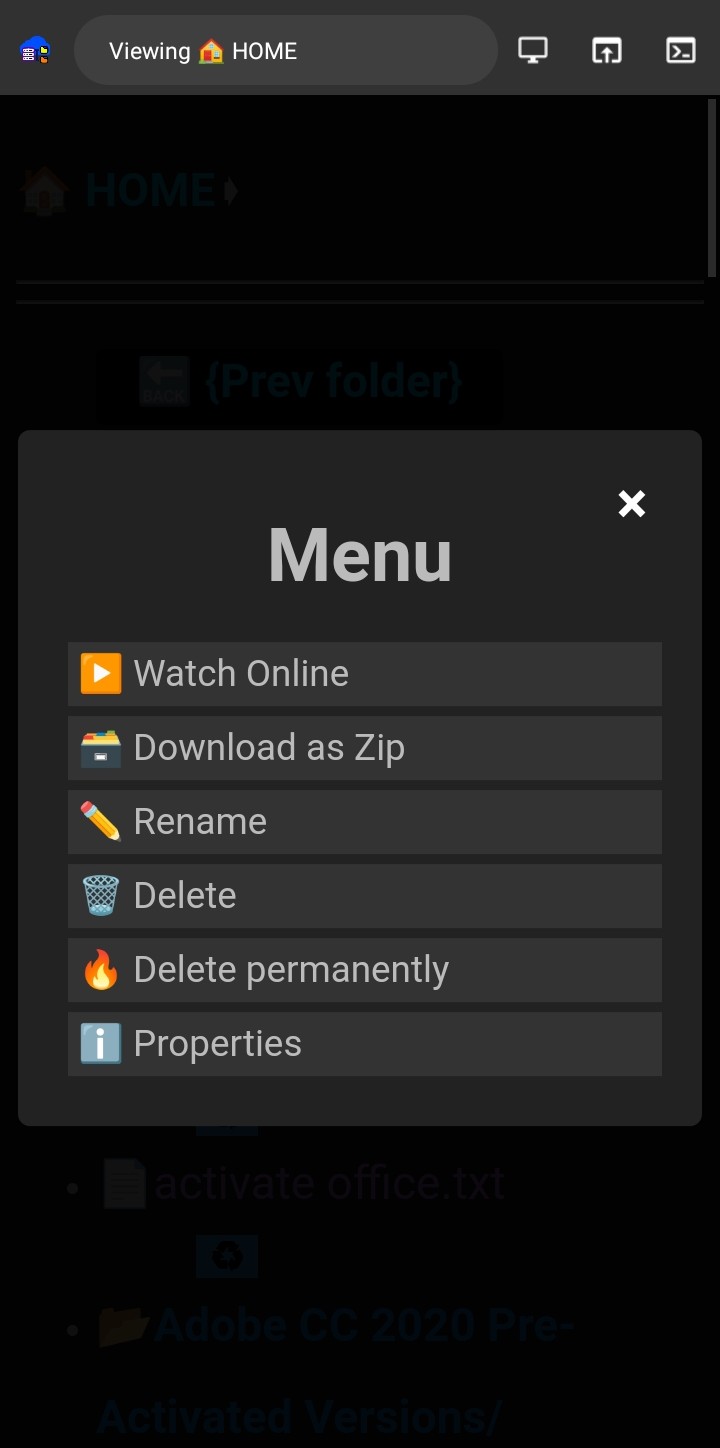
Context menu
Right click on any file link
FAQ
Using WSL, "PIP not found"
Run this to install
pip3and addpipto path
sudo apt -y purge python3-pip
sudo python3 -m pip uninstall pip
sudo apt -y install python3-pip
pip3 install --upgrade pip
echo "export PATH=\"${HOME}/.local/bin:$PATH\"" >>"${HOME}"/.bashrc
Re-running the file should work.
Using Linux, "PIP not found"
Run this to install
pip3
sudo apt -y purge python3-pip
sudo python3 -m pip uninstall pip
sudo apt -y install python3-pip
pip3 install --upgrade pip
Re-running the file should work.
Deleted (Move to Recycle), But WHERE ARE THEY?? [on LINUX & WSL]
Actually the feature is working fine, unfortunately NO-GUI mode linux and WSL don't recycle bin, so you can't find it! And to make things worse, you need to manually clear the recyle bin from
~/.local/share/TrashSO I'D RECOMMAND USING DELETE PARMANENTLY
Running on WINDOWS, but can't access with other device [FIREWALL]
You probably have FireWall ON and not configured. For your safety, I'd recommend you to allow Python on private network and run the server when your network is Private. IN SHORT: ALLOW PYTHON ON FIREWALL, RUN THE SERVER
note: allowed on private but using public network on firewall will cause similar issue, you gotta make both same or allow python both on public and private
Thanks to
- https://github.com/bones7456/bones7456/blob/master/SimpleHTTPServerWithUpload.py (the guy who made upload possible)
- https://gist.github.com/UniIsland/3346170 (the guy who made multiple file upload possible)
- https://github.com/SethMMorton/natsort (sorting titles)
- https://github.com/sandes/zipfly (modified lets you see the zip progress)
- https://github.com/sampotts/plyr (improved video player)
- https://github.com/transiscodev (added accunt system base Branch)
Disclaimer: the owner or the programmers or any content of this repository hold no responsibility for any kind of data loss or modification on your system and do not warrenty for such actions. I tried my best to prevent all sorts of ways (that I am currently aware of) to prevent data loss or unwanted data modification. See Data Safety Measures taken on this projects to prevent unwanted data loss.
-
[<=3.4 compatibility] is on the way. ↩
1 maintainer

Metadata
1 maintainer
Release files for pyrobox 0.9.9
For a detailed explanation of source distributions (sdists) and built distributions (wheels), please see the package formats documentation.
Source distribution (sdist)
| File | Size | Uploaded | |
|---|---|---|---|
| pyrobox-0.9.9.tar.gz | 116.1 kB | Details |
Built distribution (wheel)
| File | Interpreter | ABI | Platform | Reset |
|---|---|---|---|---|
| pyrobox-0.9.9-py3-none-any.whl | Python 3 | none | any | Details |
Total release size: 237.2 kB
Release files / pyrobox-0.9.9.tar.gz
| Download URL | pyrobox-0.9.9.tar.gz |
|---|---|
| Size | 116.1 kB |
| Tags | Source |
|
SHA-256 checksum How to use checksums |
59f1392f4d5481f4497ff0e1b13b9469ba84f7a0da2ca6837de64475a252bf5b
|
|
BLAKE2b-256 checksum How to use checksums |
bc6791075e0886c98d27497749cdb8e0c65c0dd8ac9c42511eff16457c38c514
|
| Upload date | |
|
Uploaded using Trusted Publishing? What is trusted publishing? |
No |
| Uploaded via |
twine/5.1.1 CPython/3.11.9
|
Release files / pyrobox-0.9.9-py3-none-any.whl
| Download URL | pyrobox-0.9.9-py3-none-any.whl |
|---|---|
| Size | 121.1 kB |
| Tags | Python 3 |
|
SHA-256 checksum How to use checksums |
c7d4706cd2b0fa7bf7d47c4567d0c382594bcac27aed59be238af6691a62d49d
|
|
BLAKE2b-256 checksum How to use checksums |
8818f422522c905eab5c0d3cbe4246dfb2dfebb684a1e477a92a04fcc535a5c4
|
| Upload date | |
|
Uploaded using Trusted Publishing? What is trusted publishing? |
No |
| Uploaded via |
twine/5.1.1 CPython/3.11.9
|














