
The pysimconnect package provides a simple, efficient wrapper for FlightSimulator 2020's
SimConnect SDK,
inspired by Python-SimConnect.
If you're looking to build external instrument displays,
connect custom controllers to FS2020,
or just explore how the simulation works in more detail
then pysimconnect is for you.
You might also be interested in G3,
a flexible Javascript framework for building steam gauge instrument panels.
The package contains a python module called simconnect
which exposes a simple pythonic interface
to read simulator variables,
set editable variables,
subscribe to variable changes,
and trigger simulator events.
It also exposes all of the low-level SDK methods,
constants and enumerations from the SimConnect.h
SDK API based on a simple automated translation
from the C++ definitions to Python equivalents.
The package also offers a simconnect command-line tool
which lets you search for
variables, events and measurement units from the SDK documentation;
inspect, change or watch variables over time;
and send simulator events,
all without writing any code.
Quick start
Making sure you're using python 3.6+ and install the package:
pip install pysimconnect
To use the simconnect command-line tool,
install Powershell7 and
set your default terminal
to Windows Terminal rather than Windows Console Host.
Start Powershell7 and install TAB auto-completion support by typing
simconnect --install-completion powershell
then restart your terminal as instructed:

Now start a flight in FS2020, perhaps with the AI pilot flying.
Let's experiment with reading and modifying the altitude.
First let's find some relevant variables with search:
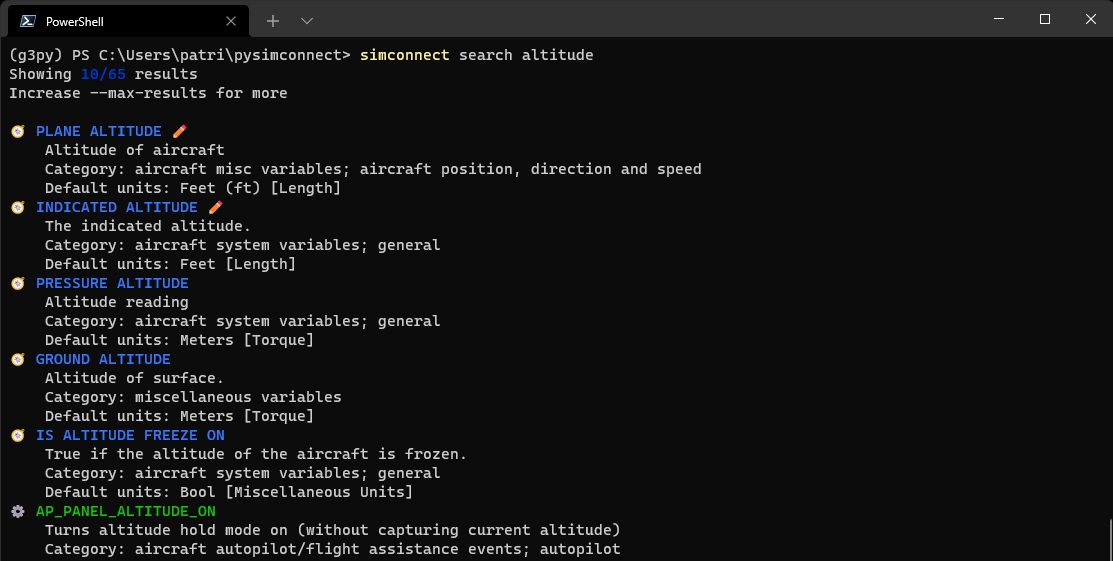
Nice! We get a list of results from the SDK documentation ranked by relevance. Result categories are distinguished by different colors and symbols, e.g. variables 🧭, events ⚙️ and units 📐, with a ✏️ marking variables which we can change.
Now let's read the value of the PLANE ALTITUDE variable using the get command.
Start typing simconnect get PLA<TAB>, hitting the TAB key part way through the variable name
to see contextual auto-complete options:

Select the desired PLANE_ALTITUDE option and hit ENTER:

Note that although the underlying SDK variables are space-separated and events are underscore-separated, the command-line tool recognizes either version. Normally using underscore-separated everywhere will be easier for auto-completion and avoids quoting in the terminal.
We can read multiple variables by just appending them in a list.
We can also monitor multiple variables over time using watch:
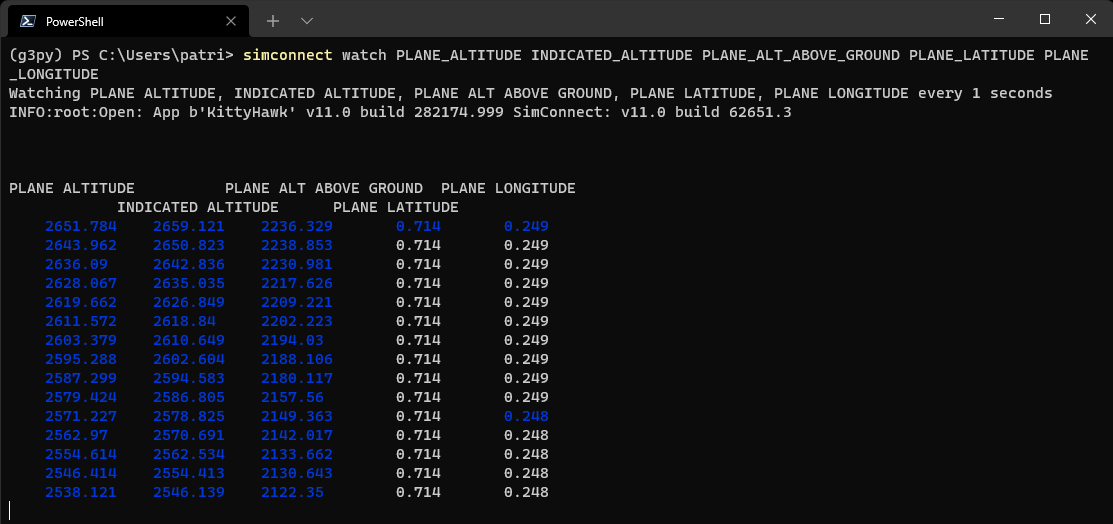
By default we'll see an update once every second,
highlighting the variables that change during each update.
Some commands support additional options,
for example simconnect watch --help will show us how to change the
monitoring interval time.
For general help, try simconnect --help.
Now let's change the plane's altitude during flight(!) using the set command.
Here we'll add the --units option to specify that our value is measured in meters rather
than the default feet:

Lastly, let's send an event to FS2020. A simple example is to bump the altimeter adjustment knob, like so. If you send this event a few times, you'll see the indicated altitude adjust in response.

This simple event needs no data, but with others you also need to provide a value.
Working with python
The command-line tool is just a lightweight
wrapper for some features of the simconnect python package.
This means that you can write simple python code to do anything
the command-line tool does, and much more besides.
The best way to get started is to browse some examples
which show both low-level interaction with the SDK,
and some of the simplified sugar the package offers.
With so many moving parts, debugging errors can sometimes be tricky.
One useful tool is to set the LOGLEVEL environment variable
to DEBUG before running your code, rather than the default INFO:
set LOGLEVEL=DEBUG
Also, be warned that the official
SDK documentation
has various errors (copy/paste gone wrong?)
which can make it difficult to understand some details.
Where possible refer directly to the SimConnect.h
header file definitions and comments
as a more authoritative source.
What's what?
Find the full source on github at https://github.com/patricksurry/pysimconnect.
The simconnect folder contains the package itself.
The main interface is defined in sc.py which wraps the raw
definitions from the auto-generated scdefs.py,
providing access to both the low-level
SDK functions as well as some pythonic sugar.
The command line tool is implemented by cli.py.
The package requires a copy of SimConnect.dll to work.
This normally ships with FS2020 but a recent copy is also included here.
You can point to your own version by specifying the dll_path argument
when initializing SimConnect(...).
The scvars.json file lists all the simulation variables (SimVars),
events and dimensional units, which were scraped from the SDK documentation pages
using scripts/scrapevars.json. This is useful for finding content
you want to interact with, inferring missing units and data-types
when querying simulation variables, and sanity-checking variable names.
The examples folder contains various illustrations of how to use
the package, showing both low-level SDK access and the pythonic wrappers.
See the README.md there for more details.
The scripts folder includes several scripts used to generate
parts of the package.
The genscdefs.py script creates scdefs.py from a post-processed
version of the SimConnect.h C++ header that ships with the SDK
(which can be installed via the Options > General > Developer tools help menu).
This generates a python translation of all the SDK function declarations, data structures
and enumerated constants. The automated translation is quite fragile:
it assumes the header is formatted in a particular way, and has been
pre-processed with cpp to SimConnect_cpp.h from the raw header.
This approach makes it easy to tweak the rules for mapping from C++
to Python, as long as header format doesn't change significantly.
Testing and remote connectivity
Run unit tests via pytest:
python3 -m pytest -v
Live integration tests in tests/test_live_msfs.py run automatically when SimConnect.dll can connect to a running MSFS 2020 instance, and are skipped otherwise (e.g. on macOS/Linux or when MSFS is not running).
When running tests remotely over SSH on a Windows machine where FlightSimulator.exe is running in the interactive desktop session (Session 1), sshd runs in Session 0 and cannot see the default local named pipe. Create a SimConnect.cfg in the working directory to connect over MSFS's local TCP port (127.0.0.1:500):
[SimConnect]
Protocol=IPv4
Address=127.0.0.1
Port=500
For passwordless SSH to a Windows host where your user is in the Administrators group, OpenSSH reads authorized keys from C:\ProgramData\ssh\administrators_authorized_keys (with ACLs restricted to Administrators and SYSTEM), and Windows Firewall must allow inbound TCP port 22 (e.g. Private network profile).
Packaging and distribution
Bump version in setup.cfg then following https://packaging.python.org/en/latest/tutorials/packaging-projects/
uv build --out-dir dist
git commit -am ...
git push origin
git tag v0.2.8
git push origin --tags
uvx twine upload dist/*0.2.8*
# login with username: __token__ / password: pypi-...
1 maintainer

Metadata
1 maintainer
Release files for pysimconnect 0.2.8
For a detailed explanation of source distributions (sdists) and built distributions (wheels), please see the package formats documentation.
Source distribution (sdist)
| File | Size | Uploaded | Provenance | Actions |
|---|---|---|---|---|
| pysimconnect-0.2.8.tar.gz | 632.8 kB | Without provenance | Details for pysimconnect-0.2.8.tar.gz |
Built distribution (wheel)
| File | Interpreter | ABI | Platform | Actions Reset |
|---|---|---|---|---|
| pysimconnect-0.2.8-py3-none-any.whl | Python 3 | none | any | Details for pysimconnect-0.2.8-py3-none-any.whl |
Total release size: 1.3 MB
Release files / pysimconnect-0.2.8.tar.gz
| Download URL | pysimconnect-0.2.8.tar.gz |
|---|---|
| Size | 632.8 kB |
| Tags | Source |
|
SHA-256 checksum How to use checksums |
3b1badf89af1d2c59ee68a882b6ce573e21dd949413ebe6aa109bf3545414c69
|
|
BLAKE2b-256 checksum How to use checksums |
cae4929ff4302d8358446b07b805fa1aaeb549fd47b089c5e57b5cc7aeb9a864
|
| Upload date | |
|
Uploaded using Trusted Publishing? What is trusted publishing? |
No |
| Uploaded via |
twine/7.0.0 CPython/3.11.12
|
Release files / pysimconnect-0.2.8-py3-none-any.whl
| Download URL | pysimconnect-0.2.8-py3-none-any.whl |
|---|---|
| Size | 620.3 kB |
| Tags | Python 3 |
|
SHA-256 checksum How to use checksums |
1a05376ef3c6d66b64f53a5ca6638d0c64fe6fcaa8b5eb3337aa0601110318c3
|
|
BLAKE2b-256 checksum How to use checksums |
1b541b545ab81b6a5d8aae8cac4ea25625f6e48e25072286125c4703d6b1fe1e
|
| Upload date | |
|
Uploaded using Trusted Publishing? What is trusted publishing? |
No |
| Uploaded via |
twine/7.0.0 CPython/3.11.12
|
Security for pysimconnect 0.2.8
Provenance
Provenance describes where a file came from. On PyPI, provenance is shared via attestations, which provide a verifiable record of the build or publishing details. View details, limitations and caveats.
No provenance found
None of the files in this release were uploaded with provenance metadata.
A note on package security
PyPI is a repository for distributing packages, not a service for auditing them. While third-party security researchers and our staff do their best to detect and remove malicious packages, PyPI cannot guarantee the quality, security or suitability of any given package.
To learn more about protecting yourself from malicious actors, visit our package security documentation.














