
pytest-tui-runner
Interactive Textual User Interface (TUI) for running pytest tests easily from your terminal.
Introdution
When working with pytest, selecting the right combination of tests can be inconvenient, especially if you need to remember long command-line flags, markers, parameters, or custom arguments.
pytest-tui-runner solves this by providing an interactive terminal interface (TUI) built specifically for running pytest tests in a clean, organized way.
However, unlike test browsers that automatically load your entire test suite, this tool is intentionally designed to be fully controlled by you using a configuration file.
Instead of overwhelming you with the large number of tests you might have in a project, the configuration file allows you to:
- define exactly which tests appear in the interface,
- group them into clear categories and subcategories,
- assign human-friendly labels,
- optionally attach arguments or dropdowns for parametrized tests.
This keeps the interface clean, simple, and tailored to your workflow.
Features
Once you define your test structure in config.yaml (explained in detail in the Configuration), the TUI provides a clean and interactive way to work with your tests. The main features include:
Interactive test selection
- Select or deselect tests using checkboxes
- Each item corresponds exactly to what you define in your config
Arguments for parametrized tests
- Support for text_input fields for free-form values.
- Support for select dropdowns with predefined options.
- Ability to add multiple sets of arguments for running the same test with different values.
One-click test execution
- A single Run tests button executes all selected tests.
- The tool constructs pytest arguments automatically — no need to remember flags or syntax.
Live terminal output
- The interface includes a Terminal tab where you can see the real-time pytest output.
- You can scroll through it or copy text using Shift + mouse drag.
Color-coded test states
-
🟢 Green → test passed
-
🔴 Red → test failed
-
🔵 Blue → test is currently running
- If a widget remains blue after all tests have finished, it means the test result could not be linked back to that widget.
These visual indicators make it easy to follow progress without reading the full terminal log.
Instalation
Install from PyPI using:
pip install pytest-tui-runner
Usage
In the root folder of your project (where you have the tests/ directory), create a folder named .pytest_tui_runner.
This folder will store everything related to the plugin — logs, configuration files, and widget states.
Once your configuration file is ready (see the Configuration section), simply run:
pytest-tui run
The terminal interface will open.
You can then:
- select or deselect tests using checkboxes,
- fill in argument fields for parametrized tests,
- add multiple parameter rows using the green + button,
- run selected tests with a single action,
- switch to the Terminal tab to see live pytest output (copy using Shift + mouse drag).
Quick setup with init
If your project does not yet contain the .pytest_tui_runner folder (for example, if you’re setting up the plugin for the first time),
you can quickly initialize it using the init command:
pytest-tui init
This command will:
- create the
.pytest_tui_runner/folder in your current working directory, - generate a basic config.yaml file with a default structure.
It does not start the TUI; it only prepares the project for use.
⚠️ Important:
pytest-tui init does NOT create a fully working configuration.
It only generates a template that you must edit to match your project.
Also make sure you run this command from the root of your project (or pass the correct project path), otherwise the folder and config may be created in the wrong place and the application might not work correctly.
After initialization, you can start the app normally using:
pytest-tui run
Providing a project path manually
By default, the tool searches for the project root automatically by looking for a folder named .pytest_tui_runner upwards from the current working directory.
However, you can also explicitly specify the project directory as a positional argument:
pytest-tui run path/to/your/project
This tells the tool where to start looking for the project root. It searches upward from the given path for a
.pytest_tui_runner folder, and then loads configuration, logs, and state files from that project root.
If you need to set up a project manually, you can initialize it using:
pytest-tui init path/to/your/project
This creates the required .pytest_tui_runner folder and a default config.yaml in the specified directory. After initialization, you can launch the interface using:
pytest-tui run path/to/your/project
Configuration
Inside the .pytest_tui_runner folder, you must create a file named config.yaml.
This file fully controls what appears in the TUI — without it, the interface will be empty.
The purpose of the config is to give you complete control over which tests are shown, how they are grouped, and what parameters they accept.
Nothing is loaded automatically from your filesystem, so large test suites won’t overwhelm the interface.
Structure overview
Your configuration is made of three levels, and each level includes a label field:
- categories: top-level groups
- subcategories: groups inside each category
- tests: individual test items or test groups based on markers
Referencing tests
Each test can be referenced in two ways:
1. Using test_name
test_name must match the actual Python test function name, for example:
def test_login_success():
    ...
Your config must use:
test_name: "test_login_success"
2. Using markers
Instead of referencing a specific test, you can reference a group of tests using pytest markers.
A checkbox defined this way will match only tests that contain all of these markers — no more, no less.
Example:
Suppose you have:
@pytest.mark.slow
@pytest.mark.api
def test_download():
    ...

@pytest.mark.slow
def test_small_sleep():
    ...
And your config contains:
markers: ["slow", "api"]
Results:
- ✅
test_download— matches exactly (slow+api) - ❌
test_small_sleep— missing markerapi
Useful when you want to run groups of tests together (e.g., “all slow tests”).
Defining arguments for parametrized tests
If your test function has parameters, for example:
def test_compute(x, y):
    ...
an arguments: list must be defined in the configuration so the TUI knows how values for these parameters should be entered.
Each argument must include:
-
arg_name
Must match the exact parameter name from the test function -
arg_type
specifies how the value will be entered in the TUI and must be one of:"text_input"→ free text field"select"→ a dropdown list with predefined options
Depending on arg_type, you then add additional fields:
"text_input"→ requires aplaceholder"select"→ requires anoptions: [...]list
Example for a test with two parameters x and y:
arguments:
  - arg_name: "x"
    arg_type: "text_input"
    placeholder: "Enter value for x"

  - arg_name: "y"
    arg_type: "select"
    options: ["low", "medium", "high"]
These definitions allow the TUI to dynamically generate interactive input fields that correspond to real test parameters.
Example configuration file
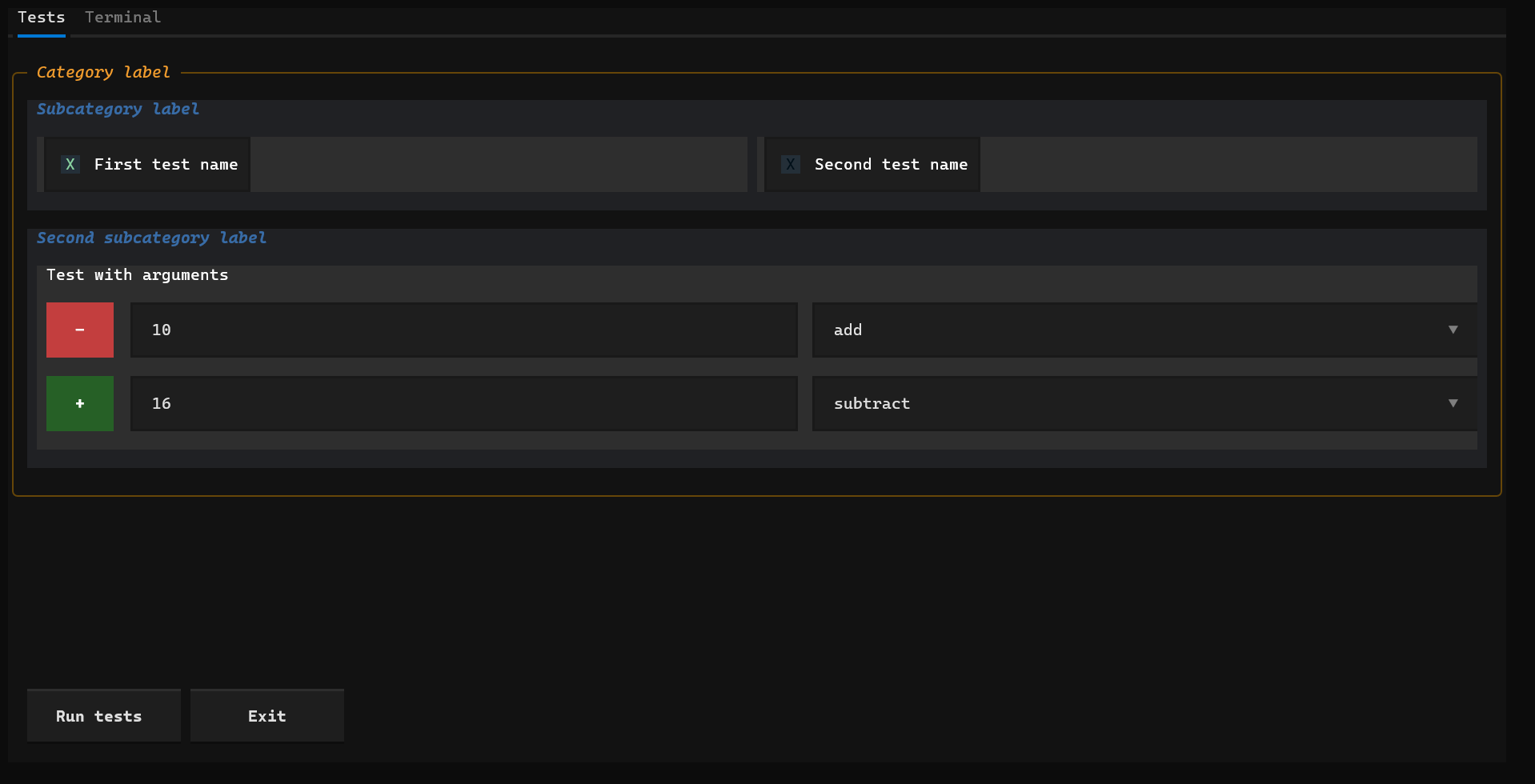
categories:
  - label: "Category label"
    subcategories:
      - label: "Subcategory label"
        tests:
          - label: "First test name"
            markers: ["test1"]
          - label: "Second test name"
            test_name: "test_2"
      - label: "Second subcategory label"
        tests:
          - label: "Test with arguments"
            test_name: "test_with_arguments"
            arguments:
              - arg_name: "x"
                arg_type: "text_input"
                placeholder: "Enter x"
              - arg_name: "action"
                arg_type: "select"
                options: ["add", "subtract", "multiply", "divide"]
Logging configuration
The TUI application uses Loguru for all logging.
By default, logs are written into the .pytest_tui_runner/logs/ directory inside your project.
You can customize how logs are written by creating an optional file named:
.pytest_tui_runner/logs/config.yaml.
This file allows you to change the log level, log format, file rotation, and retention.
All fields are optional — any missing values fall back to sensible defaults.
⚠️ Important:
All values in this file are passed directly to Loguru.
For detailed explanations of formatting, rotation rules, or supported values, refer to the official Loguru documentation:
https://loguru.readthedocs.io/en/stable/api/logger.html
Example logging configuration
level: INFO
format: "<green>{time:HH:mm:ss.SSS}</green> | <level>{level}</level> | {message}"
rotation: "00:00"
retention: 7
Example Project Structure
my_project/
├── .pytest_tui_runner/
│   └── config.yaml
├── tests/
│   ├── test_math.py
│   └── test_login.py
└── src/
    └── my_app/
Screenshots
Here’s how the TUI looks in action:
Known Problems and Limitations
The following issues are currently known and may affect behavior in some situations:
1. Limited compatibility with other pytest plugins
When pytest-tui-runner is installed, it replaces the standard pytest entry point so that pytest always requires information about the user’s project root before it can run.
In other words, pytest is no longer started in its default way.
Because of this hard override, other plugins that assume the original pytest entry point or modify the pytest launch process may not work correctly.
Compatibility improvements are planned for future versions.
2. Duplicate argument sets may not map back correctly
If a test is run with multiple identical argument sets (e.g., the same (x, y) combination more than once), the runner may not be able to correctly associate the pytest result with the corresponding widget.
In such cases, the widget may remain blue even though the test finished.
3. Tests with native pytest parametrization may not color correctly
If a test already uses pytest parametrization internally (e.g., @pytest.mark.parametrize), and this parametrization doesn't match the structure expected by the TUI, the tool may not be able to reliably link the results back to the correct widgets.
This can lead to incorrect or missing color updates.
These limitations are known and will be addressed in future releases.
If you encounter additional issues, feel free to open a GitHub issue.
Contributing
If you have ideas, feedback, or suggestions for improvements, I’d love to hear from you!
You can reach out directly via email or message me on LinkedIn:
- Email: 176jenda@gmail.com
- LinkedIn: Jan Málek
If you prefer, you can also open a discussion or issue on the GitHub Issues page.
License
This project is licensed under the [MIT License] - see the `LICENSE' file for more details..
1 maintainer

Metadata
1 maintainer
Release files for pytest-tui-runner 1.0.13
For a detailed explanation of source distributions (sdists) and built distributions (wheels), please see the package formats documentation.
Source distribution (sdist)
| File | Size | Uploaded | |
|---|---|---|---|
| pytest_tui_runner-1.0.13.tar.gz | 38.3 kB | Details |
Built distribution (wheel)
| File | Interpreter | ABI | Platform | Reset |
|---|---|---|---|---|
| pytest_tui_runner-1.0.13-py3-none-any.whl | Python 3 | none | any | Details |
Total release size: 79.3 kB
Release files / pytest_tui_runner-1.0.13.tar.gz
| Download URL | pytest_tui_runner-1.0.13.tar.gz |
|---|---|
| Size | 38.3 kB |
| Tags | Source |
|
SHA-256 checksum How to use checksums |
9a8a0ebc29643cba63c12f32162f63254035f2b12740548d292c1d6256724b2c
|
|
BLAKE2b-256 checksum How to use checksums |
c47a9830cfb97dff9ab4a838378a93461d272efa2e6a3d5295646c55e89eaa19
|
| Upload date | |
|
Uploaded using Trusted Publishing? What is trusted publishing? |
No |
| Uploaded via |
twine/6.2.0 CPython/3.12.2
|
Release files / pytest_tui_runner-1.0.13-py3-none-any.whl
| Download URL | pytest_tui_runner-1.0.13-py3-none-any.whl |
|---|---|
| Size | 41.0 kB |
| Tags | Python 3 |
|
SHA-256 checksum How to use checksums |
8681e96e07c4b546d9f954a85223aec974d106262da1930a06a5bb5931b082f2
|
|
BLAKE2b-256 checksum How to use checksums |
594975666bdf6dfbf58ec8c0c99219eddeb7ff95e6f5856b058d0296a7e1fa76
|
| Upload date | |
|
Uploaded using Trusted Publishing? What is trusted publishing? |
No |
| Uploaded via |
twine/6.2.0 CPython/3.12.2
|














