
Pyunto Robotics
Message a robot from the Pyunto mobile app, and watch it act.
Pyunto for iPhone and iPad · Pyunto for Android · pyunto-agent — the same idea, with Claude at the other end instead of a robot
Install it, scan the QR code with the app, and a window opens on a robot parked in a carport with a solar panel on its back. Write "go and find some sunlight, and bring back power" in the diary on your phone, and it drives out, finds sunlight by measuring what the panel receives, charges, comes home, and turns the house lights on with what it collected.
The robot runs on your computer. Pyunto never sees the room, the camera, or anything the robot does — the diary is end-to-end encrypted, and decryption happens on your machine.
Quick start
Use Python 3.11 or 3.12. mlx-vlm, which runs the language model, has no build for 3.13
or newer — and on those versions the install below quietly skips it rather than failing, so
the first sign of trouble is the second command refusing to run.
python3.12 -m venv .venv && source .venv/bin/activate
Then three commands, and the only one to remember is the first:
pip install 'pyunto-robotics[llm]'
python -m pyunto_robotics.download_model   # so the robot reads what you write (~5.5 GB, once)
pyunto-robotics showqr                     # a QR code appears in the terminal
It brings pyunto-agent, which carries the
encrypted transport and the pairing, with it.
Scan that QR code with the Pyunto app. The app asks which diary to let the robot into and shows who runs it; when you approve, the terminal asks which robot to open and starts it — no second command, nothing to copy back.
waiting for the scan… (Ctrl-C to stop)
paired ✓

Which robot would you like to open?
  1. solar    S1 (solar errand robot)
             e.g. "go and find some sunlight, and bring back power"
  2. hotel    H1 (hotel cleaner)
  ...
Number, or a name [1-6, Enter for 1]:

Opening S1 (solar errand robot):
    pyunto-robotics demo --robot solar

listening — message the robot from the Pyunto app. Ctrl-C to stop.
It names the command it is running, so opening the same robot again later is a matter of
copying that line. --robot solar on showqr skips the question entirely.
Then write in the diary, in your own words:
go and find some sunlight, and bring back power
The robot says how it understood you, drives out, finds the sun by measuring, charges, comes home, and turns the house lights on — reporting each step in the same thread.
Open that space in the app once after pairing. The diary is end-to-end encrypted, so a member has to hand the robot a key; the server cannot do it alone.
Choosing a robot
pyunto-robotics robots                  # what is installed
pyunto-robotics showqr --robot pet      # pair and open a particular one
pyunto-robotics demo --robot watch      # if already paired
pyunto-robotics whoami                  # this robot's account and its spaces
Showing it to other people
Demonstrating to a room, or leaving something with a customer to try later? Write the QR code to a file instead of the terminal:
pyunto-robotics showqr --operator "Utagoe Robotics" --image demo-qr.png
Put it on a slide, print it for a stand, or email it. The same image works for everyone. The code names the account asking and carries nothing secret — each person who scans it lets the robot into their own diary, and sees who is running it before they approve. Nobody has to hand you their phone, and nothing is sent to anybody's device.
One running robot answers one diary at a time. That is deliberate: this machine moves, and two people driving it from separate rooms is not a demonstration, it is a collision. For a room full of people, put them in one shared space and let them all write there — everyone sees every instruction and every photograph the robot posts back, which is a better demonstration anyway.
.svg needs nothing extra and scales for print; .png needs Pillow (pip install pillow).
The robots
Six machines and six worlds ship with the package. Every picture below is the scene as it opens, rendered from the simulator itself.
solar — fetches its own energy
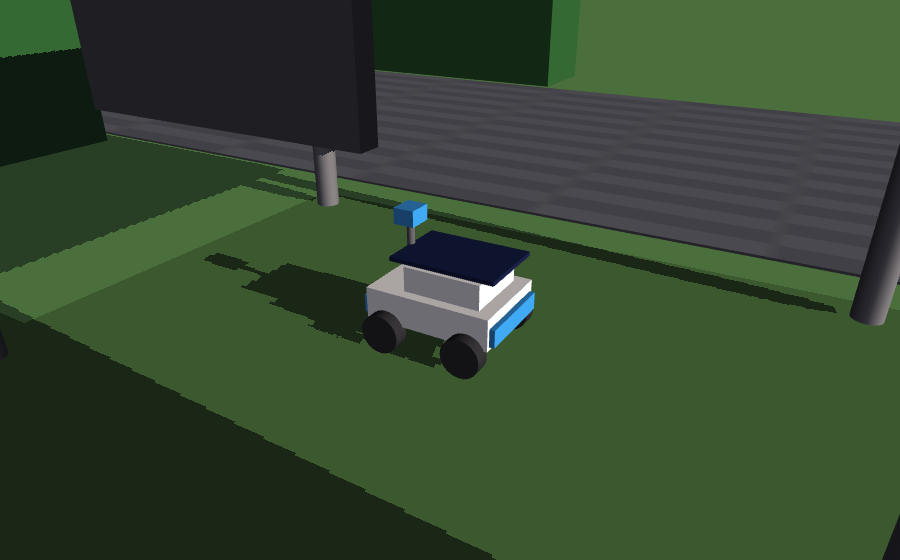
The demonstration the SDK leads with, and the only one where the robot finds something by measuring rather than by being told where it is. It drives out, reads what the panel is receiving as it goes, stops when the measurement says it is in sunlight, charges, comes home, and turns the house lights on with what it collected.
"go and find some sunlight, and bring back power" "I think we're running low on power" "how much charge have you got?"
watch — a house that watches, with no robot in it
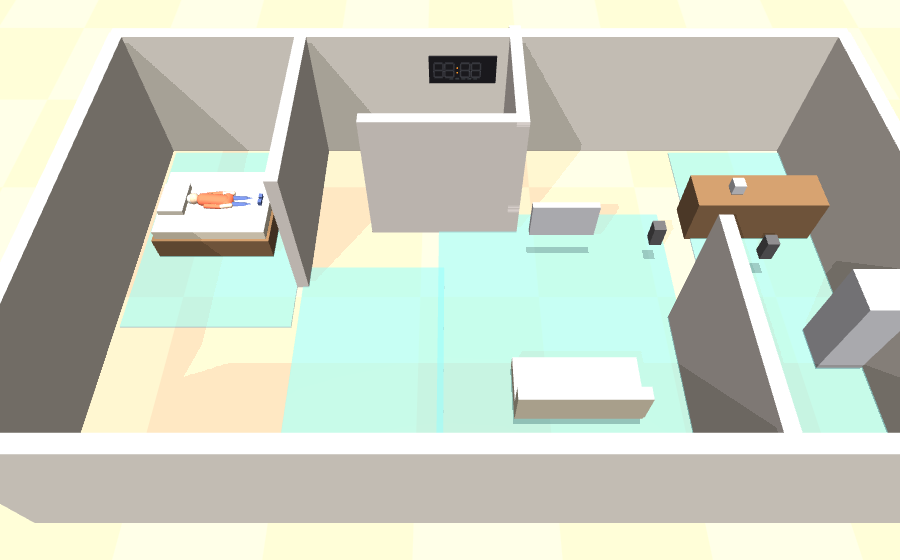
There is no machine to command here. The flat itself watches an older person living alone — floor sensors in each room, a bed sensor, temperature and humidity, the lock, the doorphone — and writes what it sees into a diary a family member reads from another city.
No cameras indoors. The person being watched did not ask to be; the only camera is the doorphone, and it faces the street. It also turns out to be the better sensor: three unanswered callers on a day she did not get up is corroboration a motion sensor cannot give.
"how is she doing?" "what has she done today?" "has anyone been to the door?" "it feels stuffy in there, can you do something?"
pet — a camera that has to aim, not just drive
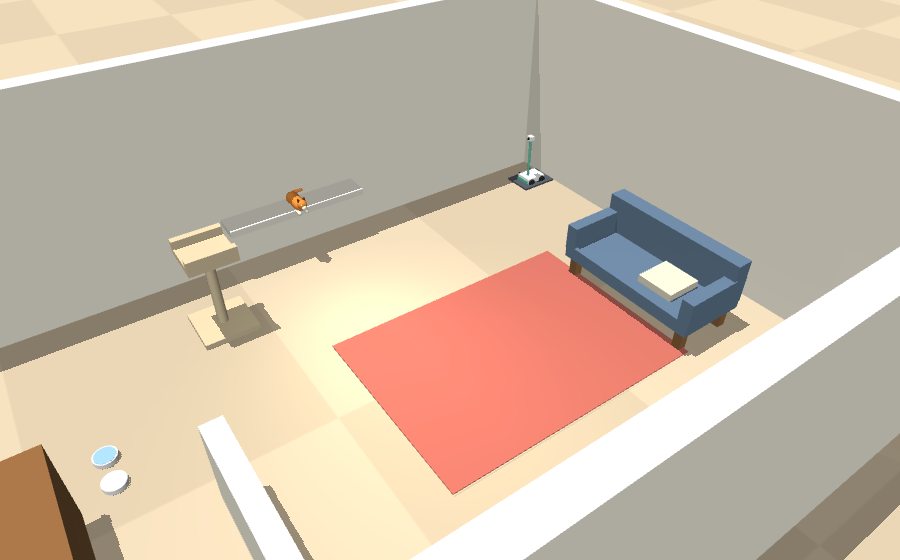
The opposite case, and the one that shows why the flat above has no camera. Here the only human is the one holding the phone, in their own home, looking for their own cat — so a camera is the right instrument, and the demo is about aiming it.
The cat's four usual places are at four different heights: under the sofa, the windowsill, the cat tree, the top of the bookshelf. A fixed forward-facing lens finds none of them.
"where is the cat?" "have you seen her anywhere?" "look around the flat" "point the camera upwards a bit"
mars — driving by camera alone
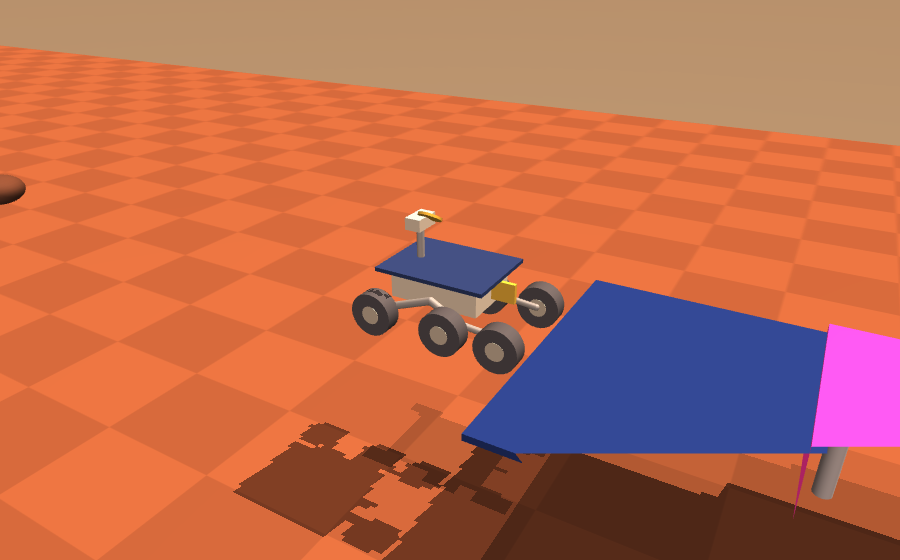
The clearest demonstration of mapless navigation: there is no map of Mars in the robot, and the targets are found by looking. Six wheels, a camera mast, and a channel to follow.
"drive to the sample" "head over to that rock" "how steep is the ground?"
orchard — four legs and a load
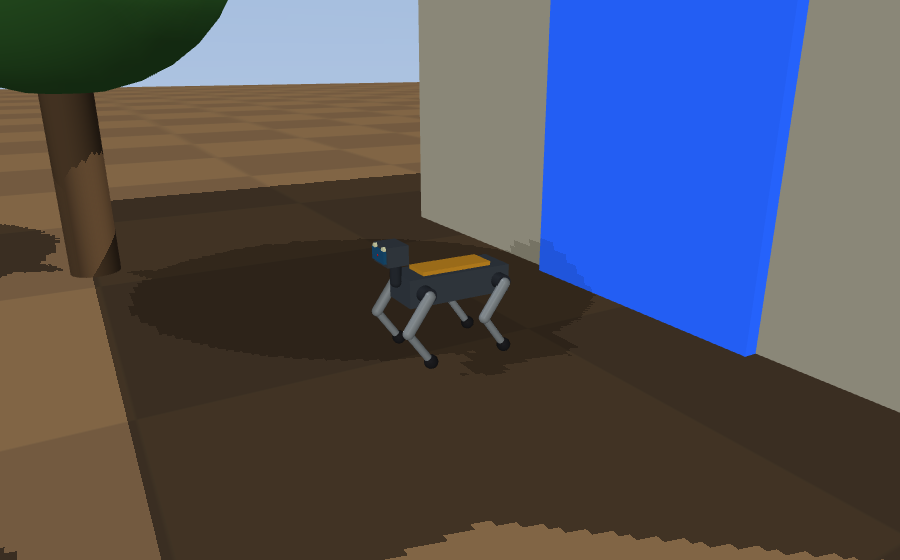
Walks the rows on four legs and carries a crate. Where the wheeled robots need a surface, this one handles the ground an orchard actually has.
"fetch the crate of apples" "take them to the shed" "what are you carrying?"
hotel — cleans rooms and rides the lift
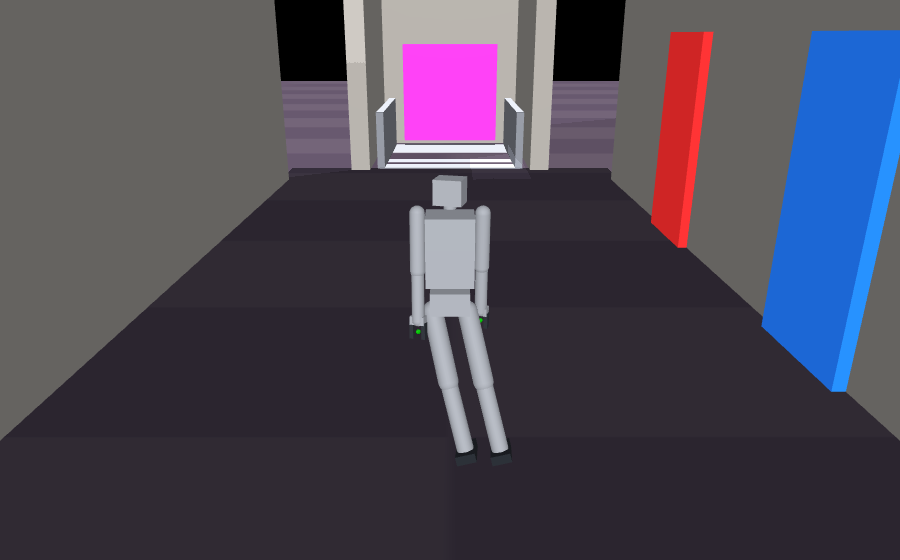
Two floors, guest rooms, and a lift the robot has to call, board and ride. The multi-storey case: getting somewhere is a task in itself, not just a drive.
"clean the rooms on both floors" "clean this corridor" "which floor are you on?"
Writing in your own words
There are no commands to learn. Write what you mean, and a local language model reads it:
"I think we're running low on power"           ->  find_sun -> goto(park)
"have you seen the cat anywhere?"              ->  patrol
"point the camera upwards a bit"               ->  tilt
"it feels stuffy in there"                     ->  temperature
"the guests have checked out, sort the rooms"  ->  clean
None of those are in any list, and that is the point: a keyword table only matches the phrasings somebody thought to write down, and every miss needs another pattern, in every language the product ships in. There is no end to that table.
The model runs on your machine, so the diary is never sent anywhere to be understood. This is
the default and needs no flag — run python -m pyunto_robotics.download_model once.
It needs Apple silicon. Everywhere else, and until that download has run, the robot matches commands instead and says so in one line at startup rather than refusing to open.
Command mode
Some sites want the opposite: a closed vocabulary. Equipment with its own command set, an operator who types the same six instructions all day, a safety case that will not accept a model deciding what was meant.
pyunto-robotics demo --robot pet --commands mysite.json
{
  "verbs": {
    "find":  ["FIND-TGT", "locate the animal"],
    "photo": ["CAM-SNAP"],
    "home":  ["RTB", "return to base"]
  },
  "objects": {
    "sill": ["POS-03"]
  }
}
Only the actions you name are overridden — everything else keeps its built-in phrasings, so you change the two verbs your equipment spells differently and inherit the rest. Matching is case-insensitive, so write codes the way your manual writes them. An action the robot does not have is refused at startup, naming what it does have, rather than becoming a command that can never fire.
--command-mode on its own uses the built-in lists without the model. A runnable example is
in examples/commands.example.json.
What the robot tells you
A robot that accepts an instruction, goes quiet, and posts one sentence a minute later is indistinguishable from a robot that has crashed. So it narrates, in the same thread the instruction arrived in.
This is a real thread, on a phone, after writing "move to the sunlight":
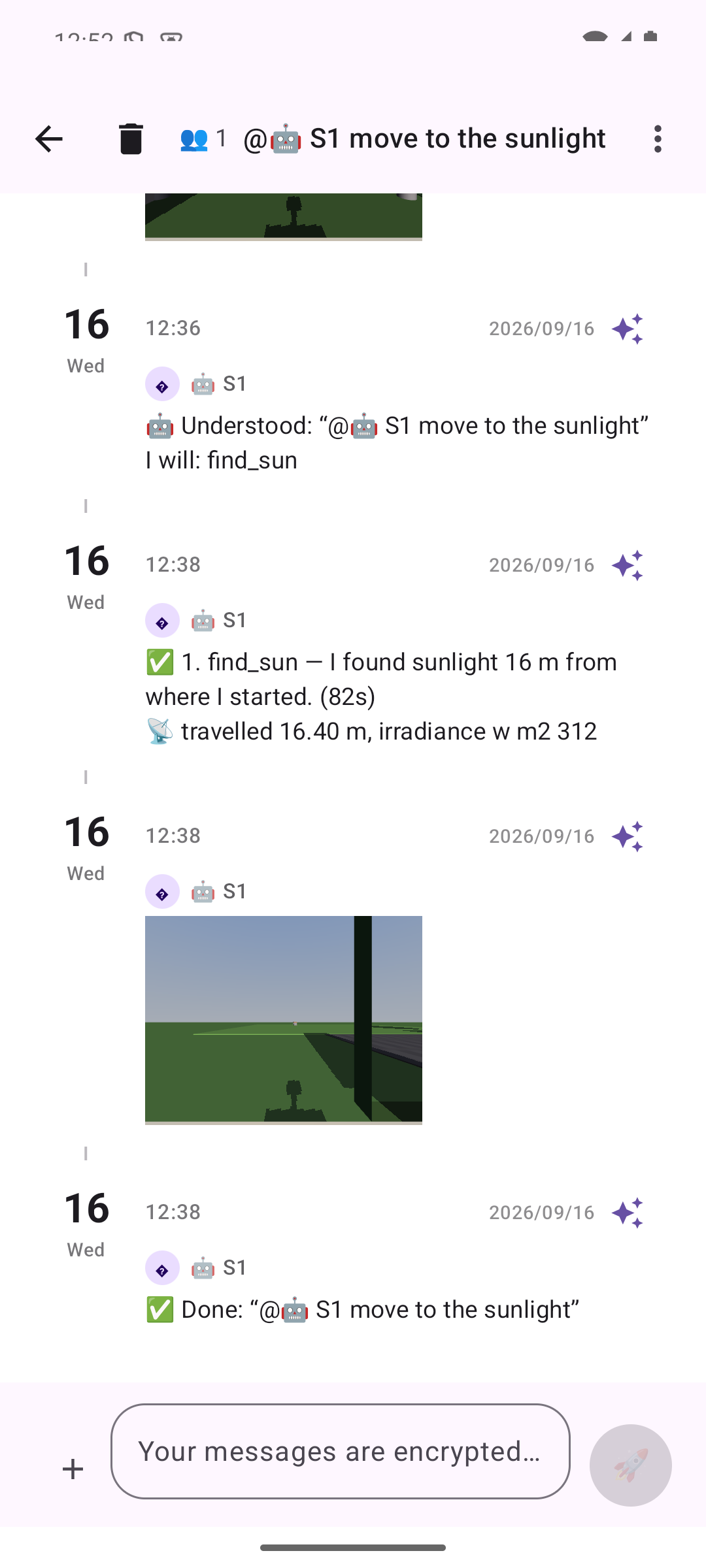
Three things are worth noticing.
The plan arrives before the robot moves, so a misunderstanding is caught in the seconds
before it drives off, not after. Each step reports as it finishes, with its measurements
(travelled 16.40 m, irradiance w m2 312) and ⚠️ rather than ✅ when it did not work. And the
pictures are the robot's own camera, so "I found sunlight 16 m from where I started" comes
with the evidence.
An instruction the robot cannot parse is answered too, rather than ignored:
🤖 I did not understand “make me a coffee”.
   I know how to: check, find, go, home, look, pan, patrol, photo, tilt…
This is the most common outcome of all, and the one where silence does the most damage.
Each robot answers in its own vocabulary — asking the pet camera to raise its hand gets the list above, not a shrug. A few that people try first:
| You write | The robot does |
|---|---|
"where is the cat?" (pet) |
drives the flat, aims the camera at each of her places, reports where she is |
"look up" (pet) |
tilts the lens up without moving the robot |
"how is she doing?" (watch) |
reads the sensors and says where she is and whether she is up |
"has anyone been to the door?" (watch) |
the day's doorphone callers, and whether she answered |
Add --no-photos to report in words only.
Who the robot listens to
A robot that moves cannot share a text agent's threshold for answering, so it has two refusals of its own:
- It takes instructions only from people. Entries written by an agent or another robot
are ignored, however they are phrased. That is what makes it safe to keep Claude and a robot
in the same diary: a check-in from the agent never sets the robot moving, and the two cannot
talk each other into a loop. Whether a sender is a program comes from the server
(
users.is_agent), not from a display name anyone could change. - It acts only when addressed. Mention it by name (
@S1;@🤖 S1from the app's picker works too) or send the entry to it. A person thinking aloud in a shared diary does not set it walking.
Its plan, progress reports and short replies are all sent to the person who gave the instruction, so their phone tells them the robot answered, and a text agent in the same diary does not mistake them for entries meant for everyone.
Every member sees in the app who runs the robot (--operator) and that it runs on the
operator's machine.
Bringing your own robot
The SDK is not six robots; it is a way to attach any robot to a diary. One class, one method:
from pyunto_robotics.api import SkillResult

class MyRobot:
    def run(self, action, argument=None, where=None, expect=None) -> SkillResult:
        if action == "goto":
            ok = my_control_stack.move_to(argument)
            return SkillResult(ok, f"I went to {argument}." if ok
                                   else f"I could not reach {argument}.")
        return SkillResult(False, f"I do not know how to '{action}' yet.")
That is the whole contract. You get the encrypted transport, space membership, message handling, planning and replies; you write what your machine does. It works for real hardware, for another simulator (Newton, Isaac, Gazebo), or for a robot that is only an HTTP API.
A runnable version is in examples/my_robot.py — about forty lines.
The full contract, including the optional RobotBody interface for driving your own machine
with our mapless navigation, is documented in
pyunto_robotics/api.py.
Shipping it as a package
The above is enough to run your own robot on your own machine. This part is only needed if
you want to hand it to other people as something they can pip install, and have
pyunto-robotics discover it without being told.
Say your company is shipping a warehouse vehicle. You would lay the package out like this:
mycompany-agv/            ← your project, a separate repository from this one
├── pyproject.toml        ← the file below
└── mycompany/
    └── agv.py            ← your robot: the class above, plus a `setup()` that describes it
pyproject.toml is the file every Python package has at its root. It tells pip the
package's name, its dependencies, and — the part that matters here — what it offers to other
packages. Add this to yours:
[project.entry-points."pyunto_robotics.robots"]
warehouse-agv = "mycompany.agv:setup"
Three parts:
warehouse-agv |
what --robot will be called |
mycompany.agv |
the module it lives in |
setup |
a RobotSetup, or anything callable that returns one |
Then, on any machine with both packages installed:
pip install mycompany-agv
pyunto-robotics robots              # warehouse-agv is in the list
pyunto-robotics demo --robot warehouse-agv
You never edit pyunto-robotics itself. It asks Python which installed packages have declared
themselves under pyunto_robotics.robots and registers whatever it finds, so your robot sits
alongside the bundled six. A plugin that fails to load is logged and skipped rather than
taking the others down with it.
RobotSetup is the small record that says what your robot is called, which scene to open (or
none, for real hardware), and which skills to use — see
pyunto_robotics/registry.py.
Requirements
- macOS on Apple silicon (Windows and Linux are not verified yet)
- Python 3.11 or newer — but not 3.13+ if you want the language model, which
mlx-vlmdoes not build for yet - The Pyunto app. A free account can invite one agent or robot in total; a Pyunto+ space holds one agent and one robot of its own
The simulator window is owned by mjpython on macOS; pyunto-robotics re-executes itself under
it automatically, so the command above works as typed.
Installing
Both packages are on PyPI — that is the line in Quick start, and it brings
pyunto-agent with it. For the latest unreleased version, install from git instead:
pip install 'pyunto-robotics[llm] @ git+https://github.com/utagoeinc/pyunto-robotics'.
The [llm] extra is what lets the robot read sentences rather than match commands, and it
installs nothing at all off Apple silicon, so the same line is safe everywhere. Drop it if you
only ever want command mode:
pip install pyunto-robotics
To work on the SDK itself, clone it and install in place:
git clone https://github.com/utagoeinc/pyunto-robotics
cd pyunto-robotics
python3 -m venv .venv && .venv/bin/pip install -e '.[llm,dev]'
Reference
| Command | What it does | Options |
|---|---|---|
showqr |
Shows a QR code; the person who scans it lets the robot into a diary. Then asks which robot to open and starts it | --operator NAME (shown to the person before they approve), --robot NAME (skip the question), --image FILE.png|.svg (write the code to a file and exit), --big (larger terminal QR), --no-run (exit after showing the code), plus --command-mode, --no-window, --speed, --no-photos as for demo |
demo |
Opens a robot and answers the diaries it is in | --robot NAME (default solar), --command-mode (fixed command list instead of the language model), --commands FILE.json (your own command list; implies --command-mode), --no-window (headless), --speed X (simulation playback, 1.0 = real time), --no-photos (report in words only) |
robots |
Lists the installed robots, including plugins | |
whoami |
This robot's account and the spaces it is in |
Configuration, from the environment or a .env file:
| Variable | Meaning |
|---|---|
PYUNTO_ROBOT_NAME |
display name of the robot's account; the 🤖 marker is added if missing |
PYUNTO_ROBOT_DIR |
where its account and keys live (default ~/.pyunto-robot) |
PYUNTO_EMAIL, PYUNTO_PASSWORD |
sign in as a registered account instead of the robot's own. Refused unless PYUNTO_ROBOT_ACCOUNT=1: a robot ignores its own posts, so signed in as the person it serves it would ignore everything they write |
PYUNTO_ROBOT_ACCOUNT |
1 = the account above really is a separate account for the robot |
PYUNTO_BASE_URL |
API server (default https://api.pyunto.com) |
PYUNTO_NO_REEXEC |
1 = do not re-launch under mjpython on macOS (set automatically) |
Changes in each version are in Releases.
What is private, and what is not
- Diary entries are end-to-end encrypted. They are decrypted on the computer running the robot and nowhere else. Pyunto's servers cannot read them.
- Whoever controls that computer can read everything written in that space. The app says so when you invite a robot, and again in the diary where every member can see it.
- The robot only ever reads the spaces it was invited to.
- Its account and keys live in
~/.pyunto-robot. Delete that and it becomes a different robot, and has to be invited again.
Licence
Apache-2.0, like pyunto-agent. See LICENSE. MuJoCo (Apache-2.0) is a dependency.
1 maintainer

Metadata
1 maintainer
Release files for pyunto-robotics 0.1.1
For a detailed explanation of source distributions (sdists) and built distributions (wheels), please see the package formats documentation.
Source distribution (sdist)
| File | Size | Uploaded | |
|---|---|---|---|
| pyunto_robotics-0.1.1.tar.gz | 204.9 kB | Details |
Built distribution (wheel)
| File | Interpreter | ABI | Platform | Reset |
|---|---|---|---|---|
| pyunto_robotics-0.1.1-py3-none-any.whl | Python 3 | none | any | Details |
Total release size: 442.8 kB
Release files / pyunto_robotics-0.1.1.tar.gz
| Download URL | pyunto_robotics-0.1.1.tar.gz |
|---|---|
| Size | 204.9 kB |
| Tags | Source |
|
SHA-256 checksum How to use checksums |
3a76616b74a0f85ba3cb7684e660188bd2b2b6ad5562a0fd58cec96002f39aa6
|
|
BLAKE2b-256 checksum How to use checksums |
19c9c57b25e2a46981cc54bb075e587e3f92804669950a4893a0ad077116ab66
|
| Upload date | |
|
Uploaded using Trusted Publishing? What is trusted publishing? |
Yes |
| Uploaded via |
twine/7.0.0 CPython/3.13.14
|
Provenance
Provenance describes where a file came from. On PyPI, provenance is shared via attestations, which provide a verifiable record of the build or publishing details. View details, limitations and caveats.


PyPI Publish Attestation
PyPI verified that this artifact, at this checksum, originated from the publisher listed below.
Signed by GitHub Actions, verified by PyPI on Sep 29, 2026.
Transparency logRelease files / pyunto_robotics-0.1.1-py3-none-any.whl
| Download URL | pyunto_robotics-0.1.1-py3-none-any.whl |
|---|---|
| Size | 237.9 kB |
| Tags | Python 3 |
|
SHA-256 checksum How to use checksums |
091775d910668038b65bea7a12a66abf6d9128f99373c5afd441e37e65680c97
|
|
BLAKE2b-256 checksum How to use checksums |
f8fa45122a3d1ea4cf0f88c23d60fa64296dd3101f64c2755b4a13369aa38d24
|
| Upload date | |
|
Uploaded using Trusted Publishing? What is trusted publishing? |
Yes |
| Uploaded via |
twine/7.0.0 CPython/3.13.14
|
Provenance
Provenance describes where a file came from. On PyPI, provenance is shared via attestations, which provide a verifiable record of the build or publishing details. View details, limitations and caveats.
PyPI Publish Attestation
PyPI verified that this artifact, at this checksum, originated from the publisher listed below.
Signed by GitHub Actions, verified by PyPI on Sep 29, 2026.
Transparency log













