
A retro game engine for Python

Project description






[ English | 中文 | Deutsch | Español | Français | Italiano | 日本語 | 한국어 | Português | Русский | Türkçe | Українська ]
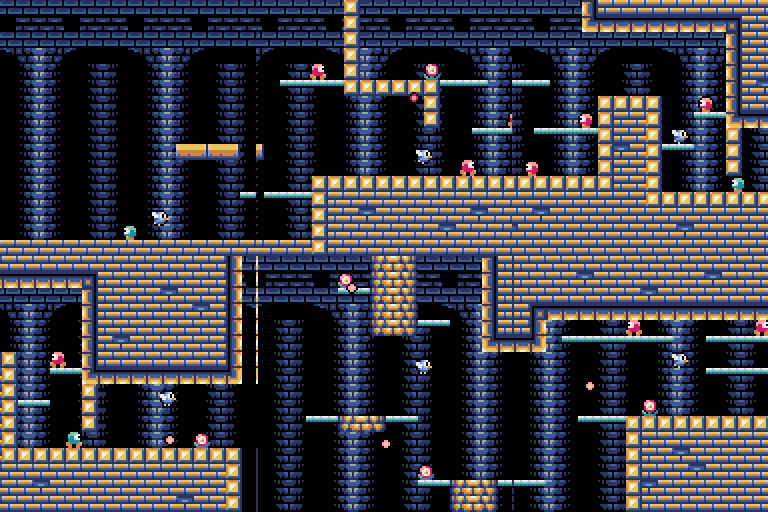
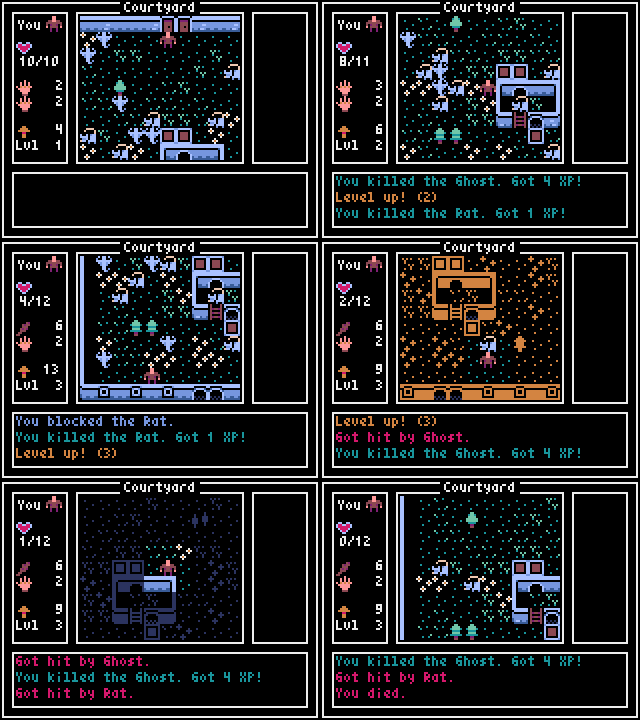
Pyxel (/ˈpɪksəl/) is a retro game engine for Python.
With simple specifications inspired by retro gaming consoles, such as displaying only 16 colors and supporting 4 sound channels, you can easily enjoy making pixel-art-style games.
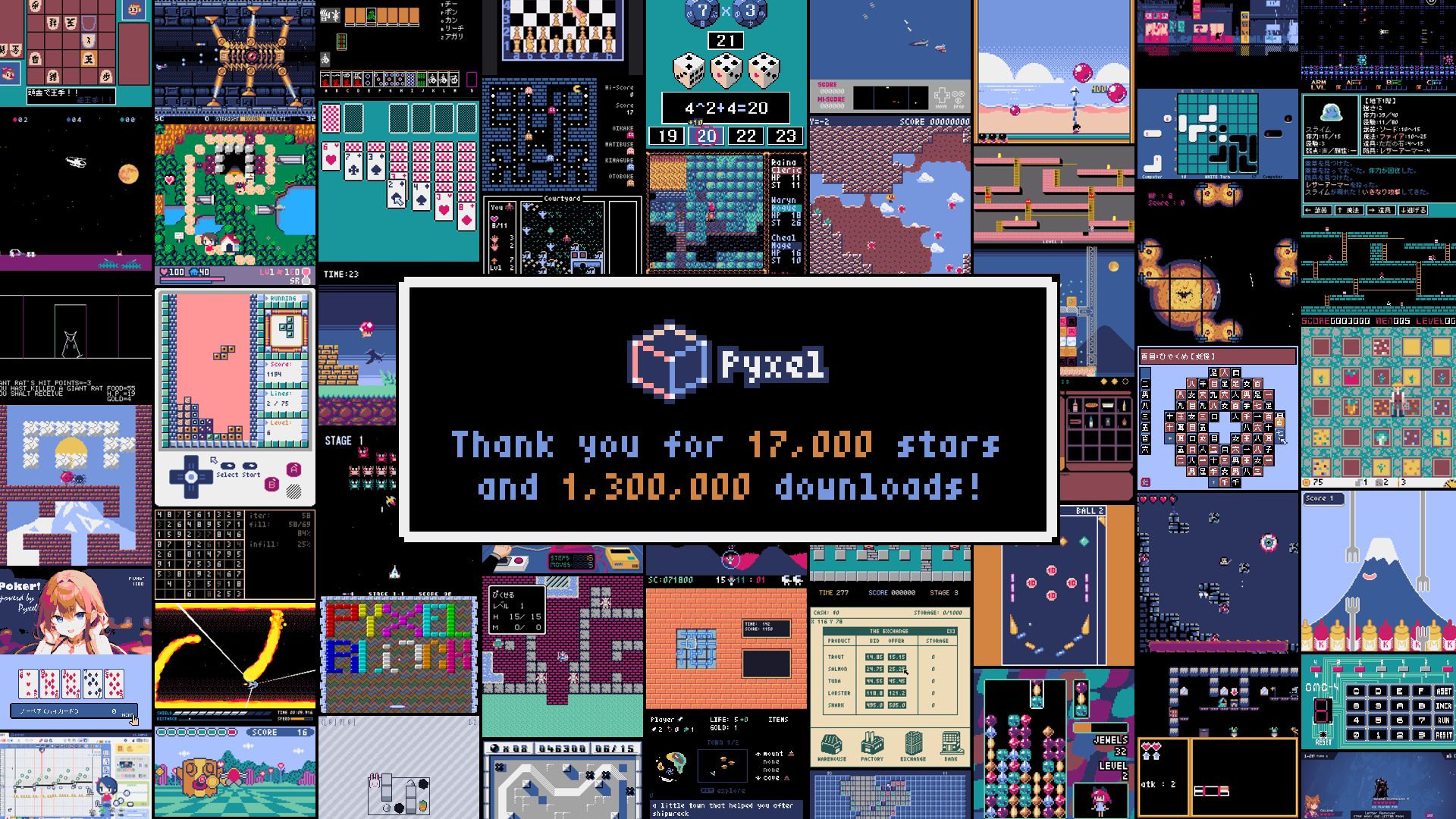
The development of Pyxel is driven by user feedback. Please give Pyxel a star on GitHub!
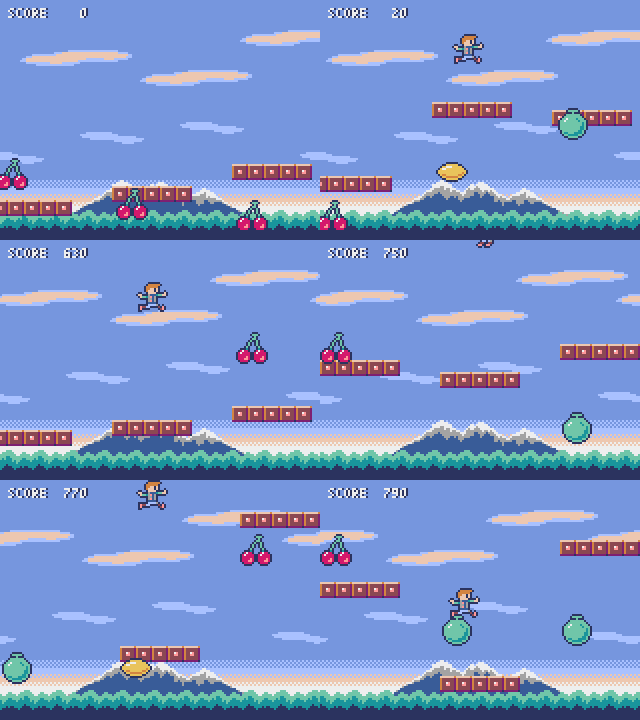
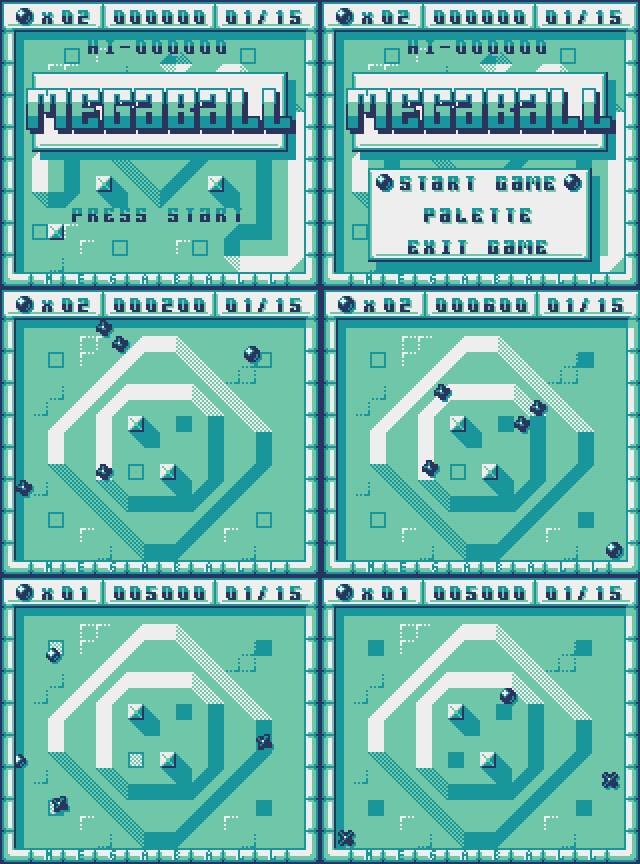
Pyxel's specifications and APIs are inspired by PICO-8 and TIC-80.
Pyxel is open source under the MIT License and free to use. Let's start making retro games with Pyxel!
Specifications
- Runs on Windows, Mac, Linux, and Web
- Programming in Python
- Customizable screen size
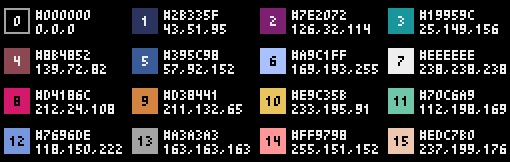
- 16-color palette
- 3 256x256 image banks
- 8 256x256 tilemaps
- 4 channels with 64 definable sounds
- 8 music tracks combining any sounds
- Keyboard, mouse, and gamepad inputs
- Image and sound editing tools
- User-extensible colors, channels, and banks
Color Palette

How to Install
Windows
After installing Python3 (version 3.8 or higher), run the following command:
pip install -U pyxel
When installing Python using the official installer, make sure to check the Add Python 3.x to PATH option to enable the pyxel command.
Mac
After installing Homebrew, run the following commands:
brew install pipx
pipx ensurepath
pipx install pyxel
To upgrade Pyxel after installation, run pipx upgrade pyxel.
Linux
After installing the SDL2 package (libsdl2-dev for Ubuntu), Python3 (version 3.8 or higher), and python3-pip, run the following command:
sudo pip3 install -U pyxel
If the previous command fails, consider building Pyxel from source by following the instructions in the Makefile.
Web
The web version of Pyxel works on PCs, smartphones, and tablets with a compatible browser, without installing Python or Pyxel.
The easiest way to use it is through the online IDE Pyxel Code Maker.
For other usage patterns, such as embedding Pyxel apps on your own site, please refer to this page.
Try Examples
After installing Pyxel, you can copy the examples to the current directory with the following command:
pyxel copy_examples
The following examples will be copied to the current directory:
| 01_hello_pyxel.py | Simplest application | Demo | Code |
| 02_jump_game.py | Jump game with Pyxel resource file | Demo | Code |
| 03_draw_api.py | Demonstration of drawing APIs | Demo | Code |
| 04_sound_api.py | Demonstration of sound APIs | Demo | Code |
| 05_color_palette.py | Color palette list | Demo | Code |
| 06_click_game.py | Mouse click game | Demo | Code |
| 07_snake.py | Snake game with BGM | Demo | Code |
| 08_triangle_api.py | Demonstration of triangle drawing APIs | Demo | Code |
| 09_shooter.py | Shoot'em up game with screen transitions and MML | Demo | Code |
| 10_platformer.py | Side-scrolling platform game with map | Demo | Code |
| 11_offscreen.py | Offscreen rendering with Image class | Demo | Code |
| 12_perlin_noise.py | Perlin noise animation | Demo | Code |
| 13_custom_font.py | Drawing a custom font | Demo | Code |
| 14_synthesizer.py | Synthesizer using audio expansion features | Demo | Code |
| 15_tiled_map_file.py | Loading and drawing a Tile Map File (.tmx) | Demo | Code |
| 16_transform.py | Image rotation and scaling | Demo | Code |
| 17_app_launcher.py | Pyxel app launcher (you can play various games!) | Demo | Code |
| 18_audio_playback.py | Audio playback | Demo | Code |
| 99_flip_animation.py | Animation with flip function (non-web platforms only) | Demo | Code |
The examples can be executed with the following commands:
# Run example in examples directory
cd pyxel_examples
pyxel run 01_hello_pyxel.py

# Run app in examples/apps directory
cd apps
pyxel play 30sec_of_daylight.pyxapp
How to Use
Create Application
In your Python script, import Pyxel, set the window size with init, and start the application with run.
import pyxel

pyxel.init(160, 120)

def update():
    if pyxel.btnp(pyxel.KEY_Q):
        pyxel.quit()

def draw():
    pyxel.cls(0)
    pyxel.rect(10, 10, 20, 20, 11)

pyxel.run(update, draw)
The arguments of the run function are the update function, which processes frame updates, and the draw function, which handles screen drawing.
In an actual application, it is recommended to wrap Pyxel code in a class, as shown below:
import pyxel

class App:
    def __init__(self):
        pyxel.init(160, 120)
        self.x = 0
        pyxel.run(self.update, self.draw)

    def update(self):
        self.x = (self.x + 1) % pyxel.width

    def draw(self):
        pyxel.cls(0)
        pyxel.rect(self.x, 0, 8, 8, 9)

App()
For creating simple graphics without animation, you can use the show function to simplify your code.
import pyxel

pyxel.init(120, 120)
pyxel.cls(1)
pyxel.circb(60, 60, 40, 7)
pyxel.show()
Run Application
A created script can be executed using the python command:
python PYTHON_SCRIPT_FILE
It can also be run with the pyxel run command:
pyxel run PYTHON_SCRIPT_FILE
Additionally, the pyxel watch command monitors changes in a specified directory and automatically re-runs the program when changes are detected:
pyxel watch WATCH_DIR PYTHON_SCRIPT_FILE
Stop directory monitoring by pressing Ctrl(Command)+C.
Special Key Controls
The following special key actions are available while a Pyxel application is running:
Esc
Quit the applicationAlt(Option)+RorA+B+X+Y+BACKon gamepad
Reset the applicationAlt(Option)+1
Save the screenshot to the desktopAlt(Option)+2
Reset the recording start time of the screen capture videoAlt(Option)+3
Save a screen capture video to the desktop (up to 10 seconds)Alt(Option)+8orA+B+X+Y+DLon gamepad
Toggle screen scaling between maximum and integerAlt(Option)+9orA+B+X+Y+DRon gamepad
Switch between screen modes (Crisp/Smooth/Retro)Alt(Option)+0orA+B+X+Y+DUon gamepad
Toggle the performance monitor (FPS/updatetime/drawtime)Alt(Option)+EnterorA+B+X+Y+DDon gamepad
Toggle fullscreenShift+Alt(Option)+1/2/3
Save image bank 0, 1, or 2 to the desktopShift+Alt(Option)+0
Save the current color palette to the desktop
How to Create Resources
Pyxel Editor creates images and sounds used in a Pyxel application.
You can start Pyxel Editor with the following command:
pyxel edit PYXEL_RESOURCE_FILE
If the specified Pyxel resource file (.pyxres) exists, it will be loaded. If it does not exist, a new file with the specified name will be created. If the resource file is omitted, a new file named my_resource.pyxres will be created.
After starting Pyxel Editor, you can switch to another resource file by dragging and dropping it onto the editor.
The created resource file can be loaded using the load function.
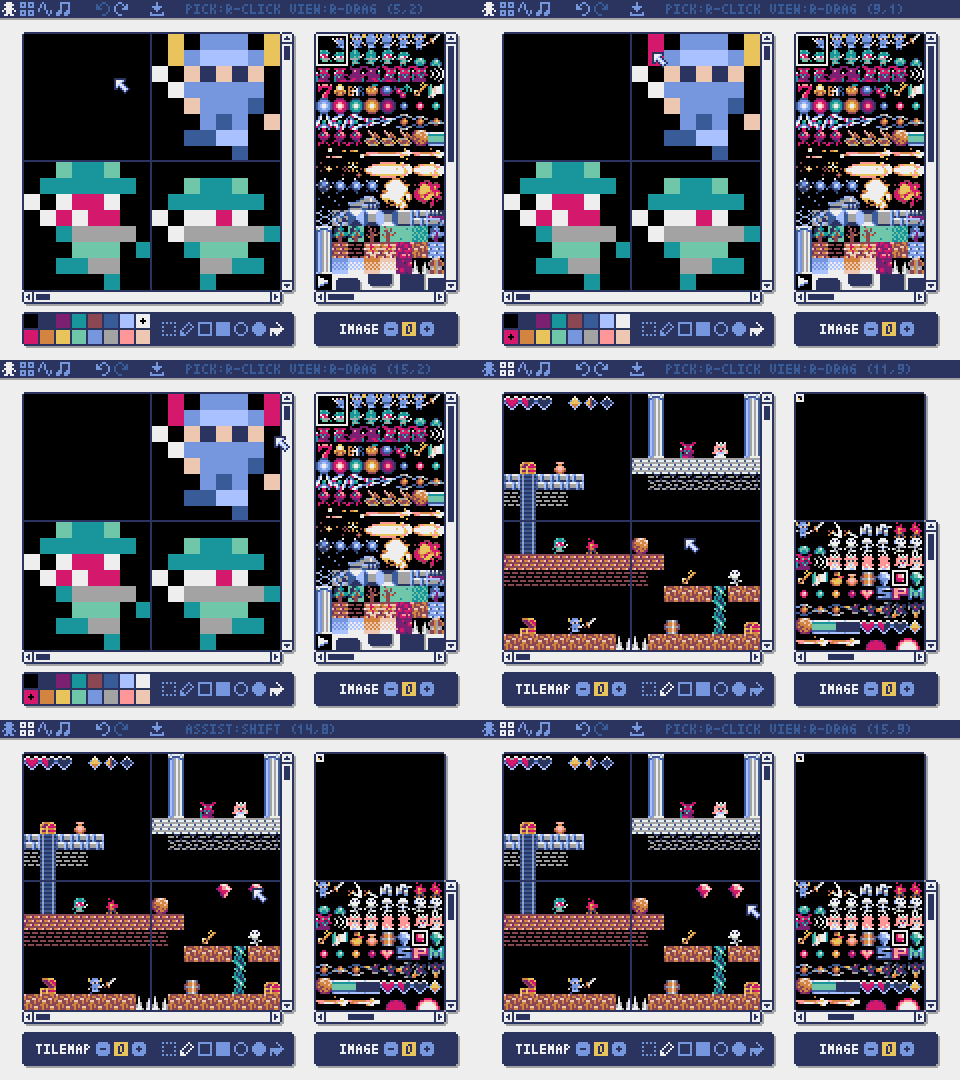
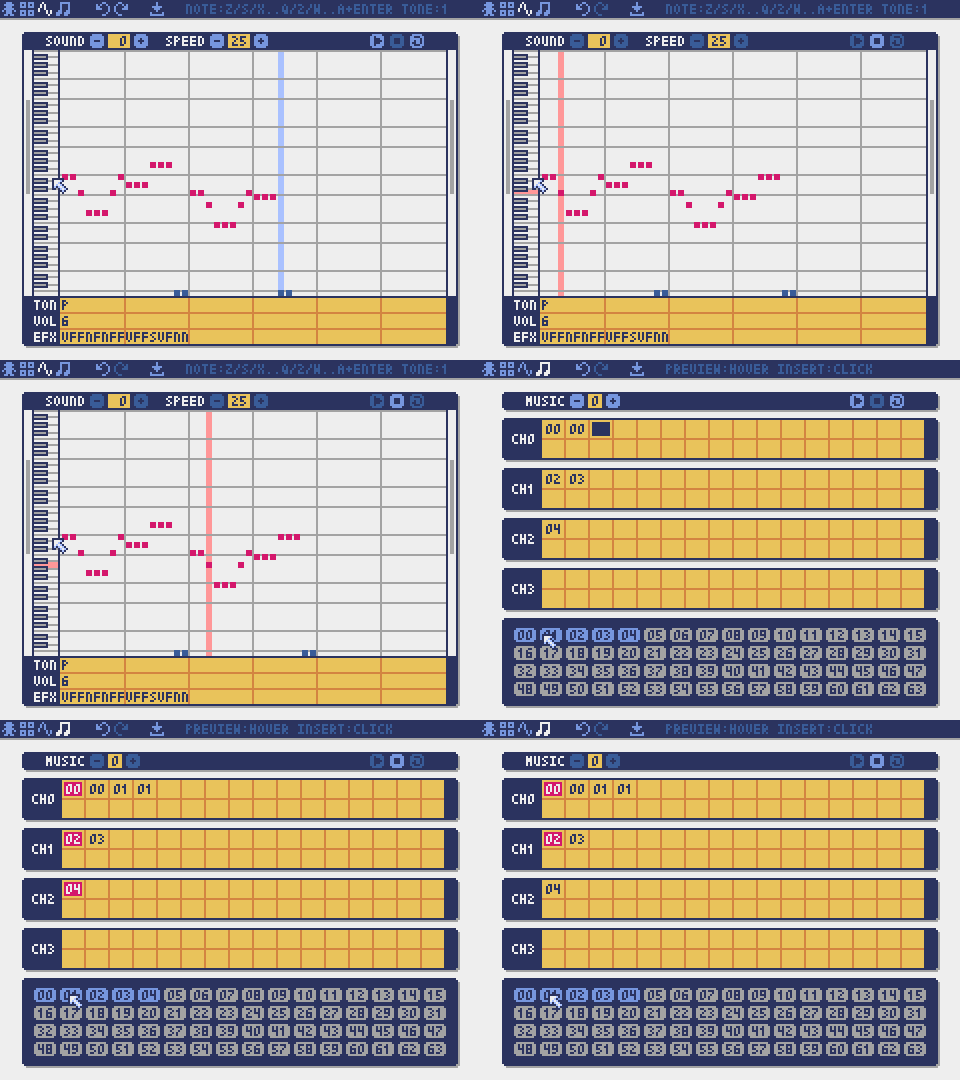
Pyxel Editor has the following editing modes.
Image Editor
The mode for editing images in each image bank.
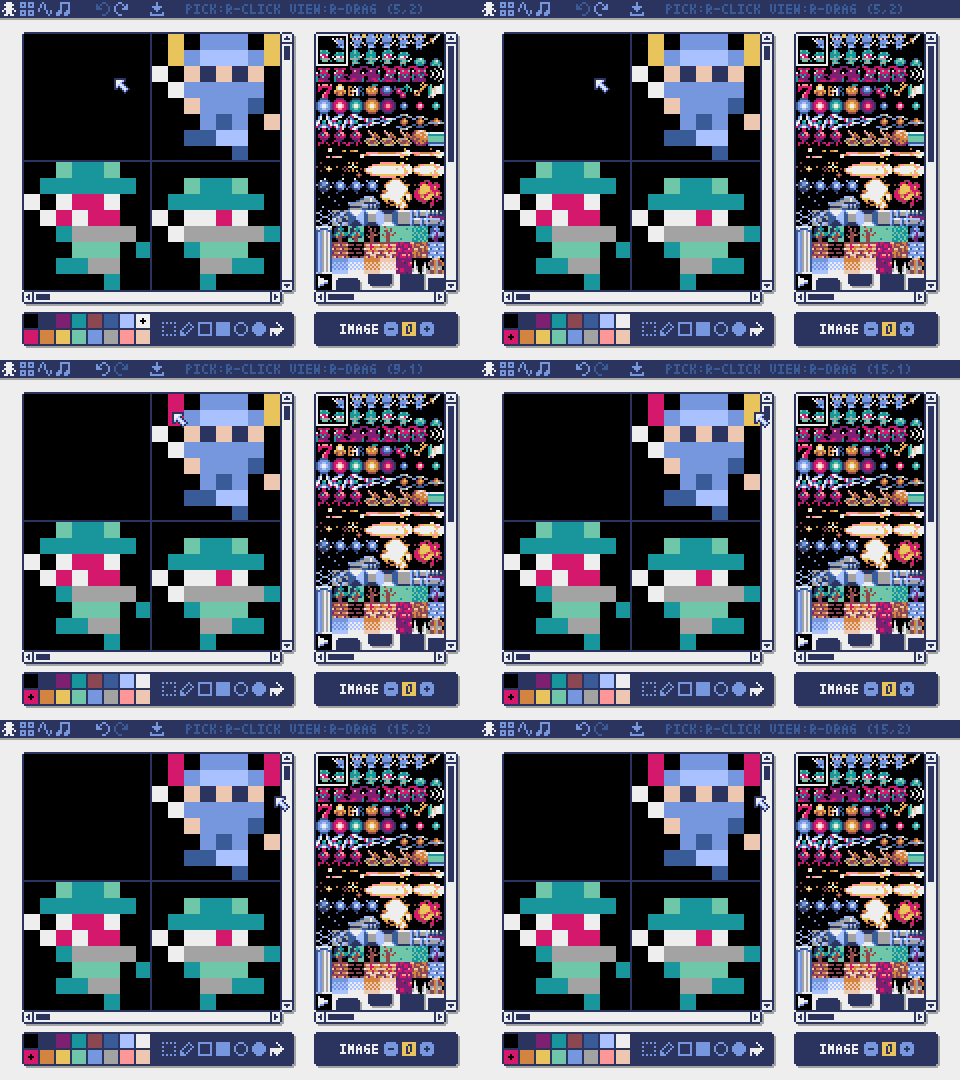
You can drag and drop an image file (PNG/GIF/JPEG) into the image editor to load the image into the currently selected image bank.
Tilemap Editor
The mode for editing tilemaps that arrange images from the image banks in a tile pattern.
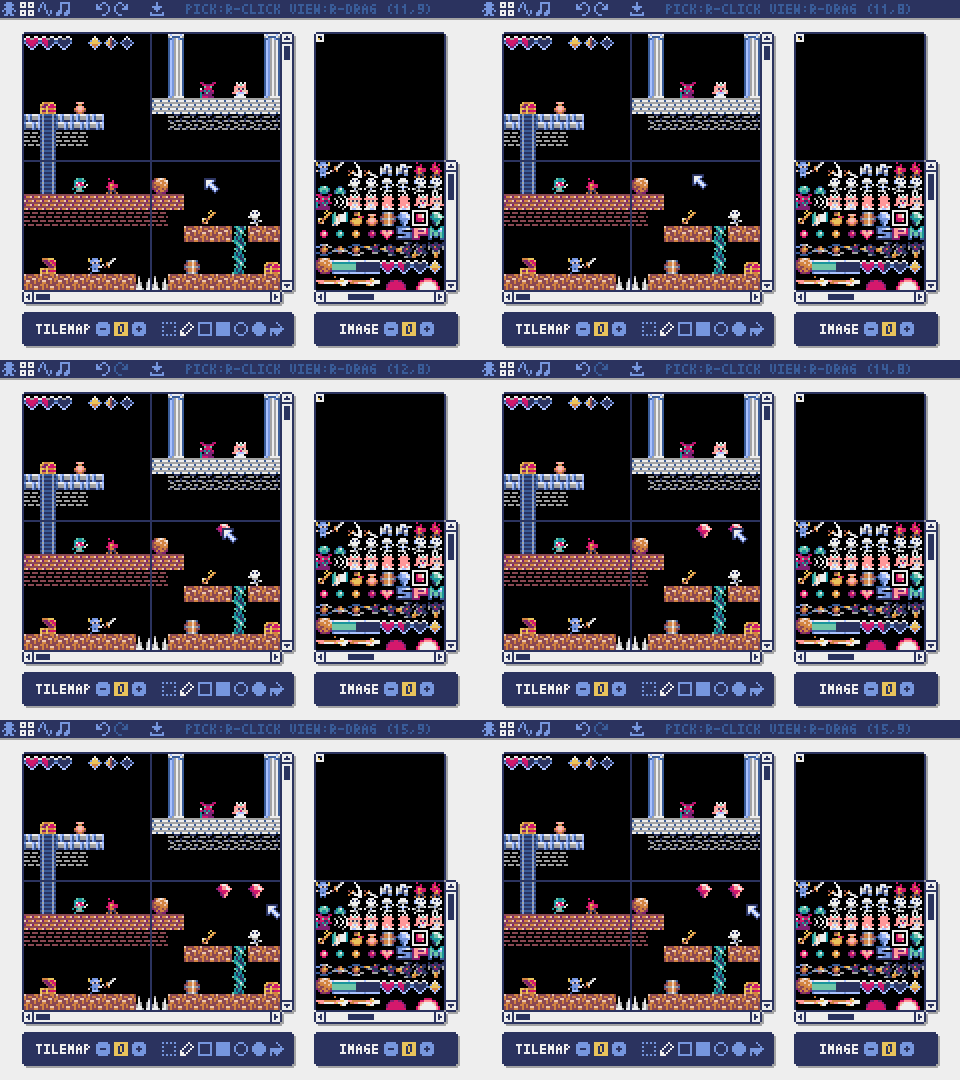
Drag and drop a TMX file (Tiled Map File) onto the tilemap editor to load its layer 0 into the currently selected tilemap.
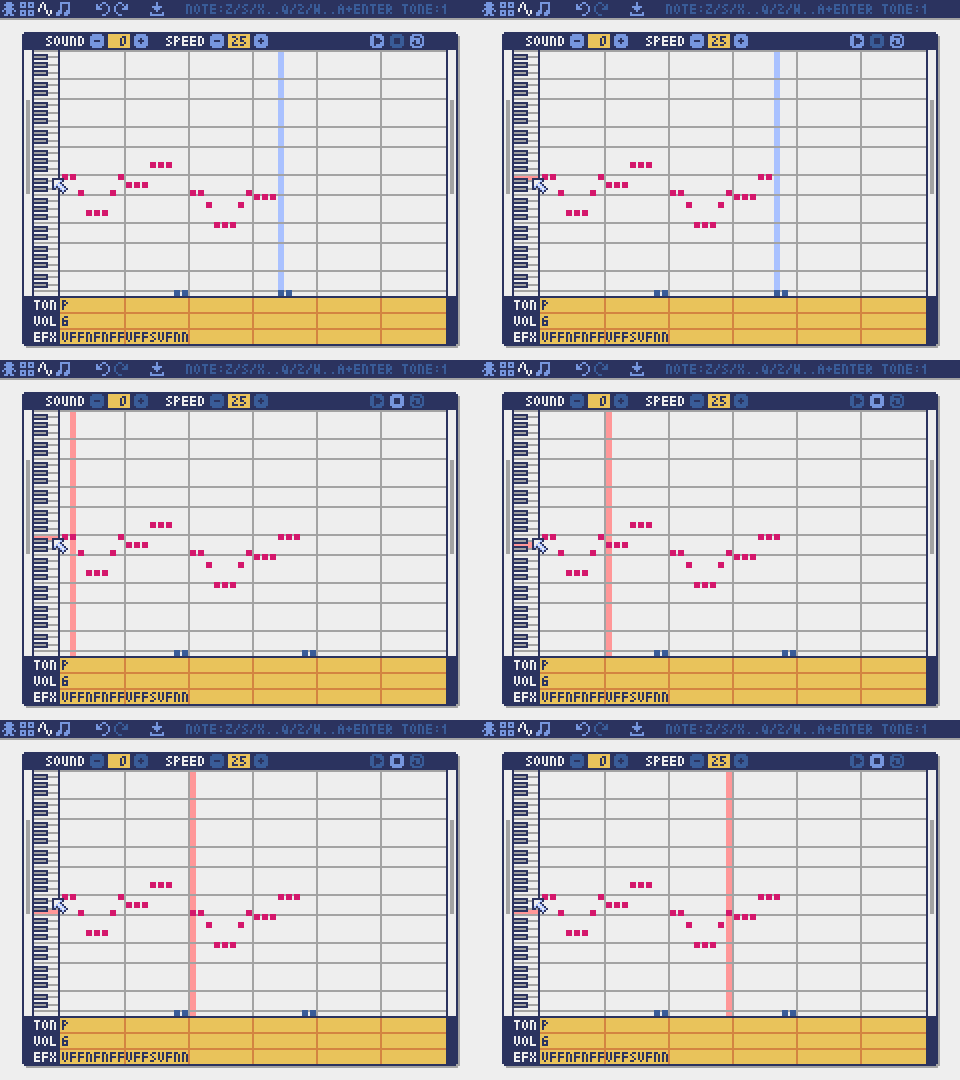
Sound Editor
The mode for editing sounds used for melodies and sound effects.
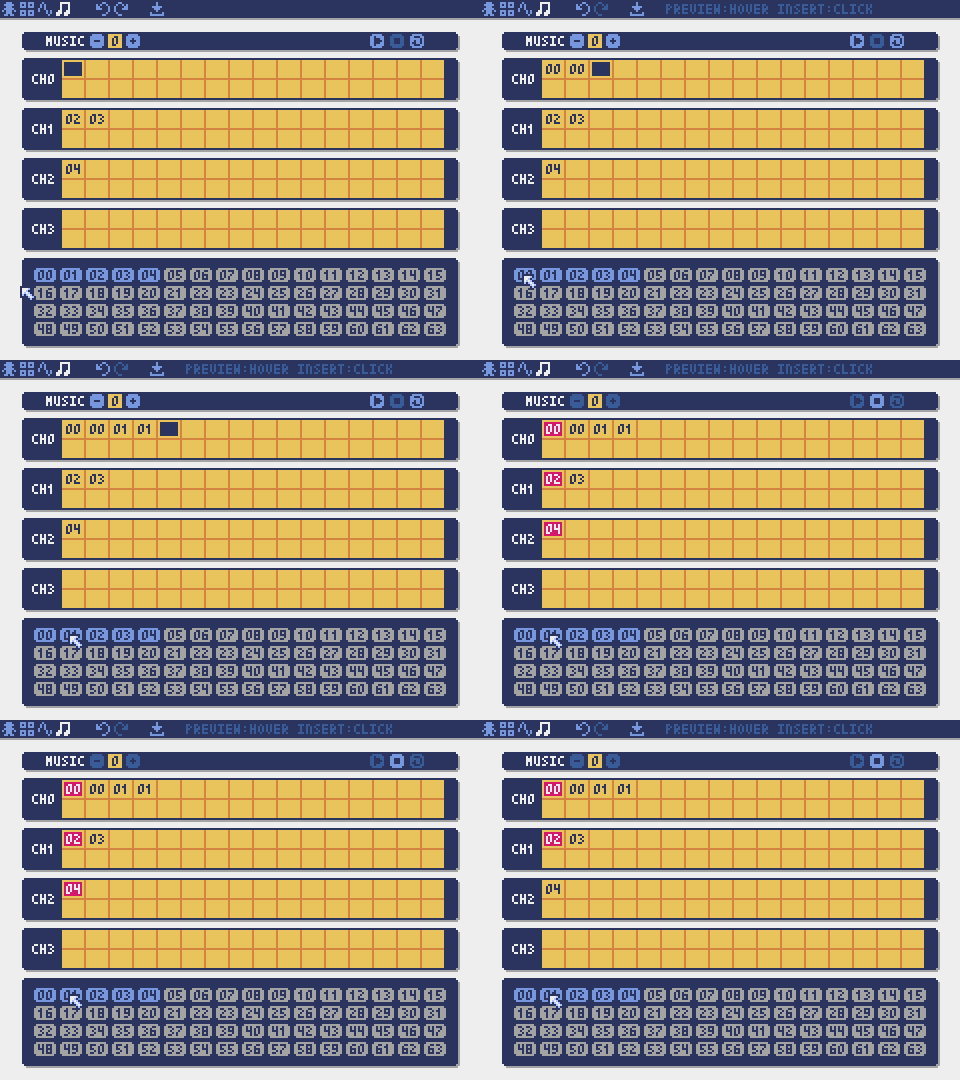
Music Editor
The mode for editing music tracks in which the sounds are arranged in order of playback.
Other Resource Creation Methods
Pyxel images and tilemaps can also be created using the following methods:
- Create images or tilemaps from lists of strings with the
Image.setorTilemap.setfunctions - Load palette-ready image files (PNG/GIF/JPEG) with the
Image.loadfunction
Pyxel sounds and music can also be created using the following method:
- Create them from strings with the
Sound.setorMusic.setfunctions
Refer to the API reference for the usage of these functions.
How to Distribute Applications
Pyxel supports a cross-platform distribution format called a Pyxel application file.
Create a Pyxel application file (.pyxapp) with the pyxel package command:
pyxel package APP_DIR STARTUP_SCRIPT_FILE
If you need to include resources or additional modules, place them in the application directory.
Metadata can be displayed at runtime by specifying it in the following format within the startup script. Fields other than title and author are optional.
# title: Pyxel Platformer
# author: Takashi Kitao
# desc: A Pyxel platformer example
# site: https://github.com/kitao/pyxel
# license: MIT
# version: 1.0
The created application file can be run using the pyxel play command:
pyxel play PYXEL_APP_FILE
A Pyxel application file can also be converted to an executable or an HTML file using the pyxel app2exe or pyxel app2html commands.
API Reference
System
-
width,height
The width and height of the screen -
frame_count
The number of elapsed frames -
init(width, height, [title], [fps], [quit_key], [display_scale], [capture_scale], [capture_sec])
Initialize the Pyxel application with the screen size (width,height). The following options can be specified: the window title withtitle, the frame rate withfps, the key to quit the application withquit_key, the display scale withdisplay_scale, the screen capture scale withcapture_scale, and the maximum recording time of the screen capture video withcapture_sec.
Example:pyxel.init(160, 120, title="My Pyxel App", fps=60, quit_key=pyxel.KEY_NONE, capture_scale=3, capture_sec=0) -
run(update, draw)
Start the Pyxel application and call theupdatefunction for frame update and thedrawfunction for drawing. -
show()
Show the screen and wait until theEsckey is pressed. -
flip()
Refresh the screen by one frame. The application exits when theEsckey is pressed. This function is not available in the web version. -
quit()
Quit the Pyxel application. -
reset()
Reset the Pyxel application. Environment variables are preserved after reset.
Resource
-
load(filename, [exclude_images], [exclude_tilemaps], [exclude_sounds], [exclude_musics])
Load the resource file (.pyxres). If an option is set toTrue, the corresponding resource will be excluded from loading. If a palette file (.pyxpal) with the same name exists in the same location as the resource file, the palette display colors will also be updated. The palette file contains hexadecimal entries for the display colors (e.g.1100ff), separated by newlines. The palette file can also be used to change the colors displayed in Pyxel Editor. -
user_data_dir(vendor_name, app_name)
Return the user data directory created based onvendor_nameandapp_name. If the directory does not exist, it will be created automatically. It is used to store high scores, game progress, and similar data.
Example:print(pyxel.user_data_dir("Takashi Kitao", "Pyxel Shooter"))
Input
-
mouse_x,mouse_y
The current position of the mouse cursor -
mouse_wheel
The current value of the mouse wheel -
btn(key)
ReturnTrueif thekeyis pressed, otherwise returnFalse. (Key definition list) -
btnp(key, [hold], [repeat])
ReturnTrueif thekeyis pressed in that frame, otherwise returnFalse. Ifholdandrepeatare specified, after thekeyhas been held down forholdframes or more,Trueis returned everyrepeatframes. -
btnr(key)
ReturnTrueif thekeyis released in that frame, otherwise returnFalse. -
mouse(visible)
Show the mouse cursor ifvisibleisTrue, and hide it ifvisibleisFalse. The cursor's position continues to update even when it is hidden.
Graphics
-
colors
List of the palette display colors. The display color is specified by a 24-bit numerical value. Usecolors.from_listandcolors.to_listto directly assign and retrieve Python lists.
Example:old_colors = pyxel.colors.to_list(); pyxel.colors.from_list([0x111111, 0x222222, 0x333333]); pyxel.colors[15] = 0x112233 -
images
List of the image banks (instances of the Image class) (0-2)
Example:pyxel.images[0].load(0, 0, "title.png") -
tilemaps
List of the tilemaps (instances of the Tilemap class) (0-7) -
clip(x, y, w, h)
Set the drawing area of the screen from (x,y) with a width ofwand a height ofh. Callclip()to reset the drawing area to full screen. -
camera(x, y)
Change the upper-left corner coordinates of the screen to (x,y). Callcamera()to reset the upper-left corner coordinates to (0,0). -
pal(col1, col2)
Replace colorcol1withcol2when drawing. Callpal()to reset to the initial palette. -
dither(alpha)
Apply dithering (pseudo-transparency) when drawing. Setalphain the range0.0-1.0, where0.0is transparent and1.0is opaque. -
cls(col)
Clear screen with colorcol. -
pget(x, y)
Get the color of the pixel at (x,y). -
pset(x, y, col)
Draw a pixel of colorcolat (x,y). -
line(x1, y1, x2, y2, col)
Draw a line of colorcolfrom (x1,y1) to (x2,y2). -
rect(x, y, w, h, col)
Draw a rectangle of widthw, heighthand colorcolfrom (x,y). -
rectb(x, y, w, h, col)
Draw the outline of a rectangle of widthw, heighthand colorcolfrom (x,y). -
circ(x, y, r, col)
Draw a circle of radiusrand colorcolat (x,y). -
circb(x, y, r, col)
Draw the outline of a circle of radiusrand colorcolat (x,y). -
elli(x, y, w, h, col)
Draw an ellipse of widthw, heighthand colorcolfrom (x,y). -
ellib(x, y, w, h, col)
Draw the outline of an ellipse of widthw, heighthand colorcolfrom (x,y). -
tri(x1, y1, x2, y2, x3, y3, col)
Draw a triangle with vertices (x1,y1), (x2,y2), (x3,y3) and colorcol. -
trib(x1, y1, x2, y2, x3, y3, col)
Draw the outline of a triangle with vertices (x1,y1), (x2,y2), (x3,y3) and colorcol. -
fill(x, y, col)
Fill the area connected with the same color as (x,y) with colorcol. -
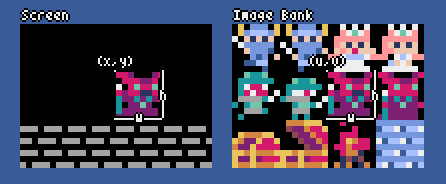
blt(x, y, img, u, v, w, h, [colkey], [rotate], [scale])
Copy the region of size (w,h) from (u,v) of the image bankimg(0-2) to (x,y). If a negative value is assigned towand/orh, the region will be flipped horizontally and/or vertically. Ifcolkeyis specified, it will be treated as a transparent color. Ifrotate(in degrees),scale(1.0 = 100%), or both are specified, the corresponding transformations will be applied.
bltm(x, y, tm, u, v, w, h, [colkey], [rotate], [scale])
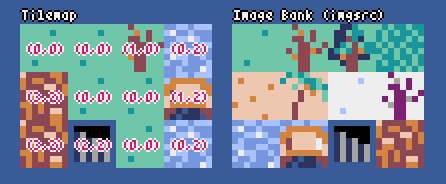
Copy the region of size (w,h) from (u,v) of the tilemaptm(0-7) to (x,y). If a negative value is assigned towand/orh, the region will be flipped horizontally and/or vertically. Ifcolkeyis specified, it will be treated as a transparent color. Ifrotate(in degrees),scale(1.0 = 100%), or both are specified, the corresponding transformations will be applied. The size of a tile is 8x8 pixels and is stored in a tilemap as a tuple of(image_tx, image_ty).
text(x, y, s, col)
Draw a stringsin colorcolat (x,y).
Audio
-
sounds
List of the sounds (instances of the Sound class) (0-63)
Example:pyxel.sounds[0].speed = 60 -
musics
List of music tracks (instances of the Music class) (0-7) -
play(ch, snd, [sec], [loop], [resume])
Play the soundsnd(0-63) on channelch(0-3).sndcan be a sound number, a list of sound numbers, or an MML string. The playback start position can be specified in seconds withsec. Ifloopis set toTrue, the sound will loop. To resume the previous sound after playback ends, setresumetoTrue. -
playm(msc, [sec], [loop])
Play the musicmsc(0-7). The playback start position can be specified in seconds withsec. Ifloopis set toTrue, the music will loop. -
stop([ch])
Stop playback of the specified channelch(0-3). Callstop()to stop all channels. -
play_pos(ch)
Get the sound playback position of channelch(0-3) as a tuple of(sound_no, sec). ReturnNonewhen playback has stopped.
Math
-
ceil(x)
Return the smallest integer that is greater than or equal tox. -
floor(x)
Return the largest integer that is less than or equal tox. -
sgn(x)
Return1whenxis positive,0when it is0, and-1when it is negative. -
sqrt(x)
Return the square root ofx. -
sin(deg)
Return the sine ofdegdegrees. -
cos(deg)
Return the cosine ofdegdegrees. -
atan2(y, x)
Return the arctangent ofy/xin degrees. -
rseed(seed)
Set the seed of the random number generator. -
rndi(a, b)
Return a random integer greater than or equal toaand less than or equal tob. -
rndf(a, b)
Return a random floating-point number greater than or equal toaand less than or equal tob. -
nseed(seed)
Set the seed of Perlin noise. -
noise(x, [y], [z])
Return the Perlin noise value for the specified coordinates.
Image Class
-
width,height
The width and height of the image -
set(x, y, data)
Set the image at (x,y) using a list of strings.
Example:pyxel.images[0].set(10, 10, ["0123", "4567", "89ab", "cdef"]) -
load(x, y, filename)
Load an image file (PNG/GIF/JPEG) at (x,y). -
pget(x, y)
Get the color of the pixel at (x,y). -
pset(x, y, col)
Draw a pixel with the colorcolat (x,y).
Tilemap Class
-
width,height
The width and height of the tilemap -
imgsrc
The image bank (0-2) referenced by the tilemap -
set(x, y, data)
Set the tilemap at (x,y) using a list of strings.
Example:pyxel.tilemaps[0].set(0, 0, ["0000 0100 a0b0", "0001 0101 a1b1"]) -
load(x, y, filename, layer)
Load thelayer(0-) from the TMX file (Tiled Map File) at (x,y). -
pget(x, y)
Get the tile at (x,y). A tile is represented as a tuple of(image_tx, image_ty). -
pset(x, y, tile)
Draw atileat (x,y). A tile is represented as a tuple of(image_tx, image_ty).
Sound Class
-
notes
List of notes (0-127). Higher values produce higher pitches. Note33is 'A2' (440 Hz). Rests are-1. -
tones
List of tones (0:Triangle / 1:Square / 2:Pulse / 3:Noise) -
volumes
List of volumes (0-7) -
effects
List of effects (0:None / 1:Slide / 2:Vibrato / 3:FadeOut / 4:Half-FadeOut / 5:Quarter-FadeOut) -
speed
Playback speed.1is the fastest, and the larger the number, the slower the playback speed. At120, the length of one note becomes 1 second. -
set(notes, tones, volumes, effects, speed)
Set notes, tones, volumes, and effects using a string. If the length of tones, volumes, or effects are shorter than the notes, they will be repeated from the beginning. -
set_notes(notes)
Set the notes using a string made ofCDEFGAB+#-+01234orR. It is case-insensitive, and whitespace is ignored.
Example:pyxel.sounds[0].set_notes("g2b-2d3r rf3f3f3") -
set_tones(tones)
Set the tones with a string made ofTSPN. Case-insensitive and whitespace is ignored.
Example:pyxel.sounds[0].set_tones("ttss pppn") -
set_volumes(volumes)
Set the volumes with a string made of01234567. Case-insensitive and whitespace is ignored.
Example:pyxel.sounds[0].set_volumes("7777 7531") -
set_effects(effects)
Set the effects with a string made ofNSVFHQ. Case-insensitive and whitespace is ignored.
Example:pyxel.sounds[0].set_effects("nfnf nvvs") -
mml(code)
Passing a MML (Music Macro Language) string switches to MML mode and plays the sound according to its content. In this mode, normal parameters such asnotesandspeedare ignored. To exit MML mode, callmml(). For more details about MML, see this page.
Example:pyxel.sounds[0].mml("T120 Q90 @1 V100 O5 L8 C4&C<G16R16>C.<G16 >C.D16 @VIB1{10,20,20} E2C2") -
pcm(filename)
Load an audio file (WAV/OGG) for playback. Callpcm()to return to normal playback mode.
Example:pyxel.sounds[0].pcm("sounds/bgm.ogg") -
save(filename, sec, [ffmpeg])
Creates a WAV file that plays the sound for the specified seconds. If FFmpeg is installed andffmpegis set toTrue, an MP4 file is also created. -
total_sec()
Return the playback time of the sound in seconds. ReturnNoneif an infinite loop is used in MML.
Music Class
-
seqs
A two-dimensional list of sounds (0-63) across multiple channels -
set(seq0, seq1, seq2, ...)
Set the lists of sounds (0-63) for each channel. If an empty list is specified, that channel will not be used for playback.
Example:pyxel.musics[0].set([0, 1], [], [3]) -
save(filename, sec, [ffmpeg])
Creates a WAV file that plays the music for the specified seconds. If FFmpeg is installed andffmpegis set toTrue, an MP4 file is also created.
Advanced API
Pyxel includes an "Advanced API" that is not mentioned in this reference, as it may confuse users or require specialized knowledge to use.
If you are confident in your skills, try creating amazing works using this as a guide!
How to Contribute
Submitting Issues
Use the Issue Tracker to submit bug reports and feature or enhancement requests. Before submitting a new issue, make sure there are no similar open issues.
Functional Testing
Anyone who manually tests the code and reports bugs or suggestions for enhancements in the Issue Tracker is very welcome!
Submitting Pull Requests
Patches and fixes are accepted in the form of pull requests (PRs). Make sure that the issue the pull request addresses is open in the Issue Tracker.
Submitting a pull request implies that you agree to license your contribution under the MIT License.
Web Tools & Examples
Other Information
License
Pyxel is licensed under the MIT License. It can be reused in proprietary software, provided that all copies of the software or its substantial portions include a copy of the MIT License terms and a copyright notice.
Recruiting Sponsors
Pyxel is looking for sponsors on GitHub Sponsors. Please consider sponsoring Pyxel to support its continued maintenance and feature development. As a benefit, sponsors can consult directly with the Pyxel developer. For more details, please visit this page.
Release history Release notifications | RSS feed


Download files
Download the file for your platform. If you're not sure which to choose, learn more about installing packages.
Source Distributions
Built Distributions
Filter files by name, interpreter, ABI, and platform.
If you're not sure about the file name format, learn more about wheel file names.
Copy a direct link to the current filters
File details
Details for the file pyxel-2.6.4-cp38-abi3-win_amd64.whl.
File metadata
- Download URL: pyxel-2.6.4-cp38-abi3-win_amd64.whl
- Upload date:
- Size: 7.9 MB
- Tags: CPython 3.8+, Windows x86-64
- Uploaded using Trusted Publishing? No
- Uploaded via: twine/6.2.0 CPython/3.13.11
File hashes
| Algorithm | Hash digest | |
|---|---|---|
| SHA256 |
d88cb3eeb24c6eb319196fb4cb989c97a8c139fdf9224d68eff50725a34158d2
|
|
| MD5 |
1fe5bf7cbde33a3268b62a5ba7b3051f
|
|
| BLAKE2b-256 |
ccbca3c6e2630872ddddb71309b7e1fbcbaae5c6435eba19fa0c87db5980f610
|
File details
Details for the file pyxel-2.6.4-cp38-abi3-win32.whl.
File metadata
- Download URL: pyxel-2.6.4-cp38-abi3-win32.whl
- Upload date:
- Size: 7.7 MB
- Tags: CPython 3.8+, Windows x86
- Uploaded using Trusted Publishing? No
- Uploaded via: twine/6.2.0 CPython/3.13.11
File hashes
| Algorithm | Hash digest | |
|---|---|---|
| SHA256 |
7d6d03150a45c03aa59c3cb0bc9a00e3cc0a4377c89ab8c7cf6b505db9878502
|
|
| MD5 |
38a0fbdf5a472f70b8f65a4b9f290571
|
|
| BLAKE2b-256 |
2516a753684901ad6b5b5eaa49adca0ce873fac0fbac6fdc73aca037d51e8b0a
|
File details
Details for the file pyxel-2.6.4-cp38-abi3-manylinux_2_17_x86_64.manylinux2014_x86_64.whl.
File metadata
- Download URL: pyxel-2.6.4-cp38-abi3-manylinux_2_17_x86_64.manylinux2014_x86_64.whl
- Upload date:
- Size: 7.9 MB
- Tags: CPython 3.8+, manylinux: glibc 2.17+ x86-64
- Uploaded using Trusted Publishing? No
- Uploaded via: twine/6.2.0 CPython/3.13.11
File hashes
| Algorithm | Hash digest | |
|---|---|---|
| SHA256 |
8c2304e9d6f40ab3d1080fee27cc41cc1b7fe53fd87b029eb07940132cdac2d7
|
|
| MD5 |
02734f20038b383901a045eee11f6a67
|
|
| BLAKE2b-256 |
234ae6e406abe8b08ea6a78fd3de0717f964925cb8c9930c844ac63d74e57ab3
|
File details
Details for the file pyxel-2.6.4-cp38-abi3-manylinux_2_17_i686.manylinux2014_i686.whl.
File metadata
- Download URL: pyxel-2.6.4-cp38-abi3-manylinux_2_17_i686.manylinux2014_i686.whl
- Upload date:
- Size: 8.3 MB
- Tags: CPython 3.8+, manylinux: glibc 2.17+ i686
- Uploaded using Trusted Publishing? No
- Uploaded via: twine/6.2.0 CPython/3.13.11
File hashes
| Algorithm | Hash digest | |
|---|---|---|
| SHA256 |
b483b5a144c471e6bbbfb5ecd400105d43c9d24704b02969b0ed7cd9d8c166b1
|
|
| MD5 |
84d945f26176342883d1eda3a3e2db3b
|
|
| BLAKE2b-256 |
cd3c99df9c3a060e3975f94ec8f9b00c84a42ddabfae2c8aa9df4052d2d8ada5
|
File details
Details for the file pyxel-2.6.4-cp38-abi3-manylinux_2_17_armv7l.manylinux2014_armv7l.whl.
File metadata
- Download URL: pyxel-2.6.4-cp38-abi3-manylinux_2_17_armv7l.manylinux2014_armv7l.whl
- Upload date:
- Size: 7.7 MB
- Tags: CPython 3.8+, manylinux: glibc 2.17+ ARMv7l
- Uploaded using Trusted Publishing? No
- Uploaded via: twine/6.2.0 CPython/3.13.11
File hashes
| Algorithm | Hash digest | |
|---|---|---|
| SHA256 |
8d11147c2125dadad9f85e56a837a68e103a663e0164eda64a3b58d0c47b9cd9
|
|
| MD5 |
f7b4bbcb03bb8c7ad545de64cc7f23e8
|
|
| BLAKE2b-256 |
0f2bbea7a6f2d501e8a3966046b693a08cc730848d97cd7a07690982b8df76b6
|
File details
Details for the file pyxel-2.6.4-cp38-abi3-manylinux_2_17_aarch64.manylinux2014_aarch64.whl.
File metadata
- Download URL: pyxel-2.6.4-cp38-abi3-manylinux_2_17_aarch64.manylinux2014_aarch64.whl
- Upload date:
- Size: 7.7 MB
- Tags: CPython 3.8+, manylinux: glibc 2.17+ ARM64
- Uploaded using Trusted Publishing? No
- Uploaded via: twine/6.2.0 CPython/3.13.11
File hashes
| Algorithm | Hash digest | |
|---|---|---|
| SHA256 |
ea1ff2d13c6fa19f58e65d17057231066d7afb05feea1bef224823edc981d65a
|
|
| MD5 |
26bb061eadd8256f406756a87d7ad62f
|
|
| BLAKE2b-256 |
13d28c7f4314fd38d9c47cbb1515dda6e282119654f5f8b9faabc3e1eb8105aa
|
File details
Details for the file pyxel-2.6.4-cp38-abi3-macosx_11_0_arm64.whl.
File metadata
- Download URL: pyxel-2.6.4-cp38-abi3-macosx_11_0_arm64.whl
- Upload date:
- Size: 7.9 MB
- Tags: CPython 3.8+, macOS 11.0+ ARM64
- Uploaded using Trusted Publishing? No
- Uploaded via: twine/6.2.0 CPython/3.13.11
File hashes
| Algorithm | Hash digest | |
|---|---|---|
| SHA256 |
3a62b6aabcf7c5e2ecda499da75a3c4b52c7b5d56d47a9a28c35bbc0e1a6f7fd
|
|
| MD5 |
23645a28789e1550834169db8a850e78
|
|
| BLAKE2b-256 |
16f3ea3997df4684d3dcc29e8aa5e8330efcadf272826a9d518b614e19dcc50b
|
File details
Details for the file pyxel-2.6.4-cp38-abi3-macosx_10_12_x86_64.whl.
File metadata
- Download URL: pyxel-2.6.4-cp38-abi3-macosx_10_12_x86_64.whl
- Upload date:
- Size: 8.1 MB
- Tags: CPython 3.8+, macOS 10.12+ x86-64
- Uploaded using Trusted Publishing? No
- Uploaded via: twine/6.2.0 CPython/3.13.11
File hashes
| Algorithm | Hash digest | |
|---|---|---|
| SHA256 |
6a5a84fbd8f8e9c268f05223290d75d7abf8c76c65f6acf5c27748a0eb1f0f13
|
|
| MD5 |
2e6847d4094adae3b00568f568a38d13
|
|
| BLAKE2b-256 |
05ae624f2d1d5592f8d6758fe42593677efd6d80ed92a3f5c131d527b92705f0
|







