
A library designed for quickly deploying a 3D viewer.

Project description



q3dviewer is a library designed for quickly deploying a 3D viewer. It is based on Qt and provides efficient OpenGL items for displaying 3D objects (e.g., point clouds, cameras, and 3D Gaussians). You can use it to visualize your 3D data or set up an efficient viewer application. It is inspired by PyQtGraph but focuses more on efficient 3D rendering.
To show how to use q3dviewer as a library, we also provide some very useful tools.
Installation
To install q3dviewer, execute the following command in your terminal on either Linux or Windows:
pip install q3dviewer
Note for Windows Users
- Ensure that you have a Python 3 environment set up:
- Download and install Python 3 from the official Python website.
- During installation, make sure to check the "Add Python to PATH" option.
Note for Linux Users
If you encounter an error related to loading the shared library libxcb-cursor.so.0 on Ubuntu 20.04 or 22.04, please install libxcb-cursor0:
sudo apt-get install libxcb-cursor0
Tools
Once installed, you can directly use the following tools:
1. Cloud Viewer
A tool for visualizing point cloud files (LAS, PCD, PLY, E57). Launch it by executing the following command in your terminal:
cloud_viewer
Alternatively, if the path is not set (though it's not recommended):
python3 -m q3dviewer.tools.cloud_viewer
Basic Operations
- Load files: Drag and drop point cloud files onto the window (multiple files are OK).
Mkey: Display the visualization settings screen for point clouds, background color, etc.Left mouse button&W, A, S, Dkeys: Move the viewpoint on the horizontal plane.Z, Xkeys: Move in the direction the screen is facing.Right mouse button&Arrowkeys: Rotate the viewpoint while keeping the screen center unchanged.Shift+Right mouse button&Arrowkeys: Rotate the viewpoint while keeping the camera position unchanged.
For example, you can download and view point clouds of Tokyo in LAS format from the following link:

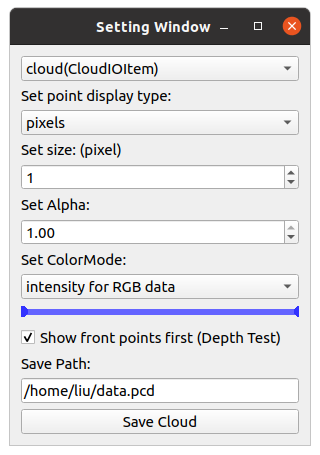
Press M on your keyboard to display a menu on the screen, where you can modify visualization settings for each item. For example, you can adjust various settings such as shape, size, color, and transparency for CloudItem.
2. ROS Viewer
A high-performance SLAM viewer compatible with ROS, serving as an alternative to RVIZ.
roscore &
ros_viewer
3. Film Maker
Would you like to create a video from point cloud data? With Film Maker, you can easily create videos with simple operations. Just edit keyframes using the user-friendly GUI, and the software will automatically interpolate the keyframes to generate the video.
film_maker
Basic Operations
- File loading & viewpoint movement: Same as Cloud_Viewer
- Space key to add a keyframe.
- Delete key to remove a keyframe.
- Play button: Automatically play the video (pressing again will stop playback)
- Record checkbox: When checked, actions will be automatically recorded during playback
Film Maker GUI:

The demo video demonstrating how to use Film Maker utilizes the cloud data of Kyobashi Station Area located in Osaka, Japan.
4. Gaussian Viewer
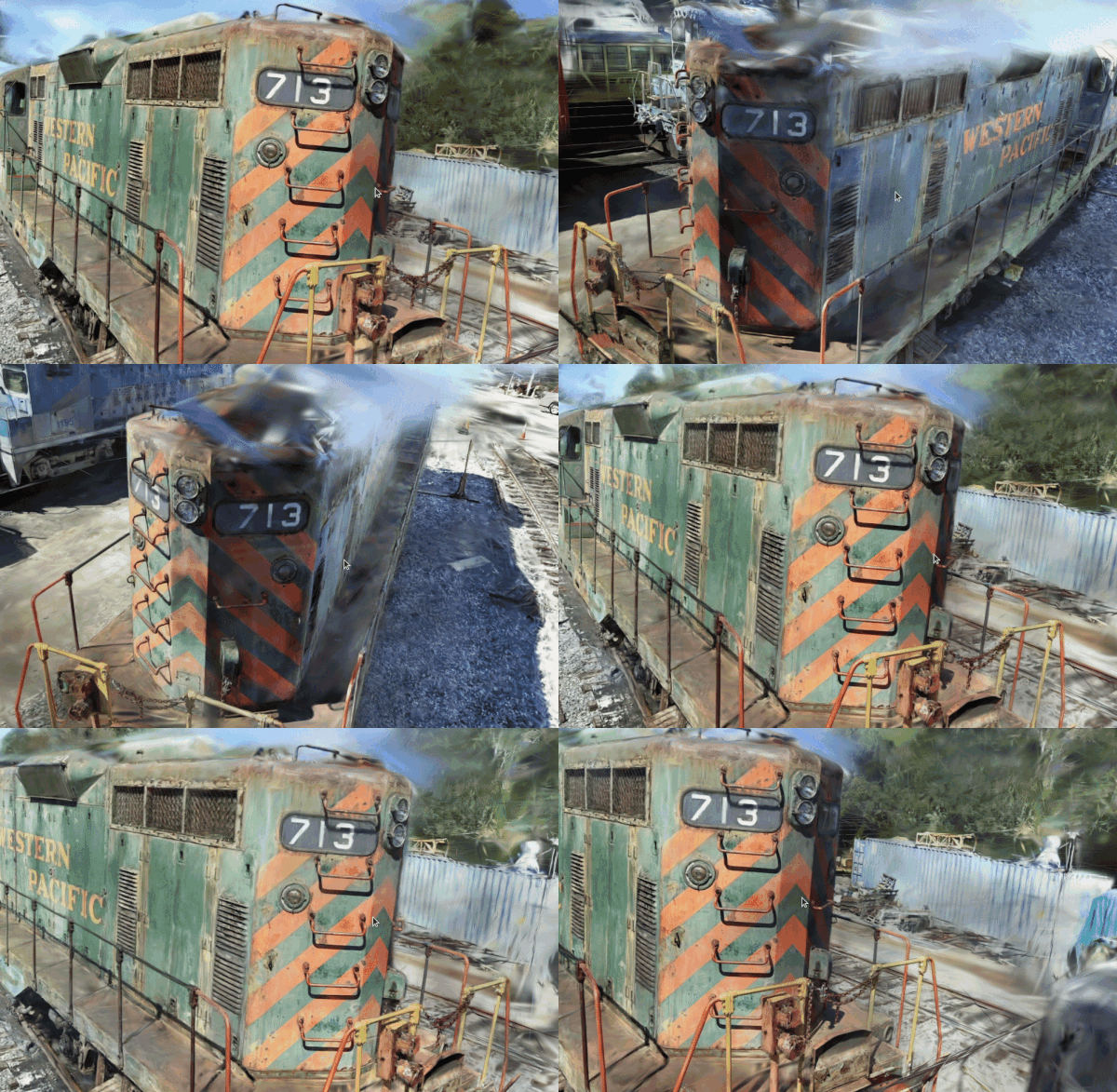
A simple viewer for 3D Gaussians. See EasyGaussianSplatting for more information.
gaussian_viewer # Drag and drop your Gaussian file onto the window
5. LiDAR-LiDAR Calibration Tools
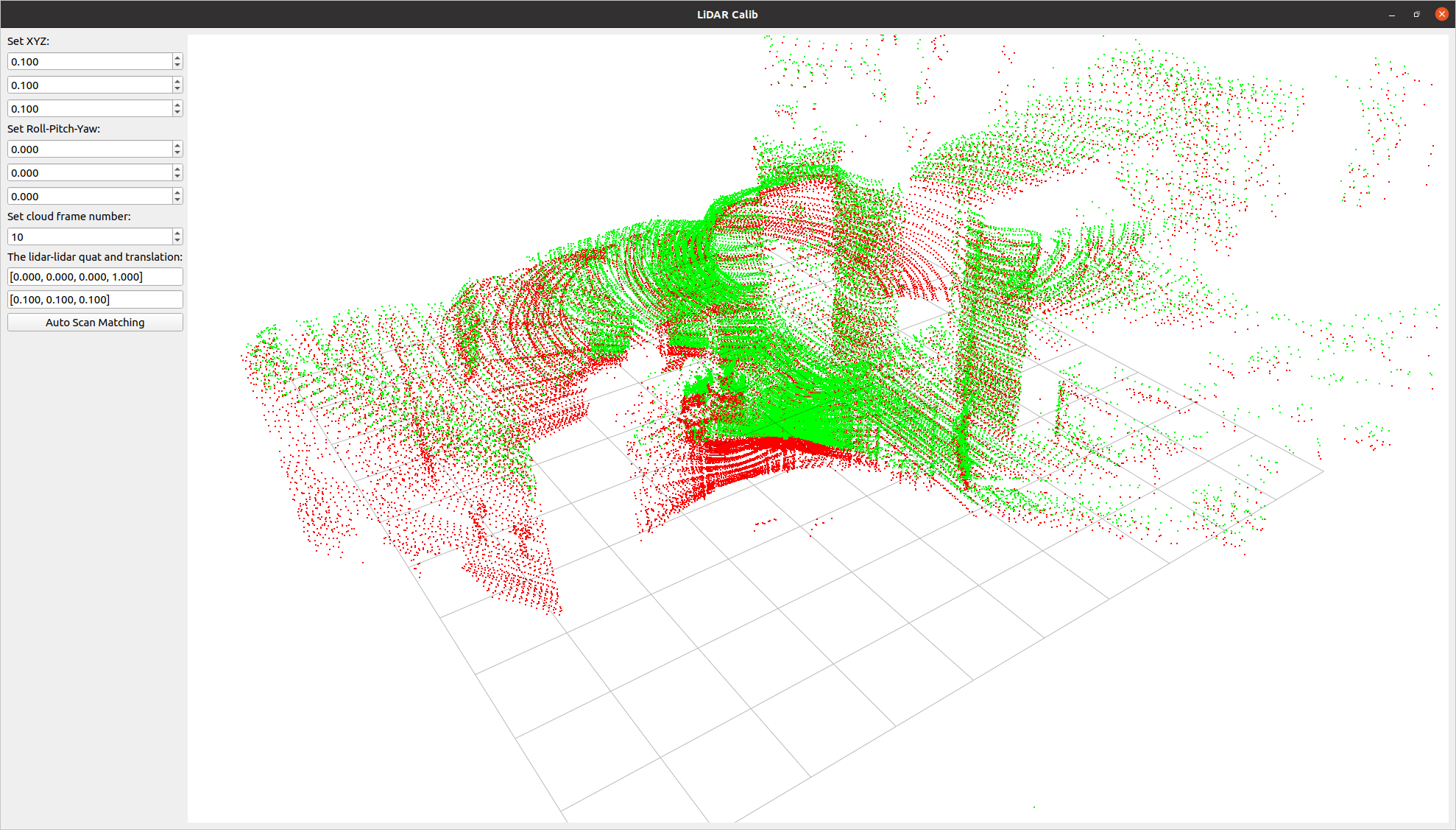
A tool to compute the relative pose between two LiDARs. It allows for both manual adjustment in the settings screen and automatic calibration.
lidar_calib --lidar0=/YOUR_LIDAR0_TOPIC --lidar1=/YOUR_LIDAR1_TOPIC
6. LiDAR-Camera Calibration Tools
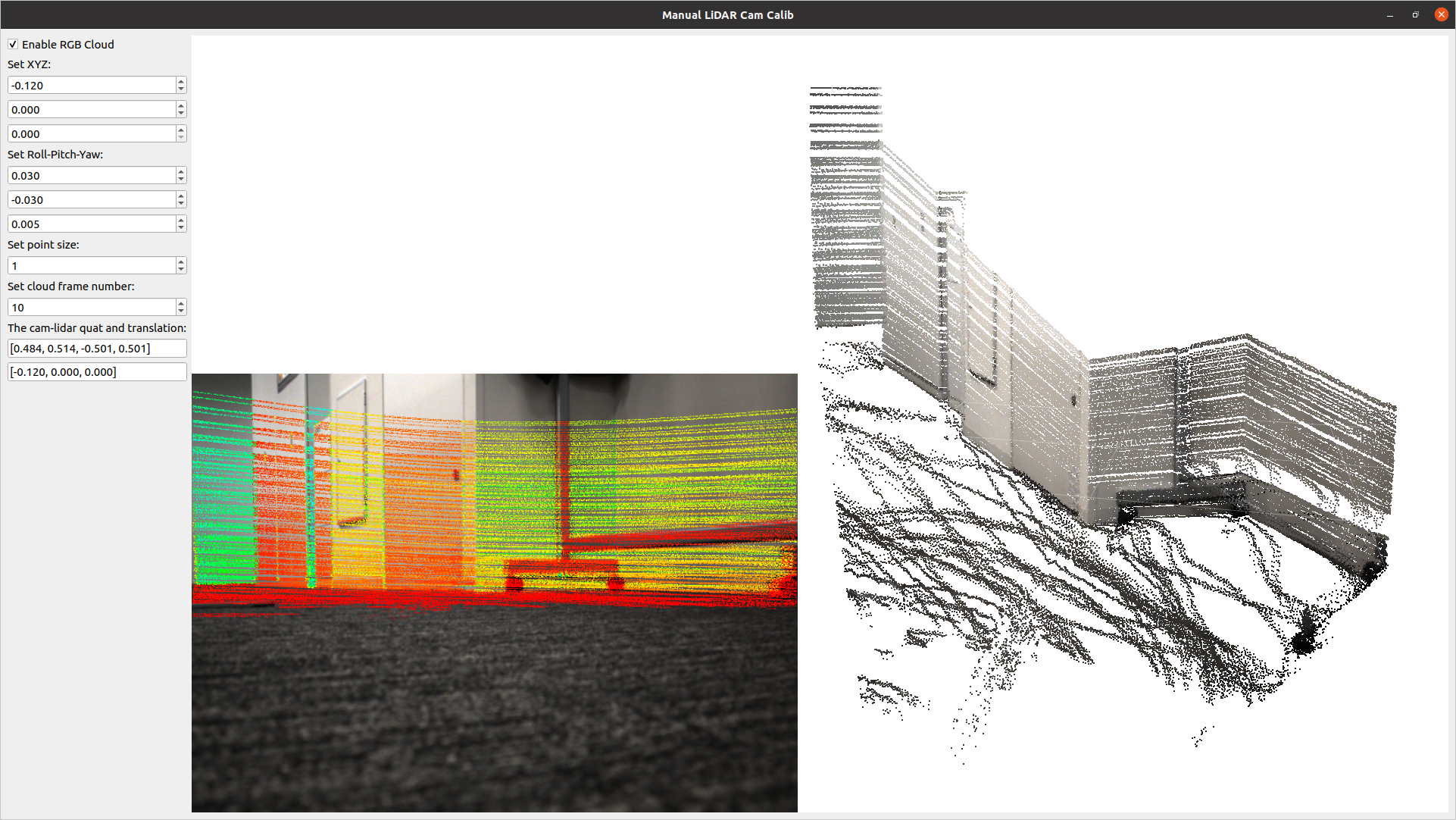
A tool for calculating the relative pose between a LiDAR and a camera. It allows for manual adjustment in the settings screen and real-time verification of LiDAR point projection onto images.
lidar_cam_calib --lidar=/YOUR_LIDAR_TOPIC --camera=/YOUR_CAMERA_TOPIC --camera_info=/YOUR_CAMERA_INFO_TOPIC
Using as a Library
Using the examples above, you can easily customize and develop your own 3D viewer with q3dviewer. Below is a coding example.
Custom 3D Viewer
#!/usr/bin/env python3

import q3dviewer as q3d  # Import q3dviewer

def main():
    # Create a Qt application
    app = q3d.QApplication([])

    # Create various 3D items
    axis_item = q3d.AxisItem(size=0.5, width=5)
    grid_item = q3d.GridItem(size=10, spacing=1)

    # Create a viewer
    viewer = q3d.Viewer(name='example')

    # Add items to the viewer
    viewer.add_items({
        'grid': grid_item,
        'axis': axis_item,
    })

    # Show the viewer & run the Qt application
    viewer.show()
    app.exec()

if __name__ == '__main__':
    main()
q3dviewer provides the following 3D items:
- AxisItem: Displays coordinate axes or the origin position.
- CloudItem: Displays point clouds.
- CloudIOItem: Displays point clouds with input/output capabilities.
- GaussianItem: Displays 3D Gaussians.
- GridItem: Displays grids.
- ImageItem: Displays 2D images.
- Text2DItem: Displays 2D text.
- LineItem: Displays lines or trajectories.
Developing Custom Items
In addition to the standard 3D items provided, you can visualize custom 3D items with simple coding. Below is a sample:
from OpenGL.GL import *
import numpy as np
import q3dviewer as q3d
from q3dviewer.Qt.QtWidgets import QLabel, QSpinBox

class YourItem(q3d.BaseItem):
    def __init__(self):
        super(YourItem, self).__init__()
        # Necessary initialization

    def add_setting(self, layout):
        # Initialize the settings screen
        label = QLabel("Add your setting:")
        layout.addWidget(label)
        box = QSpinBox()
        layout.addWidget(box)

    def set_data(self, data):
        # Obtain the data you want to visualize
        pass

    def initialize_gl(self):
        # OpenGL initialization settings (if needed)
        pass

    def paint(self):
        # Visualize 3D objects using OpenGL
        pass
Enjoy using q3dviewer!
Release history Release notifications | RSS feed


Download files
Download the file for your platform. If you're not sure which to choose, learn more about installing packages.
Source Distribution
Built Distribution
Filter files by name, interpreter, ABI, and platform.
If you're not sure about the file name format, learn more about wheel file names.
Copy a direct link to the current filters
File details
Details for the file q3dviewer-1.1.7.tar.gz.
File metadata
- Download URL: q3dviewer-1.1.7.tar.gz
- Upload date:
- Size: 47.4 kB
- Tags: Source
- Uploaded using Trusted Publishing? No
- Uploaded via: twine/5.0.0 CPython/3.8.10
File hashes
| Algorithm | Hash digest | |
|---|---|---|
| SHA256 |
1225dc14d3e5f0dfe9ebf5d36beb74dd43340c42a144641133ca7cf0fb23b6d9
|
|
| MD5 |
716a0632f41cbe303f6f9be6c86619d4
|
|
| BLAKE2b-256 |
44b74ed1bd8f3b345061b001bb2659cc26a2c568ebe74d807b9d598ffd0ae802
|
File details
Details for the file q3dviewer-1.1.7-py3-none-any.whl.
File metadata
- Download URL: q3dviewer-1.1.7-py3-none-any.whl
- Upload date:
- Size: 72.7 kB
- Tags: Python 3
- Uploaded using Trusted Publishing? No
- Uploaded via: twine/5.0.0 CPython/3.8.10
File hashes
| Algorithm | Hash digest | |
|---|---|---|
| SHA256 |
49bf11a5741d9a38f9eb98f53734221f6654016190f18dc4ff2f2144a8846cae
|
|
| MD5 |
eb24ff6f236621d98bad0a6bc766946f
|
|
| BLAKE2b-256 |
9e0beb90529909df9f31653c44cf3696bc9b59c5da30563691c42dda7f9b1e88
|






