
Beautiful and user friendly data structures for quantum chemistry.
Verified details
These details have been verified by PyPIProject links
GitHub Statistics
Maintainers

Project description
Quantum Chemistry I/O





Elegant and intuitive data structures for quantum chemistry, featuring seamless Jupyter Notebook visualizations.
qcio works in harmony with a suite of other quantum chemistry tools for fast, structured, and interoperable quantum chemistry.
The QC Suite of Programs
- qcconst - NIST/CODATA2022 core physical constants, conversion factors, and a periodic table with clear source information for every value.
- qcio - Elegant and intuitive data structures for quantum chemistry, featuring seamless Jupyter Notebook visualizations. Documentation
qcinf - Cheminformatics algorithms and structure utilities such as
rmsd, and alignment, using standardized qcio data structures. - qccodec - A translation layer between quantum chemistry program inputs and outputs and structured
qcioobjects. - qcop - A package for operating quantum chemistry programs using
qciostandardized data structures. Compatible withTeraChem,psi4,QChem,NWChem,ORCA,Molpro,geomeTRICand many more. - BigChem - A distributed application for running quantum chemistry calculations at scale across clusters of computers or the cloud. Bring multi-node scaling to your favorite quantum chemistry program.
ChemCloud- A web application and associated Python client for exposing a BigChem cluster securely over the internet.
Installation
python -m pip install qcio
Quickstart
qcio is built around a simple mental model: Input objects define quantum chemistry calculations, and a Results object defines the results.
All qcio objects can be serialized and saved to disk by calling .save("filename.json") and loaded from disk by calling .open("filename.json"). qcio supports json, yaml, and toml file formats. Binary data will be automatically base64 encoded and decoded when saving and loading.
Input Objects
CalcInput - Core input object for a single QC calculation.
from qcio import Structure, CalcInput
# xyz files or saved Structure objects can be opened from disk
caffeine = Structure.open("caffeine.xyz")
# Define the program input
prog_input = CalcInput(
    structure=caffeine,
    calctype="energy",
    keywords={"purify": "no", "restricted": False},
    model={"method": "hf", "basis": "sto-3g"},
    extras={"comment": "This is a comment"}, # Anything extra not in the schema
)
# Binary or other files used as input can be added
prog_input.add_file("wfn.dat")
prog_input.keywords["initial_guess"] = "wfn.dat"

# Save the input to disk in json, yaml, or toml format
prog_input.save("input.json")

# Open the input from disk
prog_input = CalcInput.open("input.json")
Structure objects can be opened from and saved as xyz files or saved to disk as .json, .yaml, or .toml formats by changing the extension of the file. For .xyz files precision can be controlled by passing the precision argument to the save method.
caffeine = Structure.open("caffeine.xyz")
caffeine.save("caffeine2.json", precision=6)
caffeine.save("caffeine.toml")
CompositeCalcInput - Input object for a workflow that uses multiple QC calculations.
CompositeCalcInput objects can be used to power workflows that require multiple calculations. For example, a geometry optimization workflow might use geomeTRIC to power the optimization and use terachem to compute the energies and gradients.
from qcio import Structure, CompositeCalcInput
# xyz files or saved Structure objects can be opened from disk
caffeine = Structure.open("caffeine.xyz")
# Define the program input
prog_input = CompositeCalcInput(
    structure=caffeine,
    calctype="optimization",
    keywords={"maxiter": 250},
    subprogram="terachem",
    subprogram_args = {
        "model": {"method": "hf", "basis": "sto-3g"},
        "keywords": {"purify": "no", "restricted": False},
    },
    extras={"comment": "This is a comment"}, # Anything extra not in the schema
)
FileInput - Input object for a calculation using native file formats.
qcio also supports the native file formats of each QC program with a FileInput object. Assume you have a directory like this with your input files for psi4:
psi4/
    input.dat
    geometry.xyz
    wfn.dat
You can collect these native files and any associated command line arguments needed to specify a calculation into a FileInput object like this:
from qcio import FileInput
psi4_input = FileInput.from_directory("psi4")

# All input files will be loaded into the `files` attribute
psi4_input.files
# {'input.dat': '...', 'geometry.xyz': '...', 'wfn.dat': '...'}

# Add psi4 command line args to the input
psi4_input.cmdline_args.extend(["-n", "4"])

# Files can be dumped to a directory for a calculation
psi4_input.save_files("psi4")
Modifying Input Objects
Objects are immutable by default so if you want to modify an object cast it to a dictionary, make the desired modification, and then instantiate a new object. This prevents accidentally modifying objects that may already be referenced in other calculations--perhaps as .input_data on a Results object.
# Cast to a dictionary and modify
new_input_dict = prog_input.model_dumps()
new_input_dict["model"]["method"] = "b3lyp"
# Instantiate a new object
new_prog_input = CalcInput(**new_input_dict)
Results
Calculation values are stored in a Results object. Results may contain parsed data, files, logs, and additional details of the calculation. A Results object has the following attributes:
output.input_data # Input data used for the calculation
output.success # Whether the calculation succeeded or failed
output.data # All structured data from the calculation
output.data.files # Any files returned by the calculation
output.logs # Logs from the calculation
output.plogs # Shortcut to print the logs in human readable format
output.provenance # Provenance information about the calculation
output.extras # Any extra information not in the schema
The .data attribute on a Results is polymorphic and may be either Files, SinglePointData, OptimizationData, ConformerSearchData, or any other DataType depending on the calculation requested. Available attributes for each data type can be found by calling dir() on the object.
dir(results.data)
Results can be saved to disk in json, yaml, or toml format by calling .save("filename.{json/yaml/toml}") and loaded from disk by calling .open("filename.{json/yaml/toml}").
✨ Visualization ✨
Visualize all your results with a single line of code!
First install the visualization module:
python -m pip install qcio[view]
or if your shell requires '' around arguments with brackets:
python -m pip install 'qcio[view]'
Then in a Jupyter notebook import the qcio view module and call view.view(...) passing it one or any number of qcio objects you want to visualizing including Structure objects or any Results object. You may also pass an array of titles and/or subtitles to add additional information to the molecular structure display. If no titles are passed qcio with look for Structure identifiers such as a name or SMILES to label the Structure.
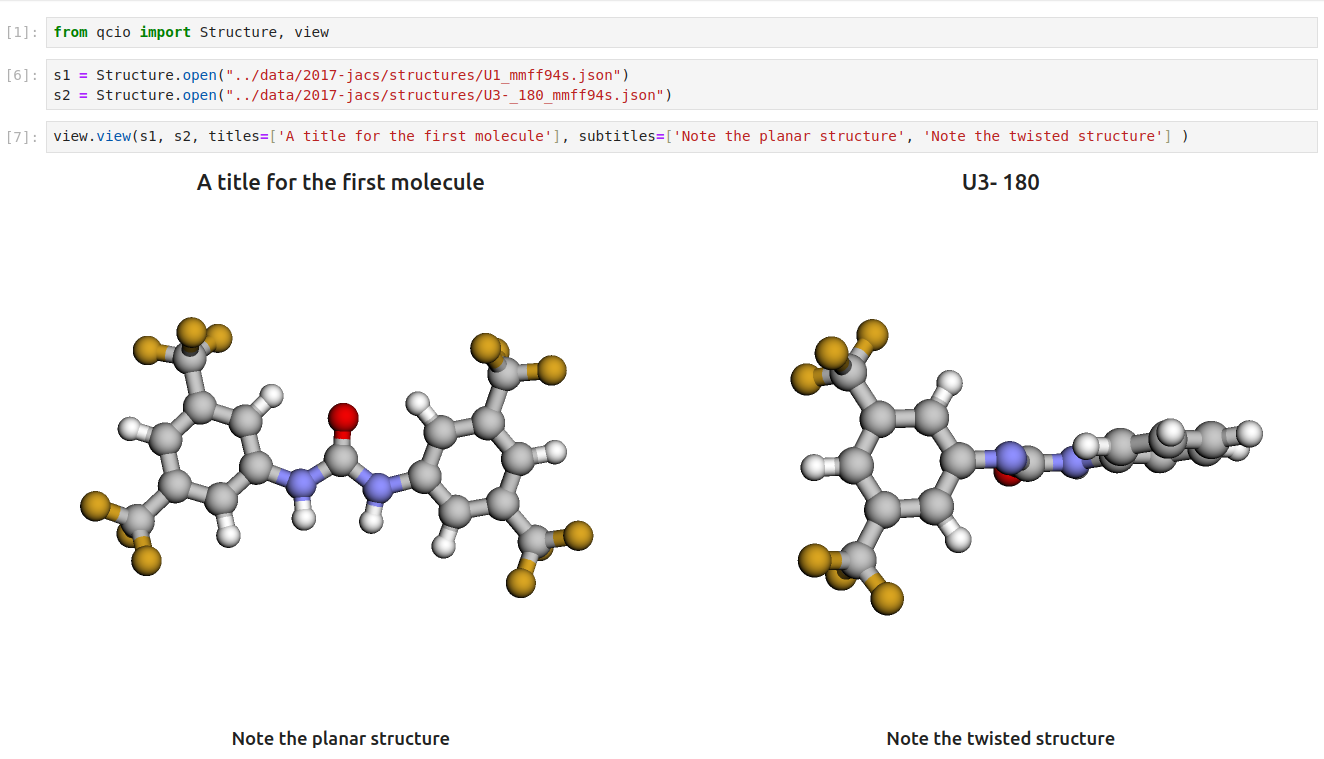
Seamless visualizations for Results objects make results analysis easy!

Single point calculations display their results in a table.

If you want to use the HTML generated by the viewer to build your own dashboards use the functions inside of qcio.view.py that begin with the word generate_ to create HTML you can insert into any dashboard.
Development
To get started with all development dependencies:
uv sync --all-groups
Support
If you have any issues with qcio or would like to request a feature, please open an issue.
Project details
Verified details
These details have been verified by PyPIProject links
GitHub Statistics
Maintainers
Release history Release notifications | RSS feed


Download files
Download the file for your platform. If you're not sure which to choose, learn more about installing packages.
Source Distribution
Built Distribution
Filter files by name, interpreter, ABI, and platform.
If you're not sure about the file name format, learn more about wheel file names.
Copy a direct link to the current filters
File details
Details for the file qcio-0.16.2.tar.gz.
File metadata
- Download URL: qcio-0.16.2.tar.gz
- Upload date:
- Size: 1.5 MB
- Tags: Source
- Uploaded using Trusted Publishing? Yes
- Uploaded via: twine/6.1.0 CPython/3.13.7
File hashes
| Algorithm | Hash digest | |
|---|---|---|
| SHA256 |
8f4a32612a9b8570cd40e1e3b8a4e965f55c0f232da63bd821ae3945b8c13a04
|
|
| MD5 |
4cffddc567298ef7e7b0f70709b49d9a
|
|
| BLAKE2b-256 |
550bac1e4e488d462a82643ea0611f1ff107752eb1a20ea20120a5ca76123865
|
Provenance
The following attestation bundles were made for qcio-0.16.2.tar.gz:
Publisher:
publish-to-pypi.yaml on coltonbh/qcio
-
Statement:
-
Statement type:
https://in-toto.io/Statement/v1 -
Predicate type:
https://docs.pypi.org/attestations/publish/v1 -
Subject name:
qcio-0.16.2.tar.gz -
Subject digest:
8f4a32612a9b8570cd40e1e3b8a4e965f55c0f232da63bd821ae3945b8c13a04 - Sigstore transparency entry: 709212620
- Sigstore integration time:
-
Permalink:
coltonbh/qcio@c4d68d93227f3f5fbe81d392bad51415491e5962 -
Branch / Tag:
refs/tags/0.16.2 - Owner: https://github.com/coltonbh
-
Access:
public
-
Token Issuer:
https://token.actions.githubusercontent.com -
Runner Environment:
github-hosted -
Publication workflow:
publish-to-pypi.yaml@c4d68d93227f3f5fbe81d392bad51415491e5962 -
Trigger Event:
push
-
Statement type:
File details
Details for the file qcio-0.16.2-py3-none-any.whl.
File metadata
- Download URL: qcio-0.16.2-py3-none-any.whl
- Upload date:
- Size: 37.1 kB
- Tags: Python 3
- Uploaded using Trusted Publishing? Yes
- Uploaded via: twine/6.1.0 CPython/3.13.7
File hashes
| Algorithm | Hash digest | |
|---|---|---|
| SHA256 |
753a66f9cb453f282178d6a20504892523b05677bc7582f13609aa7040a968ff
|
|
| MD5 |
a20d259b57f9d00e5ca3ca7adf0ce675
|
|
| BLAKE2b-256 |
002ee659ff5596693a80388fb360e18af07a73242726e6de8fb340e0c0bac942
|
Provenance
The following attestation bundles were made for qcio-0.16.2-py3-none-any.whl:
Publisher:
publish-to-pypi.yaml on coltonbh/qcio
-
Statement:
-
Statement type:
https://in-toto.io/Statement/v1 -
Predicate type:
https://docs.pypi.org/attestations/publish/v1 -
Subject name:
qcio-0.16.2-py3-none-any.whl -
Subject digest:
753a66f9cb453f282178d6a20504892523b05677bc7582f13609aa7040a968ff - Sigstore transparency entry: 709212626
- Sigstore integration time:
-
Permalink:
coltonbh/qcio@c4d68d93227f3f5fbe81d392bad51415491e5962 -
Branch / Tag:
refs/tags/0.16.2 - Owner: https://github.com/coltonbh
-
Access:
public
-
Token Issuer:
https://token.actions.githubusercontent.com -
Runner Environment:
github-hosted -
Publication workflow:
publish-to-pypi.yaml@c4d68d93227f3f5fbe81d392bad51415491e5962 -
Trigger Event:
push
-
Statement type:






