
QTrader: A Light Event-Driven Algorithmic Trading Engine





Latest update on 2022-07-20
QTrader is a light and flexible event-driven algorithmic trading engine that can be used to backtest strategies, and seamlessly switch to live trading without any pain.
Key Features
-
Completely same code for backtesting / simulation / live trading
-
Support trading of various assets: equity, futures
-
Resourceful functionalities to support live monitoring and analysis
Quick Install
You may run the folllowing command to install QTrader immediately:
# Virtual environment is recommended (python 3.8 or above is supported)
>> conda create -n qtrader python=3.8
>> conda activate qtrader

# Install stable version from pip (currently version 0.0.2)
>> pip install qtrader

# Alternatively, install latest version from github
>> pip install git+https://github.com/josephchenhk/qtrader@master
Prepare the Data
QTrader supports bar data at the moment. What you need to do is creating a folder with the name of the security you are interested in. Let's say you want to backtest or trade HK equity "HK.01157" in frequency of 1 minute, your data folder should be like this (where "K_1M" stands for 1 minute; you can also find a sample from the qtrader/examples/data):

And you can prepare OHLCV data in CSV format, with dates as their file names, e.g., "yyyy-mm-dd.csv":

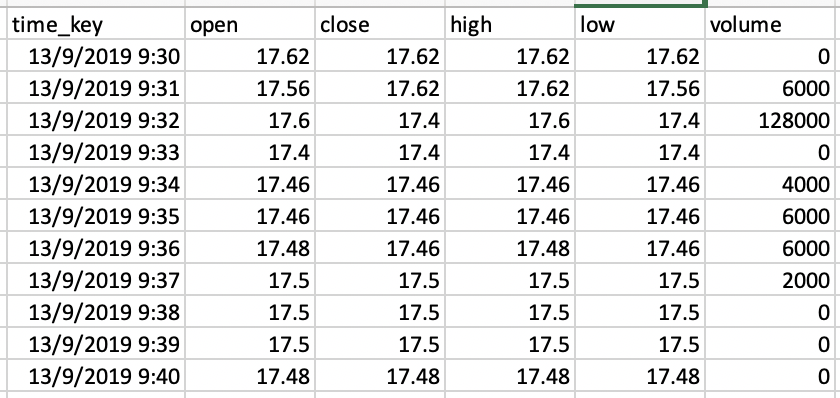
Inside each csv file, the data columns should look like this:
Now you can specify the path of data folder in qtrader/config/config.py. For
example, set
DATA_PATH = {
    "kline": "path_to_your_qtrader_folder/examples/data/k_line",
}
Implement a Strategy
To implement a strategy is simple in QTrader. A strategy needs to implement
init_strategy and on_bar methods in BaseStrategy. Here is a quick sample:
from qtrader.core.strategy import BaseStrategy

class MyStrategy(BaseStrategy):

    def init_strategy(self):
        pass

    def on_bar(self, cur_data:Dict[str, Dict[Security, Bar]]):
        print(cur_data)
Record Variables
QTrader provides a module named BarEventEngineRecorder to record variables
during backtesting and/or trading. By default it saves datetime,
portfolio_value and action at every time step.
If you want to record additional variables (let's say it is called var), you
need to write a method called get_var in your strategy:
from qtrader.core.strategy import BaseStrategy

class MyStrategy(BaseStrategy):

    def get_var(self):
        return var
And initialize your BarEventEngineRecorder with the same vairable var=[](if
you want to record every timestep) or var=None(if you want to record only the
last updated value):
recorder = BarEventEngineRecorder(var=[])
Run a Backtest
Now we are ready to run a backtest. Here is a sample of running a backtest in QTrader:
# Security
stock_list = [
    Stock(code="HK.01157", lot_size=100, security_name="中联重科", exchange=Exchange.SEHK),
]

# Gateway
gateway_name = "Backtest"
gateway = BacktestGateway(
    securities=stock_list,
    start=datetime(2021, 3, 15, 9, 30, 0, 0),
    end=datetime(2021, 3, 17, 16, 0, 0, 0),
    gateway_name=gateway_name,
)
gateway.SHORT_INTEREST_RATE = 0.0
gateway.set_trade_mode(TradeMode.BACKTEST)

# Core engine
engine = Engine(gateways={gateway_name: gateway})

# Strategy initialization
init_capital = 100000
strategy_account = "DemoStrategy"
strategy_version = "1.0"
strategy = DemoStrategy(
    securities={gateway_name: stock_list},
    strategy_account=strategy_account,
    strategy_version=strategy_version,
    init_strategy_cash={gateway_name: init_capital},
    engine=engine,
    strategy_trading_sessions={
        "HK.01157": [
            [datetime(1970, 1, 1, 9, 30, 0), datetime(1970, 1, 1, 12, 0, 0)],
            [datetime(1970, 1, 1, 13, 0, 0), datetime(1970, 1, 1, 16, 0, 0)],
        ],
)
strategy.init_strategy()

# Recorder
recorder = BarEventEngineRecorder()

# Event engine
event_engine = BarEventEngine(
    {"demo": strategy},
    {"demo": recorder},
    engine
)

# Start event engine
event_engine.run()

# Program terminates normally
engine.log.info("Program shutdown normally.")
After shutdown, you will be able to find the results in qtrader/results, with the folder name of latest time stamp:
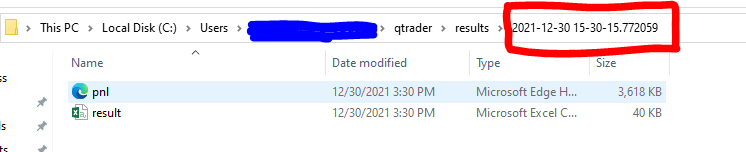
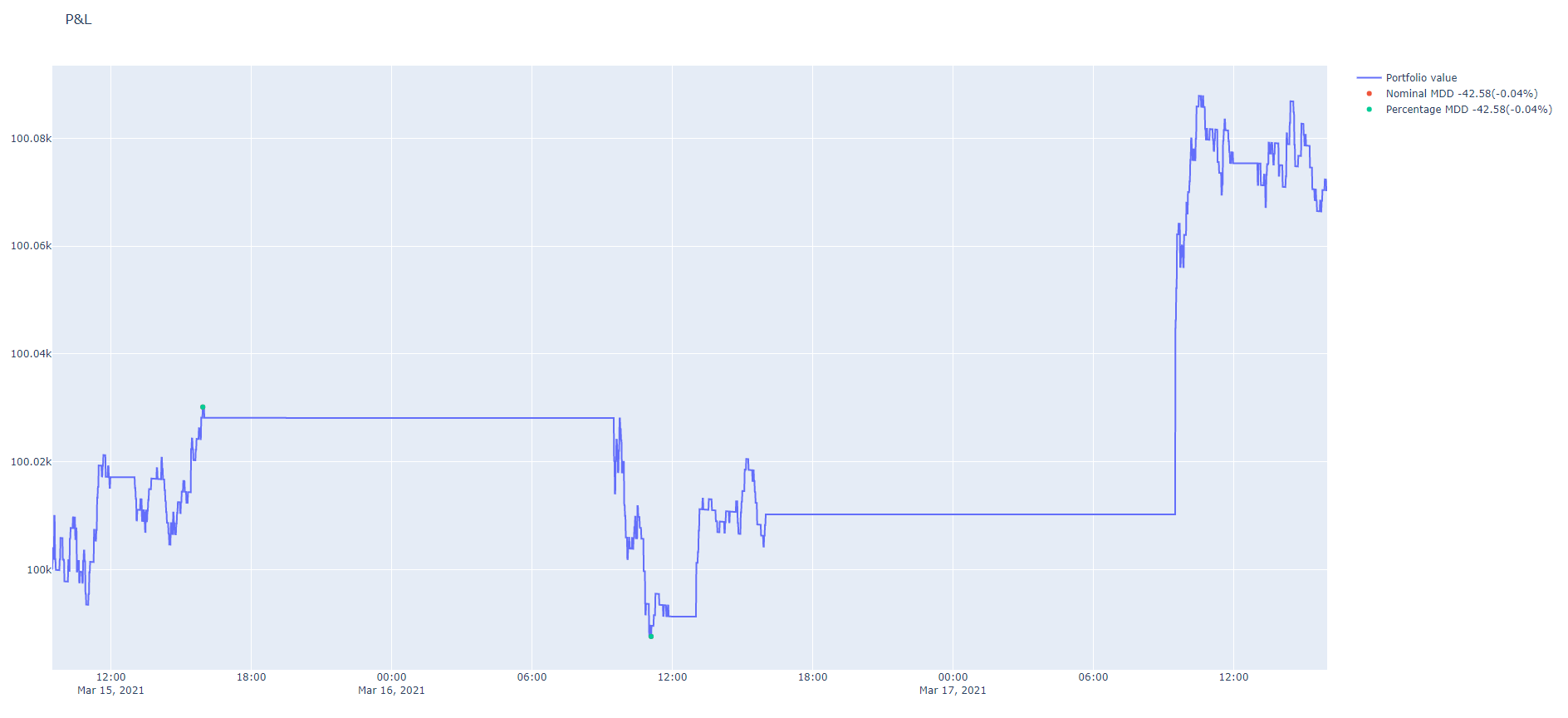
The result.csv file saves everything you want to record in
BarEventEngineRecorder; while pnl.html is an interactive plot of the equity
curve of your running strategy:
Simulation / Live trading
Ok, your strategy looks good now. How can you put it to paper trading and/or live trading? In QTrader it is extremely easy to switch from backtest mode to simulation or live trading mode. What you need to modify is just two lines (replace a backtest gateway with a live trading gateway!):
# Currently you can use "Futu", "Ib", and "Cqg"
gateway_name = "Futu"

# Use FutuGateway, IbGateway, or CqgGateway accordingly
# End time should be set to a future time stamp when you expect the program terminates
gateway = FutuGateway(
    securities=stock_list,
    end=datetime(2022, 12, 31, 16, 0, 0, 0),
    gateway_name=gateway_name,
)

# Choose either TradeMode.SIMULATE or TradeMode.LIVETRADE
gateway.set_trade_mode(TradeMode.LIVETRADE)
That's it! You switch from backtest to simulation / live trading mode now.
Important Notice: In the demo sample, the live trading mode will keep on sending orders, please be aware of the risk when running it.
Live Monitoring
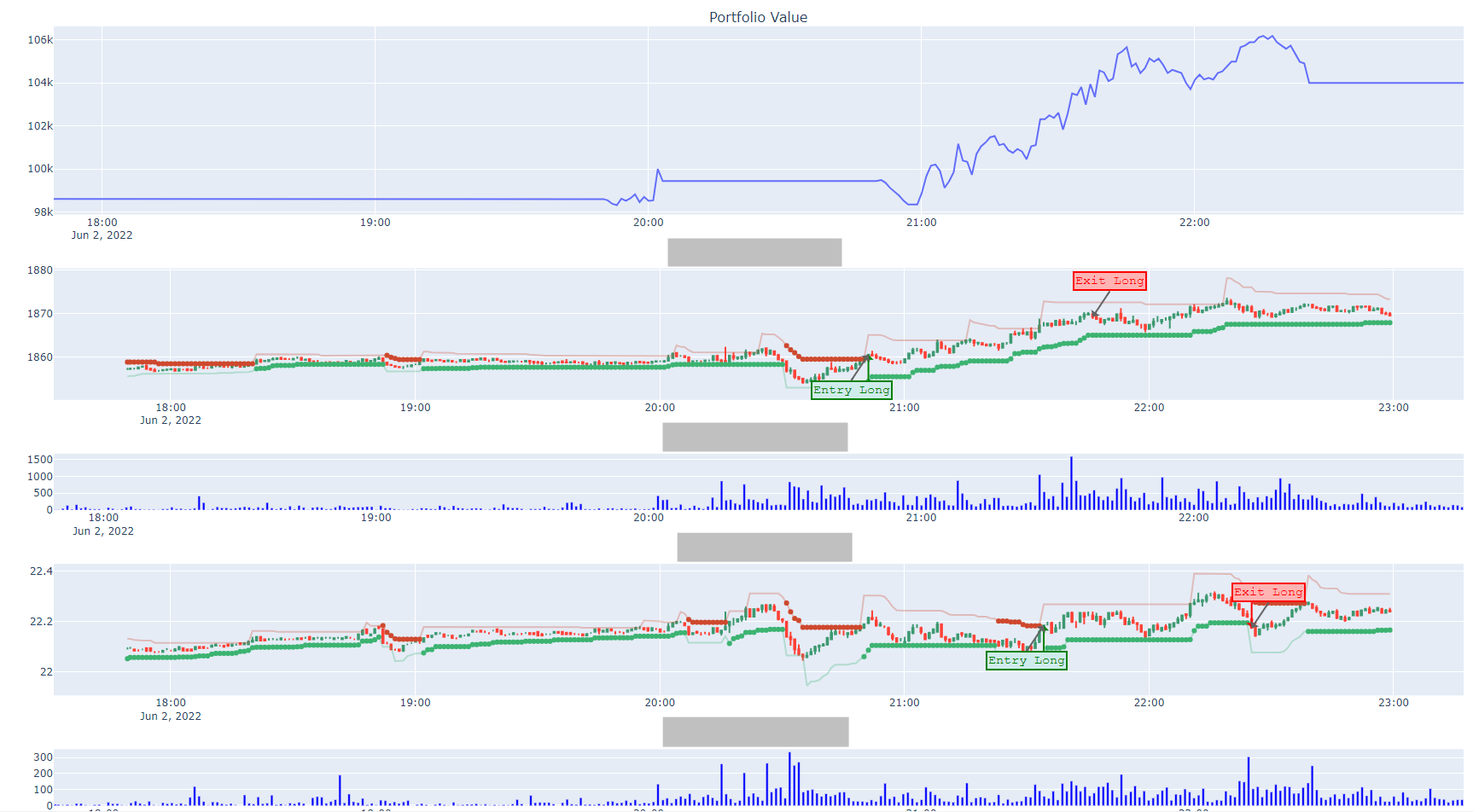
When running the strategies, the trader typically needs to monitor the market and see whether the signals are triggered as expected. QTrader provides with such dashboard(visualization panel) which can dynamically update the market data and gives out entry and exit signals in line with the strategies.
You can activate this function in your config.py:
ACTIVATED_PLUGINS = [.., "monitor"]
After running the main script, you
will be able to open a web-based monitor in the browser: 127.0.0.1:8050:
QTrader is also equipped with a Telegram Bot, which allows you get instant
information from your trading program. To enable this function, you can add your
telegram information in qtrader.config.config.py(you can refer to the
following link for detailed guidance):
ACTIVATED_PLUGINS = [.., "telegram"]

TELEGRAM_TOKEN = "50XXXXXX16:AAGan6nFgmrSOx9vJipwmXXXXXXXXXXXM3E"
TELEGRAM_CHAT_ID = 21XXXXXX49
In this way, your mobile phone with telegram will automatically receive a documenting message:

You can use your mobile phone to monitor and control your strategy now.
Contributing
- Fork it (https://github.com/josephchenhk/qtrader/fork)
- Study how it's implemented.
- Create your feature branch (git checkout -b my-new-feature).
- Use flake8 to ensure your code format complies with PEP8.
- Commit your changes (git commit -am 'Add some feature').
- Push to the branch (git push origin my-new-feature).
- Create a new Pull Request.
1 maintainer

Download files
Download the file for your platform. If you're not sure which to choose, learn more about installing packages.
Source Distribution
Built Distribution
Filter files by name, interpreter, ABI, and platform.
If you're not sure about the file name format, learn more about wheel file names.
Copy a direct link to the current filters
File details
Details for the file qtrader-0.0.4.tar.gz.
File metadata
- Download URL: qtrader-0.0.4.tar.gz
- Upload date:
- Size: 4.0 MB
- Tags: Source
- Uploaded using Trusted Publishing? No
- Uploaded via:
twine/3.2.0 pkginfo/1.5.0.1 requests/2.21.0 setuptools/40.6.3 requests-toolbelt/0.9.1 tqdm/4.48.2 CPython/3.7.1
File hashes
| Algorithm | Hash digest | |
|---|---|---|
| SHA256 |
a7baa5893eadf103a9db23cdf5ff6a187c3abb2ee663f8ce5de2288b490464f6
|
|
| MD5 |
0a3e5de7f6e59b4c5340f092795cd524
|
|
| BLAKE2b-256 |
bffe55460c95f902c5d4d4580879ad4ec9774725dca1b9855c586822d4d61c58
|
File details
Details for the file qtrader-0.0.4-py3-none-any.whl.
File metadata
- Download URL: qtrader-0.0.4-py3-none-any.whl
- Upload date:
- Size: 2.2 MB
- Tags: Python 3
- Uploaded using Trusted Publishing? No
- Uploaded via:
twine/3.2.0 pkginfo/1.5.0.1 requests/2.21.0 setuptools/40.6.3 requests-toolbelt/0.9.1 tqdm/4.48.2 CPython/3.7.1
File hashes
| Algorithm | Hash digest | |
|---|---|---|
| SHA256 |
c3950ead0f5fbb067cb41ebd2db1ee067bfbe0207b33da87f19da440279e92c3
|
|
| MD5 |
94ff484542341a4bc3bab8c0b22419ac
|
|
| BLAKE2b-256 |
e81c5c097f99c060ce5adeb492d51fe67db04242145e592676cba29e6c99d2f0
|














