
quicksat


A first-pass satellite sizing tool, in two parts:
- Sizing works out the mass, data, delta-V and attitude agility budgets. Each budget is a table, worked out from a few input files and a reference orbit.
- Scenario and power flies the satellite through a timeline of activities on a real orbit, and checks the power: what the solar panels generate, what the equipment draws, and the battery between them. A 3D viewer shows the run.
The two parts share no input files. The budgets use a reference orbit, while the scenario needs a real orbit, with an epoch and a node. quicksat is kept simple on purpose. It gives a first-pass sizing, not a full systems engineering environment.
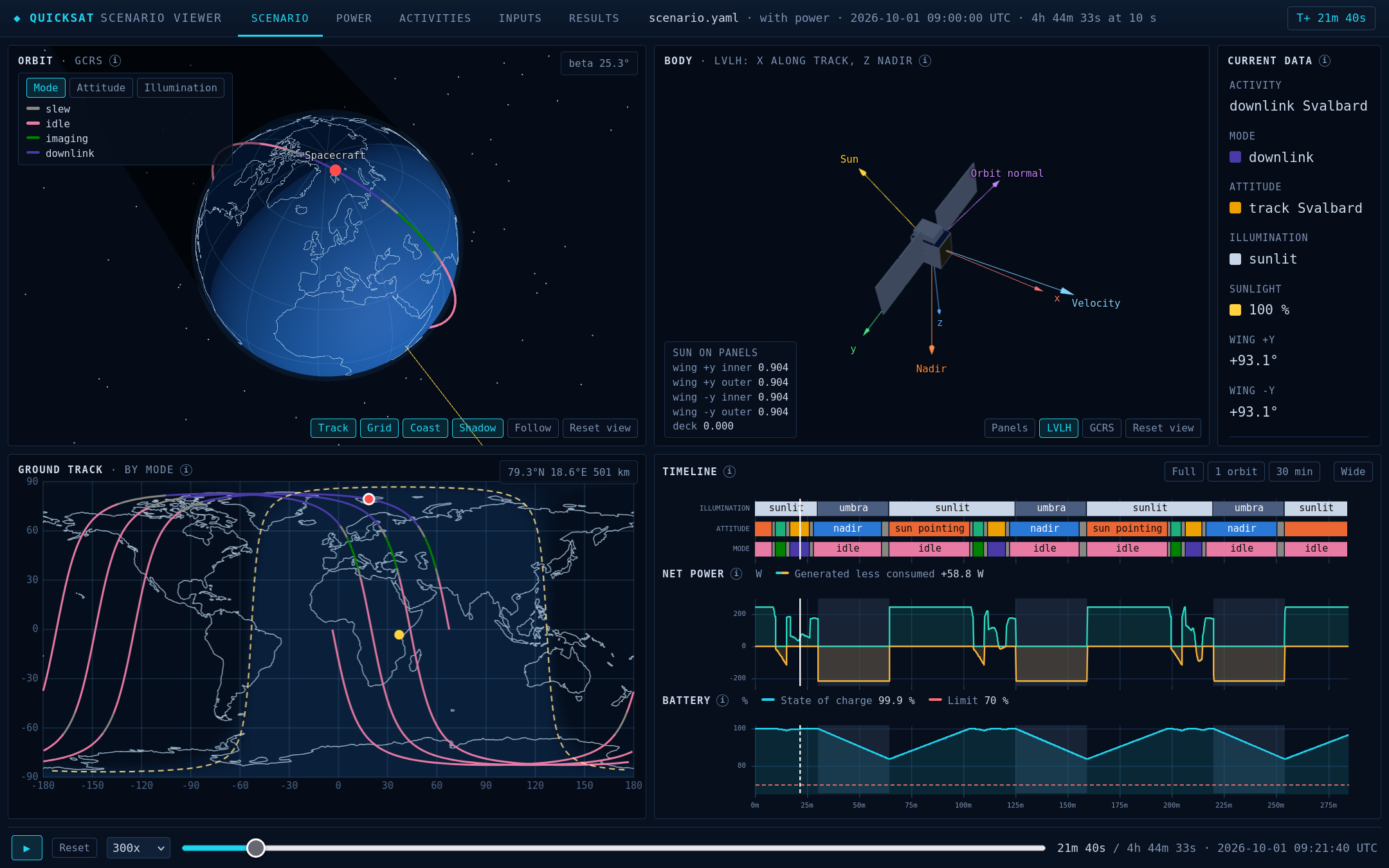
The power sample in the viewer, during the downlink to Svalbard. The wings have turned to face the sun.
Install
pip install quicksat
Then copy the samples into a folder of your own. They come from GitHub, for the version you installed, with their data, their notebooks, and the viewers and editor pages written from them:
python -m quicksat init my_satellite
The command prints where everything went, and how to start the editor's server. The folder holds sizing/, scenario/ and power/, and each of them holds:
data/: the input files, the ones you edit;editor/: the editor page, written fordata/;output/: the viewer, written by a run, for the scenario and the power;- the notebooks: the worked examples, for Jupyter, such as
pip install jupyterlab.
Where this page says sample/, read my_satellite/.
To work on quicksat itself, clone the repository, and install it from there:
conda env create -f environment.yml
conda activate quicksat
pip install -e .
Sizing
The sizing sample is a small Earth observation satellite on a 500 km sun-synchronous orbit. Its files are in sample/sizing/data/. The workflow:
- Edit the files. Double-click
sample/sizing/editor/editor.htmlto open the Sizing Editor in your browser. Its Setup tab takes you through every file, step by step, and the other tabs edit one budget each. Save the files, as a zip or one by one, and put them back insample/sizing/data/. The files are YAML and CSV, with units written out, such as750 gor800 Mbit/s, so they can be edited by hand too. - Run the notebooks in
sample/sizing/, in the order below. Each reads the files and builds its budget. Delta-V and agility also read the mass budget. - Read the tables. Each notebook ends with its budget laid out as a document, and the figures that answer the usual questions.
| Budget | What it gives | Sample | Reference |
|---|---|---|---|
| Mission | The reference orbit and the design life, which every budget shares | mission | |
| Mass | Dry and wet mass, by location, subsystem and owner, with two layers of margin | mass | mass |
| Data | Data made against data sent down each day, and the memory needed between passes | data | data |
| Delta-V | Delta-V by phase and type, and the propellant it needs | delta-V | delta-V |
| Agility | Slew times about roll and pitch, from the wheels and the inertia, with a wheel failed or not | roll, pitch | agility |
| Radiator | Not yet specified |
The sample works one satellite through each budget. The reference explains each input field, how each figure is worked out, and where the budget stops. For your own satellite, see how to initialise a satellite. How to edit and run the sizing files goes round the loop in the Sizing Editor.
Scenario and power, with the viewer
The power sample flies a 510 km sun-synchronous orbit for three orbits, with imaging, a downlink to Svalbard, and wings that turn to the sun. Its files are in sample/power/data/: the scenario, the 3D model, the power system and the consumption table.
With the editor's server
The editor's server runs on your computer only. It serves the Scenario Editor, and runs quicksat on the files when you ask for the viewer.
-
Start the server, in a terminal where quicksat is installed:
python -m quicksat.editor serve sample/power/data sample/power/output
The first folder holds the input files, and the second is where the viewer goes. Keep the terminal open while you work.
-
The editor opens in your browser by itself. If it does not, open the address that the server prints, such as
http://localhost:8780/quicksat/editor?key=.... -
Edit the files. The Setup tab takes you through every file, step by step, with an explanation of each choice. The other tabs edit the same data by theme, and a side panel shows the 3D model.
-
Create the viewer. Click Create the viewer, on the Files tab or on the last Setup step, "Save and view". quicksat runs the files as they are on the page, saved or not, in a few seconds. It writes
sample/power/output/power_viewer.html, and the page shows the results and any problem. -
Open the viewer. Click Open the viewer. The viewer opens in a tab of its own: the editor does not open it by itself. It shows the run in 3D, with the ground track, the timeline, the power and the attitude.
-
Go round again. Change something, click Update the viewer, then Open the viewer again, or reload the viewer's tab.
-
Keep your changes. The server never changes the files in
sample/power/data/. Download them from the page, as a zip or one by one, and put them back there. -
Stop the server with Ctrl+C in its terminal.
For the scenario sample, start it with sample/scenario/data sample/scenario/output. The Sizing Editor needs no server.
By hand, with a notebook or a command
- Edit the files. Double-click
sample/power/editor/editor.htmlto open the editor in your browser. Its Setup tab takes you through every file, step by step, with an explanation of each choice. The other tabs edit the same data by theme, and a side panel shows the 3D model. Change something, such as the battery's capacity or an activity's trigger. Then save the files, as a zip or one by one, and put them back insample/power/data/. - Run the budget. Run
sample/power/power_budget.ipynbin Jupyter, orpython -m quicksat.power sample/power/data sample/power/outputfrom the command line. Either flies the scenario, works out the generation, the loads and the battery, and checks the budget. - Read the results. The notebook shows each orbit's energy, the battery's charge, and three checks. The command prints the checks only. In the sample, the lowest charge is 83.6%, above its 70% limit, and every orbit has at least 16.5 W h to spare.
- See the run in the viewer. Both write
sample/power/output/power_viewer.html. Double-click it to see the run in 3D, with the ground track, the timeline, the power and the attitude. Its Attitude tab also gives the attitude as files for other tools.
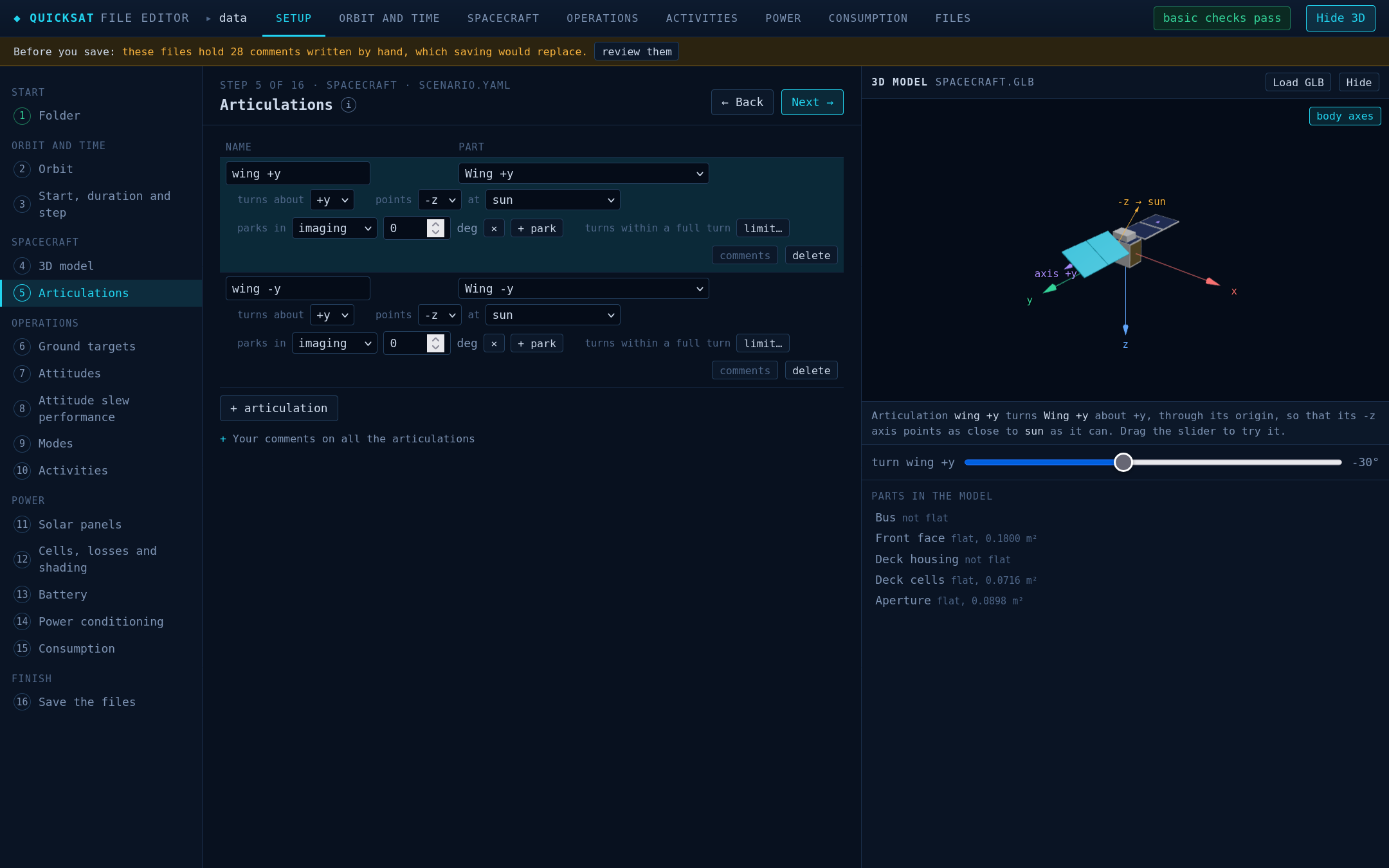
The editor's Articulations step. The selected wing shows in the 3D panel, turned with the slider.
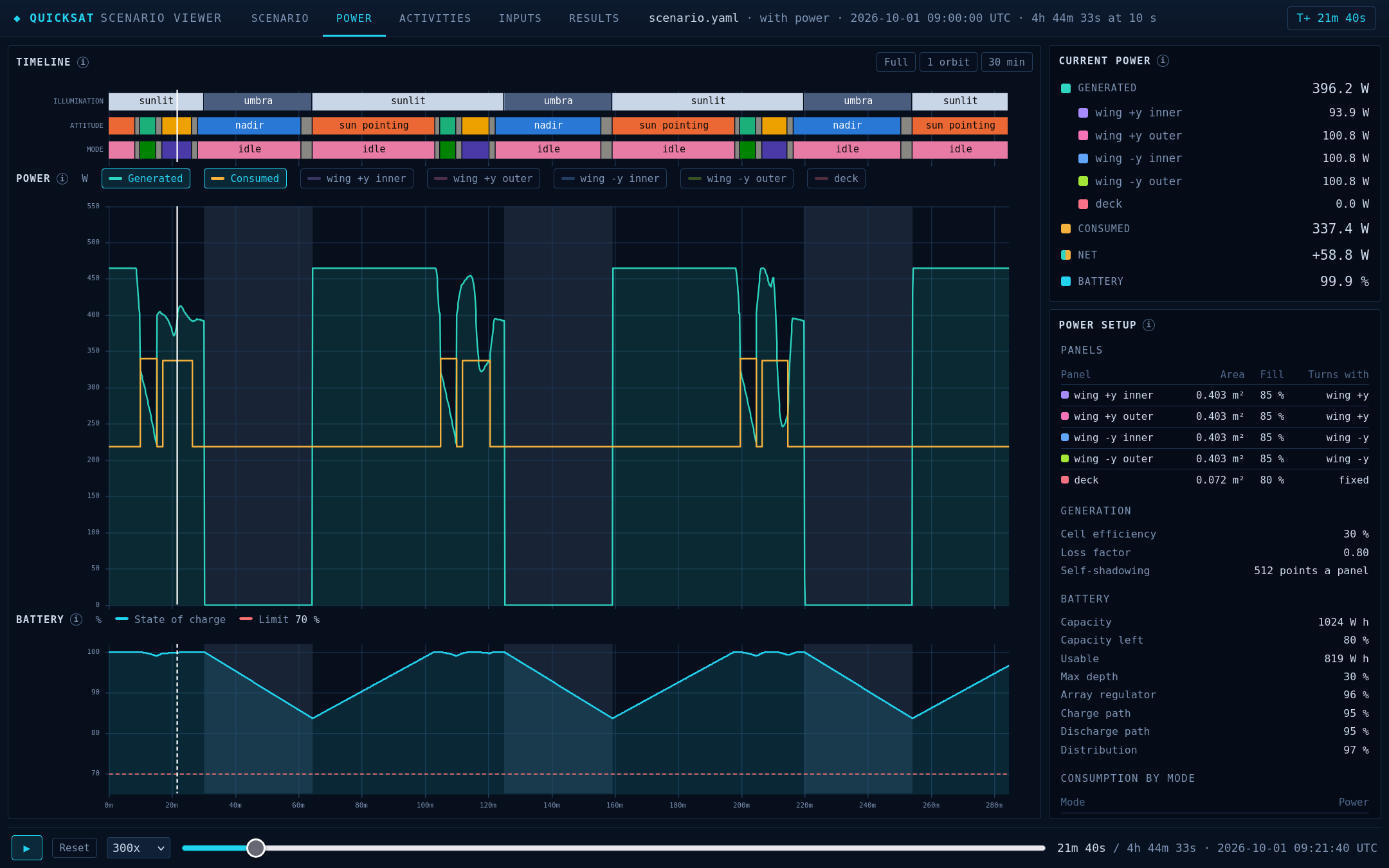
The viewer's Power tab. The power and the battery's charge follow the timeline, with the power setup beside them.
The scenario sample works the same way, for the timeline alone: sample/scenario/editor/editor.html, then sample/scenario/scenario.ipynb or python -m quicksat.scenario sample/scenario/data sample/scenario/output, then sample/scenario/output/scenario_viewer.html.
| Part | What it gives | Sample | Reference |
|---|---|---|---|
| Scenario | The timeline on a real orbit: eclipses, attitudes, slews, and passes over ground stations and relay satellites, checked against each activity's needs | scenario | scenario |
| Power generation | Each solar panel's power, with the wings that turn and the model's own shadows | generation | generation |
| Power consumption | What the equipment draws in each mode | consumption | consumption |
| Power budget | The battery's charge through the run, and whether each orbit has energy to spare | budget | budget |
How to edit, run and view a scenario goes round this loop in full, for the samples or a folder of your own. For what each field means, see how to set up and run a scenario and how to set up and run a power budget.
The editors open with the files of the folder that their page was written for. Open a folder…, on the first Setup step, reads any other folder, and Open on a tab reads one file. Or drop a folder, or its files, onto the page, and a file onto its tab's bar. Or write a page for a folder of your own. A folder with a scenario.yaml gets the Scenario Editor, and a folder of sizing files gets the Sizing Editor:
python -m quicksat.editor sample/power/data sample/power/editor
Keep your notes in comments fields. Every block of a file can hold one, and so can the file as a whole, in the sizing files too. The editors write their own help as # lines, and replace any other # comments when they save. When an editor opens a file with such comments, it lists them, and moves each one you choose into a comments field. Write a # comment on the lines above what it describes, so that it goes to the right block.
Documentation
The documentation follows the Diátaxis split. The samples are tutorials, the guides show how to do one task, and the references explain how each part works. The notebooks, their data and the tests are grouped in three domains: sizing, scenario and power. Each set of notebooks reads its own copy of the inputs, so a change to a sample cannot change a figure in a reference.
Two documents cover the project as a whole:
decisions.mdrecords the decisions that shaped quicksat, and why each was made.conventions.mdholds the rules for the code and the notebooks: units, constants and tests. Read it before changing the code.
License
GPL-3.0-or-later. See LICENSE.md.
1 maintainer

Metadata
1 maintainer
Release files for quicksat 0.2.0
For a detailed explanation of source distributions (sdists) and built distributions (wheels), please see the package formats documentation.
Source distribution (sdist)
| File | Size | Uploaded | |
|---|---|---|---|
| quicksat-0.2.0.tar.gz | 562.9 kB | Details |
Built distribution (wheel)
| File | Interpreter | ABI | Platform | Reset |
|---|---|---|---|---|
| quicksat-0.2.0-py3-none-any.whl | Python 3 | none | any | Details |
Total release size: 1.2 MB
Release files / quicksat-0.2.0.tar.gz
| Download URL | quicksat-0.2.0.tar.gz |
|---|---|
| Size | 562.9 kB |
| Tags | Source |
|
SHA-256 checksum How to use checksums |
88df333cae905a32802a5f290ec511ee81c46a2ec30439219ecb5503095c7620
|
|
BLAKE2b-256 checksum How to use checksums |
64128c279a5c8a44b7d9c1e8bff1c8733e491b1051e65d67b589241f7a1c8a36
|
| Upload date | |
|
Uploaded using Trusted Publishing? What is trusted publishing? |
Yes |
| Uploaded via |
twine/7.0.0 CPython/3.13.14
|
Provenance
Provenance describes where a file came from. On PyPI, provenance is shared via attestations, which provide a verifiable record of the build or publishing details. View details, limitations and caveats.


PyPI Publish Attestation
PyPI verified that this artifact, at this checksum, originated from the publisher listed below.
Signed by GitHub Actions, verified by PyPI on Oct 17, 2026.
Transparency logRelease files / quicksat-0.2.0-py3-none-any.whl
| Download URL | quicksat-0.2.0-py3-none-any.whl |
|---|---|
| Size | 610.2 kB |
| Tags | Python 3 |
|
SHA-256 checksum How to use checksums |
96a8effa54a713f8243d806a847f0e381b491e0624dce102025e48f77a7caa16
|
|
BLAKE2b-256 checksum How to use checksums |
44c00f0661e558db57a7ec305ab6da8c463ee8502dfdaab7d52856fc963f8522
|
| Upload date | |
|
Uploaded using Trusted Publishing? What is trusted publishing? |
Yes |
| Uploaded via |
twine/7.0.0 CPython/3.13.14
|
Provenance
Provenance describes where a file came from. On PyPI, provenance is shared via attestations, which provide a verifiable record of the build or publishing details. View details, limitations and caveats.
PyPI Publish Attestation
PyPI verified that this artifact, at this checksum, originated from the publisher listed below.
Signed by GitHub Actions, verified by PyPI on Oct 17, 2026.
Transparency log













