
QwenPaw is a **personal assistant** that runs in your own environment. It talks to you over multiple channels (DingTalk, Feishu, QQ, Discord, iMessage, etc.) and runs scheduled tasks according to your configuration. **What it can do is driven by Skills — the possibilities are open-ended.** Built-in skills include cron, PDF/Office handling, news digest, file reading, and more; you can add custom skills. All data and tasks run on your machine; no third-party hosting.

Project description














Your personal AI assistant — easy to install, deploy locally or in the cloud, connect across channels, extend with ease.
Core capabilities:
Under your control — Memory and personalization fully under your control. Deploy locally (data stays on your machine) or in the cloud (your chosen server). No third-party hosting, no data upload.
Skills extension — Built-in scheduling, PDF/Office processing, news digest, and more; custom skills auto-loaded, no lock-in. Skills determine what QwenPaw can do.
Multi-agent collaboration — Create multiple independent agents, each with their own role; enable collaboration skills for inter-agent communication to tackle complex tasks together.
Multi-layer security — Tool guard, file access control, skill security scanning to ensure safe operation.
Every channel — DingTalk, Feishu, WeChat, Discord, Telegram, and more. One QwenPaw, connect as needed.
What you can do with QwenPaw
- Social media: Daily hot post digests (Xiaohongshu, Zhihu, Reddit), Bilibili/YouTube video summaries.
- Productivity: Email & newsletter highlights pushed to DingTalk/Feishu/QQ; email & calendar contact organization.
- Creative & building: Describe your goal before sleep, auto-execute, wake up to a prototype; full workflow from topic selection to final video.
- Research & learning: Track tech & AI news, personal knowledge base search and reuse.
- Desktop & files: Organize and search local files, read & summarize documents, request files in chat.
- Explore more: Combine Skills with scheduled tasks into your own agentic app.
News
[2026-04-12] CoPaw is Officially Rebranding to QwenPaw: This rebranding marks an important step forward into our next phase of open-source development.
The new name better reflects the open ecosystem we are building and the broader direction we are continuing to pursue:
Qwen — represents a deeper integration with the Qwen open-source ecosystem and a sharper focus on the model layer, including local models for agents and smart collaboration between small and large models.
Paw — carries forward our original mission to accompany users and become a personal assistant users can truly trust.
This rebranding does not change our vision and goals in the open-source community:
- To build a more practical, secure, and personalized AI assistant;
- To stay committed to open-source collaboration and move forward together with the community.
Thank you all for your support along the way. From today on, QwenPaw will stay and grow with you!
Table of Contents
Recommended reading:
- 🚀 I'm new and want to try quickly: Quick Start → three commands to run → Configure model → chat in Console
- 💬 I want to use in DingTalk/Feishu/WeChat: Complete Quick Start → Configure model → Channel setup
- 🐍 I don't want to install Python: Desktop app or Script install or ModelScope Studio
- 💻 I want to use local models (no API key needed): Local Models → download model → start using
- 🛠️ I want to contribute code or develop new features: Install from source → Contributing
- News
- Quick Start
- API Key
- Local Models
- Documentation
- Security Features
- FAQ
- Staying ahead
- Roadmap
- Install from source
- Contributing
- Why QwenPaw?
- Built by
- License
Quick Start
Option 1: pip install
If you prefer managing Python yourself:
pip install qwenpaw
qwenpaw init --defaults
qwenpaw app
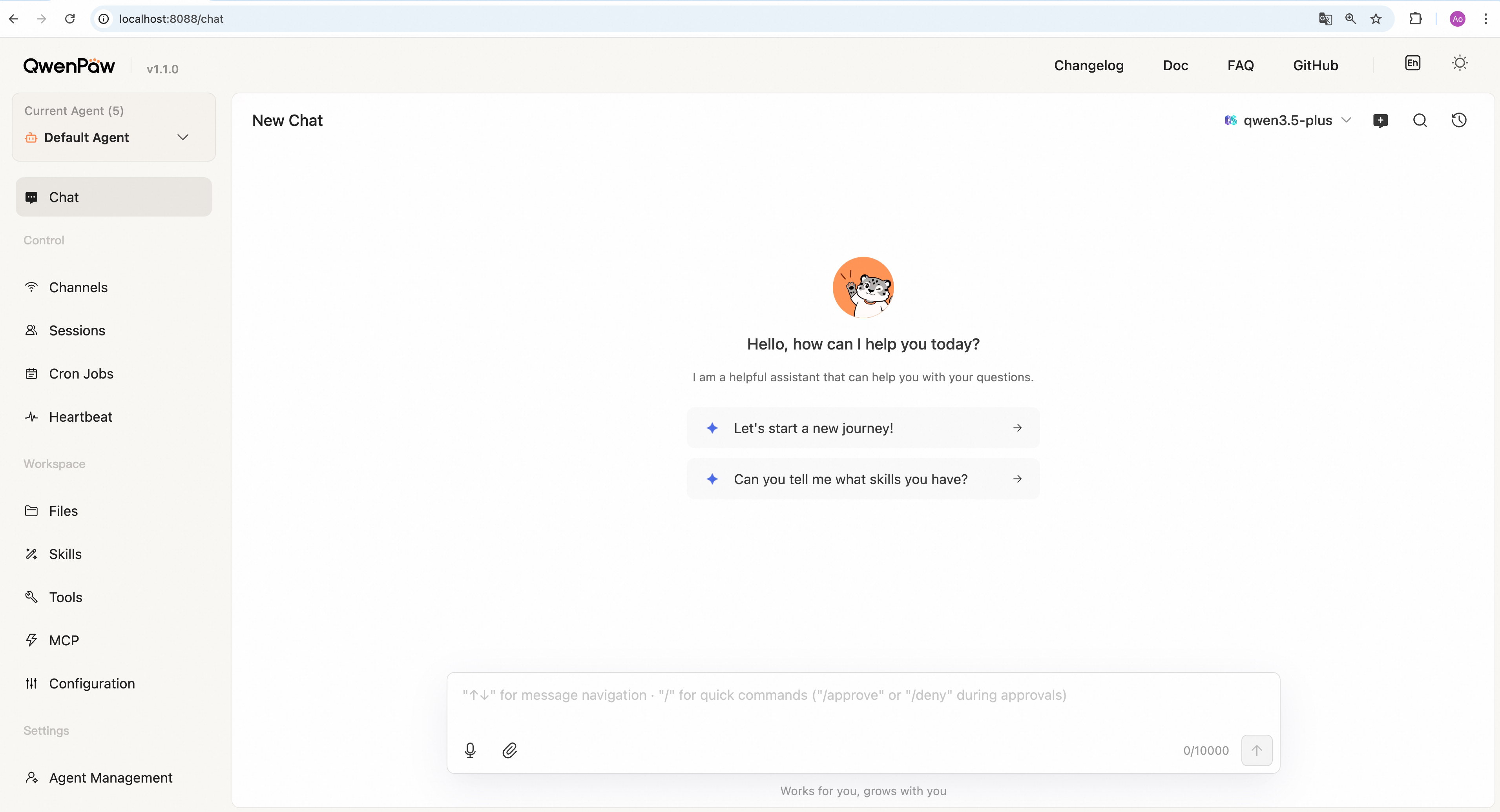
Then open the Console in your browser at http://127.0.0.1:8088/ to configure your model. To chat in DingTalk, Feishu, WeChat, etc., see the Channel setup documentation.
Option 2: Script install
No Python setup required, one command installs everything. The script will automatically download uv (Python package manager), create a virtual environment, and install QwenPaw with all dependencies (including Node.js and frontend assets). Note: May not work in restricted network environments or corporate firewalls.
macOS / Linux:
curl -fsSL https://qwenpaw.agentscope.io/install.sh | bash
To install with Ollama support:
curl -fsSL https://qwenpaw.agentscope.io/install.sh | bash -s -- --extras ollama
To install with multiple extras (e.g., Ollama + local):
curl -fsSL https://qwenpaw.agentscope.io/install.sh | bash -s -- --extras ollama,local
Windows (CMD):
curl -fsSL https://qwenpaw.agentscope.io/install.bat -o install.bat && install.bat
Windows (PowerShell):
irm https://qwenpaw.agentscope.io/install.ps1 | iex
Note: The installer will automatically check the status of uv. If it is not installed, it will attempt to download and configure it automatically. If the automatic installation fails, please follow the on-screen prompts or execute
python -m pip install -U uv, then rerun the installer.
⚠️ Special Notice for Windows Enterprise LTSC Users
If you are using Windows LTSC or an enterprise environment governed by strict security policies, PowerShell may run in Constrained Language Mode, potentially causing the following issue:
If using CMD (.bat): Script executes successfully but fails to write to
PathThe script completes file installation. Due to Constrained Language Mode, it cannot automatically update environment variables. Manually configure as follows:
- Locate the installation directory:
- Check if
uvis available: Enteruv --versionin CMD. If a version number appears, only configure the QwenPaw path. If you receive the prompt'uv' is not recognized as an internal or external command, operable program or batch file,configure both paths.- uv path (choose one based on installation location; use if
uvfails): Typically%USERPROFILE%\.local\bin,%USERPROFILE%\AppData\Local\uv, or theScriptsfolder within your Python installation directory- QwenPaw path: Typically located at
%USERPROFILE%\.qwenpaw\bin.- Manually add to the system's Path environment variable:
- Press
Win + R, typesysdm.cpland press Enter to open System Properties.- Click “Advanced” -> “Environment Variables”.
- Under “System variables”, locate and select
Path, then click “Edit”.- Click “New”, enter both directory paths sequentially, then click OK to save.
If using PowerShell (.ps1): Script execution interrupted
Due to Constrained Language Mode, the script may fail to automatically download
uv.
- Manually install uv: Refer to the GitHub Release to download
uv.exeand place it in%USERPROFILE%\.local\binor%USERPROFILE%\AppData\Local\uv; or ensure Python is installed and runpython -m pip install -U uv.- Configure
uvenvironment variables: Add theuvdirectory and%USERPROFILE%\.qwenpaw\binto your system'sPathvariable.- Re-run the installation: Open a new terminal and execute the installation script again to complete the
QwenPawinstallation.- Configure the
QwenPawenvironment variable: Add%USERPROFILE%\.qwenpaw\binto your system'sPathvariable.
Once installed, open a new terminal and run:
qwenpaw init --defaults   # or: qwenpaw init (interactive)
qwenpaw app
Install options
macOS / Linux:
# Install a specific version
curl -fsSL ... | bash -s -- --version 1.1.0

# Install from source (dev/testing)
curl -fsSL ... | bash -s -- --from-source

# Upgrade — just re-run the installer
curl -fsSL ... | bash

# Uninstall
qwenpaw uninstall          # keeps config and data
qwenpaw uninstall --purge  # removes everything
Windows (PowerShell):
# Install a specific version
irm ... | iex; .\install.ps1 -Version 0.0.2

# Install from source (dev/testing)
.\install.ps1 -FromSource

# Upgrade — just re-run the installer
irm ... | iex

# Uninstall
qwenpaw uninstall          # keeps config and data
qwenpaw uninstall --purge  # removes everything
Option 3: Docker
Images are on Docker Hub (agentscope/qwenpaw). Image tags: latest (stable); pre (PyPI pre-release).
docker pull agentscope/qwenpaw:latest
docker run -p 127.0.0.1:8088:8088 \
  -v qwenpaw-data:/app/working \
  -v qwenpaw-secrets:/app/working.secret \
  agentscope/qwenpaw:latest
Also available on Alibaba Cloud Container Registry (ACR) for users in China: agentscope-registry.ap-southeast-1.cr.aliyuncs.com/agentscope/qwenpaw (same tags).
Then open http://127.0.0.1:8088/ for the Console. Config, memory, and skills are stored in the qwenpaw-data volume; model provider settings and API keys are in the qwenpaw-secrets volume. To pass API keys (e.g. DASHSCOPE_API_KEY), add -e VAR=value or --env-file .env to docker run.
Connecting to Ollama or other services on the host machine
Inside a Docker container,
localhostrefers to the container itself, not your host machine. If you run Ollama (or other model services) on the host and want QwenPaw in Docker to reach them, use one of these approaches:Option A — Explicit host binding (all platforms):
docker run -p 127.0.0.1:8088:8088 \
  --add-host=host.docker.internal:host-gateway \
  -v qwenpaw-data:/app/working \
  -v qwenpaw-secrets:/app/working.secret \
  agentscope/qwenpaw:latest
Then in QwenPaw Settings → Models, change the Base URL to
http://host.docker.internal:<port>— for example,http://host.docker.internal:11434for Ollama, orhttp://host.docker.internal:1234/v1for LM Studio.Option B — Host networking (Linux only):
docker run --network=host \
  -v qwenpaw-data:/app/working \
  -v qwenpaw-secrets:/app/working.secret \
  agentscope/qwenpaw:latest
No port mapping (
-p) is needed; the container shares the host network directly. Note that all container ports are exposed on the host, which may cause conflicts if the port is already in use.Note: If you only mount
/app/workingwithout a separate volume for/app/working.secret, the entrypoint will automatically redirect secrets into/app/working/.secretso they persist on the same volume.
The image is built from scratch. To build the image yourself, please refer to the Build Docker image section in scripts/README.md, and then push to your registry.
Option 4: Deploy on Alibaba Cloud ECS
To run QwenPaw on Alibaba Cloud (ECS), use the one-click deployment: open the QwenPaw on Alibaba Cloud (ECS) deployment link and follow the prompts. For step-by-step instructions, see Alibaba Cloud Developer: Deploy your AI assistant in 3 minutes.
Option 5: Using ModelScope
No local install? ModelScope Studio one-click cloud setup. Set your Studio to non-public so others cannot control your QwenPaw.
Option 6: Desktop Application (Beta)
Beta Notice: The desktop application is currently in Beta testing phase with the following known limitations:
- Incomplete compatibility testing: Not fully tested across all system versions and hardware configurations
- Potential performance issues: Startup time, memory usage, and other performance aspects may need further optimization
- Features under development: Some features may be unstable or missing
If you're not comfortable with command-line tools, you can download and use QwenPaw's desktop application without manually configuring Python environments or running commands.
Download
Download the desktop app from GitHub Releases:
- Windows:
QwenPaw-Setup-<version>.exe - macOS:
QwenPaw-<version>-macOS.zip(Apple Silicon recommended)
Features
- ✅ Zero configuration: Download and double-click to run, no need to install Python or configure environment variables
- ✅ Cross-platform: Supports Windows 10+ and macOS 14+
- ✅ Visual interface: Automatically opens browser interface, no need to manually enter addresses
- ⚠️ Beta stage: Features are continuously being improved, feedback welcome
First Launch
Important: The first launch may take 10-60 seconds (depending on your system configuration). The application needs to initialize the Python environment and load dependencies. Please wait patiently for the browser window to open automatically.
macOS: Bypass System Security Restrictions
When you download the QwenPaw macOS app from Releases, macOS may show: "Apple cannot verify that 'QwenPaw' contains no malicious software". This happens because the app is not notarized. You can still open it as follows:
-
Right-click to open (recommended) Right-click (or Control+click) the QwenPaw app → Open → in the dialog click Open again. This tells Gatekeeper you trust the app; after that you can double-click to launch as usual.
-
Allow in System Settings If it is still blocked, go to System Settings → Privacy & Security, scroll to the message like "QwenPaw was blocked because it is from an unidentified developer", and click Open Anyway or Allow.
-
Remove quarantine attribute (not recommended for most users) In Terminal run:
xattr -cr /Applications/QwenPaw.app(or use the path to the.appafter unzipping). This clears the "downloaded from the internet" quarantine flag so the warning usually does not appear, but is less safe and controllable than using Right-click → Open.
For detailed usage instructions, troubleshooting, and common issues, see the Desktop Application Guide.
API Key
If you use a cloud LLM API (e.g., Qianwen, Gemini, OpenAI), you must configure an API key before chatting. QwenPaw will not work until a valid key is set. See the official docs for details.
How to configure:
- Console (recommended) — After running
qwenpaw app, open http://127.0.0.1:8088/ → Settings → Models. Choose a provider, enter the API Key, and enable that provider and model. qwenpaw init— When you runqwenpaw init, it will guide you through configuring the LLM provider and API key. Follow the prompts to choose a provider and enter your key.- Environment variable — For DashScope you can set
DASHSCOPE_API_KEYin your shell or in a.envfile in the working directory.
Tools that need extra keys (e.g. TAVILY_API_KEY for web search) can be set in Console Settings → Environment variables, see Config for details.
Using local models only? If you use Local Models (llama.cpp / Ollama / LM Studio), you do not need any API key.
Local Models
QwenPaw can run LLMs entirely on your machine — no API keys or cloud services required. See the official docs for details.
| Backend | Best for | Install |
|---|---|---|
| llama.cpp | Cross-platform (macOS / Linux / Windows) | No extra installation required; click "Download Llama.cpp" in the web UI. |
| Ollama | Cross-platform (requires Ollama service) | Install and start the Ollama app in advance. |
| LM Studio | Cross-platform (requires LM Studio service) | Install and start the LM Studio app in advance. |
Documentation
| Topic | Description |
|---|---|
| Introduction | What QwenPaw is and how to use it |
| Quick start | Install and run (local or ModelScope Studio) |
| Console | Web UI: chat and agent configuration |
| Models | Configure cloud, local, and custom providers |
| Channels | DingTalk, Feishu, QQ, Discord, iMessage, and more |
| Skills | Extend and customize capabilities |
| MCP | Manage MCP clients |
| Memory | Long-term memory |
| Context | Context management mechanism |
| Magic commands | Control conversation state without waiting for the AI |
| Heartbeat | Scheduled check-in and digest |
| Multi-Agent | Create multiple agents and enable collaboration |
| Config & working dir | Working directory and config file |
| CLI | Init, cron jobs, skills, clean |
| FAQ | Common questions and troubleshooting |
Full docs in this repo: website/public/docs/.
Security Features
QwenPaw includes multi-layer security mechanisms to protect your data and system:
- Tool guard — Automatically intercepts dangerous shell commands (e.g.,
rm -rf /, fork bombs, reverse shells, etc.) - File access guard — Restricts agent access to sensitive paths (e.g.,
~/.ssh, key files, system directories, etc.) - Skill security scanning — Automatically scans before installing skills, detecting risks like prompt injection, command injection, hardcoded keys, data exfiltration, etc.
- Local deployment — All data and memory stored locally, no third-party upload (when using cloud LLM APIs, conversation content is sent to the corresponding API provider)
- Web Authentication — Optional login protection for the Console. Disabled by default; set
QWENPAW_AUTH_ENABLED=trueto enable. See Web Authentication for details.
See Security documentation for details.
FAQ
For common questions, troubleshooting tips, and known issues, please visit the FAQ page.
Staying ahead
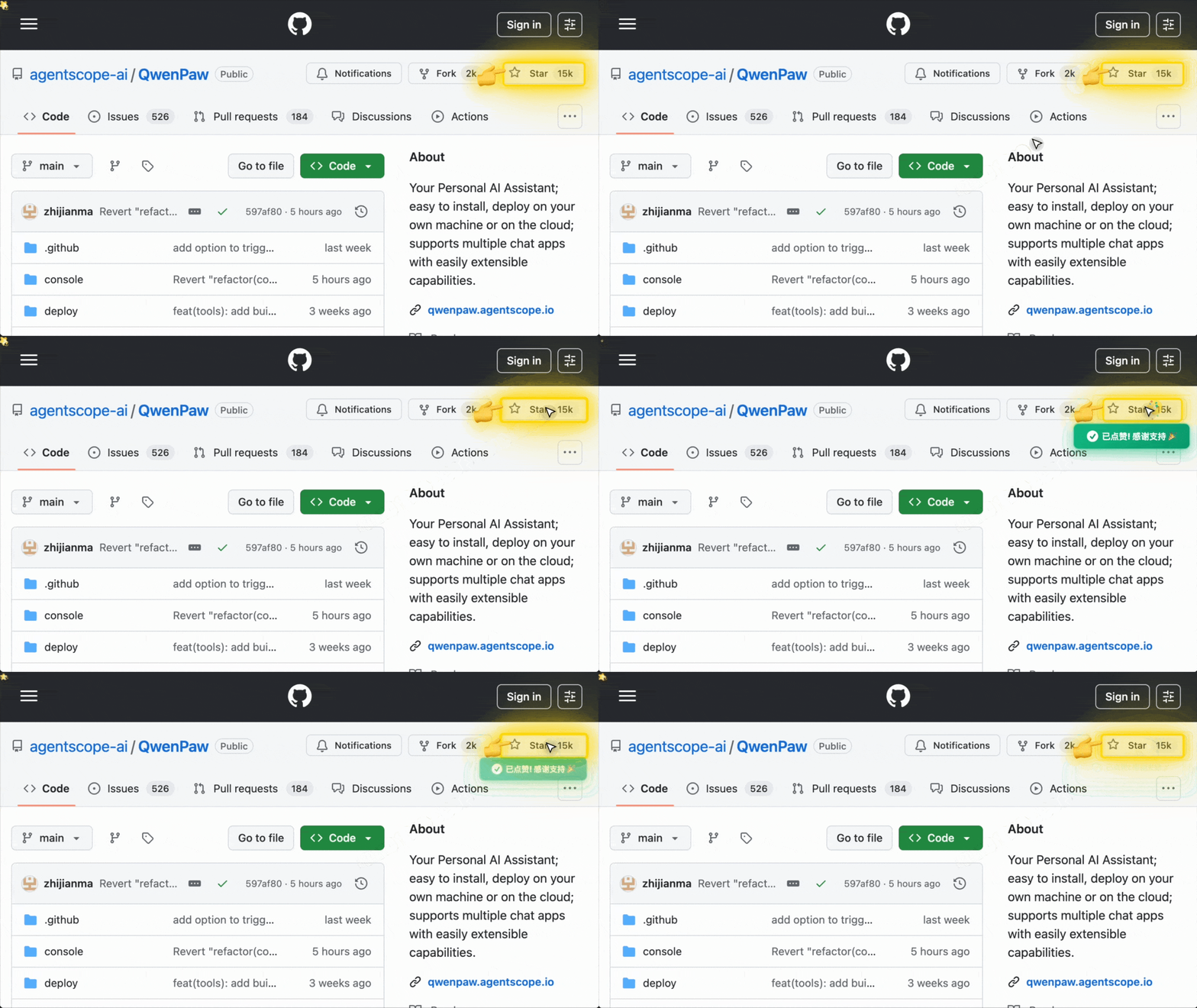
Star QwenPaw on GitHub and be instantly notified of new releases.
Roadmap
| Area | Item | Status |
|---|---|---|
| Horizontal Expansion | More channels, models, skills, MCPs — community contributions welcome | Seeking Contributors |
| Existing Feature Extension | Display optimization, download hints, Windows path compatibility, etc. — community contributions welcome | Seeking Contributors |
| Console Web UI | Expose more info/config in the Console | In Progress |
| Multi-agent | Agentic Ralph Loop | In Progress |
| Multimodal | Voice/video calls and real-time interaction | In Progress |
| Small + Large Model Collaboration | Multi-model routing; different models for different tasks | In Progress |
| Memory System | Experience distillation & skill extraction | In Progress |
| Memory mechanism switching | In Progress | |
| Multimodal memory fusion | Planned | |
| Context-aware proactive delivery | Planned | |
| Sandbox | Deeper integration with AgentScope Runtime sandboxes | In Progress |
| Cloud-native | Deeper integration with AgentScope Runtime; leverage cloud compute, storage, tools, and skills | In Progress |
| Skills Hub | Enrich the AgentScope Skills repository and improve discoverability of high-quality skills | Planned |
Status: In Progress — actively being worked on; Planned — queued or under design, also welcome contributions; Seeking Contributors — we strongly encourage community contributions.
Install from source
git clone https://github.com/agentscope-ai/QwenPaw.git
cd QwenPaw

# Build console frontend first (required for web UI)
cd console && npm ci && npm run build
cd ..

# Copy console build output to package directory
mkdir -p src/qwenpaw/console
cp -R console/dist/. src/qwenpaw/console/

# Install Python package
pip install -e .
- Dev (tests, formatting):
pip install -e ".[dev,full]" - Then: Run
qwenpaw init --defaults, thenqwenpaw app.
Note for updates: When updating to a new major version after
git pull, please also rebuild the frontend, reinstall the package (pip install -e .), restartqwenpaw app, and clear your browser cache withCtrl+Shift+R(orCmd+Shift+Ron macOS).
Contributing
QwenPaw evolves through open collaboration, and we welcome all forms of contribution! Check the Roadmap above (especially items marked Seeking Contributors) to find areas that interest you, and read CONTRIBUTING to get started. We particularly welcome:
- Horizontal expansion — new channels, model providers, skills, MCPs.
- Existing feature extension & refinement — display and interaction improvements, download hints, Windows path compatibility, etc.
Join GitHub Discussions to discuss ideas or pick up tasks.
Why QwenPaw?
QwenPaw stands for Qwen Personal Agent Workstation, and also embodies the wisdom of Qwen and the warmth of a Paw. We hope it is not a cold tool, but an intelligent and warm "little paw" always ready to help—a most intuitive partner in your digital life.
Built by
AgentScope team · AgentScope · AgentScope Runtime · ReMe
Contact us
| Discord | X (Twitter) | DingTalk | RedNote |
|---|---|---|---|
 |
 |
 |
 |
Telemetry
QwenPaw collects anonymous usage data during qwenpaw init to help us understand our user base and prioritize improvements. Data is sent once per version — when you upgrade QwenPaw, telemetry is re-collected so we can track version adoption.
What we collect:
- QwenPaw version (e.g., 0.0.7)
- Install method (pip, Docker, or desktop app)
- OS and version (e.g., macOS 14.0, Ubuntu 22.04)
- Python version (e.g., 3.13)
- CPU architecture (e.g., x86_64, arm64)
- GPU availability (yes/no)
What we do NOT collect: No personal data, no files, no credentials, no IP addresses, no identifiable information.
When running qwenpaw init interactively, you will be asked whether to opt in. If you choose --defaults, telemetry is accepted automatically. The prompt appears once per version and never affects QwenPaw's functionality.
License
QwenPaw is released under the Apache License 2.0.
Contributors
All thanks to our contributors:
Release history Release notifications | RSS feed


Download files
Download the file for your platform. If you're not sure which to choose, learn more about installing packages.
Source Distribution
Built Distribution
Filter files by name, interpreter, ABI, and platform.
If you're not sure about the file name format, learn more about wheel file names.
Copy a direct link to the current filters
File details
Details for the file qwenpaw-1.1.1b1.tar.gz.
File metadata
- Download URL: qwenpaw-1.1.1b1.tar.gz
- Upload date:
- Size: 8.5 MB
- Tags: Source
- Uploaded using Trusted Publishing? No
- Uploaded via: twine/6.1.0 CPython/3.13.12
File hashes
| Algorithm | Hash digest | |
|---|---|---|
| SHA256 |
1153a95ec7d3878b65739fa14020e944c03449fb3d6574827cef38cfd07ac59d
|
|
| MD5 |
9532b78748f5372ee4521aa659b9a44a
|
|
| BLAKE2b-256 |
09d08f74ae767457433d39e404d5b54be11373458083a0aa3839ef9c42f6564d
|
File details
Details for the file qwenpaw-1.1.1b1-py3-none-any.whl.
File metadata
- Download URL: qwenpaw-1.1.1b1-py3-none-any.whl
- Upload date:
- Size: 8.9 MB
- Tags: Python 3
- Uploaded using Trusted Publishing? No
- Uploaded via: twine/6.1.0 CPython/3.13.12
File hashes
| Algorithm | Hash digest | |
|---|---|---|
| SHA256 |
8bb82abe5853d841a0af3eb07a8adec1b5e4644417a8f87d4333c6be42c67a20
|
|
| MD5 |
f08a04708fc83046ec43cb867b0eac0a
|
|
| BLAKE2b-256 |
b38d461879506d3683672328519b1d8db6386ff18260b3978c2a4869657a9c38
|






