
Terminal UI to navigate, resume, and start Claude Code and Codex sessions
Verified details
These details have been verified by PyPIProject links
GitHub Statistics
Maintainers

Project description
Railmux — session manager for Claude Code & Codex




A terminal UI to navigate, resume, and start Claude Code and Codex sessions across all your projects. Railmux lives in the left pane of a tmux window; the right pane shows the active agent. Each session runs in its own detached tmux session, so switching never interrupts in-progress responses or tool calls.
- Claude Code mode — reads
~/.claude/projects/*, lists sessions by project, resume withclaude --resume - Codex mode — reads
~/.codex/sessions/*, same sidebar workflow for Codex sessions - Press
mto cycle through the available modes
Why Railmux?
Without Railmux, managing multiple agent sessions means manually tracking tmux windows, remembering which session lives where, and copy-pasting session IDs. Sessions pile up across projects, context gets lost, and switching between them is friction.
Railmux replaces all of that with a single keystroke:
- One sidebar, all sessions — browse every Claude Code and Codex session across every project, filter by name, star favourites
- Instant switching — press Enter and the right pane attaches to a different background tmux session; every agent keeps running, no responses lost
- Zero manual bookkeeping — no more
tmux ls | grep cc-or hunting through~/.claude/projects/
Quick start
pip install railmux
# or: pip3 install railmux
railmux
Requires Python 3.9+, tmux, less, and at least one supported agent CLI on
PATH. Claude Code and Codex are independent: a missing provider does not stop
you from using the other one.
If tmux is missing, an interactive Railmux launch can offer to install it
with Homebrew on macOS or apt-get on Debian/Ubuntu/WSL. Railmux shows the
exact command and requires explicit confirmation (default: no); it never
installs Homebrew itself or modifies the system during non-interactive runs.
Other common Linux package managers receive a copyable installation command.
If you are not already inside tmux, Railmux launches its own tmux session. Run
railmux --doctor for a privacy-safe dependency and environment report when
setup does not behave as expected.
Keys
Navigation
| Key | Action |
|---|---|
↑ / ↓ |
Move selection within the focused pane |
Tab / Shift-Tab |
Cycle focus through Projects, Sessions, Running panes |
Ctrl-B Tab |
Toggle directly between the sidebar and Target pane |
Esc |
Move focus up: Running → Sessions → Projects |
/ |
Filter the focused Projects, Sessions, or Running pane by name |
Session actions
| Key | Action |
|---|---|
Enter |
Resume or start the selected session |
n |
Start a fresh session in the current project |
i |
Popup with session details |
r |
Rename the focused session |
s |
Toggle star — starred sessions pinned to top with ⭐ |
k |
Kill the running agent process (keeps session file) |
d |
Delete the focused session (prompts for confirmation) |
t |
Open a terminal in the active project directory |
m |
Cycle through available agent modes |
␣ |
Preview stopped or switch running target (like single-click) |
F8 |
Cycle agent layout: single → side-by-side → stacked |
F9 |
Fullscreen the agent pane (toggle) for clean text selection |
? |
Full help popup with all keybindings |
q or Ctrl-C |
Quit with confirmation |
+ New project works in both Claude Code and Codex modes. Browse to an
existing directory and choose . (use this path), or type a new relative,
absolute, or ~-based path. When no existing entry matches, select the
explicit + create … row (it is focused automatically) and press Enter;
railmux creates the directory before starting the agent.
The rename popup starts with the current title pre-filled. Press
Ctrl-U to clear the entire input, Enter to save a non-empty title, or Esc
to cancel.
Dual-agent layouts
Railmux distinguishes the Focused pane from the Target pane. The Focused pane receives keyboard input; the Target pane is where actions started from the sidebar take effect. They can differ while you browse the sidebar.
Open the first agent normally, then press F8 to cycle through single,
side-by-side, and stacked layouts. Pane 2 can remain empty until you choose a
session for it, and layouts that do not fit the terminal are skipped. Returning
to single leaves Pane 2's agent running in the background.
In a split, focus an agent pane to make it the Target pane. After focus returns
to the sidebar, single-click or ␣ acts in that pane without moving keyboard
focus; double-click or Enter opens there and transfers focus. The status bar
at the bottom-left shows the current layout and Target pane:
| Symbol | Meaning |
|---|---|
▣ |
Single pane |
◧ / ◨ |
Side-by-side, targeting left / right |
⬒ / ⬓ |
Stacked, targeting top / bottom |
Agent borders turn green around the Focused pane. When focus is in the sidebar,
the borders return to gray while the status symbol continues to show the Target
pane. Ctrl-B Tab returns directly from either agent pane to the sidebar without
changing that Target, then toggles back to it. Ctrl-B plus an arrow remains
spatial: left/right moves across a side-by-side split, while up/down moves
between stacked agent panes.
Finding running sessions
Plain text matches the visible session label, project, and provider without
searching message content. Add project:<name> to restrict the list to one
project. Claude Code and Codex keep independent Running filters, and blocked
sessions move ahead of the other results.
Mouse
| Action | Effect |
|---|---|
| Left-click (non-running) | Preview session history in the Target pane |
| Left-click (running) | Switch the Target pane to that session |
| Double-click | Open/attach in the Target pane and move focus there |
| Right-click | Context menu (Open, Preview, Info, Rename, Star, Kill, Term, Delete) |
The terminal must report mouse buttons to applications for these actions to reach Railmux. Right-click reporting is sometimes a separate setting from ordinary mouse reporting; see FAQ 2.
History preview
For a stopped session, left-click or press ␣ to view conversation history in
the Target pane without starting or resuming the agent. Preview is read-only: it
cannot send a message or change the session. User and assistant messages, tool
calls, and abbreviated tool output are colour-coded, while internal context and
encrypted reasoning are hidden.
Preview opens at the latest activity in less; large sessions are limited to
their latest 2,000 saved records. Press / to search, n/N to move between
matches, and q to exit and restore the pane. Double-click to skip preview and
open the session directly.
For a running session, single-click or ␣ switches the Target pane to it while
focus stays in Railmux. For a stopped session, the same inputs open a read-only
preview. Double-click or Enter opens either kind and transfers focus. The
context-menu Preview action follows the single-click/␣ rule.
Status indicators
Each running session shows a coloured ● reflecting its current state:
- Green — idle (assistant last responded normally)
- Yellow — busy (assistant is processing)
- Red — blocked (waiting for tool approval)
An independent magenta ! marks an outcome that still needs attention, such
as an abort or provider error. It does not replace the activity dot: a live
session can be idle and still show !, while a stopped historical session keeps
its neutral ○ marker alongside the badge. Session Info and Running Info show
the available details.
A grass-green title identifies a live tmux session independently of its status; stopped sessions use a neutral hollow ○. The same grass green is used for the focused pane chrome and tmux status bar. The current cursor uses a deeper green background, while the session displayed in the agent pane remains marked in neutral slate after keyboard focus moves away.
Sessions and restarts
Each opened agent runs in a detached tmux session, so switching sessions does
not interrupt it. To leave agents running when you quit Railmux, press s for
soft quit in the confirmation popup; restarting the same Railmux instance then
restores the usable workspace when those sessions are still available. A normal
quit confirmation ends all running sessions instead.
If Railmux stops while a provider is still creating a new session, the Running pane may show it as unresolved. You can reopen or stop that agent, but Railmux will not offer to delete provider history until it can identify the session safely.
Configuration
Optional config at ~/.config/railmux/config.toml:
[claude]
# Path to the claude binary (default: "claude")
binary = "claude"

[codex]
# Path to the codex binary (default: "codex")
binary = "codex"
home = "~/.codex"

[projects]
# Show projects with no resumable sessions (default: false)
show_empty_projects = false

[live]
# How often to refresh the session list (ms)
poll_interval_ms = 1000

# Agent display mode (default: "swap").
# Set "nested" only when troubleshooting an unusual tmux environment.
agent_transport = "swap" # or "nested"
Most users should leave agent_transport unchanged. Railmux automatically uses
the compatible nested display when the default swap mode is not safe for the
current tmux environment.
Diagnostics
railmux --doctor
The doctor command works even when tmux is missing. It reports component
versions, terminal capability hints, configuration health, and whether provider
data directories are accessible. Its output is designed for issue reports: it
does not include hostnames, usernames, session IDs, transcripts, credentials,
environment values, configured commands, or raw custom paths.
FAQ
1. How do I copy text from the agent pane?
Under tmux the sidebar and agent share the screen, and over SSH your clipboard lives on the local machine.
OSC 52 (iTerm2, kitty, WezTerm, Alacritty, foot, Windows Terminal): drag-select in the agent pane copies to the local clipboard automatically, even over SSH, no Shift needed. (iTerm2: enable Settings → General → Selection → "Applications in terminal may access clipboard".)
Without OSC 52 (Terminal.app, etc.): press F9 to fullscreen the agent →
Shift‑drag to select → Cmd+C / Ctrl+C to copy → F9 to return.
Ctrl-B zalso toggles fullscreen (built into tmux) but zooms whichever pane has focus — it may fullscreen the sidebar instead of the agent.
2. Mouse buttons or F8/F9 don't work — what's wrong?
These are usually terminal‑side settings, not tmux or railmux.
Mouse: enable your terminal's “Report mouse events” or “Mouse reporting” setting. Railmux already enables tmux mouse support for its own sessions, but it cannot receive an event that the terminal keeps for its own UI.
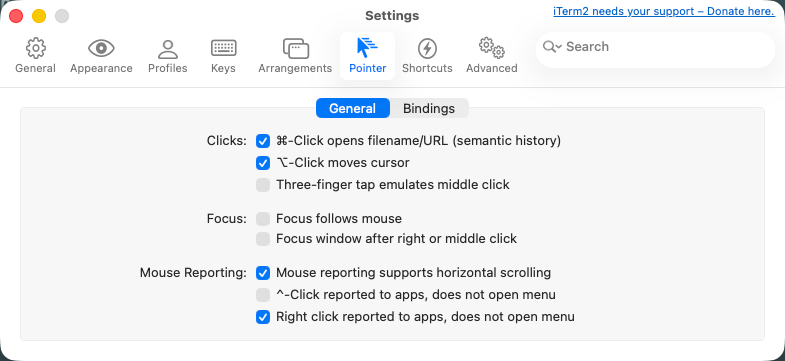
Right-click may have a separate forwarding switch. In iTerm2, open Settings → Pointer → General, then enable “Right click reported to apps, does not open menu.” Without it, iTerm2 opens its own menu instead of sending the click to Railmux.
VS Code and Cursor users can change Terminal › Integrated: Right Click Behavior when the editor's own menu prevents right-click from reaching Railmux. copyPaste is the recommended starting point: Railmux handles right-click while its mouse-aware sidebar is active, and the editor retains its convenient copy/paste behavior elsewhere in the terminal. Cursor exposes the same VS Code setting. Configure it in User Settings JSON:
{
  "terminal.integrated.rightClickBehavior": "copyPaste"
}
Use nothing instead if your editor version still intercepts right-click or you
prefer all right-click events to pass directly to terminal applications.
F8 (layout) and F9 (fullscreen): the operating system or terminal may
consume function keys before tmux sees them. On macOS, either hold Fn when
pressing the key or enable System Settings → Keyboard → “Use F1, F2, etc. keys
as standard function keys”; also remove any Mission Control shortcut using the
same key. On Windows laptops, Fn+Esc commonly toggles Fn Lock. If the terminal
has its own shortcut or key-mapping editor, remove the conflicting mapping or
configure it to send the corresponding F8/F9 function-key sequence to the
terminal session.
3. Using railmux over SSH
railmux works over SSH out of the box, including mouse scrolling in the agent pane. These tweaks improve responsiveness and scrollback:
Server (~/.tmux.conf on the remote machine):
set -sg escape-time 0         # eliminate delay after Escape key
set -g  history-limit 10000   # generous scrollback per pane
Client (~/.ssh/config on your local machine):
Host your-server
    Compression yes           # smoother tmux pane scrolling over SSH
If the connection is so slow that the sidebar can't refresh one frame per
second, skip the mouse and use keyboard navigation — ↑↓ / Tab / Enter
cover every operation and don't depend on a fast redraw.
4. Will automated review sessions pollute my session list?
Codex: sessions created by codex exec (headless automation, pre‑commit
hooks, CI) are filtered automatically — railmux only shows interactive
sessions (codex-tui, codex_cli_rs).
Claude Code: for one-shot automated reviews, disable session persistence so
the consultation never appears in /resume:
# Print mode only; the review is not saved as a resumable session
claude -p --no-session-persistence "review this diff"
(--no-session-persistence is a Claude Code print-mode option.)
5. pip reports "externally-managed-environment"
Create a virtual environment, then install Railmux with that environment's
pip. This works on macOS, Linux, and WSL without modifying the system Python:
python3 -m venv ~/.venvs/railmux
source ~/.venvs/railmux/bin/activate
pip install railmux
pipx install railmux is an optional convenience for a globally available CLI;
it is not required on macOS or any other platform.
Acknowledgements
The tmux sidebar idea and initial architecture came from regmi-saugat/ccmgr. railmux extends it with Codex support, session history preview, starring, in-app renaming, mouse interaction, and a status bar integrated into the tmux status line.
Contributing
Contributions are welcome; see CONTRIBUTING.md.
Project details
Verified details
These details have been verified by PyPIProject links
GitHub Statistics
Maintainers


Download files
Download the file for your platform. If you're not sure which to choose, learn more about installing packages.
Source Distribution
Built Distribution
Filter files by name, interpreter, ABI, and platform.
If you're not sure about the file name format, learn more about wheel file names.
Copy a direct link to the current filters
File details
Details for the file railmux-0.2.0.tar.gz.
File metadata
- Download URL: railmux-0.2.0.tar.gz
- Upload date:
- Size: 340.2 kB
- Tags: Source
- Uploaded using Trusted Publishing? Yes
- Uploaded via: twine/6.1.0 CPython/3.13.14
File hashes
| Algorithm | Hash digest | |
|---|---|---|
| SHA256 |
d8d2a64f5bb6ff9dbbe8df39cae3b7d98082e3f6901fe2acb33fa80686d5208d
|
|
| MD5 |
4d83057faae603faf7b188ffea3e593e
|
|
| BLAKE2b-256 |
dd3206865b91e1d1afb0eb4864fe7031e2ccdeeee497c47fb06db73a5af6d7f2
|
Provenance
The following attestation bundles were made for railmux-0.2.0.tar.gz:
Publisher:
release.yml on Rightglow/Railmux
-
Statement:
-
Statement type:
https://in-toto.io/Statement/v1 -
Predicate type:
https://docs.pypi.org/attestations/publish/v1 -
Subject name:
railmux-0.2.0.tar.gz -
Subject digest:
d8d2a64f5bb6ff9dbbe8df39cae3b7d98082e3f6901fe2acb33fa80686d5208d - Sigstore transparency entry: 2207076539
- Sigstore integration time:
-
Permalink:
Rightglow/Railmux@95cf1a21a4bf3958e99413629c34d91e3baaaa19 -
Branch / Tag:
refs/tags/v0.2.0 - Owner: https://github.com/Rightglow
-
Access:
public
-
Token Issuer:
https://token.actions.githubusercontent.com -
Runner Environment:
github-hosted -
Publication workflow:
release.yml@95cf1a21a4bf3958e99413629c34d91e3baaaa19 -
Trigger Event:
push
-
Statement type:
File details
Details for the file railmux-0.2.0-py3-none-any.whl.
File metadata
- Download URL: railmux-0.2.0-py3-none-any.whl
- Upload date:
- Size: 212.9 kB
- Tags: Python 3
- Uploaded using Trusted Publishing? Yes
- Uploaded via: twine/6.1.0 CPython/3.13.14
File hashes
| Algorithm | Hash digest | |
|---|---|---|
| SHA256 |
0ece45ca66edad77039413c0124ba1797d3bd143cd03a69b62e88d6aa6e1cf5f
|
|
| MD5 |
ce3b3091566161a568607fdfc39fa7fc
|
|
| BLAKE2b-256 |
427d2e47c23501a0ebd09f08916bd287a2fbc01f59adb06ec4b9dea4dd7bbc26
|
Provenance
The following attestation bundles were made for railmux-0.2.0-py3-none-any.whl:
Publisher:
release.yml on Rightglow/Railmux
-
Statement:
-
Statement type:
https://in-toto.io/Statement/v1 -
Predicate type:
https://docs.pypi.org/attestations/publish/v1 -
Subject name:
railmux-0.2.0-py3-none-any.whl -
Subject digest:
0ece45ca66edad77039413c0124ba1797d3bd143cd03a69b62e88d6aa6e1cf5f - Sigstore transparency entry: 2207076555
- Sigstore integration time:
-
Permalink:
Rightglow/Railmux@95cf1a21a4bf3958e99413629c34d91e3baaaa19 -
Branch / Tag:
refs/tags/v0.2.0 - Owner: https://github.com/Rightglow
-
Access:
public
-
Token Issuer:
https://token.actions.githubusercontent.com -
Runner Environment:
github-hosted -
Publication workflow:
release.yml@95cf1a21a4bf3958e99413629c34d91e3baaaa19 -
Trigger Event:
push
-
Statement type:






