
Redmine MCP Server








A Model Context Protocol (MCP) server that connects AI assistants to Redmine. It exposes your Redmine instance's projects, issues, time tracking, wiki pages, and files as MCP tools.
mcp-name: io.github.jztan/redmine-mcp-server
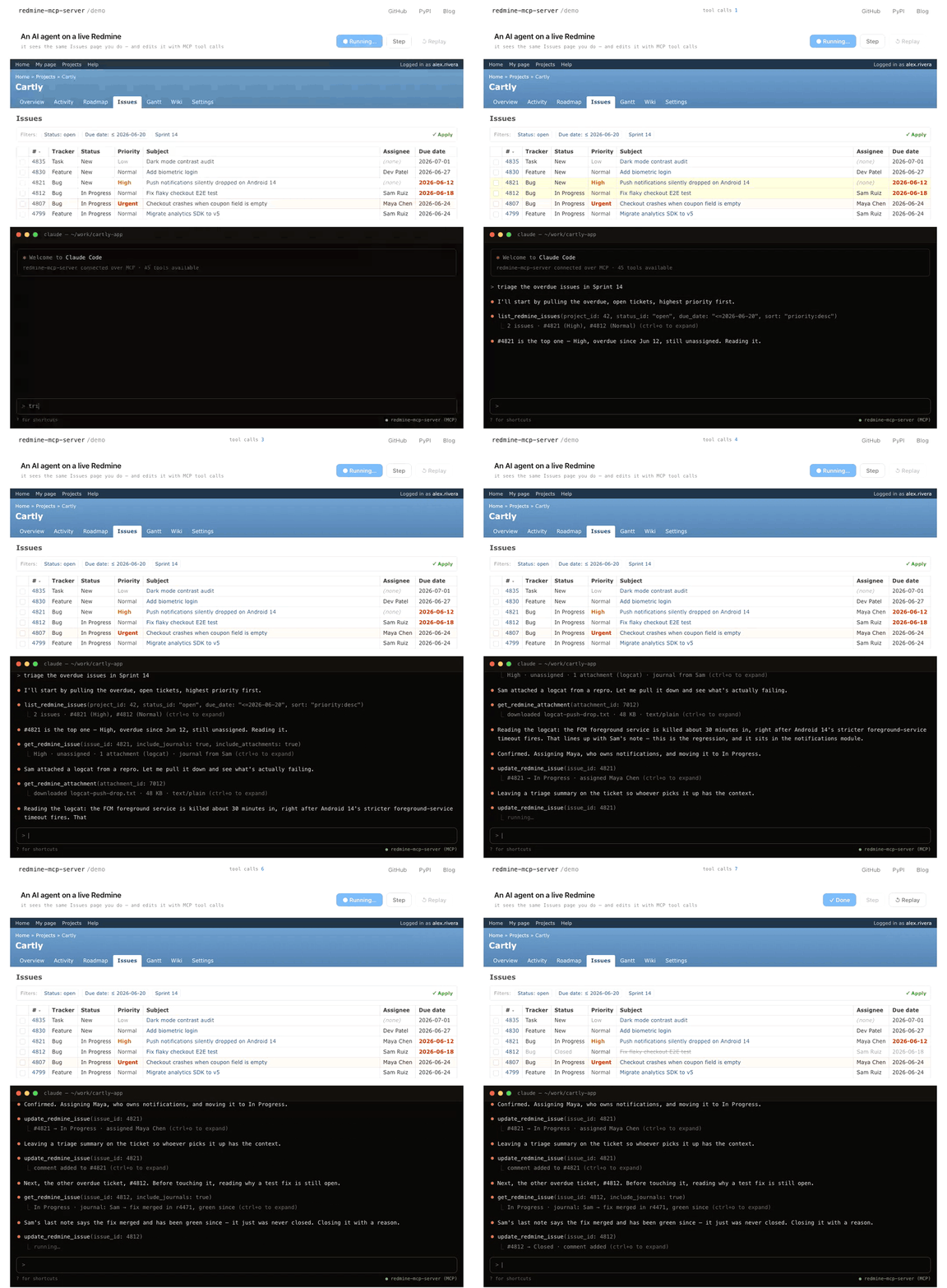
An AI agent triaging a Redmine sprint through redmine-mcp-server. Try the live demo →
Tool reference | Changelog | Contributing | Troubleshooting
Features
- 53 MCP tools on a stock Redmine, 68 with the RedmineUP and DMSF plugins (plus 1 operator tool gated by
REDMINE_MCP_EXPOSE_ADMIN_TOOLS=true): Issues, projects, news, time tracking, wiki, Gantt, file operations, membership management, products, contacts and deals (CRM), DMSF documents, Helpdesk email replies and ticket contacts, and more - Interactive Kanban Board:
show_triage_boardrenders a live, drag-and-drop issue board right in the chat via the MCP Apps extension - Flexible Authentication: API key, username/password, OAuth2 per-user tokens, or a browser login with each user's own API key on Redmines without OAuth
- Prompt Injection Protection: User-controlled content wrapped in boundary tags for safe LLM consumption
- Read-Only Mode: Restrict to read-only operations via
REDMINE_MCP_READ_ONLYenvironment variable - HTTP File Serving: Secure attachment access via UUID-based URLs with automatic expiry
- Pagination Support: Handle large result sets with configurable limits
- MCP Compliant: Built on FastMCP with HTTP transport
- Docker Ready: Dockerfile, docker-compose setup, and prebuilt images on GHCR
Quick Start
- Install the package
pip install redmine-mcp-server
- Create a
.envfile with your Redmine credentials (see Installation for template) - Start the server
redmine-mcp-server
- Add the server to your MCP client using one of the guides in MCP Client Configuration.
Once running, the server listens on http://localhost:8000 with the MCP endpoint at /mcp, health check at /health, and file serving at /files/{file_id}.
Installation
Prerequisites
- Python 3.10+ (for local installation)
- Docker (alternative deployment, uses Python 3.13)
- Access to a Redmine instance
Redmine Compatibility
The integration suite passes in full against Redmine 6.1 and 7.0. Older versions are untested. Individual tools list their own minimum where one is known (global search needs 3.3.0+, issue watchers 2.3.0+, project time-entry activities 3.4.0+), so on an older server those specific tools fail rather than the whole server.
Per-user authentication works on any version: OAuth2 needs Redmine 6.1+ for Doorkeeper, and the other per-user modes do not. See Authentication to pick a mode.
Install from PyPI (Recommended)
# Install the package
pip install redmine-mcp-server

# Create configuration file .env
cat > .env << 'EOF'
# Redmine connection (required)
REDMINE_URL=https://your-redmine-server.com

# Authentication - Use either API key (recommended) or username/password
REDMINE_API_KEY=your_api_key
# OR use username/password:
# REDMINE_USERNAME=your_username
# REDMINE_PASSWORD=your_password

# Server configuration (optional, defaults shown)
SERVER_HOST=0.0.0.0
SERVER_PORT=8000

# Public URL for file serving (optional)
PUBLIC_HOST=localhost
PUBLIC_PORT=8000

# File management (optional)
ATTACHMENTS_DIR=./attachments
AUTO_CLEANUP_ENABLED=true
CLEANUP_INTERVAL_MINUTES=10
ATTACHMENT_EXPIRES_MINUTES=60
EOF

# Edit .env with your actual Redmine settings
nano .env  # or use your preferred editor

# Run the server
redmine-mcp-server
# Or alternatively:
python -m redmine_mcp_server.main
The server runs on http://localhost:8000 with the MCP endpoint at /mcp, health check at /health, and file serving at /files/{file_id}.
Environment Variables Configuration
Environment Variables
| Variable | Required | Default | Description |
|---|---|---|---|
REDMINE_URL |
Yes | – | Base URL of your Redmine instance |
REDMINE_AUTH_MODE |
No | legacy |
Authentication mode: legacy, legacy-per-user, oauth, oauth-proxy, or api-key-login (see Authentication) |
REDMINE_PER_USER_TRUST_PROXY |
Yes* | false |
Required for legacy-per-user mode. Operator attestation: "this server sits behind TLS and my proxy does not forward client X-Forwarded-Proto." |
REDMINE_PER_USER_AUDIT_IDENTITY |
No | false |
legacy-per-user only: resolve and log the Redmine user ID per request (adds one extra round-trip) |
REDMINE_API_KEY_LOGIN_ALLOW_ADMIN |
No | false |
api-key-login only: accept the API keys of Redmine administrators. Tokens never carry the admin scope either way (details) |
REDMINE_API_KEY_LOGIN_ALLOW_HTTP |
No | false |
api-key-login only: allow an http:// REDMINE_MCP_BASE_URL. Local development only |
REDMINE_API_KEY_LOGIN_SESSION_DAYS |
No | 30 |
api-key-login only: how long a session lasts before the user logs in again. Must be positive |
REDMINE_API_KEY_LOGIN_RATE_LIMIT |
No | 300 |
api-key-login only: login attempts per minute, a process-wide safety ceiling |
REDMINE_API_KEY_LOGIN_BINDING_CRYPTO |
No | server-secret |
api-key-login only: server-secret or token-derived. token-derived puts stored API keys beyond the reach of the volume plus the signing key, at the cost of any server-side read (details) |
REDMINE_API_KEY |
Yes† | – | API key (legacy mode only) |
REDMINE_USERNAME |
Yes† | – | Username for basic auth (legacy mode only) |
REDMINE_PASSWORD |
Yes† | – | Password for basic auth (legacy mode only) |
REDMINE_MCP_BASE_URL |
Yesঠ| http://localhost:3040 |
Public base URL of this server, no trailing slash (OAuth modes and api-key-login) |
FASTMCP_STREAMABLE_HTTP_PATH |
No | /mcp |
MCP transport path inside REDMINE_MCP_BASE_URL |
REDMINE_INTROSPECT_CLIENT_ID |
Yes‡ | – | Doorkeeper OAuth client ID used by the MCP server to introspect Bearer tokens (RFC 7662). Register a confidential OAuth app in Redmine (see docs/oauth-setup.md Step 2). |
REDMINE_INTROSPECT_CLIENT_SECRET |
Yes‡ | – | Secret for the introspection client |
REDMINE_MCP_JWT_SIGNING_KEY |
Yes§¶ | – | Stable signing/encryption key used by FastMCP OAuthProxy tokens and storage, and by the api-key-login store. Changing it signs everyone out |
REDMINE_OAUTH_CLIENT_ID |
No | – | Optional upstream Redmine OAuth client ID for oauth-proxy; defaults to REDMINE_INTROSPECT_CLIENT_ID |
REDMINE_OAUTH_CLIENT_SECRET |
No | – | Optional upstream Redmine OAuth client secret for oauth-proxy; defaults to REDMINE_INTROSPECT_CLIENT_SECRET |
FASTMCP_HOME |
No | platform default (/app/data/fastmcp in Docker) |
FastMCP data directory. In oauth-proxy mode, encrypted OAuthProxy state is stored below FASTMCP_HOME/oauth-proxy/, and in api-key-login mode below FASTMCP_HOME/api-key-login/. Either must be on a persistent volume to survive a container rebuild |
REDMINE_MCP_ALLOWED_CLIENT_REDIRECT_URIS |
No | loopback only | oauth-proxy and api-key-login client redirect-URI allowlist (glob patterns, comma/space separated). Unset = http://localhost:* and http://127.0.0.1:*; * = allow any |
REDMINE_MCP_ACCESS_TOKEN_EXPIRY_SECONDS |
No | Redmine's expires_in (2h) |
oauth-proxy only. Lifetime of the access token the proxy issues to clients. Raise it (e.g. 604800) so clients rarely refresh; the upstream Redmine token is still refreshed server-side. Unset or 0 mirrors Redmine |
HEALTH_INTROSPECTION_TTL_SECONDS |
No | 30 |
TTL (seconds) for the /health Doorkeeper introspection probe cache. Set to 0 to disable caching. |
SERVER_HOST |
No | 0.0.0.0 |
Host/IP the MCP server binds to |
SERVER_PORT |
No | 8000 |
Port the MCP server listens on |
PUBLIC_HOST |
No | localhost |
Hostname used when generating download URLs |
PUBLIC_PORT |
No | 8000 |
Public port used for download URLs |
PUBLIC_SCHEME |
No | derived | Scheme for download URLs (http or https). When unset, https is derived from PUBLIC_PORT=443, otherwise http. Set explicitly for TLS on a nonstandard port. Default ports (80/443) are omitted from generated URLs. |
REDMINE_PUBLIC_URL |
No | – | Publicly-reachable URL of your Redmine instance. When set, content_url values returned on attachments are rewritten from REDMINE_URL's origin to this one (preserving path/query/fragment and any reverse-proxy subpath). Useful when REDMINE_URL is the internal container hostname unreachable from MCP clients. When unset, the raw URL Redmine echoes back is returned. |
ATTACHMENTS_DIR |
No | ./attachments |
Directory for downloaded attachments |
ATTACHMENT_MAX_DOWNLOAD_BYTES |
No | 209715200 (200 MB) |
Cap applied to every get_redmine_attachment download regardless of content type. Exceeding the cap aborts the download mid-stream and deletes the partial file. |
REDMINE_MCP_UPLOAD_FILE_ROOTS |
No | – | Extra directories allowed as file_path upload sources (OS path separator-separated). ATTACHMENTS_DIR is always allowed. Unset restricts uploads to ATTACHMENTS_DIR only. |
AUTO_CLEANUP_ENABLED |
No | true |
Toggle automatic cleanup of expired attachments |
CLEANUP_INTERVAL_MINUTES |
No | 10 |
Interval for cleanup task (also deletes expired OAuth state in oauth-proxy and api-key-login modes) |
ATTACHMENT_EXPIRES_MINUTES |
No | 60 |
Expiry window for generated download URLs |
REDMINE_MCP_JOURNAL_VALUE_MAX_CHARS |
No | 500 |
Above this many characters, a journal field-change reports its before/after text as old_value_length / new_value_length with elided: true instead of in full. Redmine records a description edit with both texts, so a repeatedly edited ticket otherwise returns several copies of its description. 0 disables eliding; get_redmine_issue and get_private_notes take include_journal_values=true per call. |
REDMINE_MCP_EXPOSE_ADMIN_TOOLS |
No | false |
Expose operator/admin tools on the MCP surface. Currently gates cleanup_attachment_files. The background cleanup task runs regardless of this flag. |
REDMINE_SSL_VERIFY |
No | true |
Enable/disable SSL certificate verification |
REDMINE_SSL_CERT |
No | – | Path to custom CA certificate file |
REDMINE_SSL_CLIENT_CERT |
No | – | Path to client certificate for mutual TLS |
REDMINE_TIMEOUT |
No | 30 |
Whole seconds to wait for a Redmine HTTP response before failing the call. Applied as a connect timeout of at most 10s plus a read timeout of the full value. Set to 0 to wait indefinitely, which restores the previous behavior and can hang the request. |
REDMINE_MCP_READ_ONLY |
No | false |
Block all write operations (create/update/delete) when set to true |
REDMINE_MCP_ALLOW_TOOLS |
No | – | Expose only these tools (comma-separated names). Unset exposes all; set but naming no tool refuses to start. Narrows the surface only: a listed tool whose plugin flag is off stays hidden. Whole tools, so per-action control on manage_X remains REDMINE_MCP_READ_ONLY's job. Names matching no tool are warned about at startup (details) |
REDMINE_MCP_ALLOW_TOOLS_FILE |
No | – | Path to a file with one allowed tool name per line (# starts a comment). Used when REDMINE_MCP_ALLOW_TOOLS is unset or empty |
REDMINE_MCP_EXTENSIONS |
No | – | Python modules to import at startup so they can register tools for an in-house Redmine plugin (comma- or whitespace-separated, imported in order). Unset means none. A module that fails to import, or that claims a family or tool name already taken, stops the server (details) |
REDMINE_OAUTH_SCOPE_ENFORCEMENT |
No | on |
OAuth modes and api-key-login only: deny tool calls whose access token lacks the tool's Redmine permission scopes, and filter tools/list accordingly. Set to off temporarily while re-consenting older tokens (details) |
REDMINE_OAUTH_DISCOVERY_AS |
No | redmine |
OAuth modes only: which authorization server discovery advertises. redmine names your Redmine; self advertises this server (issuer = REDMINE_MCP_BASE_URL) and serves RFC 8414 metadata at its own canonical well-known location, which clients that probe there need, Cursor among them (details) |
REDMINE_MCP_SCOPES |
No | – | OAuth modes and api-key-login only: advertise a subset of scopes in discovery, matching the permissions your Redmine OAuth Application actually enables. Avoids invalid_scope at consent when a client requests the full advertised list. In api-key-login it only narrows the scopes this server offers |
REDMINE_AGILE_ENABLED |
No | false |
Enable RedmineUP Agile plugin support: get_redmine_issue returns story_points, agile_sprint_id, agile_position; update_redmine_issue accepts story_points |
REDMINE_CHECKLISTS_ENABLED |
No | false |
Enable RedmineUP Checklists plugin support: get_checklist, create_checklist_item, update_checklist_item (requires Checklists Pro plugin) |
REDMINE_PRODUCTS_ENABLED |
No | false |
Enable RedmineUP Products plugin support: manage_product (action=list/get/create/update) |
REDMINE_CRM_ENABLED |
No | false |
Enable RedmineUP CRM plugin support: manage_contact (action=list/get/create/update/delete/assign_to_project/remove_from_project) list_contact_tags, manage_crm_note (notes on contacts) and list_crm_queries. Requires the CRM plugin and the view_contacts / view_private_contacts permissions on the Redmine server, plus add_contacts / edit_contacts / delete_contacts for the write actions. In OAuth mode these are advertised as scopes only when this flag is set, so the OAuth application must grant them too. |
REDMINE_CRM_EDITION |
No | light |
Which build of the CRM plugin the Redmine server runs: light or pro. The two register different contact query filters — the Pro build registers the contact fields, the Light build registers only tags — and Redmine ignores an unregistered filter parameter without erroring, answering with the whole collection instead. So manage_contact refuses first_name, last_name, middle_name, company, job_title, email, phone and author_id on list unless this is pro, rather than returning a silently unfiltered list. The build cannot be detected: Redmine exposes plugin versions only through admin/plugins, which is HTML and admin-only. |
REDMINE_DEALS_ENABLED |
No | false |
Enable RedmineUP CRM deals support: manage_deal (action=list/get/create/update/delete), list_deal_statuses, manage_deal_category, manage_crm_note (notes on deals), list_crm_queries and, together with REDMINE_PRODUCTS_ENABLED, add_deal_product. Separate from REDMINE_CRM_ENABLED because the CRM plugin's Light edition ships no deals and defines none of the deal permissions, so advertising them there would make consent fail. Requires the CRM plugin's Pro edition, the deals project module enabled on the project, and the view_deals permission, plus add_deals / edit_deals / delete_deals for the write actions. |
REDMINE_DMSF_ENABLED |
No | false |
Enable DMSF document-management plugin support: manage_document (action=list/get/create/update). Requires redmine_dmsf plugin on the Redmine server. |
REDMINE_HELPDESK_ENABLED |
No | false |
Enable RedmineUP Helpdesk plugin support: send_helpdesk_email_reply (emails a reply to the ticket's customer). Requires the Helpdesk plugin on the Redmine server. |
REDMINE_HELPDESK_TICKETS_ENABLED |
No | false |
Enable RedmineUP Helpdesk ticket support: manage_helpdesk_ticket (action=get/set_contact) reads a ticket's Helpdesk data and moves it to another existing contact. Requires the Helpdesk and CRM plugins. Separate from REDMINE_HELPDESK_ENABLED because under OAuth it advertises view_helpdesk_tickets, view_contacts, view_private_contacts and edit_helpdesk_tickets, which the Redmine OAuth application must grant before the flag is turned on. |
REDMINE_TAGS_ENABLED |
No | false |
Enable AlphaNodes additional_tags plugin support: get_redmine_issue returns a tags array, and create_redmine_issue/update_redmine_issue accept a tag_list. Requires the additional_tags plugin and the view_issue_tags / create_issue_tags / edit_issue_tags permissions on the Redmine server. |
REDMINE_AUTOFILL_REQUIRED_CUSTOM_FIELDS |
No | false |
Enable one retry for issue creation by filling missing required custom fields |
REDMINE_REQUIRED_CUSTOM_FIELD_DEFAULTS |
No | {} |
JSON object mapping required custom field names to fallback values used when creating issues |
REDMINE_ALLOW_PRIVATE_FETCH_URLS |
No | false |
Warning: disables all SSRF protection for attachment fetching. Never set to true in production. |
* Required when REDMINE_AUTH_MODE=legacy-per-user.
† Required when REDMINE_AUTH_MODE=legacy. Either REDMINE_API_KEY or REDMINE_USERNAME+REDMINE_PASSWORD must be set. API key is recommended.
‡ Required when REDMINE_AUTH_MODE=oauth or REDMINE_AUTH_MODE=oauth-proxy.
§ Required when REDMINE_AUTH_MODE=oauth-proxy.
¶ Required when REDMINE_AUTH_MODE=api-key-login.
Secret values can also be supplied with Docker/Kubernetes-style file variables: REDMINE_INTROSPECT_CLIENT_SECRET_FILE, REDMINE_MCP_JWT_SIGNING_KEY_FILE, and REDMINE_OAUTH_CLIENT_SECRET_FILE.
When REDMINE_AUTOFILL_REQUIRED_CUSTOM_FIELDS=true, create_redmine_issue retries once on relevant custom-field validation errors (for example <Field Name> cannot be blank or <Field Name> is not included in the list) and fills values only from:
- the Redmine custom field
default_value, or REDMINE_REQUIRED_CUSTOM_FIELD_DEFAULTS
In practice only the second one can fire. The server reads project custom fields from GET /projects/{id}.json?include=issue_custom_fields, which Redmine renders as id and name only, so it never sees default_value -- see list_project_issue_custom_fields. Set the env map if you want autofill to have anything to work with.
Example:
REDMINE_AUTOFILL_REQUIRED_CUSTOM_FIELDS=true
REDMINE_REQUIRED_CUSTOM_FIELD_DEFAULTS='{"Required Field A":"Value A","Required Field B":"Value B"}'
SSL Certificate Configuration
Configure SSL certificate handling for Redmine servers with self-signed certificates or internal CA infrastructure.
Self-Signed Certificates
If your Redmine server uses a self-signed certificate or internal CA:
# In .env file
REDMINE_URL=https://redmine.company.com
REDMINE_API_KEY=your_api_key
REDMINE_SSL_CERT=/path/to/ca-certificate.crt
Supported certificate formats: .pem, .crt, .cer
Mutual TLS (Client Certificates)
For environments requiring client certificate authentication:
# In .env file
REDMINE_URL=https://secure.redmine.com
REDMINE_API_KEY=your_api_key
REDMINE_SSL_CERT=/path/to/ca-bundle.pem
REDMINE_SSL_CLIENT_CERT=/path/to/cert.pem,/path/to/key.pem
Note: Private keys must be unencrypted (Python requests library requirement).
Disable SSL Verification (Development Only)
⚠️ WARNING: Only use in development/testing environments!
# In .env file
REDMINE_SSL_VERIFY=false
Disabling SSL verification makes your connection vulnerable to man-in-the-middle attacks.
For SSL troubleshooting, see the Troubleshooting Guide.
Authentication
The server supports five authentication modes, selected via REDMINE_AUTH_MODE. It defaults to legacy, so existing deployments keep working with no changes; OAuth2 support is purely additive.
| Your situation | Mode | Redmine |
|---|---|---|
| Single shared credential, simplest setup | legacy (default) |
any |
| Multi-user, you control the MCP client | oauth |
6.1+ |
| Hosted server, clients self-register (DCR) | oauth-proxy |
6.1+ |
| Multi-user, no OAuth on your Redmine, users log in in a browser | api-key-login |
any, incl. Easy Redmine |
| Multi-user, no OAuth on your Redmine, users set their key in the client | legacy-per-user |
any |
The advanced modes are collapsed below. For full setup, the OAuth2 Setup Guide covers oauth and oauth-proxy, the api-key-login guide covers api-key-login, and the legacy-per-user guide covers legacy-per-user.
Legacy mode (default)
A single shared credential (API key or username/password) configured once in .env. Every request to Redmine uses the same identity.
REDMINE_AUTH_MODE=legacy        # or omit entirely; this is the default
REDMINE_URL=https://redmine.example.com
REDMINE_API_KEY=your_api_key
# OR:
# REDMINE_USERNAME=your_username
# REDMINE_PASSWORD=your_password
OAuth2 mode (multi-user, Redmine 6.1+)
Each MCP request carries its own Authorization: Bearer <token>, so every user authenticates with their own Redmine account. The server validates each token against Doorkeeper's introspection endpoint before forwarding it, and exposes the OAuth2 discovery and /revoke endpoints clients need.
REDMINE_AUTH_MODE=oauth
REDMINE_URL=https://redmine.example.com
REDMINE_MCP_BASE_URL=https://redmine-mcp.example.com   # public URL of this server

# Confidential OAuth app registered in Redmine admin (see setup guide)
REDMINE_INTROSPECT_CLIENT_ID=...
REDMINE_INTROSPECT_CLIENT_SECRET=...
You register the OAuth app manually in Redmine admin → Applications (no Dynamic Client Registration). Full walkthrough, endpoint reference, and troubleshooting: OAuth2 Setup Guide.
OAuthProxy mode (hosted deployments with client self-registration)
FastMCP acts as the MCP-facing authorization server: it handles DCR for MCP clients, then redirects users to Redmine as the upstream OAuth provider for consent. Use this when clients (e.g. Claude Desktop, VS Code) expect to register themselves.
REDMINE_AUTH_MODE=oauth-proxy
REDMINE_URL=https://redmine.example.com
REDMINE_MCP_BASE_URL=https://redmine-mcp.example.com   # public URL of this server

# Confidential OAuth app registered in Redmine admin (see setup guide)
REDMINE_INTROSPECT_CLIENT_ID=...
REDMINE_INTROSPECT_CLIENT_SECRET=...
REDMINE_MCP_JWT_SIGNING_KEY=...
The upstream Redmine app must register ${REDMINE_MCP_BASE_URL}/auth/callback as its redirect URI. Storage, scaling, and credential-reuse notes are in the OAuth2 Setup Guide.
api-key-login mode (per-user identity without OAuth: Easy Redmine, Redmine older than 6.1)
The server acts as its own OAuth authorization server, so MCP clients connect with nothing but its URL. On first use the client opens a browser, the user pastes their personal Redmine API key into a page this server serves, and every tool call from then on runs as that user. No key goes into any client configuration, and passwords are never asked for.
REDMINE_AUTH_MODE=api-key-login
REDMINE_URL=https://redmine.example.com
REDMINE_MCP_BASE_URL=https://redmine-mcp.example.com   # public https URL of this server
REDMINE_MCP_JWT_SIGNING_KEY=...                        # encrypts the stored keys
The server stores each user's key encrypted below FASTMCP_HOME/api-key-login/, so that directory needs a persistent volume and the mode runs as a single replica. OAuth scopes here are a narrowing the client asks for, not Redmine permissions; Redmine's own permissions stay the boundary. Read the api-key-login guide for the security model, session rules and client setup before enabling it.
legacy-per-user mode (Redmine older than 6.1)
For Redmine instances too old for OAuth, each user's MCP client sends its own Redmine API key in an X-Redmine-API-Key header. Each request runs as that user's identity with that user's permissions.
This is an advanced, opt-in mode. It requires TLS end-to-end and a correctly configured reverse proxy. Read docs/legacy-per-user-auth.md for the threat model, firewall guidance, and revocation runbook before enabling it.
mcp-remote (recommended):
{ "mcpServers": { "redmine": {
  "command": "npx",
  "args": ["mcp-remote", "https://your-host/mcp",
           "--header", "X-Redmine-API-Key:${RM_KEY}"],
  "env": { "RM_KEY": "<your redmine api key>" }
}}}
Note the colon with no surrounding spaces in X-Redmine-API-Key:${RM_KEY}. This avoids an arg-escaping bug in Cursor and Claude Desktop on Windows.
VS Code (mcp.json):
Use .vscode/mcp.json (workspace file) or the user profile mcp.json. The workspace .mcp.json silently drops headers (see microsoft/vscode#319528), so do not use that file. Pin VS Code 1.102 or newer.
{
  "servers": {
    "redmine": {
      "type": "http",
      "url": "https://your-host/mcp",
      "headers": { "X-Redmine-API-Key": "${input:rmKey}" },
      "inputs": [{ "id": "rmKey", "type": "promptString",
                   "description": "Redmine API key", "password": true }]
    }
  }
}
Unsupported: any client that cannot set a custom request header, or that reserves the Authorization header for its own OAuth flow.
MCP Client Configuration
The server exposes an HTTP endpoint at http://127.0.0.1:8000/mcp. Register it with your preferred MCP-compatible agent using the instructions below.
The examples below assume
legacyoroauthmode. Inlegacy-per-usermode each client must also send anX-Redmine-API-Keyheader; see legacy-per-user mode above for header-aware configs.
Visual Studio Code (Native MCP Support)
VS Code has built-in MCP support via GitHub Copilot (requires VS Code 1.102+).
Using CLI (Quickest):
code --add-mcp '{"name":"redmine","type":"http","url":"http://127.0.0.1:8000/mcp"}'
Using Command Palette:
- Open Command Palette (
Cmd/Ctrl+Shift+P) - Run
MCP: Open User Configuration(for global) orMCP: Open Workspace Folder Configuration(for project-specific) - Add the configuration:
{
  "servers": {
    "redmine": {
      "type": "http",
      "url": "http://127.0.0.1:8000/mcp"
    }
  }
}
- Save the file. VS Code will automatically load the MCP server.
Manual Configuration:
Create .vscode/mcp.json in your workspace (or mcp.json in your user profile directory):
{
  "servers": {
    "redmine": {
      "type": "http",
      "url": "http://127.0.0.1:8000/mcp"
    }
  }
}
Claude Code
Add to Claude Code using the CLI command:
claude mcp add --transport http redmine http://127.0.0.1:8000/mcp
Or configure manually in your Claude Code settings file (~/.claude.json):
{
  "mcpServers": {
    "redmine": {
      "type": "http",
      "url": "http://127.0.0.1:8000/mcp"
    }
  }
}
Claude Desktop (macOS & Windows)
Claude Desktop's config file supports stdio transport only. Use FastMCP's proxy via uv to bridge to this HTTP server.
Setup:
- Open Claude Desktop
- Click the Claude menu (macOS menu bar / Windows title bar) > Settings...
- Click the Developer tab > Edit Config
- Add the following configuration:
{
  "mcpServers": {
    "redmine": {
      "command": "uv",
      "args": [
        "run",
        "--with", "fastmcp",
        "fastmcp",
        "run",
        "http://127.0.0.1:8000/mcp"
      ]
    }
  }
}
- Save the file, then fully quit and restart Claude Desktop
- Look for the tools icon in the input area to verify the connection
Config file locations:
- macOS:
~/Library/Application Support/Claude/claude_desktop_config.json - Windows:
%APPDATA%\Claude\claude_desktop_config.json
Note: The Redmine MCP server must be running before starting Claude Desktop.
Cursor
Cursor talks to HTTP MCP servers directly, with no bridge.
- Create
~/.cursor/mcp.json(available in every project) or.cursor/mcp.jsonin your project root (that project only):{ "mcpServers": { "redmine": { "url": "http://127.0.0.1:8000/mcp" } } }
- Save the file. Cursor picks the server up automatically; its MCP settings list the server and the tools it loaded.
Note: Cursor identifies a remote server by a bare url and has no type field, unlike the VS Code and Claude Code configs above.
In legacy-per-user mode, add the API key header:
{
  "mcpServers": {
    "redmine": {
      "url": "https://your-host/mcp",
      "headers": { "X-Redmine-API-Key": "<your redmine api key>" }
    }
  }
}
In oauth mode, set REDMINE_OAUTH_DISCOVERY_AS=self on the MCP server. Cursor looks for authorization server metadata at its own canonical well-known location, which the default (redmine) discovery profile does not serve, so the flow stalls without it (#188). See Cursor and self-AS discovery.
Codex CLI
Add to Codex CLI using the command:
codex mcp add redmine -- npx -y mcp-client-http http://127.0.0.1:8000/mcp
Or configure manually in ~/.codex/config.toml:
[mcp_servers.redmine]
command = "npx"
args = ["-y", "mcp-client-http", "http://127.0.0.1:8000/mcp"]
Note: Codex CLI primarily supports stdio-based MCP servers. The above uses mcp-client-http as a bridge for HTTP transport.
Kiro
Kiro primarily supports stdio-based MCP servers. For HTTP servers, use an HTTP-to-stdio bridge:
- Create or edit
.kiro/settings/mcp.jsonin your workspace:{ "mcpServers": { "redmine": { "command": "npx", "args": [ "-y", "mcp-client-http", "http://127.0.0.1:8000/mcp" ], "disabled": false } } }
- Save the file and restart Kiro. The Redmine tools will appear in the MCP panel.
Note: Direct HTTP transport support in Kiro is limited. The above configuration uses mcp-client-http as a bridge to connect to HTTP MCP servers.
Generic MCP Clients
Most MCP clients use a standard configuration format. For HTTP servers:
{
  "mcpServers": {
    "redmine": {
      "type": "http",
      "url": "http://127.0.0.1:8000/mcp"
    }
  }
}
For clients that require a command-based approach with HTTP bridge:
{
  "mcpServers": {
    "redmine": {
      "command": "npx",
      "args": ["-y", "mcp-client-http", "http://127.0.0.1:8000/mcp"]
    }
  }
}
Testing Your Setup
# Test connection by checking health endpoint
curl http://localhost:8000/health
Supported Redmine Plugins
The server works against a stock Redmine instance. Six optional plugins add more, shown as eight rows below because CRM's deals and Helpdesk's tickets carry their own flags. To use one, install it on your Redmine server and set the matching env var. Skipping a plugin costs you only that plugin's features.
Plugin tools appear in the client's tool list only when their env var is set; with the flag off they are not registered on the MCP surface at all.
| Plugin | Vendor | Env var | What it adds |
|---|---|---|---|
| Agile | RedmineUP | REDMINE_AGILE_ENABLED |
get_redmine_issue returns story_points, agile_sprint_id, agile_position; update_redmine_issue accepts story_points |
| Checklists | RedmineUP (Pro) | REDMINE_CHECKLISTS_ENABLED |
3 tools: get_checklist, create_checklist_item, update_checklist_item |
| Products | RedmineUP | REDMINE_PRODUCTS_ENABLED |
1 tool: manage_product; with REDMINE_DEALS_ENABLED also add_deal_product |
| CRM | RedmineUP | REDMINE_CRM_ENABLED |
2 tools: manage_contact, list_contact_tags; plus the 2 shared CRM tools manage_crm_note and list_crm_queries, which either CRM flag enables (adds the *_contacts and note scopes to OAuth discovery when enabled) |
| CRM deals | RedmineUP (Pro) | REDMINE_DEALS_ENABLED |
3 tools: manage_deal, list_deal_statuses, manage_deal_category; plus the 2 shared CRM tools above, and add_deal_product when REDMINE_PRODUCTS_ENABLED is also set (adds the *_deals and note scopes to OAuth discovery when enabled). Same plugin as CRM, but the Light edition has no deals |
| DMSF | danmunn (open source) | REDMINE_DMSF_ENABLED |
1 tool: manage_document |
| Helpdesk | RedmineUP | REDMINE_HELPDESK_ENABLED |
1 tool: send_helpdesk_email_reply |
| Helpdesk tickets | RedmineUP | REDMINE_HELPDESK_TICKETS_ENABLED |
1 tool: manage_helpdesk_ticket. Same plugin as Helpdesk, with its own flag because it adds OAuth scopes |
| Additional Tags | AlphaNodes (open source) | REDMINE_TAGS_ENABLED |
get_redmine_issue returns a tags array; create_redmine_issue / update_redmine_issue accept tag_list |
Agile and Additional Tags add fields to tools you already have, so they
register no new tools. The other seven bring their own, which appear in
tools/list either way but return a feature-disabled error until you set the
flag. Tags also needs the view_issue_tags, create_issue_tags, and
edit_issue_tags permissions on the Redmine server.
Tools for a Redmine plugin written in house can be added from a separate package without forking this server; see Extensions.
Available Tools
A deployment can expose a subset of these with REDMINE_MCP_ALLOW_TOOLS; everything else disappears from tools/list and is refused by call_tool.
This MCP server provides 53 core tools for interacting with Redmine, plus 15 plugin tools that are listed only when the matching REDMINE_*_ENABLED flag is set (68 in total), and 1 operator tool exposed by REDMINE_MCP_EXPOSE_ADMIN_TOOLS=true (maximum of 69). A client connected to a vanilla Redmine sees just the 53 core tools. For full documentation of every tool, see the Tool Reference.
Core tools (53, always available): Project Management (10), Issue Operations (13), Time Tracking (4), Discovery / Enumeration (7), Search & Wiki (2), News (4), File Operations (5), Gantt (1), Interactive Apps (6), Meta (1).
Plugin-gated tools (15, listed only when their flag is set): Checklists (3), Products (1), Contacts / CRM (2), Deals / CRM (3), shared CRM notes and saved queries (2, either CRM flag), deal product lines (1, deals plus products), Documents / DMSF (1), Helpdesk (1), Helpdesk tickets (1). Each requires the matching Redmine plugin installed and its env flag set; with the flag off the tools are not registered on the MCP surface.
Operator tools (1, admin-gated): cleanup_attachment_files, registered only when REDMINE_MCP_EXPOSE_ADMIN_TOOLS=true.
Full tool list with descriptions
Core tools (53, always available)
These tools require only a Redmine instance and credentials, with no extra plugins or feature flags.
-
Project Management (10 tools)
list_redmine_projects- List accessible projects (active only unlessfiltersasks for more), narrowed server-side and optionally paginatedlist_project_issue_custom_fields- List issue custom fields configured for a projectlist_redmine_versions- List versions/milestones for a projectmanage_redmine_version- Create, update, or delete a version/milestonemanage_redmine_project- Create a project, edit its settings, or close and reopen itlist_project_members- List members and roles of a projectsummarize_project_status- Get comprehensive project status summarylist_redmine_roles- List all roles defined in the Redmine instance (for discovering validrole_ids)get_project_modules- Retrieve the enabled modules for a projectmanage_project_member- Add, update, or remove a project membership
-
Issue Operations (13 tools)
get_redmine_issue- Retrieve detailed issue information (supports journal pagination, watchers, relations, children)list_redmine_issues- List issues with flexible filtering (project, status, assignee, etc.)search_redmine_issues- Search issues by text querycreate_redmine_issue- Create new issues, with optional file attachments via theuploadsparameterupdate_redmine_issue- Update existing issues, with optional file attachments via theuploadsparameter (combine withnotesto attach files to a journal note)delete_redmine_issue- Hard-delete an issue with required confirmation flags and a cascade-impact preview before irreversible deletion.copy_issue- Duplicate an existing issue with optional field overrideslist_subtasks- List subtasks (child issues) of a given parentget_private_notes- Retrieve private notes on an issuemanage_issue_relation- List, create, or delete issue relationsmanage_issue_watcher- Add or remove a watcher on an issuemanage_issue_note- Edit a journal note's text or toggle its privacymanage_issue_category- List, create, update, or delete issue categories- Note:
get_redmine_issuecan includecustom_fieldsandupdate_redmine_issuecan update custom fields by name (for example{"size": "S"}).
-
Time Tracking (4 tools)
list_time_entries- List time entries with filtering by project, issue, user, and date rangemanage_time_entry- Create or update a time entry (useuser_idto log on behalf of another user)list_time_entry_activities- Discover available activity types for time entriesimport_time_entries- Bulk import time entries via sequential API calls with per-entry error reporting
-
Discovery / Enumeration (7 tools): help LLMs find valid IDs before calling create/update tools
list_redmine_trackers- List all trackers (Bug, Feature, Support, etc.)list_project_trackers- List the trackers enabled for a specific projectlist_redmine_issue_statuses- List all issue statuses with theiris_closedflaglist_redmine_issue_priorities- List all priority levelslist_redmine_users- Filter/list users (admin-only; supports name and group filters)get_current_user- Get the authenticated user's profile (works for non-admins)list_redmine_queries- List saved custom queries (read-only)
-
Search & Wiki (2 tools)
search_entire_redmine- Global search across issues and wiki pages (Redmine 3.3.0+)manage_redmine_wiki_page- List, get, create, update, delete, or rename wiki pages
-
News (4 tools): project announcements -- release notes, maintenance windows
list_redmine_news- List news, optionally for one projectget_redmine_news- Read one news item with its comments and attachmentsmanage_redmine_news- Create or update a news item (Redmine 4.1+)delete_redmine_news- Delete a news item, with confirmation (Redmine 4.1+)
-
File Operations (5 tools)
list_files- List files uploaded to a project's Files sectioncreate_upload_ticket- Reserve an upload slot and return a single-use URL, so a file on the caller's machine reaches the server without its bytes passing through the modelupload_file- Upload a new file to a project (from a stagedupload_id, a URL, base64 content, or a server-sidefile_path), optionally tied to a versiondelete_file- Delete a file from a projectget_redmine_attachment- Download an attachment (works in both HTTP and stdio mode)
-
Gantt (1 tool)
get_gantt_chart- Retrieve project timeline data: issues with dates, dependencies, and milestones
-
Interactive Apps (4 tools): render live UI in the chat via the MCP Apps extension (requires a client that supports it)
show_triage_board- Render a project's issues as an interactive Kanban board grouped by status, with drag-to-change-status write-backget_triage_board_data- Board data source backing the board's Refresh actionshow_project_dashboard- Render a live project snapshot (open/closed, overdue, due this week, open-by-priority, recent activity) as an interactive dashboard, with click-through drill-ins to matching issue listsget_project_dashboard_data- App-only data source backing the dashboard's Refresh actionshow_project_timeline- Render a project's schedule as an interactive timeline: issue bars by version, milestone diamonds, and a Today lineget_project_timeline_data- App-only data source backing the timeline's Refresh action
-
Meta (1 tool)
get_mcp_server_info- Report server version, auth mode, read-only state, the authenticated user (current_user), and which plugin-gated tool families are enabled. Use to detect deployment lag before relying on a recently-shipped fix, or to confirm whoassigned_to_id="me"resolves to.
Plugin-gated tools (15, opt in via env var)
These tools require a corresponding Redmine plugin installed on the server and the matching environment variable set to true on the MCP server. They are listed in tools/list only when their flag is set; with the flag off they are not registered on the MCP surface (and a direct call still returns a feature-disabled error).
-
Checklists (3 tools): set
REDMINE_CHECKLISTS_ENABLED=true; requires the RedmineUP Checklists Pro pluginget_checklist- Retrieve all checklist items for an issuecreate_checklist_item- Add a new checklist item to an issueupdate_checklist_item- Update a checklist item's text, done state, or position
-
Products (1 tool): set
REDMINE_PRODUCTS_ENABLED=true; requires the RedmineUP Products pluginmanage_product- List, get, create, or update products
-
Contacts (CRM) (2 tools): set
REDMINE_CRM_ENABLED=true; requires the RedmineUP CRM plugin. In OAuth mode the flag also adds the CRM permissions to the advertised scopes, so grant them on the OAuth application and have users re-consent. SetREDMINE_CRM_EDITION=proon a Pro install to allow the contactlistfilters the Light build does not registermanage_contact- List, get, create, update, delete, or assign/remove project association for contactslist_contact_tags- Tags in use on contacts, with colors, for thetagsfilter andtag_list
-
Deals (CRM) (3 tools): set
REDMINE_DEALS_ENABLED=true; requires the Pro edition of the same CRM plugin, and thedealsproject module enabled on the project. Deals have their own flag because the Light edition defines none of the deal permissions, so advertising them would break consent for Light deploymentsmanage_deal- List, get, create, update, or delete dealslist_deal_statuses- Deal statuses (admin-only on the plugin side) and a project's deal categories, for use before creating a dealmanage_deal_category- List, create, rename, or delete a project's deal categories
-
CRM notes and saved queries (2 tools, shared): available when either
REDMINE_CRM_ENABLEDorREDMINE_DEALS_ENABLEDis set; each call is gated on the flag matching the note's or query's sourcemanage_crm_note- Get, create, update, or delete CRM notes on contacts and dealslist_crm_queries- Saved contact or deal queries
-
Deal product lines (1 tool): needs both
REDMINE_DEALS_ENABLED=trueandREDMINE_PRODUCTS_ENABLED=true; the endpoint exists only when the Products plugin is installed next to CRMadd_deal_product- Add a catalogue or free-form product line to a deal
-
Documents (DMSF) (1 tool): set
REDMINE_DMSF_ENABLED=true; requires theredmine_dmsfpluginmanage_document- List, get, create (upload), or update (new revision) DMSF documents
-
Helpdesk (1 tool): set
REDMINE_HELPDESK_ENABLED=true; requires the RedmineUP Helpdesk pluginsend_helpdesk_email_reply- Email a reply to a Helpdesk ticket's customer, optionally changing the ticket status
-
Helpdesk tickets (1 tool): set
REDMINE_HELPDESK_TICKETS_ENABLED=true; requires the RedmineUP Helpdesk plugin and the RedmineUP CRM pluginmanage_helpdesk_ticket- Read a ticket's Helpdesk data, or move it to another existing contact
Operator tools (1, admin-gated)
Hidden from tools/list by default. Set REDMINE_MCP_EXPOSE_ADMIN_TOOLS=true to register them on the MCP surface. The underlying background tasks run regardless of this flag; exposing them only adds the option to drive them through MCP.
cleanup_attachment_files- Manually trigger cleanup of expired attachment files (the background cleanup task runs automatically regardless)
Docker Deployment
Quick Start with Docker
# Configure environment
cp .env.docker.example .env.docker
# Edit .env.docker with your Redmine settings

# Run with docker-compose
docker-compose up --build

# Or run directly
docker build -t redmine-mcp-server .
docker run -p 8000:8000 --env-file .env.docker redmine-mcp-server
Use the Published Image
Prebuilt multi-architecture images (linux/amd64, linux/arm64) are published to
the GitHub Container Registry on each release, so you can run the server without
building it yourself:
docker pull ghcr.io/jztan/redmine-mcp-server:latest
docker run -p 8000:8000 --env-file .env.docker ghcr.io/jztan/redmine-mcp-server:latest
Pin to an exact version (e.g. ghcr.io/jztan/redmine-mcp-server:2.2.0) or track a
minor series (e.g. :2.2). Published images are available starting from the next
release.
Production Deployment
Use the automated deployment script:
chmod +x deploy.sh
./deploy.sh
Troubleshooting
If you run into any issues, checkout our troubleshooting guide.
Roadmap
See the roadmap for planned features and future development.
Contributing
Contributions are welcome! Please see our contributing guide for details.
Contributors
Thank you to everyone who has helped improve this project through code, reviews, testing, and feature requests:
@sebastianelsner · @mihajlovicjj · @timcomport · @aadnehovda · @Vitexus · @Bricklou · @martindglaser · @LaurensRietveld · @pdostal · @stevehollis-orderflow · @knasiotis · @azelcs · @fionnb · @goizper · @mmahmed · @andilem · @gino8080 · @siva01c · @chesterXalan

Per-release contributor credits are listed in the Changelog.
Thanks also to RedmineUP for providing evaluation copies of CRM PRO and Helpdesk PRO, which let the CRM and Helpdesk tools be verified against real Pro instances.
License
This project is licensed under the MIT License - see the LICENSE file for details.
Blog posts
The story behind the releases. Building this server keeps surprising me: full API access that turned out to be a mistake, 69 tools that had to become 43, an OAuth scope bug that only surfaced when a contributor ran the flow against a real Redmine 6 instance. Plenty of the sharpest lessons arrived from other people's deployments rather than mine. I write about that thinking in The Dispatch. Come along if that's your kind of thing.
Background, design notes, and postmortems from building this server:
Getting started
- Redmine MCP Server: Give AI Agents Live Project Data: What the server does, why the tool surface is curated rather than a full API mirror, and how to choose a Redmine MCP server
- How I linked a legacy system to a modern AI agent with MCP: The problem that started this project, and the first two read-only tools
Tool design & architecture
- Designing Reliable MCP Servers: 3 Hard Lessons in Agentic Architecture: Why full API access to an agent was a mistake, and what replaced it
- MCP Tool Sprawl: How I Cut 69 Tools to 43 With a Decorator: The v2 consolidation that cut context overhead and sharpened agent tool selection
Production
- MCP File Upload: Why Base64 Tool Arguments Can Corrupt Files: Why a 3 KB PNG silently lost 32 characters when the model retyped its base64, and the side-channel upload with SHA-256 checks that replaced it
- How to Evaluate an MCP Server With an LLM: 17 Bugs Found and Fixed: Driving the server with an agent surfaced 17 problems the test suite missed, including a
role_ids=[True]bug that quietly assigned an elevated role - What It Actually Takes to Ship a Production MCP Server for Redmine: The full journey from prototype to production
1 maintainer

Metadata
1 maintainer
Release files for redmine-mcp-server 2.18.1
For a detailed explanation of source distributions (sdists) and built distributions (wheels), please see the package formats documentation.
Source distribution (sdist)
| File | Size | Uploaded | |
|---|---|---|---|
| redmine_mcp_server-2.18.1.tar.gz | 2.8 MB | Details |
Built distribution (wheel)
| File | Interpreter | ABI | Platform | Reset |
|---|---|---|---|---|
| redmine_mcp_server-2.18.1-py3-none-any.whl | Python 3 | none | any | Details |
Total release size: 3.2 MB
Release files / redmine_mcp_server-2.18.1.tar.gz
| Download URL | redmine_mcp_server-2.18.1.tar.gz |
|---|---|
| Size | 2.8 MB |
| Tags | Source |
|
SHA-256 checksum How to use checksums |
e266148fec45fb2706459e0d26b41f652489b90bf216ea7bb57d1b5bad6cf732
|
|
BLAKE2b-256 checksum How to use checksums |
339cd813821938cc2790533a12964de3922263a3eb5fd6a4ce981e6a74a8e34b
|
| Upload date | |
|
Uploaded using Trusted Publishing? What is trusted publishing? |
No |
| Uploaded via |
twine/7.0.0 CPython/3.13.15
|
Release files / redmine_mcp_server-2.18.1-py3-none-any.whl
| Download URL | redmine_mcp_server-2.18.1-py3-none-any.whl |
|---|---|
| Size | 347.0 kB |
| Tags | Python 3 |
|
SHA-256 checksum How to use checksums |
799516ca174bf59424cb1dc93b5e9150b5a0f78a954e9cd8cd2b8bb65c41e665
|
|
BLAKE2b-256 checksum How to use checksums |
ed21ba94e027156757228b4bf8ac64407d0374891b8cd428e38ad4353205ef20
|
| Upload date | |
|
Uploaded using Trusted Publishing? What is trusted publishing? |
No |
| Uploaded via |
twine/7.0.0 CPython/3.13.15
|














