
Backup and convert reMarkable tablet notebooks to PDF
Verified details
These details have been verified by PyPIProject links
GitHub Statistics
Maintainers

Project description
RemarkableSync
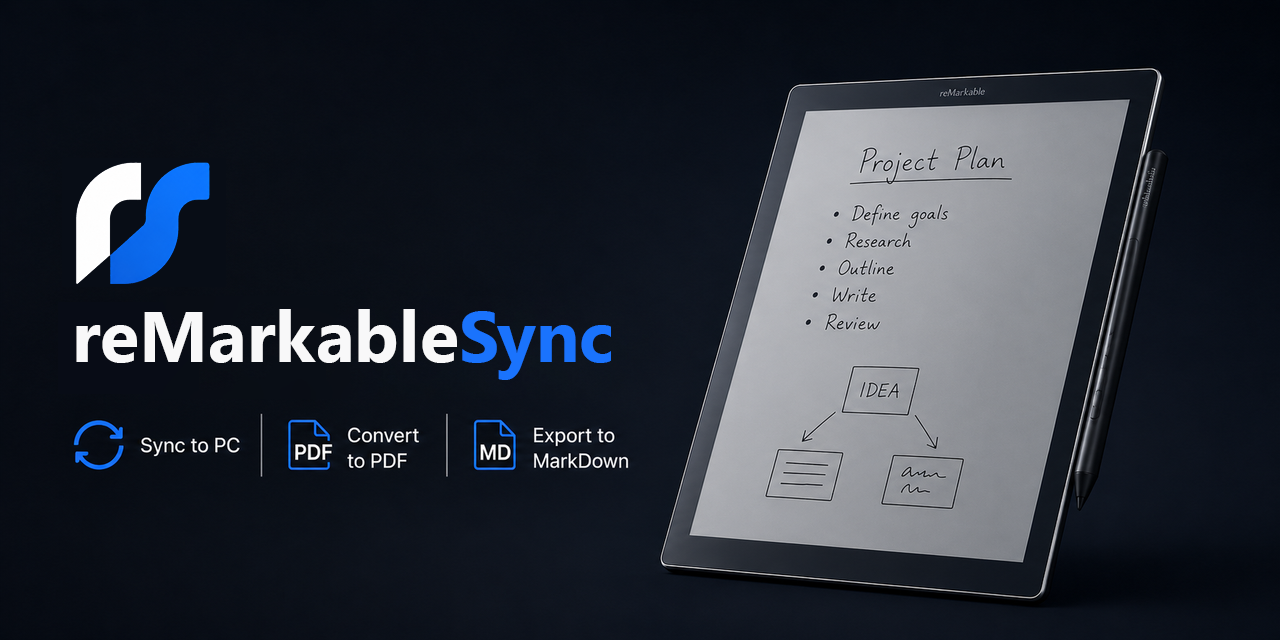





A comprehensive Python toolkit for backing up reMarkable tablet notebooks, converting them to PDF, and transcribing handwriting to Markdown with AI — over USB or Wi-Fi.
[!IMPORTANT] Tested on reMarkable 2. Compatibility with reMarkable 1 is not guaranteed.
AI handwriting-to-text features require a GitHub Copilot or Claude (Anthropic) account. Support for additional providers can be added as needed.
Features
- USB & Wi-Fi sync — connect via cable or wirelessly over your local network
- Incremental backup — only downloads files that have changed (tracked by size, mtime, and MD5)
- PDF conversion — v5 and v6 .rm formats with template backgrounds, folder hierarchy preserved
- AI handwriting recognition — send page images to GitHub Models (GPT-4o) or Claude for transcription
- Markdown export — each notebook becomes a
.mdfile with YAML frontmatter and embedded page images - Watch mode — automatic periodic sync with system-tray status icon and run-at-startup option
- Secure credential storage — SSH password and AI tokens stored in your system keyring
Quick Start
1. Install
# macOS (Homebrew)
brew tap jeffsteinbok/remarkablesync && brew install remarkablesync

# All platforms (pip)
pip install remarkablesync

# Or download a pre-built executable from the Releases page
2. Run the configuration wizard
RemarkableSync config
The wizard walks you through:
| Setting | Default |
|---|---|
| Connection mode | USB or Wi-Fi (wizard can enable Wi-Fi SSH for you) |
| SSH password | Saved to system keyring |
| Backup directory | <AppData>/remarkablesync/backup (internal sync data) |
| PDF output | ~/Documents/RemarkableSync/PDF |
| Markdown output | ~/Documents/RemarkableSync/Markdown |
| AI provider | GitHub Models (free) or Claude (requires API key) |
| AI token | Stored securely in system keyring |
| Folders | Choose which tablet folders to sync (or all) |
[!TIP] Multi-device setup: Use the folder filter to sync different tablet folders to different computers — e.g., sync your "Work" folder to your work PC and "Home" to your personal machine. Each machine gets its own config.
[!TIP] Clear any directory field and press Enter to reset it to the default.
3. Run it
RemarkableSync watch
This will use your configured defaults and launch a sync cycle (backup → PDF → Markdown), then keep running and re-sync every 30 minutes. Check your output directories to verify everything looks right.
4. Set it to run at startup
Once you're happy with the output, enable run-at-startup from the system tray icon menu (or via the watch command). RemarkableSync will sync your tablet automatically in the background whenever your computer is on.
[!TIP] Obsidian users: Point the Markdown output directory at a folder inside your Obsidian vault. Your handwritten notes appear as searchable Markdown with embedded page images. Pair with Obsidian OneDrive Sync to sync your vault across devices.
AI Provider Setup
The AI handwriting-to-text features require either a GitHub Copilot account (for GitHub Models) or a Claude (Anthropic) API key. Support for additional providers can be added as needed.
Both AI provider SDKs are installed with pip install -r requirements.txt. The config wizard handles authentication interactively.
GitHub Models
The wizard runs a GitHub device-code flow to authenticate. No manual token setup needed.
Alternatively, set a GITHUB_TOKEN environment variable with a PAT that has models:read scope.
Claude (Anthropic)
- Go to https://console.anthropic.com/settings/keys
- Click Create Key and copy it (starts with
sk-ant-api03-...) - Paste it into the config wizard — it's saved in your system keyring
Default model: claude-sonnet-4-6.
Usage
After running config, most users only need watch. For one-off or scripted use:
# Default: backup + PDF conversion (uses saved config)
RemarkableSync

# Full pipeline: backup + PDF + AI OCR + Markdown
RemarkableSync md --with-backup --with-pdf

# Individual steps
RemarkableSync backup          # backup only
RemarkableSync convert         # PDF conversion only (from existing backup)
RemarkableSync md              # Markdown export only (from existing PDFs)

# Watch mode (periodic sync)
RemarkableSync watch           # uses saved config for interval, dirs, AI
Command Line Options
All commands read defaults from the saved config. CLI flags override config values.
Common:
-d, --backup-dir PATH— backup directory-v, --verbose— debug logging--version— version info
Connection:
--host HOST— tablet IP (default:10.11.99.1)--wifi— connect over Wi-Fi--wifi-host HOST— tablet Wi-Fi IP (auto-discovered if omitted)
Backup:
-p, --password— SSH password (prompted if not saved)--skip-templates— don't backup templates--force-backup— re-download everything
Convert:
-o, --output-dir PATH— PDF output directory--force-all— reconvert all notebooks--sample N— convert first N notebooks only--notebook NAME— convert a single notebook
Markdown (md):
-V, --vault-dir PATH— Markdown output directory--ai-provider—githuborclaude--ai-model— override default model--ai-api-key— API key (prefer keyring or env vars)--tags— comma-separated frontmatter tags (default:remarkable)--no-images— skip embedding page images--with-backup/--with-pdf— include earlier pipeline stages--force-export— re-export all notes
Watch:
-i, --interval N— minutes between syncs (default: 30)--systray / --no-systray— system tray icon (default: enabled)
Wi-Fi Connection
The config wizard can enable Wi-Fi SSH on your tablet automatically via USB. If you prefer to do it manually:
- Connect tablet via USB and SSH into
10.11.99.1 - Run
rm-ssh-over-wlan on - Find the IP:
ip addr show wlan0 - Use that IP in the config wizard or
--wifi-host
[!TIP] Assign a static DHCP lease to your tablet in your router so the IP doesn't change.
Generated Markdown Format
Each notebook becomes a folder with one Markdown file per page:
---
title: "My Meeting Notes"
source: reMarkable
remarkable_id: xxxxxxxx-xxxx-xxxx-xxxx-xxxxxxxxxxxx
notebook: Work
folder: Work/Meetings
page: 1
created: 2025-01-15
ai_provider: GitHubModelsProvider
ai_model: gpt-4o-mini
tags:
- remarkable
---
## Action Items
- **Follow up** with Alice on the Q1 plan
- Schedule review for next Friday

Page images are stored in a _images/ subfolder next to the Markdown files.
Troubleshooting
| Problem | Fix |
|---|---|
| Can't connect via USB | Verify cable, ping 10.11.99.1, check SSH password |
| Can't connect via Wi-Fi | Same network? Try ping remarkable.local or use --wifi-host <ip> |
| AI OCR returns errors | Check API key/token, verify package installed (anthropic or openai), check rate limits |
| Empty Markdown files | AI provider may have failed — check log file for details |
| Watch lock error | Delete <backup-dir>/.remarkable_watch.lock |
| Permission errors | Ensure output directories are writable; run as admin on Windows if needed |
Security
- SSH password and AI tokens are stored in your system keyring (never in plain-text config files)
- All communication is over your local network (USB or LAN) — nothing goes to the internet except AI API calls
- Config file at
<AppData>/remarkablesync/config.jsoncontains only non-secret settings
Project details
Verified details
These details have been verified by PyPIProject links
GitHub Statistics
Maintainers
Release history Release notifications | RSS feed


Download files
Download the file for your platform. If you're not sure which to choose, learn more about installing packages.
Source Distribution
Built Distribution
Filter files by name, interpreter, ABI, and platform.
If you're not sure about the file name format, learn more about wheel file names.
Copy a direct link to the current filters
File details
Details for the file remarkablesync-2.0.3.tar.gz.
File metadata
- Download URL: remarkablesync-2.0.3.tar.gz
- Upload date:
- Size: 100.6 kB
- Tags: Source
- Uploaded using Trusted Publishing? Yes
- Uploaded via: twine/6.1.0 CPython/3.13.12
File hashes
| Algorithm | Hash digest | |
|---|---|---|
| SHA256 |
296121939593a2440ae597ff67b85dfa9865a856fd6d3c6b6c4e1431504f0e15
|
|
| MD5 |
41b4591641197a37b525229592366a82
|
|
| BLAKE2b-256 |
08988f5a77f7928ff69e45c0a54371a571f9c2632033828411a3f78d29016ba6
|
Provenance
The following attestation bundles were made for remarkablesync-2.0.3.tar.gz:
Publisher:
publish-pypi.yml on JeffSteinbok/RemarkableSync
-
Statement:
-
Statement type:
https://in-toto.io/Statement/v1 -
Predicate type:
https://docs.pypi.org/attestations/publish/v1 -
Subject name:
remarkablesync-2.0.3.tar.gz -
Subject digest:
296121939593a2440ae597ff67b85dfa9865a856fd6d3c6b6c4e1431504f0e15 - Sigstore transparency entry: 1771693956
- Sigstore integration time:
-
Permalink:
JeffSteinbok/RemarkableSync@a2a46260f0845e991d666e2faecaeb993e948e5f -
Branch / Tag:
refs/tags/v2.0.3 - Owner: https://github.com/JeffSteinbok
-
Access:
public
-
Token Issuer:
https://token.actions.githubusercontent.com -
Runner Environment:
github-hosted -
Publication workflow:
publish-pypi.yml@a2a46260f0845e991d666e2faecaeb993e948e5f -
Trigger Event:
release
-
Statement type:
File details
Details for the file remarkablesync-2.0.3-py3-none-any.whl.
File metadata
- Download URL: remarkablesync-2.0.3-py3-none-any.whl
- Upload date:
- Size: 92.6 kB
- Tags: Python 3
- Uploaded using Trusted Publishing? Yes
- Uploaded via: twine/6.1.0 CPython/3.13.12
File hashes
| Algorithm | Hash digest | |
|---|---|---|
| SHA256 |
315351588bb3b4967b1135871ae8c4c13a1171da82077de9ba8ed954b7b5838d
|
|
| MD5 |
806bf991aef7a7956e5d2c47395388cd
|
|
| BLAKE2b-256 |
9ac425a16f1097871fae9925142525b0a1149101234a2992aae3d59f28c87f36
|
Provenance
The following attestation bundles were made for remarkablesync-2.0.3-py3-none-any.whl:
Publisher:
publish-pypi.yml on JeffSteinbok/RemarkableSync
-
Statement:
-
Statement type:
https://in-toto.io/Statement/v1 -
Predicate type:
https://docs.pypi.org/attestations/publish/v1 -
Subject name:
remarkablesync-2.0.3-py3-none-any.whl -
Subject digest:
315351588bb3b4967b1135871ae8c4c13a1171da82077de9ba8ed954b7b5838d - Sigstore transparency entry: 1771694045
- Sigstore integration time:
-
Permalink:
JeffSteinbok/RemarkableSync@a2a46260f0845e991d666e2faecaeb993e948e5f -
Branch / Tag:
refs/tags/v2.0.3 - Owner: https://github.com/JeffSteinbok
-
Access:
public
-
Token Issuer:
https://token.actions.githubusercontent.com -
Runner Environment:
github-hosted -
Publication workflow:
publish-pypi.yml@a2a46260f0845e991d666e2faecaeb993e948e5f -
Trigger Event:
release
-
Statement type:






