
Enterprise remote management library for SSH, Docker, Ansible, Terraform, PowerShell, and web dashboard automation.

Project description
remoteinfra
remoteinfra is a Python library for remote command execution, file and directory transfer, Docker, Ansible, Terraform, PowerShell, and more, all over SSH. It also provides a modern Flask dashboard for managing remote servers and infrastructure from your browser or Python code. Designed for IT professionals, DevOps engineers, Automation engineers, lab management engineers etc., it makes remote automation and infra management easy and reliable.
OpenSSH setup
Windows: OpenSSH Install Guide
Features
- SSH Connection Management: Connect to remote Linux or Windows machines using password or SSH key.
- Remote Command Execution: Run shell, PowerShell, and Python commands/scripts on remote servers.
- File & Directory Transfer: Send and receive files and folders, including recursive upload/download.
- Terminal support: Support in browser terminal supprot
- Docker Management: List, start, stop, remove containers/images/networks/volumes, inspect containers, view logs, and run Docker Compose projects. Manage Docker both locally (from dashboard) and remotely (over SSH).
- Ansible Automation: Run playbooks and ad-hoc commands on remote hosts, with logs and status.
- Terraform Automation: Run init/plan/apply/import and custom Terraform commands locally or remotely.
- Web Dashboard: Manage everything from a modern Flask dashboard with REST API, live logs, and project directory management. All actions are logged.
- Project Directory Management: Create, list, delete, upload, download, and rename project folders for Python, Ansible, Terraform, and more.
- Execution History: Track, cancel, and view status of all remote executions with logs.
Installation
Install the package using pip (Python 3.7+ recommended):
pip install remoteinfra
Usage
Usage Examples
0. Project Directory Management
You can manage project directories (create, list, delete, upload, download, rename) for Python, Ansible, Terraform, and more, from both Python and the Dashboard.
A. Send a Local Directory to Remote
client.send_Directory('local_folder', '/remote/path/target_folder')
B. Use Directory for Terraform/Ansible
You can specify a directory for Terraform/Ansible execution via the dashboard or API:
{
   "directory_name": "my_project_dir"
}
This will use the directory under the managed projects/ folder for execution. You can also browse, upload, download, and rename files/folders from the Dashboard UI (Projects tab).
See the demo/ folder for more examples.
1. Connect and Run Commands
from remoteinfra import SSHClient

client = SSHClient(hostname='192.168.1.10', username='user', password='pass')
client.login()

# Run shell command
result = client.run_command('ls -l')
print(result)

# Run PowerShell command (on Windows target)
ps_result = client.run_powershell_command('Get-Process')
print(ps_result)

client.close()
2. File Transfer
# Send a file
client.send_File('local_file.txt')
# Receive a file
client.receive_File('/remote/path/file.txt', 'downloaded.txt')
# Send a directory (recursively)
client.send_Directory('local_folder', '/remote/path/target_folder')
3. Docker Management
# List containers, images, networks, volumes
print(client.docker_list_containers())
print(client.docker_list_images())
print(client.docker_list_networks())
print(client.docker_list_volumes())

# Start/Stop/Remove containers
client.docker_start_container('container_name')
client.docker_stop_container('container_name')
client.docker_remove_container('container_name')

# Remove image
client.docker_remove_image('image_name')

# Inspect container
print(client.docker_inspect_container('container_id'))

# Get container logs
print(client.docker_container_logs('container_id', tail=100))

# Run Docker Compose project
client.docker_compose_project_action('docker-compose.yml', action='up', detach=True)
4. Ansible Automation
# Run playbook
client.run_ansible_playbook('test_playbook.yml', inventory_file='inventory.ini')

# Run ad-hoc command
client.run_ansible_playbook('uptime', inventory_file='inventory.ini')
5. Terraform Automation
# Local execution
client.run_terraform_init(work_dir='terraform/aws')
client.run_terraform_plan(work_dir='terraform/aws', vars_dict={'instance_type': 't2.micro'})
client.run_terraform_apply(work_dir='terraform/aws', plan_file='tfplan')

# Remote execution (if SSH target has Terraform)
client.run_terraform_init(work_dir='terraform/aws', remote=True)
6. Web Dashboard
from remoteinfra import Dashboard
dashboard = Dashboard(host='localhost', port=8000)
dashboard.serve()  # Starts the Flask dashboard
Remote Terminal Access (Web-based SSH)
New Feature: Browser-based SSH Terminal
remoteinfra now supports accessing remote machine terminals directly from your browser, similar to PuTTY/MobaXterm. You can use interactive editors (vi, nano, etc.) and run any shell command in a real SSH session.
How it works
- The dashboard provides a web-based terminal using xterm.js and WebSocket.
- Connect to any configured machine and get a full interactive shell (with editor support).
- All terminal I/O is streamed live between browser and remote host.
Usage
- Go to the "Terminal" tab in the dashboard UI.
- Select a machine and click "Connect".
- Use the terminal as you would in PuTTY/MobaXterm (edit files, run commands, etc.).
- Disconnect when done.
Supported Features
- Full shell access (bash, sh, zsh, etc.)
- Interactive editors (vi, nano, vim, etc.)
- Real-time output and input
- Resize, clear, fullscreen terminal
- Multiple sessions (per browser tab)
Requirements
- The remote machine must support SSH and have a shell (Linux, macOS, or Windows with OpenSSH).
- No extra software needed on the remote host.
Troubleshooting
- If you cannot connect, check SSH credentials and network/firewall settings.
- For best experience, use a modern browser (Chrome, Edge, Firefox).
Project Directory Management in Dashboard
- Create/list/delete/rename project directories from the web UI (Projects tab)
- Upload/download files and folders
- Use directories for Python, Terraform, Ansible execution
Docker Management in Dashboard
- View Docker info, images, containers, networks, and volumes (local & remote)
- Start/stop/remove containers, remove images, inspect containers, view logs
- Pull images, run containers, execute commands inside containers
- All Docker actions available via REST API and UI
Execution Management
- View all running, completed, and failed executions
- Cancel running executions from the dashboard
Project Directory Management in Dashboard
- Create/list/delete project directories from the web UI (Projects tab)
- Use directories for Terraform/Ansible execution
- Upload/download files and folders
Docker Management in Dashboard
- View Docker info, images, containers, networks, and volumes (local & remote)
- Start/stop/remove containers, remove images, inspect containers, view logs
- All Docker actions available via REST API and UI
6. Docker Management (localhost)
You can manage Docker containers and images from both the Dashboard (web UI) and directly using Python code with remoteinfra methods. This is useful for DevOps, automation, and enterprise infrastructure.
A. Using Dashboard (Web UI):
from remoteinfra import Dashboard
client = Dashboard(host='localhost', port=8000)
client.serve()
# Open http://localhost:8000 in your browser
# Go to Docker tab to manage containers/images easily
B. Using Python Code (demo/docker/docker_example.py):
from remoteinfra import SSHClient

# Connect to localhost (Docker must be installed)
client = SSHClient(hostname="localhost", username="your_username", password="your_password")
client.login()

# List Docker containers
containers = client.docker_list_containers()
print("Containers:", containers)

# List Docker images
images = client.docker_list_images()
print("Images:", images)

# Start a container
result = client.docker_start_container(container_id_or_name="my_container")
print("Start container result:", result)

# Stop a container
result = client.docker_stop_container(container_id_or_name="my_container")
print("Stop container result:", result)

# Remove a container
result = client.docker_remove_container(container_id_or_name="my_container")
print("Remove container result:", result)

# Remove an image
result = client.docker_remove_image(image_id_or_name="my_image")
print("Remove image result:", result)

client.close()
For a full working example, see demo/docker/docker_example.py.
7. Run Ansible Playbook (demo/Ansible/main.py)
client.run_ansible_playbook('test_playbook.yml', inventory_file='inventory.ini')
8. Run Terraform (demo/terraform/main.py)
client.run_terraform_init(work_dir='terraform/aws')
client.run_terraform_plan(work_dir='terraform/aws')
client.run_terraform_apply(work_dir='terraform/aws', plan_file='tfplan')
Dashboard: Enterprise Remote Management Made Simple
The remoteinfra Dashboard is a professional web application for managing remote machines, running commands, scripts, Docker, Ansible, Terraform, and more. Just run the Dashboard and open in your browser. All features are available with live logs, REST API, and a secure, responsive UI. Designed for IT teams, DevOps, and cloud engineers.
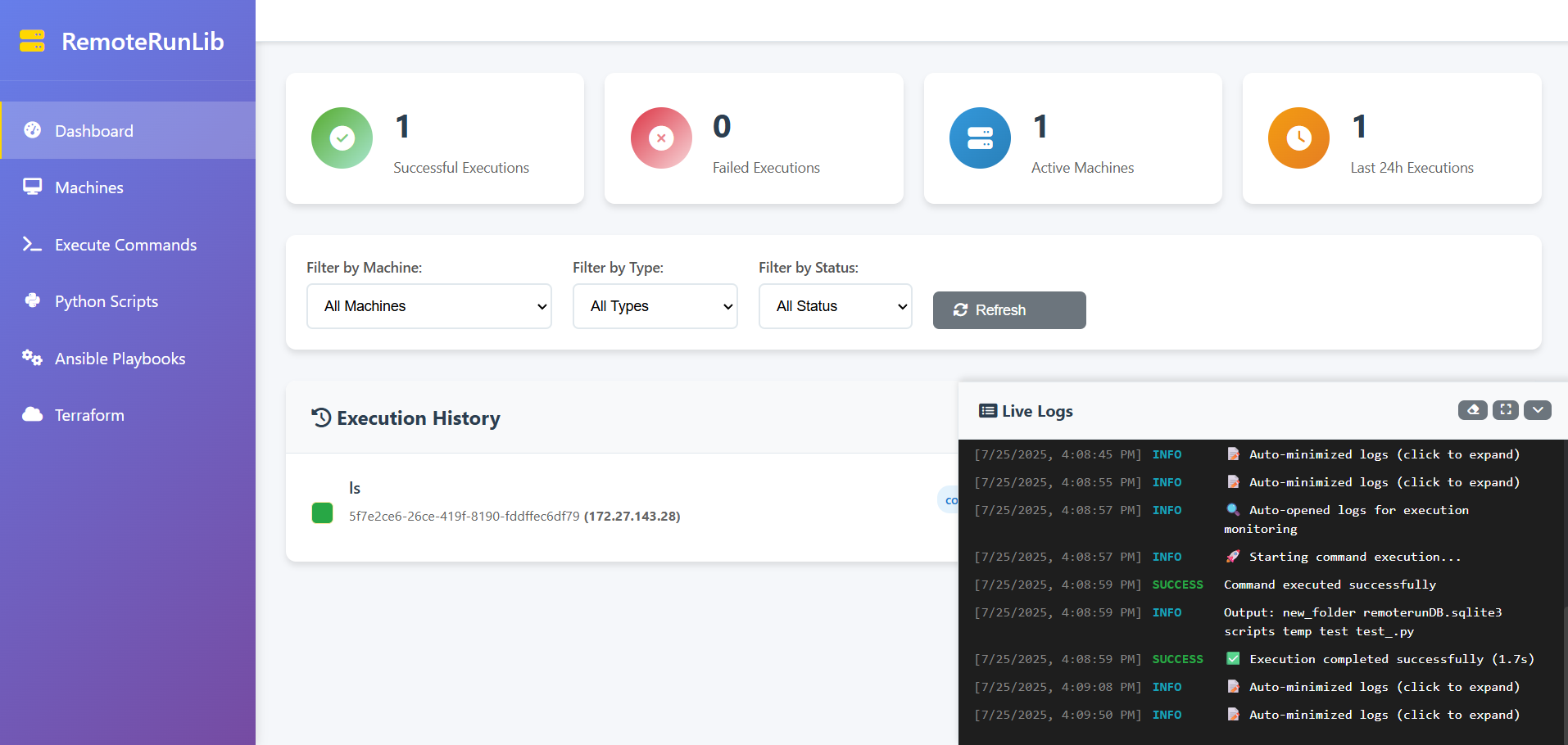
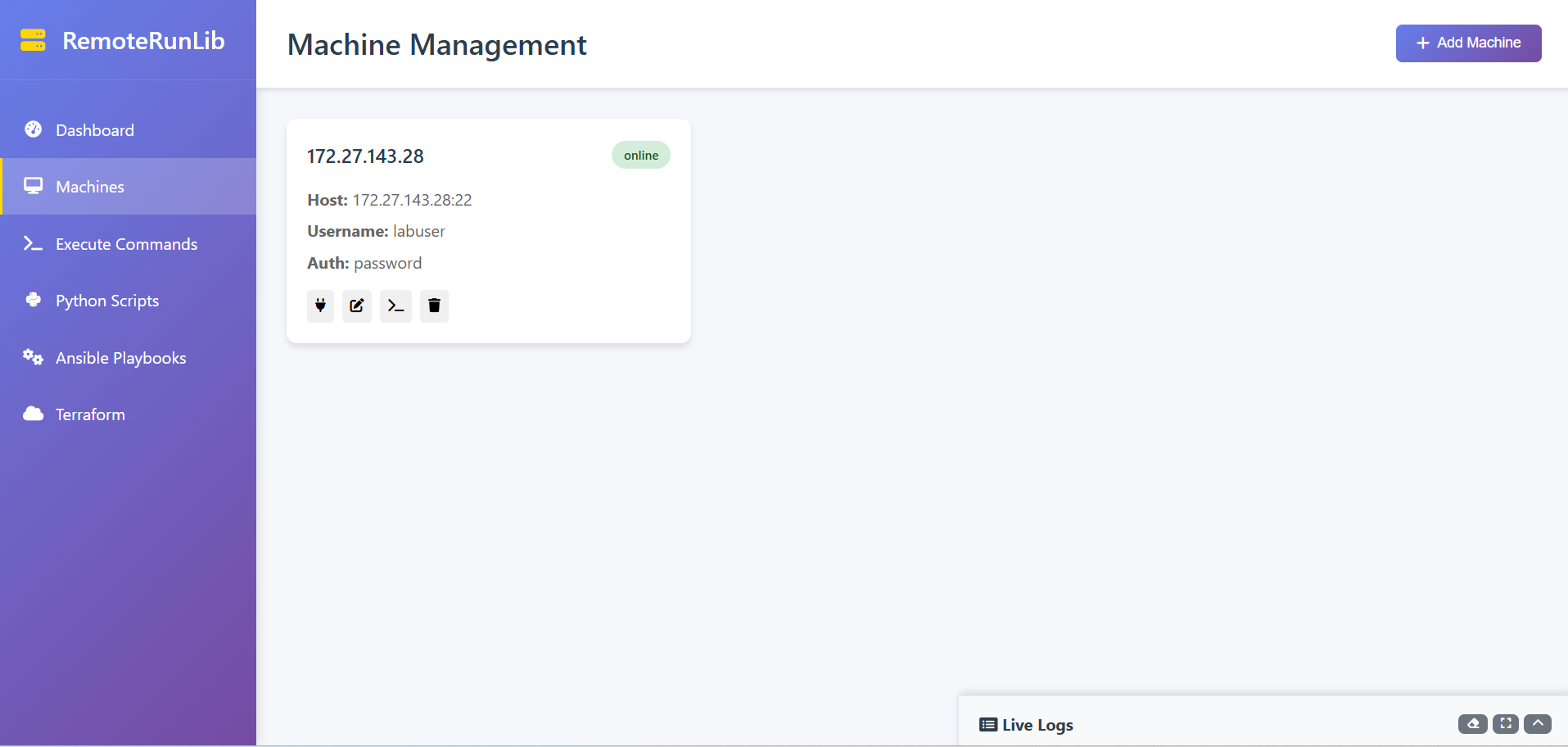
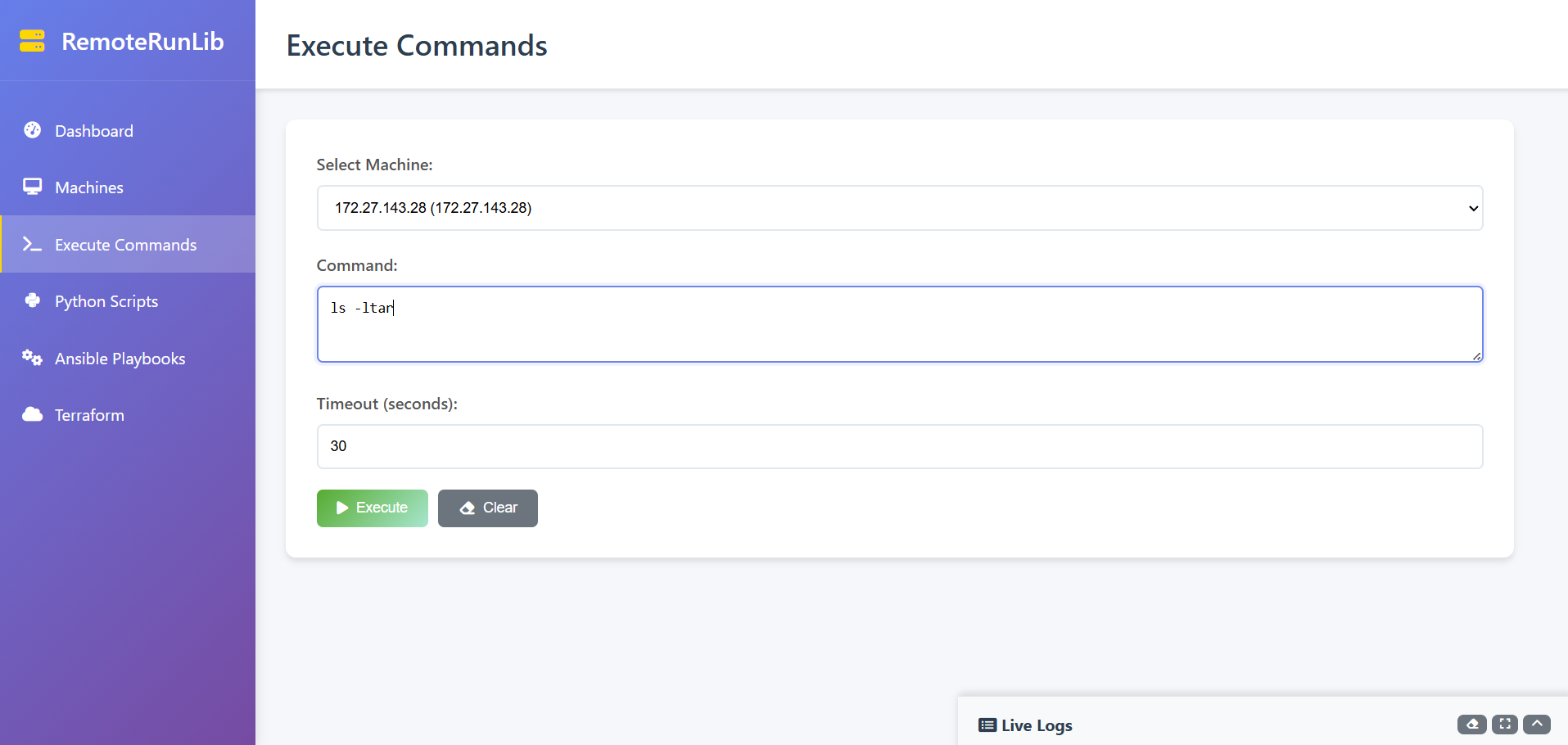
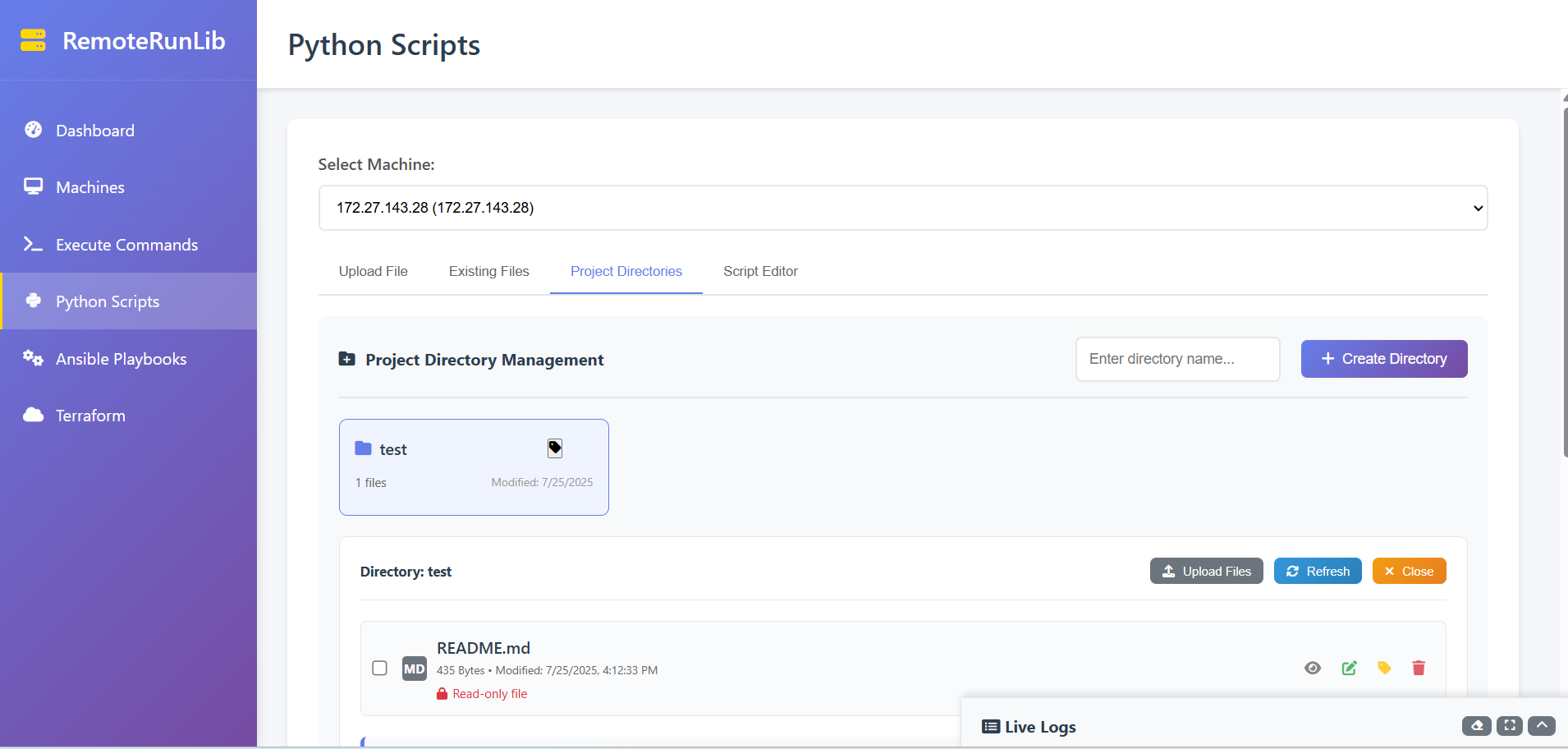
Dashboard Screenshots
- Home
- Machine Management
- CLI Commands
- Python Scripts
- Ansible Playbooks
- Terraform
- Docker
- Terminal
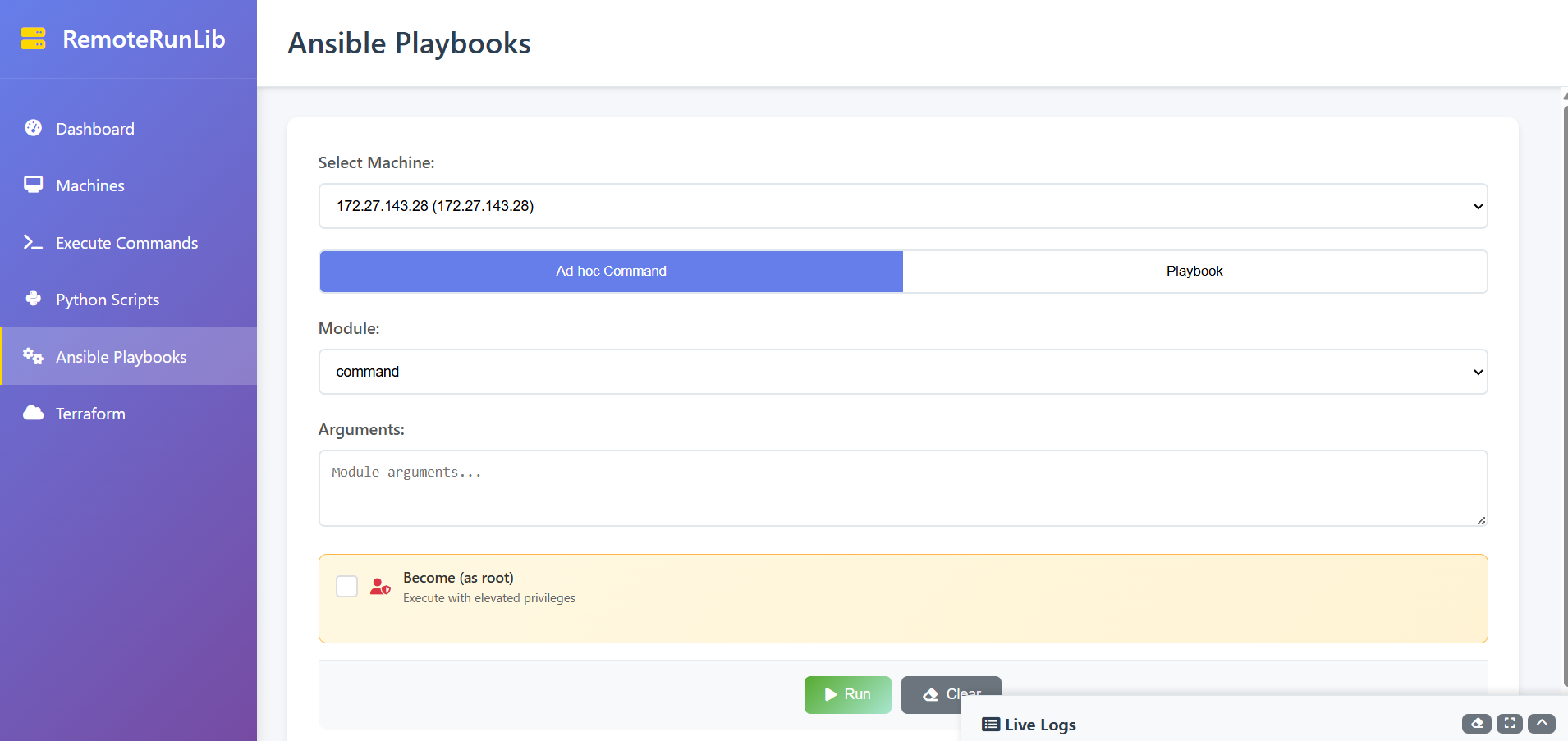
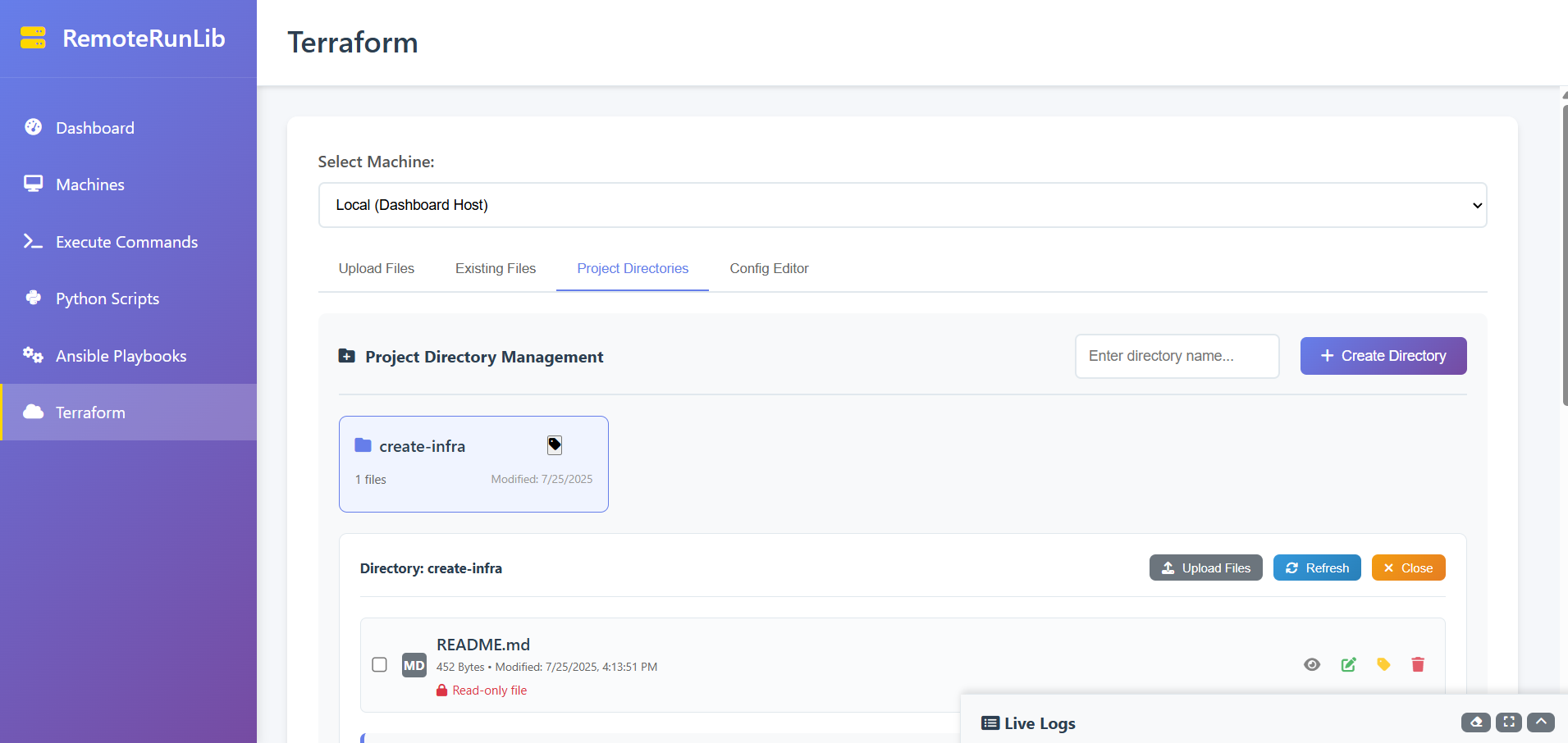
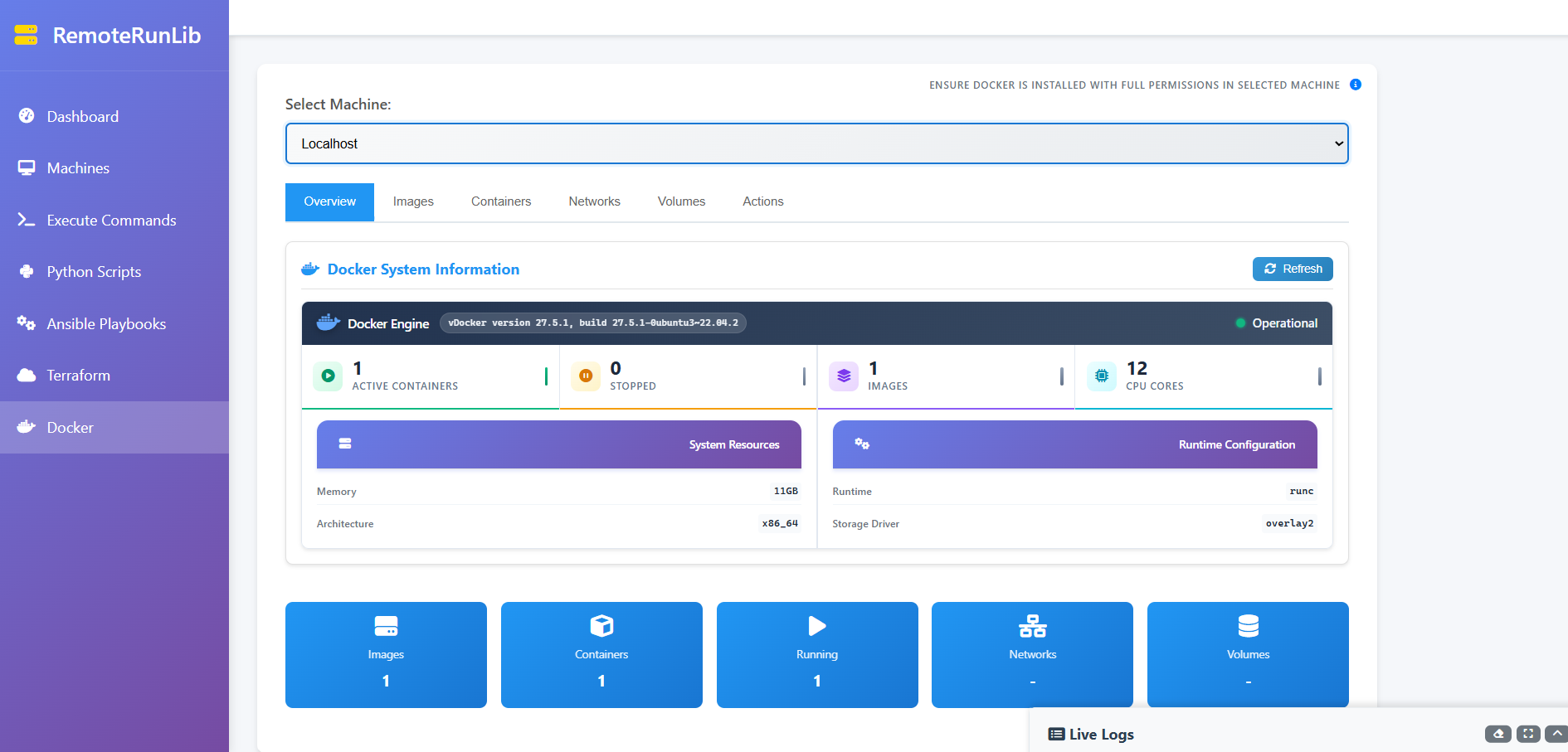
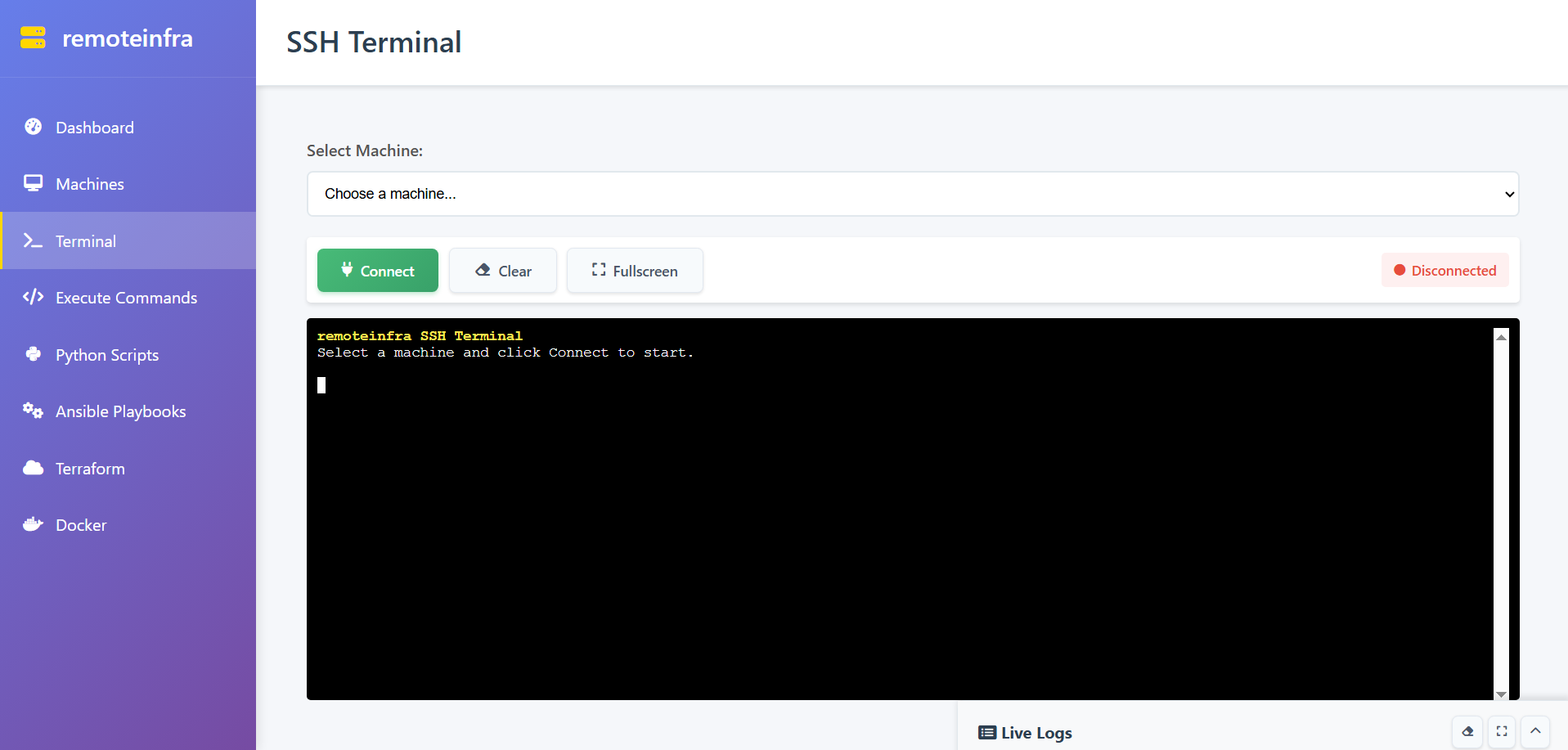
Many more features coming soon...
Quick Start (Dashboard)
from remoteinfra import Dashboard
client = Dashboard(host='localhost', port=8000)
client.serve()
# Open http://localhost:8000 in browser
This launches a Flask server at http://localhost:8000 with a secure, responsive web UI and REST API. You can manage machines, run commands, scripts, Docker, Ansible, Terraform, and more from your browser. All actions are logged and can be integrated with CI/CD pipelines.
Key Features
- Command Execution: Run shell commands on any managed machine, with live logs and error reporting.
- Python Script Runner: Upload and execute Python scripts, view output and errors in real time.
- File & Directory Transfer: Send/receive files and directories between local and remote hosts.
- Ansible Automation: Run playbooks or ad-hoc commands, monitor execution, and review logs/history.
- Terraform Automation: Plan, apply, import, and manage infrastructure as code, with full output and error tracking.
- Docker Management: Start/stop containers, view images, and more (localhost).
- Execution History: Every action is logged; review past executions, outputs, and errors.
- Live Logs: Real-time streaming of command/script/playbook output via WebSocket.
- REST API: Integrate with CI/CD pipelines, automation tools, or custom dashboards.
API Endpoints
GET /api/machines— List all machinesPOST /api/machines— Add a new machinePUT /api/machines/<machine_id>— Update a machineDELETE /api/machines/<machine_id>— Delete a machinePOST /api/execute-command— Execute a shell command on a machinePOST /api/run-python— Run a Python script on a machinePOST /api/run-ansible— Run an Ansible playbook or ad-hoc commandPOST /api/run-terraform— Run Terraform plan/apply/destroyPOST /api/docker/info— Get Docker system info (local/remote)POST /api/docker/images— List Docker images (local/remote)POST /api/docker/containers— List Docker containers (local/remote)POST /api/docker/networks— List Docker networks (local/remote)POST /api/docker/volumes— List Docker volumes (local/remote)POST /api/docker/container/logs— Get logs for a containerPOST /api/docker/container/inspect— Inspect a containerPOST /api/docker/pull— Pull a Docker imagePOST /api/docker/run— Run a Docker containerPOST /api/docker/exec— Execute a command inside a containerPOST /api/docker/container/action— Start/stop/restart/remove a containerPOST /api/docker/compose/up— Run docker-compose upPOST /api/docker/compose/save— Save docker-compose.ymlPOST /api/docker/system/prune— Prune unused Docker resourcesPOST /api/directories/<script_type>— Create/list/delete/rename project directories (Python/Ansible/Terraform)POST /api/directories/<script_type>/browse— Browse directory treePOST /api/directories/<script_type>/mkdir— Create subdirectoryPOST /api/directories/<script_type>/upload— Upload file/folderPOST /api/directories/<script_type>/file— Download, update, or delete filePOST /api/directories/<script_type>/rename— Rename file or folderPOST /api/directories/<script_type>/extract-zip— Extract zip filePOST /api/execute-project— Execute a project directoryPOST /api/execute-directory/<script_type>— Execute a script in a directoryPOST /api/ping-machine— Ping a machine by ID
The dashboard also provides a web UI at / and supports live logs via WebSocket (/ws).
Advanced Usage
Directory Management (Python)
# Send a directory
client.send_Directory('local_folder', '/remote/path/target_folder')
# Use a directory for Python, Terraform, or Ansible (see dashboard or API)
Key-based Authentication
client = SSHClient(hostname='remote_host', port=22, username='user', key_file='/path/to/private_key')
client.login()
Timeout and Live Output
output, errors = client.run_command('long_running_command', timeout=10)
Singleton Pattern
client1 = SSHClient(hostname='remote_host', port=22, username='user', password='password')
client2 = SSHClient(hostname='remote_host', port=22, username='user', password='password')
assert client1 is client2
Ansible Playbooks/Ad-hoc (demo/Ansible/main.py)
client.run_ansible_playbook('site.yml', inventory_file='inventory.ini', out='ansible_output.log', display=True)
client.run_ansible_playbook('uptime', inventory_file='inventory.ini', out='adhoc_output.log')
Terraform Automation (demo/terraform/main.py)
aws_backend = {'bucket': 'my-tf-state-bucket', 'key': 'state/terraform.tfstate', 'region': 'us-east-1'}
client.run_terraform_init(work_dir='terraform/aws', backend_config=aws_backend)
client.run_terraform_plan(work_dir='terraform/aws', vars_dict={'instance_type': 't2.micro'})
client.run_terraform_apply(work_dir='terraform/aws', plan_file='tfplan')
client.run_terraform_import(work_dir='terraform/aws', resource='null_resource.example', resource_id='some-id')
Contributing
Contributions are welcome! Please raise a pull request or open an issue on GitHub.
License
MIT License. See LICENSE file for details.
Acknowledgments
remoteinfra is built on Paramiko, xterm.js and Flask. Thanks to all contributors.
Disclaimer
Running remote commands/scripts can be risky. Connect only to trusted servers and follow your company security policies.
Release history Release notifications | RSS feed


Download files
Download the file for your platform. If you're not sure which to choose, learn more about installing packages.
Source Distribution
Built Distribution
Filter files by name, interpreter, ABI, and platform.
If you're not sure about the file name format, learn more about wheel file names.
Copy a direct link to the current filters
File details
Details for the file remoteinfra-1.0.2.tar.gz.
File metadata
- Download URL: remoteinfra-1.0.2.tar.gz
- Upload date:
- Size: 142.5 kB
- Tags: Source
- Uploaded using Trusted Publishing? No
- Uploaded via: twine/6.2.0 CPython/3.13.7
File hashes
| Algorithm | Hash digest | |
|---|---|---|
| SHA256 |
acd647e5e34812c07c248d5f07b77a7eabb41e0af04fd956eb9f1ae9ce29a127
|
|
| MD5 |
26fcb44745e6f2e532167b575e6abc0b
|
|
| BLAKE2b-256 |
cb9c303c4d9c467390bec4c79f9e02ba84296679e7005b1379f53e2cb901ab79
|
File details
Details for the file remoteinfra-1.0.2-py3-none-any.whl.
File metadata
- Download URL: remoteinfra-1.0.2-py3-none-any.whl
- Upload date:
- Size: 142.5 kB
- Tags: Python 3
- Uploaded using Trusted Publishing? No
- Uploaded via: twine/6.2.0 CPython/3.13.7
File hashes
| Algorithm | Hash digest | |
|---|---|---|
| SHA256 |
1d91713d2b26a0dc2316ad5fb470897b39b6a7316c001b7bf7ff0d89652950ee
|
|
| MD5 |
48fcbed34b56e5ad1654eb2c49f65282
|
|
| BLAKE2b-256 |
3ec5cbf4085abf6baeb3552edd0df7ef00af74f08f0d03e4c521447a5cb65608
|






