
A powerful interactive debugger for Robot Framework

Project description
rfdb - Robot Framework Debugger



A powerful interactive debugger for Robot Framework with real-time test control, variable inspection, and keyword retry capabilities.
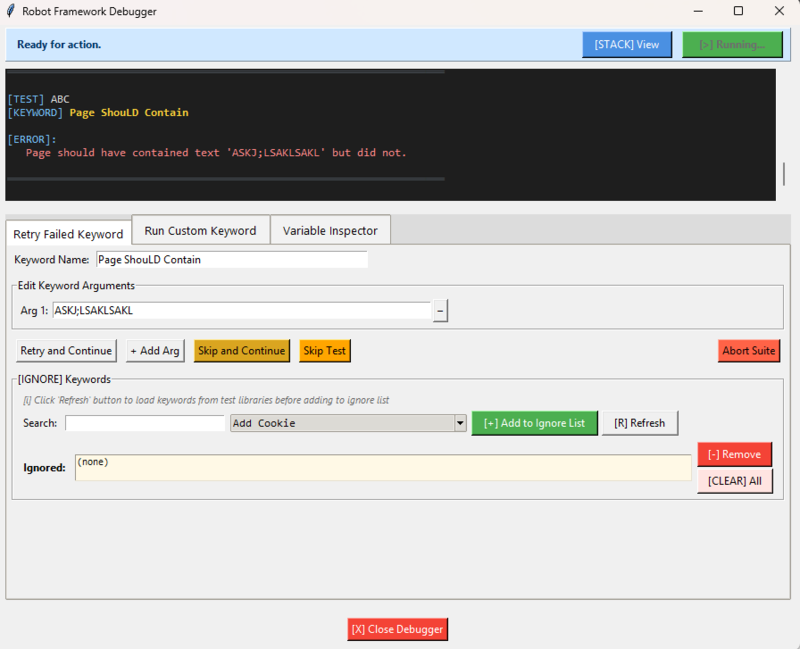
🚀 Features
- ⏸️ Pause & Continue: Stop test execution at any failure and resume when ready
- 🔄 Retry Keywords: Retry failed keywords with modified arguments
- 🔍 Variable Inspector: View all variables in real-time (test/suite/global scope)
- ⚡ Run Custom Keywords: Execute any keyword during test pause with search functionality
- 📊 Call Stack Viewer: Navigate execution hierarchy for complex test debugging
- 🎨 Enhanced Logs: Color-coded failure logs with structured output
- 🔎 Keyword Search: Filter and find keywords quickly in large libraries
- 💾 Memory Efficient: Auto-trimming logs, lazy library loading
� How It Works
rfdb uses Robot Framework's Listener API v3 to monitor test execution in real-time:
- Listens to Events: Hooks into test/keyword start/end events
- Detects Failures: When a keyword fails, execution pauses
- Opens GUI: Interactive debugger window appears automatically
- Blocks Execution: Test waits while you inspect variables, logs, and call stack
- User Actions: Continue, retry with modified args, or run custom keywords
- Resumes Tests: Execution continues based on your action
Non-Intrusive: No need to modify test code - just add --listener flag!
�📦 Installation
pip install rfdb
Requirements:
- Python 3.10+
- Robot Framework 7.1.1+
- tkinter (usually included with Python)
🎯 Quick Start
1: As a Listener
Run your tests with rfdb as a listener:
robot --listener rfdb your_test.robot
Or with multiple listeners:
robot --listener rfdb --listener OtherListener your_test.robot
2. Debug Interactively
The debugger GUI opens automatically when a test fails:
- Click Continue to proceed
- Use Retry Failed Keyword tab to retry with different arguments
- Check Variable Inspector to see current state
- Run Custom Keywords to inspect or fix issues
📖 Usage Guide
Execution Control
Pause on Failure: Automatically pauses when any keyword fails Continue Button: Resume test execution Emergency Exit (Ctrl+Q): Force-close debugger immediately
Retry Failed Keyword Tab
- Failed keyword appears in the list automatically
- Modify arguments if needed
- Click "Retry" to re-execute
- Or click "Skip" to mark as passed and continue
# Example: Retry with corrected element locator
Click Element    id=wrong_button    # Fails
# In debugger: Change to id=correct_button and retry
Run Custom Keyword Tab
Execute any Robot Framework keyword during pause:
- Search keywords: Type to filter (e.g., "click", "selenium")
- Select keyword: Click from filtered list
- Enter arguments: Add keyword arguments (comma-separated)
- Execute: Run the keyword immediately
Supported Libraries:
- BuiltIn
- SeleniumLibrary
- RequestsLibrary
- DatabaseLibrary
- Any custom libraries in your test
Variable Inspector Tab
View all Robot Framework variables in real-time:
- Test Variables: Current test scope (
${var}) - Suite Variables: Suite-level variables
- Global Variables: Global scope
- Built-in:
${TEST_NAME},${SUITE_NAME}, etc.
Auto-refreshes every second during active execution.
Call Stack Viewer
Click [STACK] View to see execution hierarchy:
Test: My Test Case
  └─ Keyword: Login To Application
      └─ Keyword: Input Text
          └─ Keyword: Wait Until Element Is Visible
⚙️ Configuration
Create rfdb_config.py in your project (optional):
# Customize log limits
MAX_LOG_LINES = 2000              # Default: 1000
MAX_FAILURE_LOG_LINES = 1000      # Default: 500

# Variable refresh rate (milliseconds)
VARIABLE_REFRESH_DELAY_MS = 500   # Default: 1000
🎨 Features in Detail
Enhanced Failure Logs
Color-coded for easy identification:
[FAIL]- Failed tests (red)[PASS]- Passed tests (green)[WARN]- Warnings (yellow)[KEYWORD]- Keyword names (gold)[ARGS]- Arguments (mint green)
Keyword Search
Real-time filtering in "Run Custom Keyword" tab:
- Type to filter keywords instantly
- Case-insensitive search
- Shows library name for each keyword
- Library status indicator
Memory Management
- Auto-trims logs to prevent memory bloat
- Lazy-loads library keywords only when needed
- Duplicate library prevention
- Efficient variable refresh
🔧 Troubleshooting
Debugger doesn't pause on failures
- Ensure
Library rfdb.RobotFrameworkDebuggeris in your test Settings - Check Robot Framework version (7.1.1+ required)
Keywords not showing in custom keyword list
- Libraries load lazily - they appear after first import
- Click "Refresh" button to reload
- Check library is imported in your test
Variables not updating
- Variables only refresh during active test execution
- Switch to Variable Inspector tab to trigger refresh
- Check test hasn't already completed
GUI not responding
- Press Ctrl+Q for emergency exit
- Keywords have 30-second timeout protection
🏗️ Architecture
- Listener API: Uses Robot Framework v3 Listener API
- Event-Driven: Thread-safe GUI updates
- Non-Blocking: Test execution and GUI run independently
- Memory Safe: Bounded logs, lazy loading
� Pro Tips
Best Practice: Use --listener flag instead of importing as library:
- ✅ No need to modify test files
- ✅ Works across all test suites
- ✅ Easy to enable/disable debugging
- ✅ Clean separation of concerns
For CI/CD: Simply remove --listener rfdb flag in automated runs
�📝 Examples
Example 1: Retry with Modified Arguments
*** Test Cases ***
Login Test
    Login To System    wrong_user    wrong_pass
    # Debugger pauses - correct credentials in retry tab
    # Click Retry with: correct_user, correct_pass
Example 2: Custom Keyword Debugging
*** Test Cases ***
Element Test
    Click Element    id=button
    # Fails - element not found
    # In Custom Keyword tab:
    #   1. Search "wait"
    #   2. Select "Wait Until Element Is Visible"
    #   3. Args: id=button, 10s
    #   4. Execute to check if element appears
Example 3: Variable Inspection
*** Test Cases ***
Variable Test
    ${result}=    Calculate Something
    # Pause and check Variable Inspector
    # See ${result} value before proceeding
    Should Be Equal    ${result}    expected_value
📄 License
MIT License - see LICENSE file for details
🔗 Links
- PyPI: https://pypi.org/project/rfdb/
- GitHub: https://github.com/suri-53/rfdb
- Issues: https://github.com/suri-53/rfdb/issues
- Robot Framework: https://robotframework.org/
📊 Version History
v2.0.3 (Latest)
- ✨ Added keyword search functionality
- 🎨 Enhanced log formatting with color-coded tags
- 📝 Replaced emojis with text indicators
- 🔧 Library loading improvements (duplicate prevention)
- 📊 Library status indicator
- 🐛 Bug fixes and performance improvements
v1.0.0
- 🎉 Initial release
- ⏸️ Pause/Continue functionality
- 🔄 Retry failed keywords
- 🔍 Variable inspector
- ⚡ Custom keyword execution
Made with ❤️ for Robot Framework community
Features Overview
1. Execution Control
- Pause/Continue: Stop test execution at any point and resume when ready
- Emergency Exit (Ctrl+Q): Force-close debugger immediately
- Auto-timeout Protection: Keywords auto-continue after 30 seconds to prevent hangs
2. Failure Log
- Real-time display of test failures with detailed error messages
- Color-coded output for easy identification:
[FAIL]- Failed tests (red)[PASS]- Passed tests (green)[WARN]- Warnings (yellow)
- Automatic log trimming (keeps last 500 entries for performance)
- Shows test names, keyword names, arguments, and error messages
3. Retry Failed Keyword
- Select any failed keyword from the list
- Modify arguments before retrying
- One-click retry with current or modified arguments
- Useful for fixing flaky tests or environment issues
4. Run Custom Keyword
- Execute any Robot Framework keyword during test execution
- Search functionality: Filter available keywords in real-time
- Auto-loads keywords from imported libraries (lazy loading)
- Library status indicator shows loaded libraries and keyword count
- Duplicate library prevention for better performance
- Supports keywords from:
- BuiltIn library
- SeleniumLibrary
- Any custom libraries imported in your tests
5. Variable Inspector
- View all Robot Framework variables in real-time
- Categories:
- Test Variables:
${var}- Current test scope - Suite Variables:
${var}- Suite scope - Global Variables:
${var}- Global scope - Built-in Variables:
${TEST_NAME},${SUITE_NAME}, etc.
- Test Variables:
- Auto-refreshes during active test execution (1-second intervals)
- Shows "No active execution context" when tests aren't running
6. Call Stack Viewer
- View complete execution hierarchy
- Shows current test → keywords → nested keywords
- Helps understand execution flow and debug complex test structures
- Displays arguments passed to each level
Usage
Starting the Debugger
Run your tests with rfdb as a listener:
robot --listener rfdb your_test.robot
The debugger GUI opens automatically when a test fails.
Keyboard Shortcuts
- Ctrl+Q: Emergency exit (force close debugger)
Best Practices
-
Use Search: When running custom keywords, use the search box to quickly find keywords in large libraries
-
Monitor Variables: Switch to Variable Inspector tab during pauses to check test state
-
Retry Failures: Instead of re-running entire test suite, retry failed keywords directly
-
Check Call Stack: Use "View Call Stack" to understand where you are in nested keyword execution
-
Performance: Debugger limits logs to 1000 lines and failure logs to 500 lines for VDI/slow environments
Configuration
Edit these constants in gui.py if needed:
MAX_LOG_LINES = 1000              # Main log size
MAX_FAILURE_LOG_LINES = 500       # Failure log size
VARIABLE_REFRESH_DELAY_MS = 1000  # Variable refresh rate (ms)
Troubleshooting
Debugger doesn't pause
- Check that the library is imported in your test Settings
- Verify Robot Framework version compatibility (v7.1.1+)
Keywords not loading
- Library loads lazily when first needed
- Click "Refresh" to force reload library keywords
- Check library import statements in your test
GUI freezes
- Press Ctrl+Q for emergency exit
- Keywords timeout automatically after 30 seconds
- Check VDI performance settings if running remotely
Variables not updating
- Variables only refresh during active test execution
- Switch to Variable Inspector tab to trigger refresh
- Check that test hasn't completed yet
Technical Details
- Framework: Robot Framework v3 Listener API
- GUI: Python Tkinter
- Architecture: Event-driven with thread-safe operations
- Memory Management: Auto-trimming logs, lazy library loading
- Error Handling: Timeout protection, graceful degradation
Version History
v2.0.3 (Current)
- Added search functionality for custom keywords
- Enhanced log formatting with color-coded tags
- Removed emojis, replaced with text indicators
- Library loading improvements (duplicate prevention, status display)
- Better error messages and visual hierarchy
Support
For issues or questions:
-
Check logs in failure log window
-
Review call stack for execution context
-
Verify library imports in test settings
-
Check Robot Framework version compatibility


Download files
Download the file for your platform. If you're not sure which to choose, learn more about installing packages.
Source Distribution
Built Distribution
Filter files by name, interpreter, ABI, and platform.
If you're not sure about the file name format, learn more about wheel file names.
Copy a direct link to the current filters
File details
Details for the file rfdb-2.0.3.tar.gz.
File metadata
- Download URL: rfdb-2.0.3.tar.gz
- Upload date:
- Size: 31.7 kB
- Tags: Source
- Uploaded using Trusted Publishing? No
- Uploaded via: twine/6.2.0 CPython/3.10.0
File hashes
| Algorithm | Hash digest | |
|---|---|---|
| SHA256 |
68c9f11522bb2dbb2b8d136392a84346ab2b141bc55457cd0ca114bd19dc91bf
|
|
| MD5 |
02cf835f8b58cb828643e201f00adf4b
|
|
| BLAKE2b-256 |
84d9e4c7f4577c5dc578615172b4d01310ec7e684c45d79df70387a6590fd7b6
|
File details
Details for the file rfdb-2.0.3-py3-none-any.whl.
File metadata
- Download URL: rfdb-2.0.3-py3-none-any.whl
- Upload date:
- Size: 28.2 kB
- Tags: Python 3
- Uploaded using Trusted Publishing? No
- Uploaded via: twine/6.2.0 CPython/3.10.0
File hashes
| Algorithm | Hash digest | |
|---|---|---|
| SHA256 |
bbb372969bcf2da7e61870dbc97e937c9fd44d00e021536e1b3a2bc8628db3a5
|
|
| MD5 |
4a9a8eba0532ddee048c46785efe1c14
|
|
| BLAKE2b-256 |
34bb94bf6570d871b56f142abdaae4a8e984801a5830ac62a581379382320394
|






