
Riched
Terminal Editor with VS Code Keybindings Powered by Rich
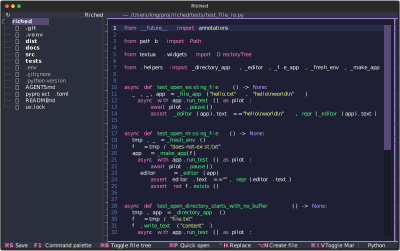
Python buffer: tests/test_file_io.py |
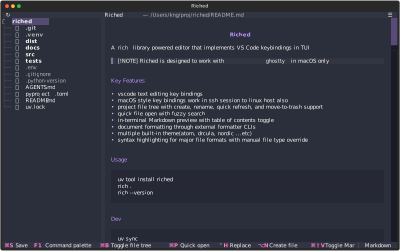
Markdown preview: README.md |
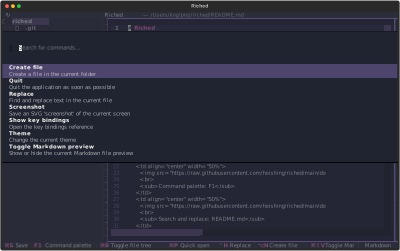
Command palette: F1 |
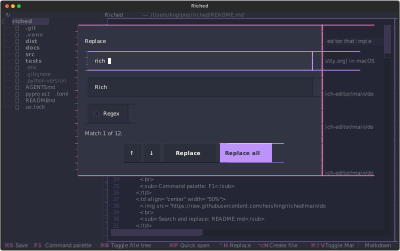
Search and replace: README.md |
Key Features
- vscode text editing key bindings
- macOS style key bindings work in ssh session to linux host also
- project sidebar with create, rename, quick refresh, and move-to-trash support
- quick file open with fuzzy search
- in-terminal Markdown preview with table of contents toggle
- document formatting through external formatter CLIs
- multiple built-in theme(atom, drcula, nordic ...etc)
- syntax highlighting for major file formats with manual file type override
Usage
uv tool install riched
riched .
riched --version
Dev
uv sync
uv run riched .
uv run python -m tests.runner
Key Bindings
Key bindings are generated from the YAML in src/rich_editor/bindings.yaml.
App shortcuts:
| Shortcut | Action |
|---|---|
⌘S |
Save |
F1 |
Command palette |
⌘B / ⌃B |
Toggle sidebar |
⌘P |
Quick open |
⌃H |
Replace |
⌃N |
Create file |
⌘⇧V |
Toggle Markdown preview |
⌥⇧F |
Format document |
⌘R |
Refresh |
Editor shortcuts:
| Shortcut | Action |
|---|---|
⌥↑ |
Move line up |
⌥↓ |
Move line down |
⌥⇧↑ |
Copy line up |
⌥⇧↓ |
Copy line down |
⌘Enter |
Insert line below |
⌘⇧Enter |
Insert line above |
⌘] |
Indent line |
⌘[ |
Outdent line |
⌥⌫ |
Delete word left |
⌘⌫ |
Delete to line start |
⌘Z / ⌃Z |
Undo |
⌘⇧Z / ⌃Y |
Redo |
⌘X |
Cut |
⌘/ |
Toggle line comment |
⌥Z |
Toggle word wrap |
⌥⇧← |
Select word left |
⌥⇧→ |
Select word right |
⌘L |
Select line |
⌘⇧K |
Delete line |
⌘⇧← |
Select to line start |
⌘⇧→ |
Select to line end |
Sidebar shortcuts:
| Shortcut | Action |
|---|---|
← |
Collapse folder |
→ |
Expand folder |
Enter |
Rename selected file or folder |
Space |
Open file or toggle folder |
⌘⌫ / ⌃U |
Remove selected file or folder |
Esc |
Quit |
Settings
Riched persists the selected Textual theme in settings.yaml under the user config directory: ~/Library/Application Support/riched/settings.yaml
Markdown Preview
Use ⌘⇧V to toggle an in-terminal rendered preview for Markdown files. The preview uses the current editor buffer, so unsaved edits are shown without writing them to disk.
When Markdown preview is open, the header shows a ☰ button on the right. Click it to show or hide the Markdown table of contents. The button is hidden while editing the text buffer.
Syntax And File Types
Riched detects syntax highlighting from the file extension and shows the active file type in the lower-right footer. Unknown extensions are treated as plain text.
Click the file type label to choose another language for the current buffer. Manual selection updates highlighting and language-aware commands such as toggle comment, but reopening or refreshing the file resets the type from the file extension.
Detected extensions include Python, JavaScript, TypeScript, TSX, Bash, environment files, HTML, CSS, JSON, JSONC, JSON Lines, Markdown, YAML, TOML, INI-style config files, XML, SQL, Java, Go, Rust, Dockerfile, Makefile, and logs.
Dockerfile syntax highlighting uses the optional tree-sitter-dockerfile package. If that package is unavailable for your platform, Riched still opens Dockerfiles and supports Dockerfile comment toggling, but leaves Dockerfile tree-sitter highlighting disabled. Install riched[dockerfile] on supported platforms to enable it.
Formatting
The ⌥⇧F shortcut formats the current buffer with external formatter CLIs:
- Python files use
ruff. - TOML files use
taplo. - XML files use
prettierwith@prettier/plugin-xml. - Other supported source/config formats use
prettier.
Install the required tools before using the shortcut:
bun add --global prettier @prettier/plugin-xml
brew install ruff taplo
Files unsupported by these tools are left unchanged and Riched shows a warning.
Refresh
Use the ↻ title-bar button or ⌘R to refresh the workspace. Refresh reloads the sidebar and reloads the current buffer from disk. If the buffer has unsaved edits, Riched prompts to save, discard, or cancel before reloading.
Creating Files
Use ⌃N to create a file. Riched prompts for the file name and supports nested relative paths such as notes/today.md.
When a folder is highlighted in the sidebar, the new file is created inside that folder. Otherwise, the new file is created beside the currently open file. If no file is open, the new file is created in the project root.
If the requested file already exists, Riched opens it without overwriting its contents.
Renaming Files And Folders
When the sidebar is focused, Enter opens a rename prompt for the selected file or folder. Renaming keeps the open buffer connected to the renamed path when the current file, or a folder containing it, is renamed.
The project root cannot be renamed. Empty names, path separators, and duplicate target names are rejected in the prompt.
Moving Files To Trash
When the sidebar is focused, ⌘⌫ removes the selected file or folder by moving it to Trash. The command palette also shows Move "<name>" to Trash for the selected sidebar item. Both paths ask for confirmation before moving the item.
On stock Ghostty, ⌘⌫ is delivered to terminal apps as ⌃U, so Riched binds both forms for the sidebar.
Limitations
- Textual textarea limitation:
- no multi-cursor editing
- no chord hotkey sequence such as
⌘K ⌘S
Ghostty hotkey conflicts
- some hotkeys are bound by Ghostty by default. eg.
⌘Z,⌘⇧Z,⌘Enter,⌘⇧Enter,⌘⇧V,⌘[,⌘],⌘W,⌘Q...etc - Riched detects conflicted shortcuts at startup.
- Conflicted shortcuts are hidden from the footer until they are unbound in Ghostty config, unless the command has another available alternative.
- The key bindings popup marks conflicted shortcuts with
⚠️and shows a Ghostty config reminder. F1is the command palette hotkey.⌘⇧Pis intentionally not bound.
Unbind Ghostty default keybindings
Ghostty keybindings can be unbound in the Ghostty config file. On macOS, use one of:
~/Library/Application Support/com.mitchellh.ghostty/config.ghostty~/Library/Application Support/com.mitchellh.ghostty/config~/.config/ghostty/config.ghostty~/.config/ghostty/config
Add one keybind = <trigger>=unbind line per conflicted shortcut you want to use in Riched:
keybind = super+shift+v=unbind
keybind = super+[=unbind
keybind = super+]=unbind
keybind = super+enter=unbind
keybind = super+shift+enter=unbind
keybind = super+z=unbind
keybind = super+shift+z=unbind
Then reload Ghostty config with ⌘⇧, or restart Ghostty. To inspect Ghostty's defaults before changing them:
ghostty +list-keybinds --default
Disable Ghostty font ligatures
Textual does not expose an app-side font ligature switch. To disable programming ligatures while using Riched, add this to the same Ghostty config file:
font-feature = -calt
1 maintainer

Metadata
1 maintainer
Release files for riched 1.6.1
For a detailed explanation of source distributions (sdists) and built distributions (wheels), please see the package formats documentation.
Source distribution (sdist)
| File | Size | Uploaded | |
|---|---|---|---|
| riched-1.6.1.tar.gz | 112.8 kB | Details |
Built distribution (wheel)
| File | Interpreter | ABI | Platform | Reset |
|---|---|---|---|---|
| riched-1.6.1-py3-none-any.whl | Python 3 | none | any | Details |
Total release size: 150.1 kB
Release files / riched-1.6.1.tar.gz
| Download URL | riched-1.6.1.tar.gz |
|---|---|
| Size | 112.8 kB |
| Tags | Source |
|
SHA-256 checksum How to use checksums |
61498fa5a2bdebc20d3db0da4ecadf82ad1125ab990aa2b7c637cfbc60341e01
|
|
BLAKE2b-256 checksum How to use checksums |
e03b3e97760fd4a75a9ab3dbf3d35cca4d60e787ef56bc4d70d66d94094a27ea
|
| Upload date | |
|
Uploaded using Trusted Publishing? What is trusted publishing? |
No |
| Uploaded via |
uv/0.12.7 {"installer":{"name":"uv","version":"0.12.7","subcommand":["publish"]},"python":null,"implementation":{"name":null,"version":null},"distro":{"name":"macOS","version":null,"id":null,"libc":null},"system":{"name":null,"release":null},"cpu":null,"openssl_version":null,"setuptools_version":null,"rustc_version":null,"ci":null}
|
Release files / riched-1.6.1-py3-none-any.whl
| Download URL | riched-1.6.1-py3-none-any.whl |
|---|---|
| Size | 37.3 kB |
| Tags | Python 3 |
|
SHA-256 checksum How to use checksums |
18c898f2e46c6877efbd9a3a28efc58f270cbe0cf326926d695017341acf6db3
|
|
BLAKE2b-256 checksum How to use checksums |
5292ba0a08a7077ebeee75df1848dd7f8c232158b17166e103bfbc19751abcfb
|
| Upload date | |
|
Uploaded using Trusted Publishing? What is trusted publishing? |
No |
| Uploaded via |
uv/0.12.7 {"installer":{"name":"uv","version":"0.12.7","subcommand":["publish"]},"python":null,"implementation":{"name":null,"version":null},"distro":{"name":"macOS","version":null,"id":null,"libc":null},"system":{"name":null,"release":null},"cpu":null,"openssl_version":null,"setuptools_version":null,"rustc_version":null,"ci":null}
|














