
An intelligent FFmpeg utility for prioritizing and converting inefficient video files (BLOAT score).

Project description
rmbloat - the smart video converter for media server owners
rmbloat is an intelligent, interactive video converter designed specifically for media server owners to reclaim massive amounts of disk space effortlessly, while maintaining high visual quality. It identifies the most inefficient videos in your collection and lets you convert them in prioritized, low-impact background batches.
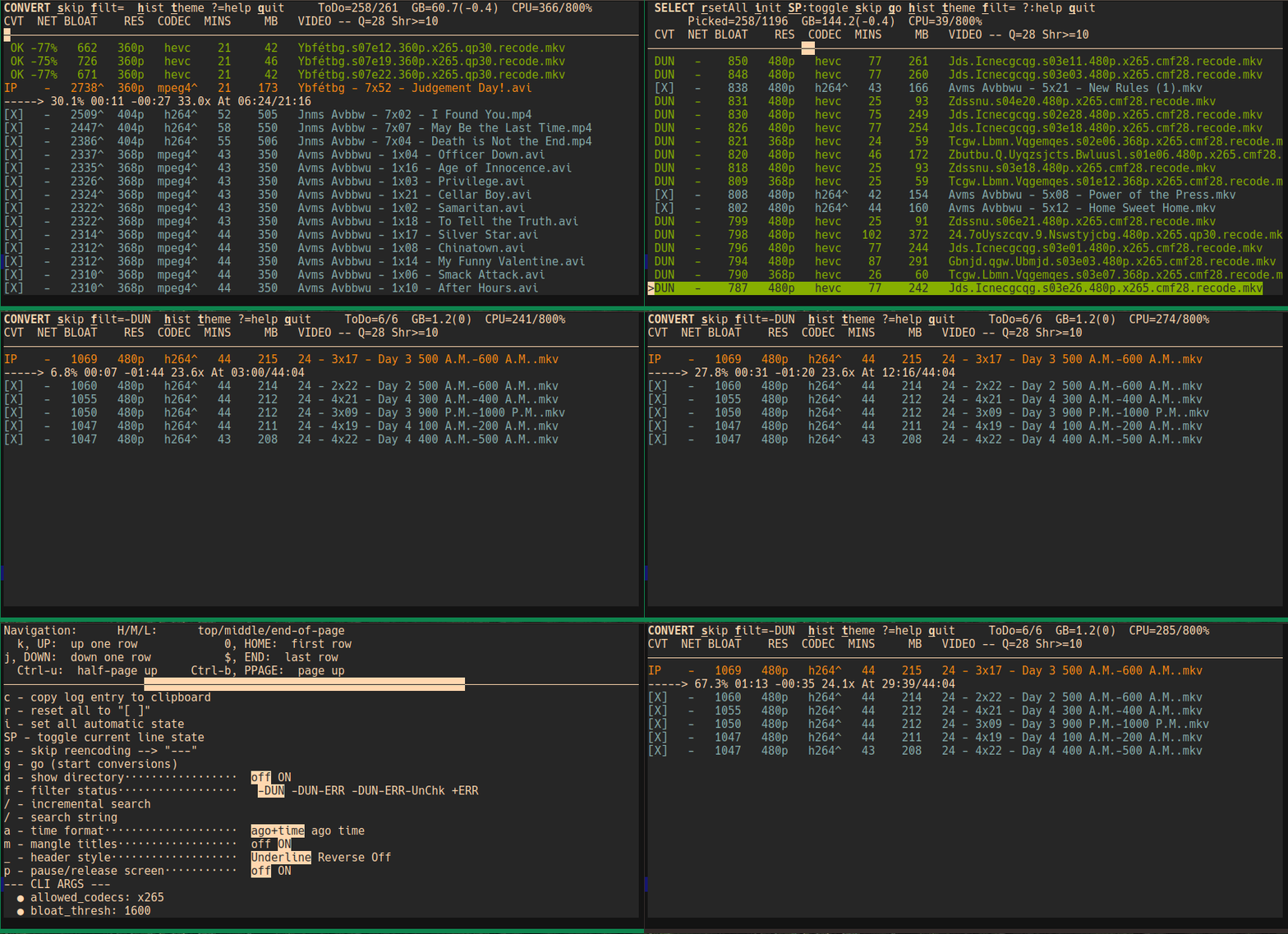
Quick Start
Want to get started immediately? Here's the fastest path:
# Install rmbloat
pipx install rmbloat

# Install ffmpeg (Ubuntu/Debian)
sudo apt update && sudo apt install ffmpeg

# Test your setup
rmbloat --chooser-tests

# Scan your video collection and start converting
rmbloat /path/to/videos
After the scan completes, the interactive interface will open. Press g to start converting the selected videos. For detailed setup with hardware acceleration (recommended for large collections), see Installation and System Preparation below.
The Compelling Problem (and the rmbloat Solution)
Your video library is likely filled with bloat: older H.264 (AVC), MPEG-4, or high-bitrate H.265 files that waste valuable storage and sometimes create playback challenges.
- The Problem: Manually finding and converting these files is tedious, requires dozens of FFmpeg commands, and can easily overwhelm your server.
- The
rmbloatSolution: We use the unique BLOAT metric to prioritize files that will give you the largest size reduction per conversion.rmbloatthen runs the conversions in a low-priority, controlled background process, creating space savings with minimal server disruption.
Since it is designed for mass conversions on a media server, it often makes sense to start rmbloat in a tmux or screen session that out-lives a log-in session (e.g., on a headless server).
Installation and System Preparation
To install rmbloat, use pipx rmbloat. If explanation is needed, see Install and Execute Python Applications Using pipx.
So installing rmbloat is simple. And if your system has ffmpeg installed with HEVC (H.265) encoding support, you are ready to go, however with agonizingly slow software encoding. The bigger your video collection, the less acceptable software encoding will be.
Anyhow, you have three options for running ffmpeg described below. These instructions are for Ubuntu and other Debian derived distros. For other distros, you must adjust the procedures accordingly.
System Requirements. To ensure smooth video transcoding and a responsive experience when navigating large logs in the History Screen, the following hardware is recommended:
Processor (CPU). The application leverages hardware-accelerated video encoding. For the best balance of speed and quality:
- Intel: 11th Gen (Tiger Lake) or newer.
- Why: These chips feature the improved QuickSync (QSV) engine with native support for 10-bit HEVC and AV1 decoding.
- AMD: Ryzen 5000 Series (Zen 3) or newer.
- Why: Features the VCN 3.0+ engine, which provides parity for modern high-efficiency codecs.
Memory (RAM)
- Minimum: 8GB
- Recommended: 16GB (especially if processing 4K content)
- Why: While the logger is lightweight, the underlying video buffers and the TUI's 50MB log window require stable overhead to prevent interface lag during heavy I/O.
Option 1: Local FFmpeg with Hardware Acceleration (Recommended)
This provides the best performance with lowest overhead.
Install FFmpeg on Ubuntu:
rmbloat is tested with FFmpeg v7 (recommended at time of authoring). FFmpeg v6 should also work, but v7 has better HEVC encoding performance and dependability.
sudo apt update
sudo apt install ffmpeg

# Check your FFmpeg version
ffmpeg -version
If you have FFmpeg v6 and want to upgrade to v7:
# Remove existing FFmpeg
sudo apt remove ffmpeg

# Add FFmpeg v7 PPA and install
sudo add-apt-repository ppa:ubuntuhandbook1/ffmpeg7
sudo apt update
sudo apt install ffmpeg

# Verify version
ffmpeg -version
Enable VA-API Hardware Acceleration:
# Install VA-API drivers and Intel media driver
sudo apt install libva-dev intel-media-va-driver-non-free

# Add your user to video and render groups
sudo usermod -aG video $USER
sudo usermod -aG render $USER

# Log out and back in for group changes to take effect
# Or run: newgrp video && newgrp render

# Verify hardware acceleration is working
vainfo
# Should show: "vaQueryConfigEntrypoints: VAEntrypointEncSlice" for H265/HEVC

# Test with rmbloat
rmbloat --chooser-tests
Note: For non-Intel GPUs (AMD, NVIDIA), you'll need different drivers. Intel is most common for VA-API.
Option 2: Docker/Podman with Hardware Acceleration
If you can't get local FFmpeg working with acceleration, or prefer containerization:
# Install Docker (Ubuntu)
sudo apt update
sudo apt install docker.io
sudo usermod -aG docker $USER
# Log out and back in

# OR install Podman (rootless alternative)
sudo apt install podman

# Install VA-API host requirements (same as Option 1)
sudo apt install libva-dev intel-media-va-driver-non-free
sudo usermod -aG video $USER
sudo usermod -aG render $USER
# Log out and back in
rmbloat will automatically pull and use the joedefen/ffmpeg-vaapi-docker:latest image. For details on this image and additional host setup requirements, see: https://github.com/joedefen/ffmpeg-vaapi-docker
Option 3: CPU-Only Encoding (Fallback)
If hardware acceleration isn't available or working, rmbloat will automatically fall back to CPU encoding. This works but is significantly slower (3-10x depending on hardware).
# Just install FFmpeg. If v6, we suggest upgrading to v7
# as described above.
sudo apt update
sudo apt install ffmpeg
Verify Your Setup
After setup, test what's working:
# Basic detection test (shows which options you have
# for conversion to hevc)
rmbloat --chooser-tests

# Full test with a video file (runs 30s encoding tests)
rmbloat --chooser-tests /path/to/sample/video.mp4
The output will show which strategies work and recommend the best one. rmbloat automatically selects the best available option at runtime.
Bloat Metric
rmbloat uses a resolution-normalized bitrate metric to identify inefficient video files:
bloat = 1000 * bitrate / sqrt(height*width)
Understanding Bloat Values:
| Bloat Range | Description | Typical Source | Compression Potential |
|---|---|---|---|
| 800-1200 | Efficiently compressed | Modern H.265/HEVC | Minimal (already optimized) |
| 1200-2000 | Moderate compression | Good H.264 or older H.265 | ~20-40% reduction possible |
| 2000-3000 | Poor compression | Older H.264, high bitrate | ~40-60% reduction possible |
| 3000-5000 | Very bloated | Blu-ray rips, older codecs | ~60-75% reduction possible |
| 5000+ | Extremely bloated | Old MPEG-4, uncompressed | ~75-85% reduction possible |
Examples:
- Bloat 1000: Aggressively compressed H.265 - minimal gains from re-encoding
- Bloat 2500: Typical streaming H.264 - good candidate for conversion, ~50% reduction
- Bloat 4000: Old Blu-ray rip or DVD encode - excellent candidate, ~4x size reduction likely
- Bloat 8000: Ancient MPEG-4 or AVI - huge savings possible, often 6-8x reduction
Default threshold: rmbloat uses 1600 as the default bloat threshold. Files above this are automatically selected for conversion. Adjust with -b/--bloat-thresh based on your storage constraints and quality requirements.
Using rmbloat
Starting rmbloat from the CLI
rmbloat requires a list of files or directories to scan for conversion candidates (or uses saved defaults if configured). The full list of options are:
usage: rmbloat.py [-h] [-a {x26*,x265,all}] [-b BLOAT_THRESH] [-F] [-B]
                  [-M] [-H MAX_HEIGHT] [-m MIN_SHRINK_PCT]
                  [-p {auto,system_accel,docker_accel,system_cpu,docker_cpu}]
                  [-q QUALITY] [-t THREAD_CNT] [-S] [--auto-hr AUTO_HR]
                  [-n] [-s] [-L] [-T]
                  [files ...]

CLI/curses bulk Video converter for media servers

positional arguments:
  files                 Video files and recursively scanned folders w Video
                        files

options:
  -h, --help            show this help message and exit
  -a {x26*,x265,all}, --allowed-codecs {x26*,x265,all}
                        allowed codecs [dflt=x265]
  -b BLOAT_THRESH, --bloat-thresh BLOAT_THRESH
                        bloat threshold to convert [dflt=1600,min=500]
  -F, --full-speed      if true, do NOT set nice -n19 and ionice -c3
                        [dflt=False]
  -B, --keep-backup     if true, rename to ORIG.{videofile} rather than
                        recycle [dflt=False]
  -M, --merge-subtitles
                        Merge external .en.srt subtitle files into output
                        [dflt=False]
  -H MAX_HEIGHT, --max-height MAX_HEIGHT
                        Maximum video height in pixels; videos taller than
                        this will be scaled down [dflt=65536]
  -m MIN_SHRINK_PCT, --min-shrink-pct MIN_SHRINK_PCT
                        minimum conversion reduction percent for
                        replacement [dflt=10]
  -p {auto,system_accel,system_cpu,docker_accel,docker_cpu},
      --prefer-strategy {auto,system_accel,system_cpu,docker_accel,docker_cpu}
                        FFmpeg strategy preference [dflt=auto]
  -q QUALITY, --quality QUALITY
                        output quality (CRF) [dflt=28]
  -t THREAD_CNT, --thread-cnt THREAD_CNT
                        thread count for ffmpeg conversions [dflt=4]
  -S, --save-defaults   save the -B/-b/-p/-q/-a/-F/-H/-m/-M options and file
                        paths as defaults
  --auto-hr AUTO_HR     Auto mode: run unattended for specified hours,
                        auto-select [X] files and auto-start conversions
  -s, --sample          produce 30s samples called SAMPLE.{input-file}
  -L, --logs            view the logs
  -T, --chooser-tests   run tests on ffmpeg choices w 30s cvt of 1st given
                        video
You can (and should) customize the defaults by setting the desired options and adding the --save-defaults option to write the current choices to its .ini file.
- Setting the default for
--prefer-strategywill speed startup once you have tested and found the best strategy. --save-defaultsincludes saving your video collection root paths, so you don't need to specify them every time you runrmbloat. File paths are automatically sanitized: converted to absolute paths, non-existing paths removed, and redundant paths (subdirectories of other saved paths) eliminated. Non-video files in the given files and directories are simply ignored.
Resolution Control: By default, rmbloat processes videos of any height (max-height defaults to 65536 pixels). Videos taller than the max-height setting will be automatically downscaled while preserving aspect ratio. To limit conversions to a specific resolution:
- For 1080p max:
rmbloat --max-height 1080 /path/to/videos - For 4K/2160p max:
rmbloat --max-height 2160 /path/to/videos - Save as default:
rmbloat --max-height 1080 -S(applies to all future runs)
This is useful for media server owners who want to cap their collection at a specific resolution to manage storage or ensure compatibility with playback devices.
Candidate video files are probed (with ffprobe). If the probe fails, then the candidate is simply ignored. Probing many files can be time consuming, but rmbloat keeps a cache of probes so start-up can be fast if most of the candidates have been successfully probed.
The Three Main Screens
The main screens are:
- Selection Screen - where you can customize the decisions and scope of the conversions. The Selecition screen is the first screen after start-up.
- Conversion Screen - where you can view the conversion progress. When conversions are completed (or manually aborted), it returns to the Selection screen.
- Help Screen - where you can see all available keys and meanings. Use the key, '?', to enter and exit the Help screen.
Selection Screen
After scanning/probing the file and folder arguments, the selection screen will open. In the example below, we have applied a filter pattern, anqis.gsk, to select only certain video files.
 [r]setAll [i]nit SP:toggle [g]o ?=help [q]uit /kcjzd
      Picked=17/123  GB=83.5(0)  CPU=9/800%
 CVT  NET BLOAT    RES  CODEC  MINS     GB   VIDEO -- Q=28 Shr>=10 MrgSrt
─────────────────────────────────────────────────────────────────────────────────────
>[X]  ---  2725^  672p   h264^   89  1.567   Jds Kcjzd 2015 720p Readnfo HDRIP x264 A
 [X]  ---  2070^ 1080p   h264^   46  0.960   Q.Wcuzbisnl.bx.Kcjzdsu.S03E04.1080p.HBO.
 [X]  ---  2053^ 1080p   h264^   45  0.936   Q.Wcuzbisnl.bx.Kcjzdsu.S03E06.1080p.HBO.
 [X]  ---  2052^ 1080p   h264^   46  0.953   Q.Wcuzbisnl.bx.Kcjzdsu.S03E05.1080p.HBO.
 [X]  ---  2045^ 1080p   h264^   47  0.963   Q.Wcuzbisnl.bx.Kcjzdsu.S03E03.1080p.HBO.
 [X]  ---  2014^ 1080p   h264^   46  0.923   Q.Wcuzbisnl.bx.Kcjzdsu.S03E07.1080p.HBO.
 [X]  ---  1735^ 1080p   hevc    51  0.894   Jds.Kcjzdsn.S04E08.1080p.HEVC.x265-MeGus
   ...
Notes.
[ ]denotes a video NOT selected for conversion.[X]denotes a video selected for conversion.- other (often uncommon) CVT states are:
---- denotes a manually "skipped" (i.e., don't convert) video:- in select mode,
ssets/clears skip mode - in convert mode,
sskips stops the current video conversion and sets the state
- in select mode,
?Pn- denotes probe failedntimes (stops at 9)- A "hard" failure which cannot be overridden to start conversion
ErN- denotes conversion failedNtimes (stops at 9)Er1is a "very soft" state (auto overriden); can manually select other values
OPT- denotes the prior conversion went OK except insuffient shrinkage- can manually select for conversion
DUN- denotes already re-encoded (filename ends with.recode.mkv)- "semi-soft" ban: first toggle attempt prompts for session-wide permission to re-encode
- prevents accidental re-encoding of your own output files
^denotes a value over the threshold for conversion. Besides an excessive bloat, the height could be too large, or the codec unacceptable; all depending on the program options.- To change whether selected, you can use:
- the s/r/i keys to affect potentially every select, and
- SPACE to toggle just one; if one is toggled, the cursor moves to the next line so you can toggle sequences very quickly starting at the top.
- The videos are always sorted by their current bloat score, highest first.
- To start converting the selected videos, hit "go" (i.e., the
gkey), and the Conversion Screen replaces this Selection screen.- Some key option choices are summarized after "VIDEO --"; before hitting
z, reviewing those options is suggested.
- Some key option choices are summarized after "VIDEO --"; before hitting
Conversion Screen
The Conversion screen only shows the videos selected for conversion on the Selection screen. There is little that can be done other than monitor progress and abort the conversions (with 'q' key) or skip one (with the 's' key).
CONVERT skip filt=  hist theme ?=help quit     ToDo=164/166  GB=43.7(-0.5)  CPU=441/800%
CVT  NET BLOAT    RES  CODEC  MINS     MB   VIDEO -- Q=28 Shr>=10
─────────────────────────────────────────────────────────────────────────────────────────
 OK -75%   632   352p   hevc    40     86   Avms.Avbbwu.s02e10.352p.x265.qp30.recode.mkv
 OK -77%   589   352p   hevc    41     80   Avms.Avbbwu.s02e15.352p.x265.qp30.recode.mkv
IP    -   2548^  352p  mpeg4^   41    348   Avms Avbbwu - 2x06 - Black and Blue.avi
-----> 45.1% 00:30 -00:37 36.0x At 18:22/40:44
[X]   -   2511^  352p  mpeg4^   41    348   Avms Avbbwu - 2x19 - Some Kind of Hero.avi
[X]   -   2501^  352p  mpeg4^   42    348   Avms Avbbwu - 2x20 - Working Girls.avi
[X]   -   2492^  352p  mpeg4^   42    348   Avms Avbbwu - 2x03 - Critical Condition.avi
     ...
Notes: You can see:
- the net change in size,
(-0.5)GB, and the current size,43.7GB. - the CPU consumption which is sometimes rather high as in this example depending on the effectiveness of hardware acceleration, etc.
- the progress of the In Progress (IP) conversion including percent complete, time elapsed, time remaining, conversion speed vs viewing speed (2.3x), and the position in the video file.
- for completed conversions, the reduction in size, the new size, and the new file name of the converted video.
- typing
qwill abandon any IP conversion and return to the selection screen.
Help Screen
The Help screen is available from the other screens; enter the Help screen with ? and exit it with another ?
Navigation:      H/M/L:      top/middle/end-of-page
  k, UP:  up one row             0, HOME:  first row
j, DOWN:  down one row           $, END:  last row
  Ctrl-u:  half-page up     Ctrl-b, PPAGE:  page up
  Ctrl-d:  half-page down     Ctrl-f, NPAGE:  page down
──────────────────────────────────────────────────────────────────────
Type keys to alter choice:
                    ? - help screen:  off ON
             r - reset all to "[ ]"
        i - set all automatic state
     SP - toggle current line state
              g - begin conversions
    q - quit converting OR exit app
           p - pause/release screen:  off ON
                  / - search string:  witch
                  m - mangle titles:  off ON
- Some keys are for navigation (they allow vi-like navigation).
- Some keys are set a state, and the current state is capitalized
- Some keys are to instigate some action (they have no value)
- Finally,
/is to set the filter. The filter must be a valid python regular expression, and it is always case insensitive.
Running rmbloat Under tmux
Why tmux?
rmbloat enforces a single-instance policy - only one instance can run at a time. This is by design for resource management: video conversion is CPU and I/O intensive, and running multiple instances would compete for system resources, slowing down all conversions.
Video conversion is often very long-running - processing a large video collection can take hours or even days. Using tmux keeps rmbloat running persistently without requiring you to stay connected. You can:
- Start a conversion session and detach
- Reconnect later to check progress
- Let conversions run overnight or over weekends
- Survive SSH disconnections without interrupting the work
The rmbloatd Wrapper
rmbloat includes rmbloatd, a tmux wrapper that manages persistent sessions:
# Start rmbloat in tmux (fails if already running)
rmbloatd start

# Start with specific arguments
rmbloatd start -- --auto-hr 8 /path/to/videos

# Attach to running session
rmbloatd attach

# Check status
rmbloatd status

# Stop rmbloat
rmbloatd stop
Important: Only start accepts arguments. Use attach to connect to an existing session, and stop to terminate.
Auto Mode for Maintenance Runs
Once your video collection is fully converted, you might want periodic "maintenance" runs to handle new arrivals. Auto mode (--auto-hr) is perfect for this - it runs unattended for a specified duration, automatically selecting and converting files.
Example: Weekend maintenance run
# Run for 48 hours, auto-selecting files needing conversion
rmbloatd start -- --auto-hr 48
The auto mode will:
- Automatically mark files for conversion based on your criteria
- Start conversions without manual intervention
- Stop cleanly after the specified time limit
- Use saved defaults for paths if configured with
--save-defaults
Scheduled Runs with Cron
For regular maintenance during off-hours, use cron. Important: Cron runs with a minimal PATH, so you need to either use absolute paths or set PATH in your crontab.
# Edit your crontab
crontab -e

# Set PATH to include where rmbloatd is installed
# (adjust path based on where pip installed it - use 'which rmbloatd' to find it)
PATH=/home/yourusername/.local/bin:/usr/local/bin:/usr/bin:/bin

# Example: Run Friday night at 11 PM for 48 hours (weekend maintenance)
# First, save your video paths as defaults:
#   rmbloat --save-defaults /path/to/videos
0 23 * * 5 rmbloatd start -- --auto-hr 48

# Example: Run every night at 2 AM for 6 hours
0 2 * * * rmbloatd start -- --auto-hr 6

# Example: Stop at 8 AM (before business hours)
0 8 * * * rmbloatd stop
Alternative: Use absolute paths instead of setting PATH
# Find where rmbloatd is installed
which rmbloatd
# Example output: /home/joe/.local/bin/rmbloatd

# Use that absolute path in cron
0 23 * * 5 /home/joe/.local/bin/rmbloatd start -- --auto-hr 48
Note: Cron jobs won't start if rmbloat is already running (the single-instance lock prevents this). You can safely have overlapping cron entries - if the previous run is still active, the new start will fail harmlessly.
Using systemd (Alternative)
For systemd-based systems, you can create a timer unit for scheduled runs. This is more verbose than cron but integrates better with system logging:
# Create /etc/systemd/system/rmbloat-maintenance.service
[Unit]
Description=rmbloat video conversion maintenance
After=network.target

[Service]
Type=oneshot
User=your-username
ExecStart=/usr/local/bin/rmbloatd start -- --auto-hr 6

# Create /etc/systemd/system/rmbloat-maintenance.timer
[Unit]
Description=Run rmbloat maintenance nightly

[Timer]
OnCalendar=daily
OnCalendar=02:00
Persistent=true

[Install]
WantedBy=timers.target

# Enable the timer
sudo systemctl enable rmbloat-maintenance.timer
sudo systemctl start rmbloat-maintenance.timer
Troubleshooting
Hardware Acceleration Not Detected
Symptoms: rmbloat --chooser-tests shows "Hardware acceleration not available"
Solutions:
# Verify /dev/dri exists and has render devices
ls -l /dev/dri/
# Should show renderD128 or similar

# Check your user is in the right groups
groups
# Should include 'video' and 'render'

# If not, add yourself to the groups
sudo usermod -aG video $USER
sudo usermod -aG render $USER
# Log out and back in, then test again

# Verify VA-API is working
vainfo
# Should show VAEntrypointEncSlice for H265/HEVC

# Test with a specific device if multiple GPUs
rmbloat --chooser-tests --prefer-strategy system_accel
Permission Issues with /dev/dri
Symptoms: "Permission denied" errors when trying to use hardware acceleration
Solutions:
# Check permissions on render device
ls -l /dev/dri/renderD128

# Temporarily test with relaxed permissions (not for production)
sudo chmod 666 /dev/dri/renderD128

# Permanent fix: ensure correct group membership
sudo usermod -aG render $USER
sudo usermod -aG video $USER
# Log out and log back in

# Verify group membership took effect
id -nG
Docker Not Pulling Image
Symptoms: Docker fails to pull joedefen/ffmpeg-vaapi-docker:latest
Solutions:
# Check Docker is running
sudo systemctl status docker

# Test Docker manually
docker run hello-world

# Manually pull the image
docker pull joedefen/ffmpeg-vaapi-docker:latest

# If using Podman instead
podman pull joedefen/ffmpeg-vaapi-docker:latest

# Force pull with rmbloat (bypasses cache)
rmbloat --chooser-tests --prefer-strategy docker_accel
Conversions Repeatedly Failing
Symptoms: Multiple videos showing Er1, Er2, etc. in the CVT column
Common causes and solutions:
-
Corrupt source video:
- Try playing the video in VLC or another player
- Use
--samplemode to test a 30-second clip first - Check the logs:
rmbloat --logs
-
Insufficient disk space:
- Conversions need space for temporary files
- Ensure at least 2x the source video size is available
-
Hardware acceleration issues:
- Specific frames may trigger driver bugs
rmbloatwill automatically retry with CPU encoding- Check logs to see which strategy succeeded
-
Subtitle codec incompatibility:
- Some bitmap subtitle formats cause issues
rmbloatautomatically filters these out- Check logs for subtitle-related warnings
rmbloat Won't Start - "Already Running"
Symptoms: Error message about another instance running
Solutions:
# Check for existing process
ps aux | grep rmbloat

# Find and remove stale lock file
rm ~/.config/rmbloat/*.lock

# If using rmbloatd
rmbloatd status
rmbloatd stop  # if needed
Slow Conversion Speed
Expected speeds (per video minute, on modern hardware):
- Hardware acceleration: 30-60x realtime (2-minute video in 2-4 seconds)
- CPU-only encoding: 3-10x realtime (2-minute video in 12-40 seconds)
If slower than expected:
# Verify which strategy is being used
rmbloat --chooser-tests

# Try different strategies manually
rmbloat --prefer-strategy system_accel /path/to/videos
rmbloat --prefer-strategy docker_accel /path/to/videos

# Check CPU usage during conversion
htop  # or top
# Should see high ffmpeg CPU usage

# For hardware accel, check GPU usage
intel_gpu_top  # Intel GPUs
radeontop      # AMD GPUs
Frequently Asked Questions (FAQ)
Can I run multiple instances of rmbloat?
No. rmbloat enforces a single-instance policy by design. Video conversion is CPU and I/O intensive - running multiple instances would:
- Compete for hardware acceleration resources
- Slow down all conversions significantly
- Create file conflicts if working on the same directories
- Potentially corrupt output files
If you need to process multiple directories, combine them in one run: rmbloat /path1 /path2 /path3
Will this hurt video quality?
By default (-q 28), you should see minimal to no perceptible quality loss for most content:
- Modern displays and streaming have conditioned viewers to H.265 at these quality levels
- The "bloat" metric targets files that have excessive bitrate for their resolution
- Very bloated files (4000+) have so much redundancy that compression is nearly lossless
- Quality is automatically adjusted by resolution (see Intelligent Quality Adjustment)
Quality considerations:
- For archival/critical content: Use
-q 22for higher quality - For space-constrained situations: Use
-q 32for more compression - For 4K collections: The default
-q 28works well (encodes at effective CRF 30, which is ideal for 4K) - Test first: Use
--sampleto create 30-second samples and compare - You can always re-encode if unsatisfied (though it's rarely needed)
How long will it take to convert my collection?
Rough estimates (for a 10TB collection):
| Scenario | Speed | Time |
|---|---|---|
| Modern Intel/AMD with hardware accel | 30-60x realtime | 3-7 days |
| Older hardware with acceleration | 15-30x realtime | 1-2 weeks |
| CPU-only encoding | 3-10x realtime | 1-2 months |
Factors affecting speed:
- Source codec (MPEG-4 is fast, H.264 is slower)
- Resolution (4K takes longer than 1080p)
- Your quality setting (
-qvalue) - Hardware acceleration availability
- System load from other processes
Recommendation: Start with a test run on a small subset (100-200 GB) to estimate your actual speed.
Can I pause and resume conversions?
Yes and no:
- Stopping: Quit with
q- the current video conversion is lost and must restart - Between videos: Progress is saved after each completed video
- Long-term: Use
rmbloatdwith tmux to detach/reattach - Scheduled: Use
--auto-hrto run for a specific duration
Best practice for large collections:
- Use
rmbloatd start -- --auto-hr 6for overnight runs - Let each run complete naturally
- Resume with another timed run when convenient
What happens to my original files?
By default, rmbloat deletes the original file after successful conversion and replaces it with the new .recode.mkv file.
Options:
- Keep backups: Use
-B/--keep-backupto rename originals toORIG.{videofile} - Minimum shrinkage:
-m 10(default) only replaces if new file is 10%+ smaller - Test mode: Use
--sampleto create test clips without touching originals
Safety features:
- Conversions are atomic - original is only deleted after successful conversion
- If conversion fails, original file is untouched
- Companion files (.srt, thumbnail folders) are automatically renamed to match
Does rmbloat work on Windows or macOS?
Currently, rmbloat is Linux-only by design:
- Developed and tested on Ubuntu/Debian systems
- Relies on Linux-specific features (ionice, process management, tmux integration)
- Hardware acceleration uses VA-API (Intel/AMD on Linux)
Workarounds:
- Windows: Use WSL2 (Windows Subsystem for Linux)
- macOS: Not officially supported (different hardware acceleration APIs)
What about AV1 codec support?
Currently, rmbloat focuses on H.265/HEVC encoding because:
- Universal playback support (all modern devices)
- Mature hardware acceleration (Intel QSV, AMD VCN, VA-API)
- Excellent compression efficiency
- Fast encoding with hardware support
AV1 considerations:
- Better compression than H.265, but slower encoding
- Hardware support still limited (requires very recent Intel/AMD)
- Not all devices can decode AV1 yet
- May be added in future versions
For now, H.265 provides the best balance of compression, speed, and compatibility.
Under the Covers
File Renaming Strategy
Files are renamed in one of these forms if they are successfully "parsed":
{tv-series}.sXXeXX.{encoding-info}.mkv{tv-series}.{year}.sXXeXX.{encoding-info}.mkv{movie-title}.{year}.{encoding-info}.mkv
The {encoding-info} (e.g., ".qp30.") is not fixed at the start; instead, it "crystallizes" on completion to reflect the encoder and quality used.
- Hardware: Show.S01E01.1080p.x265.qp28.recode.mkv (Uses .qp or .cmf)
- Software Fallback: Show.S01E01.1080p.x265.crf22.recode.mkv (Uses .crf or .ql)
So, the metadata is technically accurate per the encoding strategy.
For those video files for which the needed components cannot be determined, it changes resolution or codec if those parts are both found and are now wrong.
Companion files, like .srt files, and folders who share the same basename w/o the extension(s), will be renamed also if the video file was renamed.
Intelligent Quality Adjustment
rmbloat doesn't just blindly use your -q quality setting for all videos. It intelligently adjusts quality based on resolution and encoding method to maintain consistent visual quality across your collection.
Resolution-Based Adjustment
rmbloat intelligently adjusts quality settings based on resolution to optimize the balance between file size and visual quality:
| Resolution | Adjustment | Reason |
|---|---|---|
| < 480p (e.g., 352p, 240p) | -4 from base quality | SD content needs significant quality boost |
| 480p-720p (e.g., 480p, 576p) | -2 from base quality | Moderate boost for older content |
| 720p-1080p | No adjustment | Baseline quality (reference point) |
| 4K+ (2160p and above) | +2 from base quality | High pixel density allows efficient compression |
Example: With -q 28 (default):
- A 4K (2160p) video uses quality 30 (efficient compression for high resolution)
- A 1080p video uses quality 28 (baseline)
- A 480p video uses quality 26 (higher quality to compensate)
- A 352p video uses quality 24 (much higher quality)
Why this matters: 4K content has 4x the pixels of 1080p. Using the same CRF would result in massive file sizes with imperceptible quality gains. The +2 adjustment for 4K content provides excellent quality while keeping file sizes reasonable.
Hardware vs Software Quality Scales
Software and hardware encoders use different quality scales:
-
Software encoders (libx265, libx264): Use CRF (Constant Rate Factor)
- Lower is better quality: CRF 18 = excellent, CRF 28 = good, CRF 40 = poor
-
Hardware encoders (VAAPI): Use QP (Quantization Parameter)
- Different scale: QP 30 ≠ CRF 28 in visual quality
rmbloatautomatically maps CRF → QP using a calibrated table- Mapping typically adds ~2 points (e.g., CRF 28 → QP 30)
Why this matters: If you set -q 28, a hardware-encoded video might actually use QP 30 to match the visual quality of CRF 28 from software encoding. This ensures consistent quality regardless of which strategy is used.
Combined effects:
- A 352p video with
-q 28using hardware acceleration would encode at approximately QP 26 (28 - 4 for resolution + 2 for hardware mapping), giving it the quality boost it needs to look good despite the low resolution. - A 4K video with
-q 28using hardware acceleration would encode at approximately QP 32 (28 + 2 for resolution + 2 for hardware mapping), efficiently compressing the high pixel count while maintaining excellent visual quality.
Logging (--logs)
When a conversion completes successfully or not, details are logged into files in your ~/.config/rmbloat folder. You can view those files with rmbloat --logs using less; see the less man page if needed.
Performance and Server Impact
By default, ffmpeg conversions are done with both ionice and nice lowering its priority. This will (in our experience) allow the server to run rather well. But, your experience may vary.
- Decoupled Processing: We do conversions in a dedicated background thread. This keeps the TUI (Terminal User Interface) smooth, allowing you to browse logs, check history, or adjust settings without interrupting the active (or even next) transcode. When using hardware accelerated encoding, the dedicated thread prevents blocking the hardware transcode (e.g., to consume status) actually reducing CPU.
Hardware Acceleration
rmbloat automatically detects and uses hardware acceleration (VA-API) when available, providing significant performance improvements. The FfmpegChooser component intelligently selects the best encoding strategy:
Priority Order (when using auto strategy):
- System ffmpeg with hardware acceleration - Best performance, no container overhead
- System ffmpeg CPU-only - Uses installed system ffmpeg even without acceleration
- Docker/Podman with hardware acceleration - Only if system ffmpeg not installed
- Docker/Podman CPU-only - Last resort fallback
Key behavior: If you have system ffmpeg installed, rmbloat will always prefer it over Docker, even if system hardware acceleration isn't working. Docker is only used when system ffmpeg is completely unavailable.
You can override the automatic selection with the -p/--prefer-strategy option if needed.
To test your hardware acceleration support:
rmbloat --chooser-tests /path/to/test/video.mp4
This will run 120-second encoding tests with different strategies and report which work best on your system. If you newly downloaded a docker container, repeat or it will apply the download against the results.
Intelligent Resilience (The Retry Ladder)
rmbloat doesn't give up on the first error. If a hardware-accelerated conversion fails (often due to specific driver quirks or non-standard source frames), the engine automatically:
- Logs the failure.
- Adjusts parameters (e.g., falling back from Hardware to Software encoding).
- Retries the job automatically. This "ladder" approach ensures that even "difficult" files get converted without requiring manual intervention.
Subtitle Handling
rmbloat intelligently handles subtitle streams to prevent conversion failures:
Safe Text-Based Subtitles (kept and transcoded to SRT for MKV compatibility):
- subrip, ass, ssa, mov_text, webvtt, text
Unsafe Bitmap Subtitles (automatically dropped to prevent FFmpeg crashes):
- dvd_subtitle, hdmv_pgs_subtitle, dvb_subtitle, xsub, and other bitmap formats
During the probe phase, rmbloat detects problematic subtitle codecs and automatically excludes them from conversion. Text-based subtitles like mov_text (common in MP4 files) are transcoded to SRT format for universal MKV compatibility.
External .en.srt subtitle files can be merged into the output with the -M/--merge-subtitles option.
What Gets Dropped or Changed
Beyond video re-encoding, rmbloat makes several decisions about stream handling that are designed to reduce bloat while preserving what matters. Understanding these helps avoid surprises.
Streams Always Dropped:
| Stream Type | Why Dropped |
|---|---|
Attachments (-map -0:t) |
Fonts, cover art, thumbnails embedded in MKV. Often 10-50MB of bloat. Your media server typically ignores these anyway. |
Data streams (-map -0:d) |
Timecodes, chapter thumbnails, misc metadata. Rarely used by players. |
| Bitmap subtitles | DVD/Blu-ray image-based subs (PGS, VobSub). Can't be stored in MKV text tracks and often cause FFmpeg failures. See Subtitle Handling. |
Streams Always Kept:
| Stream Type | How Handled |
|---|---|
| Video | Re-encoded to HEVC (that's the point) |
| All audio tracks | Copied without re-encoding (-c:a copy). All languages preserved. |
| Text subtitles | Copied if safe codec, dropped if bitmap. See Subtitle Handling. |
Pixel Format Decisions:
The output pixel format depends on your hardware and the use_10bit setting:
| Scenario | Pixel Format | Notes |
|---|---|---|
| Hardware + 10-bit supported | p010le (10-bit) |
Best quality, requires modern Intel (Tiger Lake+) or AMD (Zen 3+) |
| Hardware + 10-bit NOT supported | nv12 (8-bit) |
Older hardware falls back automatically |
| Software + 10-bit | yuv420p10le |
CPU encoding always supports 10-bit |
| Software + 8-bit | yuv420p |
Standard 8-bit if use_10bit=False |
10-bit encoding provides better gradient handling (fewer banding artifacts) at the cost of slightly larger files. rmbloat defaults to 10-bit and automatically detects if your hardware supports it.
Container Format:
All output is MKV (Matroska), regardless of input format. MKV is chosen because:
- Supports all common audio/video codecs
- Handles multiple audio and subtitle tracks well
- No arbitrary stream limits (unlike MP4)
- Good compatibility with media servers (Plex, Jellyfin, Emby)
What This Means in Practice:
If you have a Blu-ray rip with:
- 40GB video track → Re-encoded to ~8GB HEVC
- 5 audio tracks (DTS-HD, TrueHD, etc.) → All kept, unchanged
- 3 PGS subtitle tracks → Dropped (bitmap format)
- 2 SRT subtitle tracks → Kept
- 20MB of embedded fonts → Dropped
- Cover art attachment → Dropped
The result is a much smaller file that plays identically on media servers, just without the embedded extras that most setups ignore anyway.
Videos Removed/Moved While Running
If videos are removed or moved while rmbloat is running, they will only be detected just before starting a conversion (if ever).
In that case, they are silently removed from the queue (in the Conversion screen), but there is a log of the event.
Since the conversions may be long-running and unattended, there is no alert other than the log.


Download files
Download the file for your platform. If you're not sure which to choose, learn more about installing packages.
Source Distribution
Built Distribution
Filter files by name, interpreter, ABI, and platform.
If you're not sure about the file name format, learn more about wheel file names.
Copy a direct link to the current filters
File details
Details for the file rmbloat-0.8.5.tar.gz.
File metadata
- Download URL: rmbloat-0.8.5.tar.gz
- Upload date:
- Size: 2.7 MB
- Tags: Source
- Uploaded using Trusted Publishing? No
- Uploaded via: python-requests/2.31.0
File hashes
| Algorithm | Hash digest | |
|---|---|---|
| SHA256 |
be86bfdfa276da59eabfe6784e2ed2971ae1e7068aa17a5237bb11576eb820d2
|
|
| MD5 |
f888d2c82e62a030a7598da01211a831
|
|
| BLAKE2b-256 |
a496c3b7314a44f60e311e0f4d3135c6d1e0306989a1a815194b79937331c334
|
File details
Details for the file rmbloat-0.8.5-py3-none-any.whl.
File metadata
- Download URL: rmbloat-0.8.5-py3-none-any.whl
- Upload date:
- Size: 95.3 kB
- Tags: Python 3
- Uploaded using Trusted Publishing? No
- Uploaded via: python-requests/2.31.0
File hashes
| Algorithm | Hash digest | |
|---|---|---|
| SHA256 |
3501ef11ba1a0b105af71ea06d6d072c501a8f34dc005901d6fa3d83b948e947
|
|
| MD5 |
2b89bafd1b75cbbf967dcaea9f82ba16
|
|
| BLAKE2b-256 |
225bff6d6f42c37c490e9ef206574db3559d53d03f4a9213956cc9fc2993549e
|






