
A ROM library management tool.

Project description
romlm (ROMs Library Manager)
A Python-based command line tool that helps you organize and manage your ROM collections effortlessly. Whether you want to pack, unpack, sort, or remove duplicates, romlm has got you covered.
All features are tested on the no-intro ROM sets (which I personally recommend), but it should work with any ROM collection that follows a similar naming convention. If you have some issues with other ROM sets, that can't be worked-around with the current implementation, feel free to open an issue on the GitHub issues page.
Features
-
Extract (
-x, --extract)
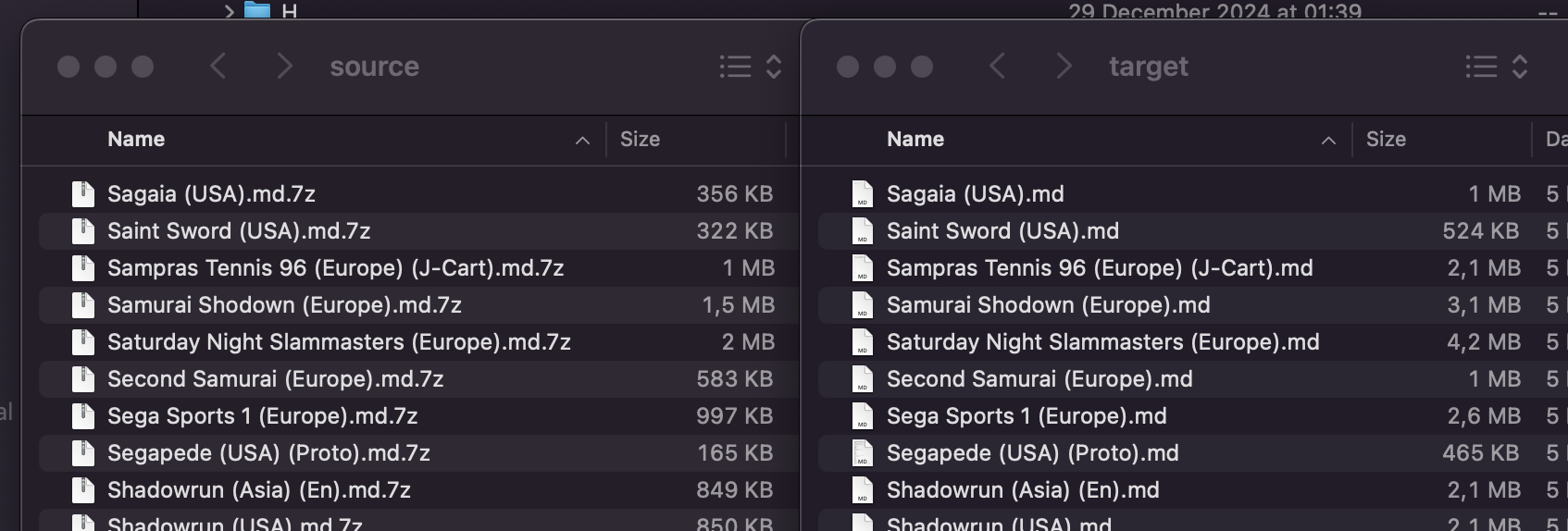
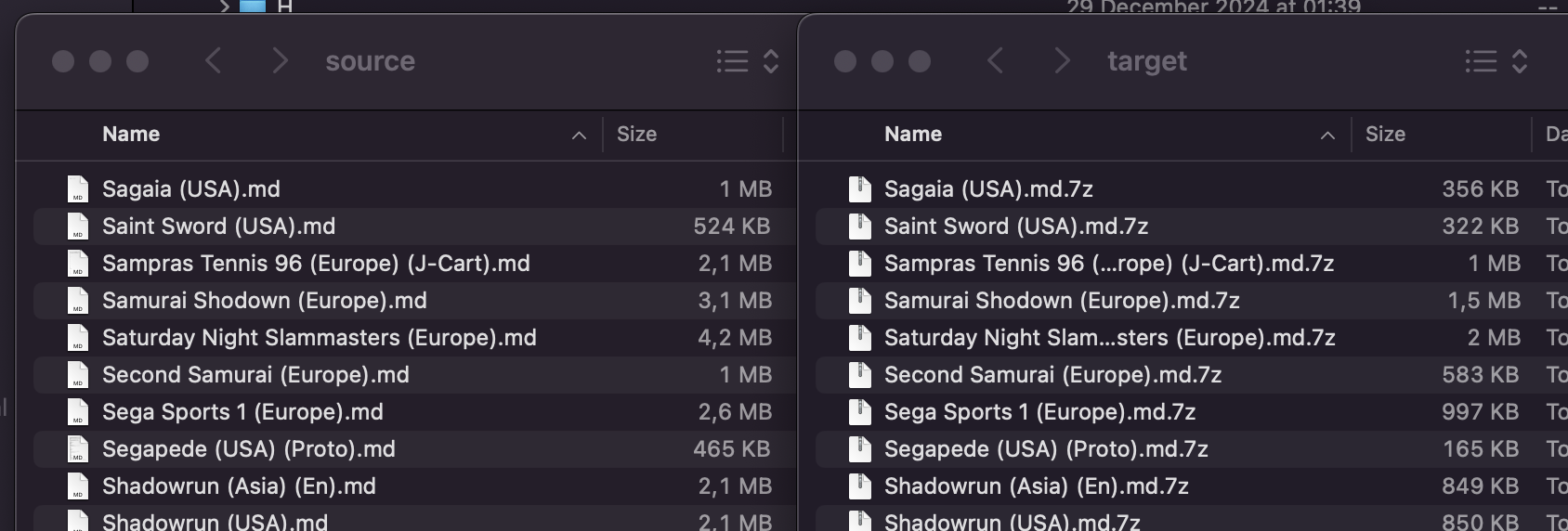
Automatically unpacks all.7zor.zipfiles in the current directory (or a specified folder) into subfolders. Supports nested subfolders, keeping all the structure. -
Pack (
-p, --pack)
Compresses all uncompressed files in the current directory (or a specified folder) into.7zor.ziparchives. Supports nested subfolders, keeping all the structure. -
Sort (
-s, --sort)
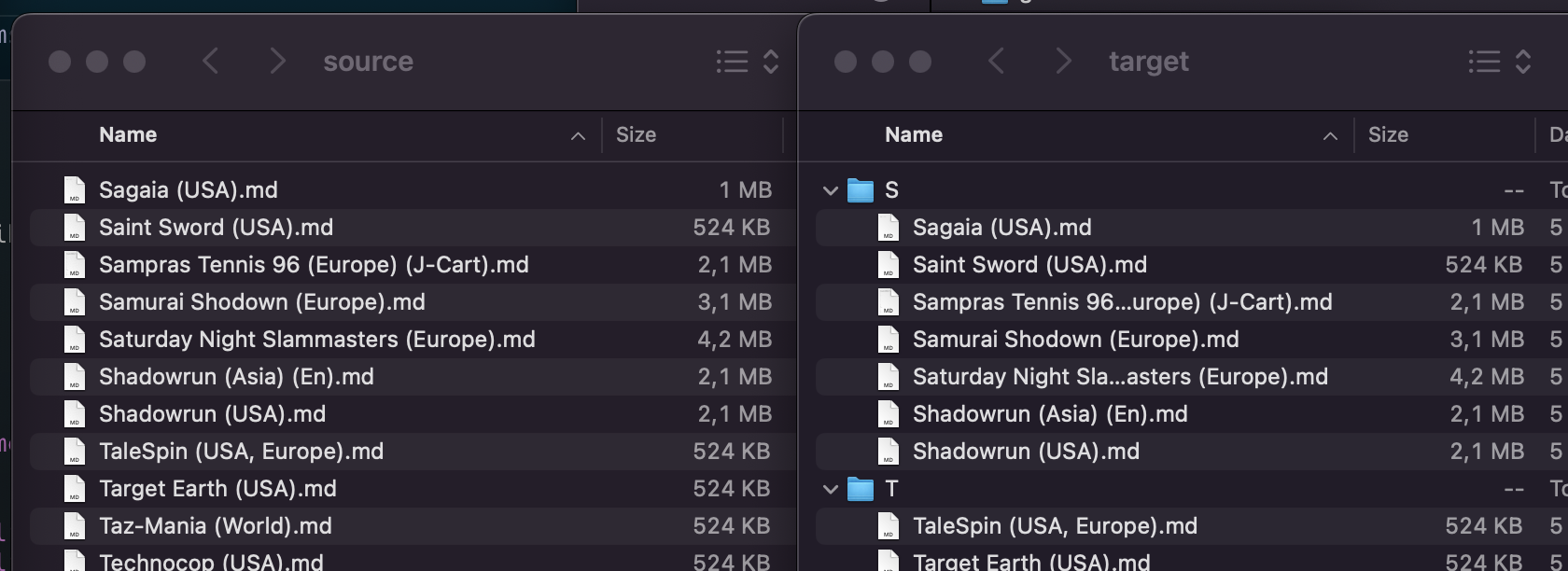
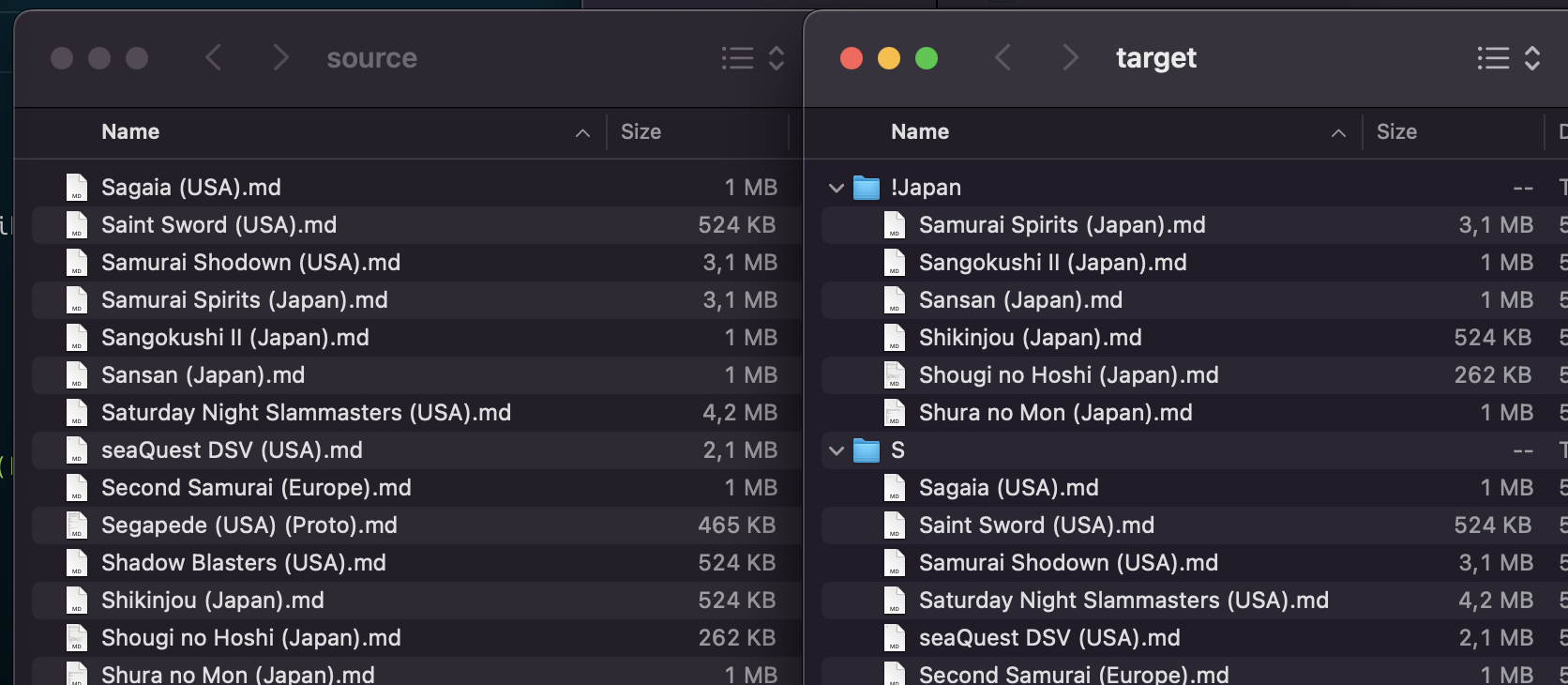
Moves files into alphabetically organized subfolders (A–Z). Optionally handles special folders for Homebrew (!Homebrew), Pirates (!Pirates), or user-defined subfolders (-f).hwill also sort files into homebrew subfolder.pwill also sort files into pirates subfolder.fwill also sort files into user-defined subfolders (-f).awill also sort files into homebrew, pirates and all user-defined subfolders (-f). Equal tohpf.- You can also use any combination of
h,pandfoptions, for examplehporfh. -s reversewill reverse-sort files, i.e., move them all back into the root folder.
-
Separate Homebrew and Pirate ROMs (
-u, --unlicensed)
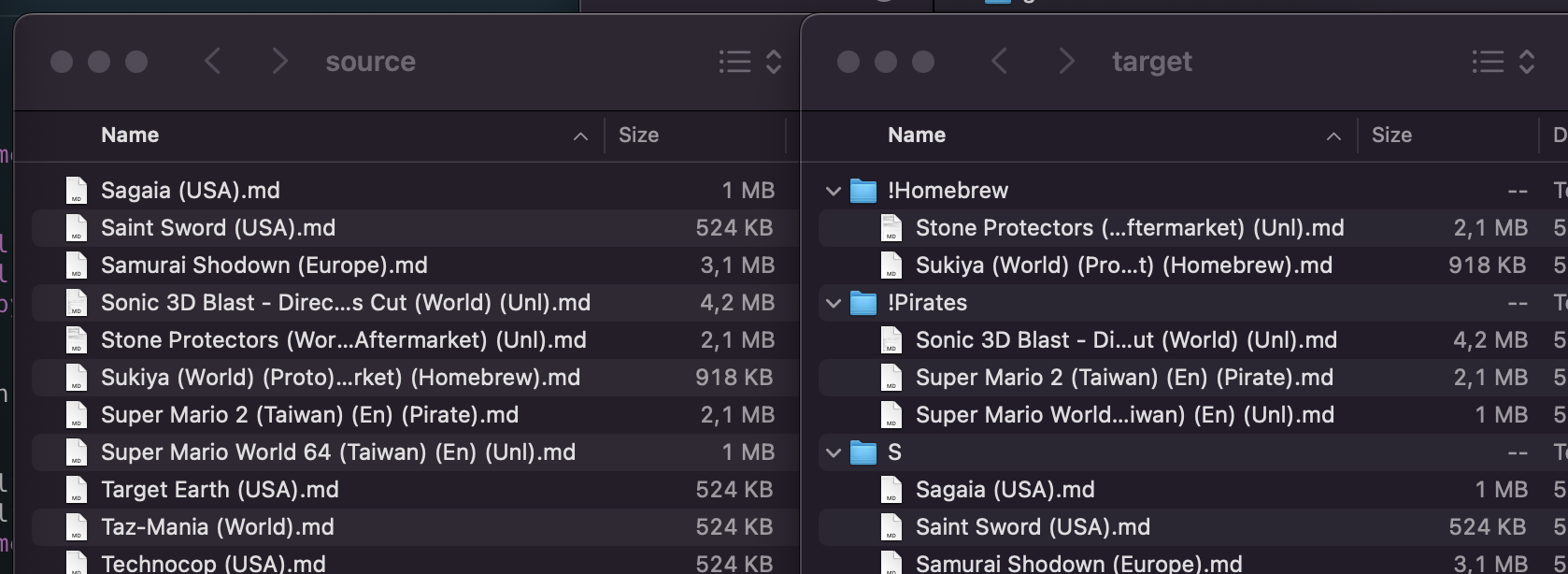
By default, romlm detects and separates Homebrew or Pirate files into dedicated folders. Can be customized with options:nonedisables separation completely,hseparates Homebrew files only,pseparates Pirate files only.
-
Remove Duplicates (
-r, --remove-duplicates)
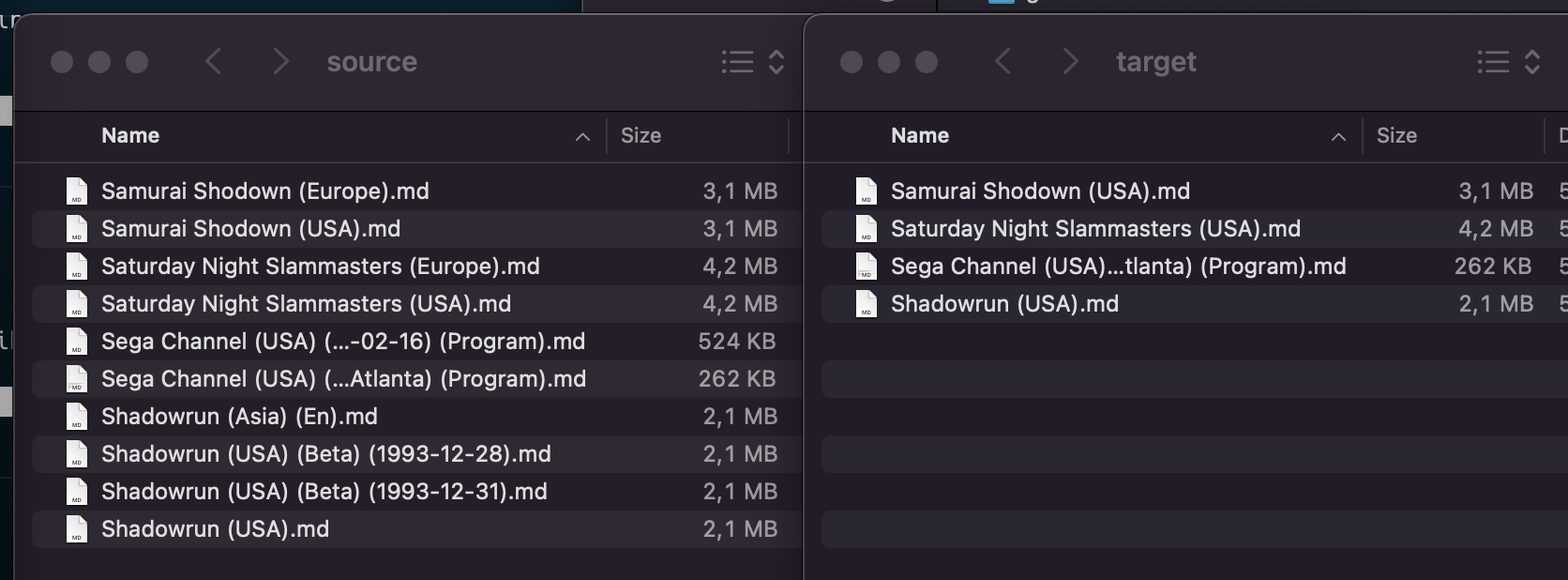
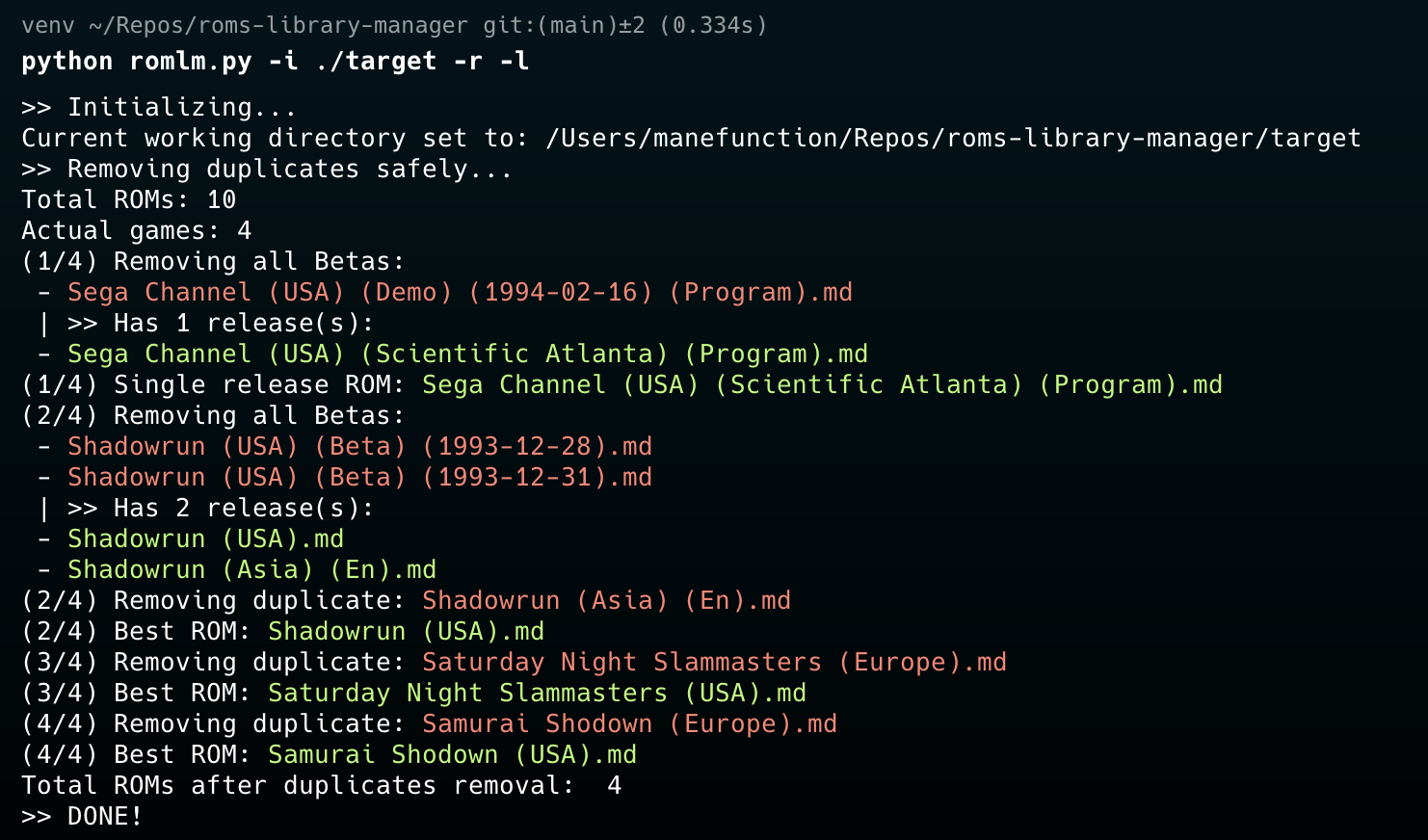
Automatically detects duplicate files, preserving the best candidate according to region, beta status, revision, version, release date and other data that can be received from the filename. Behavior for the situations when script can't decide the best file itself, can be specified:askprompts you which file to keep, default with-l,allkeeps all equally good files, default without-l,onekeeps exactly one of the best ROMs, taken randomly.
I highly recommend to use this feature with
-loption to see the results, and make a backup of your ROMs before!In the current scenario it removes all the beta and prototype files if there is a final version of the game exists. If not, it tries to keep only one the latest version. USA retro ROMs (not Virtual Console versions) counts as the best version of the game. Also, Europe and EN releases have a higher priority over JP and Asia versions, as well as NTSC counts better, than PAL. romlm will never remove all copies of one game!
If you want to keep a Japanese collection intact, I recommend to separate it first. See Usage Examples below.
-
User-defined Folders (
-f, --folders)
Easily map certain tags to user-defined folders. For example, specifying-f Japanwill move ROMs tagged as(Japan)into dedicated subfolder. Works only with--sortprocess as a part of it. Search only within tags, to not be confused with a game name, so if you just want all your Mario games in one place, just search it manually, romlm not for that. -
Exclude Tags (
-e, --exclude)
Combine with-fto skip specified tags from the subfolders sorting process. For example,-f Japan -e USAwill move all(Japan)tagged ROMs into a dedicated subfolder, excluding any(USA)tagged ROMs if(Japan, USA)combination is met. -
Logging (
-l, --log)
Enables verbose output to see exactly what the script is doing. Extremely useful when--remove-duplicatesis enabled. -
Other Utilities
- Cleans out unwanted system meta-files (e.g.,
desktop.ini,.DS_Store). - Removes empty subdirectories after sorting.
- Provides an in-script help guide (
-h, --help).
- Cleans out unwanted system meta-files (e.g.,
Usage examples and backstory
As a user of Analogue Pocket and an Emulation Station based handheld system, there are some nuances from both worlds that I'm trying to cover with romlm. Analogue Poket is a highly precise FPGA-based console, but it covers only earlier generations and a scoop of Arcade games. Though, those platforms, like NES, SNES and Genesis have a huge library of games, that should be sorted to have an easy access. Also, Pocket do not support archives, so all the ROMs should be unpacked. Standard software emulators, on the other hand, can play archived ROMs, and with the support of more later platforms, where games became bigger, it's great to have them packed, but also, it's good to have old systems packed as well, to save some Gigs for a few more CD games. So, I've need a tool to prepare my ROMs for both systems in a few clicks. That's how romlm was born.
Personally, I keep all my ROMs on Analogue Pocket, to be able to quickly launch any version of any game it supports. But I do not need all of those for a device that made for casual play. To be honest, I have Powkidy RGB30 with a rectangular screen, specifically for the Pico-8. Emulation capabilities of this device is just a neat bonus for me :) So, to prepare ROMs for Emulation Station devices, like Powkiddy, Anbernic, Miyoo, etc. we can clean our library from all the stuff we never play anyway.
There is an example how to separate and work with your Japanese library, if you need it. But it also can be a great example of romlm capabilities for you to learn. Emulation Station have a separate folders for Japanese libraries (at least for the 3 whales of retro gaming: NES, SNES and Genesis) as well as for homebrew, so it's good to separate them first, if you are interested in them. Here is the way:
-i ./your-roms -s a -f Japan -e USA,ENcommand first to separate non-en Japanese releases (they ends up in!Japanfolder). Alternatively, you can use-s fif your collection do not have a lot of homebrew and pirates, and you do not need to sort them in (A-Z) folders.- Put all sorted folders (A-Z) from
your-romsfolder toyour-roms/sortedfor example, to be able to treat them separately later. - Now you should have
sorted,!Japan,!Homebrew(if there was any) and!Pirates(if there was any) folders in youryour-romsfolder.!is used here to keep them on top of the list, as Emulation Station sorts folders alphabetically, but remember, that you should escape it with\!in the command line, so path for the next commands should look like-i ./your-roms/\!Japanfor example. - Do
-i ./your-roms/sorted -r -lfor all the subfolders separately to remove duplicates, but keep them in sorted (mostly USA for now) and Japanese folders. - After that you can pack all the ROMs in one command
-i ./your-roms -p. This command keeps our new folders structure.
This way you will keep all the Japanese versions of the games, separated into a dedicated folder, and anyways all other duplicates will be removed, easing the access to the games you want to play in the future and saving the space on your device for more great games.
Installation
romlm is available to use in a variety of ways.
pip or brew is recommended ways, because they can handle dependencies and updates automatically.
- brew (Recommended for Mac users)
- You can install romlm through the Homebrew formula for macOS users (if you have brew installed),
typing
brew install romlmin the Terminal. - Verify the installation with
romlm -hcommand. - You are perfect, you can use the app with
romlm [parameters]command from any folder in your system.
- You can install romlm through the Homebrew formula for macOS users (if you have brew installed),
typing
- Ready to use binaries (Mac and Windows)
- Download ready-to-use binaries from the GitHub Releases and run it with
./romlm. - Unpack the downloaded archive.
- On Mac:
- Open Terminal or any other CL app you prefer to use.
- Run
cd path/to/unpacked/folderto go to the folder (you can just drag'n'drop a folder to the Terminal to copy-paste its path). - Run
xattr -r -d com.apple.quarantine ./to remove the quarantine attribute from binaries
(I do not have an Apple Developer status at the moment and cannot sign binaries properly, this, hopefully, will be fixed in the future). - Run
./romlm -hto verify the script is working
(be aware, that macOS still running security checks, so the first start of the app will be longer for about 10-15 sec.). - You are perfect, you can use the app now with
./romlm [parameters]command.
- On Windows (cmd):
- Open Command Prompt (cmd) with
Win+Rand typingcmd, or just searchingcmdin a Start menu. - Run
cd path\to\folderto go to the folder withromlm.exe.
Don't forget to usecdwith/doption to change the drive, if needed (cd /d path\to\folder). - Run
romlm -hto verify the script is working. - You are perfect, you can use the app now with
romlm [parameters]command.
- Open Command Prompt (cmd) with
- On Windows (PowerShell):
- Open PowerShell searching it in a Start menu.
- Run
cd path\to\folderto go to the folder withromlm.exe. - Run
./romlm -hto verify the script is working. - You are perfect, you can use the app now with
./romlm [parameters]command.
- Download ready-to-use binaries from the GitHub Releases and run it with
- Python package (manual installation)
- Clone the repository or download the source code from the GitHub.
- Go to the folder with the script in your Terminal.
- Run
pip install .to installromlmto your system. - Run
romlm -hto verify the script is working. - You are perfect, you can use
romlm [parameters]command from anywhere in your system.
- Python script (manual usage, for advanced users)
- if you know how to work with Python scripts, venv, and dependencies, you can simply clone the repository
and run
romlm.py. In that way, feel free to modify the script for yourself as you want.
- if you know how to work with Python scripts, venv, and dependencies, you can simply clone the repository
and run
Credits
Created and maintained by ManeFunction.
Huge thanks to the no-intro team for their amazing work on the ROM sets and retro games preservation.
Also, big shoutout to the Nuitka project for the great Python compiler.
And of course, thanks for your contributions and feedback! If you have any questions, suggestions, or issues, feel free to open an issue on the GitHub issues page or create a or pull request.
Release history Release notifications | RSS feed


Download files
Download the file for your platform. If you're not sure which to choose, learn more about installing packages.
Source Distribution
Built Distribution
Filter files by name, interpreter, ABI, and platform.
If you're not sure about the file name format, learn more about wheel file names.
Copy a direct link to the current filters
File details
Details for the file romlm-1.0.1.tar.gz.
File metadata
- Download URL: romlm-1.0.1.tar.gz
- Upload date:
- Size: 14.9 kB
- Tags: Source
- Uploaded using Trusted Publishing? No
- Uploaded via: twine/6.0.1 CPython/3.13.1
File hashes
| Algorithm | Hash digest | |
|---|---|---|
| SHA256 |
2acc3990777c08cd9dc3759b944ffecdb349a41c997ed50916c66f2c1656e934
|
|
| MD5 |
e75d34e7e2d43330e6bf0612b7d82f2a
|
|
| BLAKE2b-256 |
1381e9ace0c50e9b9a2801e3bcc18856eaf050ca33f094c0a4f69c07474db179
|
File details
Details for the file romlm-1.0.1-py3-none-any.whl.
File metadata
- Download URL: romlm-1.0.1-py3-none-any.whl
- Upload date:
- Size: 15.0 kB
- Tags: Python 3
- Uploaded using Trusted Publishing? No
- Uploaded via: twine/6.0.1 CPython/3.13.1
File hashes
| Algorithm | Hash digest | |
|---|---|---|
| SHA256 |
12e824c861d89e1b39b349b93f9f69067978f09a1013cfffb8dcd5ab07eb07df
|
|
| MD5 |
cd2b24691d3d780e10f8afd136449f1d
|
|
| BLAKE2b-256 |
b2d848db873c4411f3723762fe87c820283e712cbd2535340c48f254039f2dc1
|






