
Saarthi CLI
Saarthi (सारथी) means guide or companion in Hindi.
Your AI copilot in the terminal.
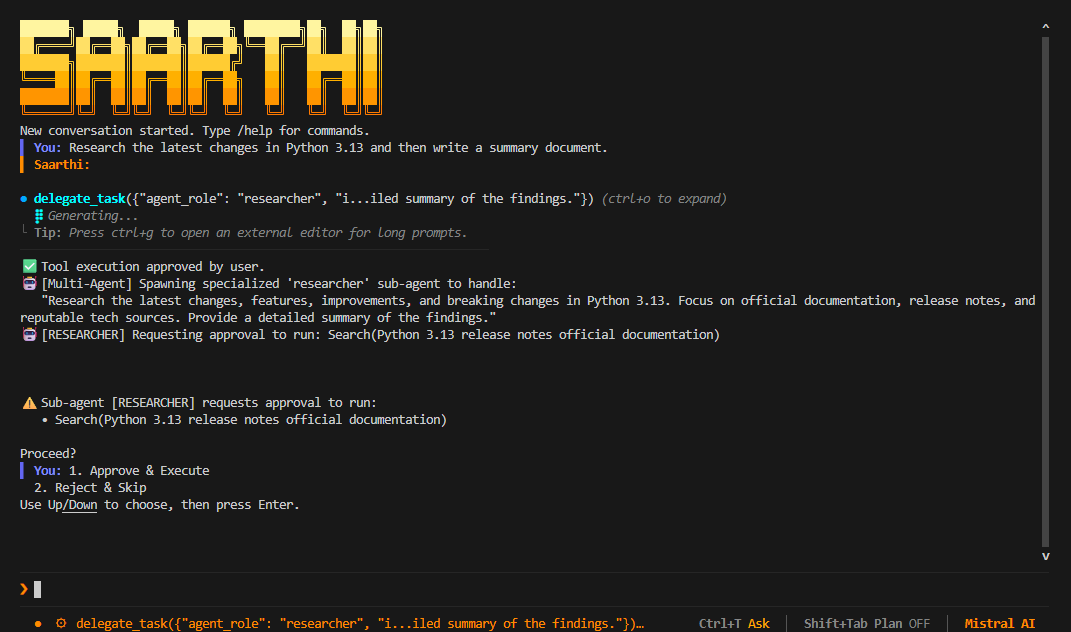
Saarthi is a LangGraph-powered CLI chatbot with persistent memory, real-time token streaming, MCP integration, multi-provider LLM support, multi-agent delegation, a dynamic skill system, and clipboard image paste support. It runs entirely inside the terminal with a custom TUI built using prompt-toolkit.
No browser. No Electron. No cloud dashboard.




Demo
Features
- Short-term and long-term memory — persisted locally via SQLite across sessions
- Named chat sessions with resume support
- Real-time token streaming with live tool-call visualisation
- MCP (Model Context Protocol) server support over STDIO
- Multi-provider LLM support — OpenAI, Google Gemini, Mistral AI, Anthropic Claude
- Multi-agent delegation — AI can spawn specialized sub-agents for complex tasks
- Human-in-the-loop (HITL) tool approval — review and approve tool calls before execution
- Plan Mode — AI plans steps before running any tools
- Dynamic Skill System — save, list, run and delete custom Python scripts as reusable tools
- Clipboard image paste — paste images from clipboard directly into the prompt (for vision-capable models)
- Search inside prompts — Ctrl+O to expand/collapse tool output blocks
- Local-first architecture — no data leaves your machine beyond your LLM provider
- Interactive terminal TUI built with
prompt-toolkit
Supported Providers
| Provider | Chat | Embedding |
|---|---|---|
| OpenAI | ✅ | ✅ |
| Google Gemini | ✅ | ✅ |
| Mistral AI | ✅ | ✅ |
| Anthropic Claude | ✅ | — |
| Ollama (local) | ✅ | ✅ |
Built-in Tools
| Tool | Description |
|---|---|
bash |
Execute shell commands, Python snippets, git, etc. |
calculator |
Evaluate mathematical expressions |
duckduckgo |
DuckDuckGo web search |
wikipedia |
Wikipedia article lookup |
arxiv |
arXiv academic paper search |
fetch_webpage |
Fetch and read any public webpage as plain text |
tavily_search |
Tavily AI-powered search (requires API key) |
delegate_task |
Spawn a specialized sub-agent for a sub-task |
save_skill |
Save a Python script as a reusable dynamic tool |
save_md_skill |
Save a Markdown prompt as a reusable dynamic tool |
skill_<name> |
Any skill you (or the AI) saved in skills/ |
Installation
Using pip
pip install saarthi-cli
saarthi
Using uv
uv tool install saarthi-cli
saarthi
From source
git clone https://github.com/snehangshu2002/saarthi-cli.git
cd saarthi-cli
uv sync
uv run python main.py
Linux / macOS install script
curl -fsSL https://raw.githubusercontent.com/snehangshu2002/saarthi-cli/main/install.sh | bash
Note: The install script is for Linux and macOS only. Windows users should install via
pip install saarthi-clioruv tool install saarthi-cli.
First-time Setup
On first launch, Saarthi walks you through a one-time setup:
- Choose a username
- Select an LLM provider
- Enter your API key (input is hidden)
- Optionally configure embedding model and Tavily search API key
Local Storage
All configuration and memory are stored locally — nothing is sent to any external service beyond your chosen LLM provider.
| Platform | Storage Path |
|---|---|
| Windows | %LOCALAPPDATA%\saarthi\ |
| Linux / macOS | ~/.local/share/saarthi/ |
Contents:
settings.json— provider and user configmcp_config.json— MCP server definitionsdata/checkpoints.db— conversation checkpoint history (SQLite)data/memory.db— long-term memory store (SQLite)skills/— user-defined custom skills (Python & Markdown)images/— clipboard-pasted images saved heresaarthi.log— error logs (never shown on screen)
Commands
| Command | Description |
|---|---|
/help |
Show all available commands |
/new |
Start a new conversation |
/resume |
Resume a saved conversation (interactive picker) |
/settings |
View current configuration |
/settings edit |
Re-run setup wizard to change provider / API key |
/mcp |
List connected MCP servers and their tools |
/plan |
Toggle Plan Mode on/off |
/export [filepath] |
Export current chat transcript to a text file |
/skills |
List all saved skills with descriptions |
/skill run <name> [args...] |
Run a skill directly from the CLI |
/exit |
Quit Saarthi |
Keyboard Shortcuts
| Shortcut | Action |
|---|---|
Enter |
Submit message |
Ctrl+V |
Paste text — or paste an image from the clipboard |
Right-click |
Paste text or clipboard image into the input field |
? |
Show full shortcuts menu (when input is empty) |
Ctrl+O |
Expand / collapse the last tool output block |
Ctrl+T |
Toggle tool approval mode (Ask ↔ Auto) |
Shift+Tab |
Toggle Plan Mode on / off |
Ctrl+G |
Open input in an external editor (for long prompts) |
Ctrl+Space |
Start keyboard text selection mode |
Ctrl+C |
Copy selection (if active), or arm exit |
Ctrl+C ×2 |
Exit Saarthi |
Tab |
Switch focus between transcript and input |
↑ / ↓ |
Scroll through input history or transcript |
PgUp / PgDn |
Scroll transcript by page |
Home / End |
Jump to top / bottom of transcript |
Human-in-the-Loop (HITL) Tool Approval
By default, Saarthi runs in Ask mode. Every time the AI wants to call a tool (run a shell command, search the web, write a file, etc.), it presents a confirmation dialog:
⚠️  The AI is requesting approval to run:
   • bash(git status)

  > Approve & Execute
    Reject & Skip

Use Up/Down to choose, then press Enter.
- Approve & Execute — the tool runs and the AI receives the result
- Reject & Skip — the tool is blocked; the AI sees an error and can respond gracefully
Toggle: Press Ctrl+T to switch between Ask (manual approval) and Auto (all tools run automatically). The current mode is shown in the bottom status bar.
Plan Mode
When Plan Mode is enabled, the AI outlines a full step-by-step execution plan before running any tools:
- The AI explains every step it intends to take
- It asks for your explicit approval
- Only after you confirm does it proceed with tool execution
Toggle: Press Shift+Tab or type /plan. The status bar shows Plan ON or Plan OFF.
Multi-Agent Delegation
Saarthi includes a multi-agent framework via the delegate_task tool. The primary AI can spawn specialized sub-agents for complex or parallel tasks:
| Agent Role | Best Used For |
|---|---|
researcher |
Searching the web, reading documentation, gathering context |
coder |
Writing, editing, refactoring, or reviewing code |
debugger |
Analyzing errors, stack traces, and applying fixes |
writer |
Drafting reports, summaries, documentation, emails |
custom |
Any other specialized task you describe |
Sub-agents share the same tools as the primary agent and also respect the current tool approval mode.
Example:
"Research the latest changes in Python 3.13 and then write a summary document."
The AI will spawn a researcher sub-agent to gather information, then a writer sub-agent to produce the document.
Skill System
Skills are custom Python scripts or Markdown files saved in the skills/ directory (located in your local storage path). Once saved, they are automatically discovered and registered as callable tools (skill_<name>) in the very next turn — both for you and for the AI.
How It Works
-
Saving a skill — Ask the AI to save a skill, or it may save one on its own:
Save a skill named "disk_usage" that prints disk usage for the current directory.The AI calls the
save_skill(orsave_md_skill) tool with:name— the skill name (alphanumeric + underscores)description— used as the tool's docstring and shown in/skillspython_codeorinstructions— the code or prompt text
The file is written to
skills/disk_usage.pyorskills/humanizer.md. -
Running a skill via the AI — In the very next message, the AI can invoke
skill_disk_usage()directly as a tool. -
Running a skill yourself — Use the
/skill runcommand:/skill run disk_usage /skill run greet Snehangshu -
Listing skills:
/skillsThis opens an interactive UI picker where you can browse all saved skills and their descriptions, and select one to run.
Skill Formats
Python skills run in an isolated subprocess — they cannot affect the main process state.
Markdown Prompts (.md): Use plain text instructions for the LLM. When executed, the AI uses these instructions directly to process your input without running any code:
Translate the provided text into pirate speak.
Clipboard Image Paste (Vision Support)
If you are using a vision-capable model (e.g. GPT-4o, Gemini 1.5 Pro, Claude 3.5 Sonnet), you can paste images directly into the chat prompt.
How to Paste an Image
- Copy an image to your clipboard (screenshot,
Ctrl+Con an image, etc.) - In the Saarthi input field, press
Ctrl+Vor right-click - The image is automatically saved to your local
images/folder - A placeholder
[Image Pasted: copied_image_20240521_123456.png]appears in the input - Type any additional text and press Enter
The image is base64-encoded and sent as part of the multimodal message payload. The AI will describe, analyze, or reason about the image content.
Note: If the clipboard contains only text (no image), paste behaves as normal text paste.
Where Images Are Stored
%LOCALAPPDATA%\saarthi\images\    (Windows)
~/.local/share/saarthi/images/    (Linux / macOS)
MCP Support
Saarthi supports MCP-compatible servers over STDIO transport. Edit mcp_config.json in your local storage directory to add servers.
Default configuration:
{
  "mcpServers": {
    "filesystem": {
      "command": "npx",
      "args": [
        "-y",
        "@modelcontextprotocol/server-filesystem",
        "/path/to/dir"
      ],
      "transport": "stdio"
    }
  }
}
Important: Every MCP server block MUST include a valid
"transport"key (e.g."stdio","sse","websocket"), otherwise the connection will fail to parse and tools will not load.
You can connect MCP servers for filesystem access, browser automation, databases, coding agents, external APIs, and custom tools.
Memory System
Saarthi supports two memory layers:
- Short-term memory — active conversation context kept in the graph state
- Long-term memory — stable facts about the user (name, OS, preferences, project paths) persisted in SQLite using vector search and retrieved semantically at the start of each turn
The AI automatically extracts and updates long-term memories from your messages. Conversation history is also summarized periodically to reduce context window usage while preserving information.
Project Structure
saarthi-cli/
├── main.py
├── pyproject.toml
└── src/chatbot_cli/
    ├── app.py                 ← main entry point & chat loop
    ├── app_config.py          ← style, commands, paths
    ├── chatbot.py             ← LangGraph graph, nodes, system prompt
    ├── streaming.py           ← streaming response + multimodal payload
    ├── tool.py                ← built-in tools, skill system, delegate_task
    ├── ui.py                  ← TUI, key bindings, clipboard image paste
    ├── memory.py              ← long-term memory seed helpers
    ├── sessions.py            ← session listing and snapshot loading
    ├── providers.py           ← LLM provider initialization
    ├── mcp_client.py          ← MCP server connection and tool loading
    ├── settings.py            ← settings wizard and file I/O
    ├── formatting.py          ← markdown and message formatting
    └── clipboard.py           ← Windows clipboard integration
Roadmap
- Human-in-the-loop tool approval
- Planning mode
- Multi-agent delegation
- Skill system support
- Export conversations
- Clipboard image paste (multimodal support)
- Autonomous execution mode (Auto-Approve)
- Anthropic and Ollama local model support (in progress)
- Plugin-style external tool packages
- Web UI / REST API mode
- Better configuration management
License
Apache 2.0 — see LICENSE for details.
1 maintainer

Metadata
1 maintainer
Release files for saarthi-cli 0.1.4
For a detailed explanation of source distributions (sdists) and built distributions (wheels), please see the package formats documentation.
Source distribution (sdist)
| File | Size | Uploaded | Provenance | |
|---|---|---|---|---|
| saarthi_cli-0.1.4.tar.gz | 59.5 kB | With provenance | Details |
Built distribution (wheel)
| File | Interpreter | ABI | Platform | Reset |
|---|---|---|---|---|
| saarthi_cli-0.1.4-py3-none-any.whl | Python 3 | none | any | Details |
Total release size: 117.5 kB
Release files / saarthi_cli-0.1.4.tar.gz
| Download URL | saarthi_cli-0.1.4.tar.gz |
|---|---|
| Size | 59.5 kB |
| Tags | Source |
|
SHA-256 checksum How to use checksums |
d2813ef496192f5893b845d80afd2b966e05056431eef16e719fdef3193d064a
|
|
BLAKE2b-256 checksum How to use checksums |
b7df3981fc4de972f04298d09d86669e4319c4232e8b0f2cde24c7f5320bc123
|
| Upload date | |
|
Uploaded using Trusted Publishing? What is trusted publishing? |
Yes |
| Uploaded via |
twine/6.1.0 CPython/3.13.12
|
Provenance
Provenance describes where a file came from. On PyPI, provenance is shared via attestations, which provide a verifiable record of the build or publishing details. View details, limitations and caveats.


PyPI Publish Attestation
PyPI verified that this artifact, at this checksum, originated from the publisher listed below.
Signed by GitHub Actions, verified by PyPI on May 21, 2026.
Transparency logRelease files / saarthi_cli-0.1.4-py3-none-any.whl
| Download URL | saarthi_cli-0.1.4-py3-none-any.whl |
|---|---|
| Size | 57.9 kB |
| Tags | Python 3 |
|
SHA-256 checksum How to use checksums |
9efe524bf8fb615a64bbc64961cbb1a5f36c6ea6d3253c941841768aba9c6b69
|
|
BLAKE2b-256 checksum How to use checksums |
58aaa032c2abb53e54571d40a7306ae3715c8f0ba735066580f34ff293ca43e5
|
| Upload date | |
|
Uploaded using Trusted Publishing? What is trusted publishing? |
Yes |
| Uploaded via |
twine/6.1.0 CPython/3.13.12
|
Provenance
Provenance describes where a file came from. On PyPI, provenance is shared via attestations, which provide a verifiable record of the build or publishing details. View details, limitations and caveats.
PyPI Publish Attestation
PyPI verified that this artifact, at this checksum, originated from the publisher listed below.
Signed by GitHub Actions, verified by PyPI on May 21, 2026.
Transparency logSecurity for saarthi-cli 0.1.4
Provenance
Provenance describes where a file came from. On PyPI, provenance is shared via attestations, which provide a verifiable record of the build or publishing details. View details, limitations and caveats.
Full provenance
All 2 files in this release have been uploaded with provenance metadata.
Attestation for saarthi_cli-0.1.4.tar.gz
PyPI Publish Attestation
PyPI verified that this artifact, at this checksum, originated from the publisher listed below.
Signed by GitHub Actions, verified by PyPI on May 21, 2026.
Transparency logA note on package security
PyPI is a repository for distributing packages, not a service for auditing them. While third-party security researchers and our staff do their best to detect and remove malicious packages, PyPI cannot guarantee the quality, security or suitability of any given package.
To learn more about protecting yourself from malicious actors, visit our package security documentation.














