saikai


English | 日本語
A live cockpit for every Claude Code session you have running.
See which one needs you — across all your repos and worktrees — and jump straight into it. One searchable list on the left; the session you pick running live, right beside it.
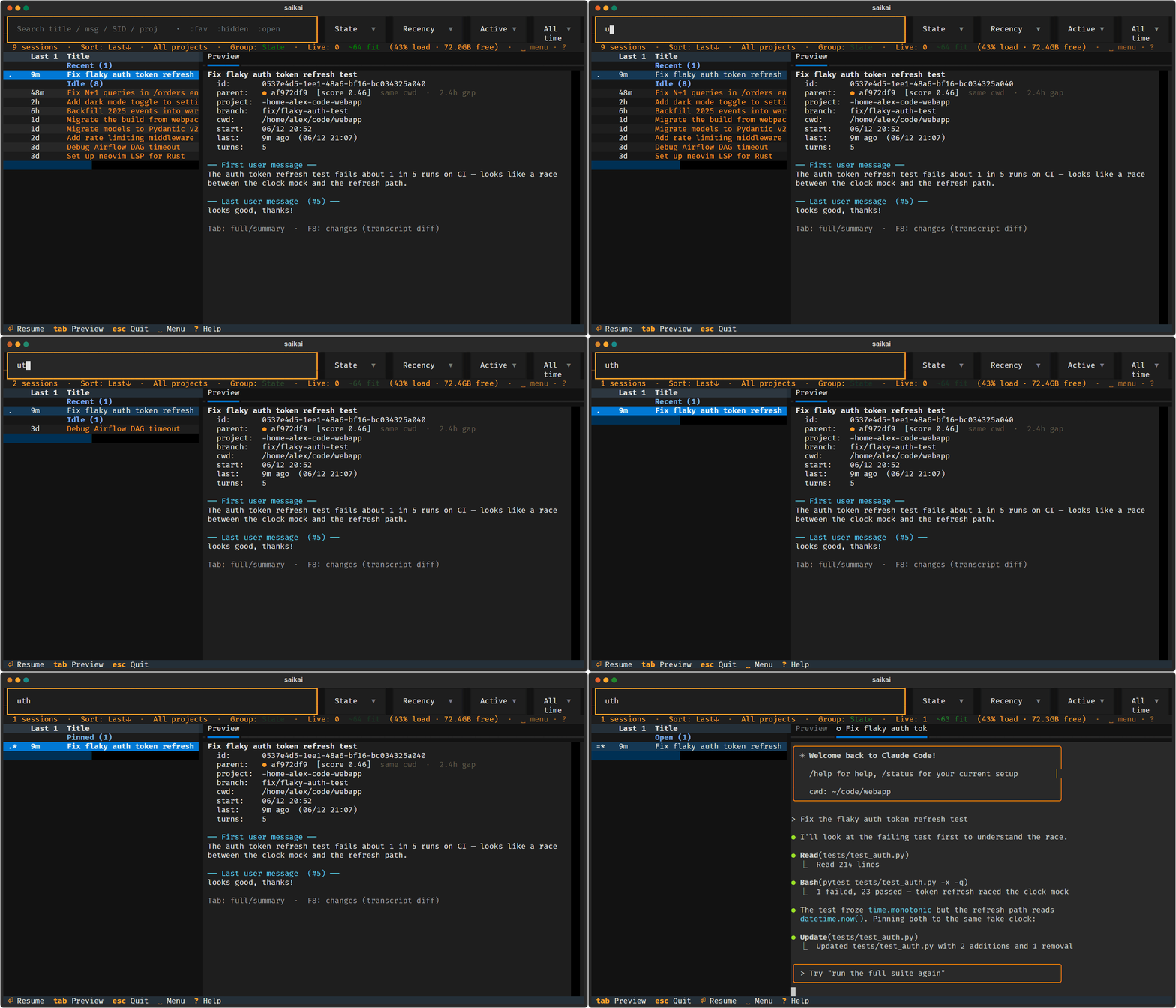
Alongside Claude's built-in tools: the current claude --resume picker
supports search, preview, and an all-projects view (Ctrl+A), while
claude agents manages running agents. saikai adds its own favorites,
transcript-content search, saved pane restoration, and embedded live panes.
Live busy/waiting/idle status is available for panes hosted by saikai;
sessions running elsewhere use registry and transcript heuristics.
See Claude's session picker
and agent view.
Who it's for
You're running Claude Code across several repos and worktrees and you keep losing track: which session was I in, which one is stuck waiting on me, where did that half-finished change go? saikai provides a terminal workspace for finding those conversations and restoring the set you return to. You'll want it if you'd like to:
- see who needs you — every running session's state at a glance, and one key to jump to the next one waiting on a human;
- run several
claudesessions live at once and switch between them instantly, without a pile of terminal tabs; - find a session across any repo or worktree by its content — search the transcript, skim a preview, diff the changes — not just its title;
- favorite the ones you return to, and bring the whole working set back later.
Why a terminal app? Claude Code is CLI-first — new features land there first — and a terminal is far lighter than a desktop app. saikai puts a mission-control view right where you already work.
Features
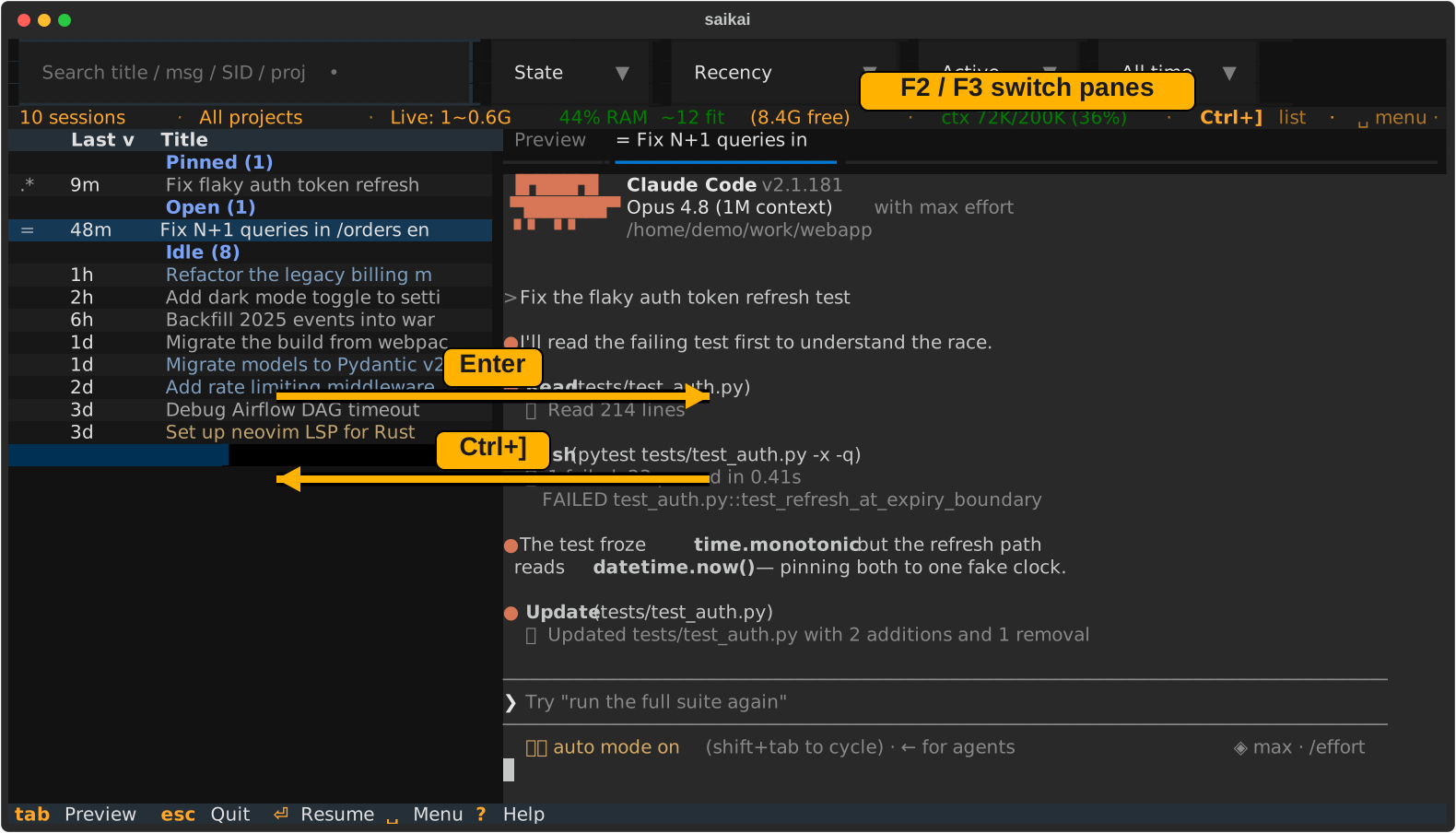
The screen is two panes (shown above): the session list on the left, the Claude session you picked on the right — saikai calls this split-live, on by default.
Back and forth:
Enteropens the selected session on the right ·Ctrl+]returns to the list ·F2/F3switch panes.
![The split-live layout: the session list on the left, a live claude session on the right, with the Enter / Ctrl+] / F2 / F3 keys that move between them](https://raw.githubusercontent.com/m-morino/saikai/master/docs/assets/saikai-split-live.svg)
- Who needs you, at a glance. The list opens grouped by state — Needs
input first — with one cyan accent reserved for "this needs you right now"
(
?waiting ·!finished, awaiting your reply); everything else stays calm and dim. The cursor even opens on the first session that needs you, and one key hops to the next one. - Run several sessions live, switch instantly. Open the ones you pick as real
claudeprocesses beside the list and move between them with a keystroke — a fleet you can watch and steer, not a pile of terminal tabs. - Find any session by its content. Search across all your repos and worktrees by title, conversation text, or session ID; skim a preview (it leads with your first/last message), diff what changed, then resume from where it started.
- Favorites and lineage to tell sessions apart. Star the ones you return to
(
f); reuse a prompt, follow inferred parent/child chains across context resets. - Quit without losing your work. Reopen the same working set later with
Shift+F4. No daemon, no database — it just reads Claude's own history files (AI summaries are opt-in). - ★ (experimental) Reset a bloated session in one keystroke. Each pane shows
its real context fill — the actual numbers Claude records, not a
chars/4guess (ctx 662K/1.0M (66%), green/yellow/red).Shift+F11drops a/compact; Checkpoint (Spacec) has the session write a handoff, shows you the reseed prompt to approve, and only on your Enter clears + reseeds a fresh, lean session (Shift+F6jumps back to the parent). Still experimental. - Mirror to your phone / another browser (experimental, token-authenticated, off by default) — see Web mirror.
uv tool install saikai
saikai
Named worksets
From the session list, press Space then w to open Worksets. Save the
currently running Claude panes under a name, then select that name after a
restart to preview and restore the saved sessions in their saved folders.
You can also explicitly import the previous-pane snapshot, rename a set,
replace its contents with the current panes, or delete it. Updating a set
requires confirmation; an empty set of live panes cannot overwrite one.
Closing a pane or skipping an unavailable session during restore never removes it from a named set. Missing folders, entries from another host, unsupported providers, and duplicates are shown in the preview. Existing pane limits, memory checks, and confirmation for sessions open elsewhere still apply. Queued launches are not reported as completed launches.
Worksets use platformdirs.user_data_dir("saikai")/workspaces.json, separate
from the cache and the automatic Shift+F4 previous-pane snapshot. Changes are
explicit, locked, and atomically saved; conflicting edits ask you to reload
instead of overwriting newer data. Invalid files are preserved and reported.
Run saikai on the SSH host whose sessions you want to restore. This feature
restores Claude panes on that host; it does not add an SSH connection or migrate
conversations between agents.
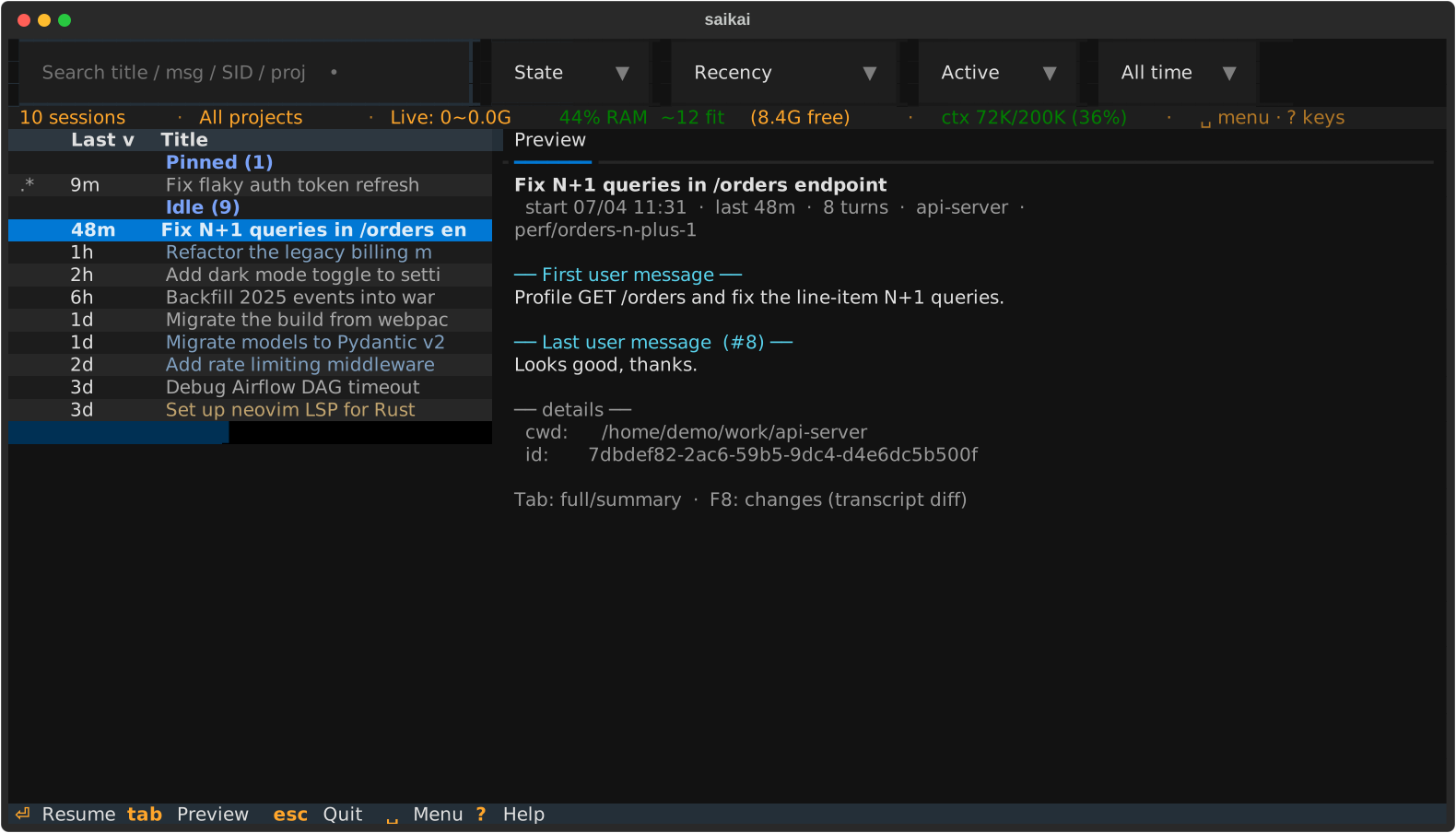
Reading the list
By default, sessions from the same project share a title color, so related work
stays recognizable when the project column is hidden in the narrow split view.
Set display.color_by to worktree, topic, or none to change the grouping.
The leading glyph is the session's status. One accent colour (cyan) means needs
you; everything else is calm greyscale weight, so your eye lands on what's
actionable:
- needs you (cyan):
?waiting for input ·!finished, awaiting your reply ·&background agent blocked - running now (normal):
~working ·@responding in another window - quiet (dim):
=idle live pane ·@open elsewhere ·$running a shell ·RRemote Control ·+active ·.recent ·&background agent - tags (separate column):
*favorite ·xhidden
Install
Requires Python ≥ 3.11. The easiest path is uv — it installs the PyPI package in an isolated environment, no manual venv:
uv tool install saikai # stable release → `saikai` on PATH
From a clone:
uv run saikai.py          # run in place (deps auto-installed)
uv tool install .        # install the `saikai` command on your PATH, then: saikai
Prefer pip / pipx? Both work (deps come from pyproject.toml):
pipx install saikai   # isolated + on PATH
pip install saikai   # into the active environment
Live panes need a couple of extra deps (pyte, and pywinpty on Windows /
ptyprocess elsewhere); they install automatically with any command above. If
they're missing, saikai still runs in list-only mode (see below).
Usage
saikai                 # every project, full history initially; saved defaults can override
saikai --here          # only the current project (git repo)
saikai --days 7        # only the last 7 days (one-shot; --save-defaults persists)
saikai --table         # static, non-interactive table
saikai --help
Keys
Start with the way out. Ctrl+] returns from a pane to the list, and
Esc steps back one level (search → list → quit). Know those two and you
can't get stuck; everything else is on screen (the footer, ? for the full
list, and the ␣ menu that pops up when you pause).
The everyday keys are the ones you'd guess: ↑ ↓ move · Enter open/resume ·
F2/F3 switch panes · Shift+F1 jump to the next pane needing attention · /
or any character searches · Tab toggles the preview.
Space is the menu. Press Space in the list, then one mnemonic letter;
pause and the whole menu appears in place, grouped by family (which-key style —
nothing to memorize). Every other session and pane action lives here:
| Session | View | Panes |
|---|---|---|
f ★ favorite |
s cycle sort column |
n new session |
h hide |
o flip sort order |
p restore panes |
e rename (edit) |
g cycle grouping |
z freeze pane |
y copy prompt (yank) |
t tree |
a next attention |
d diff (changes) |
l hide/show list |
x close tab · [ ] tabs |
r refresh |
, settings · / hide/show bar |
Space mark for batch launch |
Search tokens :fav :hidden :open :active :recent (combine with text),
Alt+←/→ to nudge the list/pane divider, full mouse support (column sort, row
click, drag-to-copy inside a pane), and key/leader remaps via config.toml's
[keys] — all covered by ? and Configuration.
If the PTY deps aren't available, saikai automatically drops to a list-only
mode (Enter resumes the selected session full-screen). Search, previews, and
favorites all still work, so it's a perfectly good picker without live panes. To
start list-only on purpose: SAIKAI_SPLIT_LIVE=0 saikai.
Web mirror (experimental)
Experimental. Launch with SAIKAI_MIRROR=1 and saikai mirrors its live UI
to a phone or another browser — to glance at what's running, or drive a session
from across the room. Off by default, and each run is authenticated with its own
unique token.
SAIKAI_MIRROR=1 saikai                                   # loopback only (127.0.0.1)
SAIKAI_MIRROR=1 SAIKAI_MIRROR_HOST=192.168.1.50 saikai   # reachable on your LAN
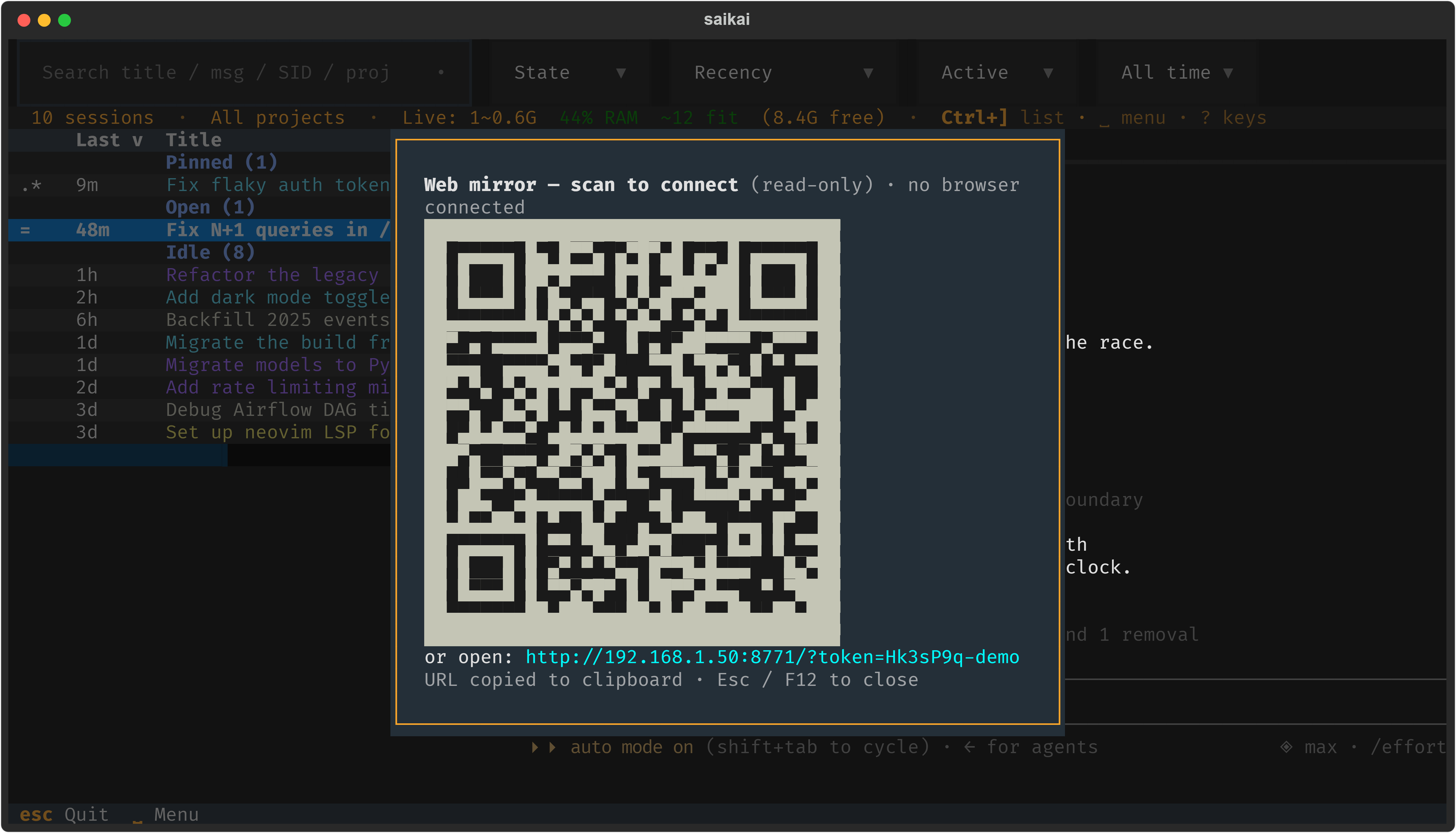
On launch saikai shows a scannable QR code (and copies the URL); press F12
to bring it back anytime. The URL carries a per-run access token.
The mirror is read-only by default. Press Shift+F12 (a local-only key)
to toggle browser control on — then the browser drives saikai with:
- tap to click (select a row, sort a column, focus a pane) and swipe to scroll;
- an on-screen key bar (Leader, Esc, Tab, Enter, arrows, Ctrl, F12, List) for a soft keyboard;
- a physical keyboard, terminal-equivalent — arrows, Home/End, F-keys, Ctrl/Alt
combos,
Ctrl+]to leave a pane,Ctrl+Cto interrupt claude.
Control auto-disables after a spell of inactivity, and only the local
Shift+F12 can enable it — a browser can never turn on its own control. Over a
LAN bind the mirror stays read-only unless you also opt in with
SAIKAI_MIRROR_ALLOW_LAN_INPUT=1. Use it only on a network you trust: the access
token travels in the URL, while the separate write-key required for input is
delivered only over the authenticated stream — never in the URL, QR, or logs.
So an unexpected viewer is always visible, saikai shows how many browsers are
connected — a 🌐 N count in the status bar, a toast when one connects, and the
count on the F12 screen.
vs. claude remote-control. Anthropic's first-party Remote Control relays
one session through the cloud (claude.ai sign-in). saikai's mirror is different
on purpose: it stays on your LAN — no cloud relay, works offline / on an
air-gapped network — needs no claude.ai OAuth, and mirrors saikai's whole
multi-session view rather than just the one session you launched. Reach for
Remote Control to drive a session from outside your network; reach for saikai's
mirror to watch all your local sessions from the couch.
Configuration (environment variables)
| Variable | Default | Meaning |
|---|---|---|
SAIKAI_SPLIT_LIVE |
on | live-pane mode; set 0/false/no/off to disable → list-only browser + full-takeover resume |
SAIKAI_AUTO_REFRESH |
off | extra fixed-interval background re-scan, in seconds (0 disables, min 2). Independent of this, sessions started elsewhere are picked up automatically within ~2s via a cheap mtime gate — set this only if you also want a guaranteed fixed cadence |
SAIKAI_SUMMARIZE_ENABLED |
off | opt in to AI summaries through claude -p |
SAIKAI_SUMMARIZE_CMD |
— | command to summarize with (prompt on stdin → summary on stdout) instead of claude -p |
SAIKAI_SUMMARIZE_MODEL |
haiku | model used when summarizing through claude -p |
SAIKAI_AUTO_PERMISSION |
off | opt in to adding --permission-mode auto for frequently used workspaces |
SAIKAI_MEM_SAFETY |
on | the one memory knob. on = balanced gating; off = refuse only at true exhaustion (plus SAIKAI_MAX_LIVE); strict = refuse earlier, keep more headroom, and hard-stop instead of warn. Every mode still refuses when a pane's RAM isn't actually free — this only tunes how much headroom to hold back |
SAIKAI_MAX_LIVE |
64 | hard cap on concurrent live panes (backstop) |
SAIKAI_CLAUDE_MB |
600 | estimated RAM per live pane (used by the gate and the statusbar fit count) |
SAIKAI_SCROLLBACK |
2000 | per-pane scrollback lines kept by saikai. This controls the number of pyte cells held in memory; lower it (e.g. 1000) on a memory-tight machine, raise it for deeper history |
SAIKAI_COLOR_BY |
project | what tints the session title: project / worktree / topic / none |
SAIKAI_SPLIT_RATIO |
0.34 | initial list/pane split (drag the divider to change; the dragged value persists) |
SAIKAI_RELEASE_KEY |
ctrl+] |
key that returns focus from a live pane to the list |
SAIKAI_MIRROR |
off | mirror the live UI to a browser; a truthy value (1/true/yes/on) enables it (token-authenticated, read-only until Shift+F12) |
SAIKAI_MIRROR_HOST |
127.0.0.1 |
mirror bind address; set to a LAN IP to reach it from another device |
SAIKAI_MIRROR_PORT |
0 |
fixed mirror port so a firewall rule can target it; 0 lets the OS pick a free port |
SAIKAI_MIRROR_ALLOW_LAN_INPUT |
off | allow control input over a non-loopback bind; otherwise a LAN mirror stays read-only (loopback always permits input) |
SAIKAI_MIRROR_TLS |
off | serve over HTTPS so a passive sniffer on the LAN can't harvest the token / write-key / keystrokes. Uses SAIKAI_MIRROR_TLS_CERT+SAIKAI_MIRROR_TLS_KEY if set, else auto-generates a self-signed cert (needs openssl; the browser shows a one-time trust warning). Falls back to HTTP with a warning if no cert is obtainable |
SAIKAI_MIRROR_TLS_CERT / _KEY |
— | PEM cert + key to serve TLS with (both required); overrides the self-signed default |
SAIKAI_MIRROR_ALLOW_ALL_INTERFACES |
off | permit a 0.0.0.0/:: wildcard bind (exposes every interface — VPN/Docker/Tailscale included); without it a wildcard falls back to the detected LAN IP |
Advanced: fine-grained memory-gate thresholds (you rarely need these — SAIKAI_MEM_SAFETY sets them for you; anything set here overrides the preset)
| Variable | Default (on) |
Meaning |
|---|---|---|
SAIKAI_MAX_MEM_LOAD |
85 Win / 95 POSIX | refuse/warn opening a pane above this memory-load %. On Windows dwMemoryLoad is an independent kernel signal; on Linux/macOS the load is derived from the same availability number as the floor, so it defaults higher and acts as a backstop |
SAIKAI_MAX_MEM_PRESSURE |
10 | Linux/macOS: refuse a new pane when measured memory pressure crosses this (Linux PSI some avg10 %; macOS the kernel's critical pressure level). No effect on Windows |
SAIKAI_MIN_COMMIT_MB |
2048 | keep this much commit headroom free — the system-freeze guard. Windows always; Linux only under strict overcommit (vm.overcommit_memory=2) |
SAIKAI_MIN_FREE_PHYS_PCT |
8 | keep ≥ this % of physical RAM available (anti-thrash floor, machine-relative) |
SAIKAI_MIN_FREE_MB |
0 | optional absolute physical floor (legacy; max'd with the % floor) |
SAIKAI_HARD_RAM_GATE |
off | 1 refuses (vs warns) when the gate would be crossed |
saikai also reads an optional TOML config file for these same knobs (with
env > config > default precedence) plus [keys] rebinds. Run saikai --init-config to write a documented template, saikai --print-config to see the
resolved location and values — or press Space , inside the app: the
Settings screen edits the list options in place and shows every config knob
with its resolved value and source (e there opens config.toml in your editor).
Claude Code is the currently integrated provider. Agent-specific launch and
status contracts live in saikai_provider.py; a Codex contract validates the
extension boundary, but Codex is not selectable until its history discovery and
live-state integration are complete. Claude history discovery respects
CLAUDE_CONFIG_DIR.
Platform support
Verified support is deliberately bounded to Windows 10 / 11 on Python ≥ 3.11. Linux and WSL2 are implemented and experimental — they share the POSIX PTY path and can be verified, so reviewers are welcome. macOS is unverified: I develop on Windows and have no Mac to test on, so it isn't a claimed target — verification reports would be very welcome. Other platforms are unsupported.
Most of saikai is Python + Textual. Split-live is the platform-sensitive part: real PTYs, clipboard access, process teardown, key input, and rendering can vary by OS and host terminal. Honest status:
| OS | Live-pane PTY | Clipboard (from a frozen pane) | RAM gate source | Status |
|---|---|---|---|---|
| Windows 10 / 11 | ConPTY (pywinpty) |
Win32 CF_UNICODETEXT (codepage-safe) |
GlobalMemoryStatusEx |
✅ developed & daily-driven (on WezTerm) |
| Linux (incl. WSL2) | POSIX PTY (ptyprocess) |
OSC-52 (terminal / tmux / SSH policy must allow it) | /proc/meminfo + PSI + overcommit mode |
⚠️ experimental; native reviewers wanted |
| macOS | POSIX PTY (ptyprocess) |
local pbcopy; OSC-52 fallback for remote-capable terminals |
vm_stat + memory-pressure sysctl (no commit limit) |
⚠️ unverified — no Mac to test on; reports welcome |
-
On Windows, WezTerm and Windows Terminal use the same ConPTY and Win32 clipboard paths. That does not guarantee identical key handling, cell widths, IME behavior, or mouse behavior. WezTerm is the daily-driven terminal; on Windows Terminal the IME composition anchors at the claude prompt and the cursor is re-pushed to the terminal on focus so IME stays enabled across window/pane switches (Windows Terminal — unlike WezTerm — disables IME unless the cursor was freshly positioned by a render).
-
List-only mode (
SAIKAI_SPLIT_LIVE=0) avoids the PTY and live-pane clipboard paths, so it is the most portable way to use saikai. -
Most regression tests can run without optional dependencies. Use
uv runto also exercise the installed Textual Pilot and real PTY backend paths:# run the whole suite the way CI does (Pilot + real PTY paths included): for t in tests/test_*.py; do uv run python "$t"; done
-
Linux/WSL2/macOS reviewers are wanted — I develop on Windows and have no Mac, so macOS verification is especially welcome. Please report the terminal, local vs SSH/tmux setup, PTY teardown result, key quirks, and clipboard behavior.
-
CI installs each OS's real PTY backend and smoke-tests spawn, resize, output, and EOF on Windows, Linux, and macOS. This is not a substitute for interactive review across terminal emulators, SSH, tmux, IMEs, and clipboard policies.
Contributing
Issues and PRs welcome — see CONTRIBUTING.md for the dev setup, how to run the test suites, and the concurrency invariants that keep the split-live pane from deadlocking (read those before touching threading code). Changes are documented in CHANGELOG.md.
Security
Please report vulnerabilities privately — see SECURITY.md. Don't open a public issue for a security problem.
License
saikai is released under the MIT License. It depends on a few
third-party packages installed separately (textual, pyte, pywinpty/ptyprocess) —
see THIRD-PARTY-NOTICES.md. Note pyte is LGPL-3.0; it
is used as an unmodified, separately-installed dependency, which keeps saikai's
own code MIT.
1 maintainer

Metadata
1 maintainer
Release files for saikai 0.7.0
For a detailed explanation of source distributions (sdists) and built distributions (wheels), please see the package formats documentation.
Source distribution (sdist)
| File | Size | Uploaded | Provenance | Actions |
|---|---|---|---|---|
| saikai-0.7.0.tar.gz | 488.7 kB | With provenance | Details for saikai-0.7.0.tar.gz |
Built distribution (wheel)
| File | Interpreter | ABI | Platform | Actions Reset |
|---|---|---|---|---|
| saikai-0.7.0-py3-none-any.whl | Python 3 | none | any | Details for saikai-0.7.0-py3-none-any.whl |
Total release size: 983.8 kB
Release files / saikai-0.7.0.tar.gz
| Download URL | saikai-0.7.0.tar.gz |
|---|---|
| Size | 488.7 kB |
| Tags | Source |
|
SHA-256 checksum How to use checksums |
8d4e383663c16cfa079a527398a88dc9d447e043a71526c7a708446f1bf0e771
|
|
BLAKE2b-256 checksum How to use checksums |
07a26d9afc818dc9f5d8afc2fa65ea54d802d1edb80c83c70a64a9c360111255
|
| Upload date | |
|
Uploaded using Trusted Publishing? What is trusted publishing? |
Yes |
| Uploaded via |
twine/7.0.0 CPython/3.13.14
|
Provenance
Provenance describes where a file came from. On PyPI, provenance is shared via attestations, which provide a verifiable record of the build or publishing details. View details, limitations and caveats.


PyPI Publish Attestation
PyPI verified that this artifact, at this checksum, originated from the publisher listed below.
Signed by GitHub Actions, verified by PyPI on Sep 6, 2026.
Transparency logRelease files / saikai-0.7.0-py3-none-any.whl
| Download URL | saikai-0.7.0-py3-none-any.whl |
|---|---|
| Size | 495.1 kB |
| Tags | Python 3 |
|
SHA-256 checksum How to use checksums |
0678c8ae64d1c3db34ac340fdeb742d9bbaeed282e35ac63b9b5a7779b8ae31b
|
|
BLAKE2b-256 checksum How to use checksums |
9ef0cbc3e431441187d194bb86ebc31b6aa02ec730e612198ff2de08e80cc9d3
|
| Upload date | |
|
Uploaded using Trusted Publishing? What is trusted publishing? |
Yes |
| Uploaded via |
twine/7.0.0 CPython/3.13.14
|
Provenance
Provenance describes where a file came from. On PyPI, provenance is shared via attestations, which provide a verifiable record of the build or publishing details. View details, limitations and caveats.
PyPI Publish Attestation
PyPI verified that this artifact, at this checksum, originated from the publisher listed below.
Signed by GitHub Actions, verified by PyPI on Sep 6, 2026.
Transparency logSecurity for saikai 0.7.0
Provenance
Provenance describes where a file came from. On PyPI, provenance is shared via attestations, which provide a verifiable record of the build or publishing details. View details, limitations and caveats.
Full provenance
All 2 files in this release have been uploaded with provenance metadata.
Attestation for saikai-0.7.0.tar.gz
PyPI Publish Attestation
PyPI verified that this artifact, at this checksum, originated from the publisher listed below.
Signed by GitHub Actions, verified by PyPI on Sep 6, 2026.
Transparency logA note on package security
PyPI is a repository for distributing packages, not a service for auditing them. While third-party security researchers and our staff do their best to detect and remove malicious packages, PyPI cannot guarantee the quality, security or suitability of any given package.
To learn more about protecting yourself from malicious actors, visit our package security documentation.