
SAP GUI MCP Server




An MCP (Model Context Protocol) server for SAP automation. It allows you to control SAP through Claude Desktop, Claude Code, or opencode - via SAP GUI for Windows (COM scripting).
Because it drives the real SAP UI (not a headless API), it is especially well-suited for end-to-end testing, visual validation, and capturing screenshots for documentation. The MCP server works with both SAP R/3 and S/4.

Windows only
This server uses the SAP GUI COM scripting API. It is Windows-only and single-threaded at its core, but well tested. It uses sapsucker for typed SAP GUI Scripting access. This means that after your agent clicks a button, the MCP server has to wait until the GUI responds, which takes some milliseconds that can add up for batch processes. The Web GUI driver, which is OS-independent and can run concurrent workflows in several browser tabs, lives in sapwebgui.mcp.
Pairing with other MCPs
You can easily pair this GUI MCP with e.g. an ADT MCP like aibap.mcp.
ADT MCPs and this GUI MCP complement each other in a two-agent vibe-coding setup: one agent writes ABAP via ADT, while a second agent drives this server to test the generated code in the real SAP UI, captures screenshots, and reports failures back.
Batch scripting: the same click journey n times for the token cost of one tool call
Language-specific behaviour for some transactions
The core of this MCP is not language-specific, meaning it generally works with any SAP logon language.
However, there is also built-in support for specific transactions like SE16 or ST22.
These transaction-specific tools only work for certain logon languages, because the MCP server relies on button or column labels, which vary by language.
We support English (EN), German (DE) and Italian (IT).
Under the hood
Are you a developer? Read ARCHITECTURE.md for codebase structure, request flow diagrams, and how to add new transaction tools. The Development Setup section covers running from source.
Setup
Setup has three steps (plus one-time prerequisites): download the executable, create your SAP credentials file (systems.json, optionally using ${env:VAR} placeholders to reference environment variables), and register the MCP server with your AI client.
Where to register the MCP server:
- Claude Code - register once with
claude mcp add --scope user(recommended) or per project in.mcp.json. Step 3 shows both. - Claude Desktop -
claude_desktop_config.json; open it via Settings → Developer → Edit Config (usually%APPDATA%\Claude). - opencode -
opencode.jsonin the project root.
Prerequisites
Ask your SAP basis team for the server-side setting early - it is the only step you cannot do yourself.
- SAP GUI for Windows installed (standard path - the server finds it automatically via Windows registry)
- SAP GUI Scripting enabled (one-time setup, see below)
Enable SAP GUI Scripting (one-time)
Server side (requires admin/basis team):
- Transaction
RZ11→ parametersapgui/user_scripting→ set toTRUE - Dynamic parameter - no server restart needed, but users must re-login (close and reopen SAP GUI)
Client side (your PC):
- Open SAP Logon or any SAP GUI session
- Go to Options (via menu bar, tray icon, or press Alt+F12 in a session)
- Navigate to Accessibility & Scripting → Scripting (DE: Barrierefreiheit & Skripting → Skripting)
- Check "Enable Scripting" (DE: "Skripting aktivieren")
- Uncheck "Notify when a script attaches to SAP GUI"
- Uncheck "Notify when a script opens a connection"
Step 1: Download the executable
Download sapgui_mcp_windows_<version>.exe from GitHub Releases. It is a single file - no Python needed. Do not use the sapgui_mcp_windows_with_remote_logging_<version>.exe variant: it sends logs to a remote log service and is meant for the maintainers. To verify the download, run Get-FileHash .\sapgui_mcp_windows_<version>.exe in PowerShell and compare the hash with checksums.txt from the same release.
Smart App and other Security Tools
Tip
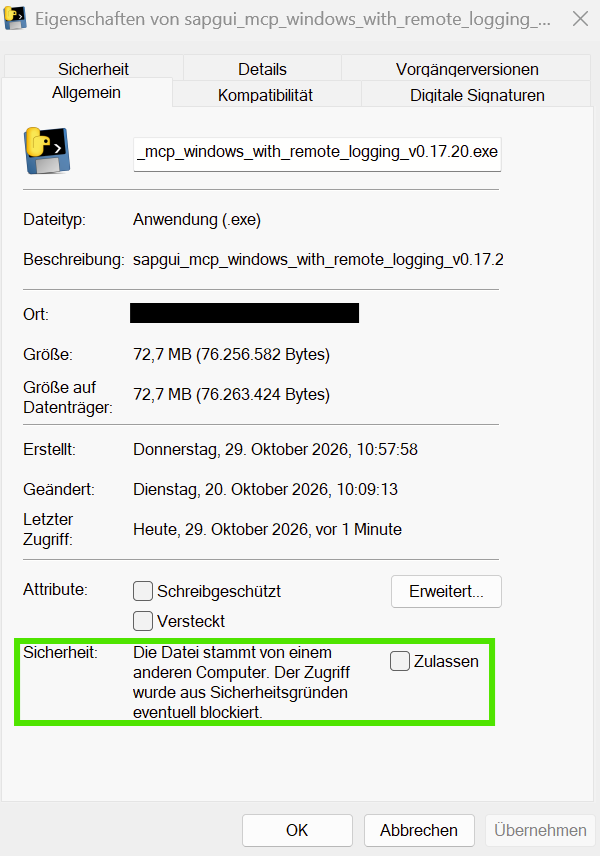
Windows blocks the
.exe? Windows may flag an executable as downloaded from another computer. If you trust the file downloaded from our GitHub Releases, right-click it → Properties (Eigenschaften) → General (Allgemein). Under Security (Sicherheit), check Unblock (Zulassen), then Apply (Übernehmen) and try again.The checkbox only appears when Windows has marked the file as downloaded from another computer. This removes that download block; it does not override Smart App Control. If Smart App Control still blocks execution, contact your IT administrator rather than disabling protection.
Step 2: Create the SAP config file (systems.json)
This file holds your SAP credentials and is shared with aibap.mcp - configure it once and all Hochfrequenz SAP MCP servers will use it.
On Windows, open Windows Explorer and paste this into the address bar:
%USERPROFILE%\.config\sap-mcp
Create the folder if it doesn't exist, then create a file called systems.json inside it.
There are two distinct identifiers per system - don't mix them up:
| Concept | Example | Where it's used |
|---|---|---|
| System key (dictionary key) | "dev", "qa" |
sap_login(system_key="qa") - selects which system to log into |
SAP Logon entry (connection_name field) |
"DEV S/4HANA", "DEV - ERP Development" |
Must match the bold description in the SAP Logon pad exactly |
The SAP Logon entry is not the 3-character System ID (SID):
| What you see in SAP Logon | connection_name value |
NOT this (SID) |
|---|---|---|
| DEV S/4HANA | "DEV S/4HANA" |
"XYZ" |
| DEV - ERP Development | "DEV - ERP Development" |
"DEV" |
If the connection_name doesn't match exactly, you'll get "SAP Logon connection entry not found".
{
    "default_system": "dev",
    "systems": {
        "dev": {
            "connection_name": "DEV S/4HANA",
            "host": "https://your-sap-system:44300",
            "client": "100",
            "user": "your_username",
            "password": "your_password",
            "language": "DE"
        }
    }
}
See sap-mcp-config for the complete field reference - all optional fields, validation rules, YAML support, ${env:VAR} placeholder rules, and a visual guide to finding your connection_name in SAP Logon.
Step 3: Configure your MCP client
Claude Desktop
Add to claude_desktop_config.json. To open the file: press Win+R, type %APPDATA%\Claude, press Enter. If claude_desktop_config.json does not exist, create a new text file with that exact name (make sure it ends in .json, not .json.txt).
{
    "mcpServers": {
        "sap-desktop": {
            "command": "C:/path/to/sapgui_mcp_windows_<version>.exe"
        }
    }
}
Claude Code
Recommended: register once for all projects (user scope). Run this in PowerShell:
claude mcp add --scope user sap-desktop '--' C:/path/to/sapgui_mcp_windows_<version>.exe
Together with systems.json, this is all Claude Code needs - no .mcp.json in any project folder.
Optional server settings (see environment variables) go as -e options between the server name and '--':
claude mcp add --scope user sap-desktop -e GITHUB_PAT=your_github_pat -e OUTPUT_DIR=C:/sap-output '--' C:/path/to/sapgui_mcp_windows_<version>.exe
Two details matter:
- Keep the server name (
sap-desktop) before-e. The-eoption accepts several values, so a name placed after it is read as a second environment variable and the command fails witherror: missing required argument 'commandOrUrl'. - Keep the quotes around
'--'. If Claude Code was installed through npm,claudeis a PowerShell script, and PowerShell silently drops an unquoted--before passing the arguments on.-ethen swallows the.exepath and the command fails with the same error. This works in PowerShell, bash and zsh (in bash or zsh,'--'and--are equivalent). In cmd.exe, single quotes are not quoting characters, so write a plain--instead.
If Claude Code still starts an old or broken registration instead of the global one, see Claude Code ignores the global registration.
Alternative: per project. Add to .mcp.json in your project root:
{
    "mcpServers": {
        "sap-desktop": {
            "command": "C:/path/to/sapgui_mcp_windows_<version>.exe"
        }
    }
}
opencode
Add to opencode.json in your project root:
{
    "$schema": "https://opencode.ai/config.json",
    "mcp": {
        "sap-desktop": {
            "type": "local",
            "command": ["C:/path/to/sapgui_mcp_windows_<version>.exe"],
            "enabled": true
        }
    }
}
Optional server settings (environment variables) go in an "env": { ... } block next to "command" in claude_desktop_config.json and .mcp.json, and in an "environment": { ... } block in opencode.json. With claude mcp add, a value passed with -e (such as a PAT) ends up in your shell history.
Multi-system access
Multi-system support is built into systems.json - add multiple systems and the LLM can switch between them:
How it works:
sap_list_connectionsreturns both configured systems (fromsystems.json) and SAP Logon entries (fromSAPUILandscape.xml).sap_login(system_key="qa")logs into a specific system using credentials fromsystems.json.
Configuration: Add multiple systems to your systems.json. The dictionary key (e.g. "dev", "qa") is the system_key you pass to sap_login. The connection_name field must match the SAP Logon entry description exactly:
{
    "default_system": "dev",
    "systems": {
        "dev": {
            "connection_name": "DEV S/4HANA",
            "host": "https://dev-sap:44300",
            "client": "100",
            "user": "dev_user",
            "password": "dev_pass",
            "language": "DE"
        },
        "qa": {
            "connection_name": "QA System",
            "host": "https://qa-sap:44300",
            "client": "200",
            "user": "qa_user",
            "password": "qa_pass",
            "language": "EN"
        }
    }
}
When sap_login(system_key="qa") is called, it looks up "qa" in systems.json, reads the credentials, and uses the connection_name field ("QA System") to open the matching SAP Logon entry. If the system key is not found, an error is returned listing the available keys.
Verify the setup
Before your first prompt, check that the MCP server starts correctly. Open PowerShell and run:
Claude Code:
claude mcp list
Expected output:
sap-desktop: C:/path/to/sapgui_mcp_windows_<version>.exe ✓ Connected
opencode:
opencode mcp list
Expected output:
● ✓ sap-desktop connected
If you see ✗ Failed or ✗ failed, the most common cause is a wrong path to the .exe in your config file. Double-check the path and that the file exists there. Run opencode mcp debug sap-desktop for more detail.
For Claude Code, with a user-scope registration there is no config file to edit: claude mcp get sap-desktop shows the registered path, and to change it (for example after downloading a new version), run claude mcp remove sap-desktop -s user and add the server again.
Development Setup (from source)
For contributors who want to run from source. Prerequisites: Python 3.11+, uv, and SAP GUI for Windows with scripting enabled (see Prerequisites).
git clone https://github.com/Hochfrequenz/sapgui.mcp.git
cd sapgui.mcp
uv sync --group dev
Run tools through uv run ... (not a bare pytest from an older venv). Unit tests and linters:
uv run --group tests python -m pytest unittests/ -m "not integration"   # unit tests only
uv run --group linting ruff check .                                      # code quality
uv run --group linting ruff format --check .                             # check formatting
See CONTRIBUTING.md for the full workflow.
To run the server from source, register the run-sapgui-mcp-server script of your virtual environment the same way as the executable (see Step 3), for example:
claude mcp add --scope user sap-desktop '--' C:/path/to/sapgui.mcp/.venv/Scripts/run-sapgui-mcp-server.exe
GITHUB_PAT (optional) is only needed for log_feedback (creates GitHub issues) and abapGit operations. See the environment variables.
Capabilities
Your AI client automatically discovers all individual tools and their schemas dynamically upon connection. At a high level, the server gives your agent:
- Drive Any SAP Transaction — Execute transaction codes, fill form fields, click buttons, navigate tabs, read and interact with ALV grids and tables, and handle modal popups and status bar messages.
- Transaction Shortcuts — Built-in workflows for common developer and basis tasks: query tables (SE16/SE16N), inspect transports (SE09/SE10), search background jobs (SM37), inspect short dumps (ST22), query application logs (SLG1), maintain table views (SM30), and look up Data Dictionary objects (SE11).
- High-Performance Scripting (
sap_run_script) — For bulk operations or complex multi-step workflows, the agent can write and run sandboxed Python scripts against the SAP GUI COM API in a single round-trip instead of dozens of tool calls. The sandbox contract is exposed viasandbox://sap_run_script. - Tree Navigation (
sap_tree_read) — Read or search the already-loaded nodes of any tree control (SPRO IMG, SE80 object tree, SM34 navigation tree, docking-container trees) with a node cap and ancestor paths. Read-only: it never expands or selects. - Visual Validation & Screenshots — Capture screenshots of any SAP screen for documentation, E2E test verification, or human-in-the-loop inspection.
- Offline Catalogs — Search transaction codes, tables, classes, and function modules instantly without an active SAP connection.
- abapGit & Source Code — Pull abapGit repositories and inspect ABAP report source code. Pulls use the
Z_ABAPGIT_PULL_MCP_SHORTCUTreport on the SAP system. For private repositories, setGITHUB_PATorABAPGIT_PAT.sap_abapgit_pulltakes an optionalbranch(e.g.main,feature/x): it switches the registered repository to that branch persistently (kept only if the pull succeeds) and clears a commit pin; the result'sbranchandsap_abapgit_list_reposshow where the repository is. Instead ofrepo,sap_abapgit_pullacceptskey(the 12-digit repository key fromsap_abapgit_list_repos), the only unique identifier when two repositories share a name or URL; it needs a report version withP_KEY. - Multi-Session Management — List, bind, release, close, and detach parallel SAP GUI sessions across concurrent agent tasks (
sap_session_list,sap_session_bind,sap_session_release,sap_session_close,sap_session_detach,sap_session_reset_to_primary). Every session has an origin:opened(created by the server) orattached(a window you already had open). The server never closes an attached session;sap_session_detachdrops a session from the registry and leaves its window open.
Configuration Reference
SAP Credentials (via systems.json)
SAP credentials (user, password, client, language, host) are configured in systems.json (or a YAML file that SAP_CONFIG_FILE points to), not via server environment variables. See sap-mcp-config for the file format. Override the config file path with SAP_CONFIG_FILE. The language of each system must be DE, EN or IT (case-insensitive; omitted means EN) - these are the languages this server supports, and any other value, such as FR, is rejected when the config is loaded with language must be one of "DE", "EN", "IT". Older versions read SAP_USER, SAP_PASSWORD, SAP_MANDANT, SAP_LANGUAGE, SAP_CONNECTION_NAME and SAP_CREDENTIALS from the MCP config's env block; these are ignored now and can be removed from existing configs.
The WebGUI settings are ignored. The server checks BACKEND_TYPE=webgui, SAP_URL and CDP_URL in the environment and in .env: if one is set, it logs a warning and adds a note to its instructions that points to sapwebgui.mcp. Other old WebGUI settings, such as BROWSER_* and CHROME_*, are silently ignored.
Individual fields may still be sourced from the environment with an ${env:VAR} placeholder - e.g. "password": "${env:SAP_DEV_PASSWORD}" - which keeps secrets out of the file while the structure stays in it. Placeholders work in connection_name, host, client, user, password, language, oauth2_client_id and the top-level default_system.
An unset or empty variable makes the config invalid, so the first tool call that needs a credential - sap_login, for instance - fails with an error naming the variable, never a silently empty credential. Note that the server itself still starts: config loading is lazy, so the failure surfaces on first use rather than at launch. Tools that only list configuration, such as sap_list_connections, do not fail on an invalid config but report the reason in a config_error field of their result instead of returning a silently empty list; the server instructions carry the same message. Text that only looks like a placeholder is used verbatim, so a typo such as ${SAP_PASSWORD} (missing the env: prefix) becomes your literal password rather than an error - see the placeholder rules for the exact forms.
Default path: %USERPROFILE%\.config\sap-mcp\systems.json.
Environment Variables (server-specific)
| Variable | Required | Description | Default |
|---|---|---|---|
SAP_CONFIG_FILE |
No | Path to systems.json (default: see above) | (see above) |
OUTPUT_DIR |
No | Directory that output_file tool arguments (e.g. sap_se16_query) are sandboxed to. Set this when the server's cwd isn't your project directory. |
"" (current working directory) |
SCRIPT_ROOTS |
No | Allowed root directories for sap_run_script's script_path parameter, separated by os.pathsep (; on Windows). Roots must be absolute paths (relative entries are skipped with a warning); a UNC/network root is allowed if you configure one, whereas UNC/device paths in the caller's script_path are rejected. Relative script_path values are resolved against these roots in order (first match wins). |
"" (script_path disabled) |
COM_MIN_INTERVAL_MS |
No | Minimum ms between COM calls (prevents overload). | 100 |
GITHUB_PAT |
No | GitHub PAT for log_feedback issues and abapGit auth |
- |
GITHUB_USER |
No | GitHub username for abapGit (falls back to x-access-token) |
- |
GITHUB_REPO |
No | Repository for feedback issues | Hochfrequenz/sapgui.mcp |
ABAPGIT_PAT |
No | Separate PAT for abapGit (overrides GITHUB_PAT if set) |
- |
PAPERTRAIL_HOST |
No | Papertrail syslog host (empty to disable) | "" (off) |
PAPERTRAIL_PORT |
No | Papertrail syslog port | 0 (off) |
LOG_FORMAT |
No | Set to json for JSON log output |
"" (human-readable) |
LOG_LEVEL |
No | DEBUG, INFO, WARNING, or ERROR |
INFO |
Logging
The server logs to stdout by default using a structured text format. Set LOG_FORMAT=json for machine-readable JSON output.
Papertrail (remote logging)
Remote logging to Papertrail is disabled by default. No telemetry is sent unless you explicitly opt in.
To enable it, set both PAPERTRAIL_HOST and PAPERTRAIL_PORT as environment variables (in the MCP client's env block - environment in opencode, -e with claude mcp add - see Step 3) or in a .env file in the server's working directory:
PAPERTRAIL_HOST=logs.example.com
PAPERTRAIL_PORT=12345
When enabled, tool call names, SAP hostnames, and operational metadata are sent to the configured Papertrail endpoint for monitoring and debugging. No SAP credentials or business data are transmitted.
Each release publishes two Windows binaries:
| Binary | Papertrail default | Intended audience |
|---|---|---|
sapgui_mcp_windows_<version>.exe |
off - no defaults bundled | Public / external users |
sapgui_mcp_windows_with_remote_logging_<version>.exe |
Hochfrequenz endpoint baked in at build time | Hochfrequenz-internal use |
Both binaries honour user overrides as environment variables or in a .env file in the server's working directory.
Troubleshooting
SAP login fails
- Verify the credentials in
systems.json(see Configuration Reference). - Make sure the
connection_namefield insystems.jsonmatches the SAP Logon pad description exactly (the bold text, not the SID). Open SAP Logon and compare. - Check that SAP GUI Scripting is enabled on the server and on your PC (see Enable SAP GUI Scripting).
- Try logging in manually in SAP Logon first to verify the credentials.
Claude Code ignores the global registration
When the same server name is registered in more than one scope, Claude Code uses the entry with the highest precedence: local (stored per project in ~/.claude.json), then project (.mcp.json), then user (the global registration from claude mcp add --scope user). See MCP installation scopes in the Claude Code documentation. A forgotten registration with the same name therefore shadows a correct global one. If it points at a binary that no longer exists, the server fails to connect (for example with CONNECTION_CLOSED).
To find and remove the stale entry (shown for sap-desktop):
- Run
claude mcp get sap-desktopfrom the project directory. TheScope:line shows which registration Claude Code actually uses. - Remove a local-scope entry with
claude mcp remove sap-desktop -s local, or the entry in the project's.mcp.jsonwithclaude mcp remove sap-desktop -s project. Always pass-s: without it,removedeletes the server from whichever scope it finds it in, which may be your global registration. (The-s projectvariant edits the project's possibly shared.mcp.json, so commit that change only if the whole team should lose the entry.)
When cleaning up configs from older versions, you can also drop the old SAP_* credential variables from any env block - see SAP Credentials for the list. Credentials are configured only via systems.json (optionally with ${env:VAR} placeholders). SAP_CONFIG_FILE is still supported; SAP_URL, CDP_URL and BACKEND_TYPE are ignored (see SAP Credentials).
Tools timeout or hang
SAP GUI scripting runs one call at a time per connection, so a long-running call blocks the others. If operations time out:
- Look at the SAP GUI window - is SAP responding, or is a modal popup waiting?
- Try
sap_keepalive_startto prevent session timeouts. - Call
sap_session_list- itscom_enginefield shows the call that is currently running.
Architecture
The server drives SAP GUI for Windows through its COM scripting API. For the layers and the request flow, see ARCHITECTURE.md.
graph BT
    Claude["Claude Desktop / Claude Code"]
    MCP["MCP Server (sapguimcp)\nCOM thread\nSAP-specific tools"]
    SAP["SAP GUI for Windows\nCOM Scripting API\nPersistent session(s)"]
    Claude -- "MCP (stdio)" --> MCP
    MCP -- "COM (pywin32)" --> SAP
Related projects
This server is part of a small ecosystem of SAP + AI tooling:
aibap.mcp- complementary MCP server that talks to SAP via the ADT REST API (read/write source, activate, syntax-check, run unit tests, manage transports). Wheresapgui.mcpdrives SAP through its UI,aibap.mcptalks directly to the ABAP Development Tools HTTP API. The two are designed to coexist and share~/.config/sap-mcp/systems.json.AIBAP_TEMPLATE_REPOSITORY- GitHub template for AI-driven ABAP vibe-coding projects. Documents the two-agent pattern (dev viaaibap.mcp, test / documentation / screenshots viasapgui.mcp) end-to-end.Z_ABAPGIT_PULL_MCP_SHORTCUT- SAP-side ABAP report thatsap_abapgit_pullcalls to pull abapGit repos through the ABAP API. Install it on any SAP system where you want the abapGit pull tools to work.sap-mcp-config- shared config schema forsystems.json, consumed by bothsapgui.mcp(Python) andaibap.mcp(Go).
Contributing
See CONTRIBUTING.md for development setup, testing, and coding standards.
1 maintainer

Metadata
1 maintainer
Release files for sapguimcp 1.0.3
For a detailed explanation of source distributions (sdists) and built distributions (wheels), please see the package formats documentation.
Source distribution (sdist)
| File | Size | Uploaded | Provenance | Actions |
|---|---|---|---|---|
| sapguimcp-1.0.3.tar.gz | 2.2 MB | With provenance | Details for sapguimcp-1.0.3.tar.gz |
Built distribution (wheel)
| File | Interpreter | ABI | Platform | Actions Reset |
|---|---|---|---|---|
| sapguimcp-1.0.3-py3-none-any.whl | Python 3 | none | any | Details for sapguimcp-1.0.3-py3-none-any.whl |
Total release size: 2.8 MB
Release files / sapguimcp-1.0.3.tar.gz
| Download URL | sapguimcp-1.0.3.tar.gz |
|---|---|
| Size | 2.2 MB |
| Tags | Source |
|
SHA-256 checksum How to use checksums |
e07e7e638f9f4329cb99d51d1afafa6fb6541ee46020cb38726e297c56047387
|
|
BLAKE2b-256 checksum How to use checksums |
656b3d7ac88ac9c092995df39b32f7f958bf37e2c229f52c08e4db227b22c726
|
| Upload date | |
|
Uploaded using Trusted Publishing? What is trusted publishing? |
Yes |
| Uploaded via |
twine/7.0.0 CPython/3.13.16
|
Provenance
Provenance describes where a file came from. On PyPI, provenance is shared via attestations, which provide a verifiable record of the build or publishing details. View details, limitations and caveats.


PyPI Publish Attestation
PyPI verified that this artifact, at this checksum, originated from the publisher listed below.
Signed by GitHub Actions, verified by PyPI on Nov 19, 2026.
Transparency logRelease files / sapguimcp-1.0.3-py3-none-any.whl
| Download URL | sapguimcp-1.0.3-py3-none-any.whl |
|---|---|
| Size | 586.8 kB |
| Tags | Python 3 |
|
SHA-256 checksum How to use checksums |
599f2ca487abd16518dc8a354b7c4560b2a0901a65ac30889f563bb5aa383ae6
|
|
BLAKE2b-256 checksum How to use checksums |
a8f068cb9dafda9feb5adab403eee00f78049717b30edc0235eee88115aa2e4d
|
| Upload date | |
|
Uploaded using Trusted Publishing? What is trusted publishing? |
Yes |
| Uploaded via |
twine/7.0.0 CPython/3.13.16
|
Provenance
Provenance describes where a file came from. On PyPI, provenance is shared via attestations, which provide a verifiable record of the build or publishing details. View details, limitations and caveats.
PyPI Publish Attestation
PyPI verified that this artifact, at this checksum, originated from the publisher listed below.
Signed by GitHub Actions, verified by PyPI on Nov 19, 2026.
Transparency logSecurity for sapguimcp 1.0.3
Provenance
Provenance describes where a file came from. On PyPI, provenance is shared via attestations, which provide a verifiable record of the build or publishing details. View details, limitations and caveats.
Full provenance
Both files in this release have been uploaded with provenance metadata.
Attestation for sapguimcp-1.0.3.tar.gz
PyPI Publish Attestation
PyPI verified that this artifact, at this checksum, originated from the publisher listed below.
Signed by GitHub Actions, verified by PyPI on Nov 19, 2026.
Transparency logA note on package security
PyPI is a repository for distributing packages, not a service for auditing them. While third-party security researchers and our staff do their best to detect and remove malicious packages, PyPI cannot guarantee the quality, security or suitability of any given package.
To learn more about protecting yourself from malicious actors, visit our package security documentation.














