
Looking for a maintainer. This project may not receive updates. For SAP GUI for Windows, use sapgui.mcp.
SAP Web GUI MCP Server




An MCP (Model Context Protocol) server that lets an AI agent work in SAP Web GUI. It controls SAP through a Chrome browser, so it runs on Windows, macOS and Linux. You use it from Claude Desktop, Claude Code, or opencode. Because it drives the real SAP UI (not a headless API), it is especially well-suited for end-to-end testing, visual validation, and capturing screenshots for documentation. The MCP server works with both SAP R/3 and S/4. The WebGUI driver is less mature than the SAP GUI for Windows driver in sapgui.mcp.
Because every SAP screen is a browser tab, the agent can also switch to another tab while the first one is still updating, which allows concurrent workflows (see sap_session_bind in Capabilities).
Pairing with other MCPs
You can pair this GUI MCP with an ADT MCP like aibap.mcp.
ADT MCPs and this GUI MCP complement each other in a two-agent vibe-coding setup: one agent writes ABAP via ADT, while a second agent drives this server to test the generated code in the real SAP UI, captures screenshots, and reports failures back.
Language-specific behaviour for some transactions
The core of this MCP is not language-specific, meaning it generally works with any SAP logon language.
However, there is also built-in support for specific transactions like SE16 or ST22.
These transaction-specific tools only work for certain logon languages, because the MCP server relies on button or column labels, which vary by language.
We support English (EN), German (DE) and Italian (IT).
Under the hood
Are you a developer? Read ARCHITECTURE.md for codebase structure, request flow diagrams, and how to add new transaction tools. CONTRIBUTING.md covers running from source, tests and code style.
Setup
Setup is a linear path of five steps:
- Install the server (standalone executable, Docker, or from source).
- Create the SAP config file
systems.json. - Start Chrome with remote debugging.
- Register the server with your MCP client (Claude Code, Claude Desktop or opencode).
- Verify the setup and try a first prompt.
Docker users follow the Docker section instead of steps 1 and 4; they must still start Chrome themselves (Step 3).
Before you start, you need:
- Google Chrome (the server drives it through the Chrome DevTools Protocol, CDP).
- A VPN connection, if your SAP system is on an internal network.
- Your SAP system's Web GUI must be reachable in a browser at
https://<host>/sap/bc/gui/sap/its/webguiand you must be able to log in there with user and password. Ask your SAP Basis team to activate the ICF service/sap/bc/gui/sap/its/webguiif it is not.
Step 1: Install the server
Pick one way to get the server. Each release on GitHub Releases provides standalone executables; each release also publishes a Docker image on ghcr.io.
Option A: Standalone executable (Windows, macOS - no Python needed)
Download the binary for your platform from GitHub Releases:
| Platform | Binary |
|---|---|
| Windows (x64) | sapwebgui_mcp_windows_<version>.exe |
| macOS (Apple Silicon) | sapwebgui_mcp_macos_arm64_<version> |
Each release also lists checksums.txt (SHA-256 of the binaries).
Save the binary somewhere permanent and note its full path. You need it in Step 4. For example, if you saved sapwebgui_mcp_windows_<version>.exe to your Downloads folder, the path is C:/Users/YourName/Downloads/sapwebgui_mcp_windows_<version>.exe. Always use forward slashes (/) in JSON, not backslashes (\).
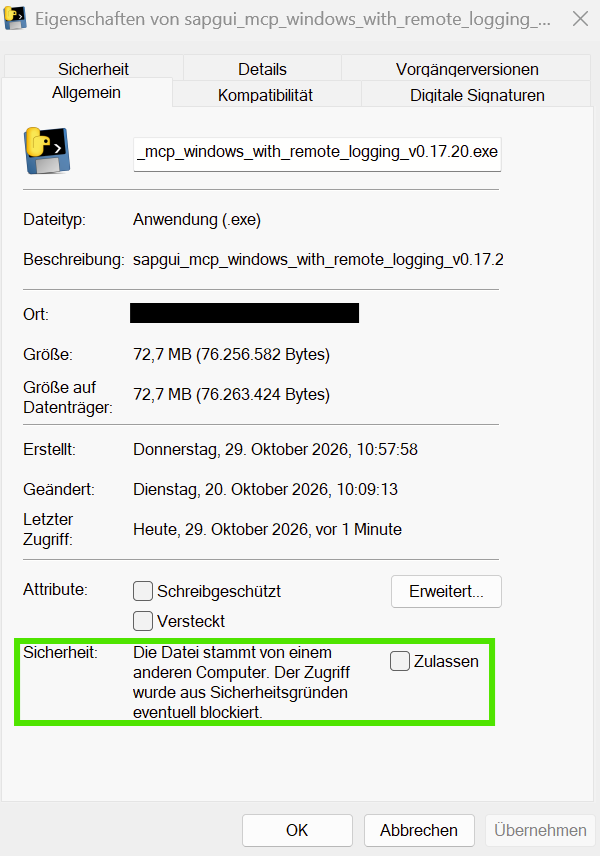
Windows blocks the .exe? Windows may flag an executable as downloaded from another computer.
If you trust the file downloaded from our GitHub Releases, right-click it → Properties (Eigenschaften) → General (Allgemein).
Under Security (Sicherheit), check Unblock (Zulassen), then Apply (Übernehmen) and try again.
The checkbox only appears when Windows has marked the file as downloaded from another computer. This removes that download block; it does not override Smart App Control.
If Smart App Control still blocks execution, contact your IT administrator rather than disabling protection.
macOS Gatekeeper: If macOS refuses to run the binary, clear the quarantine attribute and make it executable: xattr -c sapwebgui_mcp_macos_arm64_<version> and chmod +x sapwebgui_mcp_macos_arm64_<version>.
There is no Linux binary. On Linux, use Option B.
The executable cannot start its own Playwright browser: it only supports BROWSER_MODE=connect (your own Chrome).
Option B: From source (all operating systems)
You need uv (it installs the right Python for you).
git clone https://github.com/Hochfrequenz/sapwebgui.mcp.git
cd sapwebgui.mcp
uv sync
This creates a virtual environment in .venv with the command run-sapwebgui-mcp-server. Note the full path of that command; you need it in Step 4:
| OS | Path of the command |
|---|---|
| Windows | C:/path/to/sapwebgui.mcp/.venv/Scripts/run-sapwebgui-mcp-server.exe |
| macOS / Linux | /path/to/sapwebgui.mcp/.venv/bin/run-sapwebgui-mcp-server |
To update later, run git pull and uv sync again.
Contributors: see CONTRIBUTING.md for the development setup.
Step 2: Create the SAP config file (systems.json)
This file holds your SAP systems and credentials. It is shared with aibap.mcp - configure it once and all Hochfrequenz SAP MCP servers will use it. The file format is owned by sap-mcp-config; see there for the complete field reference, validation rules and YAML support.
The default location is:
| OS | Default path |
|---|---|
| Windows | %USERPROFILE%\.config\sap-mcp\systems.json |
| macOS/Linux | ~/.config/sap-mcp/systems.json |
On Windows, open Windows Explorer and paste %USERPROFILE%\.config\sap-mcp into the address bar. Create the folder if it doesn't exist, then create a file called systems.json inside it. (Set SAP_CONFIG_FILE to use another path.)
{
    "default_system": "dev",
    "systems": {
        "dev": {
            "host": "https://your-sap-server:44300",
            "client": "100",
            "user": "your_username",
            "password": "your_password",
            "language": "DE"
        }
    }
}
- The dictionary key (
"dev") is the system key. The agent passes it assystem_keytosap_login, anddefault_systemnames the key used when none is given. hostis the base URL of your SAP system. The server derives the Web GUI URL{host}/sap/bc/gui/sap/its/webguifrom it. If your system uses a different Web GUI path, ask the agent to log in with that full URL (sap_loginhas aurlparameter).languagemust beDE,ENorIT(omitted meansEN).- You do not need
connection_name(that field belongs to SAP Logon, which this server does not use).
For several systems, add more entries under systems. The agent then lets you choose one (the choose tool) and logs in with sap_login(system_key="qa"). If the system key is not found, an error lists the available keys.
Step 3: Start Chrome with remote debugging
The server controls a Chrome browser that you can see. Chrome must run with remote debugging enabled on port 9222 and with its own profile directory (--user-data-dir; without it Chrome joins your running Chrome and ignores the debugging flag).
Windows:
& "C:\Program Files\Google\Chrome\Application\chrome.exe" --remote-debugging-port=9222 --user-data-dir="C:\temp\chrome-debug" --ignore-certificate-errors
If Chrome was installed only for your user, use "$env:LOCALAPPDATA\Google\Chrome\Application\chrome.exe" instead. If the command fails, see Finding your Chrome path.
macOS:
/Applications/Google\ Chrome.app/Contents/MacOS/Google\ Chrome --remote-debugging-port=9222 --user-data-dir="/tmp/chrome-debug" --ignore-certificate-errors
Linux:
google-chrome --remote-debugging-port=9222 --user-data-dir=/tmp/chrome-debug --ignore-certificate-errors
Leave this Chrome window open. Check that it works (open http://localhost:9222/json/version in another browser, or run):
Invoke-WebRequest -Uri 'http://localhost:9222/json/version' -UseBasicParsing
On macOS/Linux: curl http://localhost:9222/json/version. You should see JSON. If you get a connection error, make sure you included --user-data-dir.
If your Chrome listens on another port, set CDP_URL (see the environment variables).
Step 4: Register the server with your MCP client
Register the server once with the client you use. The server name is up to you; this guide uses sap-webgui. Below, <command> is the full path you noted in Step 1 (the .exe, the macOS binary, or the run-sapwebgui-mcp-server command of your source checkout).
Claude Code
Recommended: register once for all projects (user scope). Run this in PowerShell, bash or zsh:
claude mcp add --scope user sap-webgui '--' C:/path/to/sapwebgui_mcp_windows_<version>.exe
Together with systems.json, this is all Claude Code needs - no .mcp.json in any project folder. If you add environment variables with -e (see Optional environment variables), two details matter:
- Keep the server name (
sap-webgui) before-e. The-eoption accepts several values, so a name placed after it is read as a second environment variable and the command fails witherror: missing required argument 'commandOrUrl'. - Keep the quotes around
'--'. If Claude Code was installed through npm,claudeis a PowerShell script, and PowerShell silently drops an unquoted--before passing the arguments on.-ethen swallows the executable path and the command fails with the same error. This works in PowerShell, bash and zsh (in bash or zsh,'--'and--are equivalent). In cmd.exe, single quotes are not quoting characters, so write a plain--instead.
On macOS or Linux, use your <command> path instead of the .exe path. If Claude Code still starts an old or broken registration instead of the global one, see Claude Code ignores the global registration.
Alternative: per project. Add to .mcp.json in your project root:
{
    "mcpServers": {
        "sap-webgui": {
            "command": "C:/path/to/sapwebgui_mcp_windows_<version>.exe",
            "args": [],
            "env": {}
        }
    }
}
Claude Desktop
Add to claude_desktop_config.json. On Windows, press Win+R, type %APPDATA%\Claude and press Enter. On macOS the file is ~/Library/Application Support/Claude/claude_desktop_config.json. If claude_desktop_config.json does not exist, create a new text file with that exact name (make sure it ends in .json, not .json.txt). If the file already has content, add sap-webgui to the existing mcpServers object.
{
    "mcpServers": {
        "sap-webgui": {
            "command": "C:/path/to/sapwebgui_mcp_windows_<version>.exe",
            "args": [],
            "env": {}
        }
    }
}
Restart Claude Desktop after saving.
opencode
Add to opencode.json in your project root:
{
    "$schema": "https://opencode.ai/config.json",
    "mcp": {
        "sap-webgui": {
            "type": "local",
            "command": ["C:/path/to/sapwebgui_mcp_windows_<version>.exe"],
            "enabled": true,
            "environment": {}
        }
    }
}
Optional environment variables
Most setups need none. To set one (for example CDP_URL, CHROME_PATH or GITHUB_PAT, see the environment variables):
- Claude Code (command line): add
-e NAME=valuebetween the server name and'--', for exampleclaude mcp add --scope user sap-webgui -e CDP_URL=http://localhost:9223 '--' <command>. - Claude Code
.mcp.jsonand Claude Desktop: put it in theenvobject, for example"env": { "CDP_URL": "http://localhost:9223" }. - opencode: put it in the
environmentobject. - Any client: a
.envfile in the working directory of the server process is read too, but that directory depends on how your client starts the server, so prefer the client config.
Step 5: Verify the setup
Before your first prompt, check that the MCP server starts correctly. Open a terminal (PowerShell on Windows, Terminal on macOS/Linux) and run:
Claude Code:
claude mcp list
Expected output:
sap-webgui: C:/path/to/sapwebgui_mcp_windows_<version>.exe ✓ Connected
opencode:
opencode mcp list
Expected output:
● ✓ sap-webgui connected
If you see ✗ Failed, the most common cause is a wrong path to the executable in your config. Double-check the path and that the file exists there. Run opencode mcp debug sap-webgui for more detail.
For Claude Code with a user-scope registration there is no config file to edit: claude mcp get sap-webgui shows the registered path, and to change it (for example after downloading a new version), run claude mcp remove sap-webgui -s user and add the server again.
Docker
Use Docker instead of steps 1 and 4 if you prefer not to install the executable or Python. Steps 2 (systems.json), 3 (start Chrome yourself) and 5 still apply. Because the server then runs in a container, it cannot reach Chrome on your host directly, so a small CDP proxy is needed.
Prerequisites: Docker Desktop, Chrome, and a VPN connection if your SAP system is on an internal network. (The Docker setup is described for Docker Desktop on Windows and macOS.) Verify Docker is running:
docker --version
1. Start Chrome with remote debugging as in Step 3. In Docker the server cannot auto-launch Chrome, so you must do this yourself.
2. Set up the CDP proxy. Chrome rejects CDP connections whose Host header is not localhost, and a container reaches your host as host.docker.internal. The proxy rewrites the header. Create a folder (e.g., C:\sap-mcp\) and add these two files:
docker-compose.yml
services:
    cdp-proxy:
        image: nginx:alpine
        ports:
            - '9223:9222'
        volumes:
            - ./nginx-cdp-proxy.conf:/etc/nginx/conf.d/default.conf:ro
        restart: unless-stopped

networks:
    default:
        name: sap-mcp-network
nginx-cdp-proxy.conf
server {
    listen 9222;

    resolver 127.0.0.11 valid=30s;

    location / {
        set $backend "host.docker.internal:9222";
        proxy_pass http://$backend;
        proxy_set_header Host localhost;
        proxy_http_version 1.1;
        proxy_set_header Upgrade $http_upgrade;
        proxy_set_header Connection "upgrade";

        proxy_read_timeout 3600s;
        proxy_send_timeout 3600s;

        sub_filter 'ws://localhost/' 'ws://host.docker.internal:9223/';
        sub_filter 'ws://localhost:9222/' 'ws://host.docker.internal:9223/';
        sub_filter_once off;
        sub_filter_types application/json;
    }
}
Then start the proxy:
cd C:\sap-mcp
docker compose up -d
Verify it's running:
docker ps --filter "name=cdp-proxy" --format "table {{.Names}}\t{{.Status}}"
3. Register the container with your MCP client. The image is ghcr.io/hochfrequenz/sapwebgui.mcp:latest. systems.json is mounted into the container. Replace:
C:/Users/YourNamewith your home folder (on macOS, use/Users/YourName/...). Docker treats a mount source that is not an absolute path as the name of a Docker volume, so~does not work here.your_github_patwith a GitHub Personal Access Token, or remove theGITHUB_PATlines if you do not need that feature (see the note under Optional environment variables).
Claude Desktop (claude_desktop_config.json, see Claude Desktop for its location):
{
    "mcpServers": {
        "sap-webgui": {
            "command": "docker",
            "args": [
                "run",
                "-i",
                "--rm",
                "--network",
                "sap-mcp-network",
                "-e",
                "BROWSER_MODE=connect",
                "-e",
                "CDP_URL=http://cdp-proxy:9222",
                "-v",
                "C:/Users/YourName/.config/sap-mcp/systems.json:/home/appuser/.config/sap-mcp/systems.json:ro",
                "-e",
                "GITHUB_PAT=your_github_pat",
                "ghcr.io/hochfrequenz/sapwebgui.mcp:latest"
            ]
        }
    }
}
Claude Code (user scope, run once):
claude mcp add --scope user sap-webgui '--' docker run -i --rm --network sap-mcp-network -e BROWSER_MODE=connect -e CDP_URL=http://cdp-proxy:9222 -v C:/Users/YourName/.config/sap-mcp/systems.json:/home/appuser/.config/sap-mcp/systems.json:ro -e GITHUB_PAT=your_github_pat ghcr.io/hochfrequenz/sapwebgui.mcp:latest
Everything after '--' is the Docker command and is passed through unchanged, so the -e flags there are Docker's, not Claude Code's. Keep the quotes around '--' (in cmd.exe, write a plain --; see Claude Code for why). Write the home folder path out in full instead of using ~, because how ~ is expanded on the command line depends on the shell. A GITHUB_PAT typed on the command line ends up in your shell history. For a per-project registration, use the same command and args in .mcp.json; for opencode use "command": ["docker", "run", ...] with the same arguments.
If Docker Desktop isn't running, or the image was never pulled, you might get a nonspecific error "1 MCP server failed · /mcp". Try pulling manually (and see Docker image pull fails):
docker pull ghcr.io/hochfrequenz/sapwebgui.mcp:latest
If the containers started but Chrome is missing, the agent will likely understand how to log in but fail on the first tool call.
Capabilities
Your AI client automatically discovers all individual tools and their schemas upon connection. At a high level, the server gives your agent:
- Drive Any SAP Transaction — Execute transaction codes (
sap_transaction), fill form fields (sap_fill_form,sap_set_field, checkboxes, radio buttons, dropdowns), click buttons, press keys, select tabs, read and interact with ALV grids and tables, and handle modal popups and status bar messages. - Transaction Shortcuts — Built-in tools for common developer and basis tasks: query tables (SE16/SE16N), inspect transports (SE09), search background jobs (SM37), inspect short dumps (ST22), query application logs (SLG1), read table maintenance views (SM30), look up Data Dictionary objects (SE11), classes (SE24), function modules (SE37) and transactions (SE93), and search the IMG (SPRO).
sap_quick_reportruns a report in one call: it enters the transaction, fills the selection screen, presses Execute and reads the result. - Editing ABAP in SAP —
sap_se38_edit,sap_se37_editandsap_se24_editchange existing reports, function modules and class methods in place. Prefer abapGit or an ADT MCP where you can. - Visual Validation & Screenshots —
sap_screenshotcaptures any SAP screen for documentation, E2E test verification, or human-in-the-loop inspection. - Offline Catalogs —
search_transactions,search_tables,search_classesandsearch_function_modulessearch without an active SAP connection. - abapGit & Source Code — Pull abapGit repositories (
sap_abapgit_pull,sap_abapgit_list_repos) and read ABAP report source code (sap_read_se38_source). Pulls use theZ_ABAPGIT_PULL_MCP_SHORTCUTreport on the SAP system. For private repositories, setGITHUB_PATorABAPGIT_PAT.sap_abapgit_pulltakes an optionalbranch(e.g.main,feature/x): it switches the registered repository to that branch persistently (kept only if the pull succeeds) and clears a commit pin; the result'sbranchandsap_abapgit_list_reposshow where the repository is. Instead ofrepo,sap_abapgit_pullacceptskey(the 12-digit repository key fromsap_abapgit_list_repos), the only unique identifier when two repositories share a name or URL; it needs a report version withP_KEY. - Multi-Session Management — Every SAP session is a browser tab. List, bind, release, close, and reset parallel sessions across concurrent agent tasks (
sap_session_list,sap_session_bind,sap_session_release,sap_session_close,sap_session_reset_to_primary).sap_session_detachexists but is not supported (it always returns an error): usesap_session_close. - Browser Automation — Low-level browser actions (
browser_click,browser_fill,browser_keyboard,browser_snapshot,browser_screenshot,browser_evaluate, ...) are available as escape hatches for pixel-level control. - Prompts — Ready-made workflows the client can offer:
create_business_partner,explore_table,explore_class,explore_function_module,se16_bulk_readandabapgit_workflow.
Configuration Reference
SAP Credentials (via systems.json)
SAP credentials (user, password, client, language, host) are configured in systems.json (or systems.yaml), not via server environment variables. See sap-mcp-config for the file format. Override the config file path with SAP_CONFIG_FILE. The language of each system must be DE, EN or IT (case-insensitive; omitted means EN) - these are the languages this server supports, and any other value, such as FR, is rejected when the config is loaded with language must be one of "DE", "EN", "IT". The variables SAP_USER, SAP_PASSWORD, SAP_MANDANT, SAP_LANGUAGE, SAP_CONNECTION_NAME and SAP_CREDENTIALS that some older MCP setups used are ignored by the server and can be removed from existing configs (SAP_LANGUAGE is read by the integration tests only).
Individual fields may still be sourced from the environment with an ${env:VAR} placeholder - e.g. "password": "${env:SAP_DEV_PASSWORD}" - which keeps secrets out of the file while the structure stays in it. Placeholders work in host, client, user, password, language, oauth2_client_id and the top-level default_system.
An unset or empty variable makes the config invalid, so the first tool call that needs a credential - sap_login, for instance - fails with an error naming the variable, never a silently empty credential. Note that the server itself still starts: config loading is lazy, so the failure surfaces on first use rather than at launch. Tools that only list configuration, such as sap_list_connections, do not fail on an invalid config but report the reason in a config_error field of their result instead of returning a silently empty list; the server instructions carry the same message. Text that only looks like a placeholder is used verbatim, so a typo such as ${SAP_PASSWORD} (missing the env: prefix) becomes your literal password rather than an error - see the placeholder rules for the exact forms.
| OS | Default path |
|---|---|
| Windows | %USERPROFILE%\.config\sap-mcp\systems.json |
| macOS/Linux | ~/.config/sap-mcp/systems.json |
Environment Variables (server-specific)
All of these are optional. The server reads them from its process environment and from a .env file in its working directory.
| Variable | Required | Description | Default |
|---|---|---|---|
SAP_URL |
No | Fallback WebGUI URL, used only when the selected system has no host in systems.json (the URL is normally derived from host) |
"" |
SAP_CONFIG_FILE |
No | Path to systems.json (see table above for default per OS) | (see above) |
OUTPUT_DIR |
No | Directory that output_file tool arguments (e.g. sap_se16_query) are sandboxed to. Set this when the server's cwd isn't your project directory. |
"" (current working directory) |
BROWSER_MODE |
No | connect (existing Chrome) or launch (Playwright starts a browser; needs playwright install, not available in the executable) |
connect |
BROWSER_TYPE |
No | chromium, firefox, or webkit |
chromium |
BROWSER_HEADLESS |
No | Run the browser in headless mode (applies to BROWSER_MODE=launch) |
false |
CDP_URL |
When BROWSER_MODE=connect |
Chrome DevTools Protocol URL | http://localhost:9222 |
CHROME_PATH |
No | Windows only: explicit path to the Chrome binary for auto-launch. Ignored on macOS and Linux. | "" (auto-detect) |
CHROME_USER_DATA_DIR |
No | Windows only: user data directory for auto-launched Chrome | <tempdir>/chrome-debug |
GITHUB_PAT |
No | GitHub PAT for log_feedback issues and abapGit auth |
- |
GITHUB_USER |
No | GitHub username for abapGit (falls back to x-access-token) |
- |
GITHUB_REPO |
No | Repository for feedback issues | Hochfrequenz/sapwebgui.mcp |
ABAPGIT_PAT |
No | Separate PAT for abapGit (overrides GITHUB_PAT if set) |
- |
LOG_FORMAT |
No | Set to json for JSON log output |
"" (human-readable) |
LOG_LEVEL |
No | DEBUG, INFO, WARNING, or ERROR |
INFO |
Legacy BACKEND_TYPE setting
Earlier versions of the combined project selected their backend with BACKEND_TYPE. This server has only the Web GUI backend and does not read that variable. Only one value is noticed, to help users who still have an old configuration: if BACKEND_TYPE is desktop (case-insensitive, key and value; set in the process environment or in a .env file in the working directory, where the environment wins), the server writes a warning to its log at startup and appends a notice to the server instructions that points the agent to sapgui.mcp. The server still starts and works as a Web GUI server. Any other value is ignored silently. Remove the variable from your configuration.
Logging
The server logs to stderr by default using a structured text format (stdout carries the MCP protocol). Set LOG_FORMAT=json for machine-readable JSON output and LOG_LEVEL to change the level.
The release binaries (see Step 1) honour user overrides via .env or environment variables.
Troubleshooting
Finding your Chrome path
The Chrome startup commands in this guide use C:\Program Files\Google\Chrome\Application\chrome.exe - the default path for a system-wide Chrome installation. If you get an error like "The system cannot find the path specified", Chrome is likely installed in a different location.
Common Chrome paths on Windows:
| Installation type | Path |
|---|---|
| System-wide (all users) | C:\Program Files\Google\Chrome\Application\chrome.exe |
| Per-user (current user) | C:\Users\<YourName>\AppData\Local\Google\Chrome\Application\chrome.exe |
How to find your Chrome path (step by step):
- Find your Chrome shortcut (on your desktop or in the Start menu)
- Right-click the Chrome shortcut → click Properties
- In the Properties window, look at the Target field
- Copy the path from that field (everything before any
--flags)
For example, if the Target field shows:
"C:\Users\JaneDoe\AppData\Local\Google\Chrome\Application\chrome.exe"
Then your Chrome startup command is:
& "C:\Users\JaneDoe\AppData\Local\Google\Chrome\Application\chrome.exe" --remote-debugging-port=9222 --user-data-dir="C:\temp\chrome-debug" --ignore-certificate-errors
Quick check in PowerShell - this command finds Chrome automatically:
Get-Item "C:\Program Files\Google\Chrome\Application\chrome.exe","$env:LOCALAPPDATA\Google\Chrome\Application\chrome.exe" -ErrorAction SilentlyContinue | Select-Object -First 1 -ExpandProperty FullName
To let the server find Chrome (when it auto-launches it), set CHROME_PATH to that path.
Chrome connection errors
- Make sure Chrome is running with
--remote-debugging-port=9222 - Make sure you used
--user-data-dir(required, otherwise Chrome joins the existing instance) - Verify with:
Invoke-WebRequest -Uri 'http://localhost:9222/json/version' -UseBasicParsing(macOS/Linux:curl http://localhost:9222/json/version) - On macOS and Linux the server cannot start Chrome for you: start it yourself (Step 3). An error that asks you to set
CHROME_PATHmeans Chrome is not reachable on port 9222;CHROME_PATHdoes not help there.
SAP login fails
- Check that the system's
hostinsystems.json(orSAP_URL) is correct and that{host}/sap/bc/gui/sap/its/webguiopens in your browser - Verify user, password and client in
systems.json(see Configuration Reference) - Try logging in manually first to verify credentials
Claude Code ignores the global registration
When the same server name is registered in more than one scope, Claude Code uses the entry with the highest precedence: local (stored per project in ~/.claude.json), then project (.mcp.json), then user (the global registration from claude mcp add --scope user). See MCP installation scopes in the Claude Code documentation. A forgotten registration with the same name therefore shadows a correct global one. If it points at a binary that no longer exists, the server fails to connect (for example with CONNECTION_CLOSED).
To find and remove the stale entry:
- Run
claude mcp get sap-webguifrom the project directory. TheScope:line shows which registration Claude Code actually uses. - Remove a local-scope entry with
claude mcp remove sap-webgui -s local, or the entry in the project's.mcp.jsonwithclaude mcp remove sap-webgui -s project. Always pass-s: without it,removedeletes the server from whichever scope it finds it in, which may be your global registration. (The-s projectvariant edits the project's possibly shared.mcp.json, so commit that change only if the whole team should lose the entry.)
When cleaning up configs from older setups, you can also drop the old SAP_* credential variables and BACKEND_TYPE from any env block. Credentials are configured only via systems.json (optionally with ${env:VAR} placeholders). SAP_URL and SAP_CONFIG_FILE are still supported.
Transaction input field (OK-Code field) not visible
On first use of SAP Web GUI, the transaction input field (called "OK-Code field" in SAP) may be hidden. The MCP server tries to enable it automatically, but if that fails, you can enable it manually:
- Click the gear icon in the toolbar ("GUI-Aktionen und -Einstellungen" / "GUI Actions and Settings")
- Select "Einstellungen..." / "Settings..."
- Enable "OK-Code-Feld anzeigen" (Show OK-Code Field)
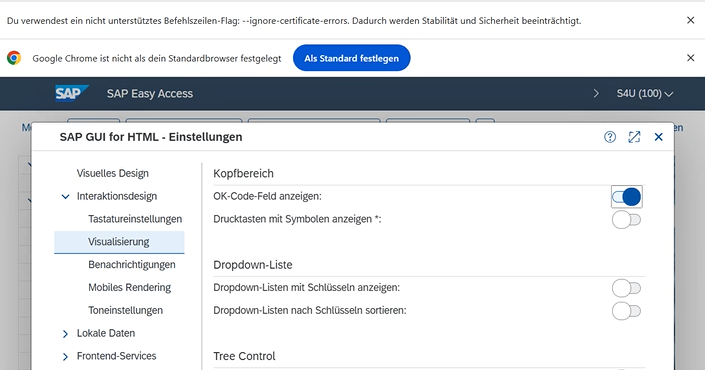
This is a one-time setting that is saved for subsequent logins.
Tools timeout or hang
SAP Web GUI can be slow. If operations timeout:
- Check the Chrome window - is SAP responding?
- Try
sap_keepalive_startto prevent session timeouts - In Docker setups, check the container logs:
docker logs <container-id>
"network sap-mcp-network not found"
Docker setups only: the CDP proxy isn't running or was never started. Start it:
cd C:\sap-mcp
docker compose up -d
"Cannot connect to CDP proxy"
Docker setups only. Check if the proxy is running:
docker ps | Select-String cdp-proxy
Check proxy logs:
docker logs sap-mcp-cdp-proxy-1
"Port 9223 already in use"
Docker setups only: another service is using port 9223. Stop it or change the port in docker-compose.yml:
ports:
    - '9224:9222' # Use 9224 instead
Docker image pull fails
The image is public, so docker pull needs no login:
docker pull ghcr.io/hochfrequenz/sapwebgui.mcp:latest
- "denied" or "unauthorized": an old or expired login to
ghcr.iois still stored. Rundocker logout ghcr.ioand pull again. - "manifest unknown": the tag does not exist. Image tags have no
vprefix: use0.20.1, notv0.20.1, orlatest. - "failed to connect to the docker API": Docker Desktop is not running. Start it and pull again.
Architecture
The server drives SAP Web GUI in Chrome through Playwright and the Chrome DevTools Protocol:
graph BT
    Claude["Claude Desktop / Claude Code / opencode"]
    MCP["MCP Server (sapwebguimcp)\nPlaywright for browser automation\nSAP-specific tools"]
    CDP["CDP Proxy (nginx)\nOnly needed for Docker"]
    Chrome["Chrome\nSAP Web GUI loaded\nPersistent session"]

    Claude -- "MCP (stdio)" --> MCP
    MCP -- "HTTP / WebSocket" --> CDP
    CDP -- "CDP (Chrome DevTools Protocol)" --> Chrome
Without Docker the server connects to Chrome directly and the proxy is not needed.
Related projects
This server is part of a small ecosystem of SAP + AI tooling:
sapgui.mcp- the sibling project for SAP GUI for Windows (COM scripting). Use it if you work with SAP GUI instead of the browser.aibap.mcp- complementary MCP server that talks to SAP via the ADT REST API (read/write source, activate, syntax-check, run unit tests, manage transports). Wheresapwebgui.mcpdrives SAP through its UI,aibap.mcptalks directly to the ABAP Development Tools HTTP API. The two are designed to coexist and share~/.config/sap-mcp/systems.json.AIBAP_TEMPLATE_REPOSITORY- GitHub template for AI-driven ABAP vibe-coding projects. Documents the two-agent pattern (dev viaaibap.mcp, test / documentation / screenshots via a GUI MCP such as this one) end-to-end.Z_ABAPGIT_PULL_MCP_SHORTCUT- SAP-side ABAP report thatsap_abapgit_pullcalls to pull abapGit repos through the ABAP API. Install it on any SAP system where you want the abapGit pull tools to work.sap-mcp-config- shared config schema forsystems.json, consumed by this server (Python),sapgui.mcp(Python) andaibap.mcp(Go).
Contributing
See CONTRIBUTING.md for the development setup, tests and code style, and ARCHITECTURE.md for the code structure.
1 maintainer

Metadata
1 maintainer
Release files for sapwebguimcp 0.20.2
For a detailed explanation of source distributions (sdists) and built distributions (wheels), please see the package formats documentation.
Source distribution (sdist)
| File | Size | Uploaded | Provenance | Actions |
|---|---|---|---|---|
| sapwebguimcp-0.20.2.tar.gz | 2.2 MB | With provenance | Details for sapwebguimcp-0.20.2.tar.gz |
Built distribution (wheel)
| File | Interpreter | ABI | Platform | Actions Reset |
|---|---|---|---|---|
| sapwebguimcp-0.20.2-py3-none-any.whl | Python 3 | none | any | Details for sapwebguimcp-0.20.2-py3-none-any.whl |
Total release size: 2.8 MB
Release files / sapwebguimcp-0.20.2.tar.gz
| Download URL | sapwebguimcp-0.20.2.tar.gz |
|---|---|
| Size | 2.2 MB |
| Tags | Source |
|
SHA-256 checksum How to use checksums |
edda0f172ea6c1ba4130a34bacc7f9c106bda35137702db73a6d3488946ec38d
|
|
BLAKE2b-256 checksum How to use checksums |
ca90b924d9088d47c5a96918d2f0200a52210c133fc2c3cfb35faeb5bdcc6f51
|
| Upload date | |
|
Uploaded using Trusted Publishing? What is trusted publishing? |
Yes |
| Uploaded via |
twine/7.0.0 CPython/3.13.16
|
Provenance
Provenance describes where a file came from. On PyPI, provenance is shared via attestations, which provide a verifiable record of the build or publishing details. View details, limitations and caveats.


PyPI Publish Attestation
PyPI verified that this artifact, at this checksum, originated from the publisher listed below.
Signed by GitHub Actions, verified by PyPI on Nov 19, 2026.
Transparency logRelease files / sapwebguimcp-0.20.2-py3-none-any.whl
| Download URL | sapwebguimcp-0.20.2-py3-none-any.whl |
|---|---|
| Size | 588.2 kB |
| Tags | Python 3 |
|
SHA-256 checksum How to use checksums |
ef227746c142c10ea4f3086a70cdc3c426d98e793a43e135e8d7b0f7532a5590
|
|
BLAKE2b-256 checksum How to use checksums |
1c65cbb864f51621c45bf68c16d63a9594dc07d8fa86bd43199471bd7fb94bf0
|
| Upload date | |
|
Uploaded using Trusted Publishing? What is trusted publishing? |
Yes |
| Uploaded via |
twine/7.0.0 CPython/3.13.16
|
Provenance
Provenance describes where a file came from. On PyPI, provenance is shared via attestations, which provide a verifiable record of the build or publishing details. View details, limitations and caveats.
PyPI Publish Attestation
PyPI verified that this artifact, at this checksum, originated from the publisher listed below.
Signed by GitHub Actions, verified by PyPI on Nov 19, 2026.
Transparency logSecurity for sapwebguimcp 0.20.2
Provenance
Provenance describes where a file came from. On PyPI, provenance is shared via attestations, which provide a verifiable record of the build or publishing details. View details, limitations and caveats.
Full provenance
Both files in this release have been uploaded with provenance metadata.
Attestation for sapwebguimcp-0.20.2.tar.gz
PyPI Publish Attestation
PyPI verified that this artifact, at this checksum, originated from the publisher listed below.
Signed by GitHub Actions, verified by PyPI on Nov 19, 2026.
Transparency logA note on package security
PyPI is a repository for distributing packages, not a service for auditing them. While third-party security researchers and our staff do their best to detect and remove malicious packages, PyPI cannot guarantee the quality, security or suitability of any given package.
To learn more about protecting yourself from malicious actors, visit our package security documentation.













