
Turn screen recordings into actionable engineering reports — narrated screencast review (STT → LLM → VLM)
Verified details
These details have been verified by PyPIProject links
GitHub Statistics
Maintainers

Project description
screenscribe




Turn screen recordings into actionable engineering reports.
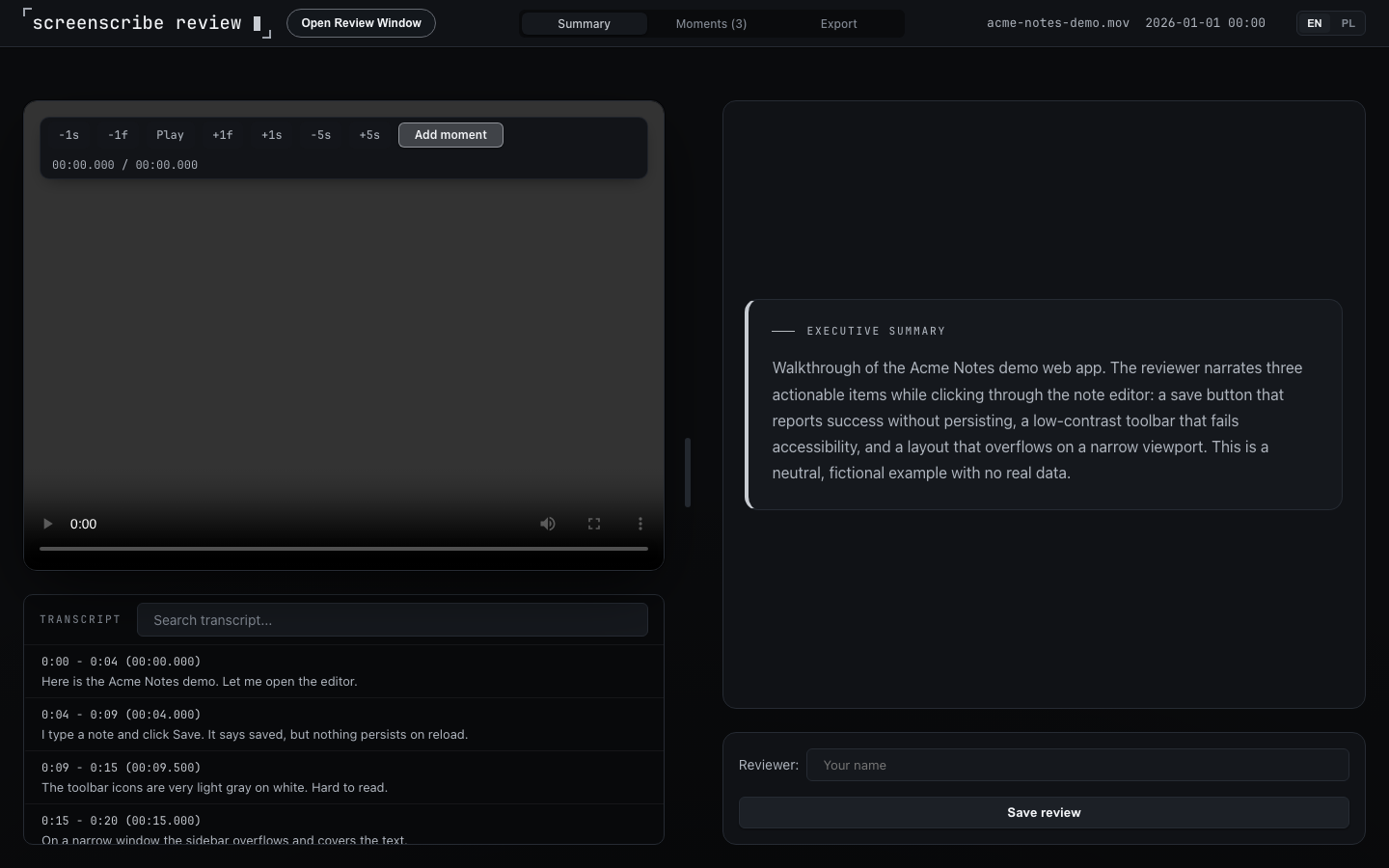
See a live example report: browse the
showcase
for a rendered screenshot, or clone the repo and run
uv run python examples/generate_example.py to generate and open a live,
self-contained example_report.html. It is a neutral, fictional sample — no
real recordings, keys, or personal data.
Record yourself walking through your app, talk through the bugs and changes you see, and screenscribe transcribes the narration, matches it to what is on screen, and produces a structured report you (or your AI agent) can act on — JSON, Markdown, and an interactive HTML report.
screenscribe runs a STT → LLM → VLM pipeline: speech-to-text for the narration, a language model to find the actionable moments, and a vision-language model to confirm them against captured frames.
screenscribe ships with LibraxisAI as its first-party default provider (an OpenAI-compatible API). To run it yourself, bring any OpenAI-compatible key — from OpenAI or another provider — and point screenscribe at that endpoint with two environment variables. See Providers.
Why screenscribe
Screen recordings are a fast, natural way to report bugs and review changes — but a video is not actionable. Someone still has to watch it, scrub to the right moment, and write down what was said. screenscribe automates that last mile:
- Just speak. Narrate your recording in plain language.
- Get structure. Receive a report with findings, timestamps, screenshots, and an executive summary.
- Hand off cleanly. The Markdown output is designed to be readable by both humans and AI fixer agents.
Typical users: developers doing self-review, QA engineers filing bug demos, product owners capturing feedback walkthroughs.
Features
- Two analysis modes
review— automatic pipeline: transcribe → find → screenshot → confirm → report.analyze— interactive, human-first dashboard: you scrub the video, mark frames, add voice/text notes, and trigger AI analysis only where it matters.
- STT → LLM → VLM pipeline with response-ID chaining so each stage shares context with the next.
- Interactive HTML report with synchronized video player, subtitle sync, screenshot annotations, and a human review workflow (on by default).
- Transcript-first lane (
preprocess) — extract audio and transcribe into stable artifacts (TXT, timestamped TXT, segments JSON, WebVTT) before any AI analysis, ideal for agent handoff. - Batch mode — review multiple videos with shared context across files.
- Auto-versioning — re-running a review preserves prior output as
_2,_3, … instead of overwriting. - Checkpointing — resume interrupted runs with
--resume. - Multi-provider, OpenAI-compatible — per-endpoint keys, endpoints, and models; optional opt-in STT fallback to a second provider.
Requirements
- Python 3.11+
- uv for dependency sync and source-checkout commands.
- macOS:
brew install uv - Standalone installer:
curl -LsSf https://astral.sh/uv/install.sh | sh
- macOS:
- FFmpeg (provides
ffmpegandffprobe) — a system-level prerequisite, not a Python dependency. It is never installed bypip/uv tool install; you must install it separately before the first run. Used for audio extraction and duration probing; input videos can be anything FFmpeg decodes, including.mp4,.mov,.mkv, and.webm.- macOS:
brew install ffmpeg - Debian/Ubuntu:
sudo apt install ffmpeg - Windows:
choco install ffmpeg(community/untested — CI and package classifiers cover macOS and Linux only; Windows is not an officially supported platform) - Shared Mac: if your account cannot modify the Homebrew prefix, ask the
Homebrew owner or an administrator to run
brew install ffmpeg. Do not change ownership of the Homebrew prefix.
- macOS:
- An API key for an OpenAI-compatible provider (covers STT + LLM + vision). The self-serve path is to bring your own key from OpenAI (or any other OpenAI-compatible provider) and point the endpoints at that provider — see Providers. LibraxisAI is the built-in default endpoint.
Quickstart
uv tool install screenscribe

# choose LibraxisAI, OpenAI, or a custom OpenAI-compatible provider;
# the API key is entered through a hidden prompt
screenscribe config setup

# FFmpeg is required before the first video run (see Requirements above)

# review a narrated screen recording
screenscribe review demo.mov
Want to try it without a persistent install? Run uvx screenscribe --help.
If uv/uvx is not installed yet, follow the official
uv installation guide.
uv tool install screenscribe installs the CLI and its runtime dependencies
from PyPI in an isolated environment. If uv reports that its tool directory is
not on PATH, run uv tool update-shell once and restart your terminal.
FFmpeg/ffprobe are a system prerequisite and are not installed by this
command — see Requirements above.
Upgrade to the latest release: uv tool upgrade screenscribe. Remove it:
uv tool uninstall screenscribe.
Development / install from source
To work on screenscribe itself instead of installing the published package:
git clone https://github.com/vetcoders/screenscribe.git
cd screenscribe
make dev
# Optional: keep the globally available CLI linked to this checkout.
make dev-link
make install installs the current source checkout as a normal, non-editable
tool. It does not install the development dependency group or Git hooks.
Providers
The self-serve path is the provider setup wizard:
screenscribe config setup
Choose LibraxisAI, OpenAI, or a Custom OpenAI-compatible provider (advanced). The custom path asks for a base URL and provider-specific STT, LLM, and vision model names, with an example beside every prompt. The wizard reads the API key through a hidden prompt and atomically writes one coherent set of key, endpoints, and compatible models. A known OpenAI↔LibraxisAI mismatch blocks before any request is sent. Custom endpoints remain available with a warning when provider compatibility cannot be verified.
The legacy config --set-key option remains for advanced compatibility, but it
changes only the generic key and exposes its argument to shell history. It is
not the recommended onboarding path.
Billing — bring-your-own-key (BYOK). screenscribe does not resell or proxy AI capacity. You bring your own provider key and you pay that provider directly — LibraxisAI (the default) or OpenAI — for the STT, LLM, and vision calls each run makes. There is no screenscribe account, subscription, or charge in between: the tool only forwards your requests to the endpoints you configure and never sees or handles payment.
screenscribe transcribes the narration, finds the actionable moments, captures matching screenshots, confirms them with the vision model, writes the report artifacts, and (by default) opens the interactive HTML report in your browser.
Prefer to drive the AI yourself? Use the interactive dashboard:
screenscribe analyze demo.mov
This opens a browser where you scrub the video, mark interesting frames, add voice or text notes, and trigger VLM analysis only on what you point at.
How it works
flowchart LR
    A[Screen recording<br/>+ narration] --> B[Extract audio<br/>FFmpeg]
    B --> C[STT<br/>speech-to-text]
    C --> D[LLM<br/>find actionable moments]
    D --> E[Capture screenshots<br/>at finding timestamps]
    E --> F[VLM<br/>confirm against frames]
    F --> G[Report<br/>JSON / Markdown / HTML]
- Extract audio from the video with FFmpeg.
- STT transcribes the narration into timestamped segments.
- LLM reads the full transcript and surfaces the actionable moments (bugs, changes, points of interest).
- Screenshots are captured at the relevant timestamps.
- VLM inspects each frame alongside the spoken context to confirm the finding and describe what is actually on screen.
- Report artifacts are written (and optionally served in the browser).
Each stage chains a response ID into the next, so later stages reason with the earlier context instead of starting cold.
Terminology — moments vs findings. The interactive report and the
analyzedashboard call these items moments (the "Moments" tab, the "Add moment" button); the data artifacts —<video>_report.json, the Markdown export, and the config flags — call the same items findings. They are one thing under two labels: moment is the UI-facing name, finding is the data-facing name.
Commands
screenscribe ships 7 commands. In a source checkout, prefix copy-paste
commands with uv run as shown below. If you installed the package or activated
its virtualenv, the bare screenscribe command is equivalent. Running
screenscribe with no command opens an interactive prompt; running
screenscribe <video> is a shortcut for screenscribe review <video>.
| Command | What it does |
|---|---|
review |
Full automatic pipeline → interactive review report. |
analyze |
Interactive, human-first dashboard (FastAPI server in your browser). |
transcribe |
Transcribe audio to text only (no analysis). |
preprocess |
Build a transcript-first artifact bundle for downstream review. |
keywords |
Manage keywords passed to the AI as hints during detection. |
config |
Manage configuration and API keys. |
version |
Show version information. |
screenscribe review
Analyze one or more screencasts and generate an interactive review report.
uv run screenscribe review demo.mov
uv run screenscribe review clip1.mov clip2.mov clip3.mov        # batch, shared context
uv run screenscribe review ./recordings/session.mov --no-serve
uv run screenscribe review demo.mov --force
uv run screenscribe review demo.mov --keywords-file my-keywords.yaml
By default this produces a JSON, Markdown, and interactive HTML report and opens the HTML report in your browser. Key options:
--lang / -l— transcription language (defaulten; pass--lang plfor Polish).--no-serve— write the report without starting the browser server.--no-vision(alias--no-vlm) — skip the visual/screenshot (VLM) step; the semantic LLM detection still runs.--keywords-file— per-run keywords file. Keywords are always-on AI hints (see Keywords below); an empty or missing file is safe.--resume/--force— resume from a checkpoint, or overwrite a prior review.
See USAGE.md for every flag.
screenscribe analyze
Start the interactive, human-first analysis dashboard. screenscribe boots a local FastAPI server and opens a browser with a video player where you:
- watch the video and pause at interesting moments,
- record voice comments describing issues,
- mark frames for AI analysis,
- get real-time VLM analysis on exactly the frames you choose,
- export the session as JSON or a Markdown report.
uv run screenscribe analyze demo.mov
uv run screenscribe analyze demo.mov --port 9000
uv run screenscribe analyze demo.mov --lang pl
The dashboard defaults to English (--lang en); a PL/EN toggle switches the
UI and the language used for new frame analyses. This is the recommended mode
when you want to guide the AI instead of letting it process the whole video
blindly — and it works even on recordings with no audio track.
screenscribe transcribe
Transcribe a video's audio to plain text, with no analysis.
uv run screenscribe transcribe demo.mov                 # print to stdout
uv run screenscribe transcribe demo.mov -o transcript.txt
uv run screenscribe transcribe demo.mov --local --lang en
screenscribe preprocess
Build a transcript-first artifact bundle — the non-AI handoff lane. Extracts audio, transcribes it, and writes stable transcript artifacts, then stops before any semantic or vision analysis.
uv run screenscribe preprocess demo.mov
uv run screenscribe preprocess demo.mov -o ./demo_preprocess
uv run screenscribe preprocess demo.mov --no-audio --lang en
Output bundle: transcript.txt, transcript.timestamped.txt,
transcript.segments.json, transcript.vtt, a preprocess.json manifest, and
(by default) the extracted audio.mp3.
screenscribe config
Manage configuration and API keys. The config file lives at
~/.config/screenscribe/config.env.
uv run screenscribe config --show           # display current configuration
uv run screenscribe config setup            # safe provider + hidden-key wizard
uv run screenscribe config --init           # create a default config file
uv run screenscribe config --set-key KEY     # advanced compatibility; shell-history risk
You can also open the config in your editor with uv run screenscribe --config.
screenscribe keywords
Keywords are always-on hints for the AI. They are a dictionary of the words and phrases your team uses to describe problems (e.g. "klikam i nic" = bug, "potworek" = UI, "za ciężkie" = perf). During detection screenscribe passes them to the LLM as hints — they never replace the semantic analysis, never auto-create a finding on their own, and an empty or missing dictionary is a safe no-op. They are used by default if present.
The active dictionary is a single global file at
~/.config/screenscribe/keywords.yaml. It groups phrases under six categories
(bug, change, ui, performance, accessibility, other) and may mix
languages. A built-in default is used until you create your own.
uv run screenscribe keywords init                 # create the global file from defaults
uv run screenscribe keywords edit                 # open it in $EDITOR
uv run screenscribe keywords add bug "klikam i nic" # append one phrase to a category
uv run screenscribe keywords list                 # show the active dict + per-category counts
For a one-off run with a different keywords file, pass --keywords-file /path to
review or analyze instead of editing the global file.
screenscribe version
uv run screenscribe version
uv run screenscribe --version    # short form
Configuration
screenscribe is configured via environment variables or a config file at
~/.config/screenscribe/config.env (created by uv run screenscribe config --init).
Environment variables always override the config file.
API key
Set any one of these — the first non-empty value wins:
export SCREENSCRIBE_API_KEY=YOUR_API_KEY   # generic key (all endpoints)
export OPENAI_API_KEY=YOUR_OPENAI_KEY      # → LLM + vision
export LIBRAXIS_API_KEY=YOUR_LIBRAXIS_KEY  # → STT (and generic fallback)
For multi-provider setups you can set per-endpoint keys explicitly:
SCREENSCRIBE_STT_API_KEY, SCREENSCRIBE_LLM_API_KEY,
SCREENSCRIBE_VISION_API_KEY.
Note:
OPENAI_API_KEYfills the LLM/vision keys but does not change the endpoints, which default to LibraxisAI. Setting onlyOPENAI_API_KEYtherefore sends your OpenAI key to the LibraxisAI endpoint. screenscribe does not re-route silently — it emits a key/endpoint mismatch warning. To use OpenAI directly, also point the endpoints athttps://api.openai.com(viaSCREENSCRIBE_API_BASEor the explicitSCREENSCRIBE_*_ENDPOINTvars).
Endpoints
Point screenscribe at any OpenAI-compatible provider. Either set a base URL and let it derive the standard paths, or set each endpoint explicitly:
# Derive endpoints from a base URL
export SCREENSCRIBE_API_BASE=https://api.openai.com

# Or set explicit full URLs
export SCREENSCRIBE_STT_ENDPOINT=https://api.openai.com/v1/audio/transcriptions
export SCREENSCRIBE_LLM_ENDPOINT=https://api.openai.com/v1/responses
export SCREENSCRIBE_VISION_ENDPOINT=https://api.openai.com/v1/responses
The LLM and vision endpoints use the Responses API (/v1/responses), which
enables response-ID chaining across pipeline stages. The default provider is
LibraxisAI (https://api.libraxis.cloud); override the variables above to use
OpenAI or any compatible provider.
Models
export SCREENSCRIBE_STT_MODEL=whisper-1
export SCREENSCRIBE_LLM_MODEL=gpt-4o          # provider-specific
export SCREENSCRIBE_VISION_MODEL=gpt-4o       # provider-specific
Defaults: STT whisper-1, LLM and vision programmer (the LibraxisAI
default — change these to your provider's model names, e.g. gpt-4o).
Processing options
export SCREENSCRIBE_LANGUAGE=en               # default transcription language (use pl for Polish)
export SCREENSCRIBE_VISION=true               # enable visual/screenshot (VLM) analysis (false = LLM-only)
export SCREENSCRIBE_LLM_MERGE=true            # semantic LLM-merge of near-duplicate findings (false = heuristic-only dedup)
Optional STT fallback (opt-in)
You can configure a second STT provider that is tried only when the primary STT endpoint fails (e.g. a rate limit). It is off by default because a fallback routes your audio to another provider — set all three to enable:
export SCREENSCRIBE_STT_FALLBACK_ENDPOINT=https://api.openai.com/v1/audio/transcriptions
export SCREENSCRIBE_STT_FALLBACK_API_KEY=YOUR_OPENAI_KEY
export SCREENSCRIBE_STT_FALLBACK_MODEL=whisper-1
See USAGE.md for the full configuration reference and troubleshooting.
Language defaults
screenscribe was built international-first, with Polish available as an opt-in:
analyze,review,transcribe, andpreprocessall default to English (--lang en);analyzeadditionally offers a PL/EN toggle in the UI.- Pass
--lang pl(or setSCREENSCRIBE_LANGUAGE=pl) for Polish.
Output artifacts
A review run writes, per video, into the output directory:
<video>_report.json— machine-readable findings, transcript, and summary.<video>_report.md— human- and agent-readable Markdown report.<video>_report.html— interactive HTML report (video player, subtitle sync, annotations, human review workflow).- captured screenshots for each finding.
A preprocess run writes a transcript-first bundle (transcript.txt,
transcript.timestamped.txt, transcript.segments.json, transcript.vtt,
preprocess.json, and optionally audio.mp3).
Documentation
- USAGE.md — comprehensive command and flag reference, workflows, and troubleshooting.
- docs/ARCHITECTURE.md — pipeline, servers, report layer, CLI, and module map for developers and contributors.
- docs/SHOWCASE.md — feature showcase and sample artifacts.
- See an example report:
examples/— a neutral sample report (JSON, VTT); from a source checkout, runuv run python examples/generate_example.pyto build the self-contained interactive HTML and open it in a browser. - CHANGELOG.md — release history.
Contributing
Contributions are welcome. See CONTRIBUTING.md to get started, and please review our Code of Conduct. To report a security issue, see SECURITY.md.
License
Business Source License 1.1 (BUSL-1.1) — see LICENSE.
Built by Vetcoders.
Project details
Verified details
These details have been verified by PyPIProject links
GitHub Statistics
Maintainers
Release history Release notifications | RSS feed

Download files
Download the file for your platform. If you're not sure which to choose, learn more about installing packages.
Source Distribution
Built Distribution
Filter files by name, interpreter, ABI, and platform.
If you're not sure about the file name format, learn more about wheel file names.
Copy a direct link to the current filters
File details
Details for the file screenscribe-0.1.17.tar.gz.
File metadata
- Download URL: screenscribe-0.1.17.tar.gz
- Upload date:
- Size: 3.0 MB
- Tags: Source
- Uploaded using Trusted Publishing? Yes
- Uploaded via: twine/6.1.0 CPython/3.13.13
File hashes
| Algorithm | Hash digest | |
|---|---|---|
| SHA256 |
6ca5f9dd0dc262ba30dc054bdb92c172250ee005f98a3865844cef5a4d4adde3
|
|
| MD5 |
2bac47d54b201f1435e7660e8893f7b3
|
|
| BLAKE2b-256 |
2e6e0895493a32d6e060f2bc20b6dbe2a3b908676fa1a7087168f8117f6435d3
|
Provenance
The following attestation bundles were made for screenscribe-0.1.17.tar.gz:
Publisher:
publish-pypi.yml on vetcoders/screenscribe
-
Statement:
-
Statement type:
https://in-toto.io/Statement/v1 -
Predicate type:
https://docs.pypi.org/attestations/publish/v1 -
Subject name:
screenscribe-0.1.17.tar.gz -
Subject digest:
6ca5f9dd0dc262ba30dc054bdb92c172250ee005f98a3865844cef5a4d4adde3 - Sigstore transparency entry: 2158783213
- Sigstore integration time:
-
Permalink:
vetcoders/screenscribe@5fe464085f40968e728dd2ac78708d2a17b482be -
Branch / Tag:
refs/tags/v0.1.17 - Owner: https://github.com/vetcoders
-
Access:
public
-
Token Issuer:
https://token.actions.githubusercontent.com -
Runner Environment:
github-hosted -
Publication workflow:
publish-pypi.yml@5fe464085f40968e728dd2ac78708d2a17b482be -
Trigger Event:
release
-
Statement type:
File details
Details for the file screenscribe-0.1.17-py3-none-any.whl.
File metadata
- Download URL: screenscribe-0.1.17-py3-none-any.whl
- Upload date:
- Size: 407.2 kB
- Tags: Python 3
- Uploaded using Trusted Publishing? Yes
- Uploaded via: twine/6.1.0 CPython/3.13.13
File hashes
| Algorithm | Hash digest | |
|---|---|---|
| SHA256 |
305941d7d1c07334e2261a12ba13a155004366c3257061d47ee8a37cf34ca1e1
|
|
| MD5 |
e9c864143da75dfc05c0dbf82043de2e
|
|
| BLAKE2b-256 |
fdc813fc6ff29cea4c1183c788344b47a4e5ae20bd594af79a0b449140843022
|
Provenance
The following attestation bundles were made for screenscribe-0.1.17-py3-none-any.whl:
Publisher:
publish-pypi.yml on vetcoders/screenscribe
-
Statement:
-
Statement type:
https://in-toto.io/Statement/v1 -
Predicate type:
https://docs.pypi.org/attestations/publish/v1 -
Subject name:
screenscribe-0.1.17-py3-none-any.whl -
Subject digest:
305941d7d1c07334e2261a12ba13a155004366c3257061d47ee8a37cf34ca1e1 - Sigstore transparency entry: 2158783248
- Sigstore integration time:
-
Permalink:
vetcoders/screenscribe@5fe464085f40968e728dd2ac78708d2a17b482be -
Branch / Tag:
refs/tags/v0.1.17 - Owner: https://github.com/vetcoders
-
Access:
public
-
Token Issuer:
https://token.actions.githubusercontent.com -
Runner Environment:
github-hosted -
Publication workflow:
publish-pypi.yml@5fe464085f40968e728dd2ac78708d2a17b482be -
Trigger Event:
release
-
Statement type:






