
scrollback

Browse, search, copy, and export your AI coding-agent sessions from one local, read-only tool. scrollback reads the conversation history that agents like opencode and Claude Code already keep on disk and gives you a single, consistent view across them — from a scriptable command line or a local web app.
Everything is local-first and strictly read-only: scrollback never modifies, locks for writing, or uploads your data.
You can use it two ways. From the command line, list, search, and export your sessions in a single scriptable tool:
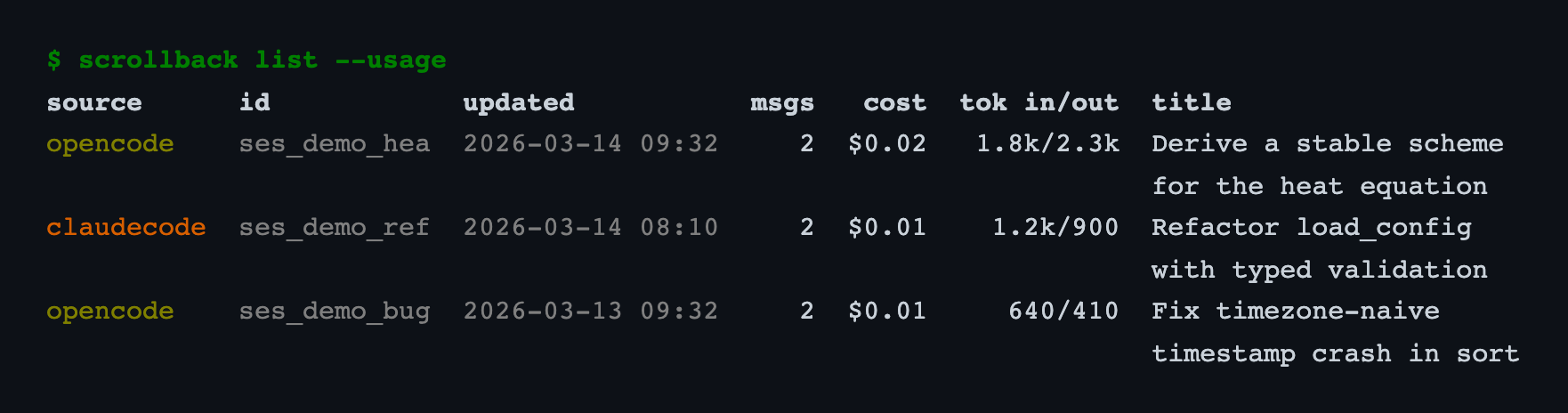
Or open the local web app to read a transcript in full — with rendered Markdown, syntax-highlighted code, and typeset LaTeX math:
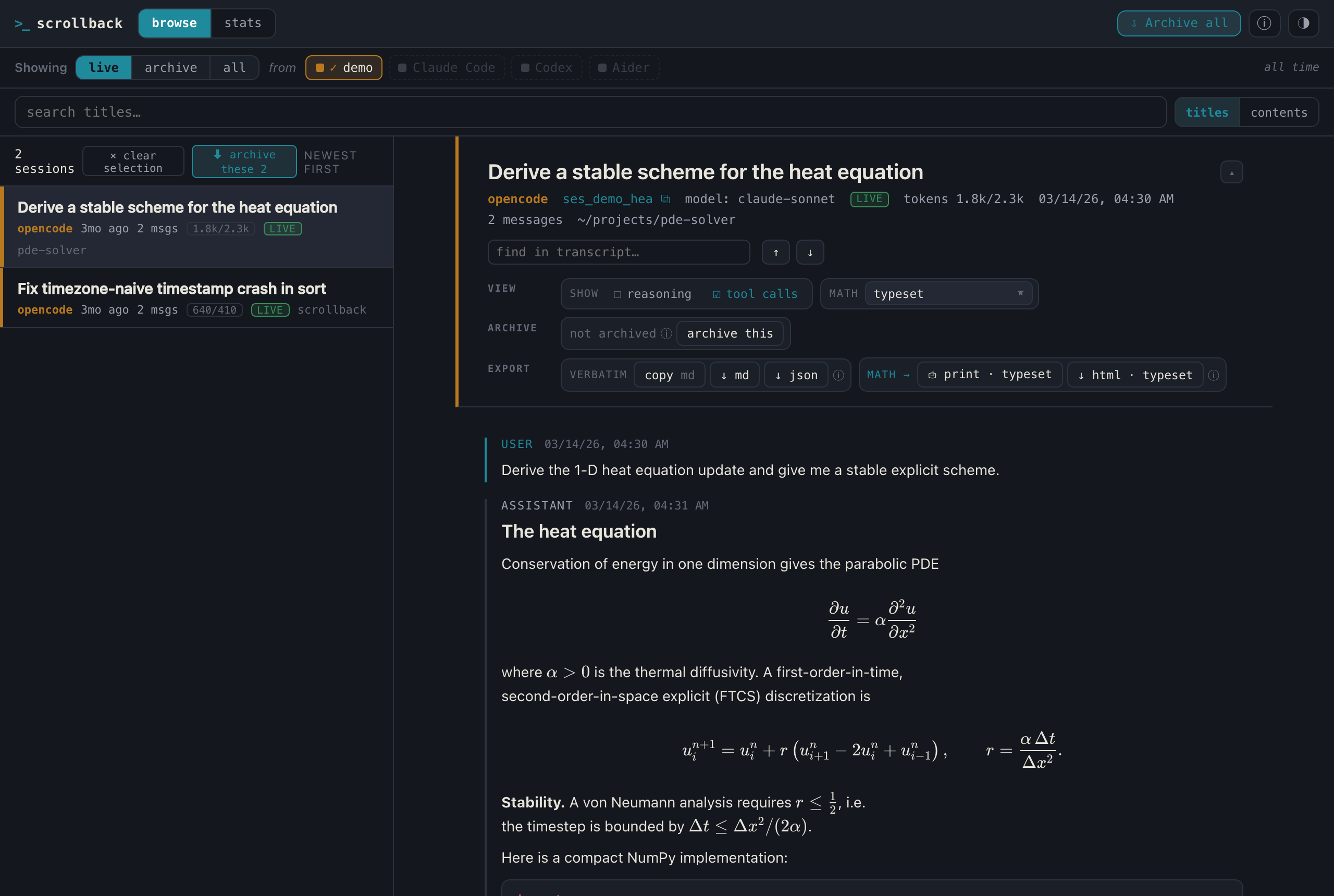
Both views read the same on-disk session stores, so you can jump between them freely. (The screenshots above use synthetic demo data.)
For AI agents: read
CONTRIBUTING.mdfor the project conventions. This README is for human readers.
Contents
- Why scrollback
- Install
- Quick start
- The command line
- The web app
- Running it as an app
- Fast search (optional index)
- Supported sources
- Configuration
- Safety
- Development
- License
Why scrollback
AI coding agents persist rich session data locally, but each in its own format and with no convenient way to browse that history or take it with you. scrollback fills that gap with four things:
- See any past conversation as a readable transcript.
- Search across every session by keyword (title or full text).
- Export a session to Markdown, JSON, HTML, or plain text.
- Copy a message or a whole session straight to your clipboard.
Its niche among similar tools: pure Python, works equally from the CLI and a web UI, reads multiple agents directly from their live on-disk stores (no sync step, no plugins, no upload), and treats export and copy as first-class.
Install
pip install "scrollback[all]" # CLI + web app + native window + colour
Requires Python 3.10+. The bare CLI has no runtime dependencies (standard library only); optional features come from extras:
"scrollback[web]"— the local web app (FastAPI, uvicorn) and the native app window (pywebview)."scrollback[rich]"— coloured terminal output."scrollback[all]"— everything a user might want at runtime (web+rich).
If you'd rather keep it isolated from your system Python (recommended, but
optional), pipx installs it in its own environment
and still puts the scrollback command on your PATH:
pipx install "scrollback[all]"
Either way, plain pip works the same; pipx is just a convenience.
From a local clone (for development), use an editable install with the dev extra:
pip install -e ".[web,dev]"
Quick start
scrollback doctor          # what was detected on this machine?
scrollback list            # recent sessions, newest first
scrollback show latest     # print the most recent transcript
scrollback web             # open the browser UI
scrollback doctor is the best first command: it reports which agents
were found, how many sessions each has, and which optional features are
available.
The command line
The CLI is organised around a few verbs. Commands that operate on a single
session accept a selector: a full id, a unique prefix, a
source-qualified id (opencode:ses_0eae9810), or the keyword latest.
Listing and viewing
scrollback list --source opencode -n 10   # one source, 10 rows
scrollback list --dir myproject           # filter by directory substring
scrollback list -q "refactor"             # filter by title substring
scrollback list --since 2026-06-01 --until 2026-06-30   # date range
scrollback list --usage                   # add cost + token (in/out) columns
scrollback list -n 20 --page 2            # pagination (page size = --limit)

scrollback show latest --reasoning        # include the model's thinking
scrollback show <selector> --no-tools     # hide tool calls and output
By default, subagent sessions (for example opencode @explore subagents)
are folded under their parent; pass --no-fold to list them flat.
Output is coloured when the rich extra is installed and the output is a
terminal; piping, or --plain, falls back to plain text.
Searching
scrollback search "merge conflict"        # full-text across all sessions
scrollback search "ssh" --source opencode --json
Search scans message text across sessions. On a large history you can make it near-instant with an optional index.
Exporting and copying
scrollback export latest -f markdown -o session.md
scrollback export <selector> -f html -o session.html
scrollback export <selector> -f html --math rendered -o session.html
scrollback export <selector> -f json      # to stdout
scrollback copy latest -f markdown        # render and copy to the clipboard
The formats are markdown (md), json, html, and text (txt).
Markdown, HTML, and text honour --reasoning (include the model's
thinking) and --no-tools (omit tool calls and their output); JSON is a
faithful structured dump with bulky raw blobs stripped for readability.
Exported HTML and Markdown render the assistant's Markdown with syntax-
highlighted code, and the HTML is a self-contained file that prints well.
Mathematical notation in delimited LaTeX ($...$, $$...$$, \(...\),
\[...\]) is preserved verbatim in every format, never mangled by the
Markdown pass. --math controls how the HTML export treats it: raw
(verbatim source, the default), latex (verbatim, marked never-to-typeset
— best for pasting into a paper), or rendered (typeset with KaTeX, which
is embedded into the file with its fonts so the equations render offline).
In the web app the same choice is a math: toggle in the transcript header.
Stats and resume
scrollback stats                          # totals, by-source + top projects
scrollback resume latest                  # print the native resume command
scrollback resume <selector> --copy       # ...and copy it to the clipboard
stats aggregates session counts, message/token/cost totals, and your
busiest projects. resume prints the command to continue a session in its
own agent (for example opencode --session <id> or claude --resume <id>),
with a cd into the session's project directory.
A note on token figures. Where the source records it, scrollback reports tokens in four buckets — input, output, cache read, and cache write — because they mean different things and are priced very differently. In agentic sessions the conversation context is re-sent every turn but served from the prompt cache, so cache reads usually dominate total volume while costing a fraction of fresh input. "Total tokens" is therefore not one number; the cost figure (when available) is the most faithful summary of consumption. Sources that don't record a given figure show it as blank rather than a misleading zero.
Archiving sessions (keep them forever)
Agents delete old sessions (Claude Code prunes after ~30 days by default).
scrollback archive copies the sessions it reads into a durable, user-owned
vault at ~/.scrollback/archive and keeps them forever:
scrollback archive                        # incremental one-way sync -> vault
scrollback archive --source opencode      # archive one source only
scrollback archive --stats                # what's in the vault, per source
scrollback archive --verify               # check archived files exist + parse
scrollback archive --dest /path/to/vault  # or set $SCROLLBACK_ARCHIVE
The sync is one-way and lossless — your agent data is never modified,
and every session is stored in full. Archived sessions are read back as a
first-class source, so list, show, search, stats, and export all
work over them, including sessions the agent has already deleted. A
session that is still live is shown once (the live copy wins); one that
exists only in the vault is marked as deleted. Use --source archive for an
archive-only view.
The vault is durable, user-owned data: it lives outside the disposable cache
and survives scrollback uninstall unless you pass --purge-archive.
Where your data lives
Everything scrollback keeps for you lives under ~/.scrollback/ — durable,
user-owned, and yours to inspect, back up, or move:
~/.scrollback/
└── archive/                       the vault (override: --dest / $SCROLLBACK_ARCHIVE)
    ├── manifest.sqlite            index: (source, id) → signature + file path
    └── sessions/
        └── <source>/<id>.json     one lossless JSON per archived session
Each <id>.json is a complete, self-contained copy of one session (every
message and its raw data). Nothing here is hidden or proprietary — it's plain
JSON you can read, grep, or restore by hand. Distinct from the disposable
~/.cache/scrollback/ (search index, browser profile), which uninstall
removes; the vault is not touched unless you ask.
scrollback archive --stats prints the vault path, per-source counts, and
this layout at any time.
Backing up or moving the archive
Because the vault is just files, backing it up or syncing it to another machine is a copy:
scrollback archive --export ~/Dropbox/scrollback-backup   # copy the whole vault
scrollback archive --export backup.zip                    # ...or as a zip
The exported copy is a faithful, re-importable vault — point scrollback at it to use it directly:
SCROLLBACK_ARCHIVE=~/Dropbox/scrollback-backup scrollback archive --stats
To instead get readable transcripts (for sharing or reference, not a
backup), add --format rendered (optionally --doc-format html|json|text):
scrollback archive --export ~/Desktop/my-sessions --format rendered
Rendered files are lossy and cannot be re-imported as a vault — use the
default vault format for backups.
Syncing two machines
To combine the archives from two machines, export on one and import on the
other — --import merges another vault (a directory or a .zip) into yours:
# on machine A
scrollback archive --export a-vault.zip
# copy a-vault.zip to machine B, then:
scrollback archive --import a-vault.zip
The merge keys on (source, id): sessions only present on A are added, and
where both machines have the same session the larger/newer copy wins (the
same never-shrink guard as normal archiving, so a merge can never lose
messages). Run it in either direction — or both — to converge the two vaults.
For continuous sync, point $SCROLLBACK_ARCHIVE at a shared folder
(Dropbox / iCloud / Syncthing) instead; use one writer at a time to avoid
manifest.sqlite write contention.
The web app
scrollback web starts a local browser UI — FastAPI plus a small
vanilla-JavaScript frontend with no build step — bound to 127.0.0.1. It
never writes to your agents' data; the only thing it can write is your own
durable archive vault, and only when you click a sync button (see below).
Open it with scrollback web (a browser tab), scrollback web --window (a
standalone browser window), or scrollback web --app (a native desktop
window; see Running it as an app).
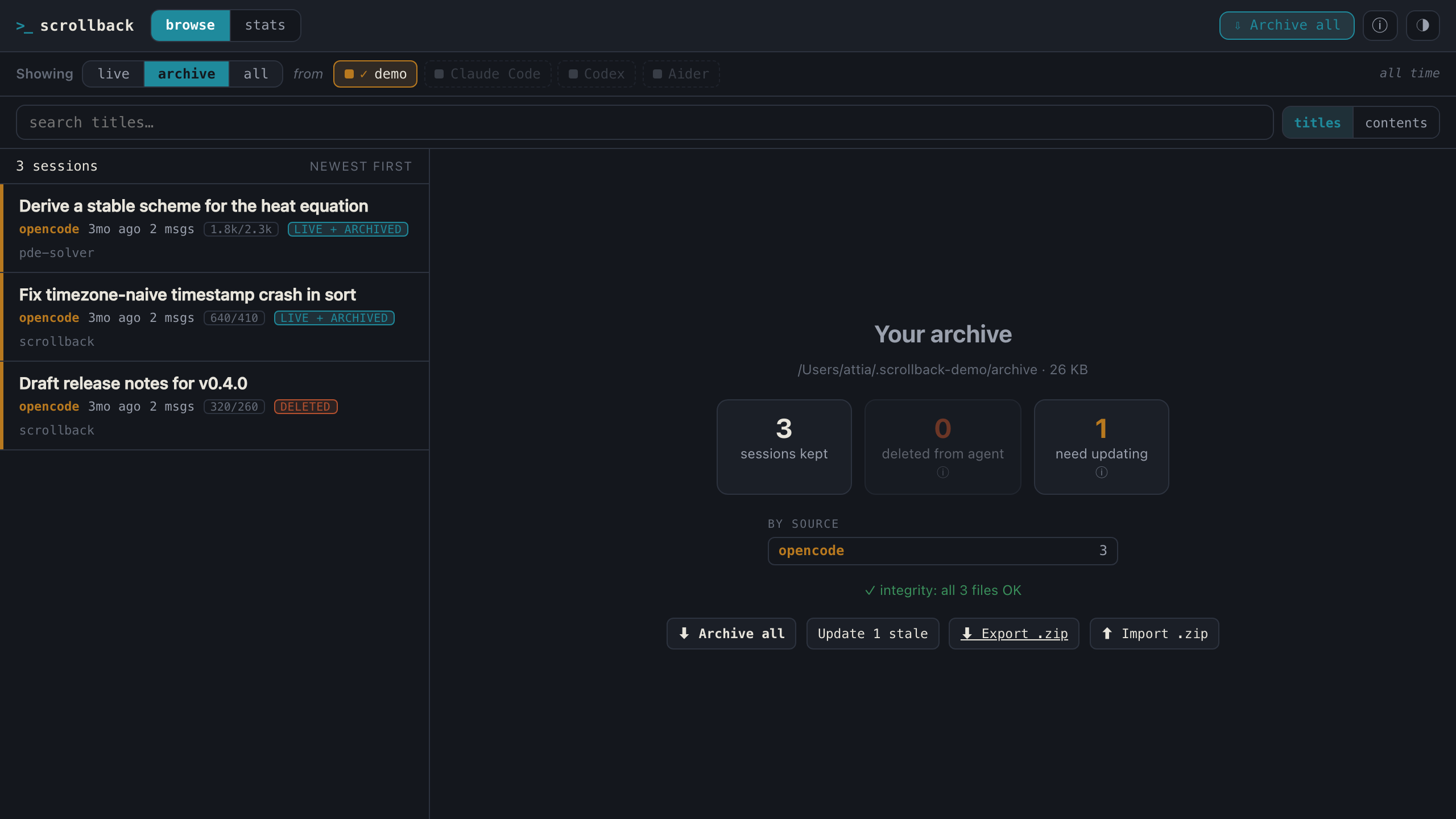
What it offers:
- A top-level Live / Archive / All mode switch: browse just your live agents, just your durable archive (including sessions the agent deleted), or both merged (the live copy wins for duplicates). The mode drives the session list, search, and the stats page.
- A browse / stats view switch in the header; the brand mark resets everything to the initial state.
- A session list with source-filter chips and date filters, loading incrementally as you scroll. Each row carries a provenance tag — live, archived, stale, or deleted — so you always know where a session comes from.
- Web-driven archiving: an archive / update button on each open session, plus a sync all button on the archive landing view — each with a live progress bar. These write only to your vault, never to your agents.
- An explicit search scope toggle — search session titles, message contents, or both at once (combined results are grouped).
- Subagents collapsed under their parent, expandable on demand (including Claude Code's nested sidechain transcripts).
- A transcript reader with a collapsible frozen header (auto-
collapses as you scroll; toggle with
h) over a scrolling message body, Markdown rendering with syntax highlighting, LaTeX math (source / paste-ready / typeset), in-transcript find, show-reasoning / show-tools toggles, and per-message and per-session copy. - A stats page with usage broken down per tool (sessions, messages,
input/output/cache tokens, and cost where the tool records it) plus an
overall total; it respects the same
since/untildate filters. - Export (Markdown / HTML / JSON), print, a light/dark theme,
and keyboard navigation (
/search,j/kmove,Enteropen,ffind,hcollapse header,Escblur).
On a narrow window (for example split-screen) the session list collapses
into a slide-in drawer you open with the sessions button, so browsing
still works when there isn't room for a permanent sidebar.
Large transcripts open instantly because the app loads a session's header
first and then pages messages in as you scroll, rather than transferring an
entire multi-megabyte transcript at once. Deep links work too: the open
session is reflected in the URL hash (#opencode/<id>), and ?q=<text>
pre-fills a content search.
Running it as an app
You don't have to type a command every time. After pip install ".[web]":
-
Short commands are on your
PATH:scrollback-web(a browser tab) andscrollback-app(a native window). -
A double-clickable launcher is one command away:
scrollback install-launcher               # both: Desktop launcher + .app (macOS)
scrollback install-launcher --desktop     # only the Desktop launcher
scrollback install-launcher --app-bundle  # only the ~/Applications/.app (macOS)
With no flags it installs everything for your OS; the two flags let you pick just one. The Desktop launcher is
scrollback.commandon macOS,scrollback.baton Windows, and an application-menu entry plusscrollback.shon Linux.--app-bundlebuilds an~/Applications/scrollback.appon macOS and falls back to the Desktop launcher on other platforms (where there is no.app). Use--dest <dir>to place artifacts elsewhere.
The launchers open a native window via pywebview when it is available:
no browser tab, no terminal, and closing the window stops the server and
frees the port. On a system where pywebview cannot run (for example a
headless Linux box without a GTK/Qt WebKit backend), scrollback falls back
to a standalone browser window that auto-stops the server shortly after the
window closes. All of this behaviour is decided in Python, so the launcher
scripts stay free of OS-specific assumptions and ship inside the package
for pip install users.
To see exactly what scrollback has put on disk, run scrollback doctor — its
on-disk footprint section lists every file scrollback created (search
index, web-app browser profile, cache dir, launchers, macOS .app, launcher
log, and your archive vault), each tagged by tier and size. Your agent data is
never in that list — scrollback only reads it.
To clean up, scrollback uninstall removes that whole footprint — everything
except your durable archive vault, which is kept by default (it's your
data) — after a confirmation (--yes to skip it, --dry-run to preview). To
also delete the vault, pass --purge-archive; scrollback then tells you how
many kept sessions will be lost, suggests backing up first with
scrollback archive --export <dest>, and requires you to type a confirmation.
Uninstall never touches your agent data and does not remove the Python package
itself: it prints the right pip/pipx uninstall command to finish the job (a
program can't reliably uninstall the package it is running from).
Fast search (optional index)
By default, search is a lexical scan over your live data: zero setup, always correct, but its cost grows with the size of your history. For a large corpus, build an optional full-text index:
scrollback index            # one-time build; re-run to update (incremental)
scrollback index --stats    # show what's indexed
scrollback index --clear    # delete the index
The index is a separate SQLite FTS5 database at
~/.cache/scrollback/index.db (override with SCROLLBACK_INDEX). It is
derived and disposable: your source data is never modified, and deleting
the index simply reverts to the lexical scan. Re-running index only
re-processes new or changed sessions and prunes deleted ones; the web app
also refreshes it in the background on startup when it is stale.
Once built, both the CLI and the web app use it automatically, turning a
multi-second query into a few milliseconds. If your Python's SQLite was
built without FTS5, index says so and search keeps working without it.
Supported sources
| Source | Reads | Default location |
|---|---|---|
opencode |
SQLite (session / message / part), read-only |
~/.local/share/opencode/opencode.db |
claudecode |
per-project JSONL transcripts + nested subagent sidechains | ~/.claude/projects/ |
codex |
per-session rollout-*.jsonl rollouts |
~/.codex/sessions/ |
aider |
per-project .aider.chat.history.md Markdown logs |
set SCROLLBACK_AIDER_DIRS to opt in |
More agents (Gemini CLI, Zed, VS Code Copilot Chat, GitHub Copilot CLI) are
researched and queued — see ROADMAP.md.
Adding another agent is a small, self-contained change: implement the
Source interface in src/scrollback/sources/base.py and register it in
src/scrollback/sources/registry.py. The CLI, search, export, web app,
and index all work against the common model automatically — see the
opencode (SQLite) and Claude Code (JSONL) adapters as references, and
CONTRIBUTING.md for the conventions.
Configuration
scrollback reads each agent's data from its default location, but you can point it elsewhere, and you can control how the web server binds:
| Variable | Purpose |
|---|---|
SCROLLBACK_OPENCODE_DB |
path to opencode.db |
SCROLLBACK_CLAUDE_DIR |
path to ~/.claude or ~/.claude/projects |
SCROLLBACK_CODEX_DIR |
path to ~/.codex or ~/.codex/sessions |
SCROLLBACK_AIDER_DIRS |
colon-separated dirs to scan for Aider history (opt-in) |
SCROLLBACK_PORT |
web server port (default 8765; or use --port) |
SCROLLBACK_HOST |
web server bind host (default 127.0.0.1; or use --host) |
SCROLLBACK_INDEX |
path to the search index database |
SCROLLBACK_ARCHIVE |
path to the durable archive vault (default ~/.scrollback/archive) |
The web server defaults to 127.0.0.1. If the chosen port is busy,
scrollback automatically picks the next free one (--strict-port fails
instead). Binding to a non-loopback host prints a warning, since the
read-only API is unauthenticated.
Safety
scrollback never writes to your agents' data — that invariant is the core of the design, and it is enforced:
- The opencode SQLite database is opened with
mode=ro— it is never created or written, and reads are safe against a live write-ahead log. - Claude Code JSONL files are read as read-only.
- A test asserts the opencode database's modification time is unchanged
across reads (
tests/test_sources_live.py). - The web app binds to localhost, rejects unexpected
Hostheaders (a DNS-rebinding guard), and sanitizes rendered transcript content. - The only thing scrollback ever writes is its own data: the disposable
cache/index and — when you archive — your durable vault at
~/.scrollback/archive. It never writes back to an agent's session store. Archiving happens only on an explicit action: thescrollback archiveCLI command, or a sync button in the web UI (which writes to the vault only). - Importing a vault (from
--importor the web Import button) treats the incoming.zip/manifest as untrusted: entries that would escape the vault (zip-slip,.., absolute paths, symlinks) are rejected, so a malicious archive can't read or write outside~/.scrollback.
Development
pip install -e ".[web,dev]"
pytest -q             # tests
ruff check src tests  # lint
See CONTRIBUTING.md for project conventions (the
read-only invariant, stdlib-first dependencies, platform-agnostic code,
and how to add a new agent source) and CHANGELOG.md for
what has landed so far.
License
MIT — see LICENSE.
1 maintainer

Download files
Download the file for your platform. If you're not sure which to choose, learn more about installing packages.
Source Distribution
Built Distribution
Filter files by name, interpreter, ABI, and platform.
If you're not sure about the file name format, learn more about wheel file names.
Copy a direct link to the current filters
File details
Details for the file scrollback-0.4.1.tar.gz.
File metadata
- Download URL: scrollback-0.4.1.tar.gz
- Upload date:
- Size: 1.3 MB
- Tags: Source
- Uploaded using Trusted Publishing? Yes
- Uploaded via:
twine/6.1.0 CPython/3.13.12
File hashes
| Algorithm | Hash digest | |
|---|---|---|
| SHA256 |
1b64b2abe8988d474547f66cfa2bd4238125f71280330a137e9e54b9180c209f
|
|
| MD5 |
122f775b3b8dce19b0071c03adfd3eb3
|
|
| BLAKE2b-256 |
d50665cad6a01c278bee7a29130f6c5d2c7cbb0648aed98ad1e467cf7ddb3667
|
Provenance
The following attestation bundles were made for scrollback-0.4.1.tar.gz:
Publisher:
publish.yml on a-attia/scrollback
-
Statement:
-
Statement type:
https://in-toto.io/Statement/v1 -
Predicate type:
https://docs.pypi.org/attestations/publish/v1 -
Subject name:
scrollback-0.4.1.tar.gz -
Subject digest:
1b64b2abe8988d474547f66cfa2bd4238125f71280330a137e9e54b9180c209f - Sigstore transparency entry: 2132524121
- Sigstore integration time:
-
Permalink:
a-attia/scrollback@b2d9f6adae3ebf2384f34ca1eefbbc203e00983e -
Branch / Tag:
refs/tags/v0.4.1 - Owner: https://github.com/a-attia
-
Access:
public
-
Token Issuer:
https://token.actions.githubusercontent.com -
Runner Environment:
github-hosted -
Publication workflow:
publish.yml@b2d9f6adae3ebf2384f34ca1eefbbc203e00983e -
Trigger Event:
push
-
Statement type:
File details
Details for the file scrollback-0.4.1-py3-none-any.whl.
File metadata
- Download URL: scrollback-0.4.1-py3-none-any.whl
- Upload date:
- Size: 644.4 kB
- Tags: Python 3
- Uploaded using Trusted Publishing? Yes
- Uploaded via:
twine/6.1.0 CPython/3.13.12
File hashes
| Algorithm | Hash digest | |
|---|---|---|
| SHA256 |
5f0c7b6e2d4da37708eb8e3101201a0108e9afde077d7812b164c1f2e9b59801
|
|
| MD5 |
6b62f7c7353457d565071893135317fc
|
|
| BLAKE2b-256 |
888cfc02707aaade7db0112a2944745e38d43ebbd26aaee5dac0fa6b3db25a33
|
Provenance
The following attestation bundles were made for scrollback-0.4.1-py3-none-any.whl:
Publisher:
publish.yml on a-attia/scrollback
-
Statement:
-
Statement type:
https://in-toto.io/Statement/v1 -
Predicate type:
https://docs.pypi.org/attestations/publish/v1 -
Subject name:
scrollback-0.4.1-py3-none-any.whl -
Subject digest:
5f0c7b6e2d4da37708eb8e3101201a0108e9afde077d7812b164c1f2e9b59801 - Sigstore transparency entry: 2132524250
- Sigstore integration time:
-
Permalink:
a-attia/scrollback@b2d9f6adae3ebf2384f34ca1eefbbc203e00983e -
Branch / Tag:
refs/tags/v0.4.1 - Owner: https://github.com/a-attia
-
Access:
public
-
Token Issuer:
https://token.actions.githubusercontent.com -
Runner Environment:
github-hosted -
Publication workflow:
publish.yml@b2d9f6adae3ebf2384f34ca1eefbbc203e00983e -
Trigger Event:
push
-
Statement type:














