

Stable Diffusion Prompt Reader





A simple standalone viewer for reading prompt from Stable Diffusion generated image outside the webui.
Features • Supported Formats • Download • Usage • CLI • ComfyUI Node • FAQ • Credits
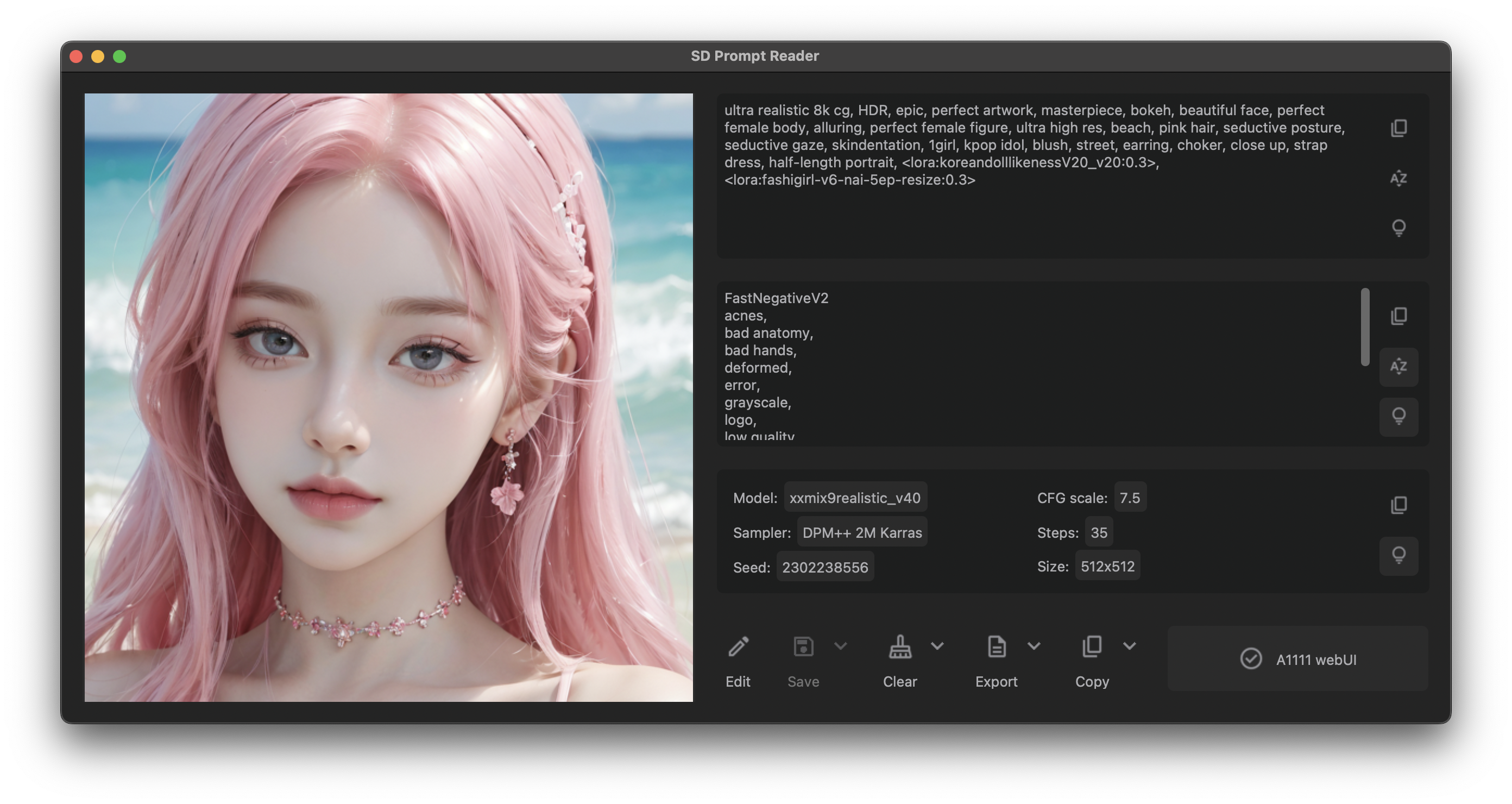
Features
- Support macOS, Windows and Linux.
- Provides both GUI and CLI
- Simple drag and drop interaction.
- Copy prompt to clipboard.
- Remove prompt from image.
- Export prompt to text file.
- Edit or import prompt to images
- Vertical orientation display and sorting by alphabet
- Detect generation tool.
- Multiple formats support.
- Dark and light mode support.
Supported Formats
| PNG | JPEG | WEBP | TXT* | |
|---|---|---|---|---|
| A1111's webUI | ✅ | ✅ | ✅ | ✅ |
| Easy Diffusion | ✅ | ✅ | ✅ | |
| StableSwarmUI* | ✅ | ✅ | ||
| StableSwarmUI (prior to 0.5.8-alpha)* | ✅ | ✅ | ||
| Fooocus-MRE* | ✅ | ✅ | ||
| NovelAI (stealth pnginfo) | ✅ | ✅ | ||
| NovelAI (legacy) | ✅ | |||
| InvokeAI | ✅ | |||
| InvokeAI (prior to 2.3.5-post.2) | ✅ | |||
| InvokeAI (prior to 1.15) | ✅ | |||
| ComfyUI* | ✅ | |||
| Draw Things | ✅ | |||
| Naifu(4chan) | ✅ |
* Limitations apply. See format limitations.
Download
For Windows users
Download executable from GitHub Releases
For macOS users
Download executable from GitHub Releases
Install via Homebrew Cask
You may also install SD Prompt Reader via Homebrew cask.
brew install --no-quarantine receyuki/sd-prompt-reader/sd-prompt-reader
The parameter --no-quarantine is used since the SD Prompt Reader is currently unsigned as I mentioned here
For Linux users (not regularly tested)
I'm pretty sure linux users can figure things out without an executable.
- The minimum version of Python required is 3.10
- Make sure you have the tkinter package installed in your Python.
If not, install the python3-tk package with package managers.
e.g.sudo apt-get install python3-tkfor Debian-based distributions
You can choose to install with pip or run it manually
Install with pip or pipx
pip install sd-prompt-reader
or
pipx install sd-prompt-reader
To launch app just enter sd-prompt-reader in the terminal.
Run source code manually
- Clone this repo.
git clone https://github.com/receyuki/stable-diffusion-prompt-reader.git
or download repo as a zip. - CD to the directory and install dependencies.
cd stable-diffusion-prompt-reader
pip install -r requirements.txt
- Run.
python main.py
Usage
Read prompt
- Open the executable file (.exe or .app) and drag and drop the image into the window.
OR
- Right click on the image and select open with SD Prompt Reader
OR
- Drag and drop the image directly onto executable (.exe or .app).
Export prompt to a text file
- Click "Export" will generate a txt file alongside the image file.
- To save to another location, click the expand arrow and click "select directory".
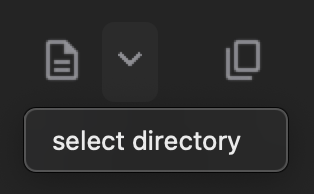
Remove prompt from image
- Click "Clear" will generate a new image file with suffix "_data_removed" alongside the original image file.
- To save to another location, click the expand arrow and click "select directory".
- To overwrite the original image file, click the expand arrow and click "overwrite the original image".
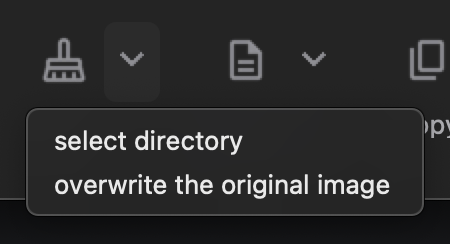
Edit image
- Click "Edit" to enter edit mode.
- Edit the prompt directly in the textbox or import a metadata file in txt format.
- Click "Save" will generate a edited image file with suffix "_edited" alongside the original image file.
- To save to another location, click the expand arrow and click "select directory".
- To overwrite the original image file, click the expand arrow and click "overwrite the original image".

Copy as single line prompt
Copy image prompt and setting in a format that can be read by Prompts from file or textbox The following parameters are supported:
| Setting | Parameter |
|---|---|
| Seed | --seed |
| Variation seed strength | --subseed_strength |
| Seed resize from | --seed_resize_from_h |
| Seed resize from | --seed_resize_from_w |
| Sampler | --sampler_name |
| Steps | --steps |
| CFG scale | --cfg_scale |
| Size | --width |
| Size | --height |
| Face restoration | --restore_faces |
- Click the expand arrow and click "single line prompt".
- Paste it into the textbox below the webui script "Prompts from file or textbox".
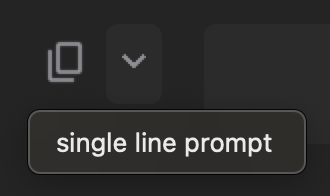
ComfyUI SDXL workflow
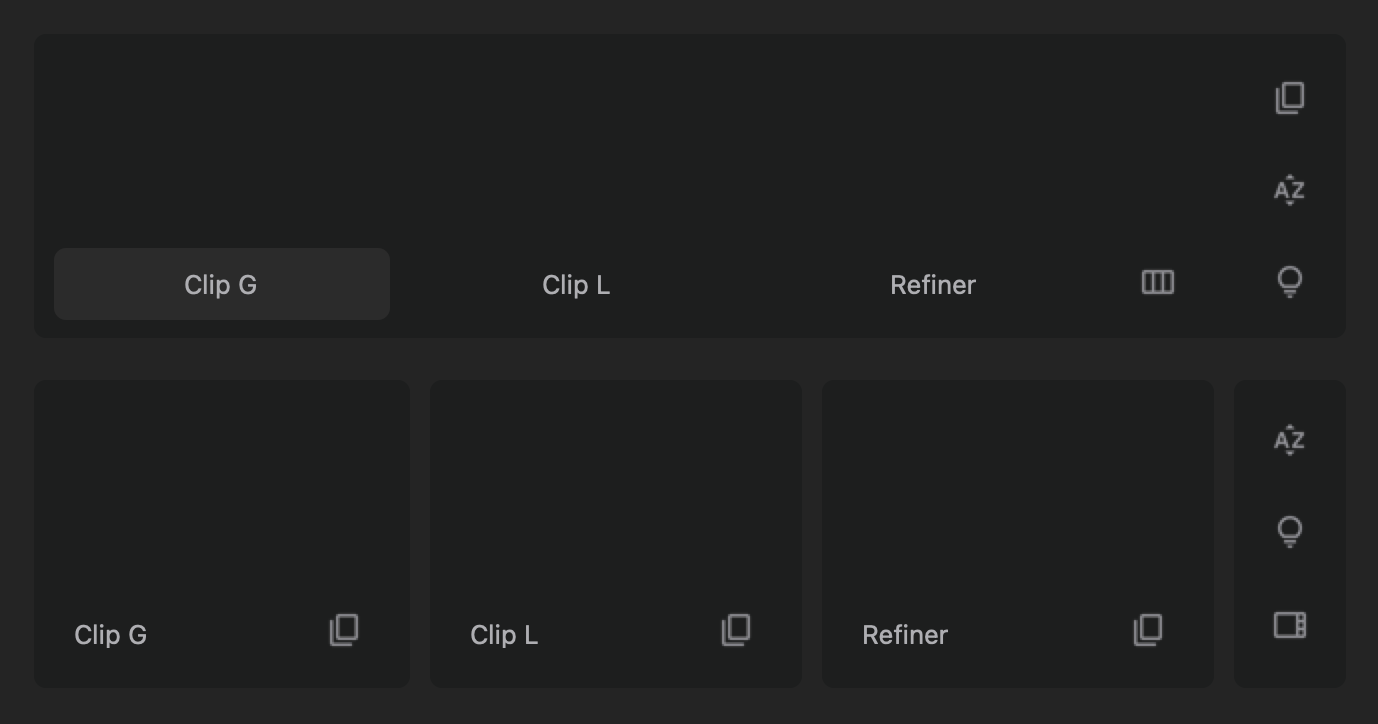
If the image's workflow includes multiple sets of SDXL prompts,
namely Clip G(text_g), Clip L(text_l), and Refiner, the SD Prompt Reader will switch to the multi-set prompt display mode as shown in the image below.
There are two interface options available for the multi-set prompt display mode, and you can switch between them using buttons.
CLI
A CLI tool for reading, modifying, and clearing metadata is provided.
Platforms
For Windows users
SD Prompt Reader CLI.exe will be placed in the zip package as a separate executable.
Examples:
"SD Prompt Reader CLI.exe" -i example.png
For macOS users
The executable is located at SD Prompt Reader.app/Contents/MacOS/SD Prompt Reader.
Examples:
/Applications/SD\ Prompt\ Reader.app/Contents/MacOS/SD\ Prompt\ Reader -i example.png
For pip users
Examples:
sd-prompt-reader-cli -i example.png
Modes and Options
Modes
- Read Mode: Activated by
-ror--readflag. - Write Mode: Activated by
-wor--writeflag. - Clear Mode: Activated by
-cor--clearflag.
General Options
-i,--input-path: Path to the input image file or directory containing image files, required parameter.-o,--output-path: Path to the output file or directory where the processed files will be saved.-l,--log-level: Specify the log verbosity level (e.g.DEBUG, INFO, WARN, ERROR).
Read Options
-f,--format-type: Specifies the output metadata format, choices are "TXT" or "JSON". Default format is "TXT"
Write Options
-m,--metadata: Provides a metadata file for writing.-p,--positive: Provides a positive prompt string for writing.-n,--negative: Provides a negative prompt string for writing.-s,--setting: Provides a setting string for writing.
Basic Usage
- If no output path is specified, the modified image will be saved in the current directory with a suffix added to the original filename.
- To overwrite the source file, set the output path equal to the input path.
- The write mode only supports modifications to a single image.
Read Mode
- Read metadata from an image.
- Usage:
sd-prompt-reader-cli [-r] -i <input_path> [--format-type <format>] [-o <output_path>] - Examples:
sd-prompt-reader-cli -i example.png
sd-prompt-reader-cli -i example.png -o metadata.txt
sd-prompt-reader-cli -r -i example.png -f TXT -o output_folder/
sd-prompt-reader-cli -r -i input_folder/ -f JSON -o output_folder/
Write Mode
- Write metadata to an image.
- Usage:
sd-prompt-reader-cli -w -i <input_path> -m <metadata_path> [-o <output_path>] - Examples:
sd-prompt-reader-cli -w -i example.png -m new_metadata.txt
sd-prompt-reader-cli -w -i example.png -m new_metadata.txt -o output.png
sd-prompt-reader-cli -w -i example.png -m new_metadata.json -o output_folder/
Clear Mode
- Remove all metadata from an image.
- Usage:
sd-prompt-reader-cli -c -i <input_path> [-o <output_path>] - Examples:
sd-prompt-reader-cli -c -i example.png
sd-prompt-reader-cli -c -i example.png -o output.png
sd-prompt-reader-cli -c -i example.png -o output_folder/
sd-prompt-reader-cli -c -i input_folder/ -o output_folder/
API
This is a simple API documentation for those who want to import the sd_prompt_reader in their own applications.
Installation
You can install the sd_prompt_reader library using pip:
pip install sd_prompt_reader
Initialisation
The list of supported image formats can be read through SUPPORTED_FORMATS:
>>> from sd_prompt_reader.constants import SUPPORTED_FORMATS
>>> SUPPORTED_FORMATS
['.png', '.jpg', '.jpeg', '.webp']
First, load the supported images:
>>> from sd_prompt_reader.image_data_reader import ImageDataReader
>>> image_path = "path/to/image.png"
>>> with open(image_path, "rb+") as f:
>>>     image_metadata = ImageDataReader(f)
>>> image_metadata.status.name
'READ_SUCCESS'
There are a total of four reading states used to determine whether an image can be parsed:
"UNREAD": Initial state."READ_SUCCESS": The image was read successfully."FORMAT_ERROR": No data detected or unsupported format."COMFYUI_ERROR": The ComfyUI workflow is overly complex, or unsupported custom nodes have been used.
If the status is "READ_SUCCESS", the image has been successfully parsed.
Read metadata
from sd_prompt_reader.image_data_reader import ImageDataReader
image_path = "path/to/image.png"
with open(image_path, "rb+") as f:
    image_metadata = ImageDataReader(f)
    if image_metadata.status.name == "READ_SUCCESS":
        print("Positive: ", image_metadata.positive)
        print("Negative: ", image_metadata.negative)
        print("Setting: ", image_metadata.setting)
    else:
        print(f"Reading Status: {image_metadata.status.name}")
The following attributes can be read in the same way.
| Name | Type | Description |
|---|---|---|
| positive | ||
| negative | ||
| setting | ||
| raw | ||
| width | ||
| height | ||
| tool | ||
| format | ||
| is_sdxl | ||
| positive_sdxl | ||
| negative_sdxl | ||
| parameter | ||
| status | ||
| info | ||
| props |
Format Limitations
TXT
- Importing txt file is only allowed in edit mode.
- Only A1111 format txt files are supported. You can use txt files generated by the A1111 webui or use the SD prompt reader to export txt from A1111 images
StableSwarmUI
ComfyUI
- If there are multiple sets of data (seed, steps, CFG, etc.) in the setting box, this means that there are multiple KSampler nodes in the flowchart.
- Due to the nature of ComfyUI, all nodes and flowcharts in the workflow are stored in the image, including those that are not being used. Also, a flowchart can have multiple branches, inputs and outputs. (e.g. output hires. fixed image and original image simultaneously in a single flowchart) SD Prompt Reader will traverse all flowcharts and branches and display the longest branch with complete input and output.
- ComfyUI SDXL workflow
Easy Diffusion
By default, Easy Diffusion does not write metadata to images. Please change the Metadata format in settings to embed to write the metadata to images
Fooocus-MRE
Since the original version of Fooocus does not support writing metadata to image files, SD Prompt Reader only supports images generated by Fooocus MoonRide Edition.
FAQ
Malware Alert
"SD Prompt Reader.app" is damaged and can't be opened. You should move it to the Trash
-
Open Terminal from the Applications folder.
-
Type in the following command and hit Enter.
xattr -r -d com.apple.quarantine /path/to/app.appIn my case it's
xattr -r -d com.apple.quarantine /Applications/SD\ Prompt\ Reader.app
If you are still concerned about the security of the app you can use the instruction for Linux users to use this app.
TODO
- Batch image processing tool
- Gallery/Folder view
- User preference
Credits
- Inspired by Stable Diffusion web UI
- App icon generated using Stable Diffusion with IconsMI
- Special thanks to Azusachan for providing SD server
- The NovelAI stealth pnginfo parser is based on the official metadata extraction script of NovelAI
1 maintainer

Metadata
1 maintainer
Release files for sd-prompt-reader 1.3.5
For a detailed explanation of source distributions (sdists) and built distributions (wheels), please see the package formats documentation.
Source distribution (sdist)
| File | Size | Uploaded | |
|---|---|---|---|
| sd_prompt_reader-1.3.5.tar.gz | 3.4 MB | Details |
Built distribution (wheel)
| File | Interpreter | ABI | Platform | Reset |
|---|---|---|---|---|
| sd_prompt_reader-1.3.5-py3-none-any.whl | Python 3 | none | any | Details |
Total release size: 6.8 MB
Release files / sd_prompt_reader-1.3.5.tar.gz
| Download URL | sd_prompt_reader-1.3.5.tar.gz |
|---|---|
| Size | 3.4 MB |
| Tags | Source |
|
SHA-256 checksum How to use checksums |
7b846e7275793eb2d38011fa1430e4525067fefc4c6ae6fb604bfb96030edcfe
|
|
BLAKE2b-256 checksum How to use checksums |
5ba65f093211647300e7d516aa2257f47b995d79d64258a866e9c9e134ad8626
|
| Upload date | |
|
Uploaded using Trusted Publishing? What is trusted publishing? |
No |
| Uploaded via |
poetry/1.8.3 CPython/3.12.3 Darwin/23.5.0
|
Release files / sd_prompt_reader-1.3.5-py3-none-any.whl
| Download URL | sd_prompt_reader-1.3.5-py3-none-any.whl |
|---|---|
| Size | 3.4 MB |
| Tags | Python 3 |
|
SHA-256 checksum How to use checksums |
a52821096bf2e627af58ce3824ca1090c56c2458928107efd92b309178ab003a
|
|
BLAKE2b-256 checksum How to use checksums |
d493eed6db575691cb4379d0f8fd9ce644d8492e7db0b569bc060e93eb682107
|
| Upload date | |
|
Uploaded using Trusted Publishing? What is trusted publishing? |
No |
| Uploaded via |
poetry/1.8.3 CPython/3.12.3 Darwin/23.5.0
|














