
sdutil - Manage System Data files on macOS




sdutil is a command-line utility for managing System Data files and local Time Machine
snapshots on macOS.
When looking at the disk space usage in macOS System Settings (formerly System Preferences), there is a category called "System Data" which macOS does not break down into the individual files and directories that are consuming that space. Sometimes the System Data category can consume massive amounts of disk space (100+ GB), leading to substantial portions of the available disk space being consumed by the operating system with the user having no good way of understanding why.
Typically, the two primary culprits when it comes to taking up large amounts of "System Data" space are:
- local Time Machine snapshots which are cached on the disk but which have already been synced to the Time Machine backup server; and
- system library files and directories, including caches, logs, application files, etc., which can potentially be deleted if no longer in use.
Enter sdutil! This utility provides tools for working with both of these types of System Data,
providing a simple command-line interface for macOS users to explore what makes up the System
Data they see in System Settings and decide what files and directories to clean up to reclaim
some disk space when needed.
Installation
The easiest way to install the package is to download it from PyPI using pip.
Note that sdutil depends on Python 3.11 or newer; please
ensure that you have a semi-recent version of Python installed before proceeding.
Run the following command in a shell (a UNIX-like environment is assumed):
$ pip install sdutil
The package has a few external dependencies besides Python itself. If you wish to sandbox your installation inside a virtual environment, you may choose to use virtualenvwrapper or a similar utility to do so.
When successfully installed, a program called sdutil will be placed on your PATH.
See the Usage section below for details about how to use this program.
Usage
The sdutil program is a command-line interface for managing System Data files on macOS.
At any time, you can use the -h or --help flags to see a summary of options that
the program accepts.
$ sdutil -h
usage: sdutil [-h] [-b] [-d DEPTH] [-s SIZE] [-v] [mount_point]

Manage System Data files and local Time Machine snapshots on macOS.

positional arguments:
  mount_point           Path to filesystem mount point (default: "/")

options:
  -h, --help            show this help message and exit
  -b, --browse          Browse system library directories only (skip the main menu)
  -d DEPTH, --depth DEPTH
                        Number of levels to show when browsing system library directories (default: 2)
  -s SIZE, --size SIZE  Minimum size for system library directories/files to be included (default: "1G"; allowed units: B, K, M, G)
  -v, --verbose         Enable debug logging
The default behavior of sdutil is to print a listing of all local Time Machine snapshots
for the specified mount point (defaulting to /), then to show a menu of options for deleting
Time Machine snapshots or browsing system library directories. Time Machine snapshots may be
deleted by date to clean up old snapshots that are taking up unnecessary disk space. You may also
specify an amount of disk space that you wish to reclaim and request for macOS to select local
snapshots to delete totaling at least the requested size.
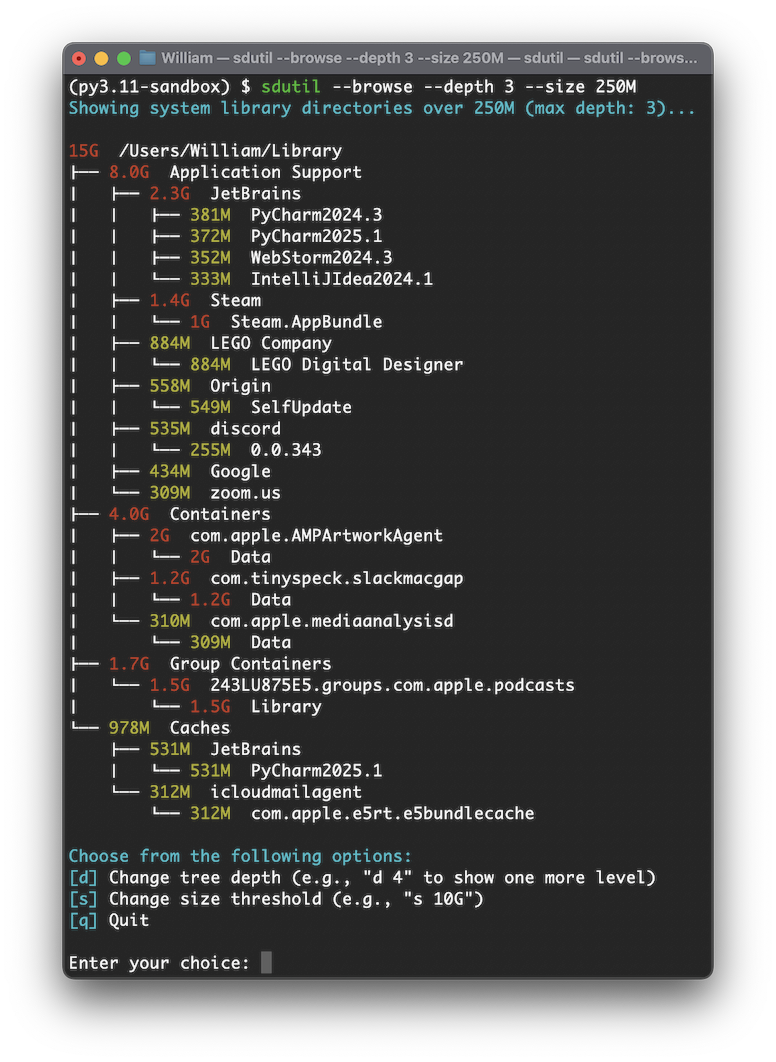
To skip listing local Time Machine snapshots and go straight to the menu for browsing system
library directories, use the -b/--browse flag. Regardless of whether the -b flag is passed,
the -d/--depth and -s/--size flags may be used to filter the output when browsing system
library directories.
- The
-dflag indicates the maximum depth in the filesystem tree to show; for example, a depth of 3 means to show up to three levels underneath the top-level system library directory in the output. - The
-sflag indicates the minimum size for files/directories that should be included in the output; for example, a size of100Mmeans to show only files and directories that are 100MiB or larger in the output.
The -v/--verbose flag will cause sdutil to print additional debug logging.
NOTE: When browsing system library directories using sdutil, not every subdirectory of the user's
~/Library directory is checked for disk space usage. As a result, the size of the library directory
reported by sdutil does not reflect the full size of the entire library directory, but only the aggregate
size of all subdirectories checked by sdutil.
Many of the files and directories stored in the system library are required by the operating system or by
other programs and should not be deleted to reclaim disk space unless the user understands the risks and
consequences of doing so. The directories included in the listing generated by sdutil are those which
(a) often contain large files that contribute to System Data usage and (b) are relatively safe for users
to delete without risking breaking any of the software installed on their computer (caches, logs, etc.).
However, some files and directories included by sdutil, such as the ~/Library/Application Support
directory, may pertain to installed applications, and care should be taken when deleting any such files.
1 maintainer

Download files
Download the file for your platform. If you're not sure which to choose, learn more about installing packages.
Source Distribution
Built Distribution
Filter files by name, interpreter, ABI, and platform.
If you're not sure about the file name format, learn more about wheel file names.
Copy a direct link to the current filters
File details
Details for the file sdutil-1.0.0.tar.gz.
File metadata
- Download URL: sdutil-1.0.0.tar.gz
- Upload date:
- Size: 10.7 kB
- Tags: Source
- Uploaded using Trusted Publishing? No
- Uploaded via:
poetry/1.6.1 CPython/3.11.1 Darwin/24.5.0
File hashes
| Algorithm | Hash digest | |
|---|---|---|
| SHA256 |
c9e0495625a072b6e15f0ab61407743fcd2e0d5a30d7ce0de022f2512e0d548b
|
|
| MD5 |
1126a3e1cc06531e79c2c90817929a73
|
|
| BLAKE2b-256 |
2c1e7dbdbe858a420739c23537d8ca73024276dbc9cdcd9a56609e73e8ea336c
|
File details
Details for the file sdutil-1.0.0-py3-none-any.whl.
File metadata
- Download URL: sdutil-1.0.0-py3-none-any.whl
- Upload date:
- Size: 10.5 kB
- Tags: Python 3
- Uploaded using Trusted Publishing? No
- Uploaded via:
poetry/1.6.1 CPython/3.11.1 Darwin/24.5.0
File hashes
| Algorithm | Hash digest | |
|---|---|---|
| SHA256 |
90705bbb202b552f9532bcb4802e94c74e13220d075cb78b0ba4cb820f477a36
|
|
| MD5 |
f9283d700b0ec28008fc2b4513f4527b
|
|
| BLAKE2b-256 |
338b378194e92f243b85479f7caa52a6c96a32fcbb64e63a039cb009210d1769
|













