
Seafile script for gnome-files (nautilus)

Project description
Description
seafile_nautilus provides gnome-files (Nautilus) users the ability to manage seafile
links directly from the file manager (right-click menu > scripts). Once the package is
installed, the seafile-nautilus command is defined for the user and can be called
in a Nautilus script (note the dash - instead of the underscore _).
Seafile_nautilus relies on its own seafile API which, unlike many others, does not ask the user for the server address, login and password. Instead, it retrieves the seafile client parameters and token (stored locally in the user's personal folder) to authenticate. Of course, this requires that the seafile client is installed and properly configured.
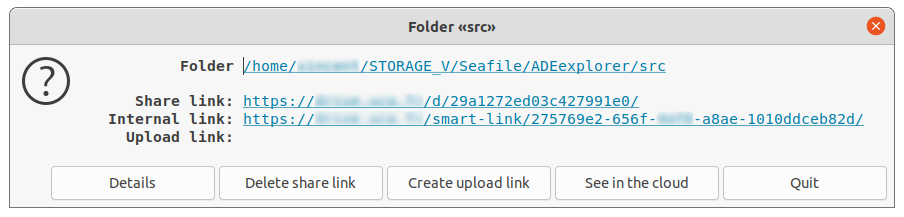
seafile_nautilus mainly focuses on seafile links: share link, internal link and
upload link (for folders). Multiple actions that can be performed on local files contained
in synchronized libraries:
- display link url,
- display link properties (creator name, expiration date, number of views, password, etc.),
- create links,
- delete links,
- alter link permissions: on cloud edition, download, upload.
seafile_nautilus also allows to open directly a file or a folder in the cloud.
Graphical user interface
The dialogs are based on zenity. Be sure you have zenity correctly installed.
How to install
0. Prerequisites
If not already present, install pip3 and zenity:
$ sudo apt install python3-pip
$ sudo apt install zenity
1. Install seafile_nautilus package:
$ pip3 install seafile_nautilus
If pip raises the warning below
WARNING: The script seafile-nautilus is installed in '/home/USER/.local/bin' which is not on PATH.
Consider adding this directory to PATH or, if you prefer to suppress this warning, use --no-warn-script-location.
simply log out and in again.
Now, if the previous operations were successful, type seafile-nautilus in a terminal
and you should get the response below:
$ seafile-nautilus
This is seafile_nautilus version x.y.z

usage: seafile-nautilus [-h] [-v] file [file ...]
seafile-nautilus: error: the following arguments are required: file
2. Create a nautilus interface
$ cd ~/.local/share/nautilus/scripts/
$ echo '#!/usr/bin/sh'    >  seafile_nautilus
$ echo 'seafile-nautilus' >> seafile_nautilus
$ chmod +x seafile_nautilus
Tip: If the first command fails for the folder does not exist, then type
$ mkdir -p ~/.local/share/nautilus/scripts/
3. Optionnal: set seafile_nautilus icon to the script:
$ gio set seafile_nautilus metadata::custom-icon 'file://'$(python3 -m site --user-site)'/seafile_nautilus/icons/icon.png'
Usage
1. from Nautilus
Simply right-click on a file or folder from a synchronized
library, choose scripts then seafile_nautilus.
2. from a terminal
$ seafile-nautilus relative/or/absolute/path/to/the/file/or/folder
3. from python: simple usage
>>> from seafile_nautilus.main import main
>>> main('relative/or/absolute/path/to/the/file/or/folder')
4. from python: api usage
Instead of calling seafile_nautilus.main function you can use directly the
seafile api by importing classes from seafile_nautilus.seafile.
>>> from seafile_nautilus.seafile import *
>>> from pprint import pprint
Create a SeafileAccount(). This requires that seafile-cli is installed and correctly
configured (server, user, password).
>>> account = SeafileAccount()
>>> account.username
'john.doe@xyz.com'

>>> account.url
'https://seafile.server.com'

>>> account.token
'c9fdd29e372ed61deb1540a6b066a7ce6c53b44f'
One can list the libraries stored on the safile server:
>>> account.remote_repository.get_libs()
{<RemoteLibrary> id=5092085d-11bb-4f52-aa7e-7ac49c6287d4 name=Folder1,
 <RemoteLibrary> id=d9a74e89-348b-4ae3-953a-72eb0835be54 name=Folder2,
 <RemoteLibrary> id=8affbb97-50d0-4998-975c-a5ccff650c31 name=Folder3,
 <RemoteLibrary> id=8ac50c31-ac49-74e8-085d-2eb08affbc87 name=Folder4}
And those stored and synchronized locally:
>>> account.local_repository.local_libraries
{<LocalLibrary> id=5092085d-11bb-4f52-aa7e-7ac49c6287d4 name=/home/john/Seafile/Folder1,
 <LocalLibrary> id=d9a74e89-348b-4ae3-953a-72eb0835be54 name=/home/john/Seafile/Folder2,
 <LocalLibrary> id=8affbb97-50d0-4998-975c-a5ccff650c31 name=/home/john/Seafile/Folder3}
Choose one element (file or folder) of a synchronized library
>>> elt = SyncedElement(account, '/home/john/Seafile/Folder1/my_file.pdf')
Look at the file details from the seafile server point of view:
>>> pprint(elt.file_details.__dict__)  # for folders, use 'elt.dir.details' instead
{'can_edit': False,
 'comment_total': 0,
 'id': '92ab1f0bfa3549100425279833701024adf04f11',
 'last_modified': datetime.datetime(2021, 11, 22, 7, 43, 48, tzinfo=datetime.timezone(datetime.timedelta(seconds=3600))),
 'last_modifier_contact_email': 'john.doe@xyz.com',
 'last_modifier_email': 'john.doe@xyz.com',
 'last_modifier_name': 'John DOE',
 'mtime': 1637563428,
 'name': 'my_file.pdf',
 'permission': 'rw',
 'size': 146945,
 'starred': False,
 'type': 'file'}
Check whether the file already has a share link:
>>> details = elt.get_share_link_details()
>>> details.link
'https://seafile.server.com/d/8aa5fe4897375a988712/'
If yes, you can display its permissions:
>>> details.permissions
Permissions(can_edit=False, can_download=True, can_upload=False)
You can set different permission parameters (disallowing download for example):
>>> new_perm = Permissions(can_edit=False, can_download=False, can_upload=False)
>>> elt.set_share_link_permissions(new_perm)
>>> elt.get_share_link_details().permissions
Permissions(can_edit=False, can_download=False, can_upload=True)
Let's see the file on the cloud:
>>> elt.show_on_cloud()
Troubleshooting
When things go wrong (or simply do not go at all!) using seafile_nautilus as a
nautilus script , you can get exception traceback by launching nautilus from
terminal with a different temporary directory:
$ nautilus -q && mkdir /tmp/nautilus-testing; TMPDIR=/tmp/nautilus-testing nautilus --no-desktop
Release history Release notifications | RSS feed


Download files
Download the file for your platform. If you're not sure which to choose, learn more about installing packages.
Source Distribution
Built Distribution
Filter files by name, interpreter, ABI, and platform.
If you're not sure about the file name format, learn more about wheel file names.
Copy a direct link to the current filters
File details
Details for the file seafile_nautilus-0.1.4.tar.gz.
File metadata
- Download URL: seafile_nautilus-0.1.4.tar.gz
- Upload date:
- Size: 31.9 kB
- Tags: Source
- Uploaded using Trusted Publishing? No
- Uploaded via: twine/6.2.0 CPython/3.10.12
File hashes
| Algorithm | Hash digest | |
|---|---|---|
| SHA256 |
9383f573fac5d8691133eeed02b9d8a3df0edefc43cbdda8e352c6d8058780ad
|
|
| MD5 |
de8b57ea4a9d1f5781611861fd51dd99
|
|
| BLAKE2b-256 |
da63a6ffcb2a6ea7cfb909a6f5b0719944e15b357702a776f08e2c2d9afbcd4a
|
File details
Details for the file seafile_nautilus-0.1.4-py3-none-any.whl.
File metadata
- Download URL: seafile_nautilus-0.1.4-py3-none-any.whl
- Upload date:
- Size: 31.2 kB
- Tags: Python 3
- Uploaded using Trusted Publishing? No
- Uploaded via: twine/6.2.0 CPython/3.10.12
File hashes
| Algorithm | Hash digest | |
|---|---|---|
| SHA256 |
27fa53d2418c3d34f8cf46d9da2d0c8ed2a736ea9facc399da5108a0cd4828d4
|
|
| MD5 |
a62fc31dd942130f45aecc2fc8b9c5ba
|
|
| BLAKE2b-256 |
8d09e7933dde3c02ed1bc22b54241bee2ccf1ffc4b454c9f3def319a221f51d2
|






