
Secure local terminal password manager

Project description
Secure MyPass
A lightweight, terminal-based password manager that stores credentials securely on your local machine.
Secure MyPass is designed for developers, system administrators, DevOps engineers, and power users who prefer local credential management without cloud synchronization or external services.
Features
- Local-first password management
- Master password protection
- Encrypted sensitive fields
- Dynamic credential fields
- Organize credentials into sections
- Fast terminal search
- Cross-platform support
- No cloud storage
- No external dependencies beyond Python packages
- Easy backup and migration
Installation
Recommended Installation
Install using pipx:
pipx install secure-mypass
If pipx is not installed:
Ubuntu / Debian
sudo apt update
sudo apt install pipx

pipx ensurepath
Restart your terminal and install:
pipx install secure-mypass
Windows
Install:
python -m pip install secure-mypass
Alternative: Virtual Environment
python3 -m venv venv

source venv/bin/activate

pip install secure-mypass
Recommended GitHub Structure
secure-mypass/
│
├── docs/
│   └── images/
│       ├── workflow-overview.png
├── mypass/
├── README.md
└── pyproject.toml
Workflow Overview
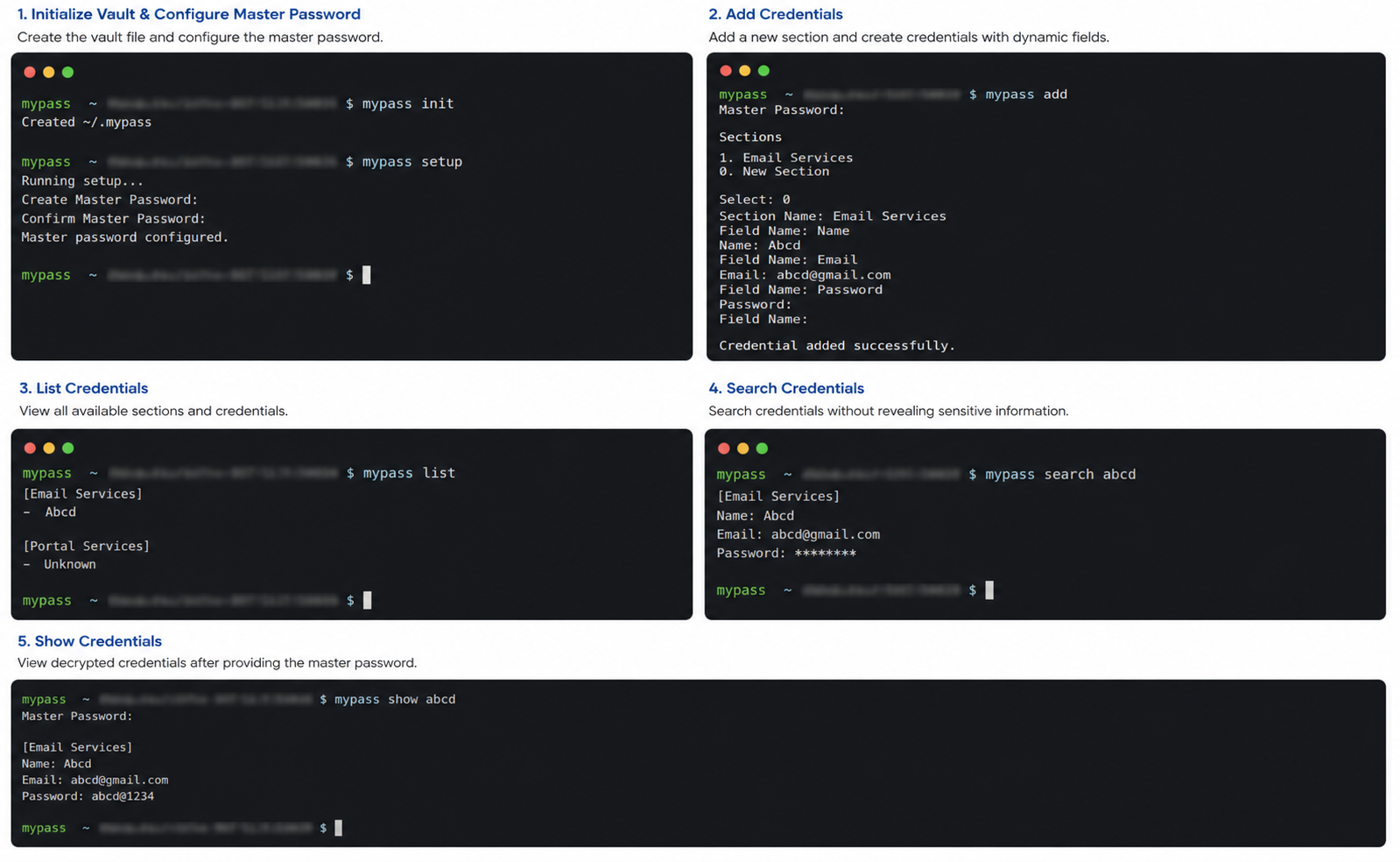
Figure 1: Complete Secure MyPass workflow — Initialize → Setup Master Password → Add Credentials → List → Search (masked) → Show (decrypted).
First Time Setup
Step 1: Initialize the Vault
mypass init
This creates:
~/.mypass
Step 2: Configure Master Password
mypass setup
Example:
Create Master Password:
Confirm Master Password:
The master password is required whenever you:
- Add credentials
- View decrypted credentials
- Delete credentials
- Change the master password
Step 3: Enable Multi-Factor Authentication (MFA) (Optional)
For additional security, Secure MyPass supports:
- Microsoft Authenticator
- Google Authenticator
MFA adds a second layer of protection by requiring a one-time verification code (OTP) in addition to your master password.
Enable MFA
mypass enable-mfa
Example:
Select Authenticator

1. Microsoft Authenticator
2. Google Authenticator

Choice: 1
Scan QR Code
A QR code will be displayed directly in the terminal.
Microsoft Authenticator
- Open Microsoft Authenticator
- Tap +
- Select Other Account
- Scan the QR code
Google Authenticator
- Open Google Authenticator
- Tap +
- Select Scan QR Code
- Scan the QR code
Verify Setup
After scanning the QR code, enter the OTP generated by your authenticator application.
Example:
Enter OTP to verify setup: 123456
If verification succeeds:
✓ MFA enabled successfully.
Disable MFA
mypass disable-mfa
MFA Authentication Flow
When MFA is enabled:
mypass show personal
Example:
Master Password:
OTP:
Only after both the master password and OTP are verified will the credential be displayed.
Session Management
Secure MyPass supports session-based authentication to improve usability while maintaining security.
Once authenticated successfully:
Master Password
+
OTP
you can continue using Secure MyPass without re-entering credentials until the session expires.
Check Session Status
mypass status
Example:
Vault: Unlocked
Expires in: 15 minutes
Lock the Vault
Immediately terminate the active session:
mypass lock
Output:
Vault locked.
Storage Location
Linux / macOS
~/.mypass
~/.mypass.key
~/.mypass.mfa
~/.mypass.session
Windows
C:\Users\<username>\.mypass
C:\Users\<username>\.mypass.key
C:\Users\<username>\.mypass.mfa
C:\Users\<username>\.mypass.session
File Description
| File | Purpose |
|---|---|
.mypass |
Stores credentials and sections |
.mypass.key |
Master password configuration and encryption settings |
.mypass.mfa |
Encrypted MFA configuration and authenticator details |
.mypass.session |
Temporary session information used for session-based authentication |
Security Notes
- Credentials are stored locally on your machine.
- Sensitive fields are encrypted before storage.
- MFA secrets are encrypted using the master-password-derived encryption key.
- Session information automatically expires after the configured timeout period.
- No cloud synchronization or external credential storage is used.
- Your data remains under your control at all times.
Secure MyPass Workflow Overview
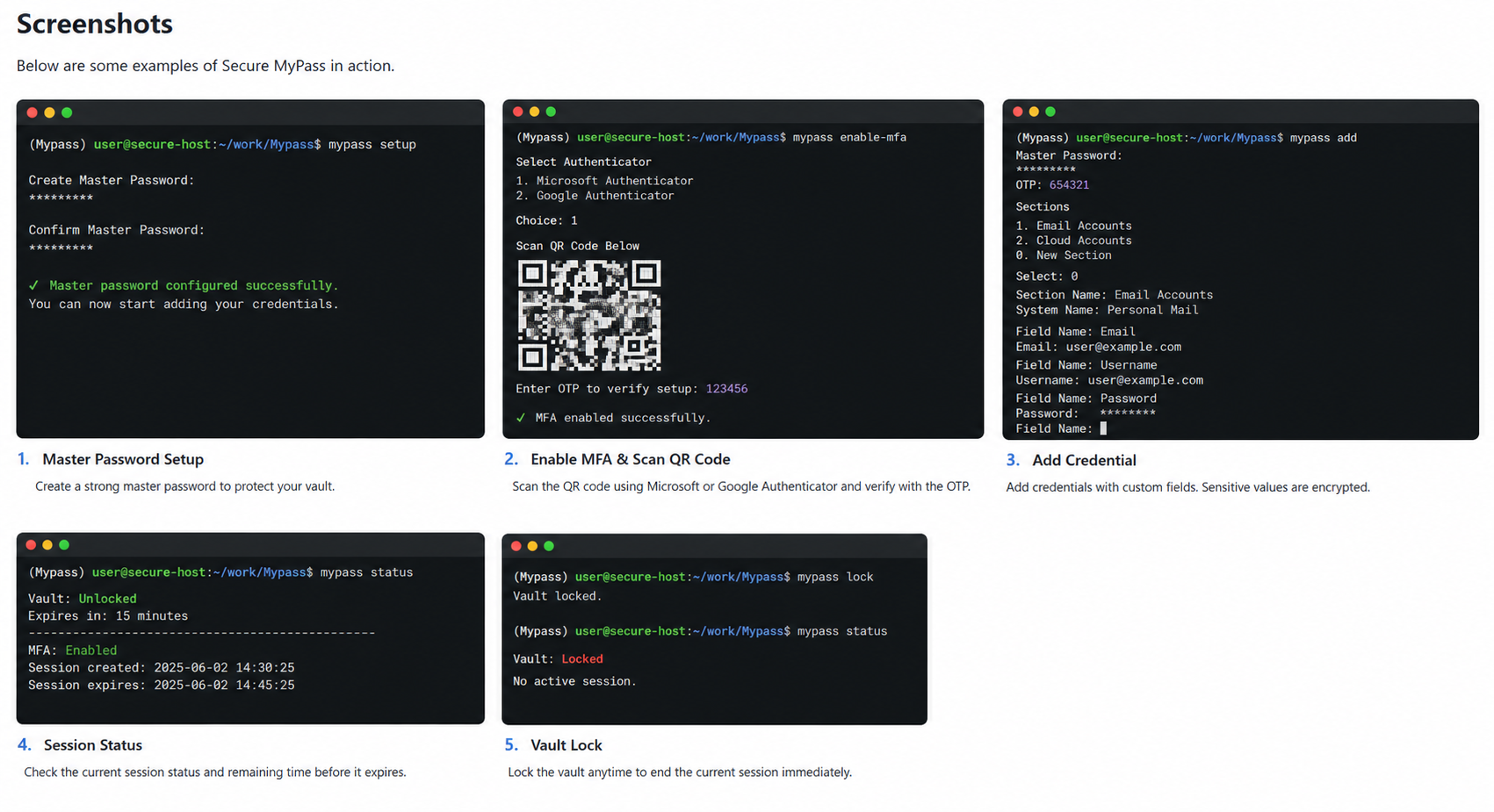
The image below demonstrates the complete Secure MyPass security workflow, including vault initialization, master password protection, MFA configuration, credential management, session handling, and vault locking.
Workflow Steps
- Configure a Master Password
- Enable Multi-Factor Authentication (Microsoft Authenticator or Google Authenticator)
- Scan the QR Code and Verify OTP
- Add and Manage Credentials
- Check Session Status
- Access Credentials Securely
- Lock the Vault When Finished
Figure 1: Complete Secure MyPass workflow showing Master Password Setup, MFA Configuration, Credential Management, Session Monitoring, and Vault Locking.
Daily Usage
Add a Credential
mypass add
Example:
Master Password:

Sections

1. Email Accounts
2. Cloud Accounts
0. New Section

Select: 0

Section Name: Email Accounts

System Name: Personal Mail

Field Name: Email
Email: user@example.com

Field Name: Password
Password:

Field Name:
Press Enter on an empty field name to finish.
Search Credentials
Search without revealing secrets:
mypass search personal
Example:
[Email Accounts]

Name: Personal Mail
Email: user@example.com
Password: ********
Show Credential
Reveal encrypted values:
mypass show personal
Example:
Master Password:

[Email Accounts]

Name: Personal Mail
Email: user@example.com
Password: MySecretPassword
List All Credentials
mypass list
Example:
[Email Accounts]
- Personal Mail

[Cloud Accounts]
- Development Account
Delete a Credential
mypass delete personal
Supported Dynamic Fields
You can store any field you want.
Examples:
Email
Username
Password
URL
Token
API Key
Recovery Codes
Access Key
Secret Key
Database Host
Database User
Database Password
No predefined schema is required.
Security
Secure MyPass uses a master password to protect sensitive data.
Sensitive fields are encrypted before being stored.
Examples:
Password
Token
API Key
Recovery Codes
Secret Key
When searching:
mypass search personal
Sensitive values are hidden:
Password: ********
When viewing:
mypass show personal
The master password is required before decryption.
Storage Location
Linux / macOS
~/.mypass
~/.mypass.key
Windows
C:\Users\<username>\.mypass
C:\Users\<username>\.mypass.key
Backup
Backup your vault:
cp ~/.mypass backup.mypass
cp ~/.mypass.key backup.key
To restore:
cp backup.mypass ~/.mypass
cp backup.key ~/.mypass.key
Important:
Both files are required.
Without .mypass.key, encrypted credentials cannot be decrypted.
Commands
| Command | Description |
|---|---|
mypass init |
Create vault file |
mypass setup |
Configure master password |
mypass add |
Add a credential |
mypass list |
List credentials |
mypass search <keyword> |
Search credentials (masked output) |
mypass show <keyword> |
Show decrypted credential |
mypass delete <keyword> |
Delete credential |
Supported Platforms
- Ubuntu
- Debian
- Fedora
- CentOS
- macOS
- Windows Command Prompt
- Windows PowerShell
Why Secure MyPass?
Many password managers depend on cloud synchronization, browser extensions, or subscriptions.
Secure MyPass focuses on:
- Local storage
- Terminal workflow
- Simplicity
- Speed
- Developer productivity
Your credentials remain under your control at all times.
License
MIT License
Author
Ravi K
Release history Release notifications | RSS feed


Download files
Download the file for your platform. If you're not sure which to choose, learn more about installing packages.
Source Distribution
Built Distribution
Filter files by name, interpreter, ABI, and platform.
If you're not sure about the file name format, learn more about wheel file names.
Copy a direct link to the current filters
File details
Details for the file secure_mypass-1.1.1.tar.gz.
File metadata
- Download URL: secure_mypass-1.1.1.tar.gz
- Upload date:
- Size: 14.1 kB
- Tags: Source
- Uploaded using Trusted Publishing? No
- Uploaded via: twine/6.2.0 CPython/3.12.3
File hashes
| Algorithm | Hash digest | |
|---|---|---|
| SHA256 |
546cc9536fd601a2641f451a01603071359f81d1160d3b8edf675f69a66a41c0
|
|
| MD5 |
afce4a2ba7617871034b805f6d493799
|
|
| BLAKE2b-256 |
a61d78fbbca6aa8a795ce4dcefa15aab44570a45ae71bf441ecdaf6049df208a
|
File details
Details for the file secure_mypass-1.1.1-py3-none-any.whl.
File metadata
- Download URL: secure_mypass-1.1.1-py3-none-any.whl
- Upload date:
- Size: 15.9 kB
- Tags: Python 3
- Uploaded using Trusted Publishing? No
- Uploaded via: twine/6.2.0 CPython/3.12.3
File hashes
| Algorithm | Hash digest | |
|---|---|---|
| SHA256 |
2e9d5bcdb1eaa9c40011bb9c5b44065fb7c527ec7e3b4beccf1893e0377079d9
|
|
| MD5 |
0f54ecb195a4683a620d4faad1bf605b
|
|
| BLAKE2b-256 |
85271e566d82bb86fba2de141f323bda8e98f91da2d9fbf4cd566d45a00108e7
|






