
Search PDFs semantically

Project description
semantic-pdf-search
A semantic PDF searching application, written in Python.
By Jordan Zedeck and Jonathan Louis
Overview
This application utilizes a machine learning embedding model to encode both a PDF document and a user's queries. This process enables the application to find near-matches to the query within the document, much like an internet search engine would for web-pages. The page number results are displayed as buttons which can be clicked to open the PDF directly to the page in your default web browser.
Features
- Semantic Search: Finds near-matches and related concepts, not just exact keywords.
- Offline Operability: Once semantic-pdf-search is installed and used once, it can be used completely offline.
- Cross-Platform: Supports Linux, Windows and macOS.
Example
Query:
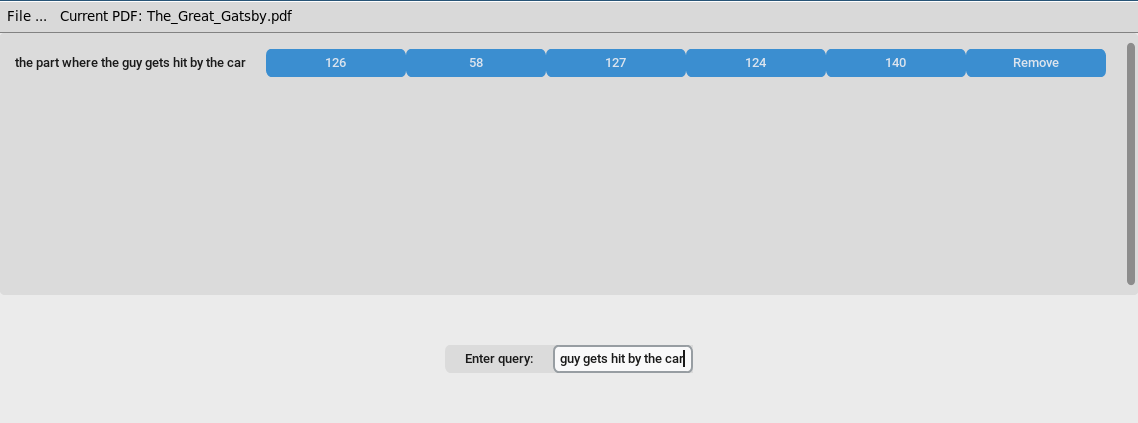
Result:

Installation
Prerequisites
This package requires Tkinter. If you run the command python -m tkinter and a new window does not appear, you will need to install it manually.
- Windows: Re-run the Python installer and ensure the tcl/tk checkbox is ticked.
- macOS: Install Tkinter using Homebrew with the following command:
brew install python-tk - Linux: Varies depending on package manager:
- Debian:
sudo apt install python3-tk - Fedora:
sudo dnf install python3-tkinter - Arch: (note that pip installing packages on Arch requires using a venv):
sudo pacman -S tk
- Debian:
From PyPI
The easiest way to install the package is using pip.
pip install semantic-pdf-search
From Source
To install from the GitHub repository, follow these steps:
cd semantic-pdf-search
python -m build
pip install dist/semantic_pdf_search-0.8.0-py3-none-any.whl
Launching semantic-pdf-search
Once installed, run the application from your command line:
semantic-pdf-search
Basic Usage Guide
- Browse for a PDF: Click on "Browse for PDF" to browse for a PDF file.
- Select and Open: Navigate to your PDF, select it, and click "Open".
- Wait for Embeddings: The application will process the document and create embeddings. This may take a moment, especially for large files.
- Enter a Query: Once the document is loaded, type your query into the search bar and press Enter.
- View Results: The application will display a list of page numbers that contain near-matches to your query.
- Open the Page: Click on any of the result buttons to open the PDF directly to that page in your default web browser.


Download files
Download the file for your platform. If you're not sure which to choose, learn more about installing packages.
Source Distribution
Built Distribution
Filter files by name, interpreter, ABI, and platform.
If you're not sure about the file name format, learn more about wheel file names.
Copy a direct link to the current filters
File details
Details for the file semantic_pdf_search-0.8.3.tar.gz.
File metadata
- Download URL: semantic_pdf_search-0.8.3.tar.gz
- Upload date:
- Size: 25.4 kB
- Tags: Source
- Uploaded using Trusted Publishing? No
- Uploaded via: twine/6.1.0 CPython/3.13.7
File hashes
| Algorithm | Hash digest | |
|---|---|---|
| SHA256 |
e49f16e9830ee0db0627d499a8aeeb6a8775c8b262eb6623298075e6ff2ba739
|
|
| MD5 |
f8723ab1b1ec6f16bc6b5420cf8513c2
|
|
| BLAKE2b-256 |
1ded4496ceaf358a3796d904afc6cad3d1bbe6b31eea8be6fe21e4884aca8a8f
|
File details
Details for the file semantic_pdf_search-0.8.3-py3-none-any.whl.
File metadata
- Download URL: semantic_pdf_search-0.8.3-py3-none-any.whl
- Upload date:
- Size: 25.0 kB
- Tags: Python 3
- Uploaded using Trusted Publishing? No
- Uploaded via: twine/6.1.0 CPython/3.13.7
File hashes
| Algorithm | Hash digest | |
|---|---|---|
| SHA256 |
92ca4ca47a474e2dae70e2012ac78be4b7af1ddf802831c76c7efdd9fce498a9
|
|
| MD5 |
c2a0cb0506bf8432cf7254f580f0b938
|
|
| BLAKE2b-256 |
2051d6c9a74fa0ce124fb9a60e7aa0196a07dfa99b07d295fea5b056b9b13583
|






