
Show in File Manager
| Package |   |
| Meta |       |
Show in File Manager is a Python package to open the system file manager and optionally select files in it. The point is not to open the files, but to select them in the file manager, thereby highlighting the files and allowing the user to quickly do something with them.
Plenty of programs expose this functionality in their user interface. On Windows terms like "Show in Windows Explorer", "Show in Explorer", and "Reveal in Explorer" are common. Cross-platform programs use terms like "Open Containing Folder" or "Open in File Browser", all doing something similar:
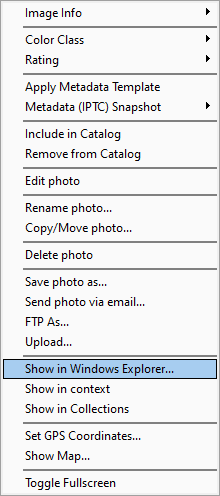
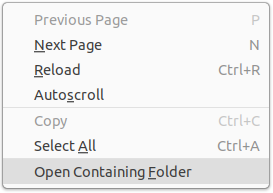
Commands like these open the file manager, ideally with the files selected:
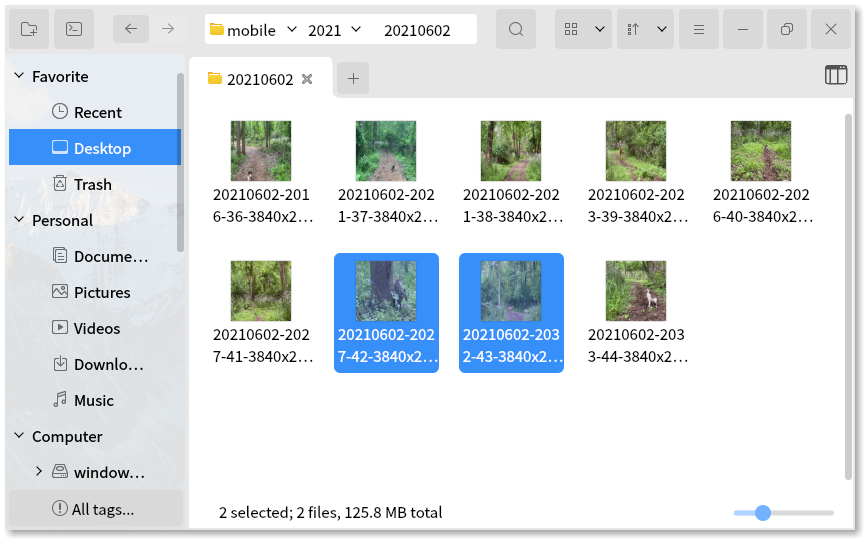
With Show in File Manager, your Python program or command line script can do the same, with minimum effort from you. Although this package provides several functions to assist in identifying the system's file managers, in most circumstances you need to call only one function, the function show_in_file_manager, and it should just work.
This package aspires to be platform independent, but it currently supports only Windows 10/11, Linux, WSL1 and WSL2, and macOS. It works with 20 supported file managers.
Install and run
python3 -m pip install show-in-file-manager
You can import it as a Python module:
from showinfm import show_in_file_manager

show_in_file_manager('/home/user/file.txt')
Or run it from the command line:
showinfilemanager file1.txt file2.txt
showinfilemanager.exe D:\Documents\*.docx
More examples are below.
Rationale
This package solves the following problems:
- What is the operating system's stock file manager?
- What is the user's choice of file manager?
- Is the user's choice of file manager set correctly?
- How do I supply command line arguments to select files in the file manager?
- What about file managers with limited features?
There is no standard command line argument with which to open an operating system's file manager and select files at a specified path. Moreover, not all file managers support specifying files to select — if you try to pass a file to some file managers, they will open the file instead of selecting it, or worse yet display an error message. Some file managers will only allow selecting one file at a time from the command line.
On desktop Linux the problem is especially acute, as Linux provides a plethora of file managers, with widely varying command line arguments. Moreover, the user's default file manager can sometimes be incorrectly set to nonsensical values, such as an AppImage or Flatpak of a random application.
Windows is not without its share of limitations. Windows Explorer will select only one file at a time when called from the command line, and the argument must be quoted in a way peculiar to it. Rather than using the command line to launch Windows Explorer, this package instead uses the Win32 API to programmatically select multiple files. Using the Win32 API is not possible when calling Windows Explorer from within WSL — this package will launch explorer.exe using the command line under WSL. Calling Windows Explorer from within WSL is not trivial due to differences in URI and path formats between Windows and Linux.
Supported file managers
This package takes care of calling the file managers with the correct arguments for you. The command line arguments shown here are for reference.
All but two file managers accept URIs like file:///home/user/file.txt in addition to regular paths like /home/user/file.txt.
| File Manager | Used by | Command line | Can Select Files | Handles Multiple Files / Directories | Notes |
|---|---|---|---|---|---|
| Windows File Explorer | Windows 10 / 11, Windows Subsystem for Linux (WSL) | explorer.exe /select,URI |
✅ | ⚠ | No space between comma and URI. Can specify only one URI via the command line, but multiple files can be specified via the Win32 API. |
| Finder | macOS | open --reveal URI |
✅ | ❌ | |
| Nautilus (Files) | Gnome, Pop!_OS, Zorin | nautilus --select URI1 URI2 |
✅ | ⚠ | Multiple URIs open multiple Nautilus windows. See issue #1955. |
| Dolphin | KDE | dolphin --select URI1 URI2 |
✅ | ✅ | |
| Nemo | Linux Mint | nemo URI1 URI2 |
✅ | ⚠ | Multiple URIs open multiple Nemo windows. Cannot select folders. |
| Elementary OS Files | Elementary OS | io.elementary.files URI1 URI2 |
✅ | ⚠ | Multiple URIs open multiple Files tabs. Cannot select folders. |
| Deepin File Manager | Deepin | dde-file-manager --show-item URI1 URI2 |
✅ | ⚠ | Depending on version, multiple URIs either open multiple tabs, or only opens and selects the first URI. |
| Peony | Ubuntu Kylin | peony --show-items URI1 URI2 |
✅ | ✅ | |
| Caja | Mate | caja --select URI1 URI2 |
⚠ | ⚠ | Starting with 1.26, can select a file or folder using --select. In all versions, specifying a file without this switch causes an error. Multiple URIs open multiple Caja windows. See issue #1547. |
| Thunar | XFCE | thunar URI1 URI2 |
❌ | ⚠ | Specifying a file opens it. Multiple URIs open multiple Thunar windows. |
| PCManFM | LXDE | pcmanfm URI |
❌ | ❌ | Specifying a file opens it. Multiple URIs open only the first URI. |
| PCManFM-Qt | LXQt | pcmanfm-qt URI1 URI2 |
❌ | ⚠ | Specifying a file opens it. Multiple URIs open multiple PCManFM-Qt windows. |
| CutefishOS File Manager | CutefishOS | cutefish-filemanager URI |
❌ | ❌ | Specifying a file causes File Manager to attempt to open it as if it is a folder. Multiple URIs open only the first URI. |
| Index | Linux | index URI1 URI2 |
❌ | ❌ | Specifying a file has no effect. Multiple URIs open multiple tabs, in addition to the user's home directory, which is always opened. |
| Double Commander | Windows, Linux | doublecmd URI1 URI2 |
✅ | ⚠ | A double panel file manager accepting up to two URIs. Cannot select folders. |
| Krusader | KDE | krusader URI |
❌ | ⚠ | A double panel file manager accepting one URI. Two URIs can be specified using --left and --right, but that is unsupported by this package. Specifying a file causes an error. |
| SpaceFM | Linux | spacefm URI1 URI2 |
❌ | ✅ | Specifying a file opens it. |
| fman | Windows, Linux, macOS | fman path1 path2 |
✅ | ⚠ | A double panel file manager accepting up to two paths. Cannot select folders. Does not accept URIs. |
| Insight | Lumina Desktop | lumina-fm path1 path2 |
❌ | ✅ | Specifying a file displays it in the left pane as if it were a folder. Does not accept URIs. |
| Cosmic Files | Cosmic | cosmic-files URI1 URI2 |
✅ | ⚠ | Multiple URIs open multiple Files tabs. Cannot select folders. |
Usage
Open the file manager with the files to select
def show_in_file_manager(
    path_or_uri: PathOrUri | None = None,
    open_not_select_directory: bool = True,
    file_manager: str | None = None,
    allow_conversion: bool = True,
    verbose: bool = False,
    debug: bool = False,
) -> None:
    """
    Open the file manager and show zero or more directories or files in it.

    The path_or_uri is a sequence of items, or a single item. An item can
    be a regular path, a URI, or any object implementing os.PathLike, such
    as a pathlib.Path.

    On non-Windows platforms, regular paths will be converted to URIs when
    passed as command line arguments to the file manager, because some file
    managers do not handle regular paths correctly. However, a file: URI will
    be converted to a path to handle file managers that do not accept URIs.
    On Windows an smb:// URI becomes the UNC path for the same share, since
    Windows has no handler for that scheme, and the same happens under WSL when
    the file manager is explorer.exe. Any other scheme is passed along as it
    stands: no path names what such a URI points at, and rewriting one opens
    somewhere the caller never asked for.

    On Windows, Explorer is called using the Win32 API.

    On WSL1, all paths are opened using Windows Explorer. URIs can be
    specified using Linux or Windows formats. All formats are automatically
    converted to use the Windows URI format.

    WSL2 functions the same as WSL1, except if the WSL2 instance has a Linux
    file manager installed. On these systems, if a path on Linux is
    specified, that file manager will be used instead of Windows Explorer.
    Override this default behavior by using the parameter file_manager.

    The most common use of this function is to call it without specifying
    the file manager to use, which defaults to the value returned by
    valid_file_manager()

    For file managers unable to select files to display, the file manager
    will instead display the contents of the path.

    For file managers that can handle file selections, but only one at a time,
    multiple file manager windows will be opened.

    If a file manager executable is specified and this package does not
    recognize it, the executable will be called with the files as the only command
    line arguments.

    :param path_or_uri: zero or more files or directories to open, specified
     as a single URI, valid path or os.PathLike, or a sequence of those.
    :param open_not_select_directory: if the URI or path is a directory and
     not a file, open the directory itself in the file manager, rather than
     selecting it and displaying it in its parent directory.
    :param file_manager: executable name to use. If not specified, then
     valid_file_manager() will determine which file manager to use.
    :param allow_conversion: allow this function to automatically convert paths
     and URIs to the format needed by the file manager that will be called. Set
     to False if passing non-standard URIs. Ignored when running under WSL.
    :param verbose: if True print command to be executed before launching
     it
    :param debug: if True print debugging information to stderr
    :raises WindowsShellUnavailableError: if files are to be selected in Windows
     Explorer on this system and win32com.shell is not available
    """
Other functions mentioned below are not necessary to call, but are provided for convenience and control.
Determine the most sensible choice of file manager
def valid_file_manager() -> str:
    """
    Get user's file manager, falling back to using sensible defaults.

    The user's choice of file manager is the default choice. However, this is
    not always set correctly. On Linux, it most likely is because the user's
    distro has not correctly set the default file manager. If the user's choice
    is unrecognized by this package, then reject it and choose the standard file
    manager for the detected desktop environment.

    All exceptions are caught, except those if this platform is not supported by
    this package.

    :return: If the user's default file manager is set and it is recognized
     as valid by this package, then return it. Otherwise return the stock file
     manager, if it exists.
    """
This package makes opinionated choices about the most sensible choice of file manager:
- A file manager is valid if and only if this package recognizes it, e.g.
nautilus,explorer.exe. - If the user's choice of file manager is valid (i.e. an actual file manager, not some random application), that file manager is used.
- If the user's choice of file manager is invalid or could not be determined, the desktop or OS's stock file manager is used.
Get the operating system's stock file manager
def stock_file_manager() -> str:
    """
    Get stock file manager for this operating system / desktop.

    On Windows the default is `explorer.exe`. On Linux the first step
    is to determine which desktop is running, and from that lookup its
    default file manager. On macOS, the default is finder, accessed
    via the command 'open'.

    Exceptions are not caught.

    :return: executable name
    :raises FileManagerUnavailableError: if the manager named for this desktop is not
     installed to run
    """
Get the user's choice of file manager
def user_file_manager() -> str:
    """
    Get the file manager as set by the user.

    The file manager executable is tested to see if it exists.

    Exceptions are not caught.

    :return: executable name, or an empty string if the user has no file manager
     set, which is what valid_file_manager() answers when it can find nothing at all
    :raises FileManagerUnavailableError: if the manager the user settled on is not
     installed to run
    """
On Windows and macOS, for now only the stock file manager is returned. That could change in future releases.
On Linux, the file manager is probed using xdg-mime query default inode/directory, and the resulting .desktop file is parsed to extract the file manager command.
Exceptions raised
The exception classes live in showinfm.exceptions, so they can be imported without importing platform specific code. Only WindowsShellUnavailableError is also reachable directly from the package, as showinfm.WindowsShellUnavailableError.
| Function | Raises | When |
|---|---|---|
show_in_file_manager() |
WindowsShellUnavailableError |
files are to be selected in Windows Explorer on this system and win32com.shell is not available. Opening folders does not need it. |
stock_file_manager() |
FileManagerUnavailableError, and on Linux DesktopEnvironmentUnknownError |
the manager named for this desktop or operating system is not installed, or the desktop cannot be identified |
user_file_manager() |
FileManagerUnavailableError, and on Linux XdgUnavailableError, XdgQueryError, DesktopEntryError |
the user's choice is set but not installed, or the desktop entry behind it cannot be found, opened, or parsed. Nothing being set is not a failure: it answers with an empty string |
valid_file_manager() |
nothing | every failure is caught, so it answers with the stock manager or an empty string |
Each class derives from RuntimeError, and DesktopEnvironmentUnknownError, XdgUnavailableError, XdgQueryError and DesktopEntryError all derive from LinuxFileManagerError, so a caller that only needs to know that no Linux file manager could be settled on catches that one class.
On Windows, showinfm.system.tools.directories_and_their_files() raises InvalidPathsArgumentError, a TypeError, if it is handed a single path as a string instead of a list. No argument of show_in_file_manager() reaches it that way.
Running the package on a platform it does not support raises NotImplementedError when showinfm.system is imported, before any function is called.
Examples
From Python, show file or directory in file manager, using the most sensible choice of file manager:
# Windows path, in Windows or from within WSL
show_in_file_manager('C:\Documents\myfile.txt')
# Windows URI, in Windows or from within WSL
show_in_file_manager('file://C:/Documents/myfile.txt')
# Mixing Windows and Linux style URIs and paths, from within WSL
show_in_file_manager(
    (
        'file:///C:/Documents/myfile.txt', '/mnt/d/Data/database.sqlite',
        '/home/user/.profile', 'file:/etc/fstab'
    ), file_manager='explorer.exe'
)
# Linux path
show_in_file_manager('/home/user/myfile.txt')
# Linux multiple paths
show_in_file_manager(('/home/user/myfile.txt', '/home/user/other file.txt'))
# Mixing Linux URI and Linux path
show_in_file_manager(
    ('file:///home/user/other%20file.txt', '/home/otheruser/.bashrc')
)
# Simply open the file manager
show_in_file_manager()
# Open the file manager at a directory
show_in_file_manager('/home/user')
# Select the user directory in the home folder
show_in_file_manager('/home/user', open_not_select_directory=False)
Open the system home directory (/home on Linux, /Users on macOS) and select the user's home folder in it:
showinfilemanager -s ~
Open the user's home directory directly, without selecting it:
showinfilemanager ~
Select files in two different directories, and open a third directory:
showinfilemanager myfile.txt ../anotherfile.txt ../../
The previous command will open three different instances of the file manager, because of three different directories (macOS users may need to adjust finder preferences in order to display multiple finder windows).
Limitations
- Its behavior in a confined Linux environment like a Flatpak, Snap, or AppImage is untested.
Contributing
Please file issues or pull requests to improve the code. Discuss improvements in the GitHub discussion section for this project.
The initial source of this code is from Rapid Photo Downloader.
License
Authors
1 maintainer

Metadata
1 maintainer
Release files for show-in-file-manager 1.1.7
For a detailed explanation of source distributions (sdists) and built distributions (wheels), please see the package formats documentation.
Source distribution (sdist)
| File | Size | Uploaded | Provenance | Actions |
|---|---|---|---|---|
| show_in_file_manager-1.1.7.tar.gz | 54.5 kB | Without provenance | Details for show_in_file_manager-1.1.7.tar.gz |
Built distribution (wheel)
| File | Interpreter | ABI | Platform | Actions Reset |
|---|---|---|---|---|
| show_in_file_manager-1.1.7-py3-none-any.whl | Python 3 | none | any | Details for show_in_file_manager-1.1.7-py3-none-any.whl |
Total release size: 99.7 kB
Release files / show_in_file_manager-1.1.7.tar.gz
| Download URL | show_in_file_manager-1.1.7.tar.gz |
|---|---|
| Size | 54.5 kB |
| Tags | Source |
|
SHA-256 checksum How to use checksums |
830a098d8842628b2ac145808a0c25f2ba9d32d2be009a4a4165501ac20d11c5
|
|
BLAKE2b-256 checksum How to use checksums |
176ef2e2117a45ec8d33acb349d6bc197b91ffb295020be07813c53ca81f27a4
|
| Upload date | |
|
Uploaded using Trusted Publishing? What is trusted publishing? |
No |
| Uploaded via |
Hatch/1.18.2 {"ci":null,"cpu":"x86_64","distro":{"id":"resolute","libc":{"lib":"glibc","version":"2.43"},"name":"Ubuntu","version":"26.04"},"implementation":{"name":"CPython","version":"3.14.4"},"installer":{"name":"hatch","version":"1.18.2"},"openssl_version":"OpenSSL 3.5.5 27 Jan 2026","python":"3.14.4","system":{"name":"Linux","release":"6.6.114.1-microsoft-standard-WSL2"}} HTTPX2/2.16.2
|
Release files / show_in_file_manager-1.1.7-py3-none-any.whl
| Download URL | show_in_file_manager-1.1.7-py3-none-any.whl |
|---|---|
| Size | 45.2 kB |
| Tags | Python 3 |
|
SHA-256 checksum How to use checksums |
903b32f35c1f9ef9a62a76f3f9d53913d559aecfa9aec93f4a7edc3c11c8508f
|
|
BLAKE2b-256 checksum How to use checksums |
b4a0fd2549dc4a9bdd9ac19458b5093dd637c633283ec32a9e8ca123e369f18c
|
| Upload date | |
|
Uploaded using Trusted Publishing? What is trusted publishing? |
No |
| Uploaded via |
Hatch/1.18.2 {"ci":null,"cpu":"x86_64","distro":{"id":"resolute","libc":{"lib":"glibc","version":"2.43"},"name":"Ubuntu","version":"26.04"},"implementation":{"name":"CPython","version":"3.14.4"},"installer":{"name":"hatch","version":"1.18.2"},"openssl_version":"OpenSSL 3.5.5 27 Jan 2026","python":"3.14.4","system":{"name":"Linux","release":"6.6.114.1-microsoft-standard-WSL2"}} HTTPX2/2.16.2
|
Security for show-in-file-manager 1.1.7
Provenance
Provenance describes where a file came from. On PyPI, provenance is shared via attestations, which provide a verifiable record of the build or publishing details. View details, limitations and caveats.
No provenance found
None of the files in this release were uploaded with provenance metadata.
A note on package security
PyPI is a repository for distributing packages, not a service for auditing them. While third-party security researchers and our staff do their best to detect and remove malicious packages, PyPI cannot guarantee the quality, security or suitability of any given package.
To learn more about protecting yourself from malicious actors, visit our package security documentation.














